
Export and Import Blocks
To reuse transformation blocks in various mapping(s), you can use the Export/Import blocks actions located in the the context/popup menu in ADH Edit/View Mapping Window.
Export Blocks
This action helps in extracting the selected blocks and connection details to a XML file from source mapping.
In the Edit/View Mapping Window, for Validation and Transformation rule. After selecting the required blocks, on opening the context menu, we can see the Export Blocks Action
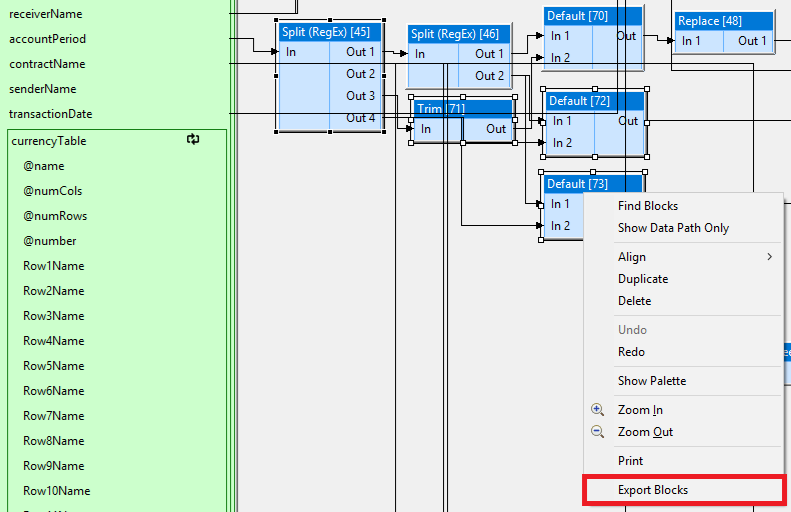
Figure 1 Export Blocks in Context Menu
After blocks selection, once export blocks action is clicked, we save the selected blocks and connections to the xml. If there is an input field as an incoming connection to a selected block (or) If there is an output field as an outgoing connection to a selected block. That is also saved in the XML
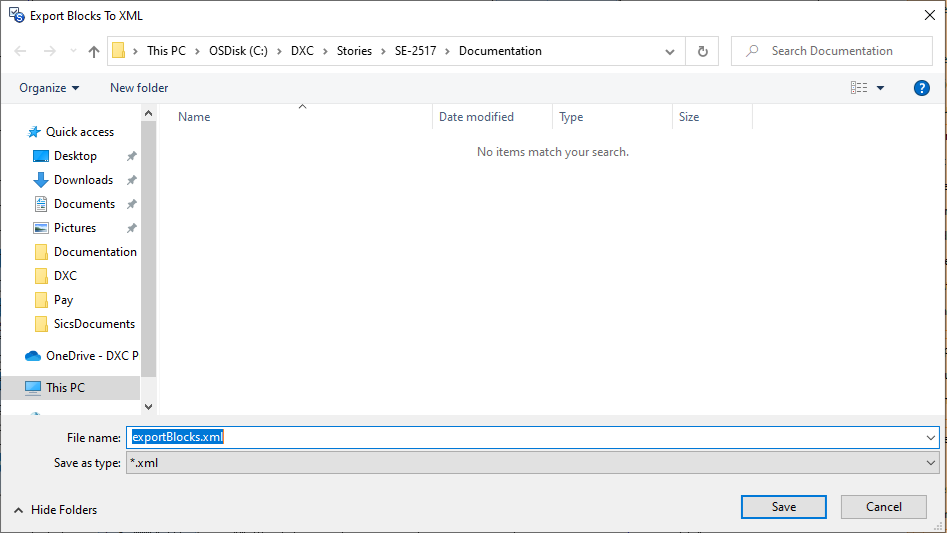
Figure 2 Export Blocks To XML
If the selected blocks has ignored connections, that is listed in a warning window.
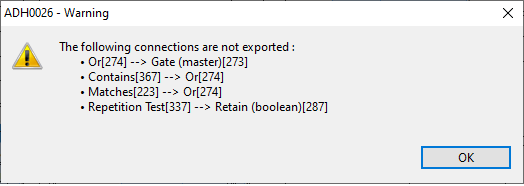
Figure 3 Export Blocks - Ignored Connections
Import Blocks
This action helps in retrieving the blocks and connection details from the XML file into the target mapping. In the target mapping Edit Mapping Window, for Validation and Transformation rule. Opening context menu on an unused place of the canvas (background). We can see the Import Blocks Action
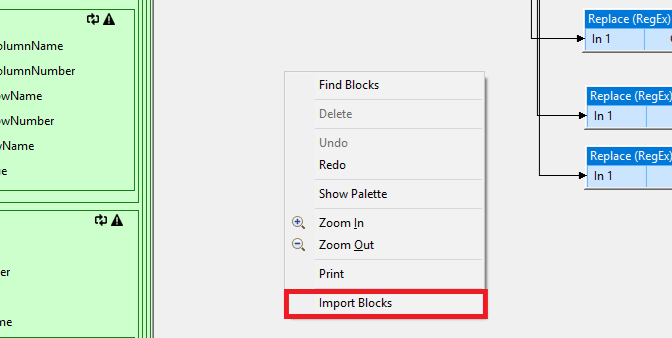
Figure 4 Import Blocks in Context Menu
On clicking Import Blocks action, a prompt is opened to select the appropriate XML file to import into the target mapping
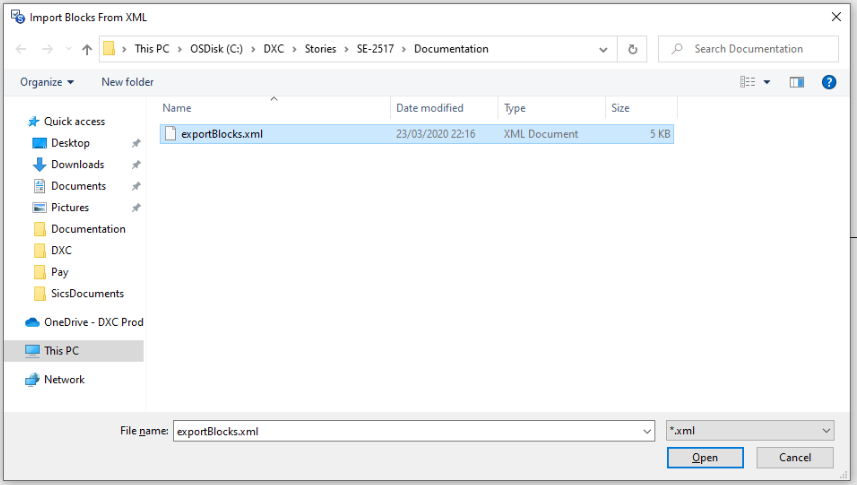
Figure 5 Import Blocks From XML
After the XML file selection, the blocks will be imported in the position were the popup menu was opened. The blocks will have a blockId assigned.
Input Field Mapping
From source mapping, if there is a matching input field (based on path and name) in the target mapping. It asks a confirmation to the user if the connections needs to be attached
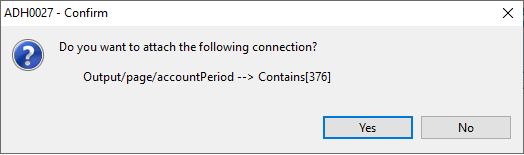
Figure 6 Import Blocks - Input Fields Confirmation Window
If the user selects Yes, The connection will be established between the input field and the block.
If the user selects No, The connection will not established between the input field and the block. But the block will to be imported with the appropriate Block Id.
Output Field Mapping
From source mappig, if there is a matching output field (based on output pattern name and pathAndName) with the target mapping. It asks a confirmation to the user if the connections needs to be attached (similar to input field mapping)
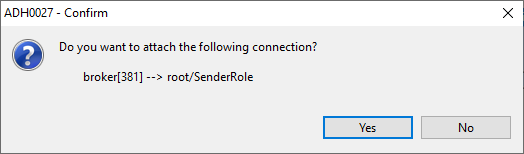
Figure 7 Import Blocks - Output Fields Confirmation Window
If the user selects No, The connection will not established between the output field and the block. But the block will to be imported with the appropriate Block Id
If the user selects Yes, the system will check if there an existing output field connection. If there is an existing connection, the user will again get a warning message saying that it can’t be established.
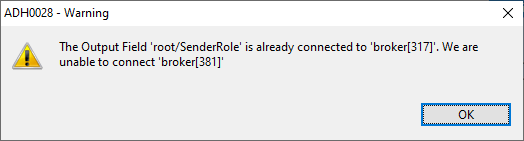
Figure 8 Import Blocks - Output Fields Warning Window if connection exists
After Importing Blocks, once the Ok button in the Edit Mapping window is clicked, the newly imported blocks and connections will be committed in the database. When the mapping is opened again, the newly imported blocks and connections will be available.