
Output Patterns
Output patterns
Selecting Output patterns from the menu opens a find window where you can select a single pattern for further processing, create a pattern, or import a pattern from outside SICS.
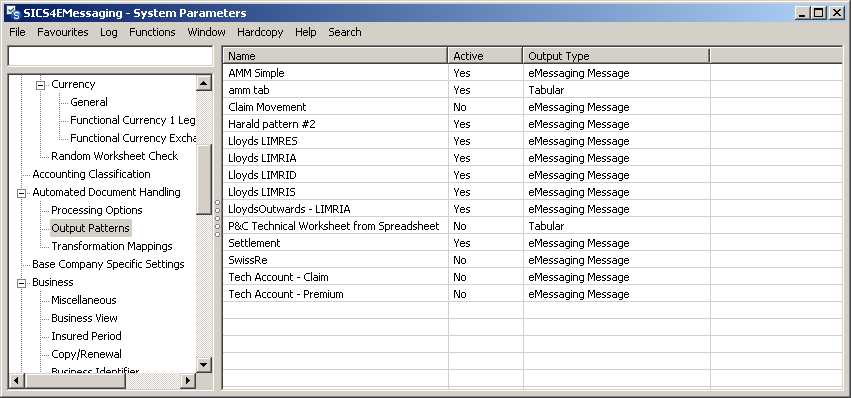
Figure 8 Output pattern choice
| Item | Description |
|---|---|
| Name | The name given to the output pattern. |
| Active | Indicates if the output pattern is active or not. |
| Output type | Either eMessaging Message or Tabular. Chosen when the pattern is created. |
The following menu options are available:
| Item | Description |
|---|---|
| View | Opens the Output pattern window in view mode |
| Edit | Opens the Output pattern window in edit mode |
| Copy | Opens the Output pattern window in edit mode, with a new name (‘Copy of ‘ is appended before the existing name, but this can be changed in the edit window) |
| Create eMessage | Opens a new Output pattern window in edit mode for an eMessaging output pattern |
| Create Tabular | Opens a new Output pattern window in edit mode for a Tabular output pattern |
| Delete | Removes the output pattern. If the pattern is linked to a transformation mapping, a popup window will prevent you from deleting it. |
| Import | Opens an explorer window so you can find existing pattern(s) previously exported. In the explorer window you can select one or more patterns to import. |
| Export | Opens an explorer window so you can select the folder where you want to store the exported version. Several patterns can be exported at the same time. The exported patterns are in XML format. The exported patterns are saved to the selected folder, one file for each pattern, each file named the same as the pattern. Using Import and Export, patterns can be copied from one database to another. |
Output pattern window - eMessaging version
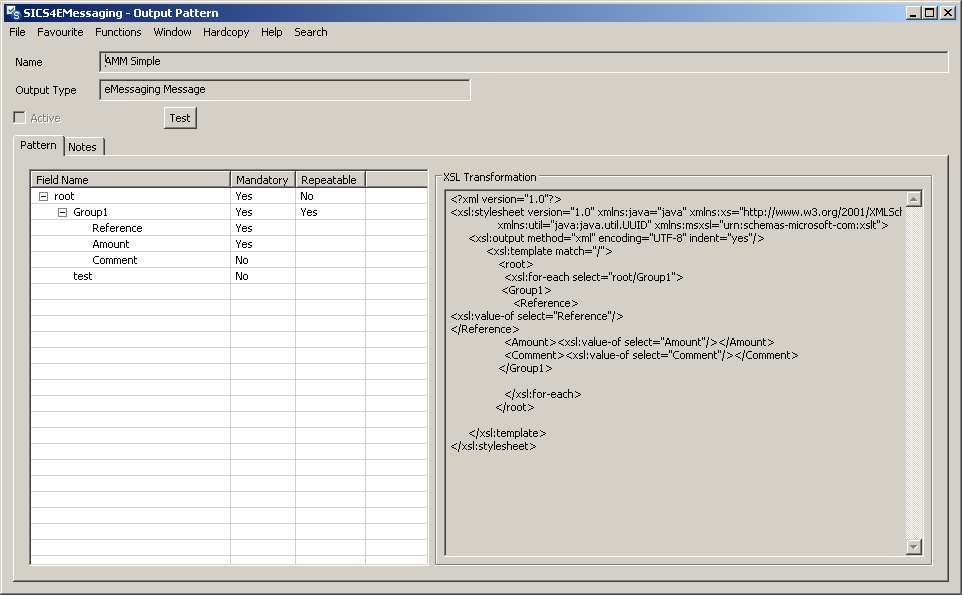
Figure 9 Output pattern - eMessaging
| Item | Description |
|---|---|
| Name | The name given to the output pattern. Must be unique |
| Output type | Will always be eMessaging Message in this version of the window |
| Active | Toggles active/inactive. |
| Test | Clicking this will open the Test Output pattern window |
| Pattern tab | This tab consists of two frames - the left hand side for the output pattern itself, and the right hand side for the XSL transformation that will convert the output pattern into an XML message. An output pattern starts with the root field. This is a group field, and is created by default when a new pattern is created. The name of the root field may be changed if desired. Additional fields and group fields may be added to the root field to define the output pattern. New items are added at the end of the current group - the current group chosen by selecting any field within the group, and is indicated by changing the background color. Group fields have a + or - in front of them, so the tree structure can be expanded or collapsed. |
The pattern table consists of the following three columns:
| Column | Description |
|---|---|
| Field name | the name given to the field. A warning is issued if a field name is not unique in the group to which it belongs. Names can be reused if in different groups within the pattern. |
| Mandatory | Indicates if the field must be populated in the output message. An error will result when transforming an incoming document if such a field is not populated. |
| Repeatable | Only set for field groups. Indicates that the field group may occur more than once. |
XSL Transformation
This is a free format text area where an XSL transformation can be entered. The output pattern will be mapped to an XML output message using this XSL. The XML created from this transformation should be a format supported by SICS (generally, though not exclusively, matching the ACORD RLC standards). By using this transformation, we isolate the output pattern from any changes that might occur to the standard of the output XML message.
####Notes tab: The user may record notes about the output pattern on the notes tab.
Pattern table menu
The pattern table context (pop-up) menu consists of the following items:
| Item | Description |
|---|---|
| Add field | Opens an empty Selection Details window. Field values can be populated and once the window is closed the new field will be added at the end of the current group. |
| Add field group | Opens an empty Selection Details window. Field Group values can be populated and once the window is closed the new field group will be added at the end of the current group. Saving an output pattern with an empty group (i.e. no fields created within it) will lead to a warning being issued. |
| Move up | Promotes the field or group within the current group. The option is disabled if the item is already at the top of the group. |
| Move down | Demotes the field or group within the current group. The option is disabled if the item is already at the bottom of the group. |
| Delete | Removes a field or a field group (and all the fields within the group) from the pattern. It is not permitted to delete the root element. |
| Add group attribute | Adds a special field/attribute to the current group. The @RetainData attribute is used in conjunction with the output from a RepetitionTest block in the transformation mapping. It allows multiple rows in a tabular input pattern or multiple Leaf Repeating Group occurrences in an XML pattern to create a single output occurrence. The @BlockOutput attribute is used in conjunction with the @RetainData attribute. If the value of @BlockOutput is ‘true’ at the time when the ‘single output occurrence’ is about to be manifested as an output message, such output message will not be created. A typical usecase in eMessaging would be to block creation of an output message if all Leaf Repeating Group occurrences that create specific booking entries, are empty. |
| Properties | Opens Selection Details window and displays the attributes of the currently selected field. The attributes can be modified in the window. On selection of different field, the attributes in the window will be switched as per selection (similar to Input pattern Selection Details window as we have in View/Edit Transformation Mappings). |
Drag and Drop Field(s)/ Group(s)
Drag-and-drop support is available. Select one or more fields and/or groups (using Ctrl+click) and drag them onto another field/group. The dragged fields/groups will be inserted after the target field/group as a sibling to it.
Output pattern window - tabular version
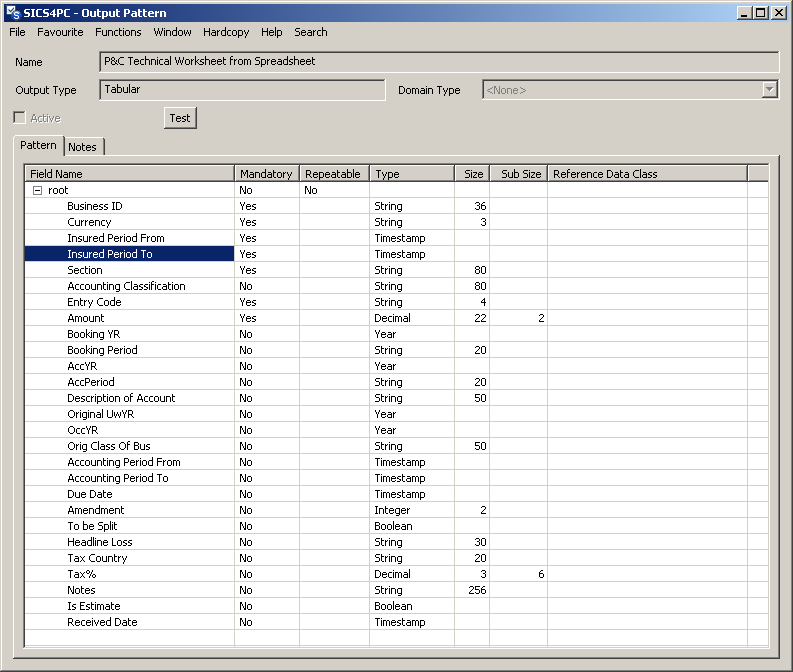
Figure 10 Output pattern - tabular
To be continued…
Test Output Pattern
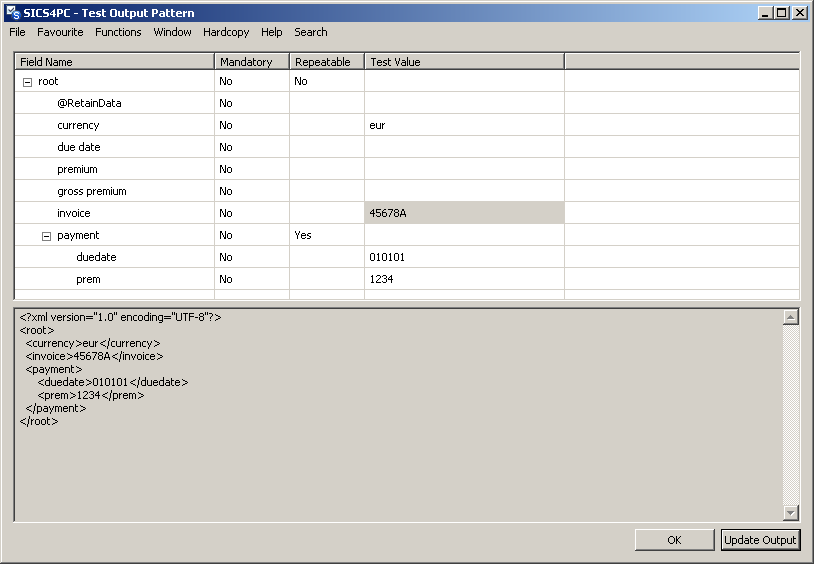
Figure 11 Output pattern test
Clicking the Test button on the Output pattern window opens the Test Output pattern window. This allows you to check that the output pattern, and the XSL transform is working as you expect. Test values can be entered for any field, but must be entered for every mandatory field before it will work. Click on Update Output to see the result of the XSL transformation in the lower frame.