
Database Preparation for IBM DB2 for z/OS
This section describes the necessary database preparation that must be completed before any of the SICS software can be executed. Your DBA will be responsible for correctly configuring and creating the SICS database.
Database setup
Before any of the SICS tables can be created, you will need to create the files necessary for the storage of the database using the DBMS tools. This will generally involve creating the instance, specifying where the tablespace files will be stored, creating and configuring the database for your specific requirements.
See section Database Structure for guidance on SICS-specific issues.
Create the Environment table
The environment table CNU_ENVIRONMENT must be created in it’s own schema. The suggested schema is SICS. No other tables should be created in this schema. Specifically, one should not create P&C or Life tables in this schema.
- Create a database user SICS with the appropriate database privileges.
The environment table CNU_ENVIRONMENT must be created in it’s own schema. The suggested schema is SICS. No other tables should be created in this schema. Specifically, one should not create P&C or Life tables in this schema.
-
Create a database user SICS with the appropriate database privileges.
-
The
CNU_ENVIRONMENTtable for user SICS must initially be created manually, using this script:CREATE TABLE CNU_ENVIRONMENT ( OBJECT_ID CHAR(32) NOT NULL, OWNER CHAR(32), ENV_INDICATOR CHAR(1), VERSION INTEGER, DESCRIPTION VARCHAR(128), PRIMARY KEY (OBJECT_ID)) CREATE UNIQUE INDEX <some index name> ON CNU_ENVIRONMENT (OBJECT_ID)Once this is done, continue as described below.
- Run the SICS System Administration Utility. Logon as SICS.
- When asked for an environment, choose Personal Database.
- Choose the Database Setup, Manage Environments option.
- Insert the required environments into this table (Right-click to add an environment). Change the name of the owner as required. This should be the planned SICS Table Owner as described in Creating the SICS Table Owner.
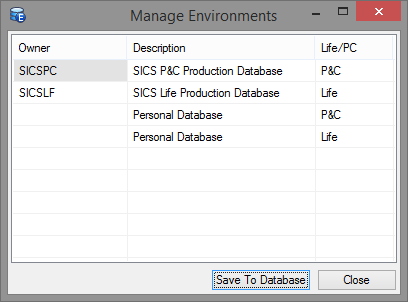
Figure 12 - Manage Environments Window
- Choose Save to Database, then Close and logoff from the SICS System Administration Utility.
This will create the environment table within the schema SICS. The Owner column above lists the schema name of the owner of the SICS tables for an environment.
The Description column is a string that describes the environment. This will be shown to the user on logon.
The Life/P&C column defines whether the environment contains a Life or a P&C installation.
NOTE:
During login, the user will be presented with a list of environments matching the used runtime (P&C or Life). After selection of an environment, the Owner of that environment will be prefixed to all table names in all SQL subsequently issued from SICS via JDBC to the database. However, if the Owner is empty (blank), no table name prefixing takes place. This effectively means the user will access his/her own (personal) database tables (assuming there is any). It is not required to include the ‘Personal Database’ environments as shown in the screenshot above.
If no personal environment is created a special procedure must be followed to update the list of environments in the future. When logging in as SICS the environment must be specified on the command line for the SICS runtime startup as -deSICS.
If the CNU_ENVIRONMENT table is empty or does not exist, then a dummy environment with description ‘Personal Database’ and an empty Owner will be presented to the user during logon. This will normally only be the case the first time one logs on as SICS, that is, before creating the CNU_ENVIRONMENT table as described above.
Environments can be added to the system at any time by simply logging on to the SICS System Administration Utility as the environment table owner (SICS) and updating as above.
Environment Table Owner Privileges
The SICS user should have Connect Database and Create Tables Authorities.
Environment Table for P&C and Life Co-existence
It is possible to run both the Life and the P&C system over the same set of database tables. This is described in section Co-existence of SICS P&C and Life.
With respect to the environment table, two rows/environments must be inserted into the table. Make one environment for P&C and another for Life, both pointing to the same schema owner.
Database Users file setup
The file SysUsers.txt is used during SICS Database Tables creation (see section Create Database Tables) to create the initial SICS users. A database record is created for all users defined in this file. The delivered file contains the definition for two sample users named User1 and User2.
Each user entry has the following format:
USERID <tab> LAST NAME <tab> FIRST NAME
You will need to edit this file to include as many initial users of the SICS database as required. Please note that you must follow this format strictly. Empty lines and spaces instead of tabs will halt the installation-process.
SysUsers.txt can be found in the <installation_root>\setup folder.
Before a SICS user name can be used for logging on to SICS, the user name must be created as a user on the target database management system and privileges assigned. This can be done after the Sysusers.txt file has been loaded when loading base data.
See section Create Database Tables for details.
After the initial users have been created during system setup, additional users may be added as required by using the SICS Create User option.
See section Create Additional Users for details.
Creating the SICS Table Owner
Before continuing with the next phase of the setup, an initial user (suggested name SICSPC for SICS P&C or SICSLF for SICS Life) must be created on the DBMS. The name of the user must be the same as the table owner from the environment table created earlier (see Create the Environment table). You should create one user per Owner specified in the environment table, which relate to the P&C or Life installations.
The user should be created with the appropriate database privileges. See the sections below for your specific DBMS.
When you later run the SICS System Administration Utility to create the SICS tables, you must use this user name to log on to the database.
The SICSPC (or SICSLF) user will then become the owner of the SICS tables.
The delivered SICS reporting universe files reference a database user named SICSPC (or SICSLF). Customers using the SICS reporting solution without the Business Objects Designer module, cannot change this database connection information and must therefore use the suggested names above as the owners of the SICS tables.
Therefore, if you create the tables with another owner, you will not be able to use the SICS Reporting facility (unless you have the Business Objects Designer module).
Note that the SICSPC (or SICSLF) user does not have to be included in the SysUsers.txt file, since the SICS Create Tables function (see Creating SICS Database tables) will automatically create a SICS user for the table’s owner. This SICS user will be assigned the System Administrator role within the SICS security system.
SICS Table Owner privileges
The SICSPC or SICSLF user should have Connect Database and Create Tables Authorities.
Grant SELECT privileges on the CNU_ENVIRONMENT table to the user.
Create an alias named CNU_ENVIRONMENT for this user to the CNU_ENVIRONMENT table.
Example:
CREATE ALIAS SICSPC.CNU_ENVIRONMENT FOR SICS.CNU_ENVIRONMENT
Creating SICS Database tables
System Users File
It is assumed that the SysUsers.txt file has been modified to include all required SICS users. Please refer to section Database Users file setup for details.
Create Database Tables
Start the SICS System Administration Utility by selecting SICS P&C (Life) System Administration Utility from the SICS menu item on the Windows Programs menu. Login as the SICS Table Owner as defined in Creating the SICS Table Owner. Note that after the tables have been created they will be owned by this User ID (SICSPC or SICSLF).
When prompted to select the environment, choose the appropriate item for this installation from the list, as entered in Create the Environment table.
Open the Database Setup Folder. You have the following options:
- Manage Environments: With this option, you can add, remove and rename the different environments specified in the
CNU_ENVIRONMENTtable. See Create the Environment table for configuration details of this table. -
Manage Tables: This option will present you with a window, allowing you to selectively create or drop tables and views, constraints, indexes and table comments.
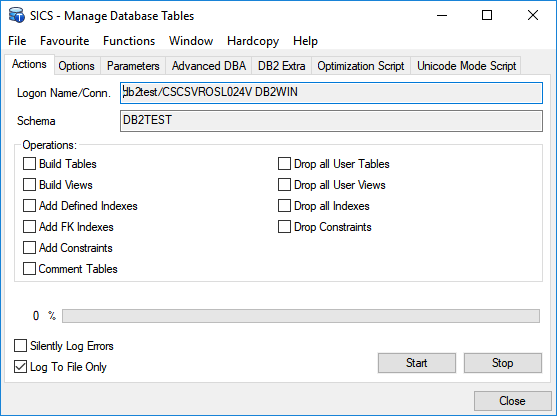
If you create tables using this option, you must also create base data and sample reference data, if required.
- Manage Tables - Options:
- The Options tab on this window allows you to specify the Tablespaces where you wish to put the tables.
- You may use the ‘DB2 Tablespace Options’ for DB2 for z/OS.
- Use the Aliases window to specify aliases (
A,B,Cetc.) for your tablespace names, and the Mapper window to map the tables and indexes onto these aliases. If you need to do the mapping in stages, the Mapper window is saved in the SICS System directory astablespacemappings.ini. The tablespaces you specify must be manually created in advance. - Each table will be created in its own tablespace. The tablespaces must be created manually in advance. They must be sequentially named XXXnnn, where XXX is a prefix string and nnn is a sequential number starting at 1. You should initially run the create table step with ‘Log Only’ and ‘DB2 Tablespace Options’, to determine how many tablespaces will be needed.
- Each table will be created with a hidden IBMSNAP_LOGMARKER column, whose definition is
  IBMSNAP_LOGMARKER TIMESTAMP NOT NULL
  GENERATED BY DEFAULT
  FOR EACH ROW ON UPDATE AS ROW CHANGE TIMESTAMP
  IMPLICITLY HIDDEN
This column will be retained when a database upgrade patch (including DB optimization and ‘Unicode-ification’) recreates a table. The column will be shown explicitly as part of SICS’s table definition in the SICS Schema Browser.
- NOTE: See Database Specific Considerations.
- Manage Tables - Parameters:
- The Parameters tab on this window allows you to specify additional DDL parameters. For example, you can specify freespace information for indexes. The parameter string you specify is appended to the appropriate DDL statement. It is your responsibility to supply a string that adheres to the syntax rules of your choice of database. You may leave the parameter field(s) empty.
-
Some or more of these parameters may be relevant for creation of indexes:
USING STOGROUP <stogroup> PRIQTY <priqty> SECQTY <secqty> FREEPAGE <freepage> PCTFREE <pctfree> BUFFERPOOL <bufferpool> - Every time you use the Manage Tables window, you should review the parameters.
- Note that your previous choices may or may not be kept between uses of this window.
- Create Base Data: This option will create all data that is necessary to run the SICS system. This includes Reference Data (System Defined values only, not Sample values); Countries, States, Currencies, Users and Security Information.
- Create Sample Reference Data: This option will create additional Reference Data values (additional to the System Defined values). If the sample values are not created, many of the reference data types will not contain any values, or only a limited set of system defined values. This will limit the usage of the system. Hence, you will have to go through the Reference Data Types and add your own values. All Sample Reference Data values can be deleted/edited by the System Administrator.
For more information on Reference Data, refer to the SICS User’s Guide. - Create Sample Data: This option will load the SICS development team sample data into the database. This option is only relevant if you want to create a test database. This option should not be used when setting up the production environment. Some sample Business Partners, Reporting Units, Entry Codes, etc. will be created.
- Manage Tables - Options:
Database Specific Considerations
Tuning for Performance
It is the responsibility of the DBA at the customer site to make sure the database is properly tuned.
Above all, it is utmost important to make sure database statistics are up-to-date. Without these statistics, the database optimizer will not be able to do its job properly.
Execute the following for all tables:
RUNSTATS ON TABLE tablename AND INDEXES ALL
Dropping All Tables And Views
The SICS System Administration Utility ‘Database Setup’ -> ‘Manage Tables’ -> ‘Drop All User Tables’ option will drop all tables owned by the logged on user. The option ‘Drop All User Views’ will drop all views owned by the logged in user. In other words, the drops are not confined to tables (and views) created/used by SICS.
Tablespace Considerations
SICS creates around 800 tables in the database (this is for a Life/Combined environment).
For the initial setup of SICS, make sure the tablespace(s) in which the tables will be created are defined such that the storage space reserved for each table is not too big, compared to the available total diskspace for the tablespace(s).
After running SICS for a while, the DBA at the customer site should read just the storage parameters based on the experience gained.
Assigning database privileges
DB2 for z/OS does not have the concept of a role or group as does Oracle and SQL Server. You must instead grant the necessary privileges directly to each user.
First and Second Level User Privileges
For a One-Level Login (see One Level Logins), you must grant the necessary privileges directly to each user. See User Database Privileges.
For a Two-Level Login (see (see Two Level Logins), you must grant the necessary privileges directly to each second level user.
The first level users will simply have select privileges on the SICS.CNU_ENVIRONMENT, SICSPC.CNU_USER and SICSPC.CNU_SECUREOPTS tables (see User Database Privileges for more information).
If the User Authorization Interface (UAI) is in use, then the first level users also need SELECT privileges on the SICSPC.SYSTEM_PARAMETERS and SICS4PC.SYS_PARAM_VALUES tables.
SICS Configuration
After the database has been loaded with startup data, as described in the previous section, the SICS System Administrator must configure various system functions before general operation of the system.
As mentioned earlier, the User ID that is used when the database is loaded with initialization data is automatically designated as the system administrator.
User Security Configuration
The following sections describe how to define users to the system and assign general categories of allowable business functions (User Roles).
One and Two Level Logins
SICS handles it’s own security internally, utilizing the user role and use cases concepts to facilitate this, and thus the software reads data from the database to control user access. This means that the user needs database access to all of the data so that the security components of SICS can be utilized.
The simplest case is what is called one-level login, where the user logs in with a userid and password and thus creates a connection to the database. This connection is then used for all database operations.
For one-level login, each user needs SELECT, UPDATE, INSERT and DELETE privileges to all of the SICS tables in the database schema, SELECT privileges on all of the SICS views, and SELECT privilege on the CNU_ENVIRONMENT table if it has been defined in a different schema. SICS itself then controls whether a particular table can be manipulated by the user, based on his or her user role.
SICS has it’s own application-level security system, preventing unauthorized access to application functions. On a database level, however, a user needs access to all tables. With one-level login, the user knows a userid and password which gives access to all SICS tables. Because of this, there exists a possibility that tables can be accessed and altered/misused from an external source, such as the DB2 Control. To solve this security problem, a second level of security has been developed in SICS that removes this possibility. This solution is called the two-level Login.
The two-Level Login utilizes two user IDs on the database, one of which has a password which is hidden from the end-user. The SICS System Administrator will control the hidden password from within the Security window in the SICS System Administration utility. This will only be available to view by users with SICS Security Administration rights.
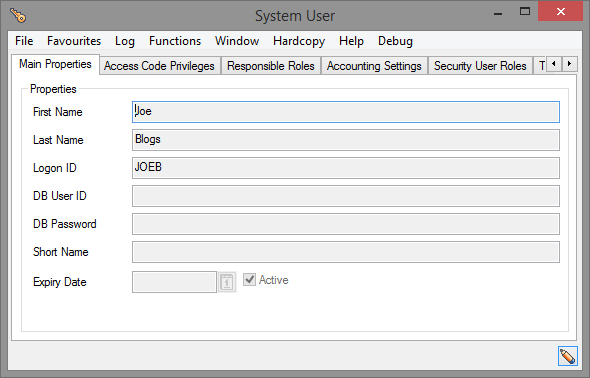
Figure 13 - One-Level Login
In a One-Level login, the DB User ID shown above has to be empty or equivalent to the Logon ID. This tells SICS that only the One-Level Login is in use. Note that the DB Password field should be left empty.
The Logon ID will be the ID that the user utilizes to log onto SICS.
If this login method is being used, then the user will only require one user ID on the Database, and one equivalent user defined in the SICS Security System. In this example, these will both be the user JOEB. This user will require access to all of the SICS tables and views in the database as described above.
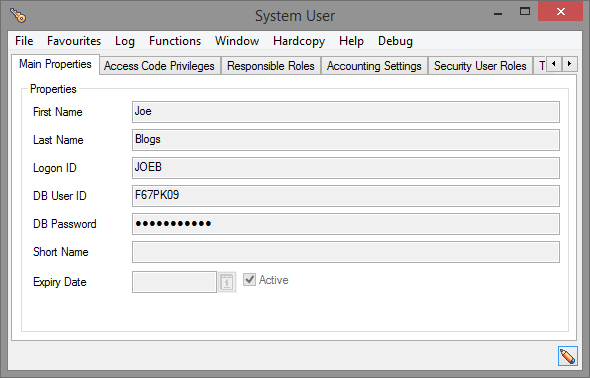
Figure 14 - Two Level Login
In a two-Level Login system, the Logon ID will be the ID that the user logs on to SICS with, in this case JOEB. This is the first user ID, which MUST be defined on the database with simply SELECT privileges on the CNU_ENVIRONMENT, SICSPC.CNU_USER and SICSPC.CNU_SECUREOPTS tables. (If the User Authorization Interface (UAI) is in use, then the first level users also need SELECT privileges on the SICSPC.SYSTEM_PARAMETERS table.)
The second user ID is given by the DB User ID field in the window above, in this case F67PK09. This tells SICS that the Two-Level Login is being used, and so after the Environment table and User table have been accessed, the first user will be logged out of the database. The second user will then be logged back into the database automatically, using the password given in the DB Password field. This must match the password for the second-level user on the database or the connection will fail. This user will require access to all of the SICS tables and vies in the database as described above.
Note that in a two-level login system, all events in SICS will be logged under the first user ID. The second level ID should not be defined in SICS Security. The user will not be aware of the second user ID on the database, and should never be allowed to view the user settings. If the user manages to obtain their second level login ID and password, then they could login to the SICS database using an external program, and perform updates and deletes using SQL.
See db-prep-db2-user-database-privileges”>User Database Privileges</a> below for details on how to assign the various privileges to the two user ID’s.
If security is a key concern in your organisation, then it is recommended to use the Two-Level Login. This will complicate the administration of the system due to the hidden second user password, and will increase the required time to add new users to the system, but will provide a secure SICS database.
Using Database Remote OS Authentication
This feature is currently not available with DB2 for z/OS.
Create Additional Users
After the initial users have been created during system setup, additional users may be added by using the SICS Create User option (accessible from the SICS Desktop -> System Administration -> Security -> Users).
- Login to the SICS Workstation as the system administrator and double-click the Security icon under the System Administration folder.
- Use the Access Security Manager window to create any additional system users that were not defined in the
SysUsers.txtfile. From the System Users tab, right click and select New… from the popup menu.
You will also need to give the user privileges to the appropriate tables, and also assign SICS user roles.
NOTE:
If you intend to export the data from one schema into another, then the owner of the target schema should be defined as a SICS user with System Administrator role before the export takes place. Otherwise SICS access security will prevent the target schema owner to log in as himself.
User Database Privileges
One-Level Logins
For each SICS user that you define - either by adding names to the SysUsers.txt file, or by creating users from the SICS System Administration Utility - you must also:
-
Grant the necessary privileges directly to each user. A convenient way to do so, is to run this SQL statement and collect the result in a file:
select 'GRANT SELECT, INSERT, UPDATE, DELETE ON ' || name || ' TO <user>;' from sysibm.systables where creator = 'SICSPC' - Then connect to DB2 as SICSPC and submit the above result file to DB2.
-
Also grant select on SICS views (not including views used by the Business Objects reporting universes):
select 'GRANT SELECT ON ' || name || ' TO <user>;' from sysibm.systables where type = 'V' and name not like 'V_%' and creator = 'SICSPC' -
In addition, you must grant select on the
SICS.CNU_ENVIRONMENTtable to<user>, and create an alias namedCNU_ENVIRONMENTfor this user to theCNU_ENVIRONMENTtable. Example:CREATE ALIAS <user>.CNU_ENVIRONMENT FOR SICS.CNU_ENVIRONMENTThis procedure has to be repeated for each
<user>. ReplaceSICSPCbySICSLFfor a SICS Life database.
Two-Level Logins
For each SICS user that you define - either by adding names to the SysUsers.txt file, or by creating users from the SICS System Administration Utility - you must also:
- Create two database users, one for the first level login and one for the second level login. A general second level user can be used if preferred (i.e. Use the same second level login for each user.)
- Create an alias named
CNU_ENVIRONMENTfor the 1st level user forSICS.CNU_ENVIRONMENT. -
Grant these privileges to the 1st level user:
select privilege on the SICS.CNU_ENVIRONMENT table select privilege on the SICSPC.CNU_USER table select privilege on the SICSPC.CNU_SECUREOPTS table select privilege on the SICSPC.SYSTEM_PARAMETERS and SICSPC.SYS_PARAM_VALUES tables (Only if the UserAuthorization Interface (UAI) is in use). -
Grant these privileges to the 2nd level user:
select, insert, update, delete on all tables owned by SICS
General Information
When you have successfully created new SICS users (both in SICS and on the database) you can log on to SICS using the new user names. These users will not have any initial SICS Access Rights. Thus, initially, the SICS Workstation will appear blank (no folders will be visible).
You have to grant the SICS users access rights, as described in section Assign Users to User Profiles below.
Assign Users to User Profiles
A few sample, predefined User Roles are created as part of loading the Base Data. In addition, the system defined User Role “System Administrator” is created.
Logon to the SICS System Administration Utility as the System Administrator (the owner of the tables) and choose System Administration, Security.
- From the User Roles tab, double-click a user role, select the Members tab, right-click on the user list, and select Assign Members… from the popup menu.
Note that if a new SICS user has not been assigned to a user role, the user will not have access to any of the SICS functions.
If you login to SICS as a user without any access rights, the SICS Workstation will appear ‘blank’ (no system folders will be visible).
Verify System Parameters
The System Parameters have been set up by default as part of the database creation process, but they may be inappropriate for your operation. Therefore, you will need to check and/or alter them as appropriate.
Login to the SICS Workstation as the system administrator and double-click the System Parameter Maintenance icon under the System Administration folder.
Verify or modify the System Parameters as necessary.