
Installing Reporting Universes
Download SICSBIReporting.zip from DXC ReInsurance eDelivery.
Export Universes to the Repository
To Export Universes into the Repository
-
Start the designer module and login as a user modified to act as a designer.
-
Open the universe and change the connection name by accessing Parameter from the File menu.
-
From the File menu, select Export
-
The designer module shows you all available universe domains.
-
Select the target universe domain and click OK.
You should receive a system message if the universes are successfully exported.
Install Reporting Views
The reporting views can be found under the directory SICS P&C-Life Vers 21.1/21.1 Oracle/Install on database/View Creation Scripts for the Oracle database and in SICS P&C-Life Vers 21.1/21.1 SQL-Server/Install on database/View Creation Scripts for the MS SQL Server database. The reporting views should be run after the SICS views have been implemented. The reporting views all start with ‘V_’. When dropping the view via SICS these views are saved. This means that before upgrading from one version to another it is important to start with the drop script so that all old views are removed from the database.
If you receive an error message (e.g. “table or view V_TOTAL_DEDUCTION does not exist”) when trying to run a report, it is a clear indication that the reporting views have not been implemented on your database.
We strongly suggest that you run the scripts as soon as the BusinessObjects installation is complete. These scripts are in the SICS P&C-Life Vers 21.1/21.1 Oracle/Install on database/View Creation Scripts for oracle and in SICS P&C-Life Vers 21.1/21.1 SQL-Server/Install on database/View Creation Scripts for SQL Server):
After installing, your company’s DBA (or someone responsible for the database) needs to open the view creation scripts with a text editor. Log into the database using the username/password that BusinessObjects uses to connect to the SICS database. Execute the view creation script and log off.
Risk Zone Views
For Risk Zone there is a view to help report on these in an effective way. You cannot link perils to an intermediate level, or reporting will fail. The perils should be linked on the lowest level (leaf level) only.
Reporting Unit Views and Setup of RU Hierarchies
Reporting on Reporting Unit hierarchies’ demands that your system has been set up in a specific way.
One important rule is that all hierarchies must have the same depth or reporting will fail. This means that the leaf levels must be on the same level in all set hierarchies.
In the example below one can see four hierarchies:
-
Test Hierarchy,
-
Reporting Hierarchy,
-
Geography,
-
RM Test
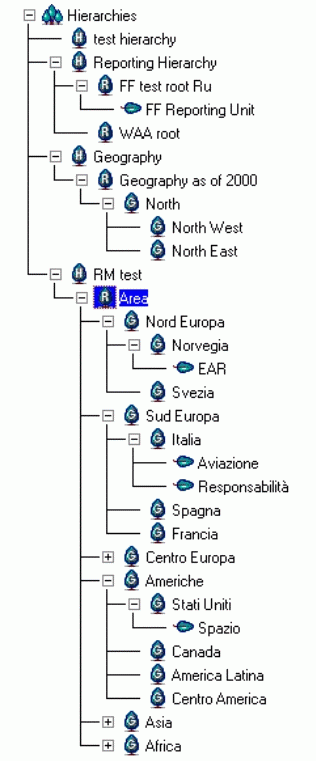
The first and the third hierarchy, Test and Geography, do not have any leaf levels at all.
The second hierarchy, Reporting, has a leaf depth of one level. There is also a group without a leaf.
The fourth hierarchy, RM Test, has leaf levels at a depth of two levels. Also in this reporting unit there are a lot of groups that do not have any leaves at all.
Reporting on this will be difficult. The first thing to decide is which view to implement on the database. There are five different views, but only one should be implemented.
Which view to choose, depends on the depth of the reporting unit hierarchies set up in the system. You will only be able to see hierarchies that have leaves attached to them. The depth of the reporting unit hierarchies is found by counting the groups in the reporting unit.
Reporting Units
To be able to report on ‘Reporting Units’ properly it is important that all reporting units have the same depth. To support the reporting solution it is necessary to install a view on the database. This view solution is flexible up to a certain point, as you have to decide which view to run on the database. In the delivery DXC has included views that support reporting from two levels up to five levels of depth. Only one of the views should be implemented.
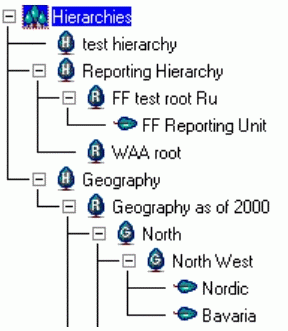
Before installing the reporting unit view creation script, go in to the SICS application to verify which view script to implement on your database. If the situation is as above you must also adjust the reporting units so that they have the same depth, this means that the FF Reporting Unit must have two more levels. If this is not done reports using the reporting units’ objects will not return the correct data.
By default the view to support a three level hierarchy depth is installed.
Note! It is only necessary to run one script based on how many levels you need to report on.