
User Custom Object Migration Utility
User Custom Objects
In order to help the customers who create their own objects in our main universes we have decided to create a class called ‘User Custom Objects’, this class can be found under the ‘Support’ class.
These objects can be used if customisation of the universe is necessary. These objects will work ‘through’ the versions delivered by CSC. Clients are advised to use the next available Custom Object. When receiving a new universe it is up to customers to reapply the SQL to the Custom Objects again. Our suggestion is that when these objects are used the clients rename the objects to e.g. ‘Entry Amount Settlement -NN’, where NN is the object number. The reason for including the NN in the object name is because when a customer receives a new version of the Universe they will have to find each previous custom object and copy the SQL from each to the corresponding object in the new Universe. If a customer decides to drag a custom object to another folder they can still find it later using the Edit/Find feature in Designer and looking for part of the object name (e.g. the NN). Therefore it is important to name the Objects in a way that makes them easy to find later. Alternatively leave them in the User Custom Objects Folder.
Instructions for use of the User Custom Object Migration Utility
This utility automates the process of updating a new release of a universe to include any objects that you have created using “User Custom Objects” Class.
The methodology will be illustrated using this example..
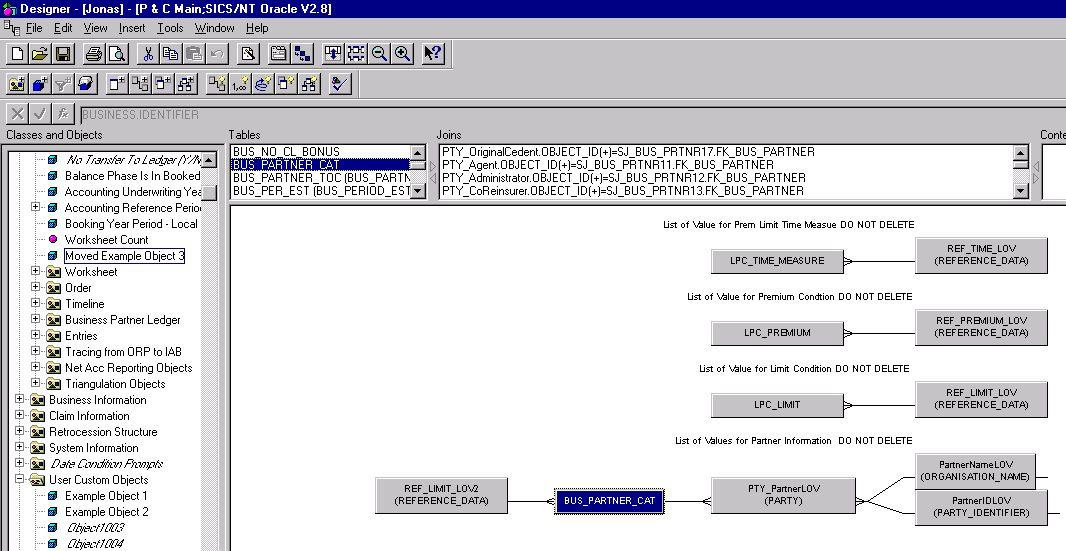
Shown above is the current universe (source). The three objects that have been created using user custom objects are shown selected.
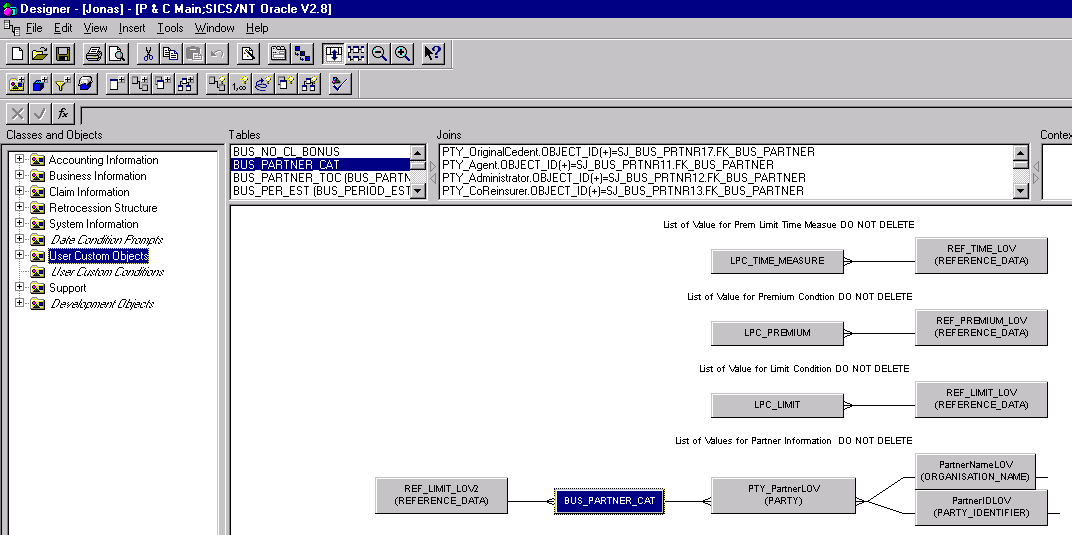
Shown above is the new version of the universe (Destination). The User Custom Objects directory is shown selected. This is where all objects will be recreated in the new universe. (See Limitations section)
Database Replication
For replication of the SICS operational database to a specific reporting database, we advice you to use the built-in functionality within the database service tools. This has proven to be easier than to use our replication utility. We have only supplied the scripts for creating tables, views, indexes and procedures/functions.
This will enable the creation of the foundation of the reporting database. The method of actual data transfer from the online database to the reporting database is then something that can be decided upon at each site. Using the provided indexes specific for reporting shows in our benchmarking tests a 30-50% increase in performance on a set of reports.
Oracle
This covers the operations needed to be carried out in order to create a new reporting database on Oracle.
It covers the creation of:
-
Tables
-
Views
-
Stored Procedures
-
Indexing
Pre-requisites
A valid Oracle account in which to create the database.
Skills required
Basic SQL (including the running of scripts)
Software required
-
Oracle Client Middleware successfully installed and connected to the database.
-
SQL Plus.
ORACLE Installation
-
Using SQL Plus (or similar application), login to the database account.
-
Create the physical tables by running the script_Create_Oracle_Reporting_Database.txt._ This can be found on the CD
To run the script, type the following at the SQL> prompt:
@ <FILE_LOCATION> Create_Oracle_Reporting_Database.txt
where FILE_Location is the directory location of the txt file. For example:
SQL> @ c:\ Create_Oracle_Reporting_Database.txt
- Create the views by running the scripts.
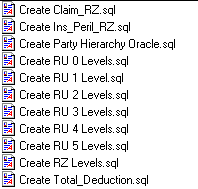
Note! Only one of the “Create RU…” scripts should be executed. This will depend on the configuration of the SICS system. (The default is Create RU 0 Levels.sql)
To run the scripts, open each one in turn in notepad, copy all the text from the CREATE OR REPLACE statement and paste it at the SQL> prompt.
- Create the stored procedures by running the scripts (IN THE FOLLOWING ORDER)
Create package.sql
Create body.sql
To run the script, type the following at the SQL> prompt and click return:
@ <FILE_LOCATION> Create_package.txt
where FILE_Location is the directory location of the SQL file. For example
SQL> @ c:\ Create_package Upon clicking return, type “/” and click return again. The message “Package Created” will then be displayed.
- Create the Indexes by running the script
Create_Oracle_Indexes.txt
To run the script, type the following at the SQL> prompt:
@ <FILE_LOCATION> Create_Oracle_Indexes.txt
where FILE_Location is the directory location of the txt file.
For example
SQL> @ c:\ Create_Oracle_Indexes.txt
15.10.4 SQL Server
This covers the operations needed to be carried out in order to create a new Reporting Database on SQL-Server.
It covers the creation of:
-
Tables
-
Views
-
User Defined Functions
-
Indexing
Pre-requisites
A valid Database account.
Skills Required
Basic SQL (including the running of scripts)
Software Required
-
SQL Server Client Middleware successfully installed and connected to the database
-
Query Analyser.
SQL SERVER Installation
-
Using Query Analyser (or similar application), login to the database.
-
Create the physical tables by running the script Create_SQL_Server_Reporting_Database.txt
To run the script, open the file in notepad and copy & paste the text into the SQL Query Analyser session. To run the script, click “F5”.
- Create the views by running the scripts.
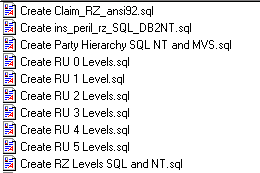
Note! Only one of the “Create RU…” scripts should be executed. This will depend on the configuration of the SICS system. (The default is Create RU 0 Levels.sql)
To run the script, open the file in notepad and copy & paste the text into the SQL Query Analyser session, NOT including the DROP command. To run the script, click “F5”.
- Create the stored functions by running the scripts
get_curr_code.txt
get_exch_rate_and_euro.txt
To run each script, open the file in notepad and copy & paste the text into the SQL Query Analyser session, NOT including the DROP command. To run the script, click “F5”.
- Create the Indexes by running the script
Create_SQL_Server_2000_Indexes.txt
To run the script, open the file in notepad and copy & paste the text into the SQL Query Analyser session. To run the script, click “F5”.