
Cede Interface Monitor
The Cede Interface Monitor function allows to monitor and control the interface execution, specifically by:
- Summarizing the execution status with some statistics
- Providing error summarization, drill-down
- Providing an access to the interface log
- Providing error recycling
Order Statistics
There is an option to generate statistics for the Cede Interface Orders by selecting Retrieve Statistics in the Order Statistics tab.
This will give you a list of all orders which has been run. There are options to find, sort and extract using the pop-up menu and the result can be opened as a spreadsheet and saved if required.
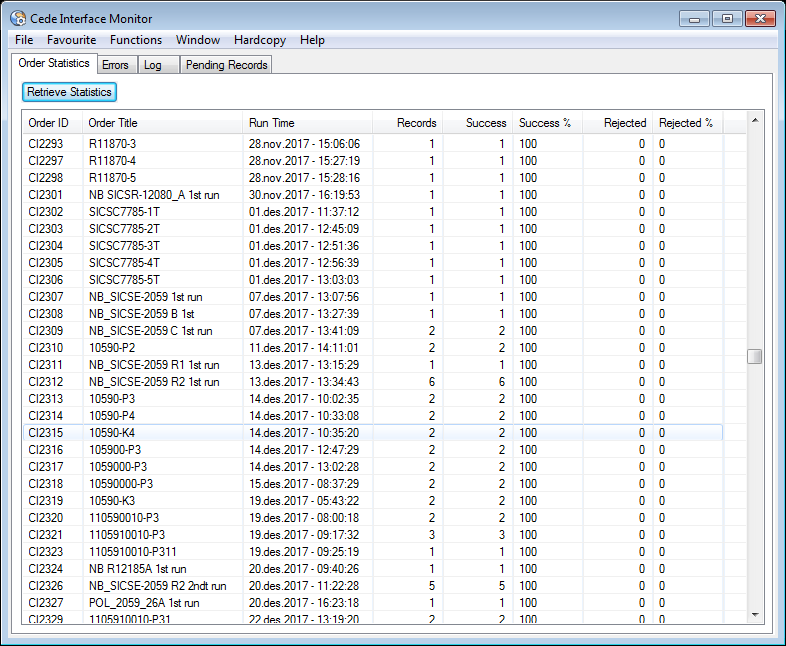
| Field | Description |
|---|---|
| Order ID | The unique identifier of the order |
| Order Title | The title of the order |
| Run Time | Date and time when the order was run |
| Records | Number of records included in the order |
| Success | Number of records successfully run |
| Success% | Percentage of records successfully run |
| Rejected | Number of records rejected |
| Rejected% | Percentage of records rejected |
Errors
The Errors find panel allows to browse the rejections by type, providing a summary (left container) by:
- Record Type
- System
- Error

For each of these the system shows:
- the count of occurrences
- the sum of each absolute value of DTL_AMT
When the user double clicks a summary row, the system shows all the related records (displayed in right container).
Recycle Records
Rejected records can be recycled, i.e submitted again to the interface. This could be helpful when an error preventing the load is fixed. From the Error panel, a right click in the left container allows to Mark for recycling a set of records in error. A new interface order execution will process these rows. If Mark for recycling is chosen by highlighting one of the records from the right container, this action is taken on this single record.
Edit Records
By selecting Edit on a specific record, the Edit Panel is presented.
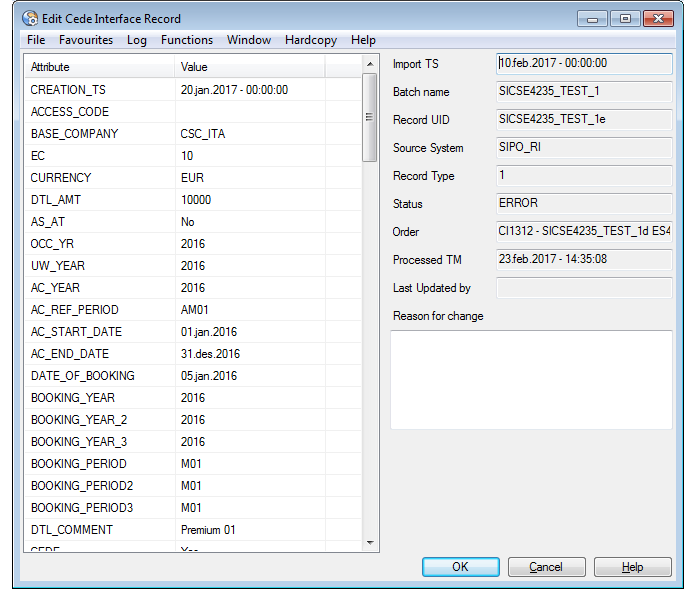
The attributes for the record can be changed here, except the Import Timestamp, Batch Name, Record Unique Id, Source system, Record type and Status.
Reason for Change is a description the user must give to successfully commit the changes. The edited record will be included in the next run of the batch, providing the record has been recycled.
Log
The Log find panel allows to filter the log records using attributes like Source System, Logged Date Range, Message Code, Status and Record Unique Id. With the Policy field it is possible to retrieve all the logs related to a Policy. Same applies to the Claim field.
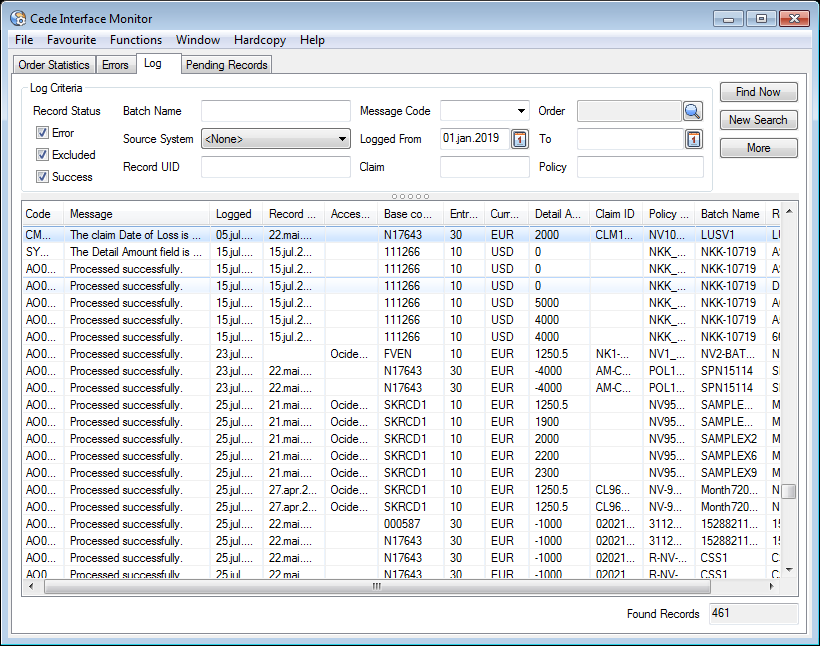
The following fields are shown in the list:
| Field | Description |
|---|---|
| Code | When running Cede Interface order there is a message given to indicate the status; and if there is an error there will be an error code given. |
| Message | Message given to indicate whether the record has been successfully processed; i.e. Processed successfully or there is an error where the reason is given. |
| Logged | xxx |
| Record created | Date when the record was created. |
| Access Code | Access Code selected. |
| Base Company | Base Company for current record. |
| Entry Code | Entry Code for the item to be booked. |
| Currency | Booking Currency. |
| Detail Amount | Amount to be booked. |
| Claim ID | Claim ID when claim booking. |
| Policy ID | Policy Identifier for the booking item. |
| Batch Name | Name of the batch where the record was included. |
| Record UID | Unique record identifier. |
Pending Records
Pending records are records which have not been run yet. There are two different statuses for these records:
- Pending
- On Hold

Pending Records are ready to be included in a Cede Interface Order. When it has been included in a run, it will disappear from the Pending Records screen and appear in the log view.
On Hold records must be saved as Pending before they can be included in an order. This status is used to set up sample records that you want to run on a regular basis, and you want to keep these “templates” for future runs.