
Accounting Order Monitor
Accounting Order Monitor
To make it easier to manage a high number of accounting orders, the Retrocession Calculation Order Group and Retrocession Account Order Group can be flagged as ‘Batch Templates. Group Order Template holds the information needed to create group order and single orders. Group orders flagged ‘Batch Templates’ enables the possibility to create Job Templates by selecting option ‘Request Scheduled Job Templates’ from the pop-up menu. The Job Template window appears and you may change the Identifier, Job Activation, Priority (the job with the highest priority is the job with the highest number), Desired Scheduler and Job Steps (refer to Job Templates in the System Administration Guide)
When the option ‘Request Scheduled Job Templates’ is selected from a Retrocession Calculation/Account Order Group, a Job Template will be shown in the Accounting Order Monitor. The Job Templates can be monitored from the Accounting Order Monitor;
- Select Periodic Functions from SICS Workstation Desktop
- Double-click on the Accounting Order Monitor
- You can see the Accounting Order Monitor
Copy to Actual Job
- Mark an order from the list in the Accounting Order Monitor window
- Select ‘Copy to Actual Job’ from the pop-up menu to copy to Actual Job
- A group order and single orders are automatically created from the Job Template
- The group order is shown in the Accounting Order Monitor after the list has been refreshed – refer to pop-up menu ‘Refresh List’
- The group order and the single orders are copied to the Scheduler/Scheduled Jobs/Pending Actual Jobs tab
View Job Template
- Select an order from the list in the Accounting Order Monitor window
- Select ‘View Job Template’ from the pop-up.
- The Job Template window appears
- You may edit Job Template information
Edit Group Order Template
- Mark an order from the list in the Accounting Order Monitor window
- Select ‘Edit Group Order Template’ from the pop-up.
- The order group window appears (i.e. group order flagged ‘Batch Template’)
- You may edit information on the Group Order Template. Edited information regarding Accounting Year/Period and Acc. As Of Date From – To will be updated in the Accounting Order Monitor for the selected Job Template (when refreshed) Note: The Group Order Template must be edited before creating the group order and the single orders for the next account.
Refresh List
- Right mouse click in the Accounting Order Monitor window
- Select ‘Refresh List’ from the pop-up.
- Information is refreshed
Process Schedules Jobs
- Access the Scheduled Jobs (System Administration Utility/Scheduler)
- Press the ‘Scheduling’ and then ‘Process Scheduled Jobs’
- The Scheduler Selection window appears
- Select a Scheduler and press OK
- Job is processed
- Access the Accounting Order Monitor
- The Actual Job Status and Run are updated for the last Group Order
Accounting Order Monitor
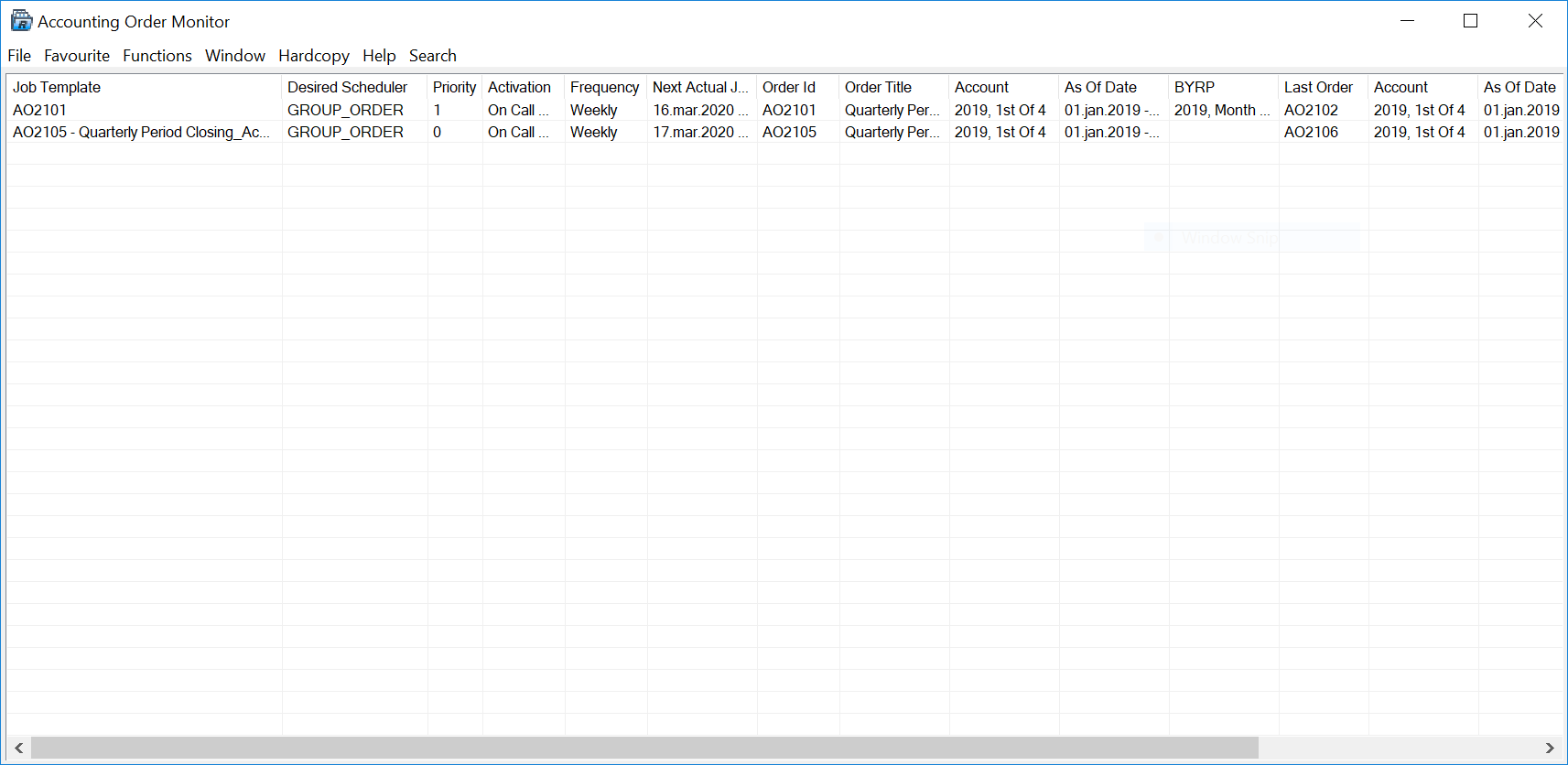
The Accounting Order Monitor shows the following information from the Job Template and the Group Order;
| Field | Description |
|---|---|
| Job Template | Job Temple Identifier |
| Desired Scheduler | Name of the Desired Scheduler selected for the Job Template |
| Priority | Priority selected for the Job Template (the job with the highest priority is the job with the highest number) |
| Activation | Job Activation selected for the Job Template (Active, On Call Only, Suspended) |
| Frequency | Job Frequency selected for the Job Template (Number of Minutes, Hourly, Daily, Weekly, Monthly, Quarterly) |
| Next Actual Job | The scheduled time of the Next Actual Job |
| Order Id | The Order Id of the Group Order Template |
| Order Title | The Order Title of the Group Order Template |
| Account | The Accounting Year and Period of the Group Order Template |
| As of Date | The Acc As Of Date From/To of the Group Order Template |
| BYRP | The Booking/Year Period of the Group Order Template |
| Last Order | The last Order Identifier of the Group Order created from the Job Template |
| Account | The Accounting Year and Period of the last Group Order created |
| As of Date | The Acc As Of Date From/To of the last Group Order created |
| BYRP | The Booking/Year Period of the last Group Order created |
| Actual Job Status | The Worksheet Status of the last Group order created |
| Run | The Actual Run date and time of the last Group Order created |