Sics Desktop
After SICS has been installed and set up by your system administrator, you can start the program from the Windows Start menu.
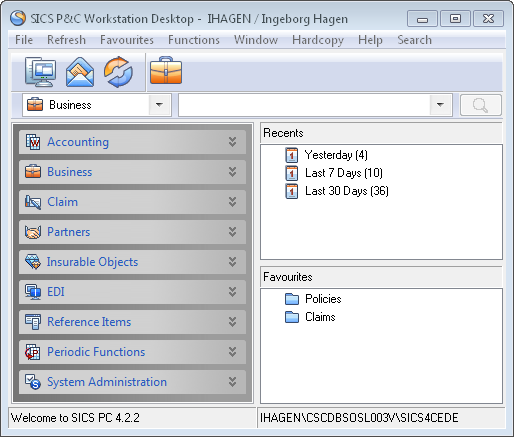
When you open SICS, you see the SICS desktop.
Login to the System #
|

Login/Logout button | You must be logged into the system before any of its functional windows can be accessed. The ‘Login/Logout’ button logs you into and out of SICS. When you start SICS, the Login to SICS dialog is automatically presented, requesting your user name and password, and option of database from a drop-down list. (Your system administrator should have provided this information to you.) |
| “Using Database Remote OS Authentication” in the Installation and Configuration document on the SICS CD, describes this feature in detail. | In SICS installations where Single Sign-On is used, you only need to supply a user name and password when you login to the operating system. If this is set up on your SICS database you do not need to specify your user name and password. Just select the “Connect Using Database Remote OS Authentication” check box and click the ‘Login’ button to login.
You can also log in by selecting Login from the File menu. Here you must also enter your user name, password, and database type. Then click the ‘Login’ button to proceed. For information about passwords, refer to separate paragraph on Passwords later in this chapter.
The System Administration folder is for your system administrator. It is there to enable customisation and parameter setup for the special needs of your company. Normally, that folder will be locked to anyone but the SICS system administrator (who has been granted accessibility to those options). |
Refreshing Data #
|

Refresh button | The ‘Refresh’ button"refreshes" cached information stored in memory on the local desktop. During a SICS session, certain data is stored in memory. In certain cases, the data in memory can become out of date while other users are updating information throughout the day. The ‘Refresh’ button enables you to refresh the SICS session, allowing all new data to be retrieved from the database. This option is particularly useful whenever a multi-user write lock has occurred and you need to refresh the session to receive the latest information. Pushing this button shuts down the SICS desktop and restarts the session. You will remain logged into SICS during this process and may continue working when the desktop reappears. |
Notifiers #
|

Notifier button | When you click the ‘Notifier’ button you see the Notifier window. A notifier is used as a communication and reminder mechanism within the SICS application, and is basically an intelligent “post-it” note that can be attached to certain pieces of data within SICS. |
Online Help #
| When you click the ‘Online help’ button you can access SICS’s HTML help system. Depending on how your SICS System Administrator has set up SICS for you, you may see this button on the desktop of you PC instead, in which case you can access help for SICS separately from the system. |