Automatic Premium Reserves Accounting
SICS lets you calculate and book three types of premium reserves automatically: Original Premium Reserves, Financial Premium Reservesand Unearned Premium Reserves.
Each of these functions calculates and books the respective amounts according to its defined rules.
The result of the Automatic Booking of Premium Reserves are booked with Entry Codes defined in the System Parameter Accounting/Entry Codes/Accounting Function (refer to the Accounting Functions listed below).
The Accounting Function used for the calculations depends on the type of reserve orders you are running:
-
- Original Premium Reserve order (Accounting Function: Original Premium Reserve Calculation)
-
- Unearned Premium Reserve order (Accounting Function: Unearned Premium Calculation)
-
- Financial Premium Reserve order (Accounting Function: Financial Premium Reserve Calculation)
Original Premium Reserve Order #
Original Premium Reserves are meant to be the premium reserves according to contract conditions, if any, for which the conditions are thus defined on each respective business.
If you want the system to automatically calculate and book the Original Premium Reserves on a business, you do this by creating an Original Premium Reserve Accounting Order, refer to the description in the chapter Create- and Maintain Accounting Orders. The calculation rules are supplied by the conditions entered on the Internal Premium Reserve Con_ditions for each separate Insured Period_. For running an Original Premium Reserve Order, it is mandatory to have filled in the respective information within the Internal Premium Reserve Conditions. If no _conditions_ are defined, no calculations take place.
The order calculates and books Original Premium- (Deduction) Reserve(s) out of the already booked Premium (Deduction) on the Business Ledger as basis.
The following methods are available in the conditions for automatic calculation of Original Premium Reserves:
- Percent of Premium: The Original Premium Reserve is calculated as a percentage of the chosen premium basis (gross/net premium etc.).
Original Premium Reserve is calculated = Booked Premium * Percentage from Internal Premium Reserve Conditions.
- Pro Rata Temporis: The Original Premium Reserve is calculated according to the Pro Rata Temporis method.
Original Premium reserve is calculated pro rata to time using the As of Date in the Order compared to Accounting Period From- and To Date of the basis (booked premium).
To create and run an Original Premium Reserve Order, refer to the chapter Create- and Maintain Accounting Orders.
You can enter the necessary information for the Original Premium Reserve calculation in the Create Original Premium Reserve window.
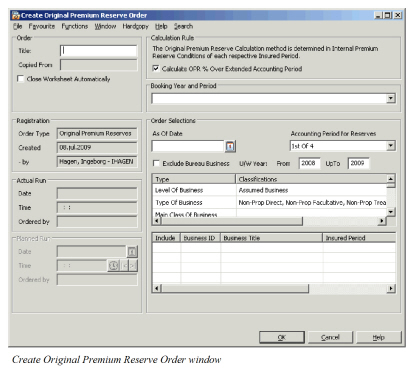
This window functions similarly to other Accounting Orders, refer to Create and Maintain Accounting Orders earlier in this section.
| Field | Description | Location |
|---|---|---|
| Calculate OPR % Over Extended Accounting Period | Selected: The system will calculate the Original Premium Reserve = If As of Date in Order - 1 Year < Accounting Period To Date of basis And Accounting Period From Date of Basis <= As of Date in Order ThenCalculate Original Premium Reserve = Basis * % in Internal Premium Reserve Conditions Else Original Premium Reserve = 0 The system wills at any time never reverse any already booked Original Premium Reserves. Cleared: The system will calculate the Original Premium Reserve = If As of Date in Order < Accounting Period To Date of basis And Accounting Period From Date of Basis <= As of Date in Order ThenCalculate Original Premium Reserve = Basis * % in Internal Premium Reserve Conditions Else Original Premium Reserve = 0 The system will reverse any already booked Original Premium Reserves when As of Date in Order > Accounting Period To Date of Basis. Relevant when: Select the check box when you want the system to calculate OPR’s on Percent of Premium Method, over extended period (Accounting Period to date + 1 Year). Leave the check box unselected if you want the system to calculate OPR’s on Percent |
Create Original Premium Reserve Order |
| of Premium only when As of Date in Order is into Accounting Period of Basis (Premium, Deductions), and if the reserve should be reversed once the As of Date is after Accounting Period To Date of Basis. Default: What is default value depends on the settings in the System Parameters; refer to the System Administrators Guide. |
||
| Booking Year and Period | Values: In the drop-down lists are all Booking Year and Period combinations open and valid for booking according to the range set in the system parameters (for local Booking Year/Period of <Default Settings>). If only one base company is selected on the order, the booking year and periods applicable for that base company will be listed. Functional impact: The Booking Year and Period is the one that is allocated to the Original Premium Reserves booked by the order. For the calculation the system selects only premium/deduction bookings with a (local) Booking Year and Period less or equal to this one. In case of different settings for different base companies it might happen that for some of the attached businesses this period is not open for booking. If this is the case the result is booked with the respective default Booking Year and Period as set in the System Parameters for each separate Base Company. Mandatory: Yes |
Create Original Premium Reserve Order |
| As of Date | Values: Date value (mm/dd/yyyy) Validations: Any valid date allowed. Functional Impact: Refers to the date as of which the calculation is to be performed: this will be the last day of the period that you want to close. The system bases the calculations on the most recent Underwriter’s Estimate(s) entered on the Estimate conditions with an As at Date less than or equal to the As of Date on the order. When system calculates and books OPR’s on Pro-Rata Temporis method, the system sets the day after the As of Day as Accounting Period From Day for the booked OPR’s. Mandatory: Yes The system will by default book Original Premium Reserves with Percentage of Premium method as movement. If the method in Internal Premium Reserve Conditions is Pro Rata Temporis the system will reverse out already booked reserves and thereafter book the new figure. Additionally, the system allows clients to set up the system to book in- and out reserves according the rules defined on the Entry Codes used by the Original Premium Reserve Order, see System Administrators Guide for more information about in- and out reserves. |
Create Original Premium Reserve Order |
| Accounting Period for Reserves | Values: In the drop-down lists are all valid Accounting Periods with the Accounting Period Set defined as default in the Reference Data. If no default all periods will be selectable. Functional impact: All calculated and Booked Original Premium Reserves from the order will be booked with this Accounting Period. Relevant when: System Administrator needs to set parameter to have this option. If in use Accounting Reference Period for Original Premium Reserves will indicate for which period that the calculated reserves are for, e.g. 1stquarter = 1 of 4. Mandatory: Yes, if in use from System Parameters |
Create Original Premium Reserve Order |
Reversal of Original Premium Reserves #
When an Original Premium Reserve order has been run and the result is wrong, it is possible to reverse the closed worksheets of the order.
- Find and open the original premium reserve order from the display list in the Find Accounting Order window. You see the View Original Premium Reserve Order.
- Select Create Reversal Order from the Menu button. You see the Create Reversal of Original Premium Reserves order window.
- Modify the booking year and period value, enter a title and select the Close Worksheet Automatically check box if applicable.
- Click OK to update the order. An order ID is assigned.
- Select Run No w from the menu.
To create the Reversal of Original Premium Reserves order, the worksheets of the selected Original Premium Reserve Order have to be closed or inactivated.
Select Worksheets from the Order menu to inspect the reversed Original Premium Reserves. In the Business Ledger the Source Worksheet ID, i.e. the worksheet being reversed, is updated with the Target Worksheet ID. The Target Worksheet ID, i.e. the reversal worksheet, is updated with the Source Worksheet ID. If you select an Original Premium Reserve Order for which the reserves are already reversed, the Reversal Order will not find any worksheets to reverse.
If the reversal worksheets were not closed in the 1strun, close them by using the menu option Close Remaining Open Worksheets in the View Worksheets window or individually by opening each and every worksheet.
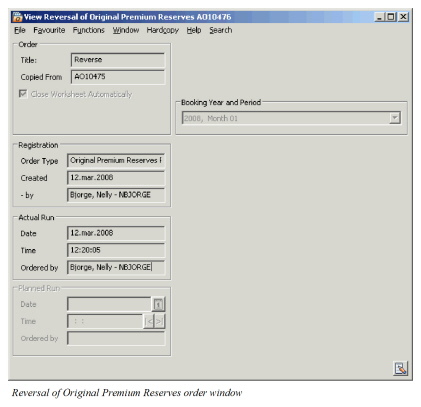
| Field | Description | Location |
|---|---|---|
| Order Title | A text to identify the order, e.g. in the ‘Find: Accounting Order’ window Values: Free Text - maximum 40 characters Mandatory: No Functional Impact: None |
Reversal of Orginal Premium Reserve Order |
| Copied From | The Order ID of the Original Premium Reserve Order from which the Reversal Order was created Values: Prefix + number, e.g. AO1015 Mandatory: Yes Functional Impact: None |
Reversal of Orginal Premium Reserve Order |
| Close Worksheet Automatically | Selected: The Worksheets created by running the order are closed automatically. Cleared: The Worksheets created by running the order remain open until closed manually from the View Worksheets window. The check box is cleared by default. Relevant when: Leave the check box cleared when you want to inspect the produced worksheets and possibly edit the Booking Year and Period before closing the worksheets. Select the check box to close worksheets automatically when created. |
Reversal of Orginal Premium Reserve Order |
| Order Type | The type of order for which all the Reversal of Original Premium Reserves orders are stored Values: Original Premium Reserves Reversal Mandatory: Yes Functional Impact: None |
Reversal of Orginal Premium Reserve Order |
| Created/ -by | The date when and by whom the order was created Values: Date and SICS user name Mandatory: Yes Functional Impact: None |
Reversal of Orginal Premium Reserve Order |
| Actual Run Date, -Time and Ordered by | The date and time when and by whom the order is run. Fields are updated every time the order is run. Values: Date, Time (hh:mm:ss) and SICS user name Mandatory: Yes Functional Impact: None |
Reversal of Orginal Premium Reserve Order |
| Booking Year and Period | The Booking Year and Period when the Reversal of Original Premium Reserves are booked. All open booking Years/Periods is selectable. When Extended Booking Terms are defined for Reversal of Original Premium Reserve order, these periods are selectable. Values: Booking Year and Period, e.g. ‘2004, Month 07’, ‘2004, 3rdQuarter’ or ‘2004, 2nd Half Year’ Default: The Default Value of the general open periods or the Default Value of the Extended Booking Periods (if defined). Derived from: Open Booking Years/Periods from the Default Settings of the System Parameter Booking Terms. (See your System Administrator for further information.) Mandatory: Yes Functional Impact: Business Ledger, Business Partner Ledger |
Reversal of Orginal Premium Reserve Order |
Unearned Premium Reserve Order #
The purpose of the Unearned Premium Reserve function is to calculate the unearned part of the premium (commission, brokerage, other costs respectively) for all business types as of any date throughout the year, independent of contract conditions. The implemented earning schemes are by default dependent on Type of B_usiness but can be overridden_.
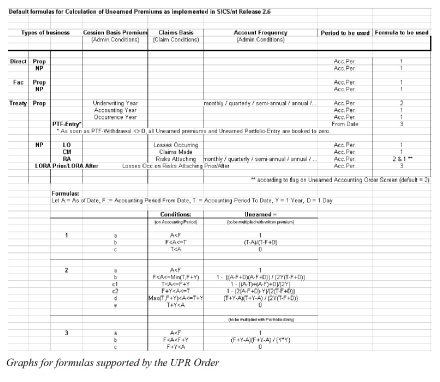
For the implemented Unearned Calculation Formulas refer to the table at the end of this chapter.
When you run an Accounting Order for Unearned Premium Reserves, the system automatically calculates the respective unearned part of the accounted premium (commission, brokerage and other costs).
To create and run a new Reserve Calculation Accounting Order with the type Unearned Premiums, refer to the chapter Create- and Maintain Accounting Orders.
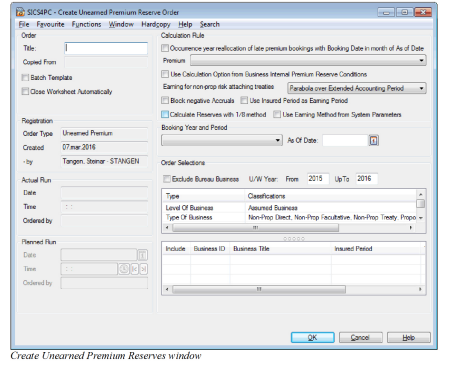
| Field | Description | Location |
|---|---|---|
| Batch Template | Selected: The order can be used as a Template within Scheduled Jobs (ref. System Administrators Guide). Cleared: Usually you will let this check box be cleared as the order is used to be run only once into closed worksheets Relevant when: If you want to define one order only for a portfolio and want this to be reused each time you want to close your books. Once an order is due to be run by the scheduler the system copies the template and create a new order to be run. The system will however replace the As of Date with today’s date and the Booking Period with the default from the System Parameters. |
Create Unearned Premium Reserve Order |
| Premium | Values: System Administrator will need to define all Entry Code Groups that should be the basis for the Unearned Premium Reserve Calculation. Functional impact: If you want to calculate an UPR’s for both Premium and Commission the group you select in this drop-down should include both the Entry Code(s) for Written Premium code and Written Commission. The system allows you to define as many Entry Codes Groups as you want. If you want to calculate UPR’s for both Estimates and Actuals you are free to define one group that includes both Estimate Code(s) and Actual Code(s) and/or separate groups Note that the order distinguish between Estimates bookings and Actual bookings also if you book e.g. Estimate Written Premium and Written Premium with same Entry Code. In such case the order is looking at the basis, if it is booked as an Estimate. |
Create Unearned Premium Reserve Order |
| To calculate Unearned Premium Portfolio | An Entry Code Group must be created that contains Entry Codes in the Entry Code Category ‘Portfolio’ and Entry Code Sub-Category ‘Premium Portfolio Entry’. The system then knows that the amounts booked with the Entry Codes in the selected group will be the basis for Premium Portfolio Reserve in the calculation. If you want to calculate UPR amounts for both Premiums and Portfolio you are free to define one group that includes Entry Codes both from Sub-Categories ‘Premium’ and ‘Premium Portfolio Entry’. The order will then be able to distinguish between what basis premium shall be used for calculation of Unearned Premium Portfolio and Unearned Premium respectively. Mandatory: Yes |
|
| Occurrence Year Reallocation of Late Premium Bookings with Booking Date in month of As of Date | Selected: Run the order with this check box selected if you want to secure that the correct Occurrence Year is allocated to the UPR’s. Cleared: If you run the Premium Order with this box cleared, the standard unearned amounts to date are calculated and the year of the As Of Date gets allocated as Occurrence Year to the result Unearned bookings Relevant when: When the Premium bookings are done late, for example, in a year greater than the one in which the respective Accounting Period starts, an ordinary run for the unearned order could lead to distortions in the correct distribution of the unearned results between the occurrence years In order to allocate the correct Occurrence Year to the unearned results produced from such late bookings at any time, you should first run the order with this box selected. Afterwards you perform the ordinary order run with this box cleared and an exact copy of the order. When this box is selected, the system checks as of the 31stDecember up to 10 years back from the As of Date (starting with the oldest year end in question), whether there were late premium (commission, brokerage, other costs) bookings. That is, bookings fulfilling all of the following three conditions: The Occurrence Year of the booking is less than the year of the As of Date on the order. |
|
| Create Unearned Premium Reserve Order | The Accounting Period From Date is less or equal to the 31st of December of the respective year, starting with the As of Date year -10 years and then checking all years up to the As of Date year one by one after each other. The Date of Booking lies in the same month as the As of Date. In most cases the special Occurrence Year reallocation run does not produce a result because there were no late premium bookings in the month in question. If these things check out, the Unearned part is determined as of the end of the respective year to allocate the correct Occurrence year. After running the order with the box selected, you run the order again with the box cleared to get the respective unearned premium as of the particular order As of Date as usual Note: If you make use of this Occurrence Year reallocation facility, it is important to run it once per month, otherwise only part of the late bookings may get the correct Occurrence year allocated. |
|
| Earning for non-prop risk-attaching treaties | Values: Parabola over Extended Accounting Period and Linear over Accounting Period. Functional impact: Default is that Non-Proportional Treaties with Claim Basis = Risks Attaching, will use the Parabola formula. However you may change in the order in the way that these treaties will use Linear formula instead. See the example formulas later in this chapter for more information. Mandatory: Yes |
Create Unearned Premium Reserve Order |
| Use Insured Period as Earning Period | Selected: The Earning Period for the Premium, Commission, Brokerage etc. is based on the Insured Period of the business. Cleared: The Accounting Period of the detail booking is used as basis for earning Relevant when: the earning curve for i.e. a Non-Proportional Treaty paid up front for the whole exposed insured period shall be earned for the Insured Period (plus extended accounting period, if Parabola over Extended Accounting Period applied). |
Create Unearned Premium Reserve Order |
| Use Calculation Option from Internal Premium Reserve Conditions | Selected: The calculation is done using the earnings formula defined in Internal Premium Reserve Conditions for the Insured Period Cleared: The calculation is done using the earnings formula defined as per the default examples later in this chapter. Relevant when: If you for some reason do not want the pre-defined earning formulas defined for some businesses you can select a different within the Internal Premium Reserve Conditions and run separate orders for these businesses with the check box selected. |
Create Unearned Premium Reserve Order |
| Block Negative Accruals | Selected: If the Block Negative Accruals box is selected and the current calculated Accrued Unearned Premium (Commission, Brokerage, Other Costs) balance becomes positive (negative), the balance is set to zero and the resulting booking becomes the reversal of any previous negative (positive) Accrued Premium (Commission, Brokerage, Other Costs) balance Cleared: If the Block Negative Accruals box is not selected, the system books the calculated Accrued Unearned Premium (Commission, Brokerage, Other Costs) result independent of whether the current Accrued Unearned Premium (Commission, Brokerage, Other Costs) balance is positive (negative). Relevant when: This box only has an effect, when you run the unearned order on estimates (see Processing of Unearned Order on both Actuals Estimates later in this chapter). The accrued figure has a different sign from what would usually be expected if the actual accounted figures exceed the Estimated Written figures, that is, you actually accounted more than you expected according to your estimations. To block such Accruals reflects the philosophy that the actual accounted figures is seen as the correct ones to date. To allow negative Accruals reflects the taking into account of irregularities between accounts and estimations to date, which might even out in the course of the Insured Period. |
Create Unearned Premium Reserve Order |
| Calculate Reserves with 1/8 Method | Selected: For business with Claim Basis in the Claim Condition, Claim Administration set to “Risk Attaching”. The Unearned Premium (Commission, Brokerage, Other Costs) will be calculated according to the 1/8 method. All other Claim Basis will not use this functionality. When the check box is selected, the option “Use Calculation option from Business Internal Reserve ion” and the “Earning for non-prop risk attaching treaties” functionality is unavailable. Cleared: If the Calculate reserves with 1/8 method box is not selected, the system opens up the possibility to select “Use Calculation option from Business Internal Reserve ion” and the “Earning for non-prop risk attaching treaties” functionality. Relevant when: This functionality enables the unearned figures to be calculated for a business portfolio or a treaty with underlying business that attaches unevenly over the treaty period. It might be that the major part of the premium is allocated to certain quarters over the year and that the earning continues over an 8 quarter period. |
Create Unearned Premium Reserve Order |
| Use Earning Method from System Parameters | Selected: The Unearned Premium will be calculated with Earning Methods defined in system parameters. Earning Methods can be linear or based on Unearned Patterns. Multiple patterns and earning methods can be Cleared: If the Calculate reserves with 1/8 method box is not selected, the system opens up the possibility to select “Use Calculation option from Business Internal Reserve ion” and the “Earning for non-prop risk attaching treaties” functionality. Relevant when: This functionality enables the unearned figures to be calculated for a business portfolio or a treaty with underlying business that attaches unevenly over the treaty period. It might be that the major part of the premium is allocated to certain quarters over the year and that the earning continues over an 8 quarter period. Create Unearned Premium Reserve Order |
Processing of Unearned Order on both Actuals and Estimates #
| You can perform the Unearned calculation on both figures booked as Actuals and Estimates | You cannot only perform the Unearned calculation on Actual figures, but also on Estimates. In this case the system produces the Accrued Unearned Premium (commission, brokerage and other costs). |
What you want to earn is up to your self and dependent on how you report your figures. The Unearned Premium Reserve Order is very flexible in the way that you can set up your reference data and selects which Entry Codes to earn by Entry Code Groups. You can also decide if you will like to exclude, include or only calculate Unearned Reserves for Estimate figures.
Examples:
1. Run the Order for Actual bookings only:
- Select an Entry Code Group as premium base that is made up of Entry Codes from the Premium(commission, brokerage and other cost-related Entry Code Subcategories) in the Entry Code Category Technical. Such a basis might be called, for example, Gross Acc. Premium or Net Acc. Premium. The Entry Code Groups are defined within the Entry Code Group Category Premium Income, Unearned Premium Calculation in Entry Code Maintenance.
- In addition you will need to define a second Entry Code Group within the Entry Code Group Sub Category Unearned Reserve Basis. This might be named e.g. Premium Income. Within the properties of this group you will have to select the option Excluded in the drop-down for Estimate. The reason for this is that you can set up the system to allow booking both Estimate and Actual figures at the same Entry Code, e.g. Written Premium.
- Within the System Parameters, Accounting and Entry Code tab you will need to define what should be the (output) Entry Code for the Unearned Premium Reserve Order = Unearned Premium. You will need to select one Entry Code Groups from the Entry Code Sub Category Unearned Reserves and in addition you will need to select in the drop-down what is the basis for this code = the above mentioned Entry Code Group Unearned Premium.
- As a result you get the Unearned Premium (commission, brokerage and other costs), that is, the unearned part of items booked according to accounts received from cedent.
2. Run the Order for Estimate bookings only:
- In similar way as the above example you can set up the system to calculate unearned part of estimates. You can decide yourself if you will like to earn the Accruals from Accrual Accounting on Inward Order or the Underwriters Estimate booked by this order.
- Within the order select an Entry Code Group as premium base that is made up of Entry Codes from the Accrued Written Premium or Estimated Written Premium (commission, brokerage and other cost-related Entry Code Subcategories). These are located in the in the Entry Code Category Accruals and Informational respectively. Such a basis (Entry code Group) might be called, for example, Accrued Written Premium or Estimated Written Premium. The Entry Code Groups are defined within the Entry Code Group Category Premium Income, Unearned Premium Calculation in Entry Code Maintenance.
- In addition you will need to define a more Entry Code Groups within the Entry Code Group Sub Category Unearned Reserve Basis. These might be named e.g. Accrued Written Premium and/or Estimated Written Premium, one group is necessary for each item you want the system to calculate a reserve for. Within the properties of this group you will have to select the option Only in the drop-down for Estimate. The reason for this is that you can set up the system to allow booking both Estimate and Actual figures at the same Entry Code, e.g. Written Premium.
- Within the System Parameters, Accounting and Entry Code tab you will need to define what should be the (output) Entry Code for the Unearned Premium Reserve Order = Accrued Unearned Premium and if you want you can re-name one of the Additional to e.g. Estimated Unearned Premium Reserve. You will need to select one Entry Code from the Entry Code Sub Category Accrued Unearned Premium Reserves and Unearned Reserves respectively. In addition you will need to select in the drop-down what is the basis for this code = the above-mentioned Entry Code Group(s) Accrued Written Premium and/or Estimated Written Premium.
- When you run the order the system will calculate Accrued Unearned Premium (commission, brokerage and other costs) and/or Unearned part of the Estimated Written Premium. That is, the unearned part of items booked according to what is set out as the Estimate by Underwriter within the Underwriters Estimate Conditions and Adjusted tab for each and every Insured Period included by the order. Be aware that unearned part of estimates is booked at the Estimate tab of the Technical Worksheets created by the order.
3. Run the Order for both Actuals and Estimates:
-
If you decide to book both unearned part of the Actuals and Estimates from example 1 and 2, you should set up the Entry Code Groups to book both Unearned of Actuals and Estimates in one go.
-
Within the order select an Entry Code Group that includes both the Entry Codes booked as Actual and Accrual.Make sure that every thing is set up in the Entry Code Groups and System Parameters as described in example 1 and 2. Be aware that if your company uses the same Entry Code for booking on both Estimate and Actual you should select the value Included in the drop-down for Estimate, refer to properties of Entry Code Groups defined in the Entry Code Group Category Unearned Reserve Basis.
-
When you run the order the system will calculate both unearned part of Actuals and Estimates. Remember that unearned part of estimates is booked at the Estimate tab of the Technical Worksheets created by the order.
Example:
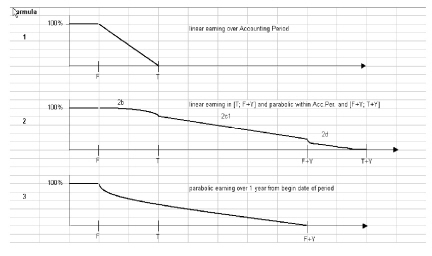
First, you run the Accrual Accounting on Inward Order to book Estimated Written and Accrued Written Figures. Secondly, you run the UPR Order to calculate unearned part of the accrual and actual booked on the business ledger. Default formulas for Calculation of Unearned Premiums if no parameters in order is selected
Description of 1/8 method #
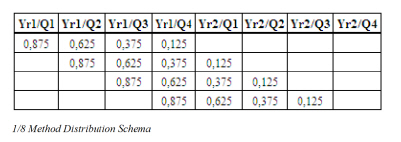
1/8 method is based on the assumption that the premium is distributed evenly over a quarter and that the average business runs from the middle of one quarter to the middle of one quarter the next calendar year.
For each calendar quarter a pro-rata temporis amount of the Premium basis (defined in the field Premium on the UPR order) shall be calculated.
The pro-rata amount is then allocated to calendar periods as follows,
Assuming that the Premium Basis, e.g. the booked annual EPI, is 1,000
Quarter-factor 1: 1000 * 90 / 365 (91 / 366 if leap year)
Quarter-factor 2: 1000 * 91 / 365 (91 / 366 if leap year)
Quarter-factor 3: 1000 * 92 / 365 (92 / 366 if leap year)
Quarter-factor 4: 1000 * 92 / 365 (92 / 366 if leap year)
If the As Of Date on the UPR order is higher than the 1st quarter in the IP, i.e. within the 2nd quarter of the business the system will for each premium amount found on the ledger multiply it with the Quarter factor 1 and with the Yr1/Q1 from the distribution schema below.
If the As Of Date on the UPR order is higher than the 2nd quarter of year 2, i.e. within the 3rd quarter of the year after the IP the system will for each premium amount found on the ledger first multiply it with the Quarter factor 3 and with the third row under Yr2/Q2 from the distribution schema below and then multiply it with the Quarter factor 4 and with the fourth row under Yr2/Q2. Finally it will sum these two figures together. The result of the above will be booked as Unearned Premium Reserve.
Example 1:
Business Insured Period: 01.01.2016 - 31.12.2016
Premium booked on the ledger: 4000,00
As Of Date on the order: 01.07.2016 (a date after the 2nd quarter, year 1)
Calculation:
4000 * 91 / 366 * 0,625 = 621,58
4000 * 91 / 366 * 0,875 = 870,22
UPR to be booked by the order: 621,58 + 870,22 = 1491,80
Example 2:
Business Insured Period: 01.01.2016 - 31.12.2016
Premium booked on the ledger: 4000,00
As Of Date on the order: 01.07.2017 (a date after the 2nd quarter, year 2)
Calculation:
4000 * 92 / 366 * 0,125 = 125,68
4000 * 92 / 366 * 0,375 = 377,05
UPR to be booked by the order: 125,68 + 377,05 = 502,73
What decides which Formula to be Used for Calculation #
Formulas from the above examples will be used if NO parameter is selected within the order. The following rules apply for which formula to be used by the system:
Non-Proportional Treaty with Claim Basis Risks Attaching;
- Follows rule according to Internal Premium Reserve Conditions if the parameter within the order “Use Calculation Option within Internal Premium Reserve Conditions” is selected.
- Follows rule according to parameter within the order “Earning for non-prop risks attaching business”, Parabola (formula 2) or Linear (formula 1).
- Follows rule according to parameter within the order “Calculation Reserves with 1/8 method”. A fixed pattern is used which distributes the figures by quarter over an 8 quarter period.
Non-Proportional Treaty with Claim Basis LO/RA After or LO/RA Prior; will always use formula 3.
Non-Proportional Treaty with Claim Basis Claims Made or Losses Occurring, 1) Follows rule according to Internal Premium Reserve Conditions if the parameter within the order “Use Calculation Option within Internal Premium Reserve Conditions” is selected. 2) Will use Linear method (formula 1).
Proportional Treaty with Cession Basis Underwriting Year, 1) Follows rule according to Internal Premium Reserve Conditions if the parameter within the order “Use Calculation Option within Internal Premium Reserve Conditions” is selected. 2) Will use Parabola method (formula 2).
Proportional Treaty with Cession Basis Accounting Year or Occurrence Year, 1) Follows rule according to Internal Premium Reserve Conditions if the parameter within the order “Use Calculation Option within Internal Premium Reserve Conditions” is selected. 2) Will use Linear method (formula 1).
Facultative and Direct Business, 1) Follows rule according to Internal Premium Reserve Conditions if the parameter within the order “Use Calculation Option within Internal Premium Reserve Conditions” is selected. 2) Will use Linear method (formula 1).
Calculation Option ‘Linear over Extended Accounting Period’ #
In addition to the Calculation Methods mentioned above, you can calculate UPR using Calculation Option Linear over Extended Accounting Period. This can only be selected on the Internal Premium Reserve Conditions on the business. The order will then have to be run with ‘Use Calculation Option from Business Internal Premium Reserve Conditions’ selected.
When Linear over Extended Accounting Period is selected on the Internal Premium Reserve conditions on a business, a field opens where you can enter the number of months the extension should contain. The default value is 12 months.
The principle for this calculation method is as follows:
- If the Accounting period of the premium falls within the Insured Period, the premium has a linear earning from the middle of the Accounting Period to the middle of the Accounting Period + X number of months
- If the Accounting Period of the premium is after the end of the Insured Period, the premium has a linear earning from the middle of the Accounting Period to the end of the Insured Period + X number of months. Formula for Linear over Extended Accounting Period:
Let A = As of Date on Order, APF = Accounting Period From Date, APT = Accounting Period To Date, IPS = Insured Period Start Date, IPE = Insured Period End date, X = Number of months extension, M = Middle of Accounting Period (APF + [APT-APF]/2)
| Condition 1 | Condition 2 | Condition 3 | Unearned Premium factor (to be multiplied with premium) |
|---|---|---|---|
| A<M | 1 | ||
| A>(IPE+X) | 0 | ||
| M<=A<=(IPE+X) | M<IPS | 1 | |
| M<=A<=(IPE+X) | IPS<=M<=IPE | A>(M+X) | 0 |
| M<=A<=(IPE+X) | IPS<=M<=IPE | A<=(M+X) | ((M+X)-A) / ((M+X)-M) |
| M<=A<=(IPE+X) | IPE<M<=(IPE+X) | ((IPE+X)-A) / ((IPE+X)-M) | |
| M<=A<=(IPE+X) | M>(IPE+X) | 0 |
Use Earning Method from System Parameters #
When option Use Earning Method from System Parameters is selected on the Unearned Premium Reserve Order, the Unearned Premium will be calculated using specific Earning Methods defined by your system administrator. These Earning Methods can be Linear or based on Unearned Patterns. Each Earning Method must be defined with a set of criteria and classifications to determine which premium bookings the method is applicable for.
Each Earning Method can be defined with a split so that Unearned Premium for part of the premium is calculated with e.g. one Earning Period and another part is calculated with another Earning Period. E.g. you can define that 50% of the premium should be earned over 12 months and 50% over 24 months. Alternatively, you can define that 80% of the premium should be earned using one Unearned Pattern and 20% using a different Unearned Pattern.
If some businesses should have a different calculation, the Earning Method can be set up in the Internal Premium Reserve Condition on the business.
The following describes how the Unearned Premium is calculated for each Earning Method.
Note! If a Financial Year Offset Period has been defined for your Base Company, the As of Date on the Order will be adjusted before it is applied to the rule. This will apply to all Earning Methods described below, except Monthly Linear Earning with Earning Period Type = Accounting Period. Please contact your System Administrator for further information.
Monthly Linear Earning with Earning Period Type = Fixed or Insured Period #
Unearned Premium is calculated as a monthly linear earning starting from the month after the booking period (+ number of months defined in Deductible Period) and over the defined Earning Period.
Formula:
Let BP = Booking Period, E = Earning Period (number of months), AM = Month of the As Of Date on Order, D = Deductible Period, SP1 = Split percentage 1, SP2 = Split percentage 2, SPn = Split percentage ‘n’.
Note: When Earning Period Type = Insured Period, the Earning Period will be derived from the Insured Period duration. Any started month will be considered as one month, e.g if Insured Period is 14 months and 1 day, the Number of Months will be 15.
The Unearned Premium is calculated with the following formula:
| Condition | Unearned Premium Factor (to be multiplied with premium) |
|---|---|
| AM < BP + D | 1 |
| AM >= BP + D + E | 0 |
| BP + D < AM < BP + D + E | SP1* (BP+D+E-AM) + SP2 * (BP+D+E-AM) + SPn * (BP+D+E-AM) |
Yearly Linear Earning with Earning Period Type = Fixed or Insured Period #
Unearned Premium is calculated as the (Earning Period (year) - Earned Period (year) + 0.5) divided by the Earning Period (year)
Formula:
Let BP = Booking Period, E = Earning Period (number of years), AM = Month of the As Of Date on Order, EY: Number of Years earned = (AM - BP + 1M) / 12. If more than 1, return 2, if more than 2, return 3, etc.SP1 = Split percentage 1, SP2 = Split percentage 2, SPn = Split percentage ‘n’.
Note: When Earning Period Type = Insured Period, the Earning Period will be derived from the Insured Period duration. Any started year will be considered as one year, e.g if Insured Period is 1 year and 1 day, the Number of years will be 2.
The Unearned Premium is calculated with the following formula:
| Condition | Unearned Premium Factor (to be multiplied with premium) |
|---|---|
| E - EY + 0,5 <= 0 | 1 |
| E - EY + 0,5 > 0 | SP1 * (E-EY+0,5) / E + SP2 * (E-EY+0,5) / E + SPn * (E-EY+0,5) / E |
Monthly Linear Earning with Earning Period Type = Accounting Period #
The system will read the premium for each Accounting Period From - To. It will convert both Accounting Period From and To dates to Months. I will then calculate the Unearned Premium factor as the number of months unearned divided by number of months in the Accounting Period.
Formula:
Let APF = Accounting Period From Date, APT = Accounting Period To Date, APFM = Month derived from the Accounting Period From Date, APTM = Month derived from the Accounting Period To Date, A = As Of Date on Order, AM = Month of the As Of Date on Order, M = 1 month
The Unearned Premium will be calculated with the following formula:
| Condition | Unearned Premium Factor (to be multiplied with premium) |
|---|---|
| A < APF | 1 |
| A > APT | 0 |
| APF <= A <= APT | (APTM - AM) / (APTM - APFM + M) |
Earnings using Unearned Patterns #
When Earning Methods based on Unearned Pattern is used, the system reads the premium for each booking period. It splits the premium into different parts if multiple splits are defined for the Earning Method. For each part it will find the correct Pattern, find the Pattern value for the relevant period and calculate unearned premium reserve as the source premium multiplied with the found Pattern value. The correct Pattern values will be found in the following way:
- For a Yearly Pattern: If the as of date on the order is less than the last day in booking year period + one year, then the pattern value for the first year is used. If the as of date on the order is higher than or equal to the last day in the booking year period + one year, but less than the last day inn booking year period + 2 years, the pattern value for the 2nd year will be used. And the same with all years up to the last year with a pattern value. If the Value Type is Fraction, the pattern value for each year will be calculated as the numerator divided by the denominator
- For a Monthly Pattern: If the as of date on the order is less than the last day in booking year period + one month, then the pattern value for the first month is used. If the as of date on the order is higher than or equal to the last day in the booking year period + one month, but less than the last day inn booking year period + 2 months, the pattern value for the 2nd month will be used. And the same with all months up to the last month with a pattern value. If the Value Type is Fraction, the pattern value for each month will be calculated as the numerator divided by the denominator
Processing of Unearned Premium Reserve Order on Premium Portfolio #
An unearned Premium Portfolio can be calculated according to a specific earning curve defined in the Internal Reserve condition on the Insured Period of a business. If the Portfolio Earning Curve is not defined, the Unearned Premium Reserve order uses the ‘Linear over Accounting period’ calculation formula.
The Unearned Premium Reserve order calculates and books an unearned Portfolio Premium amount based on the Amount booked with Entry Codes in the Entry Code Category ‘Portfolio’ and Entry Code Sub-Category ‘Premium Portfolio Entry’.
Example:
The Unearned Premium Reserve Order for Premium Portfolio shall be run for the first quarter.
In the Internal Reserve Conditions on an Insured Period of a Business a Portfolio Earning Curve is defined with the percentages 40, 30, 20, 10, meaning 40% is earned after 1st quarter, 70% is earned after 2nd quarter, 90% is earned after 3rd quarter and 100% is earned after 4th quarter.
The Premium Portfolio that is booked on the Business ledger is USD 100 000.
First select an Entry Code Group from the Premium drop down list on the order with Entry Codes in the Entry Code Sub Category ‘Premium Portfolio Entry’.
The order is run and calculates the Unearned Premium Portfolio to be 60 000, i.e. 100 000 * (100-(30+20+10) ). The calculation uses the Portfolio Earning Curve from the IR conditions on the business.
The result of the calculation is then booked on the entry code that is defined to be the output Entry Code for the Calculation ‘Unearned Portfolio Entry’ in the System Parameters, Accounting Entry Code Usage. The Accounting Function is UEP - Unearned Premium Calculation.
If no Portfolio Earning Curve is defined in the IR conditions, the order will calculate the unearned Premium Portfolio according to ‘Linear over Accounting Period’ on the order.
Unearned Premium Reserve calculation on outward businesses #
Unearned Premium Reserve (UPR) calculation on outward business can be configured to be calculated in two different ways:
Standard configuration:
- On Proportional Outward businesses, UPR is calculated on the ‘As Booking’ ledger, considering all premium (and deduction) bookings on the ‘As Booking’ ledger.
- On Non Proportional Outward Businesses, UPR can be calculated on both OCC and ORP.
Alternative configuration (Please see your system administrator):
- On Proportional OCC, UPR is calculated on the ‘As Original’ Ledger, and only considering bookings made directly on this business, i.e. not considering premium bookings coming from the assumed businesses
- On Proportional ORP, UPR is calculated on the As Booking ledger, but only considering premium bookings made directly on this business, i.e. not considering premium bookings coming from the OCC.
- On Non Proportional business, it is only possible to calculate UPR on the ORP, i.e. UPR cannot be calculated on the OCC.
Financial Premium Reserve Order #
In some countries, Reinsurers provide Premium Reserves on all Proportional Assumed Businesses with certain Classes of Business in their balance sheets, even if there are no Original Premium Reserveson the business es. These are known as Financial Premium Reserves and they are calculated by multiplying a percentage depending on the respective Class of Business.
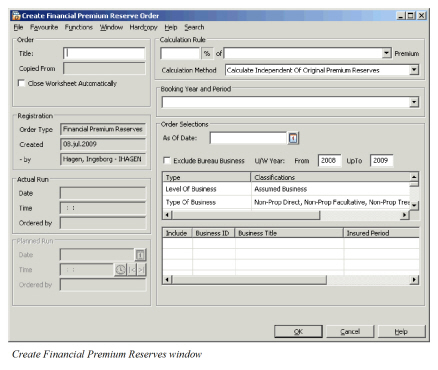
The calculation is ordered by creating a new Reserve Calculation Accounting Order with the type Financial Premium Reserves on Inward Treaties. Refer to Create- and Maintain Accounting Orders explained earlier for information on creating running orders for reserve calculations.
| Field | Description | Location |
|---|---|---|
| Calculation Rule % | Values: Valid % Functional Impact: Financial Premium Reserve Order is using this percentage and multiplies it with the Premium in order to calculate and book the Financial Premium Reserve. Be aware that all reserves calculated by the order will be multiplied with this percentage, if different percent should be used on different Class of Business you should create different Orders per Class of Business. Mandatory: Yes |
Financial Premium Reserve Order |
| Calculation Rule Premium | Values: All Entry Code Groups defined in Entry Code Group Category Premium Income, Financial Premium Reserve Calculation. Functional Impact: For the system to know which Entry Codes to find in each respective Business Ledger, amounts booked with the Entry Codes in the selected group will be the basis for a Financial Premium Reserve. Mandatory: Yes. |
Financial Premium Reserve Order |
| Calculation Method | Values: Calculate and Book Difference to Original Premium Reserves,Calculate and Book Independent of Original Premium Reserves and Exclude Businesses with Original Premium Reserves. Functional Impact: System can book Financial Premium Reserve in addition to Original Premium Reserves, difference between OPR and FPR or exclude FPR if OPR exist. The default on creating a new Financial Premium Reserve order is defined in the Reserves Calculation section of the System Parameters, Accounting tab, but can be changed here. Mandatory: Yes. |
Financial Premium Reserve Order |