Billing/Reminder Statements
The Billing Statement and Reminder Statement functions in SICS let you extract open, overdue balances on a Business Partner ledger; confirm the extraction on a special order; create statements including these balances; produce documents showing these balances; and update each balance with information about this transaction.
The two functions are almost identical but have one basic difference: The Billing Statement Order extracts all unsettled overdue balances that have not been included before, while the Reminder Statement Order extracts all unsettled overdue balances that have previously been included in either a Billing or Reminder Statement.
Order Billing/Reminder Statements #
To access an existing order:
- Open the Find Accounting Order window.
- Select either Billing Statement or Reminder Statement in the Type field and click Find Now.
- Select the required order from the list and open the order by double-clicking.
To create a new order:
- Open the Business Partner Ledger for the wanted business partner.
- Right-mouse click in the balance table to get the pop-up menu.
- Select Create Billing Statement or Create Reminder Statement from the pop-up menu.
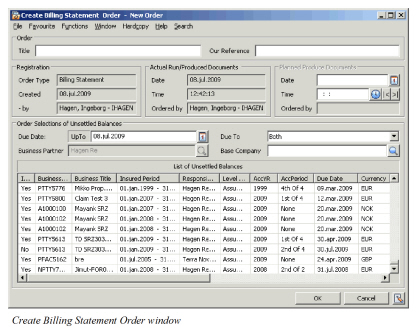
The order is automatically set in Edit mode and the information is divided into several sections as follows:
Order Information #
Title: Enter the title of the order you are creating.
Copied From: This is an output only field and shows you the Order ID from the order copied.
Registration Information #
Order Type: This field shows the accounting order type.
Created: This field shows the date that the order was created. It is output only, so you cannot change this date.
By: This field show who the order was created by. It is output only, so you cannot change this information.
Actual Run/Produced Documents #
This section shows Date, Time and Ordered by when you create the order the first time, but for each time you select the Run Now option from the Edit Menu button, the information changes. It is also updated if you select the Produce Document option.
Planned Produce Documents #
This section shows Date, Time and Ordered by when you want to run this order in the future.
Include Balances in Billing/Reminder Statements #
** Note that when you select Run Now, the system does not include excluded balances. Order Selectionsof Unsettled Balances is the box on the Create Billing Statement Order window where you can manipulate the default extrction rules. By changing data in this box and selecting Run Now from the Edit Menu at the bottom right corner of the window, the list of unsettled balances may be changed.
Note! When you select Run Now, the system does not include excluded balances.
Due Date: Defaults to today’s date but can be changed. All unsettled balances with a due date up to and including this date are included in the list.
Due To: You can include only balances due to you (Base Company), due to the Client or due to Both (default).
Business Partner: Defaulted from the Business Partner Ledger, but can be changed to another business partner.
Base Company : Per default no base company is extracted, which means that all base companies are includedEbut you can specify one.
Changing the above extraction values and selecting Run Now recreate the list recreated, except for those items that have been excluded manually. You see a confirm message and the option to override any manual exclusion you have already made. To be sure that all balances are included, you can first select Include All from the Edit Menu, and then Run Now.
If you want to exclude balances from the list, you can select one or more balances, open the pop-up menu and select Exclude.
If you want to cancel the exclusion you can select one or more balances, open the pop-up menu and select Revoke Exclusion For Selected. Or, you can select Revoke Exclusion For All. You have the same functionality by selecting Include All from the Edit Menu at the bottom right corner of the window.
If you are interested to see if a specific balance has been previously included in a statement, you can select the balance and select Balance Properties from the pop-up menu. This opens the Balance Details window where you get information about the balance history regarding Billing/Reminders.
If you are happy with the balances to be included in the statement, you can now close the order by clicking OK, or go further into the production by selecting Produce Document from the Edit Menu button at the bottom right corner. If you click OK and save the order with an Order ID you can later go back to the order and produce documents.
Note! All excluded balances are removed from the list when the Order has been saved.
Produce Billing/Reminder Statement Documents #
When you are finished with listing balances to be included in the Billing or Reminder Statement, you can produce the document.
To produce the document:
- Click the Edit Menu button at the bottom right-hand corner of the Create Billing Statement or Reminder Statement windows.
- Select Produce Documents.
- Select Billing Statement for Selected Balances.
(Now you may select View Document from the same menu.) A dialog box appears which says Document Successfully Created. Click OK. 4. Close the order by clicking Cancel.
Each balance included in the document is updated with the information that is shown in the Balance Details window. This window can be accessed from the Business Partner window by selecting More Balance Information from the pop-up menu or by selecting Balance Properties from the pop-up menu on the order.
Also, remember that if you close the order by clicking Cancel before Produce Documents has been performed, you can later open up the same order and then follow the above procedure. (See Order Billing/Reminder Statements on page 11-257.) If you select Produce Documents again, you create another set of the same documents in a new file.
To inspect the produced documents, select List Documents from the Edit Menu button. This opens the Document List window where you can select an item in the list and open it by using the pop-up menu.
Note! When Continuous Billing Statements has been selected in the System Parameters, the option to Create Reminder Statements is disabled. See System Parameter Maintenance, Miscellaneous in the System Administrator’s Guide.