Booking of Underwriters Estimate - Accrual Accounting on Inward Order
The Accrual Accounting on Inward Order is booking figures from Underwriters Estimate, Adjusted Estimates tab into a Technical Worksheet. You define one order for each portfolio that you want to the system book estimates for.
The Account Order calculates and books both Estimate and Accrual:
- The up to the respective date Estimated Written Premium [Commission, Brokerage, Other Costs respectively] = Underwriters Estimate (* Time Elapsed, if applicable).
- The Accrued Written Premium = Estimated Written Premium minus Actually Accounted figures booked on Business Ledger with Entry Codes in Entry Code Sub Category Premium, Premium Portfolio Entry, Premium Portfolio Withdrawal, Original Premium Portfolio Entry and Original Premium Portfolio Withdrawal, with Booking Period <= Booking Period in the order window.
- The Accrued Written Commission= Estimated Written Commission minus Actually Accounted figures booked on Business Ledger with Entry Codes in Entry Code Sub Category Original Commission, Profit Commission and Overriding Commission, with Booking Period <= Booking Period in the order window.
- The Accrued Written Brokerage = Estimated Written Brokerage minus Actually Accounted figures booked on Business Ledger with Entry Codes in Entry Code Sub Category Brokerage, with Booking Period <= Booking Period in the order window.
- The Accrued Written Other Cost = Estimated Written other Cost minus Actually Accounted figures booked on Business Ledger with Entry Codes in Entry code sub Category Fire Brigade Charges, Fronting Fee, Other Deduction and Tax on Premium, with Booking Period <= Booking Period in the order window.
Be aware that all bookings produced by this order are booked on the Estimate tab of the Edit Technical Worksheet, as they are derived from Estimate figures. So if you want to see them, you have to click the Estimate tab. To see them on the Business Ledger after closing the Technical Worksheet you have to select Include or Only from the drop-down list for the Estimate field on the Business Ledger.
To create and run an Accrual Accounting on Inward Order, refer to the Create- and maintain Accounting Orders section.
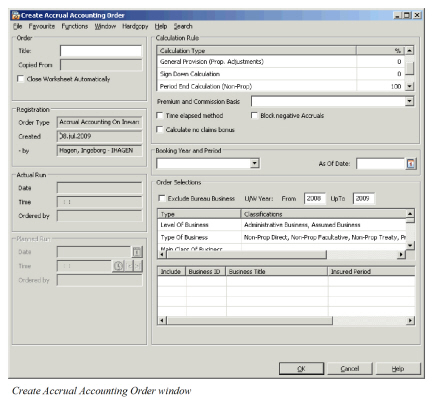
This window functions similarly to other Create Accounting Order windows; i.e. you define your Order Selections to define for which Portfolio to be included in the order.
Calculation Rule: #
In the Calculation Rule section on the Create Accrual Accounting Order window you see a table showing calculation types, for each of which you can input a certain percent. It shows above default percentages, which have no effect on the calculation if they are not overwritten.
| Field | Description | Location |
|---|---|---|
| Specific Provision and General Provision | These are only applicable to proportional businesses_ (_treaty_, facultative, direct). _Values:_ Default is 0% but can be any value below 100% _Functional Impact:_ Underwriters Estimates will be reduced with respective percentage. _Mandatory:_ Yes |
Create Accrual Accounting on Inward Order |
| Sign Down Calculation | This is only applicable to businesses where no definite signed share has yet been entered. Values: Default is 0% but can be any value below 100% Functional Impact: Underwriters Estimates will be reduced with respective percentage. Mandatory: Yes |
Create Accrual Accounting on Inward Order |
| Period End Calculation | This is only applicable to Non-Proportional businesses (treaty, facultative, direct). Values: Default is 100% but can be any value below 100% Functional Impact: The Underwriters Estimate is multiplied by the entered percentage. Mandatory: Yes |
Create Accrual Accounting on Inward Order |
| Premium and Commission Basis | The Premium and Commission Basis drop-down list is where you select which premium and cost items you want to perform the calculation. The system will only perform calculation of the Estimation Items that have got a Calculation Rule starting with Premium Income Amount or one value from the functions Calculated Amounts - System Created. Example: See ‘Example for Field Description for Premium and Commission Basis’ table below this field description table, Values: All Other Costs, Commission, Commission+Brokerage EPI, EPI + All Other Cost (Commission, Brokerage and Other Cost), EPI + Commission, EPI + Commission + Brokerage Functional Impact: All Other Costs: Calculation based on Estimated Items like Commission, Overrider, Brokerage, Tax on Premium and Other Deductions. For deductions it is only those Estimation Items that has a Calculation Rule with system created functions that will be booked by the order. The result is then booked in respective Estimated Written and Accrued Written codes Estimated Premium is not booked Commission: Estimated Item defined as Estimated Commission is booked only. Estimated Premium is not booked Commission+Brokerage. Estimated Item defined as Estimated Commission and Estimated Brokerage is booked only.Estimated Premium is not booked |
Create Accrual Accounting on Inward Order |
| Premium and Commission Basis | EPI: Calculation is only performed on the Estimated Item with a Calculation Rule from System Parameters that has Estimated Premium Income as Variable (see System Administration Guide). The result of the order run is two bookings: one for Estimated Premium and one for Accrued Estimated Premium. EPI+All Other Costs: Calculation based on Estimated Items like Commission, Overrider, Brokerage, Tax on Premium and Other Deductions. For deductions it is only those Estimation Items that has a Calculation Rule with system created functions that will be booked by the order. The result is then booked in respective Estimated Written and Accrued Written codes. EPI+Commission: Estimated Item defined as Estimated Premium Income and Estimated Commission is booked only. EPI+Commission+Brokerage: Estimated Item defined as Estimated Premium Income, Estimated Commission and Estimated Brokerage is booked only Mandatory: Yes |
Create Accrual Accounting on Inward Order |
| Time Elapsed Method | Selected: The Estimated Written values are calculated according to the Time Elapsed method, i.e.: Estimated Written = Underwriter’s Estimate * Time Elapsed, with Time Elapsed = (As of Date - Insured Period From Date + 1day) / (Insured Period To Date - Insured Period From Date + 1day), which means: Time elapsed since inception divided by the contract period length Cleared: The system will book Underwriters Estimate up front. Relevant when: Select the check box when you run order for Proportional Treaties and you want the system to calculate following the above formula. |
Create Accrual Accounting on Inward Order |
| Calculate No Claims Bonus | Selected: Box is selected, the Underwriters Premium Estimate is reduced by the NCB, if the business is non-proportional and a percentage is entered on the Rebate Conditions on the business. Cleared: The system will NOT consider any No Claim Bonus conditions. Relevant when: Select the check box when you run order for Non-Proportional Treaties and you want the system to reduce booked estimates following No Claim Bonus conditions. |
Create Accrual Accounting on Inward Order |
| Block Negative Accruals | Selected: Any calculated Accrued Written Premium (Commission, Brokerage, Other Costs) balance that is calculated and appears to be negative (positive) would NOT be booked by the system. Cleared: The system books the calculated Accrued Written Premium (Commission, Brokerage, Other Costs) result independent of whether the current Accrued Written Premium (Commission, Brokerage, Other Costs) balance is negative (positive). Relevant when: Actual bookings are higher than the Underwriters Estimate. If you do not want the system to book any negative accruals for Premiums or positive accruals for deductions. |
Create Accrual Accounting on Inward Order |
| Override Accounting Period From Date | Appears once you select for time elapsed method. Values: Date value (mm/dd/yyyy) Validations: Any valid date allowed. Functional Impact: The will be used by the system for each of the booked estimates. The correct date to enter herein is the first date for the period that you are about to close, e.g. if you close your books every month and you are about to create an order for Month 05 the correct date will be 1stMay. You should be careful when you enter this date as when you later run the Unearned Premium Reserve Order with the estimates as basis, the system is using the Accounting Period From and To as the earning period to see how much of the estimate that is unearned. Mandatory: Yes |
Create Accrual Accounting on Inward Order |
| Booking Year and Period | Values: All open Booking Periods from System Parameters Functional impact: The Booking Year and Period is the one that is allocated to the estimates booked by the order. Mandatory: Yes |
Create Accrual Accounting on Inward Order |
| The As of Date | Values: Date value (mm/dd/yyyy) Validations: Any valid date allowed. Functional Impact: Refers to the date as of which the calculation is to be performed: this will be the last day of the period that you want to close. The system bases the calculations on the most recent Underwriter’s Estimate(s) entered on the Estimate conditions with an As at Date less than or equal to the As of Date on the order. Mandatory: Yes |
Create Accrual Accounting on Inward Order |
Example for Field Description for Premium and Commission Basis :
| Output, Entry Code defined in System Parameters, Entry Code tab | Estimation Item, Adjustment tab of U/W Estimate Conditions | Corresponding Calculation Rule, need to start with |
|---|---|---|
| Estimated Written Premium and Accrued Written Premium | Premium Income (PI) | It is system defined that the order use that Estimation Item “Premium Income (PI)”, calculation rule can be e.g. %premiumIncomeAmount |
| Estimated Written Commission and Accrued Written Commission | Commission | ( #FUNC getCommissionsForIncurredLosses: ‘Premium Income (PI)’ andEstimatedPremiumIncome: ‘Premium Income (PI)') |
| Estimated Written Brokerage and Accrued Written Brokerage | Brokerage | ( #FUNC getBrokerageAmountForEstimatedPremiumIncome: ‘Premium Income (PI)') |
| Estimated Written Other Cost and Accrued Written Other Cost | Tax on Premium | ( #FUNC getTaxOnPremiumAmountForEstimatedPremiumIncome: ‘Premium Income (PI)') |
Order Selections #
For Order Selections, refer to the description in Create- and Maintain Accounting Orders.
Underwriters Estimate Conditions, Sections vs. Accounting Classifications #
It is important that the Underwriter’s Estimates on the business and the definition of the Accounting Classifications do not show any contradictions. Below are sensible data combinations of the Underwriter’s Estimates on the Main Section or Sub S_ection_ s, and the definition of Accounting Classifications (abbreviated AC) are illustrated showing how the system handles these cases.
- Underwriter’s Estimates are on the main section only
- If there is only one AC on the whole Business, the system calculates and books the total result(s) on this.
- If there is more than one AC defined on the Main and/or Sub Sections, and a percentage split on these is entered with the sum of 100%, the system splits up the Underwriter’s Estimate for calculation and books the results on these AC’s on the respective Sections.
- If there is no percentage split entered, but one AC is selected as Default AC, the system calculates and books the total result for this Business on the Default AC on the Main Section.
- If there is neither percentage split nor a default AC entered, but more than one AC is defined on the Business, the system books the total result(s) on the first AC on the business on the Main Section.
- If NO Accounting Classification exists at all the order will create a worksheet in open status.
- There are Underwriter’s Estimates on Sub Sections on the same level, but none on the Main Section
- Then the system calculates on the Underwriter’s Estimates from these Sub S_ections_ separately and book the result on the first respective AC defined on these Sub S_ection_ s. In this case it disregards any percentage split or Default AC, as it assumes you want to override it because of the differentiated input for the Underwriter’s Estimates.
- In all other cases the system, on running the order, gives you a warning message that there are inconsistencies in the data and asks you whether you want to proceed or not.
- If you want to proceed, the system will exclude these Businesses from the calculation. If you decide not to proceed the whole run process will be stopped, and you must clean up the Underwriters Estimate Conditions by defining the estimates on one level only in the section structure before running the order again.