View the Business Partner Financial Ledger
The Financial Ledger window enables you to view the total financial situation for a business partner. It lets you analyse the information pertaining a business partner.
All totals are shown in the original currency, but you can convert totals into other currencies using the exchange fields.
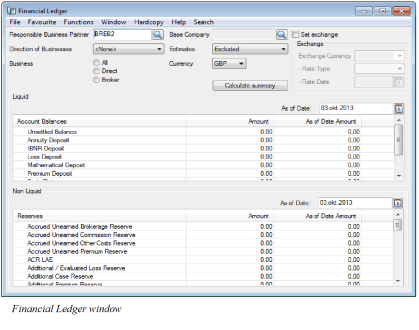
The Financial Ledger window is similar to the Business Ledger’s Account Balances Summary tab.
At the top of the window are the following fields:
Business Partner: You can select which business partner’s financial ledger to view. Clicking the Find button takes you to the Find: Business Partner window where you can select and transfer the business partner.
Base Company: You can view the totals for all base companies (no base companies selected) working with this business partner, or by individual base companies using the Find button.
Direction of Business: You can see totals for Inward or Outward business or None (all).
Business: You can view the total for All businesses for this business partner, only for businesses coming Directly from this business partner or businesses coming via a Broker by selecting one of the 3 radio buttons; All (or leave all unselected), Direct and Broker.
Estimates: You can view Estimates Only or estimates can be Included or Excluded from the totals.
Currency: Shows the original currency.
Set Exchange: When you select this check box, you enable the Exchange section to view totals in another currency.
Exchange: Select a currency from the drop-down list that you want to view totals in. Select the Rate Type and Rate Date.
Click Calculate Summary to view the figures for the selected business partner.
In addition to what you can see on the Account Balances Summary display list, there is a row showing Unsettled Remittance Balance in the Account Balances table.
The Account Balances Summary is divided into two sections; Account Balances and Reserves. For both sections, the first column shows the running balance name, the next column shows the current amount (as per today) and the third column shows the status of the balances as per a specific date. This date can be changed in the As of Date (calendar) at the top of the table.