The Business Ledger
When you are looking for detailed accounting information for a business, you enter the Business Ledger. In SICS the Business Ledger window is divided in two parts. The fields presented in the upper part of the window vary depending on the Level of Business. The lower part of the window contains the detailed accounting information of the business.
You have several options for searching and sorting the information of the Business Ledger. Some functionality is connected to pop-up menus, which enables you to maintain, operate and navigate in an easy way.
Open the Business Ledger #
You open your Business Ledger in order to inspect the accounting information of the business. There may be many reasons why you want to view a business ledger. If you are an Accountant and have received a Statement of Account from a Business Partner, you want e.g. to identify and verify the Unsettled Balances, and Reserve Balances and if you are an Underwriter you might want to inspect the Business Ledger in order to decide if the business should be cancelled or renewed.
|

Business Ledger button | You can access the Business Ledger from different parts of SICS: |
- Select the Business Ledger button in the Navigation bar of a Business Property window.
- Select Business Ledger from the pop-up menu in the Business Partner Ledger window.
- Select View Business Ledger from the pop-up menu in the Find: Accounting Worksheet window.
- Select Business Ledger from the pop-up menu in the Claim Ledger.

| Field | Description |
|---|---|
| Business ID | The unique identification of Business included in the Business Ledger. Values: Business Identifier Derived from: Business Mandatory: Yes Functional Impact: None |
| Business Title | The title given to a business. Values: Text Derived from: Business Mandatory: No |
| Reinsurer (The field is labelled Cedent for Inward business). |
The legal responsible business partner(s) of the business. The Business Partner(s) depends upon the Type- and Level of Business. Values: <ALL> Business Partner name(s) Default: If the business has more than one Responsible Business Partner, the default is <ALL>. With only one Responsible Business Partner, the default depends on your system settings. Derived from: Business Partner, Level of Business Mandatory: No Functional Impact: None |
| Cedent (The field is labelled Reinsurer for Inward business). |
The base company(ies) of the business. Values: <ALL> plus Cedent name(s). Default value is <ALL>. Derived from: Business Partner Mandatory: No Functional Impact: None |
| Inception | The first Insured Period From Date of the business. Values: Date Derived from: Insured Period from date of the 1st insured period of the business Mandatory: Yes Functional Impact: None |
| Cancellation | The cancellation date of the business. Values: Date Derived from: The cancellation date of the business Mandatory: No Functional Impact: None |
| Currency |
Currencies of the Business Ledger having accounting details. Values: Currency Sorting: Main Currency of last Insured Period first, then all other currencies alphabetically, but Active ledger currencies before Inactive ledger currencies. Mandatory: Yes Functional Impact: None |
| ( No label) |
For Outward businesses there is a field next to the currency field, which describes where in the retrocession accounting process the bookings are. Values: As Original, As Booking, As Account or As Informational. Default: As Booking Mandatory: Yes Functional Impact: None |
| Estimates | Indicates whether or not Estimates are shown in the Business Ledger view. Values: Excluded, Included or Only Default: Excluded Mandatory: Yes Functional Impact: None |
| WS Status | For Outward businesses it is possible to view the open worksheets of the Business Ledger. Values: Open, Closed Default: Closed Mandatory: Yes Functional Impact: None |
| Last Complete Accounting Year | The last year that accounting is completed for. Values: Year Derived from: The Accounts tab of the Administration Conditions or the Technical Worksheet. Mandatory: No Functional Impact: None |
| Last Complete Booking Year | The last year that booking is completed for. Values: Year Derived from: Technical Worksheet Mandatory: No Functional Impact: None |
Find the Accounting Information on the Business Ledger #
When you open the Business Ledger you see a default view with accounting information. The default view shows the Business Ledger for one business, but it is also possible to inspect the Business Ledger for more businesses by adding businesses, e.g. because you want to see all xl layers together. This is also relevant when you open the Business Ledger for a Reinsurance Program or a Cendent’s Program where all assigned businesses will be shown by default. In some cases you might be looking for other accounting information than what is presented as per default. It is then important that you can find this information as quick and easy as possible.
Add Business to Business Ledger #
- In the Business display list, select Add Business from the pop-up menu if you want to inspect accounts for additional business. You see the Find Business windows
- Search for the business and transfer the business to the Business Ledger by double-clicking it or selecting Transfer. You can transfer several businesses.
- The business is added to the Business display list. If required, continue to add businesses for accounts to be inspected
Remove Business to Business Ledger #
- In the Business display list, highlight the business that you want to remove and select Remove Business from the pop-up menu
- The business is removed. If required, continue to remove another business, one by one. The business from where the business ledger was opened can not be removed. At least one business must remain on the business ledger for Reinsurance Program or Cedent’s Program
View Business Properties for a Business on a Business Ledger #
- In the Business display list, highlight the business that you want to inspect and select Business Properties from the pop-up menu.
- The business properties, last insured period, for the highlighted business is opened.
Search on the Business Ledger #
SICS lets you change some of the information in the upper part of the Business Ledger window making it possible to search for and present new accounting information. Once you change one of these fields, SICS starts a search and presents the new accounting information.
- Open the business ledger. Refer to Open the Business Ledger on page 11-415.
- Select the field that you want displayed differently, for example the Currency drop-down list.
- Select the value you want displayed (another currency, if any) from the drop-down list.
Search using Set Selection in Business Ledger #
Sometimes you need to change more than one criterion before you want SICS to perform the search.
- Open the business ledger. Refer to Open the Business Ledger on page 11-415.
- Select the Set Selection check box.
- Make changes to the extractions.
- Click the Find Now button. You see the search results in the display lists.
Maintain View of Retrocession Accounting Business Ledger #
For Outward Business the Business Ledger looks different than the Business Ledger for Inward Businesses. The Proportional Treaty businesses have for instance several steps in the booking process and it is important to be able to view the accounting information for each step.

View the Preliminary Ledger #
For a Proportional Outward Cedent’s Contract business you can view the preliminary ledger. This ledger contains:
- Bookings retroceded to the OCC from the Assumed Businesses being protected by the OCC through the Proportional Protection Assignment.
- There may be differences between the Business Ledgers of the Assumed Businesses and the OCC. One reason can be that an Entry Code has been excluded from retrocession by a flag on the Entry Code. Refer to Reference Items and Entry Code Maintenance in System Administrator’s Guide.
- Manual bookings made on the OCC from Technical Worksheet or Claim Worksheet.
To view the preliminary ledger:
- Open the business ledger of the Proportional OCC business.
- Select As Original in the field next to the Currency drop-down list.
View Business Ledger in Booking Currency #
For Proportional and Non-Proportional Outward Cedent’s Contracts and Retrocessionaire’s Participation businesses, you can view the Business Ledger in Booking Currency.
For Proportional OCC’s a Retrocession Calculation order has to be run in order to transfer the booking information from Preliminary Ledger to the Ledger in Booking Currency. Differences between the Preliminary Ledger and the Ledger in Booking Currency may occur. Reasons for these differences can be calculations, Currency Transformation terms or Entry Code Transformation terms.
The Proportional Retrocessionaire’s Participation Business Ledger in booking currency may also differ from the Proportional OCC Business Ledger as some calculations are performed on the RP’s level of business only.
For Non-proportional businesses, the ledger in booking currencies is the only step in the booking process.
- Open the Business Ledger of the OCC or the RP business.
- Select As booking in the field next to the Currency drop-down list.
View Business Ledger in Account Currency #
For Proportional Retrocessionaire’s Participation businesses you can view the Business Ledger in Account Currency.
For Proportional Treaty businesses a Retrocession Account order has been run in order to transfer the booking information from the Ledger in Booking Currency to the Ledger in Account Currency. The column Retroceded on the Business Ledger ‘as Booking’, Details part, is updated from ‘No’ to ‘Yes’ when details are processed by the Retrocession Account order. A difference between the Ledger in Booking Currency and the Ledger in Account Currency may occur. Reasons for these differences can be Currency Transformation Terms or Entry Code Transformation Terms being specified in the Administration Conditions. (For further information about the Retrocession Account order, see the chapter……….)
A Treaty/Outward Fac. order has to be run in order to transfer the booking information from the ledger in booking currency to the ledger in account currency for Proportional Facultative RP businesses
- Open the business ledger for the Proportional Retrocessionaire’s Participation business.
- Select As account from the field next to the Currency drop-down list.
View Business Ledger of Open Worksheets #
For ledgers in Booking and Account Currency, you can inspect the ‘Open’ worksheets. This is important, for instance, when you have run a Retrocession Calculation order and want to verify if the calculations, e.g. reserves, deposits and portfolios, are correct before you close the worksheets.
- Open the Business Ledger for the OCC- or RP business.
- Select As booking or As account depending on where in the booking process you are.
- Select WS Status ‘Open Worksheet’ from the drop-down list.
View Account Balance Summary from Business Ledger #
| The Account Balances Summary tab is an overview, or summary, of more detailed information on the Account Balances tab. | When you want to see a summary of all the details in the Business Ledger, you can enter the Account Balance Summary tab. |
You can view the following Liquid Balances in the upper half of the tab:
- Unsettled Remittances Balance (Estimates are not included in this balance.)
- Unallocated Remittances Balance
- Cash Claim Balance
- Premium due Later Balance
- Deposit Balances
You can view the following the Non-Liquid Balances in the lower half of the tab:
- Non-Liquid Deposit Balances
- Reserve Balances
The Balances first appear on the ledger when bookings exist and the user press Calculate, either above the Liquid container and/or above the Non Liquid container. The column labeled Amount is always showing the current status of the balances.
When you need to verify Account Balances at a specific date, you can specify this date in the Account Balance Summary tab and press the Calculate button. The Balances as of the specified date are displayed in the rightmost column of the tab labeled As of Date Amount.
Since detail pairing takes place also when worksheets are in any pending statuses the Amount column and the As of Date Amount column also takes worksheets in any pending statuses into accounts for the following entry code sub categories; Cash Claim, Deposit, Non-Liquid Deposits and Premium Due Later.
- Open the business ledger. Refer to Open the Business Ledger on page 11-415.
- Click the Account Balance Summary tab.
- If you want to view the balance summary at another date, change the As of Date of the Liquid Balances and/or the Non Liquid Balances and click the Calculate button.
View Account Balances from Business Ledger #
When you want to inspect the balances of a business, you open the Account Balances tab of the Business Ledger. The Balances of the business are displayed in the upper section of the tab. You can for instance see the Worksheet ID, Underwriting Year(if it contains only one Underwriting Year), Section Name(if it contains the same section) and Business ID included in the balance(s).These balances are booked on technical- and claim worksheets.
- Open the business ledger. Refer to Open the Business Ledger on page 11-415.
- If required, change the criteria. For example, the currency to get the required view of the Account Balances.
- Click the Find Now button.
You see the balances meeting the criteria defined in the Balance Criteria window (appearing when you click the Criteria button.). For maintenance of the Balance Criteria window refer to Maintain Criteria for view of Account Balances.

| Field | Description |
|---|---|
| Sum All Unsettled Amounts | This field shows the total amount of all unsettled balances for a selected currency when you press the Calculate button. Estimates are excluded from this total. If the Calculate button is not shown, then the sum is automatically calculated. You can decide if this should be calculated automatically or not in the User Preferences, under Accounting. Values: Amount, If no unsettled balances: 0,00 Mandatory: Yes Functional Impact: None |
| Sum of Extracted Unsettled Amounts | The amount of unsettled balances meeting the criteria of the Balance Criteria window and the extractions made via the header of the Balance section of the Account Balances tab. Values: Amount, If no unsettled balances: 0,00 Mandatory: Yes Functional Impact: None |
Maintain Criteria for View of Account Balances from the Business Ledger #
When you are looking for balances on the Business Ledger, very often you want the search to be quick. In order to narrow the list of balances and improve SICS performance searching for balances, only balances corresponding with the settings in the Balance Criteria window are displayed. Some of the search criteria are automatically set by the system and this depends on how your own preferences have been set. (For further reference see User Preferences in the System Administrator’s Guide.)
- Open the business ledger. Refer to Open the Business Ledger on page 11-415
- Click the Account Balances tab.
- Select the Criteria button. You see the Balance Criteria window.
 4. Maintain the Balance Selection Criteria.
5. Click the Find Now button.
6. Click New Search button to reset the Balance Criteria window if a new search is required.
4. Maintain the Balance Selection Criteria.
5. Click the Find Now button.
6. Click New Search button to reset the Balance Criteria window if a new search is required.
| Field | Description |
|---|---|
| Settlement Indicator | The balance’s settlement status Values: Select or Clear the check boxes for Unsettled, Partially Settled, Settled and Written Off. Default: Depends on your defined preferences the system excludes by default settled balances. However, for some businesses, created balances are settled automatically. For these businesses the system extracts the Settled balances as well, independent of your preferences: Balances on OCC businesses. Balances in Booking Currency on RP Proportional Treaty businesses. Balances in Account Currency on RP Proportional Facultative businesses. Mandatory: No Functional Impact: Account Balances |
| Booking Date From / - To | The Balances Date of Booking - values. Values: Date Default: Depends on your defined preferences the default value for Booking Date From is 01.01.xx, where xx is the previous calendar year and the default value of Booking Date To is today’s date, or both are empty. Mandatory: No Functional Impact: Account Balances |
| Booking Year From/- To | The Booking Year of the balances included in the view of Account Balances. Values: Year Default: Depends on your defined preferences the default value for Booking Year From is the previous calendar year and the default value for Booking Year To is current calendar year, or both are empty. Mandatory: No. Functional Impact: Account Balances |
| Booking Period From/- To | The Booking Period of the balances included in the view of Account Balances. Values: None, 1st quarter, 2nd half year, 5th month etc. Default: None (= all periods) Derived from: Fields are enabled when the selected Booking Year From/- To is the same year.Mandatory: No Functional Impact: Account Balances |
| Accounting Year From/- To | The Accounting Year of the balances included in the view of Account Balances. Values: Year Mandatory: No Functional Impact: Account Balances |
| Accounting Period From/- To | The Accounting Period of the balances included in the view of Account Balances. Values: None, 1st of 12, 2nd of 2, 3rd of 4, etc. Default: None (= all periods) Derived from: Fields are enabled once the selected Accounting Year From/- To is the same year. Mandatory: No Functional Impact: Account Balances |
| UwYR From/- To | The Underwriting Year of the balances included in the view of Account Balances. NB! This will work as an extraction criteria if the balance contains of details linked to ONE Underwriting Year only. If the balance contains of details linked to different Underwriting Years this balance will not be listed. Values: Year Default: Depends on your defined preferences the default value for UwYR From is the previous calendar year and the default value for UwYR To is current calendar year, or both are empty. Mandatory: No. Functional Impact: Account Balances |
View Account Balance Details from Business Ledger #
When you want to inspect details of balances for a business, you open the Account Balances tab of the Business Ledger. You can for instance see the Entry Codes, Underwriting Years and Insured Period included in the balance(s). The Balance Details are displayed in the lower section of the tab.
For Policy Ceded, a column ‘Retroceded’ is available in the lower section of the Account Balance Tab. The value on this column will be set to yes when the detail is retroceded. This can happen when the Policy Ceded has a Protection Assignment in place or later, when a Protection Assignment is added.
- Open the business ledger.
- Click the Account Balances tab.
- If required, change the criteria. For example, the to get the required view of the Account Balances.
- Click Find Now.
- Select the Balance(s) for which you want to inspect the details.
| Field | Description |
|---|---|
| Sum of Selected Balances | Total amount of selected balances (independent of Settlement Indicator) from the Balance section of the Account Balances tab. Values: Amount, If no selected balances: 0,00 Mandatory: Yes Functional Impact: None |
| Sum of Extracted Details Amounts | Total amount of selected details (independent if they are liquid or not) from selected balances of the Balance section of the Account Balances tab. When details are displayed extractions can be made via the header of the Details section of the Account Balances tab. Values: Amount, if no details amount: 0,00 Mandatory: Yes Functional Impact: None |
View Cash Claims from Business Ledger #
The Cash Claims window gives you an overview of the Cash Claims details of the business. You select the Cash Claim window in order to:
- See if there are any unreleased cash claims.
- See the cash claim history.
- Create detail pairing between cash claim request and cash claim release. (For further reference, see chapter Create Detail Pairing from Business Ledger)
- Release a cash claim request.
To view cash claims:
- Open the Business Ledger.
- Change the search criteria, for example, the currency to get the required view of Cash Claim Balances.
- Click the Cash Claims tab.
You see the details meeting the criteria defined in the Detail Criteria window (appearing when you click the Criteria button.).

| Field | Description |
|---|---|
| Cash Claims Balance | Total amount of unreleased Cash Claims details for a selected currency. Values: Amount. If no Cash Claim details: 0,00 Mandatory: Yes Functional Impact: None |
| Sum of Extracted Cash Claims | Total amount of extracted Cash Claims details, independent if they are released or not. Extractions can be made from the Detail Criteria window or via the header of the Cash Claims tab. Values: Amount. If no details extracted: 0,00 Mandatory: Yes Functional Impact: None |
Maintain Criteria for View of Cash Claim Details from the Business Ledger #
In order to narrow the list of details and improve SICS’s performance searching for details, only details corresponding with the settings in the Detail Criteria window are displayed.
- Open the Business Ledger.
- Click the Cash Claim tab (or Premium due Later, Deposit, Non-Liquid Deposit tab)
- Click the Criteria button. You see the Detail Criteria window
 4. Maintain the Detail Selection Criteria(Released, Unreleased and Partially Released)
5. Click Find Now.
4. Maintain the Detail Selection Criteria(Released, Unreleased and Partially Released)
5. Click Find Now.
If a new search is necessary, select the New Search-button to reset the Detail Criteria window.
| Field | Definition |
|---|---|
| Detail Criteria | Values: Released, Unreleased and Partially Released Default: Unreleased and Partially Released Mandatory: No |
View Premiums due Later from Business Ledger #
The Premiums due Later window gives you an overview of the Premiums due Later details of the business. You select the Premiums due Later window in order to:
- See if there are any unreleased Premiums due Later.
- See the Premium due Later history.
- Create detail pairing between Premium due Later request and Premium due Later regulation. (For further reference, see section_Create Detail Pairing from the Business Ledger on page 11-485__)_
- Release a Premium due Later request. To view Premium due Later:
- Open the Business Ledger.
- Change the criteria, for example, the currency in order to get the required view of Premiums due Later details.
- Click the Premiums due Later tab.
You see the details meeting the criteria defined in the Detail Criteria window (appearing when you click the Criteria button.)

.
| Field | Description |
|---|---|
| Premiums due Later Balance | Total amount of Premiums due Later details. Values: Amount. If no Premium Due Later details: 0,00 Mandatory: Yes Functional Impact: None |
| Sum of Extracted Premiums due Later | Total amount of extracted Premiums due Later details, independent if they are released or not. Extractions can be made via the header of the tab. Values: Amount. If no details extracted: 0,00 Mandatory: Yes Functional Impact: None |
Maintain Criteria for view of Premium Due Later details from the Business Ledger #
See chapter Maintain Criteria for View of Cash Claims details from Business Ledger.
View Deposits from Business Ledger #
The Deposits window of the Business Ledger gives you an overview of the Deposit details of a business. You select the Deposits window in order to:
- See if there are any unreleased Deposits.
- See the Deposits history.
- Create detail pairing between Deposits retained and Deposits released. (For further reference, see chapter Create Detail Pairing from Business Ledger.)
- Release a Deposit. To view deposits:
- Open the Business Ledger.
- Change the criteria, for example, the currency to get the required view of Deposit details.
- Click the Deposits tab.
- Select another Deposit Sub Category from the drop-down list if required.
- .You see the details meeting the criteria defined in the Detail Criteria window (appearing when you click the Criteria button)

.
| Field | Description |
|---|---|
| Deposits | Sub Categories of Deposits. Values: Entry Code Sub Categories within the category Deposits. Refer to the Entry Code Maintenance chapter. Default: Premium Deposit Mandatory: Yes Functional Impact: None |
| Deposit Balance | Total amount of unreleased Deposit details. Values: Amount, If no details: 0,00 Mandatory: Yes Functional Impact: None |
| Sum of Extracted Deposits | Total amount of extracted Deposit details, independent if they are released or not. Extractions can be made via the header of the tab. Values: Amount. If no details extracted: 0,00 Mandatory: Yes Functional Impact: None |
Maintain Criteria for View of Deposits from the Business Ledger #
See chapter Maintain Criteria for View of Cash Claims details from Business Ledger.
View Non-Liquid Deposits from the Business Ledger #
The Non-Liquid Deposits window of the Business Ledger gives you an overview of the Non-Liquid Deposit details of the business. You select the Non-Liquid Deposits window in order to:
- See if there are any unreleased Non-Liquid Deposits.
- See the Non-Liquid Deposits history.
- Create detail pairing between Non-Liquid Deposits retained and Non-Liquid Deposits released. (For further reference, see chapter Create Detail Pairing from Business Ledger.)
- Release a Non-Liquid Deposit. To view Non-Liquid Deposits:
- Open the Business Ledger.
- Change the criteria, for example, the currency to get the required view of Non-Liquid Deposit details.
- Click the Non-Liquid Deposits tab.
- Select another Non-Liquid Deposit Sub Category from the drop-down list if required.
You see the details meeting the criteria defined in the Detail Criteria window (appearing when you click the Criteria button).

| Field | Description |
|---|---|
| Non-Liquid Deposits | Sub Categories of Non-Liquid Deposits. Values: Entry Code Sub Categories within the category Non-Liquid Deposits. Refer to the Entry Code Maintenance chapter. Default: Non Cash Premium Deposit. Mandatory: Yes Functional Impact: None |
| Non-Liquid Deposits Balance | Total amount of unreleased Non-Liquid Deposit details. Values: Amount. If no details: 0,00 Mandatory: Yes Functional Impact: None |
| Sum of Extracted Deposits | Total amount of extracted Non-Liquid Deposit Balances, independent if they are released or not. Extractions can be made via the header of the tab. Values: Amount. If no details extracted: 0,00 Mandatory: Yes Functional Impact: None |
Maintain Criteria for view of Non-Liquid Deposits from the Business Ledger #
See chapter Maintain Criteria for View of Cash Claims details from Business Ledger.
View Reserves from the Business Ledger #
The Reserves window of the Business Ledger gives you an overview of the Reserves details of the business. You select the Reserves window in order to:
- See the Reserves details.
- See the Reserves history. To view reserves:
- Open the Business Ledger.
- Change the criteria, for example, the currency to get the required view of Reserve Balances.
- Select the Reserves tab.
- Select another Reserve Category from the drop-down list if required.

| Field | Description |
|---|---|
| Reserves | Sub Categories of Reserves. Values: Entry Code Sub Categories within the category Reserves. Refer to the Entry Code Maintenance chapter. Default: Depends on your defined preferences. Mandatory: Yes Functional Impact: None |
| Reserves Amount | Total amount of Reserve details. Values: Amount: If no details: 0,00 Mandatory: Yes Functional Impact: None |
| Sum of Extracted Reserves | Total amount of extracted Reserve details. Extractions can be made via the header of the tab. Values: Amount. If no details extracted: 0,00 Mandatory: Yes Functional Impact: None |
View Unallocated Remittance Balances from Business Ledger #
When in a pairing process, you can assign a part of the Driving Remittance Balance to a business. This is relevant when the Technical-/Claim balance the cash balance applies to, is not yet booked. (Refer to the Create Balance Pairing chapter in the Business Partner Ledger documentation for further information.)
When assigning to businesses, Unallocated Remittance Balances are created. The Unallocated Remittance Balances are displayed in the Business Ledger.
- Open the Business Ledger of the business to which Unallocated Remittance Balance has been assigned.
- Select the Unallocated Remittance tab.
- Select Allocation status if applicable:
- None = all balances
- Unallocated = The Unallocated Remittance Balance is paired with the driving Remittance Balance, from which the Unallocated Remittance Balance was created.
- Allocated = The Unallocated Remittance Balance has annulled balance pairings with the Remittance Balance, from which the Unallocated Remittance Balance was created. Annulling is done either when the matching Technical-/Claim Balance has been booked and paired with the original Remittance Balance. Or the user has manually annulled the pairing. Note! Unallocated Remittance Balances are not included in the Account Balances tab of the Business Ledger, nor in the Business' Online Statistics. The Unallocated Remittance Balances with Status Unallocated are summarized and displayed as a separate balance in the Account Balances Summary tab. The same balances are also included in the Unsettled Balances amount on the same tab.
| Field | Description |
|---|---|
| Creation Date | This date reflects the original Remittance balance’s Date of Booking, i.e. the remittance, from which the Unallocated Remittance Balance was created. Values: Date Derived from: Remittance Worksheet Mandatory: Yes Functional Impact: None |
| Value date | This date reflects the original Remittance balance’s Value Date, i.e. the remittance, from which the Unallocated Remittance Balance was created. Values: Date Derived from: Remittance Worksheet Mandatory: No Functional Impact: None |
| Wks ID | The identifier assigned to the Unallocated Remittance Balance when created. Values: Prefix + number Mandatory: Yes Functional Impact: None |
| BYR | The Year when the Unallocated Remittance Balance was booked Values: Year Derived from: The Base Company’s default Booking Terms Mandatory: Yes Functional Impact: None |
| BP | The Period when the Unallocated Remittance Balance was booked Values: Period, e.g. Month 01, 1st Half Year, 2nd quarter, etc. Derived from: The Base Company’s default Booking Terms Mandatory: Yes Functional Impact: None |
| Check /Wire No | The Check- or Wire number associated with the remittance from which the Unallocated Remittance Balance was created Values: Free input made in Remittance Worksheet Derived from: The Remittance Worksheet Mandatory: No Functional Impact: None |
| Amount | The amount for which a matching Technical-/Claim Balance is expected to be booked. If the amount for an Unallocated Remittance is registered as zero, it will not appear on the Business Partner Ledger. Values: Amount +/- Mandatory: Yes Functional Impact: Account Balance Summary tab |
| Status | Indicates whether or not the Unallocated Remittance Balance’s pairing link to the driving Remittance Balance has been reversed (annulled) or not. The pairing link is annulled when a matching Technical-/Claim Balance has been booked and paired with the driving remittance balance. The pairing link could also be manually annulled. When the pairing between the Unallocated Remittance Balance and the driving Remittance Balance is active the status is Unallocated. When the pairing between the Unallocated Remittance Balance and the driving Remittance Balance has been annulled the status is Allocated, meaning the Unallocated Remittance Balance’s mission completed. Values: Unallocated, Allocated (i.e. pairing link annulled) Mandatory: Yes Functional Impact: None |
| Allocation Date | The date when the matching Technical-/Claim balance was paired against the Remittance Balance from which the Unallocated Remittance Balance was created. Or, the date when the balance’s pairing link with the driving remittance balance was annulled. Values: Date of pairing between technical-/claim balance and remittance Mandatory: Yes, when status = Allocated Functional Impact: None |
| Payment Partner | The Payment Partner of the Remittance Worksheet from which the Unallocated Remittance Balance was created Values: The payment partner’s short name Derived from: The Remittance Worksheet Mandatory: Yes Functional Impact: None |
Create Balance Pairing with Technical-/Claim Balance manually #
You are allowed to start a Balance Pairing process from the Unallocated Remittance Balance tab of the Business Ledger.
This may be relevant when an Automatic Balance Pairing between a Technical-/Claim Worksheet and a matching Unallocated Remittance balance has been aborted from the Worksheet Closing window. (Refer to the chapter Change the Status of the Technical-/Claim Worksheet.) Manual pairing is also relevant when Technical-/Claim Balance and Unallocated Remittance Balance do not match or if the Unallocated Remittance belongs to an outward business
- Open the Unallocated Remittance Balance tab in the Business Ledger
- Select the Unallocated Remittance Balance you want to create balance pairing from. (Only one balance at the time.)
- Select Create Balance Pairing from the pop-up list. The Ledger Balances Pairing window is opened with the following pre-selected criteria:
- Currency
- Balance type (Technical and Claim)
- Business Identifier (In Additional Find Criteria)
- Click Find Now to display the balances
- Select the applicable balance(s)
- Click OK to update the pairing.
If the selected Technical-/Claim Balance(s) is part of an Account Balance Group, the group can be paired with the Unallocated Remittance Balance.
If a selected Technical-/Claim Balance is part of a Settlement Balance Group, the balance cannot be used unless the whole Group is included.
When you confirm a pairing between Technical-/Claim Balance(s) and an Unallocated Remittance Balance, the system is:
- Performing an automatic pairing between the Technical-/Claim Balance and the original Driving Remittance Balance from which the Unallocated Remittance Balance was created.
- Reversing/annulling the pairing between the Driving Remittance Balance and the Unallocated Remittance Balance.
- Changing the Unallocated Remittance Balance’s status to Allocated in the Business Ledger.
- Updating the Technical-/Claim Balance as Settled in the Business Ledger/Business Partner Ledger
- Adjusting the Unsettled Balance and Unallocated Remittance fields of the Liquid area of the Account Balances Summary tab in the Business Ledger.
View the Unallocated Remittance Balance’s Pairing Properties #
You can view the pairing properties of the Unallocated Remittance Balance. This may be relevant e.g. when you want to see the balance’s link to the driving remittance balance.
- Open the Unallocated Remittance Balance tab in the Business Ledger
- Select an Unallocated Remittance Balance
- Select Pairing Properties from the pop-up list. The View Ledger Balances Pairing window appears
From the View Ledger Balances Pairing window you can e.g. enter the Business Partner Ledger, see more pairing information, annul pairing, etc.
Annul Unallocated Remittance Balances from the Business Ledger #
If you find that an Unallocated Remittance Balance has been booked by mistake, you can select to annul the balance from the Balance Pairing.
- Open the Business Ledger
- Open the Unallocated Remittance tab
- Select the Unallocated Remittance Balance with Status Unallocated that you want to annul.
- Select Balance Pairing Properties from the pop-up list.
- Select the Remittance Balance in the View Ledger Balances Pairing window
- Select Annul from the pop-up list
The Unallocated Remittance balance is reversed from the pairing. The balance is updated with the status Allocated in the Unallocated Remittance Balances tab of the Business Ledger. In addition, the Driving Remittance Balance’s Unsettled Amount and Status fields are updated in the Business Partner Ledger.
You can also select to annul Unallocated Remittance Balance from Business Partner Ledger. (See the Create Pairing chapter to get further information.)
Navigations and Operations from the Business Ledger #
With exception of the Balance Summary tab, you can access pop-up menus from all tabs of the Business Ledger. The menus include different options depending on the tab you are viewing.
| Account Balances | Cash Claims Premiums due Later Deposits Non-Liquid Deposits | Reserves |
|---|---|---|
| Make New Booking | Make New Booking | Make New Booking |
| Copy (Worksheet, Balance or Details) | ||
| Reverse (Worksheet, Balance or Details) | ||
| Reverse and Replace (WS, Balance or Details) | ||
| Business Property | ||
| Business Online Statistics | ||
| More Balance Information | ||
| More Details Information | More Details Information | More Details Information |
| Worksheet Properties | Worksheet Properties | Worksheet Properties |
| Claim Properties | Claim Properties | Claim Properties |
| Section Properties | Section Properties | Section Properties |
| Cession Properties (SICS Life) | ||
| View Detail Adjustment | ||
| Business Partner Ledger | ||
| Business Partner Financial Ledger | ||
| Balance Pairing Properties | ||
| Create Balance Pairing | ||
| Create Account Balance Group | ||
| Split Balance into Details | ||
| Settlement Balance Properties | ||
| Account Balance Group | ||
| Properties | ||
| Create Detail Pairing | ||
| Detail Pairing Properties | ||
| Release Selected Bookings | ||
| User Defined Fields | ||
| Mark as Settled | ||
| Mark as Unsettled | ||
| View Target Details | ||
| View Source Details | ||
| View EDI message | ||
| View eMessage |
All options in the list allow you to easily navigate to other parts of SICS and perform advanced operations having the Business Ledger as the basis for your work.
Each option is enabled/disabled dependent of selected balance/detail.
When multiple balances are highlighted, most menu options are disabled.
The different procedures for navigation and operation are described in details later.
Make New Booking from the Business Ledger #
When you verify the Business Ledger and you discover that a new booking is necessary, the Make New Booking option makes it easy for you to navigate to the Technical Worksheet. You can also check if open worksheets exist by selecting this option. Refer to the Manual Bookings on a Worksheet on page 11-11 section.
- Open the Business Ledger. Refer to Open the Business Ledger on page 11-415.
- Click any of the Business Ledger tabs except for the Account Balances Summary tab.
- Select Make New Booking from the pop-up menu.
- List and select a worksheet if any open worksheets exist or create new worksheet.
Copy Worksheet, Balance or Details from the Business Ledger #
SICS lets you copy Worksheet, Balance or Details from the Account Balances tab of the Business Ledger. These options help you to maintain and update your ledger using information from the ledger as basis for the operations.
Note! If the Booking Year/Period is closed then the default open Booking Year/Period is used on the copied bookings. For further details of the options, see the Booking Terms section in the System Administrator’s Guide.
Copy Worksheet from Business Ledger #
You are verifying a Business Ledger and for some reason you find it necessary to copy a worksheet. If for instance the details of two accounts are almost the same, and you already have made bookings on the first account, the copy worksheet option gives you a quick and easy way to book the second account.
- Click the Account Balances tab of the Business Ledger.
- Click Find Now to display the balances.
- Select a balance in the Balance section.
- Select Copy and Worksheet from the pop-up menu. The entire worksheet of the selected balance is copied.
- If required, exclude Businesses and/or Currencies from the Copy Technical Worksheet window and click OK.
- If required, make changes to the Technical Worksheet and close the worksheet. (Refer to the Manual Bookings on a Worksheet on page 11-11section for more information.)
Note! If TA Process ID and/or CL Process ID were registered on any of the balances in the original worksheet, they are copied to the new worksheet balances.
Copy Balance from Business Ledger #
You are verifying a Business Ledger and for some reason you find it necessary to copy a balance. If you for instance have received an account with almost the same details as an existing balance of the Business Ledger, the copy balance option gives you a quick and easy way to book the new account.
- Click the Account Balances tab of the Business Ledger.
- Click Find Now in order to display the balances.
- Select a balance in the Balance section.
- Select Copy and Balance from the pop-up menu. The details of the Balance are entered into a new Technical Worksheet created automatically.
- If, required, make changes to the Technical Worksheet and close the worksheet. (Refer to the Manual Bookings on a Worksheet on page 11-11section for more information.)
Note! If TA Process ID and/or CL Process ID were registered on the original balance they are copied to the new worksheet balances.
Copy Details from Business Ledger #
You are verifying a Business Ledger and for some reason you find it necessary to copy one or more details. If for instance you have forgotten one detail of an account, you can copy a detail from the same account and make the necessary changes to book the additional detail.
- Click the Account Balances tab of the Business Ledger.
- Click Find Now in order to display balances.
- Select a balance(s) from the Balance section. You see some details appearing in the Details section
- Select the detail(s) from the Details section.
- Select Copy and Details from the pop-up menu. The selected details are copied into a new Technical Worksheet created automatically.
- If required, make changes to the Technical Worksheet and close the worksheet. (Refer to the Manual Bookings on a Worksheet on page 11-11section for more information.)
Note! If TA Process ID and/or CL Process ID were registered on the original balance for which you are now copying details, they are copied to the new worksheet balances.
Reverse Worksheet, Balance or Details from the Business Ledger #
SICS lets you reverse Worksheet, Balance or Details from the Account Balances tab of the Business Ledger. When the Reverse option is selected and the new worksheet is closed, the reversed booking is paired and settled automatically. The Settlement indicator is changed from Unsettled to Settled.
When a reversed detail from the Worksheet, Balance or Detail is made with an Entry Code within one of the Entry Code Categories ‘Deposit’, ‘Non-Liquid Deposit’, ‘Cash Claim’ or ‘Premium Due Later’, a detail pairing may be created between the source detail and the reversed detail. The Released indicator ‘Released’ will be set on the source and the reversed detail when closing Worksheet and answering ‘Yes’ to the message asking to set the Released indicator to ‘Released’. (No pairing will be created when answering ‘No’).
Note! If the Booking Year/Period is closed then the default open Booking Year/Period is used on the reversed bookings.
For description of these options, see the Booking Terms sectioning the System Administrator’s Guide.
Reverse Worksheet from Business Ledger #
You are verifying a Business Ledger and for some reason you find it necessary to reverse a worksheet. If for instance an account has been booked twice, the reversal option makes it easy to correct this error.
- Click the Account Balances tab of the Business Ledger.
- Click Find Now to display the balances.
- Select a balance in the Balance section.
- Select Reverse and Worksheet from the pop-up menu. The entire worksheet of the selected balance is copied with all the detail amounts reversed
- If required, exclude Businesses and/or Currencies from the Copy and Reversal of Technical Worksheet window and click OK.
- Edit the Booking Year/Period of the reversed worksheet if required. You can also add new bookings to the Technical Worksheet and close the worksheet. (Refer to the Manual Bookings on a Worksheet on page 11-11section for more information.).
Note! If TA Process ID and/or CL Process ID were registered on the original worksheet they are copied to the new reversed worksheet balance(s).
If the Government Tax Framework is in use, the fields Government Tax Rule Ref, Tax Country, Tax %, Tax Type, Government Tax Category and Government Tax Comment when present on the original worksheet, are copied to the details on the worksheet being reversed.
Reverse Balance from Business Ledger #
You are verifying a Business Ledger and for some reason you find it necessary to reverse a balance. For instance in case of duplicate bookings, this option makes it easy to make a correction to the Business Ledger.
- Click the Account Balances tab of the Business Ledger.
- Click Find Now to display the balances.
- Select a balance in the Balance section.
- Select Reverse and Balance from the pop-up menu. All details from the selected balance are copied with the amounts reversed in a new worksheet created automatically.
- Edit the Booking Year/Period of the reversed balance, if required, you can also add new bookings to the Technical Worksheet and close the worksheet. (Refer to the Manual Bookings on a Worksheet on page 11-11 section for more information.).
Note! If TA Process ID and/or CL Process ID were registered on the original balance they are copied to the new reversed worksheet balance(s).
If the Government Tax Framework is in use, all linked details of the balance being reversed are reversed as well. The fields Government Tax Rule Ref, Tax Country, Tax %, Tax Type, Government Tax Category and Government Tax Comment when present for the original balance, are copied to the details of the new balance(s).
Reverse Details from Business Ledger #
You are verifying a Business Ledger and for some reason you find it necessary to reverse one or more details. For instance in case of duplicate bookings, this option makes it easy to make correction to the Business Ledger.
- Click the Account Balances tab of the Business Ledger.
- Click Find Now to display the balances.
- Select one or more balance(s) from the Balance section.
- Select the detail(s) from the Details section.
- Select Reverse and Details from the pop-up menu. The selected details are copied with the amounts reversed in a new Technical Worksheet created automatically.
- Edit the Booking Year/Period of the reversed detail, if required. You can also add new bookings to the Technical Worksheet and close the worksheet. (Refer to the Manual Bookings on a Worksheet on page 11-11 section for more information.).
Note! If TA Process ID and/or CL Process ID were registered on the original details' balance they are copied to the new reversed worksheet balance(s).
If the Government Tax Framework is in use, all linked details are reversed when reversing a detail. The fields Government Tax Rule Ref, Tax Country, Tax %, Tax Type, Government Tax Category and Government Tax Comment when present, are copied to the new reversed details.
Reverse and Replace Worksheet, Balance or Details from the Business Ledger #
SICS lets you reverse and replace Worksheet, Balance or Details from the Account Balances tab of the Business Ledger. When the Reverse and Replace option is selected and the new worksheet is closed, the reversed booking is paired and settled automatically. The Settlement indicator is changed from Unsettled to Settled. If the source balance is settled no pairing takes place. The replacement remains unsettled.
When a reversed detail from the Worksheet, Balance or Detail is made with an Entry Code within one of the Entry Code Categories ‘Deposit’, ‘Non-Liquid Deposit’, ‘Cash Claim’ or ‘Premium Due Later’, a detail pairing may be created between the source detail and the reversed detail. The Released indicator ‘Released’ will be set on the source and the reversed detail when closing Worksheet and answering ‘Yes’ to the message asking to set the Released indicator to ‘Released’. (No pairing will be created when answering ‘No’). The replacement remains ‘Unreleased’.
Note! If the Booking Year/Period is closed then the default open Booking Year/Period is used on the reversed and replaced bookings.
For detailed information about these options, see the Booking Terms section of the System Administrator’s Guide.
Reverse and Replace Worksheet from Business Ledger #
You are verifying a Business Ledger and for some reason you find it necessary to reverse and replace a worksheet. For instance if some information on the worksheet is incorrect for several details, e.g.. Accounting Classification, Underwriting Year, Accounting Period, and this option makes it easy to make corrections. By selecting this option, you minimise the risk of making new errors in the new worksheet.
- Click the Account Balances tab of the Business Ledger.
- Click Find Now to display the balances.
- Select a balance in the Balance section.
- Select Reverse and Replace and Worksheet from the pop-up menu. The entire worksheet of the selected balance is both reversed and copied.
- If required, exclude Businesses and/or Currencies from the Copy and Reversal of Technical Worksheet window and click OK.
- If required, edit the Booking Year/Period of the reversed details of the worksheet. Make corrections in the Technical Worksheet and close the worksheet. (Refer to the Manual Bookings on a Worksheet on page 11-11section for more information.)
Note! If TA Process ID and/or CL Process ID were registered on the orginal worksheet’s balance they are copied to the new reversal and replacement balances.
If the Government Tax Framework is in use, the fields Government Tax Rule Ref, Tax Country, Tax %, Tax Type, Government Tax Category and Government Tax Comment when present on the original worksheet, are copied to the details on the worksheet being reversed.
Reverse and Replace Balance from Business Ledger #
You are verifying a Business Ledger and for some reason you find it necessary to reverse and replace a Balance. For instance if a balance is incorrect for several details, e.g. Accounting Classification, Underwriting Year, Accounting Period, this option makes it easy to make corrections. By selecting this option, you minimise the risk of making new errors while making corrections.
- Click the Account Balances tab of the Business Ledger.
- Click Find Now to display the balances.
- Select a balance in the Balance section.
- Select Reverse and Replace and Balance from the pop-up menu. All details of the selected balance is reversed and replaced in a new worksheet created automatically.
- If required, edit the Booking Year/Period of the reversed balance. Make corrections to the replacement bookings in the Technical Worksheet and close the worksheet. (Refer to the Manual Bookings on a Worksheet on page 11-11 section for more information.)
Note! If TA Process ID and/or CL Process ID were registered on the orginal worksheet’s balance they are copied to the new reversal and replacement balance(s).
If the Government Tax Framework is in use, all linked details of the balance being reversed are reversed as well. The fields Government Tax Rule Ref, Tax Country, Tax %, Tax Type, Government Tax Category and Government Tax Comment when present for the original balance, are copied to the details of the new balance(s).
Reverse and Replace Details from Business Ledger #
You are verifying a Business Ledger and for some reason you find it necessary to reverse and replace one or more details. This option makes it easy to make corrections and you minimise the risk of making new errors while making corrections.
- Click the Account Balances tab of the Business Ledger.
- Click Find Now to display balances.
- Select a balance(s) in the Balance section.
- Select the detail(s) from the Details section.
- Select Reverse and Replace and Details from the pop-up menu. All selected details are reversed and replaced in a new worksheet created automatically.
- If required, edit the Booking Year/Period of the reversed balance. Make corrections to the replacement bookings in the Technical Worksheet and close the worksheet. (Refer to the Manual Bookings on a Worksheet on page 11-11 section for more information).
Note! If TA Process ID and/or CL Process Document ID were registered on the original worksheet they are copied to the new reversed worksheet balance(s).
If the Government Tax Framework is in use, all linked details are reversed when reversing a detail. The fields Government Tax Rule Ref, Tax Country, Tax %, Tax Type, Government Tax Category and Government Tax Comment when present, are copied to the new reversed details.
Open Business Properties from the Business Ledger #
When you are verifying your Account Balances, you can open the Business Properties of the last Insured Period. If you need to inspect your share or the Deduction conditions, you can access your Business Properties in a quick and easy way.
- Click the Account Balances tab of the Business Ledger.
- Select the Business Property option from the pop-up menu.
Open and Maintain More Balance Information from the Business Ledger #
If you need more information about a balance, you can open the Balance Property window. Some parts of the window are editable. You can change Business Partner in the Payment Information section, and type a Cedent/Broker Reference. You can view the Functional Currencies for a balance from the Balance Property window by use of the option in the ‘Menu ‘button. You can also apply and/or change the Internal References in the More information tab.
- Click the ‘Account Balances’ tab of the Business Ledger.
- Click ‘Find Now ‘to display the balances.
- Select a balance and select ‘More Balance Information ‘from the pop-up menu. You see the Balance Details View window.
 4. Click the’Edit ‘button to change the Business Partner in the Payment Information section, and/or to type a reference in the Cedent Broker Reference field. You can change the business partner to another registered business partner on the business. If the ‘Allow Allocation of External Business Partner to Balance’ system parameter is in use, and the ‘External Business Partner’ checkbox on the Business Properties window, Business tab has been selected, you can also change the business partner to a business partner ‘not’ registered on the business.
5. If the ‘Recipient ‘checkbox on the Business Properties window, Business tab has been selected (available if the ‘Allow Allocation of External Business Partner to Balance’ system parameter is in use parameter is in use), a new field appears on the Balance Details window. You can register an additional Business Partner in this ‘Recipient’field, and the business partner does not have to be a business partner on the business.
6. Click the Edit button to change the Internal References TA Process ID, CL Process ID, the Government Tax Invoice No, Government Invoice Ref No, Invoice Date and the eMessaging Settlement Information Lloyds Settlement Currency, Lloyds Settlement Rate of Exchange, Lloyds Reserve Rate Of Exchange. From the More Information View you can do the updates.
7. Click OK to save your changes.
4. Click the’Edit ‘button to change the Business Partner in the Payment Information section, and/or to type a reference in the Cedent Broker Reference field. You can change the business partner to another registered business partner on the business. If the ‘Allow Allocation of External Business Partner to Balance’ system parameter is in use, and the ‘External Business Partner’ checkbox on the Business Properties window, Business tab has been selected, you can also change the business partner to a business partner ‘not’ registered on the business.
5. If the ‘Recipient ‘checkbox on the Business Properties window, Business tab has been selected (available if the ‘Allow Allocation of External Business Partner to Balance’ system parameter is in use parameter is in use), a new field appears on the Balance Details window. You can register an additional Business Partner in this ‘Recipient’field, and the business partner does not have to be a business partner on the business.
6. Click the Edit button to change the Internal References TA Process ID, CL Process ID, the Government Tax Invoice No, Government Invoice Ref No, Invoice Date and the eMessaging Settlement Information Lloyds Settlement Currency, Lloyds Settlement Rate of Exchange, Lloyds Reserve Rate Of Exchange. From the More Information View you can do the updates.
7. Click OK to save your changes.

Create/Edit Expected Payment Currency and Amount from the Business Ledger #
When you know that a balance should be paid in another currency than the original, you can create a new Expected Payment Currency and Amount from the Balance Details View window. You can also edit the existing Expected Payment Currency and Amount for a balance.
A column in the Account Balances tab indicates whether the balance has an Expected Payment or not. The column is labelled Has Expected Payment, and the indicator is set to_Yes._
- Click the Account Balances tab of the Business Ledger.
- Click Find No w to display balances.
- Select an Unsettled or Partially Settled Balance and select More Balance Information from the pop-up menu.
- Click the Edit button.
- Select Create/Edit Expected Payment from the Menu button. The selected balance in its original currency is displayed in an Expected Payment window.
- Select the expected payment currency from the Currency drop-down list, and click Save to confirm the suggested Amount.
- If required, change the suggested rate of exchange and/or the converted amount and click Save
- Click OK to save the Balance Information.
Delete Expected Payment from the Business Ledger #
You can delete expected payment details for a balance using the More Balance Information option on the Account Balances tab. The column labelled Has Expected Payment indicates with the value Yes that the balance has an Expected Payment balance registered.
- Click the Account Balances tab of the Business Ledger.
- Click Find Now in order to display balances.
- Select a balance having the Expected Payment Indicator ‘Yes’, and select ‘More Balance Information’from the pop-up menu.
- Click the Edit button and select the ‘Delete Expected Payment ‘option from the ‘Menu’button.
- Click OK.
Keep Expected Payment balance after pairing #
In SICS, any technical balance can be registered with an expected payment currency and balance. Normally the Expected Payment details are removed when a balance is settled. If the system parameter Always Keep Expected Payment Balance after Pairing is activated, the expected payment information will be retained, even after the balance is settled.
| Field | Description | Location |
|---|---|---|
| Business Partner | The expected payment partner of the balance. Values: Business Partner names Derived from: The Business Partners of the agreement Mandatory: Yes Functional Impact: Business Partner Ledger |
|
| Responsible Business Partner | The Legal responsible Business Partner of the business. E.g. the Cedent from an Assumed bus and the Reinsurer from Retrocessionaire Participation. Values: Business Partner name Derived from: The Business Partners of the agreement Mandatory: Yes Functional Impact: None |
|
| Original Currency/Amount | The Currency and Balance amount of the selected Business Ledger balance. Values: Currency and amount Mandatory: Yes Functional Impact: None |
|
| Expected Currency/Amount | The Currency, Exchange rate and Amount you expect the balance to be paid. Values: Currency/Amount Mandatory: No Functional Impact: Business Partner Ledger |
|
| Cedent/Broker References | Type a reference helping you to identify/verify balances in the Business Partner Ledger and/or the Business Ledger. Values: Free-text, maximum 30 characters Mandatory: No Functional Impact: None |
|
| Accounting Documents Received | The date(s) when the account of the booked balance was received. Values: Date (dd/mm/yyyy) Mandatory: No Derived from: The date entered in the Received Date field(s) of the technical worksheet Functional Impact: None |
|
| EDI Reference | A reference to the EDI message created this balance Value: Free text, maximum 35 characters. Mandatory: No Functional Impact: No |
|
| Balance Acknowledged | The field is not in use. | |
| Reallocate Booking Year | The field is not in use. | |
| Distributed to Reinsurers | The field is not in use. | |
| Origin of Worksheet | Indicates how the worksheet ‘Worksheet for this Balance’ was created. Values: Manual, Migrated, REAC Preliminary, REAC Temporary, REAC Account, From Ground Up, Automatic etc. Mandatory: Yes Functional Impact: None |
|
| Include in Billing/Reminder Statement | A log of when the balance has been included in the statements, and by whom the balance has been included. Values: Dates and names Mandatory: N_o_. _Derived from:_ Billing/Reminder Statement orders _Functional Impact:_ None |
|
| TA Process ID |
A reference that helps you identify the balance. Please refer to the Process ID chapter of the Handle Reference Items chapter in the System Administration Guide for more details about the Process ID. Values: Free-text, maximum 30 characters Mandatory: No Functional Impact : if the System Parameter Enable Accounting Worksheet Process ID Validation is activated, the Process ID must exist in the Process ID table and the Status must be either Open or Re-Open when Worksheet has Status ‘Closed’. |
More Information view |
| CL Process ID |
A reference that helps you identify the balance. Please refer to the Process ID chapter of the Handle Reference Items chapter in the System Administration Guide for more details about the Process ID. Values: Free-text, maximum 30 characters Mandatory: No Functional Impact : if the System Parameter Enable Accounting Worksheet Process ID Validation is activated, the Process ID must exist in the Process ID table and the Status must be either Open or Re-Open when Worksheet has Status ‘Closed’. |
More Information view |
| Invoice No |
Unique identification number allocated to set of transactions in order to pay GST to the authorities. Values: Free-text, maximum 100 characters Mandatory: No |
More Information view |
| Government Invoice Ref No |
Unique identification number, post implementation of e-invoices as per GST notification. Values: Free-text, maximum 100 characters Mandatory: No |
More Information view |
| Invoice Date | The date of the Invoice. Values: Date (mm/dd/yy) Mandatory: No Functional Impact: None |
More Information view |
Open and Maintain More Details Information from the Business Ledger #
If you need more information about a detail of the Business Ledger, you can open the Details Property window. In addition to inspect the information connected to the selected detail, you can change the Accounting Classification name and maintain the detail’s Note.
- Open any of the tabs of the Business Ledger that have accounting details. (Not Account Balances Summary tab).
- Select a detail and select More Details Information from the pop-up menu. You see the Detail Properties window.
 3. Click the Edit button to change the Accounting Classification name.
4. Click OK to save your changes.
3. Click the Edit button to change the Accounting Classification name.
4. Click OK to save your changes.
Note! The Accounting Classification name may only be changed if the System Parameter settings allow the change.
| Field | Description |
|---|---|
| Detail Information | |
| Section Name | The section of the business where the booking detail has been recorded Values: Text Derived from: The section is selected in the Worksheet Mandatory: Yes Functional Impact: None |
| Insured Period | The Insured Period for which the booking detail has been recorded Values: Date from and date to (mm/dd/yy) Derived from: The Insured Period selected in the Worksheet Mandatory: Yes Functional Impact: None |
| Amendment X | The From- and To Date of the amendment of which you have recorded the booking detail. Values: Date (mm/dd/yy) Derived from: The amendment number is selected in the Worksheet Mandatory: Yes Functional Impact: None |
| Transferred to General Ledger Date | The date when the booking detail was transferred to the General Ledger system Values: Date Derived from: The order run to transfer the detail Mandatory: No Functional impact: None |
| Functional Currency | Opens a window containing: - Original Currency/Amount: The booking details Currency and Amount. Values: Currency and amount Derived from: The details currency and amount entered in the Worksheet Mandatory: Yes Functional Impact: None - Functional Currency/Amount1: A defined currency to be used transferring details to the General Ledger Values: Currency and Amount Derived from: System Parameter settings (Refer to Accounting System Parameters in the System Administrator’s Guide) Mandatory: No Functional Impact: None - Functional Currency/Amount2: A defined currency to be used transferring details to the General Ledger Values: Currency and amount Derived from: System Parameter settings (Refer to Accounting System Parameters in the System Administrator’s Guide) Mandatory: No Functional Impact: None |
| FC Revaluations/Date: | The date and time when the Functional Currency revaluations were booked. Values: Date and Time Derived from: Functional Currency Revaluation Order (Refer to Period Functions/Accounting Mass Update) Mandatory: Yes Functional Impact: None -FC Revaluations/Booking Year: The Year when the Functional Currency Revaluations were booked. Values: Year Derived from: Functional Currency Revaluation Order (Refer to Period Functions/Account Mass Update). Mandatory: Yes Functional Impact: None -FC Revaluations/Booking Period: The Period when the Functional Currency Revaluations were booked. Values: Period Derived from: Functional Currency Revaluation Order (Refer to Period Functions/Account Mass Update) Mandatory: Yes Functional Impact: None |
| FC Revaluations/Current Amount 1: | The Original Detail amount converted to Functional Currency 1 according to specified exchange rate. Values: Amount Derived from: Functional Currency 1 defined in system parameters (refer to Accounting/Currency) and the FC1 Exchange Rate defined on Functional Currency Revaluation Order. Mandatory: Yes Functional Impact: This amount will be set as Previous Amount when running the next Functional Currency Revaluation Order. Current Amount is included in calculation of the value in field MvtUnrealizedGain/Loss1. |
| FC Revaluations/Previous Amount 1: | The Functional Currency 1 amount (when no previous Functional Currency Revaluation Order has been run) or the amount in field Current Amount from previous Functional Currency Revaluation Order Values: Amount Derived from: Functional Currency 1 Amount (when no Functional Currency Revaluation Order has been run) or Current Amount set by the Functional Currency Revaluation Order from the previous run Mandatory: Yes Functional Impact: Previous Amount is i_ncluded in calculation of the value in field MvtUnrealizedGain/Loss1_ _-Mvt Unrealized Gain/Loss 1:_ The difference between the Current Amount1 and the Previous Amount1 _Values:_ Amount _Derived from:_ Values in fields Current Amount and Previous Amount _Mandatory:_ Yes _Functional Impact:_ None |
| Mvt Realized Gain/Loss 1: | When a technical balance becomes Settled, the system will use the Functional Currency amount found on the remittance balance and enter this in the Current Amount column and enter the original calculated Functional Currency amount from the technical balance in the Previous Amount column. The difference will be entered in the Realized Gain/Loss column. At the same time the existing Unrealized Gain/Loss will be reversed and set to zero Values: Amount Derived from: FC in the Remittance Balance and the FC in the Technical Balance Mandatory: Yes Functional Impact: None -Cum Unrealized Gain/Loss 1: The accumulated Gain/Loss upto the previous revaluation from the column |
| MvtUnrealizedGain/Loss1: | Values: Amount Derived from: Values in fields-Mvt Unrealized Gain/Loss 1 Mandatory: Yes Functional Impact: None -Cum Rrealized Gain/Loss 1: The accumulated Gain/Loss upto the previous revaluation from the column MvtRealizedGain/Loss1 Values: Amount Derived from: Values in fields-MvtRealized Gain/Loss 1 Mandatory: Yes Functional Impact: None |
| FC Revaluations/Gain/Loss 1: | The difference between the Current Amount and the Previous Amount Values: Amount Derived from: Values in fields Current Amount and Previous Amount Mandatory: Yes Functional Impact: None |
| FC Revaluations/Current Amount2: | The Original Detail amount converted to Funcitonal Currency 2 according to specified exchange rate. Values: Amount Derived from: Functional Currency 2 defined in system parameters (refer to Accounting/Currency) and the FC2 Exchange Rate defined on Functional Currency Revalution Order. Mandatory: Yes Functional Impact: This amount will be set as Previous Amount2 when running the next Functional Currency Revaluation Order. Current Amount2 is included in calculation of the value in field MvtUnrealizedGain/Loss2. |
| Mvt Unrealized Gain/Loss 2: | The difference between the Current Amount2 and the Previous Amount2 Values: Amount Derived from: Values in fields Current Amount and Previous Amount Mandatory: Yes Functional Impact: None |
| Mvt Realized Gain/Loss 2: | When a technical balance becomes Settled, the system will use the Functional Currency amount found on the remittance balance and enter this in the Current Amount column and enter the original calculated Functional Currency amount from the technical balance in the Previous Amount column. The difference will be entered in the Realized Gain/Loss column. At the same time the existing Unrealized Gain/Loss will be reversed and set to zero Values: Amount Derived from: FC in the Remittance Balance and the FC in the Technical Balance Mandatory: Yes Functional Impact: None |
| Cum Unrealized Gain/Loss 2: | The accumulated Gain/Loss upto the previous revaluation from the column MvtUnrealizedGain/Loss2 Values: Amount Derived from: Values in fields-Mvt Unrealized Gain/Loss 2 Mandatory: Yes Functional Impact: None |
| Cum Reealized Gain/Loss 2: | The accumulated Gain/Loss upto the previous revaluation from the column MvtRealizedGain/Loss2 Values: Amount Derived from: Values in fields-MvtRealized Gain/Loss 2 Mandatory: Yes Functional Impact: None |
| FC Revaluations/Previous Amount2: | The Functional Currency 2 amount (when no previous Functional Currency Revaluation Order has been run) or the amount in field Current Amount2 from previous Functional Currency Revaluation Order Values: Amount Derived from: Functional Currency 2 Amount (when no Functional Currency Revaluation Order has been run) or Current Amount2 set by the Functional Currency Revaluation Order from the previous run Mandatory: Yes Functional Impact: Previous Amount2 is included in calculation of the value in field Gain/Loss2 |
| FC Revaluations/Gain/Loss2: | The difference between the Current Amount2 and the Previous Amount2 Values: Amount Derived from: Values in fields Current Amount2 and Previous Amount2 Mandatory: Yes Functional Impact: None -FC Revaluation/Transferred to GL: field is not in use |
| Accounting Classification Name | The name of the Accounting Classification for which the booking detail has been recorded Values: Free-text, minimum 1 character Derived from: The Accounting Classification chosen in the Worksheet Default: The name given by the system when the accounting classification was generated Validations: Cannot be smaller than 1 character Mandatory: Yes Functional Impact: None |
| Accounting Classification Type and Selected Values | The Values of the Accounting Classification for which the booking detail has been recorded Values: Country Group, Main Class of Business, Class of Business, Type of Participation, etc. Derived from: The values of the Accounting Classification of the booking detail Mandatory: Yes Functional Impact: None |
| Method Classification | The Type of Participation method recorded for the business Values: The name of the participation type Derived from: The Type of Participation method of the business Mandatory: Yes, if the Type of Participation method is mandatory on the business (i.e. on treaty business). Functional Impact: None |
| More Information | |
| Source Ws ID | The Worksheet Id of the detail being reversed Values: Worksheet Id Mandatory: No Functional Impact: None |
| Target Ws ID | The Worksheet Id of the detail being created when the detail in focus was reversed Values: Worksheet Id Mandatory: No Functional Impact: None |
| Headline Loss ID | The identification of the Headline Loss Values: ID given for a Headline Loss Mandatory: No Functional Impact: None |
| Reporting Classification | The Reporting Classification recorded for the assumed business and only visible when functionality Reporting Classification is in use. Values: Four attributes displayed in the sequence Producer/Pre-Producer/Business Category /Insurance Category. Derived from: The Insured Period tab of the assumed business. For outward bookings the reporting classification is derived from the reporting classification of the assumed booking details. Mandatory: Yes, when system parameter “Reporting Classification in use” is set. Functional Impact: None |
| Reinsurance Category | The Reinsurance Category recorded for the outward business and only visible when functionality Reporting Classification is in use. Values: Defaulted values from system parameter or selectable values predefined in reference data table Reinsurance Category. Derived from: The Insured Period tab of the outward business. Mandatory: Yes, when system parameter “Reporting Classification in use” is set. Functional Impact: None |
View Worksheet Properties from the Business Ledger #
You are verifying the Account Balances of a Business Ledger and find it necessary to inspect the worksheet properties of one of the balances.
- Click the Account Balances tab, Deposits, Reserves, Cash Claims, Premium Due Later and Non-Liquid Deposits of the Business Ledger.
- Click Find Now to display balances/details.
- Select a balance or a detail and select Worksheet Properties from the pop-up menu in order to view the actual worksheet’s closing window.
In addition to inspecting balances, you can select a balance from the worksheet-closing window and select between the following options:
- More Balance Information
- View Balance details
- Business Properties
View Claim Properties from the Business Ledger #
When you are verifying your account balances and details and information about a connected claim is required, you can access the properties of the claim by using the Claim Properties option.
- Open any of the tabs of the Business Ledger: which have accounting details linked to a claim.
- Select a balance or a detail that is connected to an individual claim.
- Select Claim Properties from the pop-up menu.
View Section Properties from the Business Ledger #
When you verify an account detail you can view the business properties by navigating directly to of the section for the actual booking detail. When you are looking for section specific information, for instance classification, you select this option.
- Click any of the tabs of a Business Ledger. (Except for Account Balances Summary tab).
- Select a detail and select Section Properties from the pop-up menu.
View Cession Properties from the Business Ledger #
When you verify an account detail, and the detail is connected to a cession, you can view the business properties of the cession. Only in Life.
- Click the Account Balances tab of the Business Ledger.
- Click Find Now to display the balances.
- Select a detail that is connected to a cession.
- Select Cession Properties from the pop-up menu.
View Detail Adjustment #
If you are inspecting the Business Ledger of a retrocessionaire, and you have calculated Base Company Recoveries (refer chapter 14 for further details), you can inspect the base company calculated recoveries for each recovery detail.
- Click the Account Balances tab of the Business Ledger.
- Click Find Now in order to display the balances.
- Select a Recovery Detail.
- Select View Detail Adjustment
Open Business Partner Ledger from the Business Ledger #
In the process of verifying your Business Ledger you may need to search for, inspect and analyse information pertaining to payments and unsettled/partially settled account balances. These actions are best done from the Business Partner Ledger. SICS gives you the option to navigate directly from the Business Ledger to the Business Partner Ledger.
- Click the Account Balances tab of the Business Ledger.
- Click Find Now in order to display the balances.
- Select a Balance or a Detail.
- Select Business Partner Ledger from the pop-up menu.
Which Business Partner Ledger that is opened depends on the selected balance and the related Business Partner. The Business Partner is given automatically by the system when the balance is created on a worksheet. By default it is the same as the Business Partner with the Payment (or Brokerage Payment or Claims Payment) task on the Insured Period.
For the selected balance the Business Partner may have been changed. Refer to Open and Maintain More Balance Information from the Business Ledgeron page 11-459 for more information
Open Business Partner Financial Ledger from the Business Ledger #
When you are in the process of verifying your Business Ledger you may find it necessary to view the total financial situation for a Business Partner. You can navigate to the Business Partner Financial Ledger directly from your Business Ledger in order to get this information.
- Click the Account Balances tab of the Business Ledger
- Click Find Now to display the balances.
- Select a Balance or a Detail.
- Select Business Partner Financial Ledger from the pop-up menu.
View Balance Pairing Properties from the Business Ledger #
You have entered a Business Ledger and want to inspect the properties of a paired balance.
- Click the Account Balances tab of the Business Ledger.
- Click the Criteria button and make sure that balances with settlement indicator Settled and Partially Settled are included in the view of balances. Click Find Now.
- Select a Settled- or a Partially Settled Balance that is included in a paired balance.
- Select View Balance Pairing Properties from the pop-up menu.
- Inspect all the balances used to settle the selected balance from the Ledger Balances Pairing window in view mode.
Create Balance Pairing from the Business Ledger #
You have opened a Business Ledger and find that you want to pair balances in order to clean up and make the Business Ledger easier to handle.
- Click the Account Balances tab of the Business Ledger.
- Click Find Now to display the balances.
- Select one unsettled or partially settled Technical balance.
- Select the Create Balance Pairing option from the pop-up menu.
- Select a remittance balance or a technical balance in order to settle the driving balances.
The option Create Balance Pairing is enabled if the system allows you to start with Technical, Claim or Cession Balance as driving balance. The Ledger Balance Pairing window appears in edit mode, with the selected balance as the “driving” amount.
Create Account Balance Group from the Business Ledger #
You have entered a Business Ledger and want to group Unsettled / Partially Settled account balances together in order to view them as one balance in the Business Partner Ledger.
- Click the Account Balances tab of the Business Ledger.
- Click Find Now and select one or more balances that are not already a part of an account group balance.
- Select Create Account Balance Group from the pop-up menu. You see the Ledger Balances Pairing window.
 4. From the Create Account Balance window, group the balances selected from Business Ledger and/or add additional balances. The additional balances can have other currencies and due dates.
5. When you have finished including balances in the group, enter a Due Date and a Reference. This is mandatory!
6. Click OK to create the Account Balance Group.
4. From the Create Account Balance window, group the balances selected from Business Ledger and/or add additional balances. The additional balances can have other currencies and due dates.
5. When you have finished including balances in the group, enter a Due Date and a Reference. This is mandatory!
6. Click OK to create the Account Balance Group.
The value Yes in the Business Ledger column Included in Account Balance Group indicates that the balance is included. In addition the selected balance(s) must have the status Unsettled or Partially Settled in order to be included in an Account Balance Group.
See Create Account Balance Group on page 11-595 for further descriptions of fields and functionality.
Split Balance into Details from the Business Ledger #
You have entered a Business Ledger and find, for instance that one or more details in a balance are settled separately. Splitting the balance into details will enable you to pair the remittance with the technical booking detail and thereby get a better overview of the Business Ledger.
- Click the Account Balances tab of the Business Ledger.
- Click Find Now in order to view the Balances.
- Select an unsettled balance, which has more than one booking detail.
- Select Split Balance into Details from the pop-up menu. SICS asks you if you want to split the balance into details. Confirm Yes or select No to revert to the Business Ledger.
- Click Find Now once more in order to view the new balances created per detail.
When you split the balance into details the system copies the selected balance with the opposite sign and creates a new worksheet. Both of these balances become paired and settled.
The system also creates a new worksheet with a balance for each detail from the selected balance. These balances are unsettled.
Edit Due Date from the Worksheet Closing Window
If you want to change the Due Date on a balance belonging to a Closed Worksheet, Technical or Claim, you select the Edit Due Date option. This option is enabled only if the system parameter Validate the Year in Due Date is activated, and if the balance is Unsettled and has no details transferred to General Ledger.
- Click the Account Balances tab of the Business Ledger.
- Click Find Now in order to view the Balances.
- Select a balance that is Unsettled and has no details transferred to General Ledger.
- Select Worksheet Properties from the pop-up menu.
- On the Worksheet Closing window select the above balance.
- Select Edit Due Date from the pop-up menu.

You can now change the Due Date and press OK to save your changes. The system will validate the given date according to the values in the system parameter Validate the Year in Due Date.
View Settlement Balance Group #
You can view the properties of Unsettled-/Partially Settled Settlement Balance Groups. A System Parameter determines if a Settlement Balance Group is to be kept after pairing. When being kept after pairing, you can view the properties of a Settled Settlement Balance as well. (See your System Administrator for further information.)
- Open the Business Ledger where the Settlement Balance Group you want to inspect is booked.
- Select one of the balances included in the Settlement Balance Group.
- Select Settlement Balance Properties from the pop-up menu. You see the View Settlement Balance Group window.
You can edit the Settlement Balance Group or link the group to a Remittance Balance.
You can also navigate to different parts of SICS from the View Settlement Balance Group window.
View Account Balance Group #
If a balance on the Business Ledger belongs to an Account Balance Group you can view the properties of this Account Balance Group.
- Open the Business Ledger where the Account Balance Group you want to inspect is booked.
- Select one of the balances included in the Account Balancegroup.
- Select Account Balance Group Properties from the pop-up menu. You see the View Account Balance Group window.
You can select to edit the Account Balance Group from the Menu button. You can also select to navigate to Business Ledger, Business Partner Ledger or Business Properties.
View User Defined Fields from the Business Ledger #
You have entered a Business Ledger, and want to view the user defined fields of an account detail.
- Click the Account Balances tab of the Business Ledger
- Click Find Now to display the balances.
- Select a detail that is connected to a balance.
- Select User Defined Fields from the pop-up menu.
- The system opens the User Defined Fields window.
- Click the Edit button.
- The system opens the User Defined Fields window in edit mode.
- Click OK to save the User Defined Fields information.
This option is only selectable if a User Defined Layout for Ledger Detail has been defined for this Level of Business. Refer to the Create User Defined Fields chapter in the System Administrator’s Guide for more information about User Defined fields.
Create Detail Pairing from the Business Ledger #
You use the Detail Pairing option when you want to pair unreleased or partially released details. In case of Cash Claims, you can pair a Cash Claim request with Cash Claim regulations. The Released column will be updated with the statuses Released or Partially Released. The Unreleased Amount column is also updated.
You have entered one of the following tabs of the Business Ledger:
- Cash Claims
- Premiums Due Later
- Deposits
- Non-Liquid Deposits To create detail pairing from the business ledger:
- Select an Unreleased or Partially Released detail from, for instance, the Deposits tab.
- Select Create Detail Pairing from the pop-up menu. You see the Create Premium Deposit (Premium Due Later, Cash Claim or Non-Liquid Deposits) Ledger Detail Pairing window.
You see the selected detail amount in the header and all other Unreleased details in the table below.
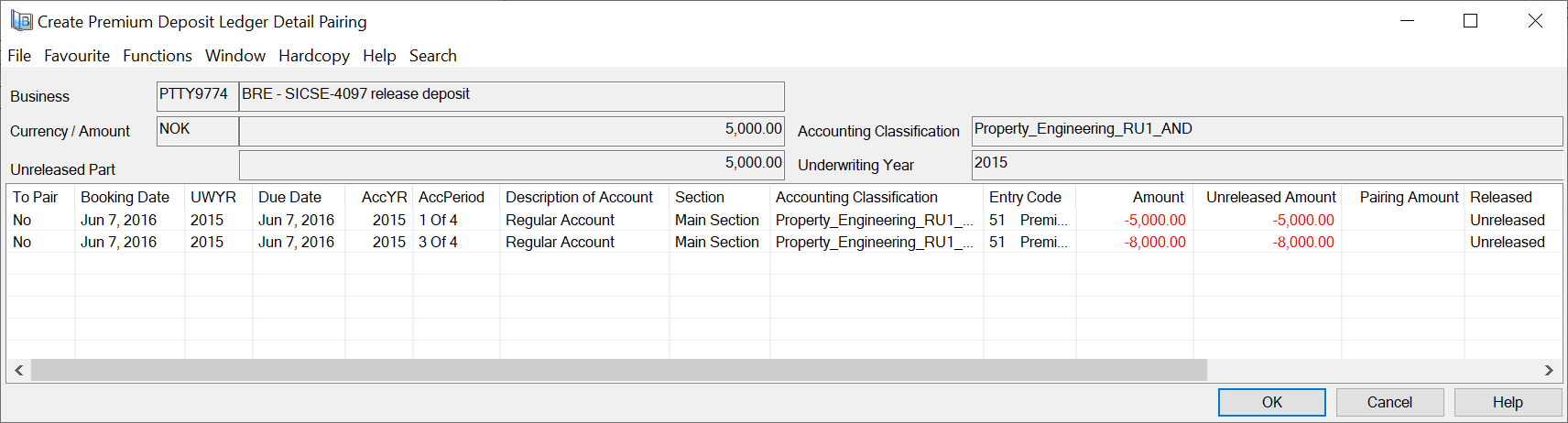
- Select one or more details to be paired with the detail in the header.
- Select Include in Paring from the pop-up menu and click OK.
The system validates the Underwriting Year, Section and Accounting Classification of the included details. If there is a discrepancy between the driving detail and one or more of the included details, you will get an error message.
You return to the Create Premium Deposits Ledger Detail Pairing window from where you can do another pairing, or return to the, in this case, Deposits tab.
Reverse Detail Pairing from the Business Ledger #
If you have paired two details by mistake, you need to reverse a detail paring.
You have entered one of the following tabs of the Business Ledger:
- Cash Claims
- Premiums Due Later
- Deposits
- Non-Liquid Deposits To reverse a detail pairing from the business ledger:
-
Select a detail from any of the tabs. For example, the Cash Claims tab.
-
Select Detail Pairing Properties from the pop-up menu.
You see the View Cash Claims Ledger Detail Pairing window. -
Select the detail you want to reverse and select Annul Pairing from the pop-up menu.
-
Confirm the annulment by selecting Yes to the message that appears. The Released column and the Released Amount column are updated accordingly.
Release Selected Bookings from the Business Ledger #
When you open one of the detail tabs on the business ledger, you can book a release of a retained deposit entry directly from this tab. The system automatically creates a Technical Worksheet with the released amount. In case of Deposits and if conditions apply, the system also creates booking details of Interests and Tax on Interests.
To release a selected booking from the Business Ledger:
- Select one or more unreleased or partially released details from one of the detail tabs.. In this example, we use the Deposit tab.
- Select Release Selected Bookings from the pop-up menu.
- Make your changes on the Technical Worksheet if necessary. Some fields are grey and not possible to edit. Refer to Manual Bookings on a Worksheeton page 11-11for more information.
- Change the status on the worksheet to Closed or to any of the open statuses. A detail pairing between the retained and the new released booking is established and the Released column and the Unreleased Amount column on the Business Ledger are updated accordingly.
In case an open worksheet is later inactivated the above detail pairing is removed and the above mentioned columns are again updated accordingly. You can release bookings from the following tabs of the Business Ledger:
- Cash Claims
- Premiums due Later
- Deposits
- Non-Liquid Deposit
Mark Estimate Balances as Settled from the Business Ledger #
You have opened a Business Ledger and find that you want to mark some Unsettled Estimate balances as Settled.
- Click the Account Balances tab of the Business Ledger.
- Click Find Now to display the balances.
- Select one or several Unsettled Estimate balances.
- Select the Mark as Settled option from the pop-up menu.
- The Settlement Indicator on the selected balances are changed to Settled and the Unsettled Amounts are set to 0
The Settlement Indicator will only be changed if the selected balances sum up to 0 on each Section and Insured Period. If this is not the case, an error message is given.
Mark Estimate Balances as Unsettled from the Business Ledger #
You have opened a Business Ledger and find that you want to mark some Settled Estimate balances as Unsettled.
- Click the Account Balances tab of the Business Ledger.
- Click Find Now to display the balances.
- Select one or several Settled Estimate balances.
- Select the Mark as Unsettled option from the pop-up menu.
- The Settlement Indicator on the selected balances are changed to Unsettled and the Unsettled Amounts are set equal to the Balance amounts
The Settlement Indicator will only be changed if the selected balances sum up to 0 on each Section and Insured Period. If this is not the case, an error message is given.
View Target Details #
From the Business Ledger you want to view target details of a selected balance detail.
- Click the Account Balances tab of the Business Ledger.
- Click Find Now to display the balances.
- Select a detail and select View Target Details from the pop-up menu.
The system opens the View Associated Details window, which shows the booking details (target amount) generated by the selected booking detail.
Note! When the RP business is linked to an Intra Group Assumed Business (IGC IAB), the bookings take place from the source ORP will be copied to the linked assumed business. From the business ledger on RP business, selecting a balance detail, you can view the target details on the IGC IAB.
View Source Details #
From the Business Ledger you want to view source details of a selected balance detail.
- Click the Account Balances tab of the Business Ledger.
- Click Find Now to display the balances.
- Select a detail and select View Source Details from the pop-up menu.
The system opens the View Associated Details window, which shows the booking details from which the selected booking details have been generated.
Note! When the RP business is linked to an Intra Group Assumed Business (IGC IAB), the bookings take place from the source ORP will be copied to the linked assumed business. From the business ledger on IGC IAB, selecting a balance detail, you can view the source details on the RP business.

| Field | Description |
|---|---|
| Identifier | The worksheet identifier of the associated detail. |
| Worksheet status | The worksheet status of the associated detail. |
| Payment partner | The business partner with payment task defined on the business of the associated detail. |
| Responsible partner | The legal responsible business partner defined on the business of associated detail. |
| Business ID | The business ID of the associated detail. |
| Business title | The business title of the associated detail. |
| Section name | The section name of the associated detail. |
| Currency | The booking currency of the associated detail. |
| Entry code | The entry code used on the associated detail. |
| Contribution amount | The booked amount generating/generated by the selected detail. |
| Original/Target amount | The booked amount on the associated detail. Depending on the option selected, either ‘View Source Details’ or ‘View Target Details’, the system shows ‘Original Amount’or ‘Target Amount’. |
| Pairing type | The type of link between the associated balance and the selected balance. |
| Claim ID | The claim id linked to the associated detail. |
If you need more information about the associated details, you can select one of the following options from the pop-up menu:
Business Properties: Opens the Business Properties - Highlights View of the associated business.
More Balance Information: Opens the Balance Properties window for the selected Balance Detail.
Technical Worksheet Properties: Opens the Worksheet Closing window of the selected detail.
Claim Worksheet Properties: Opens the Worksheet Closing window of the selected detail. This option is available when selected worksheet is of type Claim.
Claim Properties: Open the Claim Properties - Highlight View of the associated claim. This option is only available if the selected detail has a claim linked to it.
View EDI message: Opens the EDI view message window of the message that created the balance. Only enabled if the balance was created from an EDI message.
View eMessage: Opens the eMessaging view message window of the message that created the balance. Only enabled if the balance was created from an eMessage.
View Accuracy Validation Log Messages #
This is enabled for a ledger detail if the highlighted detail has been validated by the Accuracy Validation and had a discrepancy that was higher than the amount defined for the Lower Limit and lower/equal to the amount defined for the Upper Limit for this detail. The option opens the Accuracy Validation Log messages window appears showing details like; Some information from the Worksheet the booking detail belongs to (worksheet id, status, user, date) Some information from the Business the booking detail belongs to (business, insured period, section) The Accuracy Validation Rule name Currency (booking currency) Entry Code of detail validated and having a discrepancy Booked Amount (in booking currency) Computed Amount (in booking currency) Computed Amount (converted to Base Currency defined for the rule, converted according to newest daily rate)
View Government Tax Log Messages #
This is enabled for a ledger detail if the highlighted detail has been validated according to the Government Tax Table and had a discrepancy that was higher than the amount defined for the respective Government Tax Rule or if the Validation Indicator on business insured period/flag in the Government Tax Rule was ‘Always Stop if Trigger/Target EC is booked’ . The option opens the Government Tax Log Messages window showing details like; Government tax rule ref, error message text, worksheet id, status, business id, business insured period, section, accounting classification, trigger entry code, booked trigger amount, target entry code, booked target amount, computed target amount, discrepancy amount in base currency (converted according to newest daily rate), government tax category and government tax comment.
View Retrocession Order #
From the Prop Treaty OCC/ORP Business Ledger you want to view a Retrocession Calculation Order or a Retrocession Account Order from a selected balance or a balance detail.
- Click the Account Balances tab of the OCC Business Ledger ‘as Booking’/ORP Business Ledger ‘as Booking’ or ‘as Account’.
- Click Find Now to display the balances.
- Select a balance or a balance detail and select View Retrocession Order from the pop-up menu.
The system opens the Retrocession Calculation Order or the Retrocession Account Order window, which shows the order produced the selected booking balance/details.
View Profit Commission Details #
From the Prop Treaty ORP Business Ledger you want to view profit commission details from a selected balance or a balance detail.
- Click the Account Balances tab of the ORP Business Ledger ‘as Booking’.
- Click Find Now to display the balances.
- Select a balance or a balance detail and select View Profit Commission Details from the pop-up menu.
The system opens the Profit Commission Details window, which shows the booking details included in the calculation of the Profit Commission.

| Field | Description |
|---|---|
| Management Expenses | Management Expenses (either booked as an informational Entry Code or just calculated) |
| Profit/Loss | Sum of all entry codes included in the Profit/Loss group including Loss Brought Forward |
| Profit Commission | Calculated Profit Commission shown in Main or Base Currency |
| Original Loss Reserve | Single Entry Code included in the Profit/Loss Calculation |
| Paid Loss | Single Entry Code included in the Profit/Loss Calculation |
| Written Premium | Single Entry Code included in the Profit/Loss Calculation |
| Original Premium Reserve | Single Entry Code included in the Profit/Loss Calculation |
View Stepped-/ Sliding Scale Commission Details #
From the Prop Treaty ORP Business Ledger you want to view stepped-/ sliding scale commission details from a selected balance or a balance detail.
- Click the Account Balances tab of the ORP Business Ledger ‘as Booking’.
- Click Find Now to display the balances.
- Select a balance or a balance detail and select View Stepped-/ Sliding Scale Commission Details from the pop-up menu.
The system opens the Stepped-/ Sliding Scale Commission Details window, which shows the booking details included in the calculation of the Stepped-/ Sliding Scale Commission.

| Field | Description |
|---|---|
| Incurred Loss In Excess of Max | Incurred Loss In Excess of Max shown per previous Underwriting Years |
| Incurred Loss Below Min | Incurred Loss Below Min shown per previous Underwriting Years |
| Share | The share of the Retrocessionaire Participation |
| Premiums | Entry Codes included in the selected Premium basis |
| Earned Premium | Premium Entry Codes including Premium Reserve |
| Losses Paid | Paid Losses |
| Incurred Losses | Paid Losses including Loss Reserve |
| Loss In Xs of Max From | Loss in excess of max from previous Underwriting Year) |
| Loss Below Min. From Prev. IP | Loss below min from previous Underwriting Year |
| Previously Paid Commission | Provisional Commission and/or previously booked Sliding Scale Commission |
| Sliding Scale Commission | Total calculated Sliding Scale Commission less Previously Paid Commission |
| Final Sliding Scale Commission | Total calculated Sliding Scale Commission |
| Loss Ratio | Paid Loss in percent of Earned Premium |
| Loss Ratio For Sl. Scale Comm. | Paid Loss including Credit/Deficit carried forward in percent of Earned Premium |
| Inc. Loss For Sl. Scale Comm | Incurred losses including Loss In Xs of Max/Loss Below Min from previous years |
| Min L.R. For Loss Transfer | Incurred credit to be carried forward |
| Max L.R. For Loss Transfer | Incurred deficit to be carried forward |
| Incurred Loss In Excess of Max | Incurred Loss In Excess of Max shown for current Underwriting Year |
| Incurred Loss Below Min | Incurred Loss Below Min shown for current Underwriting Year |
View Government Tax Linkage from Business Ledger #
This feature is only enabled when you inspect the business ledger for an Assumed Business and accounting system parameter Government Tax Framework in use is activated. When you want to view the Government Tax linkages for a balance or detail you can inspect the linkage(s) from the Business Ledger
- Open the Business Ledger for an Assumed Business
- Select a currency and select View Government Tax Linkage from the pop-up menu.
- The Government Tax Linkage window opens
- You see all linked details on the business ledger for the selected currency

View Government Tax Link #
When you want to view the linked Government Tax details included in one linkage you can view the details from the Government Tax Linkage
- From the Government Tax Linkage window, select a Currency.
- Select a Trigger Entry Code detail or a Target Entry Code detail.
- Select the option View Government Tax Link from the pop-up menu. The Government Tax Linkage Details window opens presenting the selected Entry Code detail and the linked Entry Code detail(s)
