Chaser Letters
Chaser Letter #
SICS offers you to run an Account Orders to automatically produce documents for chasing up outstanding balances or overdue accounting documents.
Create Cash Chaser Letter Order #
The advantage with this order compared with the Billing Statement Order is that it can produce document for several Business Partners (Payment Partners) in same order. In addition it can be run as a batch job (Scheduled job) and you can set a parameter within the order to have the document automatically printed.
Like for many other orders you create these orders from Find Accounting Order:
- Click in the Account Order display list and select New from the pop-up list or the Create New button. You see the Order Type Selection window.
- In the drop-down you select the category Chaser Document. Once you have selected the category the system displays the available Account Orders.
- From the list of available Account Orders you select the one you want to create.
- Click OK.
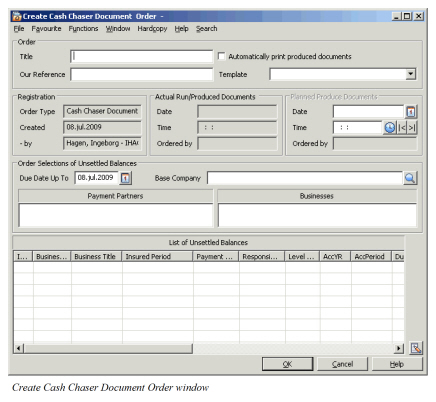
| Field | Description |
|---|---|
| Title | A title making it easier to find/identify the specific order among other orders in a list, i.e. from the ‘Find: Accounting Order’ window. Values: Free text Functional Impact: Search criterion in the Title field in the ‘Find: Accounting Order’ window Mandatory: No |
| Automatically print produced documents | Selected: The documents created and saved by the order will be printed on the default printer. Cleared: Documents will not be printed automatically by the system, but will be stored at the specified path from System Parameters. Relevant when: You must decide if you want the system to produce-, store and print document or only produce and store the document before you close edit mode and select to Produce Documents. |
| Our Reference | Reference that can be given in the order and printed within each document produced by the order. Values: Free text field 16 positions Functional Impact: You may record a reference that can be printed in each document. Mandatory: No |
| Template | Values: All document templates defined by your System Administrator within Document Template Maintenance, refers to Document Type Billing Statement. Functional Impact: You can define as many templates as you want within the System Administration of SICS. However, each and every order can only use one template at the time, so if the order is producing Cash Chaser Letter to more than one Business Partner the system will use the same template for all Business Partners. Mandatory: Yes |
| Due Date Up To | Values: Date value (mm/dd/yyyy) Validations: Any valid date allowed. Functional Impact: The system will only include balances that have a Due Date that is up to and including this date. Mandatory: Yes |
| Base Company | Values: All your Base Companies Functional Impact: The system only allows you to run an order for one Base Company at the time. Only overdue balances matching the defined Base Company from Order will be included. Mandatory: Yes |
| Payment Partners | Values: All Business Partners defined in the system Functional Impact: You can define one order for all Payment Partners without selecting any specific partner. If you use the pop-up menu within this section you can transfer specific Business Partners into the order. If specific partners exist in the order the system will only include overdue balances from these partners, and where these are defined as Payment Partner at balance level. If balance is expected from Broker rather than directly from the Cedent, you should transfer the Broker as Payment Partner. Be aware that if you use the criteria for Payment Partner in combination with Business both will need to match with the balance. The partner can be removed again by selecting the partner’s name and select Remove from the pop-up menu. Mandatory: No, if not defined are all values per definition selected |
| Businesses | Values: All Businesses defined in the system Functional Impact: You can define one order for all Businesses without selecting any specific Business. If you use the pop-up menu within this section you can transfer specific Business into the order. If specific Businesses exist in the order the system will only include overdue balances from these Businesses. Be aware that if you use the criteria for Business in combination with Payment Partner both will need to match with the balance. The Business can be removed again by selecting the Business ID and select Remove from the pop-up menu. Mandatory: NO, if not defined are all values per definition selected |
#
List Balances #
From the Create or Edit window of the order you can check which balances that will be included following your selection criteria. However, minimum information that is required in the order is a Due Date and a specific Base Company:
- Make sure that a Due Date and Base Company is specified as criteria for the order.
- Click the Menu button and select List Balance from the pop-up menu.
| Field | Description |
|---|---|
| Included | Values: Yes and No |
| Business ID | The Business ID |
| Business Title | The title from the Business |
| Insured Period | The Insured Period’s start date and end date |
| Payment Partner | The name of the Business Partner defined as Payment Partner of the Unsettled Balance |
| Responsible BP | The name of the Business Partner defined as Responsible Partner of the Unsettled Balance. This can differ from the Payment Partner e.g. when settlement is due from a Broker |
| Level of Business | The Level of the Business where the Unsettled Balance is booked, this order is limited to Assumed Business, Retrocessionaire Participation and Administration Business |
| AccYR | Accounting Year of the balance |
| AccYR | Accounting Year of the balance |
| AccYR | Accounting Year of the balance |
| Due Date | Due Date of the balance tells when the balance is due for payment and will have to prior to the date in order named Due Date Up To |
| Currency | The currency of the balance |
| Balance | Amount of the balance |
| Unsettled Amount | Unsettled Part of the balance, this can differ as if the balance is partially settled by a remittance |
| Balance Type | Type of balance, i.e. Technical or Claim dependent if the balance is booked through a Technical or a Claim Worksheet |
| Included in Settlement Balance | Indicator that tells you if the balance is part of a Settlement Balance Group, if so the balance will be flagged with a ‘Yes’ value, if not nothing is shown in this column |
| Has Expected Payment | Indicator that tells you if the balance is to be paid in a different currency and amount than the original currency and amount. If so the balance will be flagged with a ‘Yes’ value, if not nothing is shown in this column |
| BP Reference | If it is recorded a reference from Cedent or Broker on the balance it will be shown in this column |
| Claim ID | For balance type = Claim only. The Claim Id is taken from the associated claim |
| Base Company | Short name of the Base Company |
| Notes | The system will display the first line recorded as Notes on the balance |
Exclude/Include Unsettled Balances
If you have one or more balances within the list that you for some reason want to exclude from being included in the produced document you have an opportunity to do so:
- Select one or more balances from the list of unsettled balances
- Select Exclude from the pop-up menu
- The column for Include at the left side of the business list changes from Yes to No
- If the balance should be included again you simply select the Unsettled Balance once again and select Revoke Exclusion for Selected, or Revoke Exclusion for All from the pop-up menu
- Click OK button to close edit mode and the system will remove all balances that is in the list with a No value in the Include column
Navigation from the Order #
By using of the pop-up menu within the list of unsettled balances, when one single balance is selected, you can navigate to the following windows:
- Business Ledger, opens the Business Ledger for the selected balance
- Balance Properties, takes you to the window were you can see more information of the selected balance
- Dependent of what kind of worksheet that the balance is booked on, you can open either Technical- or Claim Worksheet properties
- Edit Balance Note that opens Note window for the selected balance. Notes can be recorded for any balance from the order. The note can also be shown in the document if defined in the template
Produce Documents #
Documents can be produced directly from your workstation or you can select to request a scheduled job and have this to be run as in batch.
To produce documents directly from your workstation:
- Open the Account Order in view mode
- Select Produce Documents from the menu behind the menu button
This is useful in testing of the order for a limited number of balances. However, in larger orders it is recommended to run the order in batch as a Scheduled Job. You may create a Scheduled Job directly from the Order:
- Open the Account Order in view mode
- Select Request Scheduled Job from the menu behind the menu button
The system will then present a small window where you can define a Scheduled Job.
Be aware that it is NOT necessary to List Balance prior to producing the documents. If NO balance list exists in the order the system will first search for overdue balances that match the criteria of the order, and thereafter start to produce the documents.
All documents will be processed according to the template selected within the order and stored at the path defined in the system parameters. Dependent of the settings of the parameter in the order Automatically print produced documents the system will also print them at the default printer following the settings in windows. Be aware that you can turn of the print confirm message from your operating system.
Maintain Documents #
When the order is finished with all documents you can open and inspect them from the order:
- Open the Account Order in view mode
- Select List Documents from the menu behind the menu button
- The system opens the Document List window which displays all documents processed by this order
- From this window you can use the pop-up menu and select to:
- See Properties of the document
- Edit some of the properties, like e.g. Title, Sent Date and Status
- Delete the document(s) from the list
- Print the document(s)
- Open in text editor, e.g. MS Word
Edit Cash Chaser Letter Document Order #
This order can only be edit if the system does not have any document or if it is not linked to a scheduled job that is not finished. Refer to the Create Cash Chaser Letter Order chapter for more details.
Create Document Chaser Letter Order #
This order offers you to chase up Business Partners for overdue accounting documents like Statement of Account, Profit Loss Account and Instalment Premiums etc. With use of this order you can set up the system to automatically produce documents for several Business Partners in same order. In addition you can define a Scheduled job out of the order and have this to be run in batch. A separate parameter within this order can be set to have the produced documents automatically printed on the default printer.
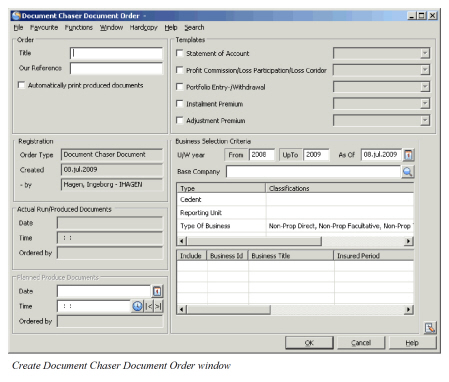
| Field | Description |
|---|---|
| Title | A title making it easier to find/identify the specific order among other orders in a list, i.e. from the ‘Find: Accounting Order’ window. Values: Free text Functional Impact: Search criterion in the Title field in the ‘Find: Accounting Order’ window Mandatory: No |
| Automatically print produced documents | Selected: The documents created and saved by the order will be printed on the workstations default printer. Cleared: Documents will not be printed automatically by the system, but will be stored at the specified path from System Parameters. Relevant when: You must decide if you want the system to produce-, store and print document or only produce and store the document before you close edit mode and select to Produce Documents. |
| Our Reference | Reference that can be given in the order and printed within each document produced by the order. Values: Free text field 16 positions Functional Impact: You may record a reference that can be printed in each document. Mandatory: No |
| Statement of Account | Selected: The order will include any missing Statement of Accounts that meets with rest of selection criteria from the order. Cleared: Do not select this if you do not want the order to produce any documents for missing Statement of Accounts. Relevant when: If you want to chase up Business Partners for outstanding Statement of Accounts. The system will look into each defined Single Account within each included Insured Period to see if account is defined in Administration Conditions. If so the system will create a chaser document if the As of Date in order is after Submission Date of Single Account, and if Statement of Account is NOT received: - that is the check box on single account not selected, or received date is missing. |
| Profit Commission/ Loss Participation /Loss Corridor |
Selected: The order will include any missing Profit Loss Accounts that meet with rest of selection criteria from the order. Cleared: Do not select this if you do not want the order to produce any documents for missing Profit Loss Accounts. Relevant when: If you want to chase up Business Partners for outstanding Profit Loss Accounts. The system will look into Administration Conditions on each defined Single Account within each included Insured Period to see if it expects to receive a Profit Loss Commission or Loss Participation / Loss Corridor Account. If so the system will include this in the chaser document if the As of Date in order is after Submission Date of Single Account, and if Received Indicator for Profit Loss Commission or Loss Participation / Loss Corridor is NOT selected. |
| Portfolio Entry/ Withdrawal |
Selected: The order will include any missing Portfolio Accounts that meet with rest of selection criteria from the order. Cleared: Do not select this if you do not want the order to produce any documents for missing Portfolio Accounts. Relevant when: If you want to chase up Business Partners for outstanding Portfolio Accounts. The system will look into Administration Conditions on each defined Single Account within each included Insured Period to see if it expects to receive a Portfolio Entry or Withdrawal Account. If so the system will include this in the chaser document if the As of Date in order is after Submission Date of Single Account, and if Received Indicator for Portfolio Entry and/or Withdrawal is NOT selected. |
| Instalment Premium | Selected: The order will include any not booked Instalments which meets with rest of selection criteria from the order. Cleared: Do not select this if you do not want the order to produce any documents for missing Instalments. Relevant when: If you are booking Instalments when they are received and want to chase up Business Partners for outstanding Instalment Premiums. The system will look into Premium Limit Conditions of each included Insured Period to see if any overdue and not booked Instalment Premiums exist. If so the system will create a chaser document if the As of Date in order is after Payment Date of the Instalment. |
| Adjustment Premium | Selected: The order will include any not booked Adjustment Premiums which meets with rest of selection criteria from the order. Cleared: Do not select this if you do not want the order to produce any documents for missing Adjustment Premiums. Relevant when: If you are booking Adjustment premiums when they are received and want to chase up Business Partners for outstanding Adjustment Premiums. The system will look into Premium Limit Conditions of each included Insured Period to see if any overdue and not booked Adjustment Premiums exist. If so the system will create a chaser document if the As of Date in order is after Submission Date of the Adjustment. |
| Templates | Values: All document templates defined by your System Administrator within Document Template Maintenance, refers to Document Type Accounting Document Reminder. Functional Impact: You can define as many templates as you want within the System Administration of SICS. For example you can have a different template dependent on what document you have selected to chase up. You will need to select one template for each type of chaser that is selected to be included in the order. Mandatory: Yes |
| Field | Description |
|---|---|
| U/W year From | Values: Valid year Validations: Any valid year allowed. Functional Impact: The system will only include Insured Periods with Underwriting Year higher or same as this year. Mandatory: Yes |
| U/W year UpTo | Values: Valid year Validations: Any valid year allowed. Functional Impact: The system will only include Insured Periods with Underwriting Year lower or equal this year. Mandatory: Yes |
| As Of | Values: Valid date Validations: Any valid date allowed. Functional Impact: The system will only include not received accounts that have a Submission Date or Payment Date lower or equal this date. Mandatory: Yes |
| Base Company | Values: All your Base Companies Functional Impact: The system only allows you to run an order for one Base Company at the time. Only overdue documents for Insured Periods matching the defined Base Company from Order will be included. Mandatory: Yes |
| Cedent | Values: All Business Partners defined in the system Functional Impact: You can define one order for all Business Partners without selecting any specific partner. If you use the pop-up menu within this section you can transfer specific Business Partners into the order. If specific partners exist in the order the system will only include overdue accounts from these partners, and where these are defined as Cedent at the Insured Period. If document is expected from Broker rather than directly from the Cedent, you can anyway transfer the Cedent. The partner can be removed again by double-click the Cedent and not transfer any new partner Mandatory: No, if not defined all values are per definition selected |
| Reporting Unit | Values: All Reporting Units defined in the system Functional Impact: You can define one order for all Reporting Units without selecting any specific Reporting Unit. You can limit the selection criteria to one or more Reporting Unit(s). If specific Reporting Unit exists in the order the system will only include overdue accounts with Insured Period of the specified Reporting Unit(s). The Reporting Unit can be cleared again by double-clicks the Reporting Unit option. Mandatory: NO, if not defined all values are per definition selected |
| Type of Business | Values: All Types of Business in the system, e.g. Proportional Treaty. Functional Impact: You can define one order for all Types of Business without selecting any specific Type of Business. You can limit the selection criteria to one or more Type of Business. If specific Types of Business exists in the order the system will only include overdue accounts from Businesses with the specified Types of Business. The Type of Business can be cleared again by double-clicks the Type of Business option. Mandatory: NO, if not defined all values are per definition selected |
List Business #
From create or edit window of the order you can inspect the businesses that will be included following your selection criteria:
- Specify you selection criteria, like e.g. Base Company, Underwriting Years and Type of Business
- From the pop-up menu in the list of Insured Periods you can select List Business
List Overdue Accounts #
After List Business is performed you can do a second search for all Overdue Accounts among the already listed Insured Periods:
- Perform List Business as per above description
- Make sure that an As of Date is recorded in the Order and from the pop-up menu in the list of Insured Periods select List Overdue Accounts
The system will do a search for all Overdue Accounts, but only for those account types that is selected within the Template section of the order. If the already listed Insured Period got two Overdue Accounts you will see the same Insured period twice. However, the three last columns in the list are filled in with information of the Overdue Account(s); Date, Account No. and Account.
Navigate to Business #
When a list of Business or Overdue Accounts exists you can open the properties of a Business:
- Perform List Business or List Overdue Accounts as per above description.
- Select one Insured Period or Overdue Account and from the pop-up menu select Properties, alternatively double-click one Insured Period/Overdue Account.
Exclusion of Insured Periods #
If you after listing Business or Overdue Accounts finds one Insured Period that you want to exclude from the order you can do so:
- Perform List Business or List Overdue Accounts as per above description
- Select one Insured Period or Overdue Account and from the pop-up menu select Exclude, when the order is producing documents no Overdue Accounts from excluded period(s) will get any document. If you decide to include the period again you simply select revoke option from the pop-up menu.
Add an Insured Period #
The system allows you to process a document for one or only a few specific Insured Periods:
- Select the option Add Business from the pop-up menu
- The system opens Find Business where you can find and transfer the period(s) that you want to include in your order.
The added business should match the selection criteria in the order to end up with a produced document.
| Field | Description |
|---|---|
| Included | Values: Yes and No, only those that with a Yes will be included when the order is producing documents. |
| Business ID | The Business Identifier |
| Business Title | The title from the Business |
| Insured Period | The Insured Period’s start date and end date |
| Type | Type of Business of the Insured Period |
| Level of Business | The Level of the Business for the Insured Period, this order is limited to Assumed Business only. |
| Cedent | The name of the Business Partner defined as Cedent of the Insured Period. |
| Broker | The name of the Business Partner defined as Broker of the Insured Period. |
| Date | This date refers to the Submission Date of overdue Statement of Account, Profit Commission/Loss Participation/Loss Corridor, Portfolio Entry-/Withdrawal and Adjustment Premium. For any overdue Instalment Premiums it refers to the Payment Date. It is only displayed in List Overdue Account. |
| Account No. | The Account Number in combination of the Accounting Year of Single Accounts and Instalment- Adjustment Number respectively for Instalment- and Adjustment Premiums. It is only displayed in List Overdue Account. |
| Account | This column refers to what type of account that is overdue, e.g. Statement of Account or Instalment. It is only displayed in List Overdue Account. |
Note! Be aware that if order is closed with list of overdue accounts, the overdue account will be removed from the list once it is updated as received/booked.
Produce Documents #
Documents can be produced directly from your workstation or you can select to request a scheduled job and have this to be run as in batch.
To produce documents directly from your workstation:
- Open the Account Order in view mode
- Select Produce Documents' from the menu behind the menu button
This is useful in testing of the order for a limited number of businesses. However, in larger orders it is recommended to run the order in batch as a Scheduled Job. You may create a Scheduled Job directly from the Order:
- Open the Account Order in view mode
- Select Request Scheduled Job from the menu behind the menu button
The system will then present a small window where you can define a Scheduled Job.
Be aware that it is NOT necessary to List Business or Overdue Accounts prior to producing the documents. If NO Insured Periods or Overdue Accounts list exists in the order the system will first search for overdue balances that match the criteria of the order, and thereafter start to produce the documents.
One document will be produced per Cedent and type of Overdue Account. All documents will be processed according to the template selected within the order and stored at the path defined in the system parameters. Dependent of the settings of the parameter in the order Automatically print produced documents the system will also print them at the default printer following the settings in windows. Be aware that you can turn of the print confirm message from your operating system.
Maintain Documents #
When the order is finished with all documents you can open and inspect them from the order:
- Open the Account Order in view mode
- Select List Documents from the menu behind the menu button
- The system opens the Document List window which displays all documents processed by this order
- From this window you can use the pop-up menu and select to:
See Properties of the document
Edit some of the properties, like e.g. Title, Sent Date and Status
Delete the document(s) from the list
Print the document(s) Open in text editor, e.g. MS Word
The same can also be done from the Business:
- Open the Business
- Click the Document button in Navigation Toolbar
- The system opens the Document List window which displays all documents processed by this order and you can follow same steps as described in bullet 4 above
Edit Document Chaser Letter Order #
This order can only be edit if the system does not have any document or if it is not linked to a scheduled job that is not finished. Refer to the Create Document Chaser Letter Order chapter for more details.