Commutation of Proportional/Non-Proportional Retrocessionaire
When you enter into a commutation agreement with one or more of your proportional/non-proportional Retrocessionaires, SICS automatically calculates the balances due. In order to calculate, the system requires the following:
- The Retrocessionaire has been marked as “To Be Commuted” for all relevant insured period with a commute per date. Refer to Handle Business Life Span.
- The Commutation condition is registered for all relevant Insured Periods. Refer to Handle Terms and Conditions.
- Commutation entry codes and entry code groups have been defined
For non-proportional Retrocessionaires, it is recommended that you have run a recovery order prior to the commutation order to ensure that the most recent and up to date claim figures have been transferred to the Retrocessionaire.
Create Commutation Multi Businesses Order #
To make the commutation process more efficient, a Commutation Multi Businesses Order can be created. It will be possible to perform mass update of the commutation conditions, refer to Non-Proportional, Commutation Conditions (CM) and to Proportional Commutation tab in Portfolio Calculation Reserve (PO). The commutation bookings (reversal of reserve details and portfolio withdrawal details) can be made for all included businesses in the Commutation Multi Businesses Order.
Create Commutation Multi Businesses Order #
- From SICS Workstation select Accounting and Order
- Select Create New button/option from popup menu on the Find: Accounting Order.
- Select Order Type Partner Commutation
- Select Commutation Multi Businesses
- The Create Commutation Multi Businesses window is opened
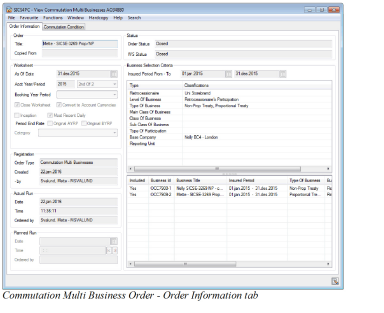
| Field | Description |
|---|---|
| Title | A title making it easier to find/identify the specific order among other orders in a list, i.e. from the ‘Find: Accounting Order’ window. Values: Free text Functional Impact: Search criterion in the Title field in the ‘Find: Accounting Order’ window Mandatory: No |
| Copied From | Reference to Order ID to the Order that is copied from Values: Text field Functional Impact: Informational only, to see that one order have been used as a template for the other Mandatory: Always inserted by the system and cannot be overwritten. |
| Order Status | The value defines the status of the order. Open means that the order can be run several times. When the Order Status is Closed, the order cannot be run again. Values: Open or Closed |
| WS Status | The value defines the status of the worksheets. Open means that the order can be run several times. When the Worksheet Status is Closed, the order cannot be run again. If no worksheets exist, the field is blank. Values: Open or Closed |
| As of Date | The as of date is used to compare which Retrocessionaires are eligible for commutation. (Non-prop facultative and non-prop treaty only) Values: Date ddmmyyyy |
| Acct Year/Period | The Acct Year/Period is used to compare which Retrocessionaire are eligible for commutation. Values: Year yyyy and period (e.g. 1st of 4, 4th of 12) Functional Impact: All Retrocessionaires which have a commute per Accounting Year/Period equal to this Year and Period are considered Mandatory: Yes (Proportional Treaty) (Non-Prop Facultative, Non-Prop Treaty mandatory only if ‘As of Date’ is not entered. The Acct Year/Period on the Partner tab is only possible when Administration Conditions are entered on the Non-Prop Treaty/Facultative business). |
| Booking Year Period | The Booking Year Period is used to override the default Booking Year Period on the worksheet. Values: Booking Year and Period yyyy/period (e.g. month xx, quarter xx, half-year xx) Functional Impact: The selected Booking Year Period is assigned to the commutations details Mandatory: No |
| Close Worksheet | Selected: Deselected by default. Select this field to close the Worksheets created by the order Functional Impact: It is not possible to rerun the order or to select the ‘Convert to Account Currencies’ (refer to below) when worksheets are closed. Selecting the field ‘Close Worksheet’ enables the field ‘Convert to Account Currencies’. Cleared: Worksheets are created with status ‘Open’ Relevant when: Select the check-box when you want to close the worksheet produced by the order. Do not select the check-box when you want to control the calculated amounts and possibly rerun the order. |
| Convert to Account Currencies | Selected: Deselected by default. Select this field (dependent on the ‘Close Worksheet’ being selected, but before you run the order) if you want to convert the commutation details to Account Currencies. This is relevant for Proportional Treaty Retrocessionaires only. Cleared: Commutation details are not converted to Account Currencies. Relevant when: Select the check-box when you want to convert the commutation details to Account Currency in the same run as commutation details in Booking Currency. Do not select the check-box when you want to run a separate order to convert commutation details to Account Currency, refer to ‘Commutation Multi Businesses - Account Currency’. |
| Exchange Rate - Inception | Selected: The rates valid as per inception date of the OCC business are used to convert booking currencies into account currencies. The Inception option is enabled only if the system parameter Accounting/Currency/General ‘Use Inception Rate Accounting’ is activated. Cleared: The Category field and an additional Day/Year field are enabled. Relevant when: Select the check box when you want the booking currencies to be converted to account currencies using the rate valid as per the OCC’s inception date. |
| Exchange Rate - Most Recent Daily | Selected: The Most Recent Daily rates are used in converting booking currencies into account currencies. Cleared: The Category field and an additional Day/Year field are enabled. Relevant when: Select the check box when you want the booking currencies to be converted to account currencies using the Most Recent Daily rates |
| Period End Rate - Original AYRP | When selected, the End Period Rates valid as per the Original Accounting Year and Period of the booking detail are used converting bookings from booking currency to account currency. The exchange options are enabled only when the box Convert to Account Currencies is selected on the Commutation Multi Businesses order. Values: Selected or Cleared. (The check box is only enabled if the system parameter Convert Figures to Account Currency According to Orig Acc Year and Period is active. (Defined by your System Administrator).) Default: Cleared Mandatory: No Functional Impact: Select the check box when you want the booking currencies to be converted to account currencies using the End Period Rate valid as per the Original Accounting Year/Period of the ORP ‘as Booking’ detail when running the Commutation Multi Businesses order. |
| Period End Rate - Original BYRP | When selected the End Period Rate valid as per the original booking year/period of the ORP booking details in booking currency is used to convert the booking details into Account Currency. The exchange options are enabled only when the box Convert to Account Currencies is selected on the Commutation Multi Businesses order. Values: Selected or Cleared. Default: Cleared Mandatory: No Functional Impact : Select the check box when you want the booking currencies to be converted to account currencies using the End Period Rate valid as per the Original Booking Year/Period of the ORP ‘as Booking’ detail when running the Commutation Multi Businesses order. |
| Exchange Rate - Category | For each Type of exchange Rate (Day-/Period-/Year rate), Exchange Rate Category(-ies) is/are defined. Exchange rates are defined per Category. Values: Daily Rate, Provisional Year End Rate, Year End Rate Cleared: Functional Impact: The selected Category in combination with the defined Day/Year value determines the Exchange Rate to be used converting booking currency to account currency. Mandatory: No |
| Exchange Rate - Day/Year | A Day- or Year value used to determine which exchange rate to be used. Values: Day: Free input of value (mm/dd/yyyy), Year: Free input of value (yyyy) Derived from: Day: The category Daily Rate / Year: The categories Provisional Year End Rate and Year End Rate Functional Impact: The Day/Year value determines, in combination with the selected category, which exchange rate to be used converting booking currency to account currency. Mandatory: Only if a Category is defined |
| Insured Period From - To | Values: Date from - To ddmmyyy - ddmmyyyy Functional Impact: The system finds Retrocessionaire Participations with Insured Period(s) equal to or within these dates. It is possible to enter either a from date, a to date or both from and to dates. Mandatory: No |
| Retrocessionaire | Values: All your Retrocessionaires Functional Impact: The system only allows you to run an order for one Retrocessionaire at the time. Mandatory: Yes |
| Level of Business | Values: Retrocessionaire’s Participation Functional Impact: Defaulted by s ystem and will only include Level of Business Retrocessionaire’s Participations in order Mandatory: Yes |
| Type of Business | Values: Non-Prop Facultative, Non-Prop Treaty and Proportional Treaty Functional Impact: System will only include the selected Type of Business(es) in order Mandatory: Yes |
| Main Class of Business, Class of Business, Sub Class of Business, Type of Participation, Base Company, Reporting Unit and Additional Classifications |
Values: You may select from all values defined in the system Functional Impact: System will include all values if NO selection. If you select one or more values, only the Insured Periods matching one or more of the selected value(s) within each type will be included by the order. Mandatory: No. If not defined, all values are per definition selected |
| Registration Order Type |
Indicates the order type Value: Commutation Multi Businesses Output field only Functional Impact: Find Commutation Multi Businesses Order Mandatory: Yes |
| Created | The date the order was created Value: Date ddmmyyyyy Output field only Derived from: Today’s date Functional Impact: Find Commutation Multi Businesses Order Mandatory: Yes |
| By | The name of the person who created the order Values: Full name and logon ID Output field only Functional Impact: None Mandatory: Yes |
| Actual Run Date |
Indicates the date the order was run Value: Date ddmmyyyy Output field only Derived from: Actual date the order was run Functional Impact: Find Commutation Multi Businesses Order Mandatory: Yes |
| Time | The time the order was run Value: Time hh:mm:ss Output field only Derrived from: Actual time the order was run Functional Impact: Find Commutation Multi Businesses Order Mandatory: Yes |
| By | The name of the person who ran the order Values: Full name and logon ID Output field only Derived from: Register of system users in SICS Mandatory: Yes |
List business/exclude business/revoke exclusion/clear list of businesses #
When all necessary business selection criteria are defined, you can list businesses
- From the lower container of the Commutation Multi Businesses Order, select option ‘List Business’ from the menu. System lists all businesses satisfying the Insured Period From-To and the selection criteria defined on the order
- Select ‘Exclude Business’ to exclude the selected businesses from the order. This must be done before an order is processed.
- Select ‘Revoke Exclusion’ to include businesses you previously excluded from the order. This must be done before an order is processed.
- Select ‘Clear List’to clear the list of all businesses
Create Commutation Condition from Multi Businesses Order #
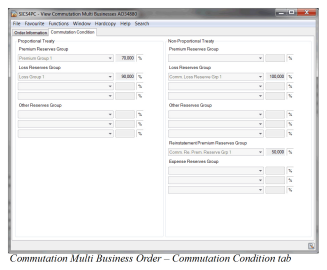
From the Edit Commutation Multi Businesses order, select the Commutation Condition tab. You can define various reserve group(s) and the percentage(s) to be updated in the Commutation tab (PO conditions) for the Proportional Treaty ORP, in the Commutation tab (CM conditions) for the Non-Prop Treaty ORP and in the (CM conditions) for the Non-Prop Facultative ORP.
Select the option ‘Update Commutation Information’ from the menu of the order to update the Commutation Conditions for the businesses included in the Order Information tab. If the Commutation Condition already exists for a Retrocessionaire, no further update will be made through the Commutation Multi Businesses Order.
Proportional Treaty #
- Define a Premium Reserves Group (refer to Entry Code Groups in Entry Code Group Category Portfolio Calculation Premium Reserve) and a percentage and/or Define up to three
- Loss Reserves Groups (refer to Entry Code Groups in Entry Code Group Category Portfolio Calculation Loss Reserve) and a percentage per group and/or
- Define up to three Other Reserves Group (refer to Entry Code Groups in Entry Code Group Category_Portfolio Calculation Loss_ Reserve) and a percentage per group
Non-Proportional Treaty/Facultative #
- Define a Premium Reserves Group (refer to Entry Code Groups in Entry Code Group Category Commutation Calculation Premium Reserve) and a percentage and/or
- Define up to three Loss Reserves Groups (refer to Entry Code Groups in Entry Code Group Category Commutation Calculation Loss Reserve) and a percentage per group and/or
- Define up to three Other Reserves Groups (refer to Entry Code Groups in Entry Code Group Category Commutation Calculation Other Reserve) and a percentage per group and/or
- Define a Reinstatement Premium Reserves Group (refer to Entry Code Groups in Entry Code Group Category Commutation Calculation Reinstatement Premium Reserve) and a percentage and/or
- Define up to three Expense Reserves Groups (refer to Entry Code Groups in Entry Code Group Category Commutation Calculation Expense Reserve) and a percentage per group
Run a Commutation Multi Businesses Order #
When you run the Commutation Multi Businesses Order, the system considers all the included Retrocessionaires on the orders which are defined ‘To be Commuted’ (refer to Handle Business Life Span). Depending on the Type of Business, the Commutation Multi Businesses Order’s Accounting Year/Period and/or as of date is compared against the ORPs Commute Per Accounting Year/Period and/or Date. All ORP’s with a Commute Per Accounting Year/Period equal to the Accounting Year/Period on the order or a Commute Date which is prior or equal to the order’s as of date and which are still open for accounting, are considered in the Commutation calculation.
For further information of how the Commutations are calculated, refer to chapters 13.14.4 Calculate Portfolio Withdrawal when Business is Commuted, 13.14.5_Reversal of Reserve Bookings when_ Business Commuted, 13.14.6 _Portfolio Withdrawal Bookings when Business Commuted,_ 13.15 _Reverse Already Produced Bookings after Commutation of Retrocessionaire Participation_ and 14.21.1 _Commutation of Non-Proportional Retrocessionaire._
Convert Commutation Details to Account Currency (Proportional Treaty) #
Before you close the worksheet created by the Commutation Multi Businesses Order for Proportional Treaty ORP, you can select the field Convert to Account Currencies. (This field is dependent on the field ‘Close Worksheet’ being selected, but before order is being run). System converts the figures according to the Exchange Rate option defined.
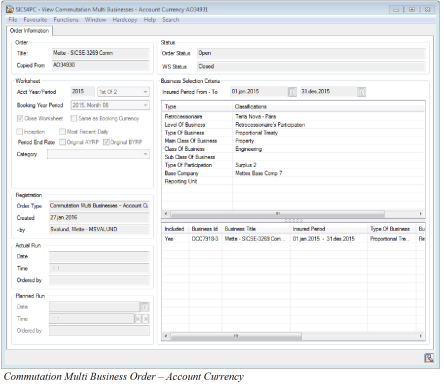
Another option to convert figures to Account Currency is to create the Commutation Multi Businesses - Account Currency Order
Copy to Commutation Account Order #
- Select Copy to Commutation Account Order from the menu on the Commutation Multi Businesses Order.
- The various fields on the order are defined according to the order copied from, except from the Accounting Year/Period and the Insured Period From - To.
- The Exchange Rate option is copied from the source order, but may be changed if necessary. The different Exchange Rate options are described in the field description under Create Commutation Multi Businesses order.
- Run the order to create ‘as Account’ booking details for the included Retrocessionaires
Create Commutation Multi Businesses - Account Currency #
- From SICS Workstation select ‘Accounting’and then ‘Order’
- Select Create New button/option New from popup menu on the Find: Accounting Order
- Select Order Type Partner Commutation
- Select option Commutation Multi Businesses - Account Currency
- The Create Commutation Multi Businesses - Account Currency window is opened
- Enter necessary information - refer to the Create Commutation Multi Businesses Order
- The Exchange Rate option is defaulted to Most Recent Daily, but may be changed if necessary. The different Exchange Rate options are described in the field description under Create Commutation Multi Businesses order.
- Run the order to create ‘as Account’ booking details for the included
Retrocessionaires