Create- and Maintain Accounting Orders
SICS offers various Accounting Orders for automatic calculation and booking of figures on worksheets. Many of these orders are created in the same way and also they support much of the same functionality in finding what portfolio to include etc.
Create an Account Order #
You create an Account Order from Find Accounting Order:
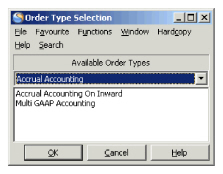
- Click the Account Order display list and select New from the pop-up list or the Create New button. You see the Order Type Selection window.
- In the drop-down you select for what category you want to create an Account Order. Once you have selected a category the system will display all Account Orders available for this category.
- From the list of available Account Orders you select the one you want to create. From example below select Accrual Accounting, and then select Accrual Accounting on Inward to create the order on an Inward portfolio.
- Click OK.
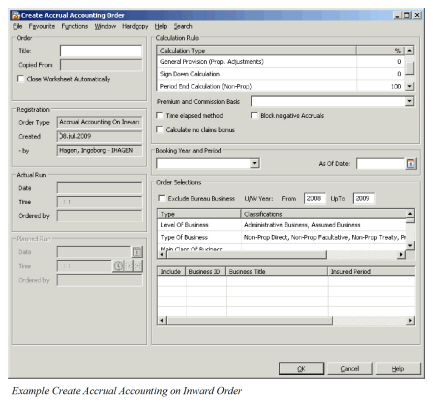
 The system opens create accounting order window, which is similar for several orders. The reused fields are described in this chapter while all specific fields for the specific order are described in the accounting orders respective chapter.
Order Selections #
Here the filter for which portfolio that should be included in the order is defined. Be aware that all Insured Periods that meet with the defined filter will get same Calculation Rule as per definition within the order.
| Field | Description | Location |
|---|---|---|
| Title | A title making it easier to find/identify the specific order among other orders in a list, i.e. from the Find: Accounting Order window. Values: Free text Functional Impact: Search criterion in the Title field in the Find: Accounting Order window Mandatory: No |
Create Accounting Order |
| Copied From | Reference to Order ID to the Order that is copied Values: Text field Functional Impact: Informational only, to see that one order have been used as a template for the other Mandatory: Always inserted by the system and cannot be overwritten. |
Create Accounting Order |
| Close Worksheet Automatically | Selected: The worksheets created by the order will be closed by the system. However, if the worksheets cannot be closed because they fail in validation in the closing process, worksheets will be left in open status. If worksheets are left in open status you can inspect the worksheet by enter the worksheet and try to close manually. Cleared: The worksheets created by the order will be left in open status. Orders without any closed worksheets can be rerun. Relevant when: It is recommended to select the check box when you want the system to close the worksheets created by the Order. However, do notselect the check box when you want to control the calculated amounts and possibly rerun the order (in e.g. test). After you have inspected the result you should edit the order, select this check box and re-run the order. |
Create Accounting Order |
| Exclude Bureau Business | Selected: Insured Periods with check box on the Insured period EDI Details window will be included by the order. Cleared: All Insured Periods will be included following the selection criteria. Relevant when: This check box is relevant only if you want to exclude EDI Business from being included in the order. The system simply excludes periods having the Bureau indicator selected on the Insured Period EDI Details window. See EDI Information on Insured Periods for further details. |
Create Accounting Order |
| U/W Year From | Values: Input field of a year, default is last calendar year Validations: Valid Year or 0 Functional Impact: If a year is defined the system will only include Insured Periods which matches the criteria and with an Underwriting Year higher or same as the defined year. It is allowed to record 0 as a value that means that all Underwriting Years should be included Mandatory: Yes |
Create Accounting Order |
| U/W Year UpTo | Values: Input field of a year, default is current calendar year Validations: Valid Year or 0 Functional Impact: If a year is defined the system will only include Insured Periods that matches the criteria and with an Underwriting Year lower or same as the defined year. It is allowed to record 0 as a value that means that all Underwriting Years should be included Mandatory: Yes |
Create Accounting Order |
| Classifications | Here the classification for which portfolio that should be included in the order is defined. Be aware that all Insured Periods that meet with the defined Classification Type will get same Calculation Rule as per definition within the order. | Create Accounting Order |
| Level of Business | Values: Assumed Business and Administrative Business Functional Impact: System will only include selected Level of Business Mandatory: Yes |
Create Accounting Order |
| Type of Business | Values: Proportional Treaty, Non-Proportional Treaty, Proportional Facultative, Non-Proportional Facultative, Proportional Direct, Non-Proportional Direct Functional Impact: System will only include selected Type of Business Mandatory: Yes |
Create Accounting Order |
| Main Class of Business, Class of Business, Type of Participation, Base Company, Reporting Unit, Master Agreement and Account Group | Values: You may select from all values defined in the system Functional Impact: System will include all values if NO selection. If you select to select one or more values only the Insured Periods with selected will be included by the order. Mandatory: No, if not defined are all values per definition selected |
Create Accounting Order |
| Business Display List | In this list you will see all Insured Periods that is found by the system to meet with the Order Selections criteria. Be aware that the list will only be shown if you select List Business or Add Business from the pop-up menu. These two options are made available for you if you want to make sure that you know which Insured Periods that will be included by the Order. However, if you have defined an order for a portfolio for periodic closing of your books you will usually not List Business. If no list of business exists in the order the system will do this filter during run process, but list will not be shown in the order after the system is finished with run process. Included : Values: Yes and No Business ID: The Business ID of Insured Period Business Title: The Business Title of the Business that the Insured Period belongs to Insured Period: The Insured Period From and To Date Type: The Type of Business of Insured Period Level of Business : The Level of Business of Insured Period |
Create Accounting Order |
Open a Business from the Order
You can open the Business Properties from a specific Insured Period directly from the List Business.
- Select an Insured Period from the List Business.
- Select Properties from the pop-up menu.
The window for Business, Insured Period is displayed.
List Business, Insured Periods #
You can list the portfolio (Insured Periods) matching the Order Selections.
- Select List Business from the pop-up menu
The system will do a search, similar as in Find Business, and after finishing all Business, then the Insured Period is displayed.
Be aware that it is NOT necessary to List or Add Business before running the Order. It is recommended NOT to list business prior to run when running orders on larger number of Insured Periods (like in closing of Booking Periods). If NO business list exists in the order the system will first search for Insured Periods matching the selection criteria of the order, and thereafter start calculating and booking figures in the run process.
Add Business, Insured Periods #
You can add single Insured Periods into the order, this is useful if you e.g. want to test the result for a calculation.
-
Select Add Business from the pop-up menu.
You see the Find Business window. -
Do your selection and click Find Now.
-
Select the Business (Insured Period) you want to include and select Transfer from the pop-up menu, or double-click the business.
The system will transfer the Business, Insured Period and it will be displayed in the order.
Clear Business, Insured Periods #
If you want to clear the business list if you want to start all over again with your selections.
- Select Clear Business from the pop-up menu
- The system removes all already listed business
Exclude/Include a Business, Insured Periods #
If you have an Insured period within the list that you for some reason want to exclude from being included in the run process you have an opportunity to do so.
- Select an Insured Period from the List Business
- Select Exclude from the pop-up menu
- The column for Include on the left side of the business list changes from Yes to No
- If the period should be included again you simply select the Insured Period once again and select Revoke Exclusion from the pop-up menu
Once you are finished with definition of your order you click the OK. The system will save the order and give it a unique Account Order ID.
Edit an Account Order #
If you want to change something for an already created account order you are free to do so if it is NOT already run with Closed Worksheets.
- Find the order in the Find Account Order window.
- Double-click the order to open the View Account Order window.
- Select Edit from the Menu button menu.
You are now free to change all the information within the order.
Run an Accounting Order #
Orders can be run in open or closed worksheet. You may decide to first run to open worksheets, check the calculated and booked figures and thereafter rerun the order into closed worksheets. If you run an order and worksheets exist in open status, the system will in the run process first inactivate these, and thereafter create new worksheets following the latest settings within the order.
You may want to run the order directly from your workstation:
- Open the Find Account Order window from the SICS desktop.
- Find the account order and double-click it to open the View Account Order window.
- Select Run Now from the Menu button menu.
This is useful in testing of the order for a limited number of Insured Periods. However, in larger orders as you run to close a Booking Period it is recommended to run the order in batch as a Scheduled Job. You can create a Scheduled Job directly from the order:
- Open the Find Account Order window from the SICS desktop.
- Find the account order and double-click it to open the View Account Order window.
- Select Request Scheduled Job from the Menu button menu.
You see the Actual Job window.
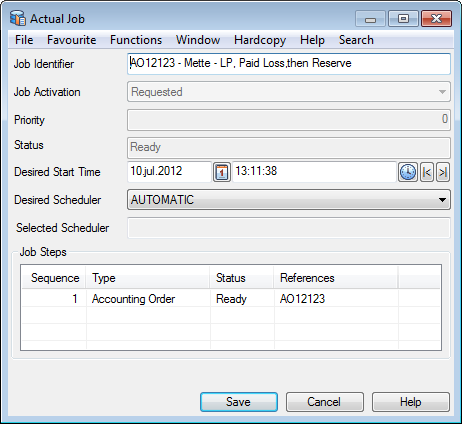 4. Enter the job identifier and desired start date.
Once you click the OK button a Scheduled Job is created with request status. The job will however not be run before it is Activated (approved) by System Administrator in System Administration. Refer to the System Administrators Guide for more information about setting up and running Account Orders as Scheduled Jobs.
| Field | Description | Location |
|---|---|---|
| Job Identifier | This is a free text field where you can define title making it easier to identify the specific Scheduled Job among other orders in a list, i.e. for System Administrator Values: Free text Functional Impact: Appears in the Requested Actual Jobs folder of Scheduled Jobs in System Administration Mandatory: Yes |
Actual Job |
| Desired Start Time | Insert Date and Time for when you want to have the Account Order to be run. Values: Valid Date and Time format Functional Impact: Scheduler will run the Order if the time is in the past. Mandatory: Yes |
Actual Job |
Navigate to Worksheets Created by the Order #
After the run is processed successfully, the system has created a Technical Worksheet for each Business that meets with the criteria. Separate Technical Worksheets are produced per Insured Period, per currency and per business section and/or per Accounting Classification. (The latter is done, if certain validation criteria are met.)
- Open the Account Order in view mode
- Select Worksheet from the menu behind the menu button
- The system will open a small window showing all worksheets that exist for the order.
- Among the options from pop-up menu by selecting a worksheet is Edit- and View Worksheet
Worksheets in Open status can be open in edit mode while worksheets that are not open can be seen in view mode. Note that the Account Orders can create worksheets in open status instead of closed if the worksheet failed in a validation of the automatic closing step. This can typically be if the Booking Period is closed after the Account Order was created. You can open the worksheet and try to Change Status manually to see for which reason the system were left in open status instead of closed.