Handle Insurance Premium Tax Accounting
This section is only relevant for you when your company decides to use the Insurance Premium Tax condition. Refer to section Handle Insurance Premium Tax Conditionfor more details about the Insurance Premium Tax condition.
Book Insurance Premium Tax #
You can book the Insurance Premium Tax in four different ways. All of them, except for manual booking on a technical worksheet, require that the Insurance Premium Tax details are pre-entered for the business. The alternatives are:
- From the Insurance Premium Tax Accounting window.
- From the Instalment Accounting window.
- Through an Instalment order.
- Manually on a Technical worksheet.
Common Rules for Booking of Insurance Premium Tax #
SICS copies the following values from the Insurance Premium Tax condition to the new worksheet:
- Currency
- Payment Date to Due Date
- Tax Country
- Tax Percent
- Remain To Book IPT amount
When the Insurance Premium Tax line is booked together with the Instalment, or when the Insurance Premium Tax line is booked from the Insurance Premium Tax Accounting window, the system uses the same rules as for Instalment booking to find the following values:
- Accounting Year
- Accounting Ref. Period
- Accounting Period From - To date
- Booking Year and Period
Book Insurance Premium Tax from the Insurance Premium Tax Accounting Window #
When you want to book the Insurance Premium Tax separately from the instalment booking, you do the booking from the Insurance Premium Tax Accounting window.
Before you can do any bookings, you must make sure that the Insurance Premium Tax line is marked ‘Ready For Booking’and the Insurance Premium Tax line is not assigned to ‘Tax Country Worldwide’.
Booking the Selected IPT’s #
You use the’ Book Selected IPT’s’option when you want the system to create an open technical worksheet.
‘Accounting Classification Validations’
SICS/t runs a set of validations before automatically assigning the Accounting Classification. However, if the validation fails, SICS will give you the following validation message:
- “The Accounting Classification cannot be added automatically. Would you like to add the Accounting Classification now? Yes or No." Yes- When you click Yes, you can create the Accounting Classification immediately. Note that you can only create one Accounting Classification.
No -When you click No, SICS creates a new open technical worksheet, but no Accounting Classification is assigned to the details.
To book a selected IPT:
- Click the Insurance Premium Tax condition (‘TX ‘button) in the Navigation bar.
- Click the ‘Accounting’ button.
- Select the Insurance Premium Tax line(s) you want to book.
- From the pop-up menu, select ‘Book Selected IPT’s’.
- Close the worksheet. SICS gives you a message with the identifier of the new worksheet.
Book and Close Selected IPT’s #
You use this option when you want the system to automatically close the new technical worksheet after you have made your bookings.
Accounting Classification Validations
SICS/t runs a set of validations before automatically assigning the Accounting Classification. However, if the validation fails, SICS will give you either of the following validation messages:
When you select Book and Close Selected IPT’s, the system gives a validation message when it cannot assign the Accounting Classification automatically. The message depends on the current situation.
- The Accounting Classification cannot be added automatically. Would you like to add the Accounting Classification now? Yes or No. Yes- When you click Yes, you can create the Accounting Classification immediately. Note that you can only create one Accounting Classification.
No -When you click No, SICS creates a new open technical worksheet, but no Accounting Classification is assigned to the details.
- SYN0002: The Accounting Classification field is required but has not been specified.
Multiple valid and active Accounting Classifications exist on the business, and none of them are marked as default Accounting Classification.
Multiple Accounting Classifications exist on the business with correct default Accounting Classification split, but your company does not use this functionality.
To book and close selected IPT’s:
- Click the Insurance Premium Tax condition (‘TX’ button) in the Navigation bar.
- Click the ‘Accounting’ button.
- Select the Insurance Premium Tax line(s) that you want to book.
- From the pop-up menu, select’ Book and Close Selected IPT’s’.
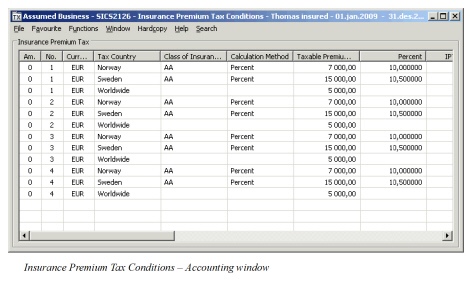
The table below only describes the fields relevant to accounting For fields relevant to business handling, refer to Handle Insurance Premium Tax Condition.
| Field | Description |
|---|---|
| Booked IPT | The portion of IPT Our Share for a specific Insurance Premium Tax line that is booked. Values: An Amount Mandatory: Yes Validations: Automatically calculated by the system. Manual update not allowed. |
| Remain to Book IPT | The portion of IPT Our Share for a specific Insurance Premium Tax line that is not booked. Values: An Amount Mandatory: Yes Validations: Automatically calculated by the system. Manual update not allowed. |
| Autom. Booked | Indicator which shows the booking status for a specific Insurance Premium Tax line. Values: Yes, No and Partially Mandatory: Yes Validations: Value calculated by the system every time the Insurance Premium Tax condition is opened. Value not stored. Functional Impact: Further Automatic booking of the same Insurance Premium Tax line: From the Insurance Premium Tax Accounting window. From the Instalment Accounting window. Through Instalment order. |
| Man. Booked | Indicator which shows the booking status for a specific Insurance Premium Tax line. Values: Yes and No Mandatory: Yes Validations: Can be manually updated by the user when a specific Insurance Premium Tax line is manually booked. Value is stored. Functional Impact: When value is No, prevents Automatic booking of the same Insurance Premium Tax line: From the Insurance Premium Tax Accounting window. From the Instalment Accounting window. Through Instalment order. |
| Booked Date | The date a specific Insurance Premium Tax line is booked. Values: A date Mandatory: Yes Validations: Automatically updated by the system when the technical worksheet for a specific Insurance Premium Tax line is closed. Functional Impact: None |
| Paid | Settlement indicator which shows whether a specific Insurance Premium Tax line is settled or not. Values: Yes and No Mandatory: Yes Validations: Automatically updated by the system when a specific Insurance Premium Tax line is included in a balance pairing. Functional Impact: None |
:
Book Insurance Premium Tax from the Instalment Accounting Window #
When the Insurance Premium Tax line(s) is(are) marked Ready For Booking, and no open technical worksheet exists for the Insurance Premium Tax line, you can book an Instalment. Regardless of option, the system automatically includes all the Instalment’s corresponding Insurance Premium Tax line(s) unless they are already booked.
Book Insurance Premium Tax through Instalment Order #
When The Insurance Premium Tax line(s) is(are) marked Ready For Booking, and no open technical worksheet exists for the Insurance Premium tax line, you can book an Instalment through an Instalment order. SICS automatically includes all the Instalment’s corresponding Insurance Premium Tax line(s) unless they are already booked.
Book Insurance Premium Tax manually on a Technical Worksheet #
You can book the Insurance Premium Tax manually on a Technical worksheet. But when you do this, the system does not create any link between the Technical worksheet and the specific Insurance Premium Tax line. It is your responsibility that both the amount, tax country and percent are correctly recorded on the Technical worksheet. You are also responsible for marking the Insurance Premium Tax line as Manually Booked in the Insurance Premium Tax condition. It is important that you do this to prevent that the manually booked Insurance Premium Tax line also is booked automatically.
Partially Book Insurance Premium Tax #
You are allowed to partially book an Insurance Premium Tax line. But you can only do it when you select an option that creates an open worksheet. These options are:
- Book Selected IPT’s from the Insurance Premium Tax Accounting window.
- Book Selected Instalments from the Instalment accounting window.
- Through Instalment order, when you do not select for automatic closing of the worksheet(s).
When any of these options are used, you can change the IPT Our Share amount on the worksheet. The system will then calculate the Remain To Book IPT value in the IPT conditions when the worksheet is closed.
The following rule is common for all the options: Regardless of your company is using the functionality for automatic creation of discrepancy worksheet or not, the system never creates a discrepancy worksheet when you close a worksheet that includes at least one Insurance Premium Tax detail. This rule also applies when it is only the Instalment detail that has been manually changed.
Partially Book an Insurance Premium Tax Line from the Insurance Premium Tax Accounting Window #
- Click the Insurance Premium Tax condition (‘TX’ button) in the Navigation bar.
- Click the’Accounting ‘button.
- Select the Insurance Premium Tax line.
- From the pop-up menu, select’ Book Selected IPT’s'.
- Change the amount for the Insurance Premium Tax detail.
- Close the worksheet.
Partially Book an Insurance Premium Tax Line from the Instalment Accounting Window #
- Click the Premium/Limit condition (‘TX’ button) in the Navigation bar.
- Click the Instalments tab.
- Select the ‘Accounting ‘button.
- Select the Instalment.
- From the pop-up menu, select ‘Book Selected Instalments’.
- Change the amount for the Insurance Premium Tax detail.
- Close the worksheet.
Partially Book an Insurance Premium Tax Line through an Instalment order #
- Create the Instalment order and do not select for automatic closing of the worksheet(s).
- Select the open worksheet for your business and change the amount for the Insurance Premium Tax detail(s).
- Close the worksheet.
Cancel an Insurance Premium Tax Amount #
You can cancel an automatically booked Insurance Premium Tax amount, but only from the place it was original booked. This means either from the Insurance Premium Tax Accounting window or from the Instalment Accounting window. In addition, this also means that a worksheet that includes at least one Insurance Premium Tax detail cannot be reversed from the Business Ledger, Business Partner Ledger or from the Find Worksheet. The options Copy, Reverse, Reverse and Replace are not available for these bookings. The reason is that it is the whole worksheet that is reversed. An Insurance Premium Tax amount booked through an Instalment order is considered as booked from the Instalment Accounting window.
Cancelling Rules
The following common rules apply when you want to cancel an Insurance Premium Tax Amount:
- You can only cancel an Insurance Premium Tax amount from the same place where it was originally booked.
- The worksheet is automatically closed.
- The system gives a message and informs you about the identifier of the new worksheet.
- When the original balance is not yet settled, the original balance and the new reversed balance are automatically paired.
- Each detail on the source worksheet gets a worksheet reference to the corresponding reversed detail on the target worksheet.
- Each reversal detail on the target worksheet gets a worksheet reference to the corresponding source detail on the source worksheet
- The new reversed detail gets the same Accounting Classification as the source booking.
- The system creates a new Insurance Premium Tax line that is a copy of the source line, but with reversed sign.
- Both the source Insurance Premium Tax line and the cancellation line are moved to the IPT History window and gets Status Cancelled.
- The source Insurance Premium Tax line and the cancellation line are no longer displayed in the Insurance Premium Tax condition/accounting window.
Cancel an Insurance Premium Tax Amount from the Insurance Premium Tax Accounting Window #
You can only cancel an Insurance Premium Tax amount from the Insurance Premium Tax Accounting window when the amount is booked from the Insurance Premium Tax Accounting window. Else this option is not available for the Insurance Premium Tax line.
- Click the Insurance Premium Tax condition (‘TX’ button) in the Navigation bar.
- Click the ‘Accounting’ button.
- Select the Insurance Premium tax line(s) that you want to cancel.
- From the pop-up menu, select’ Cancel Selected IPT Amount’.
The table below only describes the fields relevant to accounting For fields relevant to business handling, refer to Handle Insurance Premium Tax Condition.
| Field | Description |
|---|---|
| Status | A status that gives the information that a specific previously booked Insurance Premium Tax line is cancelled (reversed). Values: Blank and Cancelled Mandatory: Yes Validations: Automatically updated by the system when a specific Insurance Premium Tax line is cancelled. Both the source line and the new cancellation line are updated. Manually edit not allowed. No further bookings are allowed for the Insurance Premium Tax line. Functional Impact: The Insurance Premium Tax line is no longer displayed in the Insurance Premium Tax condition/accounting window. |
Cancel an Insurance Premium Tax Amount from the Instalment Accounting Window #
When an Insurance Premium Tax amount is booked from the Instalment Accounting window or through an Instalment order, you can only cancel the same Insurance Premium Tax amount from the Instalment Accounting window. The impact is, however, that also the Instalments booked on the same worksheet are cancelled.
For further information about the below mentioned options, refer to the relevant chapters under Automatic Premium Accounting in the Accounting section.
- Click the Premium/Limit condition(‘TX’ button) in the Navigation bar.
- Click the Instalments tab.
- Click the ‘Accounting ‘button.
- Select the Instalment(s) for the Insurance Premium Tax amount(s) that you want to cancel.
- From the pop-up menu, select either ‘Cancel and Remove Selected Instalments’or ‘Cancel and Remove All Instalments on All Sections.’
Reverse a Single Insurance Premium Tax Line that is booked together with the Instalment #
When an Insurance Premium Tax amount is booked from the Instalment Accounting window or through an Instalment order, you can only cancel the same Insurance Premium Tax amount from the Instalment Accounting window. But this impacts that also the Instalments booked on the same worksheet are cancelled, and this is not always the wanted behavior. Therefore, if you only want to reverse the Insurance Premium Tax amount and not the corresponding Instalment, you are allowed do that from the Insurance Premium Tax Accounting window, through a special option.
Note! This option is not available for an Insurance Premium Tax amount that is booked from the Insurance Premium Tax Accounting window.
Rules for Reverse a Single Insurance Premium Tax Line
- The’ Rules for Reverse a Single Insurance Premium Tax Line’option is only available for an Insurance Premium Tax line that is booked together with the corresponding Instalment, either from the Instalment accounting window or through an Instalment order.
- The option is only available when you select one single Insurance Premium Tax line.
- It is only the Insurance Premium Tax amount(s) linked to the selected Insurance Premium Tax line that is(are) reversed.
- The system creates one new reversal worksheet with one balance per source worksheet.
- The system creates one new reversal Insurance Premium Tax line on the Insurance Premium Tax condition which is a copy of the source line, but with reversed sign.
- The new reversal Insurance Premium Tax line gets the status Reversal.
- Both the source Insurance Premium Tax line and the new reversal line are updated with the date of booking for the reversal.
- Both the source Insurance Premium Tax line and the new reversal line remain on the Insurance Premium Tax condition/accounting window.
If you later cancel the corresponding Instalment booking, you are responsible for also to cancel the already reversed Insurance Premium Tax line. This you do from the Insurance Premium Tax Accounting window by selecting the option Cancel Selected IPT Amount.
Reverse a Single Insurance Premium Tax Line #
- Click the Insurance Premium Tax condition (‘TX’ button) in the Navigation bar.
- Click the ‘Accounting’ button.
- Select the single Insurance Premium Tax line that you want to reverse.
- From the pop-up menu, select ‘Reverse Selected IPT Amount.’
.
| Field | Description |
|---|---|
| Reversal Status | A status that gives the information that the originally booked amount with a link to this line is reversed from the Insurance Premium Tax Accounting window. Values: Blank and Reversal Mandatory: Yes Validations: Automatically updated by the system when the new reversal Insurance Premium Tax line is created. Manually edit not allowed. The only further adjustment allowed for the Insurance Premium Tax line, is that you can cancel it from the Insurance Premium Tax Accounting window. Functional Impact: No further Automatic Premium Accounting is allowed: From the Insurance Premium Tax Accounting window. From the Instalment accounting window. Through Instalment order. |
| Reversal Date | The date of booking for the reversal of a specific Insurance Premium Tax line. Values: Blank and a Date Mandatory: Yes Validations: Automatically updated by the system when a specific Insurance Premium Tax line is reversed. Manually edit not allowed. Both the source Insurance Premium Tax line and the new reversal line are updated. No further automatic bookings are allowed for the Insurance Premium Tax line. Only exception is that the line is automatically included when you select the corresponding Instalment in the Instalment accounting window and select Cancel and Remove Selected Instalments or Cancel and Remove All Instalments on All Sections. Functional Impact: No further Automatic Premium Accounting is allowed : From the Instalment Accounting window. From the Insurance Premium Tax Accounting window. Through Instalment order. |