Handle Calculation Rules
|

Calculation Rules button | Click the Calculation Rules button on the Navigation bar of an Outward Cedent’s Contract to see the Calculation Rules window. Here you can specify rules that pertain to calculation of this business. |
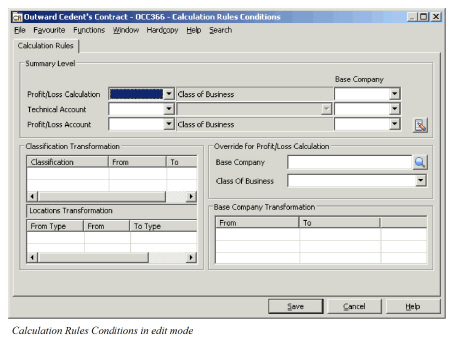
Summary Level #
The summary level section of the window lets you indicate the level at which you want to produce the Technical Account and the Profit/Loss Account. You have three different options. (But four values as two of them have the same functionality. Per Base Company is not implemented.)
Use the drop-down list to select a value.
The values and their impact #
| Value | Impact |
|---|---|
| Empty (no value selected) | Details per Accounting Classification |
| None | Details per Accounting Classification |
| All Details | Details per Accounting Classification (same as None and Empty) |
| No Details | No details per Accounting Classification, only an overall total per Premiums, Commission etc. |
| Groups | Details with different Accounting Classifications are grouped together according to the Groups defined within the Reference table for the Classification Type defined in this Condition. |
Profit/Loss Account Calculation and Profit/Loss Account:
The Group level is hard coded to Class of Business. Selecting any other value than Group, the second field has no impact.
Technical Account:
When you select summary level Groups, you must select the Classification Type for the Groups. Available values are the Classification Types used in the Section Classification of the Outward Cedent’s Contract, but limited to those that are allowed in the Accounting Classification. (Type of Participation and Type of Business are excluded.)
Note! The Groups must be predefined within the Reference table Accounting Class of Business Group (00797). This is typically done by your System Administrator.
Note! When Groups is selected as summary level, all the values for the Classification Type the Groups are based on, which are used in the Outward Cedent’s Contract’s Section Classification, should be included in one of the Groups.
If one or more of the values used in the Outward Cedent’s Contract’s Section Classification has NOT been included in one of the predefined Groups, this is no problem as long as no bookings exist with the corresponding Accounting Classification. But when one or more of the booking details with such an Accounting Classification is included in the current Retrocession Account order, the system groups all these details together in a ‘various’ group in the Technical Account document. As name of this ‘various’ group, the system takes a random Accounting Classification selected from any of the details included in the group.
Create Classification Transformation #
Classification Transformation is only available for business type Outward Cedent’s Contract. The Classification Transformation allows you to record how the classification from the Proportional OCC business ledger as Original are transformed to the OCC business ledger as Booking. This classification transformation is used when running the Retrocession Calculation order and the Retrocession Estimation Calculation order. You can select between all classifications available and in use for your Base Company.
- Select the Calculation Rules Conditions button from the OCC conditions
- Click the Edit button in the lower right corner
- Select Add Classification Transformation option in the Classification Transformation container
- Select a Classification Type
- Select one of the values in the From column (i.e. the classification which is to be transformed from)
- Select one of the values in the To column (i.e. the From classification will be transformed to this value). If no value is selected in the To column, the selected From classification will not be part of the as Booking Accounting Classification. Note that a value must be entered in the To column if the selected Classification Type is mandatory for the Base Company/Reporting Unit/Main Class of Business.
Edit Classification Transformation
You can make changes to a Classification Transformation created for an Outward Cedent’s Contract.
- Select the Calculation Rules Conditions button from the OCC conditions
- Click the Edit button in the lower right corner
- Select the Classification you want to change.
- Select Edit Classification Transformation option in the Classification Transformation container. The Edit Classification Transformation window appears.
- Make your modifications for the selected classification
- Click OK to save your changes
Delete Classification Transformation
You can delete the Classification Transformation Term defined for an Outward Cedent’s Contract.
- Select the Calculation Rules Conditions button from the OCC conditions
- Click the Edit button in the lower right corner
- Select the Classification you want to delete.
- Select Delete Classification Transformation option in the Classification Transformation container.
- If bookings exist for the Insured Period, a warning message is issued.
- Click OK to save your changes.
| Field | Description |
|---|---|
| Classification | Select a classification type from where a value should be transformed to a new value Values: All Coverage Classification Types available for the Base Company/Reporting Unit/Main Class of Business Mandatory: Yes, mandatory for a classification transformation term Functional Impact: - Retrocession Calculation order - Retrocession Estimation Calculation order |
| From | The classification value in the Accounting Classification on the as Original details that will be transformed to a new value in the Accounting Classification on the as Booking ledger when the Retrocession (Estimation) Calculation order runs. Values: All reference data values for selected Classification Type are available Derived from: Selection of Classification Type Mandatory: Yes, mandatory for a classification transformation term Functional Impact: - Retrocession Calculation order - Retrocession Estimation order |
| To | The new value in the Accounting Classification on the as Booking ledger when the Retrocession (Estimation) Calculation order runs when the Accounting Classification on the as Original bookings has the defined From value. Values: All reference data values existing on OCC business Classification Coverage for selected Classification Type and with the same parent value as the From value are available Derived from: Selection of Classification Type and OCC business Classification Coverage Mandatory: Yes, when selected Classification Type is mandatory. Else No Functional Impact: - Retrocession Calculation order - Retrocession Estimation order |