Handle Clause Conditions
Maintain Inclusions and Exclusions #
Define the clauses that apply to, and clauses that are excluded from, a given business.
- Open your business
- Click the CL (Clauses) button in the navigation bar
- In the in the Available list of General Clauses, select the clause that you require.
- Click > .
- Type in Special Clauses included, if you require.
- In the Available list of the Exclusion Clauses, select the clause that you require. Exclusions
- Click > .
- Type in Special Clauses excluded, if you require.
- In the in the Available list of the Attachment Clauses, select the clause that you require.
- Click > .
- Type in Special Attachment Clauses if you require.
- Click Save.
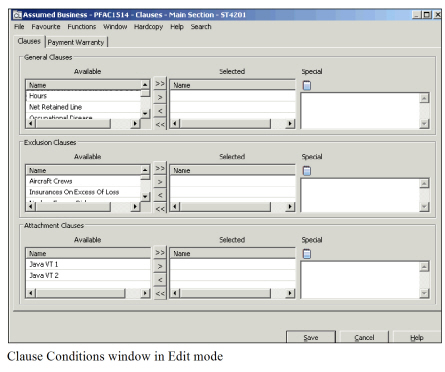
This window is divided into three main sections: General Clauses, Exclusion Clauses and Attachment Clauses.
General clauses are clauses that are included in and are specific to a type of business.
Exclusion clauses are clauses defining exclusions that are not specific to any type of business. Examples of exclusion clauses are: war, nuclear energy risks exclusion clause, obligatory reinsurance, insurances or reinsurances on excess of loss basis, retroactive cover for known losses, racing, rallies and/or speed trials, vehicles on rails and not on terra firma, aircraft crews, ship crews, offshore rigs, etc.
Attachment clauses are clauses relevant to facultative business and that come in addition to the clauses following the original policy coverage.
Each of the General, Exclusion and Attachment sections in the Clauses window are further divided into Available, Selected, and Special. In the Available column is a list of types of clauses that are available for a given business. Select the items from the Available list that you want to include by clicking the right arrow button and moving them to the Selected list.
Enter as many “Special Clauses” as you wish in the Special section.
Maintain Premium Payment Warranties #
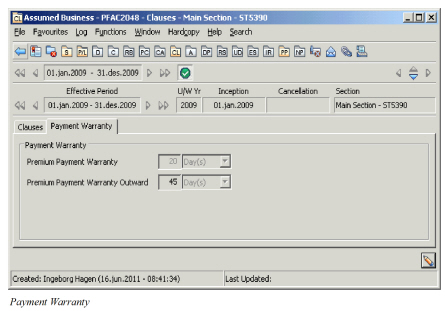
Your agreement may include a clause allowing (re)insurers to terminate the agreement if the premium is not received within the agreed dates. The premium payment warranties in SICS allows efficient management of these and has extensive linked functionality.
- Click the Clause Condition (CL) button in the Navigation bar
- Open Clause Condition in Edit mode
- Select the Premium Warranty tab
- Enter Premium Payment Warranty and/ or Premium Payment Warranty Outward
- Click Save.
| Field | Description |
|---|---|
| Premium Payment Warranty | (PPW) Period from the premium is due until it has to be settled. Failure to pay when due can result in an automatic termination of the business. Values: Minimum value: 0 Maximum value: 999 Validations: Only when Type of Business is proportional facultative, non- proportional facultative, proportional direct, non-proportional direct Mandatory: No Functional Impact: Premium Instalment Conditions |
| Premium Payment Warranty Type | Unit of measurement for the period to pass from the premium is dueuntil it has to be settled Values: Day(s) Month(s) Year(s) None Default: None Mandatory: Only if Premium Payment Warranty is entered Functional Impact: Premium Instalment Condition |
| Premium Payment Warranty Outward | Period from the premium on the outward business is due until it has to be settled. Failure to pay when due can result in an automatic termination of the business. Values: Minimum value: 0 Maximum value: 999 Validations: Only when Type of Business is proportional facultative, non- proportional facultative, proportional direct, non-proportional direct Mandatory: No Functional Impact: Outward Premium Installment Schedule |
| Premium Payment Warranty Outward Type | Unit of measurement for the period to pass from the premium is due until it has to be settled Values: Day(s) Month(s) Year(s) None Default: None Mandatory: Only if Premium Payment Warranty Outward is entered Functional Impact: Outward Premium Installment Schedule |
Maintain Notification Clauses #
Often reinsurers invoke clauses which require that the reinsured provides them of an early notification of activities on the inwards/protected business. This could for example be when reinsurers have invoked a claim co-operation clause, or early notification clause. Failure to notify reinsurers may have serious financial implications. SICS allows you to indicate when such notifications are required. If you are using Task Management, the system automatically creates a new Task to facilitate that reinsurers are notified. For further details about Task Management refer to this chapter in the documentation.
- Open the facultative retrocessionaire’s participation where the reinsurer has invoked a clause which requires notification
- Open the Clause Condition (CL) in Edit mode
- Select the Notifications tab
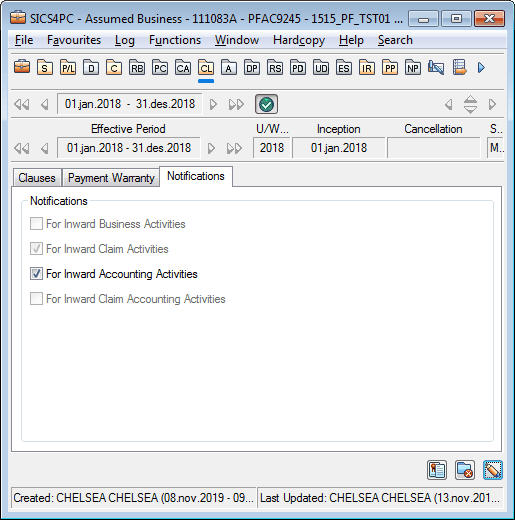
- Select for which activities your reinsurer is expecting to be notified. You can select
- For Inward Business Activities
- For Inward Claim Activities
- For Inward Accounting Activities
- For Inward Claim Accounting Activities
Please note that the two latter selections are mutually execlusive.
- Press OK
The linked Clause condition of the protected business is automatically updated to reflect the same.
Inward Business Activities includes changes to business conditions through edit or amendment. Changes made to any fields on Business tab will not trigger a new task.
Inward Claim Activities include claim creation and update.
Inward Accounting Activities includes the closing of a claim and technical worksheet.
Inward Claim Accounting Activities include the status change of a claim worksheet.