Handle Deduction Conditions

Click the Deductions Conditions button to see the Deduction Conditions window, where conditions for items to be deducted from the premium are defined. The Deduction Conditions window is used to show deduction conditions for a business for:
- Offer or quote request evaluation, and
- Accounting
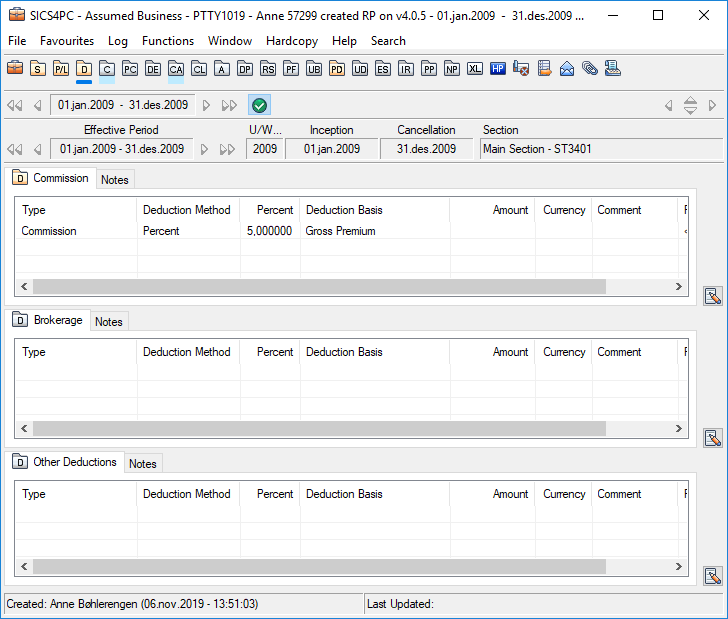
General Method of Entering Deductions #
| Remember: If it is not the first time you open the window, you have to click the Edit Menu button to make changes. | The Deduction Conditions window is divided into four section s: Commission Conditions, Brokerage Conditions, Other Deduction Conditions, and Total Deductions. Commission conditions refer to the percentage or amount of premium paid by the reinsurer to compensate the cedent for the acquisition costs and overhead expenses related to the ceded business. Brokerage conditions refer to the compensation that the reinsurer pays to a reinsurance intermediary. Brokerage conditions are set when the business partner details are entered. |
Note! What you see in the Deduction Conditions window depends on the Type of Business, Main Class of Business, and Level of Business.
When you click the Edit Menu button for Commission, Brokerage, or Other Deductions conditions, you can select Edit or New (depending on whether or not you have input data for that condition already). Once in the Edit mode, you can add/modify information in the following fields:
Type: Here you can specify the deduction type. When you select New from the Edit Menu button, and then select Add to add the conditions, you see a window called Select Available Deductions, from which you can select deduction types. What appears in this window depends on the parent/child relationship for the Type of Business, Main Class of Business, and Level of Business.
Calculation Method: The default method is percent or amount. If you select another method (like Sliding Scale, Stepped Sliding Scale, Original, Original + Amount, or Original + Percent, you must select it from the drop-down list (while in Edit mode) in this field. If Sliding Scale or Stepped Sliding Scale is selected, then you see a new window where you can input more details. Refer to Sliding Scale and Stepped Sliding Scale explained later in this chapter.
Amount: If the deductions are reported in amounts (not percentages), you can add the amount in this field.
Currency: If the deductions are reported in amounts, you can specify that currency here.
Comment: This is a free-text field where you can type in any comments you have related to the condition.
Total Deductions #
At the bottom of the Deduction Conditions window on Fac and Direct Business, you can see the total deductions figures. If you make changes to any other part of the window, the total deductions are recalculated. Total deductions are reported as either a percentage of the total gross premium or as an amount (based on the total gross premium). (This is regardless of what you selected in the Basis column.) For multi-currency Flat Premium, the system uses a settled exchange rate and converts the amount into the main currency before adding it to the Total Deduction.
100% Amount: The amount from the total gross premium.
Our Share: The percentage (out of 100%) of what you have specified in Share Conditions.
Percent: This figure shows 100% of the commission.
Enter Deductions as Percent #
Register a deduction value as a percent of something, e.g. the premium.
- Open your business and click the Deduction Condition (D) button in the Navigation bar.
- Select Edit or New from the Menu button next to the deduction condition (commission, brokerage or others) you want to enter.
- If required, select Add from the pop-up menu in the Type field. The system shows you the (remaining) available deduction items.
- Select the required item(s) in the Select Available Deduction Types list. If you want to select multiple items, hold down the CTRL-button on you keyboard and select the items you want to add.
- Click Save
- Click on the Percent field for the selected deduction type. Percent is defaulted in the Deduction Method field
- Deduction Basis is defaulted, but you can change the value by selecting another value.
- Enter a percentage in the Percent field.
- Click OK.
| Field | Description |
|---|---|
| Commission Percent | Commission paid by the reinsured to compensate the cedent for expenses related to the ceded business Values: Minimum value: 0 Maximum value: 100 Number of decimals: 6 Validations: Total Commission cannot exceed 100% Mandatory: No Functional Impact: Other commission values Maintain Premium Conditions Automatic Booking Proportional Retrocession Accounting Generate Underwriter’s Estimates |
| Deduction Basis | The premium terms or other basis, e.g. another deduction, the deduction is calculated Values: Customized by your company, e.g.: Gross Premium: Total premium to the business Net Premium: Total premium less other deduction items Brokerage: Total brokerage amount Default: Gross Premium May be customized by you company to be the most common value used for the type of business. Validations: Must be selected if deduction method is Percent, Original + Percent, Sliding Scale or Stepped Sliding Scale Mandatory: No Functional Impact: Maintain Premium Conditions Automatic Booking Proportional Retrocession Accounting |
| Comment | Free text information regarding the deduction on the same row Values: Text Number of characters: 50 Mandatory: No Functional Impact: None |
| Paid To | The recipient of the deduction Values: Business Partners Validations: Only available if your system administrator has set it up Default: Business Partner with payment task Mandatory: No Functional Impact: None |
| Brokerage Percent | Compensation that the reinsurer pays to a reinsurance intermediary Values: Minimum value: 0 Maximum value: 100 Number of decimals: 6 Default: Default per class of business per broker may be defined Refer to the Maintain Brokerage Frame Agreement chapter Validations: Only available when broker is assigned to the business Total deductions cannot exceed 100% Mandatory: No Functional Impact: Other brokerage commission values Premium Conditions Automatic Booking Proportional Retrocession Accounting Generate Underwriter’s Estimates |
| Tax On Premium Percent | Tax in percentage of premium, normally the tax rate of the ceding company’s country of domicile Values: Minimum value: 0 Maximum value: 100 Number of decimals: 6 Validations: Total deductions cannot exceed 100% Mandatory: No Functional Impact: Other tax on premium values Premium Conditions Automatic Booking Proportional Retrocession Accounting Generate Underwriter’s Estimates |
| Fronting Fee Percent | A fee paid to the reinsurer that has accepted a share of a reinsurance business on behalf of other reinsurers. Values: Minimum value: 0 Maximum value: 100 Number of decimals: 6 Validations: Total deductions cannot exceed 100% Mandatory: No Functional Impact: Other tax on premium values Premium Conditions Automatic Booking Proportional Retrocession Accounting Generate Underwriter’s Estimates |
Enter Sliding Scale Commission #
Register commission when the commission is based on the loss ratio of the
business.
- Open your business and click the Deduction condition (D) button in the Navigation bar
- Select Edit or New from the Menu button next to the Commission condition.
- If required, select Add from the pop-up menu in the Type field and select Commission.
- Select Sliding Scale from the drop-down list in the deduction method field
- Highlight Commission and then select Sliding Scale from the pop-up menu.
SICS opens the Sliding Scale Commission window. - Enter the Loss Ratio Definition details.
- If required, enter the Sliding Commission/ Loss Ratio details and click the Calculate Slopes button.
- If required, enter Calculation Frequency, Losses Carried Forward, Provisional Commission and Average Basis details.
- Click Save
- Click OK to save the deduction conditions
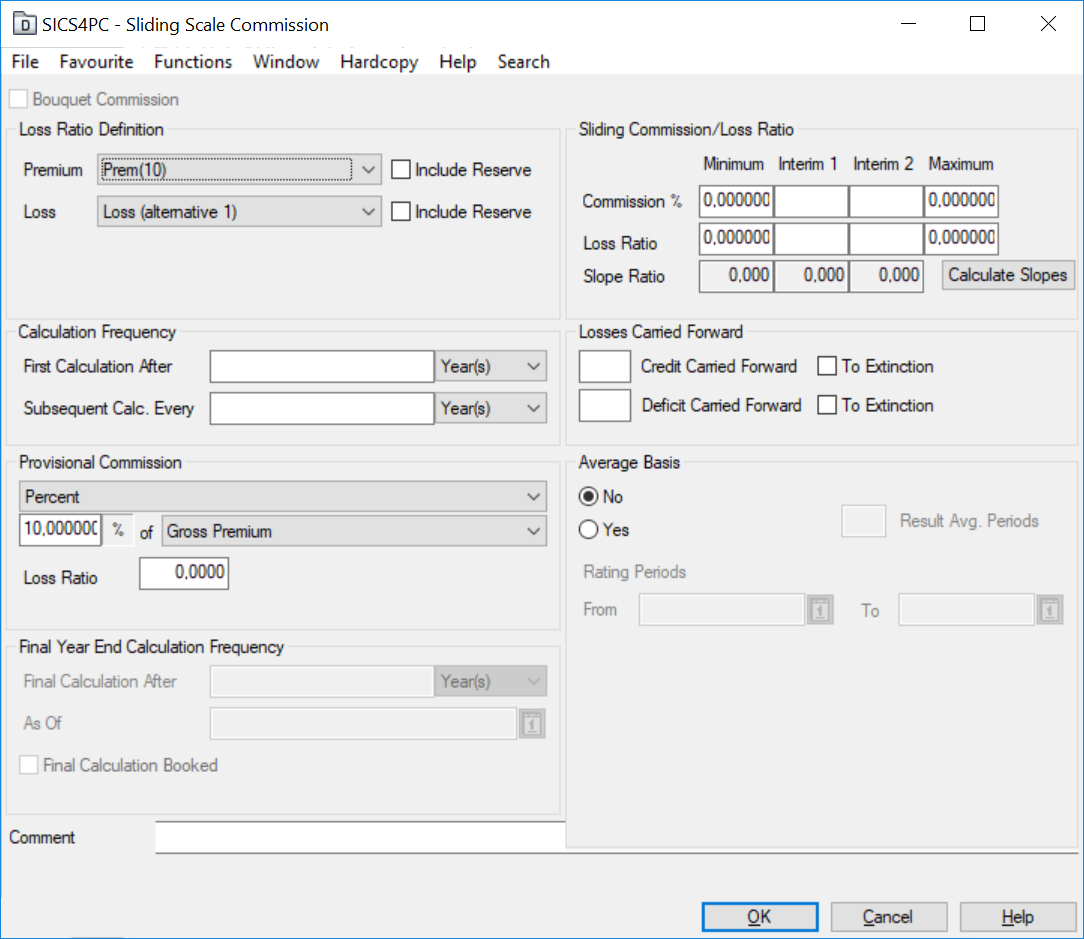
| Field | Description |
|---|---|
| Bouquet Commission | Indication whether the sliding scale commission calculation is based on aggregate premium and loss figures from all treaties in the Bouquet Calculation Group Values: Yes - Sliding Scale Commission is calculated from aggregate premium and loss figures from all treaties in the bouquet calculation group No - Sliding Scale Commission is calculated using premium and loss figures from this treaty only Validations: Flag is automatically set and only on proportional treaties included in a bouquet calculation group where option For Sliding Scale Commission is selected Mandatory: No Functional Impact: Proportional Retrocession Accounting |
| Loss Ratio Definition/ Premium | Indication of the premium basis used in calculation of the loss ratio Values: Customised by your company. Tick box to indicate whether premium reserves should be included in the calculation Validations: Must be defined when commission method is Sliding Scale Mandatory: No Functional Impact: Proportional Retrocession Accounting |
| Loss Ratio Definition/ Loss | Indication of the loss basis used in calculation of the loss ratio Values: Customized by your company. Check box to indicate whether loss reserves should be included in the calculation Validations: Must be defined when commission method is Sliding Scale Mandatory: No Functional Impact: Proportional Retrocession Accounting |
| Minimum Commission % | Lowest commission percent used to calculate the slope ratio Values: Number of Decimals: 6 Maximum value: 9.999,999999 Default: 0,0000 Validations: Minimum Commission % < Interim 1 Commission % Mandatory: No Functional Impact: Other Sliding Scale Commission values Proportional Retrocession Accounting |
| Interim 1 and 2 Commission % | Commission percentages between minimum and maximum percentages used to calculate the slope ratio Values: Number of Decimals: 6 Maximum value: 9.999,999999 Default: 0,0000 Validations: Minimum Commission % < Interim 1 Commission % < Interim 2 Commission %< Maximum Commission % Mandatory: No Functional Impact: Other Sliding Scale Commission values |
| Maximum Commission % | Highest commission percent used to calculate the slope ratio Values: Number of Decimals: 6 Maximum value: 9.999,999999 Default: 0,0000 Validations: Maximum Commission % > Interim 2 Commission % Mandatory: No Functional Impact: Other Sliding Scale Commission values Proportional Retrocession Accounting |
| Minimum Loss Ratio | Lowest loss ratio used to calculate the slope ratio. Values: Number of Decimals: 6 Maximum value: 9.999,999999 Default: 0,0000 Validations: Minimum Loss Ratio % < Interim 1 Loss Ratio % Mandatory: No Functional Impact: Other Sliding Scale Commission values Proportional Retrocession Accounting |
| Interim 1 and 2 Loss Ratio | Loss ratios between minimum and maximum loss ratios used to calculate the slope ratio. Values: Number of Decimals: 6 Maximum value: 9.999,999999 Default: 0,0000 Validations: Minimum Loss Ratio % < Interim 1 Loss Ratio % < Interim 2 Loss Ratio % < Maximum Loss Ratio % Mandatory: No Functional Impact: Other Sliding Scale Commission values |
| Maximum Loss Ratio | Highest loss ratio used to calculate the slope ratio. Values: Number of Decimals: 6 Maximum value: 9.999,999999 Default: 0,0000 Validations: Maximum Loss Ratio % > Interim 2 Loss Ratio % Mandatory: No Functional Impact: Other Sliding Scale Commission values Proportional Retrocession Accounting |
| Slope Ratio | Decrease in commission percent per percent increase in loss ratio Values: Number of decimals: 3 Minimum value: 0,000 Calculation: Slope 1: Commission (Interim 1 - Minimum) Loss Ratio (Maximum - Interim 2) Slope 2: Commission (Interim 2 - Interim 1) Loss Ratio (Interim 2 - Interim 1) Slope 3: Commission (Maximum - Interim 2) Loss Ratio (Interim 1 - Minimum) Validations: Calculated slope ratio cannot be a negative value Mandatory: No Functional Impact: None |
| First Calculation After | Indication of how long after current Insured Period’s start date the first calculation of sliding scale commission is to take place. Values: Minimum value: 0 Maximum value: 999 Number of decimals: 0 Month(s) Year(s) Default: Years Validations: Must result in an ‘as of date’ equal to one of the accounts as of dates in the Administration Conditions. Depending on the system set up, this validation may be ignored for assumed businesses. Mandatory: No Functional Impact: Proportional Retrocession Accounting |
| Subsequent Calc. Every | Indication of how often after the first calculation the later calculations of sliding scale commission should take place. The final calculation will be at the close of the agreement Values: Minimum value: 0 Maximum value: 999 Number of decimals: 0 Month(s) Year(s) Default: Years Validations: Must result in ‘as of dates’ equal to existing accounts as of dates in the Administration Conditions. Depending on the system set up, this validation may be ignored for assumed businesses. Mandatory: No Functional Impact: Proportional Retrocession Accounting |
| Credit Carried Forward To | Number of Insured Periods to bring forward incurred losses falling below the minimum loss ratio. Alternatively, carry credit forward indefinitely Values: Maximum value: 99 Number of decimals: 0 Check box Validations: If the To Extinction check box is selected, number of Insured Periods cannot be entered Mandatory: No Functional Impact: Proportional Retrocession Accounting |
| Deficit Carried Forward To | Number of Insured Periods to bring forward losses exceeding the maximum loss ratio. Alternatively, carry deficit forward indefinitely Values: Maximum value: 99 Number of decimals: 0 Check box Validations: If the To Extinction check box is selected, number of Insured Periods cannot be entered Mandatory: No Functional Impact: Proportional Retrocession Accounting |
| Provisional Commission Method | Sliding scale commission calculated before the periods actual result is known Values: Undefined None Original Percent Mandatory: No Functional Impact: Automatic Booking Proportional Retrocession Accounting |
| Provisional Commission Percent | The percentage used to calculate sliding scale commission in each account Values: Maximum value: 999,99999 Minimum value: 0 Number of decimals: 5 Validation: Only available when provisional commission is Percent Mandatory: No Functional Impact: Automatic Booking Proportional Retrocession Accounting |
| Provisional Commission Basis | Premium basis used in calculation of provisional commission Values: Customized by your company, e.g_. Gross Premium, Net Premium_ _Validations:_ Only available when provisional commission is _Percent_ _Mandatory:_ No _Functional Impact:_ Automatic Booking Proportional Retrocession Accounting |
| Provisional Loss Ratio | A check point to know when real sliding scale commission calculation should be calculated instead of the provisional loss ratio percent Values: Number of decimals: 6 Minimum value: 0 Maximum value: 999,9999 Validations: Only available when provisional commission is Percent Mandatory: No Functional Impact: None |
| Provisional Commission Original | Sliding scale commission is based on the underlying businesses commission. Mandatory: No Functional Impact: Proportional Retrocession Accounting |
| Average Basis | Indication whether the loss ratio should be calculated as an average over a number of periods Values: Yes - average basis is used to calculate loss ratio No - average basis is used not to calculate loss ratio Validations: When No is selected, all other fields in the Average Basis part is disabled Functional Impact: None |
| Result Avg. Periods | The number of Insured periods that should be summed together for calculating the average loss ratio Values: Minimum value: 0 Maximum value: 99 Number of decimals: 0 Mandatory: No Functional Impact: None |
| Rating Periods From/ To | Loss ratio is calculated from losses and premiums falling within the rating period Values: Date fields Mandatory: No Functional Impact: None |
| Final Year End Calculation Frequency | This section is for Informational and reporting purpose, which indicates the final calculation for the concerned condition. The application of this section is restricted to the Inwards Level of Business. The values can be filled in this section by selecting the menu option where an option name as ‘Edit Final Year Calculation’ is available and its edit function is restricted through a use case defined in security - “Business Conditions Year End Calculation” |
| Final Calculation after | To indicate when a last calculation is contractually specified (if applicable). Values: A number between 1-99 followed by a drop-down field with the values “Month(s)” or “Year(s)”, with Month(s) as default Functional Impact: None |
| As Of | The date on which the Final Calculation has completed Values: A valid Date Functional Impact: None |
| Final Calculation Booked | Definitioni of whether the Final Calculation is performed or not (indicating no further calculation is due) Values: Checked or not checked, with not checked as default Functional Impact: None |
Enter Stepped Sliding Scale Commission #
Stepped sliding scales refer to commission where the commission rates are given in steps for each interval of loss ratio. When you select Stepped Sliding Scale from the Commission Calculation Method drop-down list, click the Percent column and select Stepped Sliding Scale from the pop-up list, you see the first Stepped Sliding Scale window.
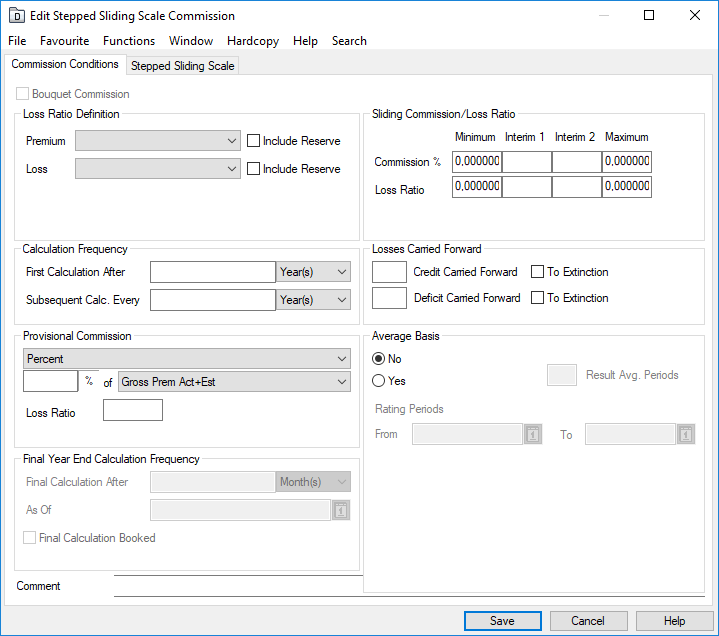
Here you can view and edit information about stepped sliding scales. The window has two tabs. The first tab, Commission Conditions, is like the Sliding Scale window, explained earlier. The other tab is the Stepped Sliding Scale tab.

Click the Edit button to switch from View mode to Edit mode. You see a new window, which looks like this:
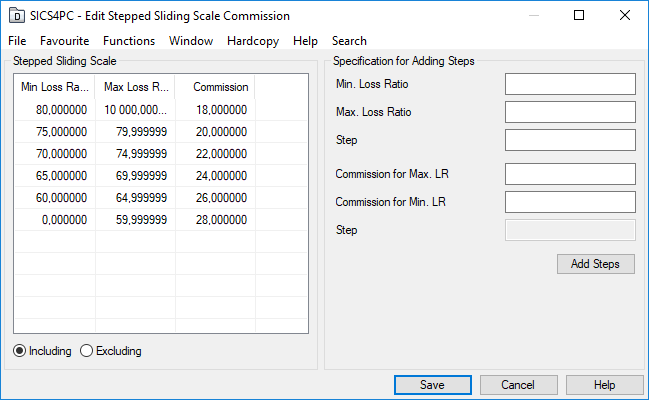
You can enter information directly into the Stepped Sliding Scale section on the left-hand side of the window, or you can have SICS calculate interval rates for you. On the right-hand side of the window, in the section called Specification for Adding Steps, you can do the following:
- Enter Maximum Loss Ratio, and Minimum Loss Ratio.
- In the Step field below the loss ratios, enter the size of the steps between each loss ratio within the given interval.
- Enter the Commission percent for Maximum Loss Ratio and commission for Minimum Loss Ratio.
- Click the Add steps button.
You see the calculated information appear in a table on the left-hand side of the window. A number appears in the Step field beneath the commission fields that indicates the size of the steps between the commission percentages.
When you click Save, you return to the Stepped Sliding Scale tab, where you see the information that was just generated.
Upload Stepped Sliding Scale Commission table #
Import Stepped Sliding Scale Commission table from external spreadsheet files.
- Open your business and click the Deduction condition (D) button in the Navigation bar
- Select Edit or New from the Menu button next to the Commission condition.
- If required, select Add from the pop-up menu in the Type field and select Commission.
- Select Stepped Sliding Scale from the drop-down list in the deduction method field
- Highlight Commission and then select Stepped Sliding Scale from the pop-up menu.
- Select Stepped Sliding Scale folder and go to edit mode
- In the Stepped Sliding Scale container, select Import Table from popup menu.
- For the File to Import, select the Find button.
- Navigate to the wanted folder, select the file and Open.
- Select the Import button.
- If the process passes the validations, a small dialogue box appears with the number of details found.
- Select the OK button. The values from the file are loaded and shown in an edit window
- You can manually change some values if needed.
- Select Finish.
If the process fails the validations, an Error List appears. This problem must be solved before the spreadsheet can be imported.