Handle Deposit Conditions
|

Deposit Condition button | When a Business agreement includes Premium- and/or Loss Deposit conditions, you enter the details of these conditions in the Deposit conditions window. To open the Deposit conditions window, click the Deposit Conditions button on the Navigation bar. |
Dependent on the Level- and Type of Business the conditions are for information only, or basis for further calculations performed, e.g. by a Retrocession Calculation order.
(For information about each calculation method and how the Premium-and Loss Deposit are calculated for Outward Cedent’s Contract and Retrocessionaire' Participation Proportional treaties, refer to Calculate Deposits section.)
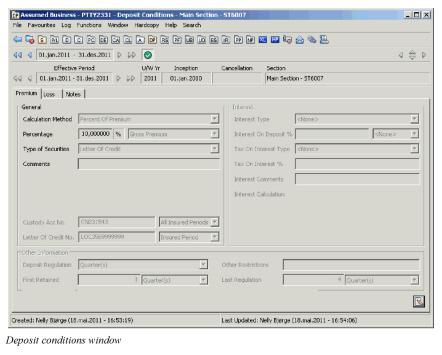
Enter Premium Deposit Conditions #
You can select between different Premium Deposit Calculation Methods. Additional conditions, i.e. percentage and calculation basis are required for most of the methods.
You can select between the following methods:
- Percent of Original Deposits
- Percent of Premium
- Percent of Premium Portfolio
- Percent of Premium reserve
- Percent table
- Percent of Combination
- <User-defined value>
For information about how to define each method and description of the fields connected to each method, see the chapters below.
You can make Automatic Bookings from a Technical Worksheet. The calculation method chosen as Premium Deposit conditions, determine the automatic calculation in Technical Worksheet. (Refer to the Accounting chapter, Automatic Booking of Deductions and/or Premium Deposits in Technical Worksheet section).
Define Premium Deposit as Percent of Original #
When the Premium Deposit of the agreement is calculated as a share of the Premium Deposit originally ceded to the business, you select ‘Percent of Original’ as calculation method.
- Open the business you want to define Premium Deposit conditions for.
- Click the Deposit Conditions button (DP button) on the Navigation bar.
- Select the Premium Deposit tab.
- Select ‘Percent of Original’ from the Calculation Method drop-down list.
- Enter a percentage value.
- If applicable, select a ‘Type of Securities’-value from the drop-down list.
- In case Type of Securities is either Cash or Mixed, define Interest Conditions (Interest Conditions can be defined for Mixed on Assumed Business only). (Refer to the Enter Interest Conditions section.)
- Define Deposit Regulation conditions. (Refer to the Enter Deposit Regulation Conditions section.)
| Field | Description |
|---|---|
| Calculation Method | The method used calculating the agreement’s Premium Deposit. Values: <None>, Pct of Original Deposit, Percent of Premium, Pct of Premium Portfolio, Pct of Premium Reserve, Percent Table Default: <None> Mandatory: No Functional Impact: In case of OCC- and RP Proportional Treaty business: - Retrocession Calculation order - Retrocession Calculation Group order - Retrocession Estimation order |
| Percentage | The share in % of the Premium Deposit originally ceded to the business. Values: A percentage value from 0 to 100% (More than 100% is allowed if defined in the system parameters). Validations: A message appears if: More than 100% is entered and not allowed according to system parameter settings. No value is entered Derived from: The Calculation Method ‘Percent of Original’ Mandatory: Yes Functional Impact: In case of OCC- and RP Proportional treaty business: Retrocession Calculation order Retrocession Calculation Group order Retrocession Estimation order |
| Type of Securities | The Reinsurer’s methods of providing collateral for the funds withheld by the Cedent. Values: <None>, Bonds, Cash, Direct to Segregated Portfolio, Letter of Credit, Mixed, Outstanding Loss Advice, Securities, Trust Fund, and other types defined by your System Administrator. Default: <None> Mandatory: No Functional Impact: If ‘Letter of Credit’ is selected * ‘Letter of Credit No’ fields are activated If ‘Cash’ is selected * the ‘Interest Type’-field is activated * Custody Account No fields are disabled. If ‘Mixed’ is selected * the ‘Interest Type’-field is activated (on Assumed Business only) |
| Comments | Enter a comment related to the ‘Type of Securities’-field. Values: Free text, maximum 36 characters Mandatory: No Functional Impact: None |
| Freeze Deposit Calculation | Activate if the business is in run-off and you want to stop Premium Deposit regulations for OCC- and RP proportional treaties. (Refer to Freeze Deposit Calculations.) Values: Active or Inactive Default: Inactive Derived from: The Business System Parameter ‘Allow Deposit Calculations to Frozen’ in the Conditions/Classifications tab. The Calculation Method ‘Percent of Original’ Mandatory: No Functional Impact: In case of OCC- and RP Proportional treaty business: Retrocession Calculation order Retrocession Calculation Group order Retrocession Estimation order |
Define Premium Deposit as Percent of Premium #
When the Premium Deposit of the agreement is calculated as a share of the agreement’s premium, you select Percent of Premium as calculation method.
- Open the business for which the Premium Deposit conditions are to be defined.
- Click the Deposit Conditions button (DP icon) on the Navigation bar.
- Select the Premium Deposit tab.
- Select Percent of Premium from the Calculation Method drop-down list.
- Enter a percentage value and a Premium Basis.
- If applicable, select a ‘Type of Securities’ value from the drop-down list.
- In case Type of Securities is either Cash or Mixed, define Interest Conditions (Interest Conditions can be defined for Mixed on Assumed Business only). (Refer to the Enter Interest Conditions section.)
- Define Deposit Regulation conditions. (Refer to the Enter Deposit Regulation Conditions section.)
| Field | Description |
|---|---|
| Calculation Method | The method used calculating the agreement’s Premium Deposit. Values: <None>, Pct of Original Deposit, Percent of Premium, Pct of Premium Portfolio, Pct of Premium Reserve, Percent Table Default: <None> Mandatory: No Functional Impact: Automatic Booking of Premium Deposits in Technical Worksheet In case of OCC- and RP Proportional treaty business: - Retrocession Calculation order - Retrocession Calculation Group order - Retrocession Estimation order |
| Percentage | The share in % of the agreement’s premium. Values: A percentage value from 0 to 100% (More than 100% is allowed if defined in the system parameters). Validations: A message appears if: More than 100% is entered and not allowed according to system parameter settings. No value is entered Derived from: The Calculation Method ‘Percent of Premium’ Mandatory: Yes Functional Impact: In case of OCC- and RP Proportional treaty business: - Retrocession Calculation order - Retrocession Calculation Group order - Retrocession Estimation order |
| Premium Basis | The premium used as basis for the calculation of Premium Deposit. Values: A group of Entry Codes, e.g. named Gross Premium or Net Premium For Non-Proportional business: Entry Code Groups defined in the Entry Code Group Category Subject Premium Income, Non-Proportional For Proportional business: Entry Code Groups defined in the Entry Code Group Category Subject Premium Income, Proportional (Refer to Entry Code Maintenance in the System Administrator’s Guide). Derived from: The Calculation Method ‘Percent of Premium’ Validations: A message appears if no value is selected Mandatory: Yes Functional Impact: In case of OCC- and RP Proportional treaty business: - Retrocession Calculation order - Retrocession Calculation Group order - Retrocession Estimation order |
| Type of Securities | The Reinsurer’s methods of providing collateral for the funds withheld by the Cedent. Values: <None>, Bonds, Cash, Direct to Segregated Portfolio, Letter of Credit, Mixed, Outstanding Loss Advice, Securities, Trust Fund, and other types defined by your System Administrator. Default: <None> Mandatory: No Functional Impact: If ‘Letter of Credit’ is selected * ‘Letter of Credit No’ fields are activated If ‘Cash’ is selected * the ‘Interest Type’-field is activated * Custody Account No fields are disabled. If ‘Mixed’ is selected * the ‘Interest Type’-field is activated (on Assumed Business only) |
| Comments | Enter a comment related to the Type of Securities field. Values: Free text, maximum 36 characters Mandatory: No Functional Impact: None |
Define Premium Deposit as Percent of Premium Portfolio #
When the Premium Deposit of the agreement is calculated using the agreement’s Premium Portfolio as basis, you select ‘Percent of Premium Portfolio’ as calculation method.
- Open the business for which the Premium Deposit conditions are to be defined.
- Click the Deposit Conditions button (DP button) on the Navigation bar.
- Select the Premium Deposit tab.
- Select ‘Percent of Premium Portfolio’ from the Calculation Method drop-down list.
- Enter a percentage value
- If applicable, select a ‘Type of Securities’-value from the drop-down list.
- In case Type of Securities is either Cash or Mixed, define Interest Conditions (Interest Conditions can be defined for Mixed on Assumed Business only). (Refer to the Enter Interest Conditions section.)
- Define Deposit Regulation conditions. (Refer to the Enter Deposit Regulation Conditions section.)
For information about Portfolio Conditions, see the Conditions section. For information about portfolio calculations for OCC-/RP business, see the Calculate Portfolio section.
| Field | Description |
|---|---|
| Calculation Method | The method used calculating the agreement’s Premium Deposit. Values: <None>, Pct of Original Deposit, Percent of Premium, Pct of Premium Portfolio, Pct of Premium Reserve, Percent Table Default: <None> Mandatory: No Functional Impact: In case of OCC- and RP Proportional treaty business: - Retrocession Calculation order - Retrocession Calculation Group order - Retrocession Estimation order |
| Percentage | The share in % of the agreement’s premium portfolio. Values: A percentage value from 0to 100% (More than 100% is allowed if defined in the system parameters). Validations: A message appears if: More than 100% is entered and not allowed according to system parameter settings. No value is entered Derived from: The Calculation Method ‘Percent of Premium Portfolio’ Mandatory: Yes Functional Impact: In case of OCC- and RP Proportional treaty business: - Retrocession Calculation order - Retrocession Calculation Group order - Retrocession Estimation order |
| Type of Securities | The Reinsurer’s methods of providing collateral for the funds withheld by the Cedent. Values: <None>, Bonds, Cash, Direct to Segregated Portfolio, Letter of Credit, Mixed, Outstanding Loss Advice, Securities, Trust Fund, and other types defined by your System Administrator. Default: <None> Mandatory: No Functional Impact: If ‘Letter of Credit’ is selected * ‘Letter of Credit No’ fields are activated If ‘Cash’ is selected * the ‘Interest Type’-field is activated * Custody Account No fields are disabled. If ‘Mixed’ is selected * the ‘Interest Type’-field is activated (on Assumed Business only) |
| Comments | Enter a comment related to the Type of Securities field. Values: Free text, maximum 36 characters Mandatory: No Functional Impact: None |
Define Premium Deposit as Percent of Premium Reserve #
When the Premium Deposit of the agreement is calculated as a share of the agreement’s Premium Reserve, you select ‘Percent of Premium Reserve’ as calculation method.
- Open the business for which the Premium Deposit conditions are to be defined.
- Select the Deposit Conditions button (DP button) on the Navigation bar.
- Select the Premium Deposit tab.
- Select ‘Percent of Premium Reserve’ from the Calculation Method drop-down list.
- Enter a percentage value
- If applicable, select a ‘Type of Securities’-value from the drop-down list.
- In case Type of Securities is either Cash or Mixed, define Interest Conditions (Interest Conditions can be defined for Mixed on Assumed Business only). (Refer to the Enter Interest Conditions section.
- Define Deposit Regulation conditions. (Refer to the Enter Deposit Regulation Conditions section.)
For information about Reserve Conditions, see the Handle Reserve Conditions section. For information about reserve calculations for OCC-/RP business, see the Calculate Reserves section.
| Field | Description |
|---|---|
| Calculation Method | The method used calculating the agreement’s Premium Deposit. Values: <None>, Pct of Original Deposit, Percent of Premium, Pct of Premium Portfolio, Pct of Premium Reserve, Percent Table Default: <None> Mandatory: No Functional Impact: In case of OCC- and RP Proportional treaty business: - Retrocession Calculation order - Retrocession Calculation Group order - Retrocession Estimation order |
| Percentage | The share in % of the agreement’s premium reserve. Values: A percentage value from 0to 100% (More than 100% is allowed if defined in the system parameters). Validations: A message appears if: More than 100% is entered and not allowed according to system parameter settings. No value is entered Derived from: The Calculation Method ‘Percent of Premium Reserve’ Mandatory: Yes Functional Impact: In case of OCC- and RP Proportional treaty business: - Retrocession Calculation order - Retrocession Calculation Group order - Retrocession Estimation order |
| Type of Securities | The Reinsurer’s methods of providing collateral for the funds withheld by the Cedents. Values: <None>, Bonds, Cash, Direct to Segregated Portfolio, Letter of Credit, Mixed, Outstanding Loss Advice, Securities, Trust Fund, and other types defined by your System Administrator. Default: <None> Mandatory: No Functional Impact: If ‘Letter of Credit’ is selected * ‘Letter of Credit No’ fields are activated If ‘Cash’ is selected * the ‘Interest Type’-field is activated * Custody Account No fields are disabled. If ‘Mixed’ is selected * the ‘Interest Type’-field is activated (on Assumed Business only) |
| Comments | Enter a comment related to the Type of Securities field. Values: Free text, maximum 36 characters Mandatory: No Functional Impact: None |
| Freeze Deposit Calculation | Activate if the business is in run-off and you want to stop Premium Deposit regulations for OCC- and RP proportional treaties. (Refer to Freeze Deposit Calculation.) Values: Active or Inactive Default: Inactive Derived from: * The business system parameter ‘_Allow Deposit Calculations to Frozen_’ on the Conditions/Classifications tab. * The Calculation Method ‘Percent of Premium Reserve’ _Mandatory:_ No _Functional Impact:_ In case of OCC- and RP Proportional treaty business: - Retrocession Calculation order - Retrocession Calculation Group order - Retrocession Estimation order |
Define Premium Deposit for Bond Business #
For Bond Businesses a predefined percent table determines the calculation of Premium Deposits.
- Open the business for which the Premium Deposit conditions are to be defined.
- Select the Deposit Conditions button (DP button) on the Navigation bar.
- Select the Premium Deposit tab.
- Select ‘Percent table’ from the Calculation Method drop-down list.
- Enter a percentage value.
- If applicable, select a ‘Type of Securities’-value from the drop-down list.
- In case Type of Securities is either Cash or Mixed, define Interest Conditions (Interest Conditions can be defined for Mixed on Assumed Business only). (Refer to the Enter Interest Conditions section.)
- Define Deposit Regulation conditions. (Refer to the Enter Deposit Regulation Conditions section.)
| Field | Description |
|---|---|
| Calculation Method | The method used calculating the agreement’s Premium Deposit. Values: <None>, Pct of Original Deposit, Percent of Premium, Pct of Premium Portfolio, Pct of Premium Reserve, Percent Table Default: <None> Mandatory: No Functional Impact: In case of OCC- and RP Proportional treaty business: Retrocession Calculation order Retrocession Calculation Group order Retrocession Estimation order |
| Premium Basis | The premium used as basis for the calculation of Premium Deposit. Values: A group of Entry Codes, e.g. named Gross Premium or Net Premium For Non-Proportional business: Entry Code Groups defined in the Entry Code Group Category Subject Premium Income, Non-Proportional For Proportional business: Entry Code Groups defined in the Entry Code Group Category Subject Premium Income, Proportional (Refer to Entry Code Maintenance in the System Administrator’s Guide). Derived from: The Calculation Method ‘Percent Table’ Validations: A message appears if no value is selected Mandatory: Yes Functional Impact: In case of OCC- and RP Proportional treaty business: Retrocession Calculation order Retrocession Calculation Group order Retrocession Estimation order |
| <Unlabeled field> | Select a value connected to a predefined percent table. (Refer to Percentage-button in the Business System Parameters Conditions/Classifications tab.) Values: ‘Premium Deposit Bond Business’ Derived from: The calculation method ‘Percent table’ Mandatory: Yes Functional Impact: In case of OCC- and RP Proportional treaty business: - Retrocession Calculation order - Retrocession Calculation Group order - Retrocession Estimation order |
| Type of Securities | The Reinsurer’s methods of providing collateral for the funds withheld by the Cedent. Values: <None>, Bonds, Cash, Direct to Segregated Portfolio, Letter of Credit, Mixed, Outstanding Loss Advice, Securities, Trust Fund, and other types defined by your System Administrator. Default: <None> Mandatory: No Functional Impact: If ‘Letter of Credit’ is selected * ‘Letter of Credit No’ fields are activated If ‘Cash’ is selected * the ‘Interest Type’-field is activated * Custody Account No fields are disabled. If ‘Mixed’ is selected * the ‘Interest Type’-field is activated (on Assumed Business only) |
| Comments | Enter a comment related to the ‘Type of Securities’-field. Values: Free text, maximum 36 characters Mandatory: No Functional Impact: None |
Define Premium Deposit as Percent of Combination #
When the Premium Deposit of the agreement is calculated using the agreement’s Gross Retro Premium, Deduction, Claim Paid as basis, you select ‘Percent of Combination’ as calculation basis. This option is available on Proportional Treaty Outward Cedent’s Contracts.
- Open the business for which the Premium Deposit conditions are to be defined.
- Click the Deposit Conditions button (DP icon) on the Navigation bar.
- Select the Premium Deposit tab.
- Select Percent of Combination from the Calculation Method drop-down list.
- Enter a percentage value and a premium basis, that will be the temporary" Premium Deposit Retained'.
- Enter a ‘Percent Combine’ value and its premium Basis. Those will be used to deduct from the “temporary” Premium Deposit Retained to get down to the actual Premium Deposit Retained.
- If applicable, select a ‘Type of Securities’ value from the drop-down list.
- In case Type of Securities is either Cash or Mixed, define Interest Conditions (Interest Conditions can be defined for Mixed on Assumed Business only). (Refer to the Enter Interest Conditions section.)
- Define Deposit Regulation conditions. (Refer to the Enter Deposit Regulation Conditions section.)
| Field | Description |
|---|---|
| Calculation Method | The method used calculating the agreement’s Premium Deposit. Values: <None>, Pct of Original Deposit, Percent of Premium, Pct of Premium Portfolio, Pct of Premium Reserve, Percent Table, Percent of Combination Default: <None> Mandatory: No Functional Impact: Automatic Booking of Premium Deposits in Technical Worksheet In case of OCC- and RP Proportional treaty business: - Retrocession Calculation order - Retrocession Calculation Group order - Retrocession Estimation order |
| Percentage | The share in % of the agreement’s gross retro premium, deductions and claim paid. Values: A percentage value from 0 to 100% (More than 100% is allowed if defined in the system parameters). Default: 100% Validations: A message appears if: More than 100% is entered and not allowed according to system parameter settings. No value is entered Derived from: The Calculation Method ‘Percent of Combination’ Mandatory: Yes Functional Impact: In case of OCC- and RP Proportional treaty business: - Retrocession Calculation order - Retrocession Calculation Group order - Retrocession Estimation order |
| Premium Basis | The combination of gross retro premium, deductions and claim paid used as basis for the calculation of Premium Deposit. Values: A group of Entry Codes, e.g. named Net Premium or Balance For Non-Proportional business: Entry Code Groups defined in the Entry Code Group Category Subject Premium Income, Non-Proportional For Proportional business: Entry Code Groups defined in the Entry Code Group Category Subject Premium Income, Proportional (Refer to Entry Code Maintenance in the System Administrator’s Guide). Derived from: The Calculation Method ‘Percent of Combination’ Validations: A message appears if no value is selected Mandatory: Yes Functional Impact: In case of OCC- and RP Proportional treaty business: - Retrocession Calculation order - Retrocession Calculation Group order - Retrocession Estimation order |
| Percent Combine | The share in % of the agreement’s gross retro premium, including premium Tax only, premium VAT only, premium Tax free , VAT and WVAT. Values: A percentage value from 0 to 100% (More than 100% is allowed if defined in the system parameters). Validations: A message appears if: More than 100% is entered and not allowed according to system parameter settings. No value is entered Derived from: The Calculation Method ‘Percent of Combination’ Mandatory: Yes Functional Impact: In case of OCC- and RP Proportional treaty business: - Retrocession Calculation order - Retrocession Calculation Group order - Retrocession Estimation order |
| Premium Combine Basis | The gross retro premium used as basis for the calculation of Premium Deposit. Values: A group of Entry Codes, e.g. named Retro Premium For Non-Proportional business: Entry Code Groups defined in the Entry Code Group Category Subject Premium Income, Non-Proportional For Proportional business: Entry Code Groups defined in the Entry Code Group Category Subject Premium Income, Proportional (Refer to Entry Code Maintenance in the System Administrator’s Guide). Derived from: The Calculation Method ‘Percent of Combination’ Validations: A message appears if no value is selected Mandatory: Yes Functional Impact: In case of OCC- and RP Proportional treaty business: - Retrocession Calculation order - Retrocession Calculation Group order - Retrocession Estimation order |
| Type of Securities | The Reinsurer’s methods of providing collateral for the funds withheld by the Cedent. Values: <None>, Bonds, Cash, Direct to Segregated Portfolio, Letter of Credit, Mixed, Outstanding Loss Advice, Securities, Trust Fund, and other types defined by your System Administrator. Default: <None> Mandatory: No Functional Impact: If ‘Letter of Credit’ is selected * ‘Letter of Credit No’ fields are activated If ‘Cash’ is selected * the ‘Interest Type’-field is activated * Custody Account No fields are disabled. If ‘Mixed’ is selected * the ‘Interest Type’-field is activated (on Assumed Business only) |
| Comments | Enter a comment related to the Type of Securities field. Values: Free text, maximum 36 characters Mandatory: No Functional Impact: None |
Define Premium Deposit as <user-defined value> #
When the Premium Deposit of the agreement is calculated in a special way, you select a <user-defined value> as calculation method.
- Open the business you want to define Premium Deposit conditions for.
- Click the Deposit Conditions button (DP button) on the Navigation bar.
- Select the Premium Deposit tab.
- Select a <user-defined value> from the Calculation Method drop-down list.
- Percentage Value and Calculation Method are optional to fill.
- If applicable, select a ‘Type of Securities’-value from the drop-down list.
- In case Type of Securities is either Cash or Mixed, define Interest Conditions (Interest Conditions can be defined for Mixed on Assumed Business only). (Refer to the Enter Interest Conditions section.)
- Define Deposit Regulation conditions. (Refer to the_Enter Deposit Regulation Conditions section_.)
| Field | Description |
|---|---|
| Calculation Method | The method used calculating the agreement’s Premium Deposit. Values: <None>, Pct of Original Deposit, Percent of Premium, Pct of Premium Portfolio, Pct of Premium Reserve, Percent Table, <user-defined value> Default: <None> Mandatory: No Functional Impact: None |
| Percentage | The share in % of the <user-defined value> Values: A percentage value from 0 to 100% (More than 100% is allowed if defined in the system parameters). Validations: A message appears if: More than 100% is entered and not allowed according to system parameter settings. Derived from: The Calculation Method <user-defined value> Mandatory: No Functional Impact: None |
| Premium Deposit Basis | The basis used for expressing the percentage of the <user-defined value> Values: A group of Entry Codes, e.g. named Gross Premium or Net Premium. For Non-Proportional business: Entry Code Groups defined in the Entry Code Group Category Subject Premium Income, Non-Proportional For Proportional business: Entry Code Groups defined in the Entry Code Group Category Subject Premium Income, Proportional (Refer to Entry Code Maintenance in the System Administrator’s Guide). Derived from: The Calculation Method ‘user-defined value>' Mandatory: No Functional Impact: None |
| Type of Securities | The Reinsurer’s methods of providing collateral for the funds withheld by the Cedent. Values: <None>, Bonds, Cash, Direct to Segregated Portfolio, Letter of Credit, Mixed, Outstanding Loss Advice, Securities, Trust Fund, and other types defined by your System Administrator. Default: <None> Mandatory: No Functional Impact: If ‘Letter of Credit’ is selected * ‘Letter of Credit No’ fields are activated If ‘Cash’ is selected * the ‘Interest Type’-field is activated * Custody Account No fields are disabled. - It gives a confirmation message when booking manually on technical worksheet if Type of security is ‘Cash’ and no deposit details have been entered on the worksheet. If ‘Mixed’ is selected * the ‘Interest Type’-field is activated (on Assumed Business only) |
| Comments | Enter a comment related to the ‘Type of Securities’-field. Values: Free text, maximum 36 characters Mandatory: No Functional Impact: None |
| Freeze Deposit Calculation | Activate if the business is in run-off and you want to stop Premium Deposit regulations for OCC- and RP proportional treaties. (Refer to Freeze Deposit Calculations.) Values: Active or Inactive Default: Inactive Derived from: The Business System Parameter ‘Allow Deposit Calculations to Frozen’ in the Conditions/Classifications tab. The Calculation Method <user-defined value> Mandatory: No Functional Impact: None |
Enter Loss Deposit Conditions #
You can select between different Loss Deposit Calculation Methods. Additional conditions, i.e. percentage, are required for most of the methods.
You can select between the following methods:
- Percent of Original Deposits
- Percent of Loss Portfolio
- Percent of Loss Reserve
- Percent of Loss
- <User-defined value>
For information about how to define each method and description of the fields connected to each method, see the chapters below.
Define Loss Deposit as Percent of Original #
When the Loss Deposit of the agreement is calculated as a share of the Loss Deposit originally ceded to the business, you select ‘Percent of Original’ as calculation method.
- Open the Business for which the Loss Deposit conditions are to be defined.
- Select the Deposit Conditions button (DP button) on the Navigation bar.
- Select the Loss Deposit tab.
- Select Percent of Original from the Calculation Method drop-down list.
- Enter a percentage value.
- If applicable, select a ‘Type of Securities’-value from the drop-down list.
- In case Type of Securities is either Cash or Mixed, define Interest Conditions (Interest Conditions can be defined for Mixed on Assumed Business only). (Refer to the Enter Interest Conditions section.)
- Define Deposit Regulation conditions. (Refer to the Enter Deposit Regulation Conditions section.)
| Field | Description |
|---|---|
| Calculation Method | The method used calculating the agreement’s Loss Deposit. Values: <None>, Pct of Original Deposit, Pct of Loss Portfolio, Pct of Loss Reserve Default: <None> Mandatory: No Functional Impact: Enables funding fields on claims. In case of OCC- and RP Proportional treaty business: Retrocession Calculation order Retrocession Calculation Group order Retrocession Estimation order |
| Percentage | The share in % of the Loss Deposit originally ceded to the business. Values: A percentage value from 0 to 100% (More than 100% is allowed if defined in the system parameters). Validations: A message appears if: More than 100% is entered and not allowed according to system parameter settings. No value is entered Derived from: The Calculation Method ‘Percent of Original’ Mandatory: Yes Functional Impact: In case of OCC- and RP Proportional treaty business: Retrocession Calculation order Retrocession Calculation Group order Retrocession Estimation order |
| Type of Securities | The Reinsurer’s methods of providing collateral for the funds withheld by the Cedent. Values: <None>, Bonds, Cash, Direct to Segregated Portfolio, Letter of Credit, Mixed, Outstanding Loss Advice, Securities, Trust Fund, and other types defined by your System Administrator. Default: <None> Mandatory: No Functional Impact: If ‘Letter of Credit’ is selected * ‘Letter of Credit No’ fields are activated If ‘Cash’ is selected * the ‘Interest Type’-field is activated * Custody Account No fields are disabled. If ‘Mixed’ is selected * the ‘Interest Type’-field is activated (on Assumed Business only) |
| Comments | Enter a comment related to the ‘Type of Securities’-field. Values: Free text, maximum 36 characters Mandatory: No Functional Impact: None |
| Freeze Deposit Calculation | Activate if the business is in run-off and you want to stop Loss Deposit regulations for OCC- and RP proportional treaties. (Refer to Freeze Deposit Calculation). Values: Active or Inactive Default: Inactive Derived from: The Business System Parameter ‘Allow Deposit Calculations to Frozen’ in the Conditions/Classifications tab. The Calculation Method ‘Percent of Original’ Mandatory: No Functional Impact: In case of OCC- and RP Proportional treaty business: * Retrocession Calculation order * Retrocession Calculation Group order * Retrocession Estimation order |
Define Loss Deposit as Percent of Loss Portfolio #
When the Loss Deposit of the agreement is calculated using the agreement’s Loss Portfolio as basis, you select ‘Percent of Loss Portfolio’ as calculation method.
- Open the Business for which the Loss Deposit conditions are to be defined.
- Select the Deposit Conditions button (DP button) on the Navigation bar.
- Select the Loss Deposit tab.
- Select Percent of Loss Portfolio from the Calculation Method drop-down list.
- Enter a percentage value
- If applicable, select a ‘Type of Securities’-value from the drop-down list.
- In case Type of Securities is either Cash or Mixed, define Interest Conditions (Interest Conditions can be defined for Mixed on Assumed Business only). (Refer to the Enter Interest Conditions section.)
- Define Deposit Regulation conditions. (Refer to the Enter Deposit Regulation Conditions section.)
For information about Portfolio Conditions, see the Handle Portfolio Conditions section. For information about portfolio calculations for OCC-/RP business, see the Calculate Portfolio section.
| Field | Description |
|---|---|
| Calculation Method | The method used calculating the agreement’s Premium Deposit. Values: <None>, Pct of Original Deposit, Pct of Loss Portfolio, Pct of Loss Reserve Default: <None> Mandatory: No Functional Impact: Enables funding fields on claims. In case of OCC- and RP Proportional treaty business: * Retrocession Calculation order * Retrocession Calculation Group order * Retrocession Estimation order |
| Percentage | The share in % of the agreement’s loss portfolio. Values: A percentage value from 0 to 100% (More than 100% is allowed if defined in the system parameters). Validations: A message appears if: More than 100% is entered and not allowed according to system parameter settings. No value is entered Derived from: The Calculation Method ‘Percent of Loss Portfolio’ Mandatory: Yes Functional Impact: In case of OCC- and RP Proportional treaty business: * Retrocession Calculation order * Retrocession Calculation Group order * Retrocession Estimation order |
| Type of Securities | The Reinsurer’s methods of providing collateral for the funds withheld by the Cedent. Values: <None>, Bonds, Cash, Direct to Segregated Portfolio, Letter of Credit, Mixed, Outstanding Loss Advice, Securities, Trust Fund, and other types defined by your System Administrator. Default: <None> Mandatory: No Functional Impact: If ‘Letter of Credit’ is selected: * ‘Letter of Credit No’ fields are activated If ‘Cash’ is selected: * the ‘Interest Type’-field is activated * Custody Account No fields are disabled. If ‘Mixed’ is selected * the ‘Interest Type’-field is activated (on Assumed Business only) |
| Comments | Enter a comment related to the ‘Type of Securities’-field. Values: Free text, maximum 36 characters Mandatory: No Functional Impact: None |
Define Loss Deposit as Percent of Loss Reserve #
When the Loss Deposit of the agreement is calculated as a share of the agreement’s Loss Reserve, you select ‘Percent of Loss Reserve’ as calculation method.
- Open the Business for which the Loss Deposit conditions are to be defined.
- Select the Deposit Conditions button (DP button) on the Navigation bar.
- Select the Loss Deposit tab.
- Select Percent of Loss Reserve from the Calculation Method drop-down list.
- Enter a percentage value.
- If applicable, select a ‘Type of Securities’-value from the drop-down list.
- In case Type of Securities is either Cash or Mixed, define Interest Conditions (Interest Conditions can be defined for Mixed on Assumed Business only). (Refer to the Enter Interest Conditions section.)
- Define Deposit Regulation conditions. (Refer to the Enter Deposit Regulation Conditions section.)
For information about Portfolio Conditions, see the Handle Portfolio Conditions section. For information about portfolio calculations for OCC-/RP business, see the Calculate Portfolio section.
| Field | Description |
|---|---|
| Calculation Method | The method used calculating the agreement’s Premium Deposit. Values: <None>, Pct of Original Deposit, Pct of Loss Portfolio, Pct of Loss Reserve Default: <None> Mandatory: No Functional Impact: Enables funding fields on claims. In case of OCC- and RP Proportional treaty business: * Retrocession Calculation order * Retrocession Calculation Group order * Retrocession Estimation order |
| Percentage | The share in % of the agreement’s loss reserve. Values: A percentage value from 0to 100% (More than 100% is allowed if defined in the system parameters). Validations: A message appears if: More than 100% is entered and not allowed according to system parameter settings. No value is entered Derived from: The Calculation Method ‘Percent of Loss Reserve’ Mandatory: Yes Functional Impact: In case of OCC- and RP Proportional treaty business: * Retrocession Calculation order * Retrocession Calculation Group order * Retrocession Estimation order |
| Type of Securities | The Reinsurer’s methods of providing collateral for the funds withheld by the Cedents. Values: <None>, Bonds, Cash, Direct to Segregated Portfolio, Letter of Credit, Mixed, Outstanding Loss Advice, Securities, Trust Fund, and other types defined by your System Administrator. Default: <None> Mandatory: No Functional Impact: If ‘Letter of Credit’ is selected * ‘Letter of Credit No’ fields are activated If ‘Cash’ is selected * the ‘Interest Type’-field is activated * Custody Account No fields are disabled. If ‘Mixed’ is selected * the ‘Interest Type’-field is activated (on Assumed Business only. |
| Comments | Enter a comment related to the ‘Type of Securities’-field. Values: Free text, maximum 36 characters Mandatory: No Functional Impact: None |
| Freeze Deposit Calculation | Activate if the business is in run-off and you want to stop Premium Deposit regulations for OCC- and RP proportional treaties. (Refer to the Freeze Deposit Calculation.) Values: Active or Inactive Default: Inactive Derived from: The Business System Parameter ‘Allow Deposit Calculations to Frozen’ in the Conditions/Classifications tab. The Calculation Method ‘Percent of Loss Reserve’ Mandatory: No Functional Impact: In case of OCC- and RP Proportional treaty business: * Retrocession Calculation order * Retrocession Calculation Group order * Retrocession Estimation order |
| Calculate on Non-Cum Basis |
Activate if the business is in run-off and you want to calculate Loss Deposit based on Loss Reserve for the current Accounting Year only Values: Active or Inactive Default: Inactive Derived from: The Calculation Method ‘Percent of Loss Reserve’ Mandatory: No Functional Impact: In case of Proportional Treaty OCC- and placements: * Retrocession Calculation order * Retrocession Calculation Group order * Retrocession Estimation order |
Define Loss Deposit as Percent of Loss #
When the Loss Deposit of the agreement is calculated as a share of the agreement’s losses, you select Percent of Loss as calculation method.
- Open the business for which the Loss Deposit conditions are to be defined.
- Click the Deposit Conditions button (DP icon) on the Navigation bar.
- Select the Loss Deposit tab.
- Select Percent of Loss from the Calculation Method drop-down list.
- Enter a percentage value and a Loss Basis.
- If applicable, select a ‘Type of Securities’ value from the drop-down list.
- In case Type of Securities is either Cash or Mixed, define Interest Conditions (Interest Conditions can be defined for Mixed on Assumed Business only). (Refer to the Enter Interest Conditions section.)
- Define Deposit Regulation conditions. (Refer to the Enter Deposit Regulation Conditions section.)
| Field | Description |
|---|---|
| Calculation Method | The method used calculating the agreement’s Loss Deposit Values: <None>, Pct of Original Deposit, Pct of Loss Portfolio, Pct of Loss Reserve, Percent of Loss Default: <None> Mandatory: No Functional Impact: In case of OCC- and RP Proportional treaty business: * Retrocession Calculation order * Retrocession Calculation Group order * Retrocession Estimation order |
| Percentage | The share in % of the agreement’s loss. Values: A percentage value from 0 to 100% (More than 100% is allowed if defined in the system parameters). Validations: A message appears if: More than 100% is entered and not allowed according to system parameter settings. No value is entered Derived from: The Calculation Method ‘Percent of Loss’ Mandatory: Yes Functional Impact: In case of OCC- and RP Proportional treaty business: * Retrocession Calculation order * Retrocession Calculation Group order * Retrocession Estimation order |
| Loss Basis | The loss used as basis for the calculation of Loss Deposit. Values: A group of Entry Codes, e.g. named Loss excl Loss Reserve or Loss incl Loss Reserve Entry Code Groups defined in the Entry Code Group Category Loss Basis For Loss Deposit (Refer to Entry Code Maintenance in the System Administrator’s Guide). Derived from: The Calculation Method ‘Percent of Loss’ Validations: A message appears if no value is selected Mandatory: Yes Functional Impact: In case of OCC- and RP Proportional treaty business: * Retrocession Calculation order * Retrocession Calculation Group order * Retrocession Estimation order |
| Types of Securities | The Reinsurer’s methods of providing collateral for the funds withheld by the Cedent. Values: <None>, Bonds, Cash, Direct to Segregated Portfolio, Letter of Credit, Mixed, Outstanding Loss Advice, Securities, Trust Fund, and other types defined by your System Administrator. Default: <None> Mandatory: No Functional Impact: If ‘Letter of Credit’ is selected: * ‘Letter of Credit No’ fields are activated If ‘Cash’ is selected: * the ‘Interest Type’-fields activated * Custody Account No fields are disabled. If ‘Mixed’ is selected * the ‘Interest Type’-field is activated (on Assumed Business only) |
| Comments | Enter a comment related to the Type of Securities field. Values: Free text, maximum 36 characters Mandatory: No Functional Impact: None |
Define Loss Deposit as <user-defined value> #
When the Loss Deposit of the agreement is calculated in a special way, you select a <user-defined value> as calculation method.
- Open the Business for which the Loss Deposit conditions are to be defined.
- Select the Deposit Conditions button (DP button) on the Navigation bar.
- Select the Loss Deposit tab.
- Select a <user-defined value> from the Calculation Method drop-down list.
- Enter a percentage value (Not mandatory to fill).
- If applicable, select a ‘Type of Securities’-value from the drop-down list.
- In case Type of Securities is either Cash or Mixed, define Interest Conditions (Interest Conditions can be defined for Mixed on Assumed Business only). (Refer to the Enter Interest Conditions section.)
- Define Deposit Regulation conditions. (Refer to the Enter Deposit Regulation Conditions section.)
| Field | Description |
|---|---|
| Calculation Method | The method used calculating the agreement’s Loss Deposit. Values: <None>, Pct of Original Deposit, Pct of Loss Portfolio, Pct of Loss Reserve, <user-defined value> Default: <None> Mandatory: No Functional Impact: None |
| Percentage | The share in % of the Loss Deposit originally ceded to the business. Values: A percentage value from 0 to 100% (More than 100% is allowed if defined in the system parameters). Validations: A message appears if: More than 100% is entered and not allowed according to system parameter settings. Derived from: The Calculation Method ‘<user-defined value> Mandatory: No Functional Impact: None |
| Type of Securities | The Reinsurer’s methods of providing collateral for the funds withheld by the Cedent. Values: <None>, Bonds, Cash, Direct to Segregated Portfolio, Letter of Credit, Mixed, Outstanding Loss Advice, Securities, Trust Fund, and other types defined by your System Administrator. Default: <None> Mandatory: No Functional Impact: If ‘Letter of Credit’ is selected * ‘Letter of Credit No’ fields are activated If ‘Cash’ is selected * the ‘Interest Type’-field is activated * Custody Account No fields are disabled. - It gives a confirmation message when booking manually on technical worksheet if Type of security is ‘Cash’ and no deposit details have been entered on the worksheet. If ‘Mixed’ is selected * the ‘Interest Type’-field is activated (on Assumed Business only) |
| Comments | Enter a comment related to the ‘Type of Securities’-field. Values: Free text, maximum 36 characters Mandatory: No Functional Impact: None |
| Freeze Deposit Calculation | Activate if the business is in run-off and you want to stop Loss Deposit regulations for OCC- and RP proportional treaties. (Refer to Freeze Deposit Calculation). Values: Active or Inactive Default: Inactive Derived from: The Business System Parameter ‘Allow Deposit Calculations to Frozen’ in the Conditions/Classifications tab. The Calculation Method <user-defined value> Mandatory: No Functional Impact: None |
Enter Custody Account Number and Letter of Credit Number #
When holding a Letter of Credit or a Custody Account as security for Premium or Loss Deposit; SICS provides fields in order to capture their respective reference numbers in a structured way.
For both Premium and Loss Deposit it comprises of a reference field and a possibility to indicate if it is valid for All Insured Periods or only for One Insured Period.
These fields allow easy reconciliation between Asset Management and Technical Accounting relevant information with regard to Letter of Credit and Non Cash Deposits.
Enter Custody Account Number #
You are allowed to fill in the Custody Account Number when Type of Security different from ‘Cash’ is selected. For information about Type of Securities, refer to the relevant chapters describing how your Premium- and Loss Deposit calculation methods are defined.
- Open the Business for which the Custody Account Number is to be defined.
- Select the Deposit Conditions button (DP button) on the Navigation bar.
- Click the Premium- or Loss Deposit tab.
- Select Edit Custody Acc No/Letter of Credit No.
- Fill in the Custody Account Number.
- Select either Insured Period or All Insured Periods.
Note! Only users with access rights can update these fields.
Enter Letter of Credit Number #
You are allowed to fill in the Letter of Credit Number when Type of Security ‘Letter of Credit’ is selected. For information about Type of Securities, refer to the relevant chapters describing how your Premium- and Loss Deposit calculation methods are defined.
- Open the Business for which the Letter of Credit Number is to be defined.
- Select the Deposit Conditions button (DP button) on the Navigation bar.
- Click the Premium- or Loss Deposit tab.
- Select Edit Custody Acc No/Letter of Credit No.
- Fill in the Letter of Credit Number.
- Select either Insured Period or All Insured Periods.
Note! Only users with access rights can update these fields.
| Field | Description |
|---|---|
| Custody Account No | Fill in the unique reference number. Values: Free text; maximum 30 characters. Mandatory: No Validations: Only users with access rights to this field can update it. Functional Impact: None |
| Letter of Credit No |
Fill in the unique reference number. Values: Free text; maximum 30 characters. Mandatory: No Validations: Only users with access rights to this field can update it. Functional Impact: None |
| All Insured Periods / One Insured Period |
Indicate if the reference is valid for the whole life span of the business, or if it is for only current insured period. Values: All Insured Periods or Insured Period Mandatory: No Validations: Only users with access rights to this field can update it. Functional Impact: If All Insured Periods is selected the belonging text field for all other insured periods will have the same value. |
Enter Interest of Premium- and Loss Deposit Conditions #
When the Business agreement states that the Cedent has to pay the Reinsurer interest in compensation for the loss of investment income on the deposit funds withheld, you enter the Interest Conditions in SICS.
You can select between the following interest types:
- Percent
- Original
- <User-defined value>
You are allowed to select Interest Type when you select Cash (or Mixed on Assumed Business) as ‘Type of Security’-value. For reference about Type of Securities, refer to the relevant chapters describing how your Premium- and Loss Deposit calculation methods are defined.
For information about how to define each Interest Type and description of the related fields, see sections below.
Define <user-defined value> Interest #
When the Interest is calculated in a special way, you select a <user-defined value> from the Interest Type drop-down list.
- Open the Business for which the Interest conditions are to be defined.
- Select the Deposit Conditions button (DP button) on the Navigation bar.
- Click the Premium- or Loss Deposit tab.
- Select Edit if Deposit Conditions already apply or define a deposit calculation method if conditions do not apply.
- Select Interest Type <user-defined value> from the drop-down list.
- Enter a Percentage value in the Interest on Deposit %.
- If Tax on Interest is relevant, specify if the Interest is to be calculated Before or After Tax (select Interest Basis).
- If Tax on Interest is applicable, select Tax on Interest Type and enter a percentage.
- Enter Comments, if necessary and define Interest Calculation Basis (Deposit Balance or Deposit Released.)
The Interest Type field is only activated if ‘Cash’ is selected as Type of Securities.
| Field | Description |
|---|---|
| Interest Type | The type of Interest relevant for your agreement. Values: <None>, Original, Percent, <user-defined value> Default: <None> Derived from: Type of Securities value = Cash (or Mixed on Assumed Business) Mandatory: No Functional Impact: None |
| Interest on Deposit % | The rate of Interest paid on cash deposits held by the Cedent. Values: A percentage value from 0 to 100 Validations: Cannot exceed 100% Mandatory: Yes Derived From: Interest Type selection of <user defined value> Functional Impact: None |
| Interest Basis | If Tax on Interest is relevant, you can indicate if the Interest is calculated before or after the Tax on Interest calculation. Values: <None>, After Tax, Before Tax Default: <None> Derived from: Interest Type selection of <user-defined value>. Mandatory: No Functional Impact: None |
| Tax on Interest Type | The type of Tax on Interest relevant for your agreement. Values: <None>, Original, Percent, <user-defined value> Derived from: The selected <user-defined> Interest Type Validations: For assumed business and non proportional outward treaties, the field is only open for input if Interest Basis is ‘Before Tax’. Mandatory: No Functional Impact: None |
| Tax on Interest % | The tax rate paid on Interest. Values: A percentage value from 0 to 100 Derived from: Selection of ‘Interest Basis’. Only available if Tax is applicable. Validations: Cannot exceed 100%. Mandatory: Yes Functional Impact: None |
| Interest Comments | An input field where you can enter a comment relevant for your Interest conditions. Values: Free text Derived from: Interest type selection of <user-defined value>. Mandatory: No Functional Impact: None |
| Interest Calculation | Define if the Interest is to be calculated on the basis of ‘Deposit Balance, ‘Deposit Released’ or ‘Independent of Regulation’. Values: Deposit Balance or Deposit Released Default: Deposit Released Derived from: Interest Type selection of <user-defined value>. Mandatory: Yes Functional Impact: None |
| Interest Calculation Account | If Interest is calculated based on Deposit Balance you have to define to which Account the calculation applies. Values: Each Account, Last Account Derived from: The selection of Interest Calculation value ‘Deposit Balance’ Mandatory: Yes Validations: If not selected an error message appears. Functional Impact: None |
Define Original Interest #
When the Interest originally ceded to the agreement is to be booked you select Original from the Interest Type drop-down list.
- Open the Business for which the Interest conditions are to be defined.
- Select the Deposit Conditions button (DP button) on the Navigation bar.
- Click the Premium- or Loss Deposit tab.
- Select Edit if Deposit Conditions already apply or define a deposit calculation method if conditions do not apply.
- Select Interest Type ‘Original’ from the drop-down list. Enter Comments, if necessary and define Interest Calculation Basis (Deposit Balance or Deposit Released.)
The Interest Type field is only activated if ‘Cash’(or ‘Mixed’ on Assumed Business) is selected as Type of Securities.
| Field | Description |
|---|---|
| Interest Type | The type of Interest relevant for your agreement. Values: <None>, Original, Percent Default: <None> Derived from: Type of Securities value = Cash (or Mixed on Assumed Business) Mandatory: No Functional Impact: Tax on Interest Type field is updated with the entered value. In case of OCC-/RP Proportional treaty business: * Retrocession Calculation order * Retrocession Calculation Group order * Retrocession Estimation order |
| Interest Comments | An input field where you can enter a comment relevant for your Interest conditions. Values: Free text Derived from: Interest type selection of ‘Original’. Mandatory: No Functional Impact: None |
| Interest Calculation | Define if the Interest is to be calculated on the basis of ‘Deposit Balance’, ‘Deposit Released’ or ‘Independent of Regulation’. Values: Deposit Balance or Deposit Released Default: Deposit Released Derived from: Interest Type selection of ‘Original’. Mandatory: Yes Functional Impact: In case of OCC-/RP Proportional treaty business: * Retrocession Calculation order * Retrocession Calculation Group order * Retrocession Estimation order |
| Interest Calculation Account | If Interest is calculated based on Deposit Balance you have to define to which Account the calculation applies. Values: Each Account, Last Account Derived from: The selection of Interest Calculation value ‘Deposit Balance’ Mandatory: Yes Validations: If not selected an error message appears. Functional Impact: In case of OCC-/RP Proportional treaty business: * Retrocession Calculation order * Retrocession Calculation Group order * Retrocession Estimation order |
Define Interest as Percent #
When the Interest of Premium- and/or Loss Deposit is calculated as a Percent you select ‘Percent ' from the Interest Type drop-down list.
- Open the Business for which the Interest conditions are to be defined.
- Select the Deposit Conditions button (DP button) on the Navigation bar.
- Select the Premium- or Loss Deposit tab.
- Select Edit if Deposit Conditions already apply or define a deposit calculation method if conditions do not apply.
- Select Interest Type Percent from the drop-down list.
- Enter a Percentage value in the Interest on Deposit % field.
- Define if the Interest is calculated Before- or After Tax.
- Enter a percentage value in the ‘Tax of Interest %‘field. In case ‘After Tax’ has been defined in step 7, the ‘Tax of Interest %’ field is only enabled for OCC-/RP Proportional Treaty business.
- Enter Comments, if necessary and define Interest Calculation Basis (Deposit Balance or Deposit Released.)
The Interest Type field is only activated if ‘Cash’(or ‘Mixed’ on Assumed Business) is selected as Type of Securities.
| Field | Description |
|---|---|
| Interest Type | The type of Interest relevant for your agreement. Values: <None>, Original, Percent, <User-defined value> Default: <None> Derived from: Type of Securities value = Cash (or Mixed on Assumed Business) Mandatory: No Functional Impact: Tax on Interest Type field adopts the value entered in this filed In case of OCC-/RP Proportional treaty business: * Retrocession Calculation order * Retrocession Calculation Group order * Retrocession Estimation order |
| Interest on Deposit % | The rate of Interest paid on cash deposits held by the Cedent. Values: A percentage value from 0 to 100 Validations: A message appears if : More than 100% is entered If no value is entered Mandatory: Yes Derived From: Interest Type selection of ‘Percent’ Functional Impact: Automatic Booking from Technical Worksheet. (Refer to Automatic Booking of deductions and/or Premium Deposit in Technical Worksheet) In case of OCC-/RP Proportional treaty business: * Retrocession Calculation order * Retrocession Calculation Group order * Retrocession Estimation order |
| <Unlabelled field> | If Tax on Interest is relevant, you can indicate if the Interest is calculated before or after the Tax on Interest calculation. Values: <None>, After Tax, Before Tax Default: <None> Derived from: The Interest Type selection of ‘Percent’ Mandatory: No Functional Impact: In case of OCC-/RP Proportional Treaty business: * Retrocession Calculation order * Retrocession Calculation Group order * Retrocession Estimation order |
| Tax on Interest % | The tax rate paid on Interest. Values: A percentage value from 0 to 100 Validations: A message appears if : More than 100% is entered If no value is entered Mandatory: Yes Derived From: The selection of ‘Before Tax’ value in <unlabeled field>.In case of OCC-/RP Proportional treaty business also derived from selection of After Tax value. Functional Impact: Automatic Booking from Technical Worksheet. (Refer to Automatic Booking of deductions and/or Premium Deposit in Technical Worksheet). In case of OCC-/RP Proportional treaty business: * Retrocession Calculation order * Retrocession Calculation Group order * Retrocession Estimation order |
| Interest Comments | An input field where you can enter a comment relevant for your Interest conditions. Values: Free text Derived from: Interest type selection of ‘Original’ or ‘Percent’ Mandatory: No Functional Impact: None |
| Interest Calculation | Define if the Interest is to be calculated on the basis of Deposit Released or Deposit Balance. Values: Deposit Balance or Deposit Released. If the Release in is ‘Next Acct. year with Transfer to next Ins Per’ (relevant for Premium Deposit), only value ‘Deposit Balance’ is available Default: Deposit Released Derived from: Interest Type selection of ‘Percentage’ Mandatory: Yes Functional Impact: In case of OCC-/RP Proportional treaty business: * Retrocession Calculation order * Retrocession Calculation Group order * Retrocession Estimation order |
| Interest Calculation Account | If Interest is calculated based on Deposit Balance you have to define to which Account the calculation applies. Values: Each Account, Last Account Derived from: The selection of Interest Calculation value ‘Deposit Balance’ Mandatory: Yes Validations: If not selected an error message appears. Functional Impact: In case of OCC-/RP Proportional treaty business: * Retrocession Calculation order * Retrocession Calculation Group order * Retrocession Estimation order |
Enter Premium- and Loss Deposit Regulation Conditions #
For premium- and Loss Deposits respectively, you define the frequency of your deposit regulations. You can also define the first and the last time when the deposits are regulated.
- Open the Business for which the Deposit Regulation conditions are to be defined.
- Select the Deposit Conditions button (DP button) on the Navigation bar.
- Click the Premium- or Loss Deposit tab.
- Click Edit if Deposit Conditions already apply, or define a deposit calculation method if conditions do not apply.
- Select the frequency of the Deposit Regulations from drop-down list of the Deposit Regulation field.
- Define the first time when the Deposit is retained.
- Define if possible when the last regulation of deposit is to be performed.
- Define in which account the Deposit are to be Released (Next Account or Same Account in next Accounting Year).
The fields ‘Release in Next Account’, ‘Same Account in Next Accounting Year’ and ‘Next Acct. Year with Transfer to next Ins Per’ are enabled only if the Business System Parameter ‘Deposit Released in Same Acct. next Acct.Year’ in the Conditions/Classifications tab is not selected. The first two fields are relevant for both Premium and Loss Deposits. The option ‘Next Acct. Year with Transfer to next Ins Per’ is relevant for Premium Deposit only.
(Regarding the fields ‘Calculate Deposits at Cancellation’ and ‘Freeze Deposit Calculations’ refer to the relevant sections below.)
| Field | Description |
|---|---|
| Deposit Regulations | Select a value to indicate the frequency of the deposit calculations for Premium- and Loss deposits respectively. Values: Month(s), Quarter(s), Trimester(s), Half-Year(s), Year(s) Mandatory: No Derived from: Selection of Calculation Method Functional Impact: In case of OCC-/RP Proportional treaty business: * Retrocession Calculation order * Retrocession Calculation Group order * Retrocession Estimation order |
| First Retained | Indicate the number of accounts, i.e. Month(s), Quarter(s), etc. after which the premium- and loss deposits are retained for the first time. Values: A number from 0 to 99 + (Month(s), Quarter(s), Trimester(s), Half-Year(s), Year(s)) Derived from: Selection of Calculation Method Default: 0 + Quarter(s) Mandatory: Yes Validations: A message appears if no number value is entered. Functional Impact: None |
| Last Regulation | Indicate the number of accounts, i.e. Month(s), Quarter(s), etc. before the last deposit regulation Values: A number from 0 to 99 + (Month(s), Quarter(s), Trimester(s), Half-Year(s), Year(s)) Derived from: Selection of Calculation Method Default: 0 + Quarter(s) Mandatory: Yes Validations: A message appears if no number value is entered. Functional Impact: Proportional Retrocession Accounting - only when Last Regulation is defined with the same frequency (i.e. Month(s), Quarter(s), etc.) as the ‘Deposit Regulation’. |
| Other Restrictions | If restrictions to the deposit regulations apply, enter them in this field. Values: Free-text Derived from: Selection of Calculation Method Mandatory: No Functional Impact: None |
| Release in | Indicate in which account the Premium Deposits are released. Values: Next Account, Same Account in Next Accounting Year, Next Acct. Year with Transfer to next Ins Per Derived from: Selection of Calculation Method * Values enabled if the System Parameter _Deposit Released in same acct. next acct. year_ is not selected. Value Next Acct. Year with Transfer to next Ins Per is enabled only when OCC Premium Accounting Basis is ‘Clean Cut’ * Selection of Calculation Method _Mandatory:_ Yes _Functional Impact:_ In case of OCC-/RP Proportional treaty business: * Retrocession Calculation order * Retrocession Calculation Group order * Retrocession Estimation order |
Calculate Deposits at Cancellation #
If the Premium- and Loss Deposit calculation is performed only when the Business is definitely cancelled you have to select this check box from the Premium- and Loss Deposit Conditions windows.
- Open the Business for which the Deposit Regulation condition is to be defined.
- Select the Deposit Conditions button (DP button) on the Navigation bar.
- Click the Premium- or Loss Deposit tab.
- Click Edit if Deposit Conditions already apply or define a deposit calculation method if conditions do not apply.
- Select the Calculate Deposits at Cancellation check box.
When the status Definite Cancellation is entered for the Outward Cedent’s Contract business, the system will calculate the Deposits to the placed Retrocessionaire’s Participation businesses. (Refer to the Calculate Deposits section.)
| Field | Description |
|---|---|
| Calculate Deposit at Cancellation | When activated, it indicates that deposit calculations are performed only in case of definite cancellation of the business. Values: Active, Inactive Default: Inactive Derived from: Selection of Calculation method Mandatory: No Functional Impact: In case of OCC-/RP Proportional treaty business: * Retrocession Calculation order * Retrocession Calculation Group order * Retrocession Estimation order |
Freeze Deposit Calculations #
This condition does only apply for Outward Cedent’s Contract- and Retrocessionaire’s Participation proportional treaty businesses.
If such a business is cancelled and for a period of time will be in run-off, you can select to stop the regulations of Premium- and Loss Deposits in future accounts.
- Open the Business for which the Deposit Regulation condition is to be defined.
- Select the Deposit Conditions button (DP icon) on the Navigation bar.
- Click the Premium- or Loss Deposit tab.
- Select Edit and select the Method Percent of Original or Percent of Reserve. (Refer to relevant chapters above).
- Select the Freeze Deposit Calculation check box.
The check box is only enabled if the Business System Parameter ‘Allow Deposit Calculations to Frozen’ in the Conditions/Classifications tab. is activated. (Refer to the System Administrator’s Guide.)
(For further description of the calculations performed for retrocession accounting, see Calculate Deposits.)
| Field | Description | Location |
|---|---|---|
| Freeze Deposit Calculation | When activated, it indicates that deposit calculations are frozen from next account and until the check box is again inactivated. Values: Active, Inactive Default: Inactive Derived from: * Available if system parameter ‘_Allow Deposit Calculations to Frozen_’ is selected. * Selection of Calculation method ‘Percent of Original’ and ‘Percent of Reserve’ from OCC- and RP businesses _Mandatory:_ No _Functional Impact:_ * Retrocession Calculation order * Retrocession Calculation Group order * Retrocession Estimation order |
Mass Update of Interest on Deposit #
When a market interest changes, the interest on deposit of a treaty might need to change accordingly. Because the same rate is normally agreed for all participants of a treaty and for all years, the change will normally apply to all as well.
For efficient handling of such situations, SICS offers a mass update facility. This can be used both for updates of Premium and Loss Deposits. The functionality applies to RP’s on Proportional Treaties.
To make a mass update of Interest on Deposit:
-
Enter the latest Insured Period of the OCC.
-
Open the Deposit conditions and select Premium- or Loss Deposit tab.
-
Click the Menu button on the Premium- or Loss Deposit Condition window.
-
Select Mass Update. The Interest of Deposit Mass Update window appears.
-
If applicable, clear the RP’s that are to be excluded from the update (by default all RP’s are selected).
-
Select Interest Type.
If the Interest Type is percent, you must also register information on ‘Interest on Deposit %’ and ‘Before/After tax’. -
Click the Mass Update button. The system will make the updates for you on the selected RP’s across all of their insured periods.
The Type of Security has to be defined as ‘Cash’ in order to enable the Interest conditions, hence also the Mass Update menu option.
All RP’s are selected by default in the Interest of Deposit Mass Update window. You can clear the ones you want to exclude from the update. The system does not list the RP’s that are provisionally or definitely cancelled.
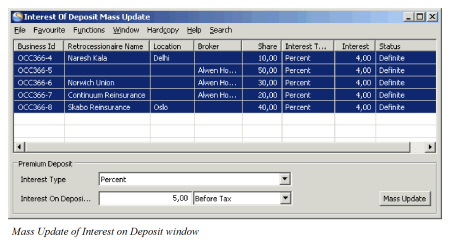
| Field | Description |
|---|---|
| Business ID | The Business ID’s of the RP’s included in the OCC’s placement list for the last Insured Period that is not provisionally or definitely cancelled. Values: Prefix + number (e.g. OCC166-1, OCC166-2, etc.) |
| Retrocessionaire Name | The name of the Business Partner (RP) Values: Business Partner name |
| Location | The name of the place where the Business Partner’s (RP’s) is located Values: Name of Place or City |
| Broker | If the RP is placed through an Intermediary, the name of the Intermediary Placement is shown in this column Values: Business Partner name |
| Share | The RP’s participation share for the last Insured Period Values: Percent value (max 100,00) |
| Interest Type | The Interest Type selected in the Deposit Conditions Values: <None>, Percent, Original |
| Interest | The Interest percent value already defined in the Deposit Conditions Values: Percent value (max 100,00) |
| Status | The status of the RP Values: Definite, Pending |
| Interest Type | The Interest Type to be updated for all RP’s Values: <None>, Percent, Original Functional Impact: Deposit Conditions Mandatory: Yes |
| Interest on Deposit % | The new percent value to be updated on the OCC- and RP Deposit Conditions Values: Percent value (max 100,00) Functional Impact: Deposit Conditions Mandatory: Yes, when percent is selected as Interest Type |
| Unlabelled field | Indicates if the calculation of Interest in Percent of Deposit should be calculated before or after the Tax calculation Values: <None>, After Tax, Before Tax Functional Impact: Deposit Conditions Mandatory: Yes, when percent is selected as Interest Type |