Handle Insurance Premium Tax Condition
When your company writes policies in countries where Insurance Premium Tax is applicable, SICS efficiently captures and uses the relevant details. Based on your policy, the system derives the tax details from various rules defined at country level. It also keeps track of the taxes due per premium instalment, as well as calculates figures to be accounted and books them. However, this section only concerns the information relevant to the Insurance Premium Tax terms and conditions. For the related accounting descriptions, refer to Handle Insurance Premium Tax Accounting.
Insurance Premium Tax Preconditions and Principles #
To ensure that the correct Insurance Premium Tax details are recorded and only when and where it should, SICS has some built in controls.
Availability: For the Insurance Premium Tax conditions to be available:
-
Your system administrator must have activated this function.
-
The policy must have:
-
Type of Business:
-
Proportional Direct
-
Non-proportional Direct
-
Definite Status
-
Signed Share
-
Premium Instalment on Main Section Sections:
-
IPT maintainable only on Main Section
-
IPT viewable on Sub Sections Countries: Whether the whole instalment amount refers to the same country or many different countries, you can record the specific Insurance Premium Tax details per country. In cases where only a part of the instalment is applicable to Insurance Premium Tax, you can record an additional item for ‘country’ Worldwide for the remaining instalment part.
Change: The Insurance Premium Tax is not changeable after booking. To be changed, the Insurance Premium Tax item cannot be booked nor have a linked open worksheet with Insurance Premium Tax detail(s).
Amendment: The Insurance Premium Tax terms and conditional are NOT amendable. You can however record the tax belonging to an instalment resulting from a premium amendment.
Renewal: The Insurance Premium Tax conditions are not renewable. At renewal, the system sets the new period empty.
Removal: The Insurance Premium Tax is not removable after booking: Removing one or all of the tax items is not allowed if the selected item has been booked. To delete the entire Insurance Premium Tax Conditions, the system also requires that there are no reversal bookings (menu option ‘cancel’) on any of the tax items.
Define Insurance Premium Tax Condition when NO Condition Exists #
To record the Insurance Premium Tax terms and condition for the first time:
- Click the Insurance Premium Tax condition (‘TX ‘button) in the Navigation bar.
- From the pop-up menu select ‘Add IPT From Instalments’. The system creates one Insurance Premium Tax row per instalment.
- Define the details for the Insurance Premium Tax row.
- Click ‘Save’.
Define Insurance Premium Tax Conditions when Condition already Exists #
Insurance Premium Tax items only exist for some of the premium instalments, or the condition exists, but is empty. You now want to define tax items for the other instalments.
If, however, the system finds that at least one Insurance Premium Tax item for each instalment already exists, the system stops you.
- Click the Insurance Premium Tax condition (‘TX ‘button) in the Navigation bar.
- Click the ‘Edit ‘button.
- From the pop-up menu, select ‘Add IPT From Instalments’. The system adds Insurance Premium Tax items for the remaining instalment(s).
- Enter the details for the new Insurance Premium Tax items.
- Click OK.
Define more Insurance Premium Tax Items per Instalment #
When the same instalment represent premium for activities in multiple tax countries and/or class of insurance/risk, you can add more tax items for a specific instalment.
- Click the Insurance Premium Tax condition (‘TX ‘button) in the Navigation bar.
- Click the ‘Edit ‘button.
- Select the Insurance Premium Tax item for the instalment you want to define tax for a further tax country and/or class of insurance/risk. From the pop-up menu, select ‘Copy From Selected IPT’.
- Record the details for the new Insurance Premium Tax item.
- Click OK.
The new Insurance Premium Tax item gets the same amendment number, instalment number, due date and payment date as the tax item you copied from.
Tax Country: When exists for the Insurance Premium Tax item you copy from, the system initiates the same value for the new tax item, but you can change the it.
Class of Insurance/Risk: When exists for the Insurance Premium Tax item you copy from, the system initiates the same value for the new tax item, but you can change it.
Taxable Premium Our Share: The system calculates Taxable Premium Our Share for the new Insurance Premium Tax item. The Taxable Premium Our Share amount for the new tax item is the gross premium instalment amount less the sum of Taxable Premium Our share for all the existing tax item(s) with the same instalment and amendment number.
Record Insurance Premium Tax for Amendment Instalment #
You may register the tax belonging to an instalment that has resulted from an amended premium. If no instalments exist for the amendment that you select, the system stops you. The system also stops you if a tax item already exists for this amendment.
- Click Insurance Premium Tax (‘TX ‘button) in the Navigation bar.
- Click the ‘Edit ‘button.
- Add IPT From Instalments.
- Select the amendment that you require.
- Click Save.
- Enter the tax details as you require.
- Click OK.
Mark Insurance Premium Tax Ready for Booking #
In order to prevent incorrect bookings, an Insurance Premium Tax item is not allowed for booking until you have marked it as complete. You must mark each item individually.
- Click the Insurance Premium Tax condition (‘TX ‘button) in the Navigation bar.
- Click the ‘Edit ‘button.
- For the selected tax row, navigate to the column Ready For Booking, and change the value to Yes.
- Click OK.
Remove Single Insurance Premium Tax #
You can remove a specific Insurance Premium Tax item.
- Click the Insurance Premium Tax condition (‘TX ‘button) in the Navigation bar.
- Click the ‘Edit’ button.
- Select the Insurance Premium Tax item you want to remove. From the pop-up menu select ‘Remove Selected IPT’.
- Click OK.
Remove All Insurance Premium Tax Items #
You can remove all the existing Insurance Premium Tax items in one go.
- Click the Insurance Premium Tax condition (‘TX ‘button) in the Navigation bar.
- Click the ‘Edit ‘button.
- From the pop-up menu select ‘Remove All IPTs’.
- Click OK.
Adjust Taxable Premium Our Share #
When a tax item exists for a premium instalment amount, changed without use of amendment, you can proportionally adjust the corresponding taxable premium.
- Click the Insurance Premium Tax Conditions (‘TX ‘button) in the Navigation bar.
- Click the’Edit ‘button.
- From the pop-up menu, select’ Proportional Adjust All IPT Lines’.
- Click OK.
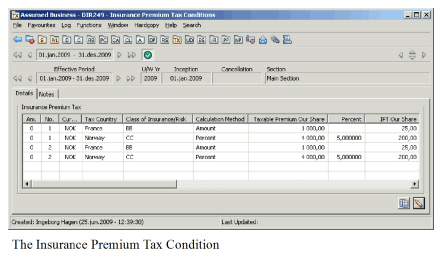
The table below only describes the fields relevant to terms and conditions. For fields relevant to accounting, refer to section Handle Insurance Premium Tax Accounting.
| Field | Description |
|---|---|
| Am. | Amendment Number. Indicates which amendment the Insurance Premium Tax item is for. Values: Number Mandatory: Yes Validations: Not changeable Derived from: Amendment Number of the belonging premium instalment on the Premium and Limits Conditions Functional Impact: Insurance Premium Tax Condition. |
| No. | Instalment Number. A sequential number to identify the premium instalment number for a specific insurance premium row. Values: Number Mandatory: Yes Validations: Not changeable Derived from: The Instalment Number of the premium instalment which the Tax item belongs to. Functional Impact: Insurance Premium Tax Condition |
| Currency | Currency in which the Insurance Premium Tax amount is to be settled. Values: ISO Standard (Currency short name) Mandatory: Yes Validations: Not changeable. Derived from: The currency of the premium instalment on the Limit and Premium Conditions, which the Insurance Premium Tax item belong to. Functional impact: Accounting |
| Tax Country | The country for which the Insurance Premium Tax applies. Values: Countries that have at least one Insurance Premium Tax rule, plus Worldwide. Mandatory: Yes Functional Impact: Insurance Premium Tax condition Accounting |
| Class of Insurance/Risk | Classification used to decide the Insurance Premium Tax percent or amount Values: Customised by your company. Mandatory: Yes Functional impact: Insurance Premium Tax Condition |
| Calculation Method | The calculation method for the Insurance Premium Tax item. Values: Percent Amount Mandatory: Yes Validations: Tax County must be selected. Class of Insurance/Risk must be selected. Functional impact: Insurance Premium Tax Condition |
| Taxable Premium Our Share | Insurer’s share of 100% of the premium amount to which Insurance Premium Tax applies. Values: Amount Mandatory: Yes Validations: Taxable premium our share for a single Insurance Premium Tax item and the sum of taxable premium our share for all the Insurance Premium Tax items with the same Instalment number and Amendment number cannot exceed the amount for the corresponding instalment, and the sign must be the same. Functional Impact: Insurance Premium Tax Conditions |
| Percent | The tax percent for the Insurance Premium Tax item. Values: Percent Mandatory: When calculation method is percent. Validations: Not changeable. Derived from: - Insurance Premium Tax rules kept at country level - Country and Class of Insurance/Risk for the tax item - Your policy’s Type of Business, Base Company and insured period. Functional Impact: Insurance Premium Tax Condition |
| IPT Our Share | Insurer’s share of the 100% Insurance Premium Tax amount. Values: Amount Calculations: Taxable Premium Our Share X Percent Validations: Not manually changeable when Percent Function Impact: Accounting (Remain to Book IPT) |
| Due Date | The due date for a specific Insurance Premium Tax Values: Date Mandatory: Yes Validations: Not changeable. Derived from: The Due Date of the premium instalment on the Limit and Premium Conditions, which the Insurance Premium Tax item belong to. Functional Impact: None |
| Payment Date | Indicates when a specific Insurance Premium Tax item is to be settled. Values: Date Mandatory: Yes Derived From: The Payment Date of the premium instalment on the Limit and Premium Conditions, which the Insurance Premium Tax item belong to. Functional impact: Accounting |
| Ready For Booking | Indicates whether a specific Insurance Premium tax item is complete and allowed for automatic booking. Values: No, Yes Mandatory: Yes Validations: Changeable to yes only until IPT Our Share exist for the same tax item Functional Impact: Accounting |
| Changed | Not yet in use. |
| Rec. Date | Recorded Date -The date when the tax item was first recorded Values: Date Derived from: Today’s date, when recording the tax item. Validations: Not manually changeable Functional Impact: None |
| Recorded By | The person who recorded the tax item the first time. Values: System Users Derived from: The system user who recorded the tax item Validation: Not manually changeable Functional Impact: None |