Handle Internal Premium Reserve Conditions
The original premium reserve calculation done when running the original premium reserve order is determined in the internal premium reserve condition of each respective insured period of a business.
The unearned premium reserve calculation can be determined by the calculation rule settings on the order. If the option ‘Use Calculation option from Business Internal Premium Reserve Conditions’ is selected on the order screen, these settings are overruled by the unearned premium reserve settings in the internal premium reserve conditions of each individual insured period of a business.
For information about how the reserve calculations are affected by the internal reserve condition settings, refer to section Automatic Premium Reserves Accounting.

Enter Unearned Premium Reserve #
The unearned premium reserve serves two different purposes. It administers the earning curve settings for:
- Unearned premium reserve (and commission reserve).
- Portfolio earning
The unearned premium reserve rules are set by the Calculation option. This option decides if the earnings shall be calculated as either ‘Linear over Accounting Period’, ‘Linear over Extended Accounting Period’ or ‘parabola over extended accounting period’.
If Parabola over Extended Accounting Period or Linear over Extended Accounting Period is selected, a field opens where the user can enter number of months for the extension period.
The Portfolio Earning Curve table is used for the setting of the earning curve in percentages for the insured period of the business. A period is selected, which could be monthly, quarterly, trimester or half-yearly. The system then presents the earning curve in percent for the time period selected. These percentages are set in the system parameters (System Parameters icon\ Accounting tab\Reserve Calculation sub tab in the System Parameters Maintainance folder). They can be overwritten if needed on the IR condition of the business. If no default percentages are defined in the system parameter, the user must enter the percentages manually.
Define Unearned Premium Reserve #
The unearned premium reserve shall be set on the business in order to be used in the Unearned Premium Reserve order.
- Open the business you want to set the condition on.
- Click the Internal Premium Reserve condition button (IR button).
- Select the correct calculation option for the unearned premium reserve.
If ‘Parabola over Extended Accounting Period‘or ‘Linear over Extended Accounting Period‘is selected, enter the number of months the extended period shall contain. If Calculation Options Earning Based On Pattern and Linear Over Selected Period is selected, you need to specify the Earning Method in more detail.
For both Calculation Options you can create one or several Earning Methods. Earning Methods can be created for different Booking Year/Periods or different classifications. Each Earning Method can be created with a split so that Unearned Premium for one part of the premium is calculated with e.g. one Earning Period and another part is calculated with another Earning Period. Example: You can define that 50% of the premium should be earned over 12 months and 50% over 24 months. Alternatively, you can define that e.g. 80% of the premium should be earned using one Unearned Pattern and 20% using a different Unearned Pattern.
For the actual formulas used in the calculation, refer to the Unearned Premium Reserve Order chapter.
| Field | Description |
|---|---|
| Calculation Option | The option that is selected determines which calculation formula to use by the unearned premium reserve order. Values: Earning Based On Pattern, Linear Over Accounting Period, Linear Over Extended Accounting Period, Linear Over Selected Period, Parabola over Extended Accounting Period, <None>. Default: Parabola over Extended Accounting Period. Mandatory: Yes. Functional Impact: Various calculation formulasfor calculation of premium (commission etc.) earnings are used depending on what is selected in the field. |
| Number of Months Extended | The number of months for the extension period as defined for each business, insured period. Only visible when the selected Calculation Option is ‘Linear Over Extended Accounting Period’ or ‘Parabola over Extended Accounting Period’. Values: number of months between 1 and 99 Default: Blank Mandatory: No Functional Impact: The number of months entered, sets the extended period in addition to the accounting period of the basis detail. |
| Portfolio Earning Curve - Period | Earning curve for portfolio premium can be set specifically on the business and insured period. This is done by right mouse click and selecting Add in the Period field and then select from the drop-down list. Values: Months Quarters Trimesters Half Years Default: blank Mandatory: No. Functional Impact: Depending on what is selected, the default portfolio premium earning curve is populated from the system parameters. |
| Portfolio Earning Curve - Pct 1 - Pct 12 | Portfolio earning curve default values are maintained in the System Parameter Maintenance folder. The default values can be overwritten. Values: Individual percent values for each period. Number of periods available for input depends on the period frequency selected. Default: As defined in the system parameters. Mandatory: Yes, if ‘Period’ is defined. Functional Impact: Amounts, which have booked with the entry code ‘Unearned Portfolio Entry’ in the entry code usage are multiplied with the percentages and booked as unearned premium portfolio. |
| Override Earning Method in System Parameters | Determines if Earning Method defined in IR conditions should be used instead of Earning Methods from system parameters Values: Selected, cleared Default: Cleared Selected: When Unearned Premium Reserve Order is run with option Use Earning Method from System Parameters selected, the Earning Method defined in Internal Premium Reserve Conditions is used instead of the Earning Method found in System Parameters Cleared: When Unearned Premium Reserve Order is run with option Use Earning Method from System Parameters selected, the Earning Method found in System Parameters will always be used. |
| Override Cease Accounting Flag | An option to override the Cease Accounting flag when running the Unearned Premium Reserve Order Values: Selected, cleared Default: Cleared Selected: The Unearned Premium Reserve Order will create and close worksheets even if the Cease Accounting flag is set on the Insured Period Cleared: Any worksheets created by the Unearned Premium Reserve Order cannot be closed when the Cease Accounting flag is set on the Insured Period |
Create an Earning Method for Calculation Option Earning Based On Pattern
- Select Calculation Option Earning Based On Pattern
- Right mouse click in the Earning Methods container and select Create from the popup menu.
 3. Enter Booking Year/Periods, Main Class(es) of Business, Class(es) of Business and Sub Class(es) of Business the Earning Method is applicable for. See Field Description below for more information.
4. Right mouse click in the Splits container and select Add from the menu. Enter one or several lines with link to pattern based Earning Methods set up by your system administrator, with a percentage for each line. The total percentages for all lines must be 100.
5. Press OK to save the Earning Method
3. Enter Booking Year/Periods, Main Class(es) of Business, Class(es) of Business and Sub Class(es) of Business the Earning Method is applicable for. See Field Description below for more information.
4. Right mouse click in the Splits container and select Add from the menu. Enter one or several lines with link to pattern based Earning Methods set up by your system administrator, with a percentage for each line. The total percentages for all lines must be 100.
5. Press OK to save the Earning Method
Create a business specific Earning Method for Calculation Option Linear Over Selected Period
- Select Calculation Option Linear Over Selected Period
- Right mouse click in the Earning Methods container and select Create from the popup menu
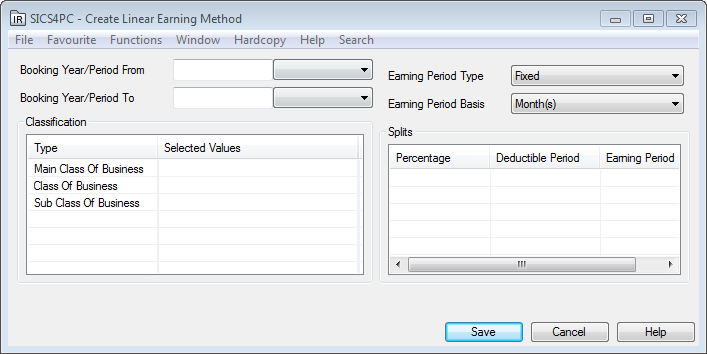 3. Enter Booking Year/Periods, Main Class(es) of Business, Class(es) of Business and Sub Class(es) of Business the Earning Method is applicable for. See Field Description below for more information.
4. Select Earning Period Type and Earning Period Basis
5. Right mouse click in the Splits container and select Add from the menu. Enter one or several lines with Deductible Period(s) and Earning Period(s) to be used in the calculation, with a percentage on each line. The total percentages for all lines must be 100.
6. Press Ok to save the Earning Method
3. Enter Booking Year/Periods, Main Class(es) of Business, Class(es) of Business and Sub Class(es) of Business the Earning Method is applicable for. See Field Description below for more information.
4. Select Earning Period Type and Earning Period Basis
5. Right mouse click in the Splits container and select Add from the menu. Enter one or several lines with Deductible Period(s) and Earning Period(s) to be used in the calculation, with a percentage on each line. The total percentages for all lines must be 100.
6. Press Ok to save the Earning Method
| Field | Description |
|---|---|
| Booking Year/Period From | The first Booking Year/Period the Earning Method is applicable to Values: Booking Year and Booking Period Functional Impact: Validated against the Booking Year/Period (Local) on the premium entry. The Earning Method is applicable to premium entries with Booking Year/Period equal to or higher than the specified period. Relevant for: Earning Methods of type Linear and Pattern Mandatory: Yes |
| Booking Year/Period To | The last Booking Year/Period the Earning Method is applicable to Values: Booking Year and Booking Period Functional Impact: Validated against the Booking Year/Period (Local) on the premium entry. The Earning Method is applicable to premium entries with Booking Year/Period equal to or less than the specified period. Relevant for: Earning Methods of type Linear and Pattern Mandatory: Yes |
| Classification/Main Class of Business | The Main Class of Business the Earning Method is applicable to Values: One or multiple Main Classes of Business Functional Impact: Validated against the Main Class of Business on the Accounting Classification on the premium entry. The Earning Method is applicable to premium entries with a Main Class of Business equal to one of the selected Main Classes of Business. Relevant for: Earning Methods of type Linear and Pattern Mandatory: Yes |
| Classification/Class of Business | The Class of Business the Earning Method is applicable to Values: One or multiple Classes of Business Functional Impact: Validated against the Class of Business on the Accounting Classification on the premium entry. The Earning Method is applicable to premium entries with a Class of Business equal to one of the selected Classes of Business. Relevant for: Earning Methods of type Linear and Pattern Mandatory: Yes |
| Classification/Sub Class of Business | The Sub Class of Business the Earning Method is applicable to Values: One or multiple Sub Classes of Business Functional Impact: Validated against the Sub Class of Business on the Accounting Classification on the premium entry. The Earning Method is applicable to premium entries with a Sub Class of Business equal to one of the selected Sub Classes of Business. Relevant for: Earning Methods of type Linear and Pattern Mandatory: Yes |
| Earning Period Type | The Type of Earning Period Values: Fixed, Insured Period or Accounting Period Functional Impact: Impacts which formula that is used in the Unearned Premium calculation. Relevant for: Earning Methods of type Linear Mandatory: Yes, for Linear Earning Methods |
| Earning Period Basis | The Basis of the Earning Period Values: Month(s) or Year(s) Functional Impact: Impacts which formula that is used in the Unearned Premium calculation. Relevant for: Earning Methods of type Linear with Earning Period Types Fixed and Insured Period Mandatory: Yes, for Linear Earning Methods with Earning Period Types Fixed or Insured Period |
| Splits/Percentage | The percentage of the premium to be calculated using this period or pattern Values: A Percentage Default: 100 Validation: Total percentage for the Earning Method must be 100 Functional Impact: Calculation of Unearned Premium Relevant for: Earning Methods of type Linear and Pattern Mandatory: Yes, for Linear Earning Methods with Earning Period Types Fixed and Insured Period |
| Splits/Deductible Period | The Number of months or years before the premium earning will start Values: Number Default: 0 Functional Impact: Calculation of Unearned Premium Relevant for: Earning Methods of type Linear with Earning Period Types Fixed or Insured Period Mandatory: Yes, for Linear Earning Methods with Earning Period Types Fixed or Insured Period |
| Splits/Earning Period | Number of months or years in the Earning Period Values: Number Default: 12 Functional Impact: Calculation of Unearned Premium Relevant for: Earning Methods of type Linear with Earning Period Types Fixed or Insured Period Mandatory: Yes, for Linear Earning Methods with Earning Period Types Fixed or Insured Period |
| Splits/Earning Method | An Earning Method defined in System Parameters with Type = Pattern Values: Earning Method from list Functional Impact: Calculation of Unearned Premium Relevant for: Earning Methods of type Pattern Mandatory: Yes, for Earning Methods with type Pattern |
Define Unearned Premium Portfolio Reserve #
If there is a premium portfolio attached to the business insured period, the earning curve for this can be set by adding the period for the curve from the drop-down list. The default percentages are administrated in the system parameters (System Parameters icon\ Accounting tab\Reserve Calculation sub tab in the System Parameters Maintainance folder). The default values can be overwritten directly in the “Pct 1” to “Pct 12” fields. If, for example, ‘Quarters’ is selected as Period only “Pct 1” to “Pct 4” is open for input.
- Open the business you want to set the condition on.
- Open the portfolio earning curve for editing by selecting Add in the Period field.
- Select the frequency that the curve shall have.
- Edit the percentage(s) for the fields that you want to change.
Enter Original Premium Reserve #
The original premium reserve order always uses the settings in the internal premium reserve on the business’ insured period.
The definition of the settings depends on which Calculation Method that is selected in the drop down list.
- Percent of Premium
- Pro Rata Temporis
- Calculate Deduction on Cost
- Open the business you want to set the condition on.
- Click the Internal Premium Reserve condition button (IR button)
- Select the correct calculation method for the original premium reserve.
Depending on the selected calculation method different, entry fields appear (see field descriptions below).
| Field | Description |
|---|---|
| Calculation Method | The option that is selected determines which calculation method to use by the original premium reserve order. Values: Percent of Premium Pro Rata Temporise Calculate Deduction on Cost <None> Default: Blank Mandatory: Yes Functional Impact: Depending on what is selected, the original premium reserve order uses the specified calculation method for the reserve calculation. |
| Cal. Frequency | The frequency for which the calculation is performed. Values: Monthly Quarterly Trimester Half-Yearly Yearly Default: Blank Mandatory: Yes, if a calculation method is selected. Functional Impact: Frequency for the reserve calculation. |
| Calculate Deduction on Cost | A trigger for the original premium reserve order to calculate deduction on cost. Values: Selected, cleared Default: Blank Mandatory: No Functional Impact:Deduction on cost is calculated and booked by the original premium reserve order |
| Basis Premium | The Basis for the calculation of the Original Premium Reserve calculation. Values: Gross Premium Net Premium Default: Blank Mandatory: No Functional Impact: Depending on what is selected, the premium reserve is calculated based on gross or net premium. |
| Percent field (Calculation Method= Percent of premium) | The percent entered is multiplied with the amount booked as premium. Values: Percent Default: Blank Mandatory: No Functional Impact: percent value entered is used by the original premium reserve order in the calculation formula. |
| of | The basis for the calculation of the original premium reserve calculation. Values: Gross Premium Net Premium Default: Blank Mandatory: No Functional Impact: Depending on what is selected, the premium reserve is calculated based on gross or net premium. |