Handle Limit and Premium Conditions
Terms and conditions regarding the maximum liability of a reinsurance agreement and the monetary amount to be received in return for the cover comprise, in SICS, the limit and premium conditions.
The limits range from the agreed monetary limitations and deductibles to more informational items, like run passenger miles and turnovers.
The premium conditions include items such as the estimated premium informed by the cedent, pre-agreed premiums, premium rates, and premium invoicing schedules.
Available Limit and Premium Conditions #
Your company generally decides the limit and premium items available to you. More specifically, your system administrator has selected the limit and premium items relevant for each category of business, so that you always see the ones relevant for the business you are working on.
The available fields depend on the following characteristics of your business:
- Type of Business (method), e.g. non-proportional treaty, proportional facultative
- Type of Participation (method), e.g. quota share, surplus
- Main Class, Class and Sub Class of Business, (property, marine, etc.)
- For premiums, also Premium Type (whether flat, fixed rate, etc.).
- For Single Treaty Protection, when Type of Business (method) is proportional treaty: Type of Business (covered) when this is non-proportional treaty
Your system administrator may also have defined the sequence in which you see the fields. (For example, he/she might have set up all limits to show up before deductibles).
Also, you may find a field name in this description under a different name in you system. This is because your system administrator may have changed the name of the field. The name should still be recognisable, as the meaning of it would be the same.
Maintain Limit and Premium Currencies #
In SICS you can efficiently capture and make use of the currencies in which the premium and limit amounts of an agreement are expressed.
Add New Currency #
The main currency of your agreement was defined when the agreement was set up. (Afterwards you see it at the top of the currency table). If the agreement expresses premium and limits in more than one currency, you may now register additional (secondary) currencies.
- Open your business and click the Limit and Premium Condition (P/L) button. If needed, select Edit from the Menu button on the Main tab.
- On the Main tab, select Add from the menu in Currency table.
- Select the currency(s) you require from the Available list and click the single right arrow (or double-click the required currency).
- Click Save.
- If relevant, enter the currency’s rate of exchange in the RoE Limit column, in the same row as the newly created currency.
- If you want the exchange rate automatically calculated, instead of the previous step, enter the main limit amount in the currency you just added.
- Click Save.
Delete Currency #
You can delete currencies (not main currency) registered by mistake.
- Select Edit from the Menu button to open the Limit and Premium condition in edit mode.
- On the Main tab, select the currency to be deleted in Currency table and select Delete from the pop-up list.
- Click OK.
Change Main Currency #
Your agreement may have the wrong main currency, so you need to change it.
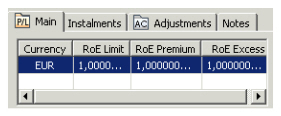
- Open your business and click the Limit and Premium condition (P/L). Verify that the currency that you want as a new main currency is shown as a secondary currency in the Currency table. If it does not, add the currency as described in section Add New Currency.
 2. Close the Limit and Premium condition.
3. Click the Classification tab of your business.
4. Click the Edit button.
5. The current main currency is shown in the Main Currency field. Change it by selecting the new main currency from the Main Currency drop-down list.
6. Click Save.
7. Click the Limit and Premium Condition (P/L) button again and verify that the new main currency is shown at the top of the Currency table and the old main currency is shown as a secondary currency in the table.
2. Close the Limit and Premium condition.
3. Click the Classification tab of your business.
4. Click the Edit button.
5. The current main currency is shown in the Main Currency field. Change it by selecting the new main currency from the Main Currency drop-down list.
6. Click Save.
7. Click the Limit and Premium Condition (P/L) button again and verify that the new main currency is shown at the top of the Currency table and the old main currency is shown as a secondary currency in the table.
| Field | Description |
|---|---|
| Currency | Currency in which premiums and limits are expressed. The currency presented at the top of the Currency table is the main currency. The rest are secondary currencies. Values: ISO standard (currency short name). Derived from: Main currency of business or section. Mandatory: Yes Functional Impact: None |
| RoE Limit | Fixed rate of exchange for a currency, agreed specifically for this business. It expresses the rate of exchange of the currency on the same row against the main currency (at the top of table). Values: Maximum number of decimals: 9. Default: 1 (main currency only). Calculation: From limit amount in main currency and same limit amount in secondary currency. * Limit fields used in calculations: - Proportional Treaty: Liability - Non-Proportional Businesses: Cover - Proportional Facultative and Direct: Main Limit Changes of an amount in a secondary currency initiates recalculation of the exchange rate, while changes in amount in main currency does not recalculate exchange rate. (It recalculates the amounts in all secondary currencies.) Can be manually entered or changed. _Mandatory:_ Main currency: Yes Secondary currencies: No _Functional Impact:_ Limit Figures Rate of Exchange for Premium |
| RoE Premium | Fixed exchange rate for premiums agreed specifically for this currency and this business. Values: Maximum number of decimals: 9 Derived from: RoE Limit Calculation: Will always be kept the same as RoE Limit, unless RoE Premium is changed directly or premium amount in secondary currency is manually changed. Calculated from premium amount in main currency and amount entered for same premium in secondary currency. Premium figures used in calculations: Treaty Business: EPI Fac./Direct Business: Tot. Gross Premium Can be manually changed. Mandatory: Main currency: Yes Secondary currencies: No Functional Impact: Premium figures. |
| RoE Excess | Fixed exchange rate agreed specifically for the excess point, for this currency and this business. Values: Maximum number of decimals: 9 Default: 1 (main currency only) Calculation: Will always be kept the same as RoE Limit, unless you change RoE Excess manually or you change Excess amount in secondary currency manually Calculated from Excess amount in main currency and Excess amount in secondary currency. Validations: Available for non-proportional businesses only Mandatory: Main currency: Yes Secondary currencies: No Functional Impact: Limit Figures |
View Limits and Premiums in Other Currencies #
It is possible to convert premium and limit figures to any other currency as long as the currency has an exchange rate defined in the currency database.
This is a view feature only and the converted premium and limit figures are not stored in the system.
- Open the Limit and Premium condition in view mode.
- On the Main tab, select Convert To.
- Select the required currency from the list.
- Click the Calculate button.
General Method of Entering Limit and Premiums #
The below describes the general methods of entry for premiums and limits in display lists (tables).
For more details on entry of limit and premiums for a particular category of business, see the description of limit and premiums for this category of business.
Enter Limits and Premiums when NO Conditions Exist #
Input limit and premiums values when it is the first time that anybody enters limits and premiums conditions for the relevant business period.
- Open your business and click the Limit and Premium Condition (P/L) button in the Navigation bar. When you enter the limits and premium conditions for the first time, all available limit and premium items are shown in the left most columns. The conditions are in edit mode.
- Fill in your values for the item(s) that you require in the relevant columns.
- Click OK.
Enter Limits and Premiums when Conditions Exist #
The next time you want to register some limit or premiums, you follow a slightly different method of entry. Let us say you want to enter an additional limit value.
-
Click the Limit and Premium Condition (P/L) button.
The system shows existing values in view mode and only the limit and premium items already having a value. -
Select Edit from the Menu button on the Main tab.
-
In the Limit display list, select Add from the pop-up list
-
The system shows you the remaining available limit items.
-
Select the limit item(s), e.g. Liability that you require. Click Save.
-
Enter your value(s) for the added limit(s) item in the relevant columns.
-
Click OK.
Remove Limits and Premiums Items #
Premiums and/ or limits fields added by mistake can be removed.
- Click the Limit and Premium Condition (P/L) button.
- Select Edit from the Menu button on the Main tab.
- In the display list, select the premium/ limit item you want to delete and select Delete from the pop-up list
- Click OK.
Maintain Proportional Treaty Limits and Premiums #
For a business where the reinsurer and cedent have agreed in advance to share premium and losses proportionally, you may store relevant premium and limits information depending on the treaty being quota share, surplus or something else (e.g.open cover).
Maintain Quota Share Limits #
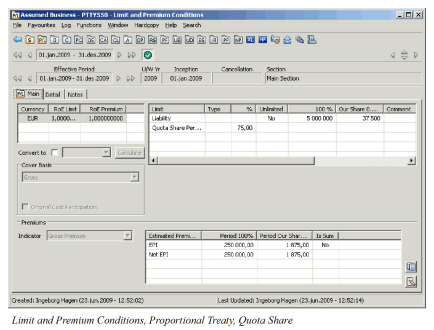
Record or update liabilities of a treaty where the reinsurer shares the responsibility with the cedent by assuming a fixed percentage of losses.
- Open your business and click the Limit and Premium Condition (P/L) button.
- If needed, select Edit from the Menu button on the Main tab. In the Limit column, select the limit items that you require from the pop-up list. For example, Liability.
- Click Save.
- On the Main tab, enter figures in the columns and rows that you require.
- Click OK.
Note! Your system administrator might have set up additional types of participation and given them quota share ‘behaviour’. For these businesses the system will behave the same way as for a quota share treaty.
Maintain Surplus Limits #
To enter the limits of your treaty as a multiple of the cedent’s retention:
- Click the Limit and Premium condition button in the Navigation bar.
- Select Edit from the Menu button on the Main tab.
- Enter Liability 1 Line on the Main tab.
- Enter Total Lines on the Main tab.
- Click OK.
Note! Your system administrator might have set up additional types of participation and given them surplus ‘behaviour’. For these businesses, the system will behave exactly the same way as for a surplus treaty.
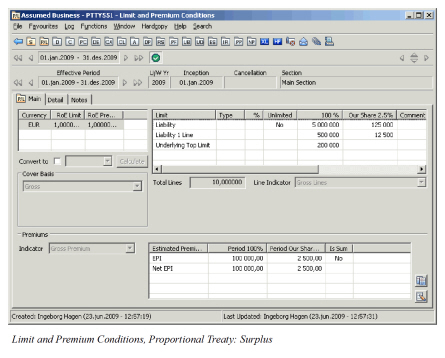
Your company decides what will appear in the columns with headers Limit and Type. The Field Descriptions only covers some of the most commonly used limits and types. For more details on customisation, refer to Available Limit and Premium Conditions
| Field | Description |
|---|---|
| Liability 100% | Treaty underwriting limit amount per risk, for the 100% contract. It is considered the main limit of a surplus treaty. Examples for illustration: Liability 100% 1.000.000, amount for 1Line : 250.000 Risk A: Sum Insured 500.000. 250.000 retained by cedent and 250.000 ceded to surplus treaty. Risk B: Sum Insured: 200.000 200.000 retained by cedent. Risk C: Sum Insured 1.500.000 250.000 retained by cedent, 1.000.000 ceded to surplus treaty. Remaining 250.000 ceded to e.g. a second surplus treaty Values: Amounts Number of decimal places: 0 Calculations: Liability 1 Line x Total Lines. From Liability Our Share and Share From 100% in Share condition. (From signed share, from written share if no signed share and from offered share if no written or signed share). Validations: If unlimited, Liability 100% is disabled Mandatory: No Functional Impact: * Other limit condition values * Claims Accounting * Automatic Protection Assignment * Insured Peril Cession * Reinsurance Program * Protection Program |
| Liability Our Share | Reinsurer’s share of the 100% liability. Values: Amounts Number of decimal places: 0 Calculations: From Liability 100% and Share From 100% in Share condition. (From signed share, from written share if no signed share and from offered share if no written or signed share). Validations: If unlimited, Liability Our Share is disabled Mandatory: No Functional Impact: Other limit figures |
| Liability Type | Values that further specifies liability, e.g. what liability is expressed as Values: EML (Estimated Maximum Loss) PML (Possible Maximum Loss) MPL (Maximum Possible Loss) Sum Insured Your company may have defined additional Liability Types Mandatory: No Functional impact: None |
| Liability Unlimited | Liability has no upper limit Values: Yes/ No Default: No Mandatory: Yes Functional Impact: * Liability * Claims Accounting * Reinsurance Program * Protection Program |
| Comment (all) | Free-text field regarding the limit on the same row Values: Text Maximum number of characters: 30 Mandatory: No Functional Impact: None |
| Liability 1 Line | The amount being the cedent’s retention. Values: Amounts Number of decimal places: 0 Calculation: Liability 100% /Total Lines. Amount for 100% is calculated from amount for our share and vice versa. For more details, refer to Liability 100% and Liability Our Share. Mandatory: No Functional Impact: Other limit figures * Reinsurance Program * Protection Program |
| Cession Limit | Maximum amount per ceding exposure (e.g. exposure to a certain peril, e.g. earthquake). Values: Amounts Number of decimal places: 0 Calculations: Amount for 100% is calculated from amount for our share and vice versa. For more details, refer to Liability 100% and Liability Our Share. Mandatory: No Functional Impact: None |
| Event Limit | Maximum liability per event, e.g. per earthquake Values: Amounts Number of decimal places: 0 Calculations: Amount for 100% is calculated from amount for our share and vice versa. For more details, refer to Liability 100% and Liability Our Share. Validations : If unlimited, Event Limit 100% and Our Share are disabled Mandatory: No Functional Impact: Claims Accounting |
| Underlying Top Limit 100% | Top limit of the preceding reinsurance. That is, top limit of 1stsurplus treaty becomes the underlying top limit of the 2nd surplus. Values: Amounts Number of decimal places: 0 Mandatory: No Functional Impact: * Reinsurance Program * Protection Program * Automatic Protection Assignment |
| Total Lines | Number of times by which the retention must be multiplied to get the liability of the treaty. Values: * Minimum Value: 1 Maximum Value: 9.999 Number of decimal places: 6 _Calculations:_ Liability / Liability 1 Line _Validations:_ Disabled for input when liability is “Unlimited”. _Mandatory:_ No _Functional Impact:_ * Other limit condition values * Reinsurance Program * Protection Program |
| Line Indicator | Indicates whether the amount for 1 line (cedent’s retention) is gross or net of a quota share contract. Values: G_ross Lines:_ Amount retained by the ceding company and its quota share reinsurers. _Net Lines:_ Amount retained by ceding company alone _Mandatory:_ No _Functional Impact:_ None |
Maintain Other Proportional Treaty Limits when Share Expressed as Percent #
Enter or change limits of treaties where type of participation is something else than quota share or surplus, e.g. open cover. The limit items available here might be different than for the quota share and surplus treaties, however, the method of entry is the same. (Refer to the procedure in section Maintain Quato Share Limits.
Maintain Other Proportional Treaty Limits when Share Expressed as Units #
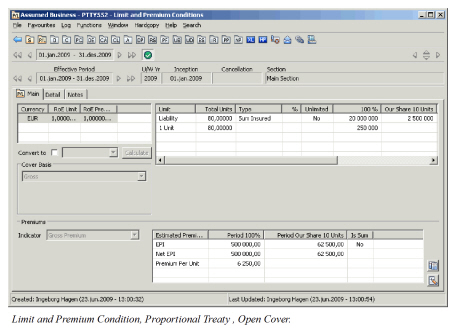
To enter or change limits for a proportional treaty placed in units instead of percent:
- Click the Limit and Premium condition button in Navigation bar.
- Select Edit form the Menu button on the Main tab
- Enter the limit per unit in 1 Unit in the 100% column on the Main tab. The system calculates applicable figures for you.
- Click OK.
Any proportional treaty, which your system administrator has not given a quota share or surplus ‘behaviour’, will receive an open cover‘behaviour’.
For how to express share as units, refer to Enter Share for Other Proportional Treaties when Expressed as Units.
| Field | Description |
|---|---|
| Total Units | Number of units in the reinsurance contract. Values: * Number * Maximum value: 99.999 * Minimum value: 0 * Number of decimal places: 5 _Derived from:_ Total Number of Units in Share condition. Cannot be changed in Limit condition. _Mandatory:_ Yes _Functional Impact:_ * Other limit condition values * Other share conditions values * Business Placement |
| Liability 100% | Treaty underwriting limit amount per risks for all units. It is considered the main limit of a proportional treaty. Values: * Amounts * Number of decimal places: 0 _Calculations:_ * When share in units: Total Units x 1 Unit * From Liability Our Share and Share From 100% in Share condition. (From signed share, from written share if no signed share and from offered share if no written or signed share). _Validations:_ If unlimited, Liability 100% is disabled _Mandatory:_ No _Functional Impact:_ * Other limit values * Claims Accounting * Automatic Protection Assignment * Insured Peril Cession * Reinsurance Program * Protection Program |
| Liability Our Share | If share is expressed in units, liability for 1 unit multiplied with your number of units (your share). To compare with share in percent, let us say Liability 100% is 1.000. Share From 100% is 10%, and Liability Our Share is then 100. .The equivalent if placed in units will be Liability Total Units (20) is 1.000, Liability 1 Unit is 50. Share From 100% is 2 units, and Liability Our Share 2 Units is 100. Values: Amounts Number of decimal places: 0 Calculations: If Share is expressed in units: Liability 100% x Share From 100% (units) /Total Units. (From signed share, from written share if no signed share and from offered share if no written or signed share). Validations: If unlimited, Liability Our Share is disabled. Mandatory: No Functional Impact: Other limit figures. |
| Liability Type | Values that further specify the liability. Values:EML (Estimated Maximum Loss) PML (Possible Maximum Loss) MPL (Maximum Possible Loss) Sum insured Your company might have defined additional Liability Types. Mandatory: No Functional impact: None |
| Liability Unlimited | Liability has no upper limit Values: Yes/ No Default: No Mandatory: Yes Functional Impact: * Other limit figures * Claim Accounting * Reinsurance Program * Protection Program |
| Comment (all) | Free-text field regarding the limit on the same row Values: Text Maximum number of characters: 30 Mandatory: No Functional Impact: None |
| 1Unit 100% | Liability for one unit Values: Amounts Number of decimal places: 0 Calculations: Liability 100% / Total Units. Mandatory: No Functional Impact: Other limit condition values |
| Cession Limit | Maximum amount per ceding exposure. You can agree on a maximum amount for ceding exposure to a certain peril, e.g. earthquake. Values: Amounts Number of decimal places: 0 Calculations: Amount for 100% is calculated from amount for our share and vice versa. For more details, refer to Liability 100% and Liability Our Share. Mandatory: No Functional Impact: None. |
| Event Limit | Maximum liability per event. Agreed maximum liability in the case of an event, e.g. earthquake. Values: Amounts Number of decimal places: 0 Calculations: Amount for 100% is calculated from amount for our share and vice versa. For more details, refer to Liability 100% and Liability Our Share. Validations: If unlimited, Event Limit 100% and Our Share are disabled Mandatory: No Functional Impact: Claims Accounting |
| Underlying Top Limit | Top amount of the preceding surplus treaty.For example, the top limit of 1stsurplus treaty becomes the underlying top limit of the 2nd surplus. Values: Amounts Number of decimal places: 0 Calculations: Amount for 100% is calculated from amount for our share and vice versa. For more details, refer to Liability 100% and Liability Our Share. Mandatory: No Functional Impact: * Reinsurance Program * Protection Program |
Maintain Proportional Treaty Premiums #
Record or update cedent’s estimated premiums for contracts where received premium will be a proportionate part of the actual premium.
- Click the Limit and Premium condition button in Navigation bar.
- Select Edit from the Menu button on the Main tab.
- Enter EPI in the Premiums part on the Main tab.
- Click OK.
| Field | Description |
|---|---|
| Indicator | Indicates what the premium is made of. Values: Customised by your company, for example: Gross- Premium reduced by returns and cancellations. Gross Net - Premium is reduced by returns, cancellation and premium ceded Net - Premium is reduced by returns, cancellations, premium ceded and deductions profit commissions. Mandatory: No Functional Impact: None |
| EPI Period 100% | Estimated premium income for the period informed by the cedent at underwriting stage. Values: Number of decimal places: 2 Calculations: From EPI Period Our Share and Share From 100% in Share condition. (From signed share, from written share if no signed share and from offered share if no written or signed share).From Net EPI and deductions in Deduction condition. Mandatory: No Functional Impact: Other premium figures |
| EPI Period Our Share | Reinsurer’s share of EPI Period 100% Values: Number of decimal places: 2 Calculations: From EPI Period 100% and Share From 100% in Share condition (From signed share, from written share if no signed share and from offered share if no written or signed share). Mandatory: No Functional Impact: Other premium figures |
| Net EPI Period | Estimated premium income 100% net of deductions. Values: Number of decimal places: 2 Calculations: From EPI Period 100% and deductions in Deduction condition. Amount for 100% is calculated from amount for our share and vice versa. For more details, refer to EPI Period 100% and EPI Period Our Share. Mandatory: No Functional Impact: Other premium figures. |
| Revised EPI Period | Up-dated Estimated Premium Income. Values: Number of decimal places: 2 Calculations: Amount for 100% is calculated from amount for our share and vice versa. For more details, refer to Liability 100% and Liability Our Share. Mandatory: No Functional Impact: Other premium figures |
Maintain Classification Distribution for EPI #
Record the real distribution of classifications based on the underlying polices of the treaty. The Estimated Premium Income for this proportional treaty is then assumed to have the same distribution. This table of distribution is only available for Outward Cedent’s Contract and is only for information.
To attach an already imported EPID (Estimated Premium Income Distribution) table:
- From the Main tab, click the Premium Table menu-button.
- Select the Attach Table option. This brings you to the Find Lookup Table window.
- From the Find Lookup Table window, select an EPID Table. Table Type Estimated Premium Income Distribution is the only available table type.
- Click OK.
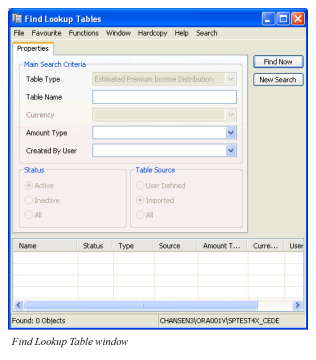
| Field | Description |
|---|---|
| Table Type | Finds tables by where they may be used and for what purpose. Values: Estimated Premium Income Distribution. Mandatory: Yes |
| Table Name | The name of the table you want to find Values: Free Text Mandatory: No |
| Currency | Only available for Life. |
| Amount Type | The financial measure of the table(s) for which you are searching. Values: * Fixed Monetary Amount Percent * None: Searches on all _Mandatory: No_ |
| Created by User | Finds tables created by the name of this person Values: Users set up by your system administrator. Mandatory: No |
| Status | Searches on the status of the tables Values: - Active: Searches only on tables that may be attached to a business - Inactive: Searches only on tables that may already be attached but may not be attached to new business. - All: Finds both active and inactive tables Default: All Mandatory: Yes |
| Table Source | Finds tables by the method in which they were entered into SICS. Values: Imported_ _Mandatory: Yes_ |
To import an EPID Table:
- Select the Import Table option from the Premium Table menu. This brings you to the Import Lookup Table wizard.
- Select the file you want to import.
- Enter Lookup Table Properties.
- Complete the Import Lookup Table wizard and press Finish.
To view an EPID Table:
- Select the View Table option from the Premium Table menu.
- Find Lookup Table window
- The system opens the View Lookup Table window.
- Click the Display button to see the table details.
To detach an EPID Table:
- Select the Detach Table option from the Premium Table menu.
- Click OK.
Maintain Non-Proportional Treaty Limits and Premiums #
In SICS you may keep comprehensive limit and premium terms of contracts, where the reinsurers automatically share losses not being a proportionate part to their share of the original premium. It is essential to keep complete records of these terms as you then may benefit from several linked automatic functions, e.g. split of premium deposits in different currencies, calculation of premium instalment payment schedule, calculation and booking of premium adjustments.
Maintain Excess of Loss Limits #
Record liabilities of treaties where the reinsurer assumes losses above a pre-agreed limit (Excess).
- Click the Limit and Premium condition button in Navigation bar.
- Select Edit from the Menu button on the Main tab.
- Enter limit figures on the Main tab.
- Click OK.
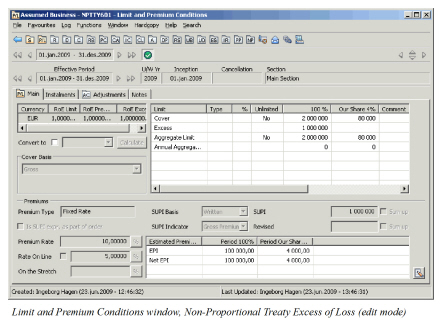
| Field | Description |
|---|---|
| Cover Type | An indication of what limit the cover amount express. Values: -EML (Estimated Maximum Loss) PML (Possible Maximum Loss) MPL (Maximum Possible Loss) Sum insured Top Loss Probability - indicates that cover is a combined limit Top Sum Insured' - indicates that cover is a combined limit Your company might have defined additional Cover Types. Mandatory: No Functional Impact: Non-Proportional Recovery Calculation |
| Cover 100% | Maximum liability per risk if this is a per risk treaty and per event if this is a per event treaty. It is considered the main limit of an excess of loss treaty. Values: Amount Number of decimal places: 0 Calculations: From Cover Our Share and Share From 100% in Share condition. (From signed share, from written share if no signed share and from offered share if no written or signed share). Validations: * Disabled when Cover is unlimited. * Must be entered if Excess 100% is defined. _Mandatory:_ No _Functional Impact:_-Premium condition values (e.g. Rate On Line) * Claims Accounting * Non-Proportional Recovery Calculation * Automatic Reinstatement Premium Calculations * Insured Peril Cession * Reinsurance Program * Protection Program * Automatic Protection Assignment * Other limit condition values |
| Cover Our Share | Reinsurer’s share of cover 100% Values: Amount Number of decimal places: 0 Calculations: From Cover 100% and Share From 100% in Share condition. (From signed share, from written share if no signed share and from offered share if no written or signed share). Validations: Disabled when cover is unlimited. Mandatory: No Functional Impact: Other limit conditions values. |
| Cover Unlimited | No limitation of liability per risk if this is a per risk treaty and per event if this is a per event treaty Values: Yes/ No Default: No Mandatory: Yes Functional Impact: * Claims Accounting * Non-Proportional Recovery Calculation * Reinsurance Program * Protection Program * Other limit condition values |
| Comment (all) | Additional information regarding the limit on the same row Values: Free-text. Maximum number of characters: 30 Mandatory: No Functional Impact: None |
| Excess 100% | The amount above which the from ground-up loss have to reach before the cover comes into effect. Values: Amount Number of decimal places: 0 Validations: Must be entered if Cover 100% is defined Mandatory: No Functional Impact: * Claims Accounting * Non-Proportional Recovery Calculation * Reinsurance Program * Protection Program * Automatic Protection Assignment * Other limit conditions values |
| Aggregate Limit | Total maximum liability for the period. Values: Amount Number of decimal places: 0 Calculations: Cover 100% + Cover 100% x Number of Reinstatements.If no reinstatements, Aggregate Limit 100% and Cover 100% are the same amount.Amount for 100% is calculated from amount for our share and vice versa. For more details, refer to Cover 100% and Cover Our Share. Validations: Disabled if Cover or Reinstatements are unlimited. Mandatory: No Functional Impact: * Claims Accounting * Insured Peril Cession * Non-Proportional Recovery Calculation * Other limit conditions values |
| Aggregate Limit Unlimited | No upper limit for liability for the period. Values: Yes/ No Default: No Validations: Will always be the same as for Cover.Indication cannot be changed for Aggregate Limit (only Cover) Mandatory: Yes Functional Impact: * Claims Accounting * Non-Proportional Recovery Calculation * Other limit conditions values |
| Aggregate Limit Type | Specifics regarding agreed aggregate limit. Values: Combined Aggregate Limit - The maximum recoverable for all sections, regardless of their individual maximum. Mandatory: No Functional Impact: Non-Proportional Recovery Calculation, and if your System Administrator has activated functionality Assumed Reinstatement Calculation, claim worksheet validation |
| Annual Aggregate Deductible (AAD) | Amount a cedent during a year must bear of losses, otherwise recoverable, before the protection comes into effect. Values: Amount Number of decimal places: 0 Calculations: Amount for 100% is calculated from amount for our share and vice versa. For more details, refer to Cover 100% and Cover Our Share. Validations: Only available for input when Annual Aggregate Deducible Type is None, Combined, or blank Mandatory: No Functional Impact: * Claims Accounting * Non-Proportional Recovery Calculation |
| Annual Aggregate Deductible (AAD) Type | Indicates what annual aggregate deducible is expressed as. Values:None - You enter a specific amount. This is the amount the cedent has to retain during a year. Of Loss- You enter a percentage. This percentage should be deducted from any loss that is recoverable on this treaty. The remaining loss amount will be recovered on the treaty. Of SUPI- You enter a percentage. The amount calculated from this percentage and SUPI, is the annual deductible amount Combined- An indication that the AAD entered is valid for current section, and all child sections. When selected the AAD limit is displayed in blue on “parent” section. Mandatory: No Functional Impact: * Claims Accounting * Other limit condition values |
| Annual Aggregate Deductible (AAD) % | Percent used in calculation of the deductible amount when annual aggregate deducible is expressed as percent of loss or of subject premium income. Values: * Percent * Maximum percentage: 999,00 * Number of decimal places: 2 _Validations:_ Available only when Type is _Of Loss_ or _Of SUPI_ _Mandatory:_ No _Functional Impact:_ Claims Accounting |
| Per Event Cover | Maximum limit for a single event, e.g. earthquake. Values: Amount Number of decimal places: 0 Calculations: Amount for 100% is calculated from amount for our share and vice versa. For more details, refer to Cover 100% and Cover Our Share Validations: If unlimited, Per Event Cover 100% and Our Share are disabled Mandatory: No Functional Impact: * Claims Accounting * Non-Proportional Recovery Calculation |
Maintain Stop Loss Limits #
To record or update liability terms of an aggregate excess of loss reinsurance:
- Open your business and click the Limit and Premium condition (P/L) button.
- If needed, select Edit from the Menu button in Limit and Premium condition on the Main tab. In the limit display list, enter your excess and cover percentages in the 100% column.
- Indicate what the percentages are of by selecting appropriate Result Indicator.
- If relevant, enter other limit and deductibles on the Main tab.
- Click OK.
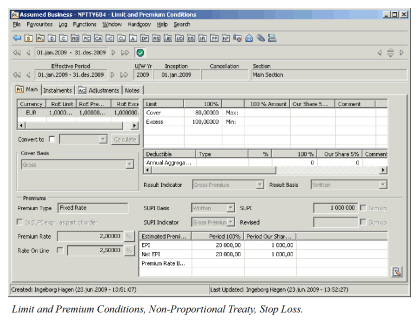
| Field | Description |
|---|---|
| Result Indicator | Indicates how to calculate the premium basis used in calculation of limits. Values: * Gross Net Premium * Gross Premium * Net Net Premium * Net Premium * None - unspecified _Default:_ None _Mandatory:_ No _Functional Impact:_ None |
| Result Basis | Indication on which terms premium basis used in calculation of limits are calculated _Values: * Accounted * Earned * Written _Default:_ None _Mandatory:_ No _Functional Impact:_ None |
| Cover % | Maximum liability expressed as a percent of the cedent’s retained income (e.g. SUPI). Values: * Percent (Entered in the ‘100%’ column) * Minimum value: 0 * Maximum value: 99.999,99999 * Number of decimal places: 5 _Validations:_ If unlimited, Cover 100% is disabled _Mandatory:_ No _Functional Impact:_ * Claims Accounting * Premium conditions values (e.g. rate on line) |
| Cover 100% Amount | A maximum amount as a further limitation to the cover. SUPI may change during the insured period, but the cover cannot exceed the agreed maximum. Values: * Amount (entered in the ‘100% Amount’ column) * Minimum value: 0 * Number of decimal places: 0 _Calculation:_ From Cover Our Share Amount and Share From 100% in Share condition. (From signed share, from written share if no signed share and from offered share if no written or signed share). _Mandatory:_ No _Functional Impact:_ Claims Accounting |
| Cover Our Share Amount | Reinsurer’s share of cover for 100% Values: * Amount * Minimum value: 0 * Number of decimal places: 0 _Calculation:_ From Cover 100% Amount and Share from 100% in Share condition. (From signed share, from written share if no signed share and from offered share if no written or signed share). _Mandatory:_ No _Functional Impact:_ Other limit condition values |
| Comment (all) | Additional information regarding the limit on the same row Values: * Free-text. * Maximum number of characters: 30 _Mandatory:_ No _Functional Impact:_ None |
| Excess % | Starting point of the cover expressed as a percentage of cedent’s retained income (SUPI). Values: * Percent (entered in the ‘100%’ column) * Minimum value: 0 * Maximum value: 99.999,99999 * Number of decimal places: 5 _Mandatory:_ No _Functional Impact:_ Claims Accounting |
| Excess 100% Amount | A minimum amount as a further limitation to the excess. SUPI may change during the insured period, but the excess point cannot be less than the agreed minimum. Values: * Amount (Amount (entered in the ‘100% Amount’ column) * Minimum value: 0 * Number of decimal places: 0 _Mandatory:_ No _Functional Impact:_ Claims Accounting |
Maintain Classification Distribution for Loss Recovery #
Record the distribution of classifications based on the real losses of the treaty. This is to be used for loss recovery calculations. This table of distribution is only available for Outward Cedent’s Contract.
To attach an already imported SLD (Stop Loss Distribution) table:
- From the Main tab, click the Loss Table menu-button.
- Select the Attach Table option. This brings you to the Find Lookup Table window.
- From the Find Lookup Table window, select an SLD Table. Table Type Stop Loss Distribution is the only available table type.
- Click OK.
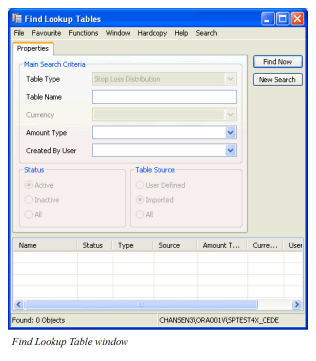
| Field | Description |
|---|---|
| Table Type | Finds tables by where they may be used and for what purpose. Values: Stop Loss Distribution Mandatory: Yes |
| Table Name | The name of the table you want to find Values: Free Text Mandatory: No |
| Currency | Only available for Life. |
| Amount Type | The financial measure of the table(s) for which you are searching. Values: Fixed Monetary Amount |
| Percent * None: Searches on all _Mandatory: No_ |
|
| Created by User | Finds tables created by the name of this person Values: Users set up by your system administrator. Mandatory: No |
| Status | Searches on the status of the tables Values: - Active: Searches only on tables that may be attached to a business - Inactive: Searches only on tables that may already be attached but may not be attached to new business. - All: Finds both active and inactive tables Default: All Mandatory: Yes |
| Table Source | Finds tables by the method in which they were entered into SICS. Values: Imported Mandatory: Yes |
To import an SLD Table:
- Select the Import Table option from the Loss Table menu. This brings you to the Import Lookup Table wizard.
- Select the file you want to import.
- Enter Lookup Table Properties.
- Complete the Import Lookup Table wizard and press Finish.
To view an SLD Table:
- Select the View Table option from the Loss Table menu.
- The system opens the View Lookup Table window.
- Click the Display button to see the table details.
To detach an SLD Table:
- Select the Detach Table option from the Loss Table menu.
- Click OK.
Maintain Fixed Rate Premiums #
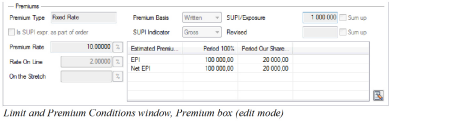
For a non-proportional treaty, enter conditions for premiums to be based on a fixed rate of actual premium. These are called SUPI (Subject Premium Income).
Enter Premium Rate and Basis
To capture the agreed premium rate and related information:
- Open your business and click the Limit and Premium condition (P/L) button.
- If required, select Edit from the Menu button in Limit and Premium condition on the_Main_ tab.
- If needed, click the Edit button for the Premium Type.
- Select Premium Type Fixed Rate.
- Click Save.
- Select Premium Basis.
- Select SUPI Indicator.
- Enter SUPI/Exposure amount.
- Enter Premium Rate.
- Select OK.
 Enter Minimum and Deposit Premiums
To capture the agreed minimum and/or deposit premium:
- Open your business and click the Limit and Premium Conditions (P/L) button.
- Click the Instalments tab.
- If needed, select Edit from the Menu button in the Deposit Premium Condition sub tab.
- Enter the Minimum and Deposit premium figures, as an amount or as a percentage.
- Click OK.
Deposit premiums are normally paid in instalments. Refer to Maintain Premium Instalment Conditions on page 6-188 for more information.
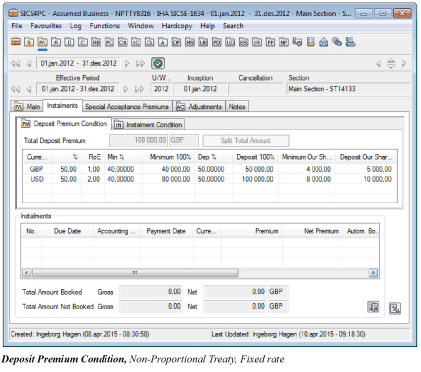
Enter Minimum and Deposit Premiums in More than One Currency
Enter the amounts for each currency if the minimum and deposit premiums have been agreed in more than one currency.
Note! These are NOT the same premium amount represented in different currencies, but individual amounts which all have to be paid.
- Open your business and click the Limit and Premium Conditions (P/L) button.
- Select the Instalments tab.
- If needed, select Edit from the Menu button in the Deposit Premium Condition sub tab.
- On the row showing the currency you require, type in the belonging premiums in the Minimum and/or the Deposit column or the Min% and/or the Dep%. Repeat this for as many currencies as your agreement requires. For how to add a new currency, refer to Add New Currency.
- Click OK.
 Split Minimum and Deposit Premiums in More than One Currency Automatically
Use the Split Total Amount functionality to distribute the total M&D premium in main currency amount across the given currencies.
- Open your business and click the Limit and Premium condition (P/L) button.
- Click the Instalments tab.
- If needed, select Edit from the Menu button on the Deposit Premium Condition sub tab.
- Click the Split Total Amount button (only available when more than one currency exists.). You see the Split Deposits window.
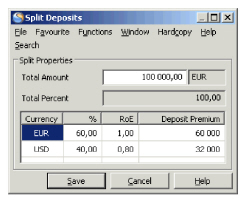 5. Enter the total amount (in main currency).
6. In the % column, enter the percentage of Total Amount for each currency.
7. Click Save.
8. Click OK
5. Enter the total amount (in main currency).
6. In the % column, enter the percentage of Total Amount for each currency.
7. Click Save.
8. Click OK
Maintain Classification Distribution for Premiums
For more information, please see the Automatic Premium Accounting chapter.
| Field | Description |
|---|---|
| Premium Type | Indicates how the final premium will be calculated Values: Fixed Rate * Sliding Rate * Sliding Amount * Flat Premium * Permissible L/R (Retrospective) _Default:_ Fixed Rate _Mandatory:_ Yes _Functional Impact:_ Other premium condition values * Automatic Premium Adjustment Calculation |
| Is SUPI expr. As part of Order | Whether the estimated subject premium income represents something else than 100%, e.g. an agent’s order. Values: Yes - SUPI represent something else than 100%. EPI Our Share will be calculated using reinsurer’s share from an order No - SUPI represent 100%. Premium is calculated using reinsurer’s share from 100%. Default: No Mandatory: Yes Functional Impact: * Other premium condition figures * Underwriter’s Estimate * Business Highlights * Section Overview * On-Line Statistics * Automatic Premium Adjustment Calculation |
| Premium Basis | Indication on which terms SUPI is calculated. Values: Customised by your company, for example: Earned , Written, Accounted, Limits in Force, Total Insured Value, PML, Sum At Risk Mandatory: No Functional Impact: None |
| SUPI Indicator | Indicates what SUPI is made up of. Values: Customised by your company, for example:Gross - premium reduced by returns and cancellations Gross Net - premium reduced by returns, cancellations and premium ceded Net - premium reduced by returns, cancellations, premium ceded deductions and profit commissions. Mandatory: No Functional Impact: None |
| SUPI/Exposure | Subject Premium Income or Exposure. Expected premium income for the underlying businesses covered by this non-proportional treaty. The estimate is advised by the cedent at underwriting stage. Values: Amount * Minimum Value: 0 * Number of decimal places: 0 _Mandatory:_ No _Functional Impact:_ * Other premium values * Stop Loss Claims Accounting |
| Revised SUPI | An estimate from the cedent of the final subject premium income made at a later stage than the initial estimated SUPI. Values: Amount * Minimum value: 0 * Number of decimal places: 0 _Mandatory:_ No _Functional Impact:_ Stop Loss Claims Accounting |
| Premium Rate | The portion of the actual subject premium income that has been agreed to be the premium for the cover. Values: Minimum value: 0 * Number of decimal places: 5 _Calculation:-_ If no value entered manually: (EPI / SUPI) x 100 - Later changes in EPI and SUPI will not recalculate Premium Rate - The Premium Rate Factor Type decides the devisor used when calculating the premiums, e.g. (SUPI/1000) x Rate if factor is pm (rate expressed in per mille) - If the rate is already saved, changing the Premium Rate Factor type changes the rate decimals accordingly _Mandatory:_ No _Functional Impact:_ * Other premium values * Automatic Premium Adjustment Calculation |
| Premium Rate Factor Type | Button representing the factor type used when expressing the rate and in calculations. Values: % pm (per mille) pmn (per million) Default: % (percent) Validation: For Factor Type pmn, Premium Type must be Fixed Rate and Type of Business must be Non-Proportional Treaty. Mandatory: Yes Functional Impact: * Premium Rate * Other premium values * Automatic Premium Adjustment Calculation |
| Rate on Line (RoL) | A comparison rate that shows how much premium (EPI) is expected in comparison with the cover. Values: Number of decimal places: 5 Calculations: (EPI / Cover) x 100 If RoL is manually overridden, the indicator next to the field is automatically selected. If you clear the indicator, SICS calculates RoL. Mandatory: No Functional Impact: None |
| On the Stretch | A comparison rate that shows how much premium (EPI + reinstatement premium) is expected in comparison with the total cover (cover x number of reinstatements) given. Values: Number of decimal places: 5 Calculations: Depends on what is defined in reinstatement conditions. Refer to Calculation of Rate on Line on the Stretch, Examples Validations: Not calculated if reinstatements are unlimited, or when type of participation is stop loss (stop loss treaties have no Reinstatement condition). Mandatory: No Functional Impact: None |
| EPI Period 100%: | Estimated premium income for the period informed by the cedent at underwriting stage. Values: Number of decimal places: 2 Calculations: SUPI x Premium Rate /100 Premium Rate Factor Type default is % and above formula is default When factor type is per mille, then: SUPI x Premium Rate / 1.000 When factor type is per million, then: SUPI x Premium Rate / 1.000.000 If less than Minimum 100%, then set equal to Minimum 100% From EPI Period Our Share and Share From 100% in Share conditions. (From signed share, from written share if no signed share and from offered share if no written or signed share). If Is SUPI expr. as Part of Order selected, EPI calculated from EPI Period Our Share and Share From Order (in share conditions. If no Share from Order, then Share From Net of Gross and if no Share from Net of Gross, then Share from 100%). May be manually overwritten Mandatory: No Functional Impact: Other premium values |
| EPI Period Our Share | Reinsurer’s share of EPI 100% Values: Number of decimal places: 2 Calculations: EPI Period 100% x Share From 100% in share condition / 100 (From signed share, from written share if no signed share and from offered share if no written or signed share).If Is SUPI expr. as Part of Order selected: EPI Period 100% x Share From Order in share conditions / 100 (If Share from Order does not exist, then Share from Gross of Net and if this does not exist, then Share from 100%.) Mandatory: No Functional Impact: Other premium figures |
| Net EPI Period | Estimated premium income net of deductions. Values: Number of decimal places: 2 Calculations: From EPI Period 100% and deductions in Deduction Conditions. Amount for 100% is calculated from amount for our share and vice versa. For more details, refer to EPI Period 100% and EPI Period Our Share. Mandatory: No Functional Impact: Other premium values. |
| Total Deposit Premium | Sum of premium entered in Deposit 100% column, expressed in main currency. Values: Number of decimal places: 2 * Minimum value: 0 _Calculations:_ From Deposit 100%. If multiple currencies, amounts entered in Deposit 100% are converted to main currency using fixed RoE entered in the Currency table. _Mandatory:_ No _Functional Impact:_ Other premium values |
| %: | Portion of Total Deposit Premium per currency. Values: Maximum value: 100% * Minimum value: 0 * Number of Decimals: 2 _Default:_ 0,00 _Calculations:_ From Total Deposit Premium in main currency, fixed RoE Premium in Currency table and Deposit Premium 100% in same currency. Can only be manually entered if using _Split Total Amount_ option. _Validations:_ Sum of % must be 100 _Mandatory:_ Yes _Functional Impact:_ Other premium values. |
| Min % | Minimum percent. The lowest premium the cedent must pay for this reinsurance, expressed as a percent of SUPI x Premium Rate Values: Minimum value: 0,00000 Maximum value: 999,99999 Number of decimals: 5 Validations: Warning when above 100 Calculations: Minimum 100% amount x 100 / SUPI x Premium Rate Mandatory: No Functional Impact: Other premium figures |
| Minimum 100% | The lowest premium the cedent must pay for this reinsurance. (The accumulated actual premium the cedent pays should never go below this amount.) Values: Number of decimal places: 2 * Minimum value: 0 _Calculations:_ If Min % exists: SUPI x Premium Rate x Min % / 100 x 100. From Minimum Our Share and Share From 100% in the Share Conditions. (From signed share, from written share if no signed share and from offered share if no written or signed share). If Is SUPI expressed as Part of Order selected: Minimum 100% calculated from Minimum Our Share and Share From Order (in share conditions). If no Share from Order, then Share From Net of Gross and if no Share from Net of Gross, then Share from 100%. _Mandatory:_ No _Functional Impact:_ Other premium values * Automatic Premium Adjustment Calculation |
| Minimum Our Share | Our share of Minimum 100% Values: Number of decimal places: 2 * Minimum value: 0 _Calculations:_ Minimum 100% x Share From 100% in share conditions / 100%. (From signed share, from written share if no signed share and from offered share if no written or signed share). If Is SUPI expressed as Part of Order selected: Minimum 100% x Share From Order in share conditions. (If Share from Order does not exist, then Share from Gross of Net and if this does not exist, then Share from 100%.) _Mandatory:_ No _Functional Impact:_ Other premium figures |
| Dep % | Deposit percent. The premium the cedent will pay in advance for this reinsurance, expressed as a percent of SUPI x Premium Rate Values: Minimum value: 0,00000 Maximum value: 999,99999 Number of decimals: 5 Validations: Warning when above 100. Calculations: Deposit 100% amount x 100 / SUPI x Premium Rate Mandatory: No Functional Impact: Other premium figures |
| Deposit | Premium that the cedent will pay in advance. Values: Number of decimal places: 2 * Minimum value: 0 _Calculations:_ If multiple currencies: from Total Deposit Amount, % (split) and fixed RoE.If Dep % exists: SUPI x Premium Rate x Dep % / 100 x 100. From Deposit Our Share and Share From 100% in the Share Conditions. (From signed share, from written share if no signed share and from offered share if no written or signed share). If Is SUPI expressed as Part of Order selected: Deposit 100% calculated from Deposit Our Share and Share From Order (in share conditions). If no Share from Order, then Share From Net of Gross and if noShare from Net of Gross, then Share from 100%. _Mandatory:_ No _Functional Impact:_ Other premium values * Premium instalments conditions * Automatic Premium Adjustment Calculation |
| Total Amount | Deposit premium for all currencies expressed in main currency, (used in the Split Total Amount per currency option). Values: Minimum value: 0 * Number of decimal places: 2 _Default:_ Currency field: Main currency of business _Mandatory:_ No _Functional Impact:_ Other premium values |
| Total Percent | Percent showing how much of the Total Amount is distributed to currencies (used in the Split Total Amount per currency option). Values: Minimum percentage: 0 * Maximum percentage: 100 * Number of decimal places: 2 _Default:_ 0,00 _Calculations:_ Sum of percentage for each currency _Validations:_ Must be 100% to be able to save. _Mandatory:_ Yes _Functional Impact:_ None |
EXAMPLES - Rate on Line on the Stretch
Calculations of Rate on Line on the Stretch depend on Payment Rule, Amount % and Time % of the reinstatement conditions. For more information, refer to the_Maintain Reinstatement Conditions_ section.
When you want to calculate the Rate on Line on the Stretch and the premium type is flat premium, SICS uses the same formulas as when calculating fixed rate. The only difference is that when the premium is flat, SICS uses Total Flat Premium instead of EPI.
**Example 1
Reinstatements are Pro Rata Amount.
EPI + (EPI x Total Reinstatement Amount %)Cover + (Cover x Reinst. No)
**Example 1a
** Layer: 1.000.000 xs 1.000.000
EPI: 100.000
2 reinstatements: 1st 100% Amount, 2nd 50% Amount
100.000 + (100000 x 150%) = 8,33333%
1.000.000 + (1.000.000 x 2)
Example 1b
** 2 reinstatements: Free
100.000 + (100.000 x 0%)= 3,33333%
1.000.000 + (1.000.000 x 2)
**Example 2
Reinstatements are Pro Rata Time.
** When reinstatements are calculated Pro Rata to Time, we assume that all losses happen mid period (182,5/ 365)
EPI + (EPI x Total Reinstatement Time %) x 182,5/365Cover + (Cover x Reinst. No)
Example 2a
** Layer: 1.000.000 xs 1.000.000
EPI: 100.000
2 reinstatements: 1st 100% Time, 2nd 50% Time
100.000 + (100.000 x 150%) x 182,5/365 = 5,83333%
1.000.000 + (1.000.000 x 2)
Example 3
** Reinstatements are Pro Rata Amount and Time without extra % for Time.
EPI + (EPI x Total Reinst. Amount %) x 182,5/365Cover + (Cover x No of Reinst.)
**Example 3a
** Layer: 1.000.000 xs 1.000.000
EPI: 100.000
2 reinstatements: 100% Amount
100.000 + (100.000 x 200%) 182,5/365= 6,66667%
1.000.000 + (1.000.000 x 2)
**Example 4
** Reinstatements are Pro Rata Amount and Time, with extra % for Time.
EPI + (EPI x Total reinst. Amount %) x Average Time % Cover + (Cover x No of Reinst.)
Example 4a
** Layer: 1.000.000 xs 1.000.000
EPI: 100.000
2 reinstatements: 100% Amount, 1st 100% and 2nd 75% Time
100.000 + (100.000 x 200%) x 87,5%= 9,16667%
1.000.000 + (1.000.000 x 2)
Maintain Sliding Rate Premium #
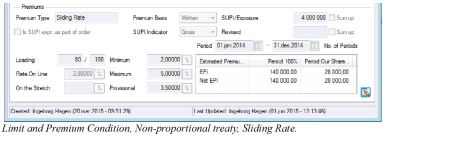
Record Premium Type Sliding Rate, when premium is calculated from a rate determined by the loss amount multiplied with a loading factor.
The reinsurance parties agree on a Minimum, a Maximum and a Provisional Premium Rate.
To enter Premium Rates and Basis:
- Click the Limit and Premium condition button in Navigation bar.
- Select Edit from the Menu button on the Main tab.
- If needed, click the Edit button for the premium type
- Select premium type Sliding Rate.
- Click Save
Select a Premium Basis. - Select a SUPI Indicator.
- Enter a SUPI/Exposure amount.
- Enter a Loading factor.
- Enter a Minimum Rate.
- Enter a Maximum Rate.
- Enter a Provisional Rate.
- Click Save.
Enter Minimum and Deposit Premium
| Field | Description |
|---|---|
| Loading | A factor to allow for cedent’s expenses and profit. The Loading factor reduces the Premium Rate (claims in percent of premium). Values: * Maximum value: 9.999.999 * Number of decimal places: 0 _Mandatory:_ No |
| Period | From and to dates for which the sliding premium rates and loading are valid. Values: Date fields Default: Same dates as insured period Mandatory: Yes |
| No. of Periods | Number of periods for which the sliding premium rates and loading are valid. Values: Minimum value: 0 * Number of decimal places: 0 _Default:_ 1 _Mandatory:_ Yes |
| Minimum Rate | Indicates minimum percentage/ per mill of SUPI cedent will have to pay as premium to reinsurers. Values: Percent or Per Mille * Number of decimal places: 5 _Validations:_ Must be less than Maximum Rate _Mandatory:_ No |
| Maximum Rate | Indicates maximum percentages/ per mill of SUPI cedent will have to pay as premium to reinsures. Values: Percent or Per Mill * Number of decimal places: 5 _Validations:_ Must be higher than Minimum Rate _Mandatory:_ No |
| Provisional Rate | Indicates the agreed percentage/ per mill of SUPI cedent has to pay reinsurers until the exact SUPI is known. Values: Percent or Per Mill * Number of decimal places: 5 _Mandatory:_ No |
| EPI Period 100% | Estimated Premium Income for the period. Values: Number of decimal places: 2 Calculations: SUPI x Provisional Rate / 100. If less than Minimum 100%, then set equal to Minimum 100% From EPI Period Our Share and Share From 100% in Share condition. (From signed share, from written share if no signed share and from offered share if no written or signed share). If Is SUPI expr. as Part of Order selected, EPI calculated from EPI Period Our Share and Share From Order (in share conditions. If no Share from Order, then Share From Net of Gross and if no Share from Net of Gross, then Share from 100%). Mandatory: No |
Maintain Sliding Amount Premium #
Record premium type Sliding Amount, when the reinsurance parties agree on a minimum and a maximum amount for the premium.
Enter Premium Amount Boundaries and Basis
- Click the Limit and Premium condition button in the Navigation bar.
- Select Edit from the Menu button on the Main tab.
- If needed, click the Edit button for the premium type
- Select premium type, Sliding Amount
- Click Save
Select a Premium Basis. - Select a SUPI Indicator.
- Enter a SUPI/Exposure amount.
- Enter a Loading factor.
- Enter a Minimum Amount.
- Enter a Maximum Amount.
- Click Save.
Enter Minimum and Deposit Premium

| Field | Description |
|---|---|
| Loading | A factor to allow for cedent’s expenses and profit. The Loading factor reduces the Premium Rate calculated as Claims in percent of Premium. Values: * Maximum value: 9.999.999 * Number of decimal places: 0 _Mandatory:_ No |
| Period | From and to dates for which the sliding premium rates and loading are valid. Values: Date fields Default: Same dates as insured period Mandatory: Yes |
| No. of Periods | Number of periods for which the sliding premium rates and loading are valid. Values: Minimum value: 0 * Number of decimal places: 0 _Default:_ 1 _Mandatory:_ Yes |
| Minimum | Indicates minimum amount the cedent will have to pay as premium to reinsurers. Minimum amount entered is copied to EPI 100% and Minimum 100% in Instalments Values: * Minimum value: 0 * Number of decimal places: 2 _Validations:_ If Minimum 100% is manually overridden, Minimum is up-dated with same amount _Mandatory:_ No |
| Maximum | Indicates maximum premium the cedent will have to pay as premium to reinsures. Values: Number of decimal places: 2 Mandatory: No |
| EPI Period 100% | Estimated Premium Income for the period. Values: Number of decimal places: 2 Calculations: From EPI Period Our Share and Share From 100% in share conditions. (From signed share, from written share if no signed share and from offered share if no written or signed share). If Is SUPI expr. as Part of Order selected, EPI calculated from EPI Period Our Share and Share From Order (in share conditions. If no Share from Order, then Share From Net of Gross and if no Share from Net of Gross, then Share from 100%). Validations: * Copied from Minimum * Cannot be less than Minimum 100% _Mandatory:_ No |
| Minimum 100% | Amount indicating the lowest premium the reinsured will have to pay (instalment and adjustment premium). Values: Number of decimal places: 2 * Minimum value: 0 _Calculations:_ From Minimum Our Share and Share From 100% in Share conditions. (From signed share, from written share if no signed share and from offered share if no written or signed share). If Is SUPI expr. as Part of Order selected, Minimum 100% calculated from Minimum Our Share and Share From Order (in share conditions). If no Share from Order, then Share From Net of Gross and if no Share from Net of Gross, then Share from 100%. _Default:_ Minimum amount _Mandatory:_ No |
Maintain Flat Premium #
Record premium type Flat Rate Premium when a fixed premium amount is agreed on in advance and the premium amount will not be adjusted.
- Open your business and click the Limit and Premium condition (P/L) button in the Navigation bar
- If needed, select Edit from the Menu button in the Limit and Premium condition on the Main tab.
- If needed, click the Edit button for the Premium Type.
- Select Premium Type Flat Premium.
- Click Save
- If the Limit and Premium Conditions already had values before the above operation, you must now click OK.
- Click the Instalments Tab.
- Click the Flat Premium sub tab and if needed, select Edit from the Menu button.
- Enter the flat premium figure in the Period premium.
- Click OK.
For how to enter flat premium in more than on currency, refer to the Maintain Fixed Rate Premiums section.
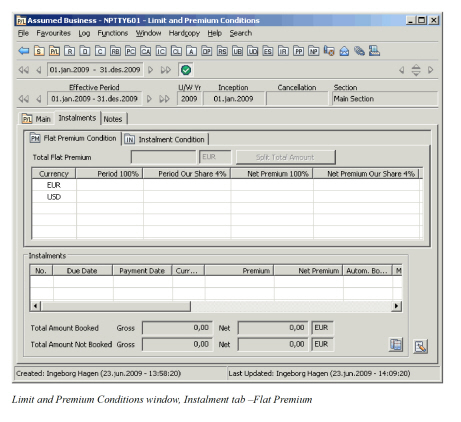
| Field | Descriptions |
|---|---|
| Rate on Line | A comparison rate that shows how much Total Deposit Premium is in percent of Cover given.Refer to Rate on Line in Field Description for Fixed Rate Premium. Same principles will apply. Calculations: Flat Premium in percent of Cover. |
| On the Stretch | A comparison rate that shows how much premium is expected in comparison with the total cover. Refer to On the Stretch in Field Description for Fixed Rate Premium. Same principles will apply. |
| Total Deposit Premium | Premium entered in Period 100% column, expressed in main currency. Refer to Total Deposit Premium in Field Descriptions for Fixed Rate Premium. Same principles will apply. |
| Period 100% | Premium the reinsured must pay for this reinsurance Values: * Number of decimal places: 2 * Minimum value: 0 _Calculations:_ From Period Our Share and Share From 100% in share condition. (From signed share, from written share if no signed share and from offered share if no written or signed share). If Is SUPI expr. as Part of Order selected, Period 100% is calculated from Period Our Share and Share From Order (in share conditions). If no Share from Order, then Share From Net of Gross and if no Share from Net of Gross, then Share from 100%. _Mandatory:_ No |
| Period Our Share % | Our share of Period 100% Values: * Number of decimal places: 2 * Minimum value: 0 _Calculations:_ Period 100% x Share From 100% in share condition / 100. (From signed share, from written share if no signed share and from offered share if no written or signed share). If Is SUPI expr. as Part of Order selected: Period 100% x Share From Order in share conditions. (If Share from Order does not exist, then Share from Gross of Net and if this does not exist, then Share from 100%.) _Mandatory:_ No |
| Net Premium | Period 100% net of deductions in Deduction condition Values: * Number of decimal places: 2 * Minimum value: 0 _Calculations:_ From Period 100% and deductions in Deduction conditions. Amount for 100% is calculated from amount for our share and vice versa. For more details, refer to Period 100% and Period Our Share. _Mandatory:_ No |
Maintain Permissible Loss Ratio Based Premium #
Record premium type Permissible Loss Ratio when the reinsurance parties have agreed on a loss percentage as the starting point for the reinsurance premium adjustment calculation.
When Permissible L/R you often refer to Initial Premium instead of EPI. In SICS we use the term EPI.
Enter Ratios and Basis
- Click the Limit and Premium condition button in the Navigation bar.
- Select Edit from the Menu button on the Main tab
- If needed, click the Edit button for the Premium Type
- Select Premium Type Permissible L/R (Retrospective).
- Click Save
- Select the Permissible L/R tab.
- Enter a Permissible Loss Ratio.
- Enter a Downswing.
- Enter an Upswing.
- Enter a Period From and To.
- Enter a Subject Limit on Loss Amount.
- Click OK.
For entering premium details on the Main tab, refer to the Maintain Fixed Rate Premiums section.
Enter Minimum and Deposit Premium
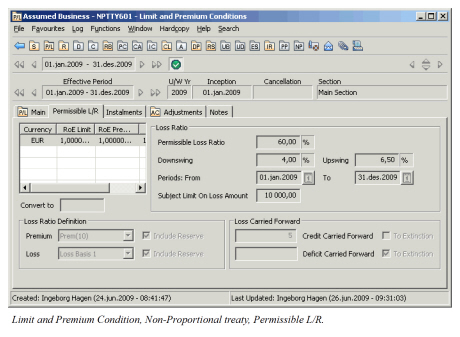
The field descriptions below will only give description of fields specific (or with specific validations) for Premium Type Permissible L/R. For the other fields, refer to the Maintain Fixed Rate Premiums section.
| Field | Description |
|---|---|
| Permissible Loss Ratio | Agreed loss percentage that will be the staring point for the reinsurance adjustment premium calculation Values: * Maximum percent: 999 * Minimum percent: 0 * Number of decimal places: 2 _Mandatory:_ No |
| Downswing | Downswing percent times EPI equals the maximum adjustment premium the reinsurer can owe. Values: * Maximum percent: 999 * Minimum percent: 0 * Number of decimal places: 2 _Mandatory:_ No |
| Upswing | Upswing percent times EPI equals the maximum adjustment the reinsured can owe. Values: * Maximum percent: 999 * Minimum percent: 0 * Number of decimal places: 2 _Mandatory:_ No |
| Period From/To | Period for which the loss ratio percentages are valid (period may be several insured periods) Values: Date field Mandatory: No |
| Subject Limit on Loss Amount | Any one occurrence plus pro rata share of claims expenses Values: Number of decimal places: 2 Mandatory: No |
| Premium | How to calculate premiums (gross/ net) that are used in calculation of loss ratio. Value is selected or not selected to indicate if premium reserves should be included in calculation. Values: Customised by your company. For example, Gross Premium Net Premium Mandatory: No |
| Loss | How to calculate losses that are used in calculation of Loss Ratio. Values is selected or not selected to indicate if Loss Reserves should be included in calculation. Values: Customised by your company Mandatory: No |
| Credit Carried Forward | When Downswing times EPI is less than Permissible Loss Ratio, the difference may become a Credit Carried Forward. Values: * Maximum number of years: 9999 * Minimum number of years: 0 _Validations:_ When To Extinction is selected, number of years is disabled. _Mandatory:_ No |
| Deficit Carried Forward | When the Upswing times EPI is higher than the maximum premium adjustment, the exceeding amount becomes a Deficit Carried Forward. Values: * Maximum number of Years: 9999 * Minimum number of Years: 0 _Validations:_ When _To Extinction_ is selected, the number of years is disabled. _Mandatory:_ No |
Maintain Proportional Facultative Limits and Premiums #
When your type of business is proportional facultative, limits and premiums available for input varies depending on main class of business, class of business and even sub class of business.
Limits can be entered as main limits and sub limits. In addition you can enter more details about the limits in display lists for:
- Time/ Measurement. Used to define contract limitations that are not monetary, e.g. Items and Indemnity Period
- Key Amounts. Used to display informational monetary or percentage limits, e.g. Payroll and Turnover
Maintain Proportional Facultative Limits #
To record liabilities of agreements, where the reinsured assumes a fixed percentage of the losses:
- Click the Limit and Premium condition button in the Navigation bar.
- Select Edit from the Menu button on the Main tab
- Enter limit figures on the Main tab.
- Click OK.
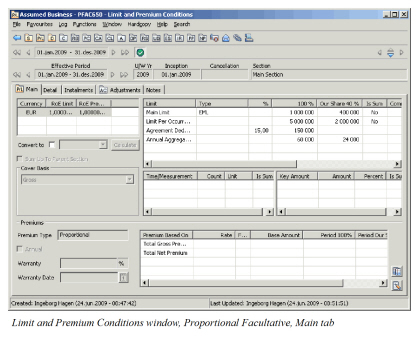
In the field descriptions below we only give examples of the most common limits. If e.g. the Type field is not described for a limit, we consider it most likely that this limit is not described further with a Type value. This is; however, user defined, and is therefore dependent of how your system is customised
| Field | Descriptions |
|---|---|
| Main Limit 100% | Maximum liability per underlying risks per insured period. Values: Number of decimal places: 0 * Minimum value: 0 _Calculations:_ From Main Limit Our Share and Share From 100% in Share condition. (From signed share, from written share if no signed share and from offered share if no written or signed share). _Mandatory:_ No |
| Main Limit Our Share | Our Share of Main Limit 100% Values: Number of decimal places: 0 * Minimum value: 0 _Calculations:_ From Main Limit 100% and Share From 100% in Share conditions (From signed share, from written share if no signed share and from offered share if no written or signed share). _Mandatory:_ No |
| Main Limit Type | Values that further specifies Main Limit Values: Customised by your company, e.g.: * _EML_ (Estimated Maximum Loss) * _PML_ (Possible Maximum Loss) * _MPL_ (Maximum Possible Loss) * _Sum insured_ _Mandatory:_ No |
| Comment (all) | Additional information regarding the limit on the same row Values: Maximum digits: 30 Mandatory: No |
| Limit Per Year | Maximum liability reinsurer(s) will have to pay per year Values: Number of decimal places: 0 * Minimum value: 0 _Calculations:_ Amount for 100% is calculated from amount for our share and vice versa. For more details, refer to Main Limit 100% and Main Limit Our Share. _Mandatory:_ No |
| Limit Per Year Type | Values that further specify Limit Per Year. Values: Customised by your company, e.g.: * _Partial Loss * Total Loss * None_ _Mandatory:_ No |
| Limit Per Occurrence | Maximum liability reinsurer(s) will have to pay per event, e.g. earthquake Values: Number of decimal places: 0 * Minimum value: 0 _Calculations:_ Amount for 100% is calculated from amount for our share and vice versa. For more details, refer to Main Limit 100% and Main Limit Our Share.If Sub Class of Business is Business Interruption refer to field descriptions for Business Interruption. _Mandatory:_ No |
| Total Sum Insured (TSI) | Maximum value per insured object Values: Number of decimal place: 0 * Minimum value: 0 _Calculations:_ Amount for 100% is calculated from amount for our share and vice versa. For more details, refer to Main Limit 100% and Main Limit Our Share. _Mandatory:_ No |
| Top Location Sum Insured (TLSI) | Maximum value in one location Values: Number of decimal place: 0 * Minimum value: 0 _Calculations:_ Amount for 100% is calculated from amount for our share and vice versa. For more details, refer to Main Limit 100% and Main Limit Our Share. _Mandatory:_ No |
| Top Location Loss Probability (TLLP) Type | Values that further specifies the TLLP Values: Customised by your company, e.g.: * _EML_ (Estimated Maximum Loss) * _PML_ (Possible Maximum Loss) * _MPL_ (Maximum Possible Loss) * _Sum insured_ _Mandatory:_ No |
| Top Location Loss Probability % | Percentage used to calculate TLLP from Top Location Sum Insured, Total Sum Insured or Main Limit Values: Minimum percentage: 0,00 * Maximum percentage: 999 * Number of decimal places: 2 _Mandatory:_ No |
| Top Location Loss Probability | Probable maximum value of a loss Values: Number of decimal place: 0 * Minimum value: 0 _Calculations:_ Depending on Limits entered (in below sequence), and TLLP % Top Location Sum Insured Total Sum Insured Main Limit Amount for 100% is calculated from amount for our share and vice versa. For more details, refer to Main Limit 100% and Main Limit Our Share. _Validations:_ When calculated from Total Sum Insured, TLLP is recalculated if TSI is changed _Mandatory:_ No |
| Total Limit For Items 100% | Total limit for all items added together. Values: Number of decimal places: 0 * Minimum value: 0 _Calculations:_ From number of Items in Time Measurement and Main Limit 100%. Cannot be manually altered _Mandatory:_ No |
| Annual Aggregate Deductible (AAD) | Amount used to reduce the cost of the non-proportional protection for the period.Cedent retains a specific amount of losses otherwise recoverable, before the protection comes into effect. Values: Number of decimal places: 0 Calculations: Amount for 100% is calculated from amount for our share and vice versa. For more details, refer to Main Limit 100% and Main Limit Our Share. Validations: Only available when Type is None or blank Mandatory: No |
| Annual Aggregate Deductible Type | Values that further specify the limit. Values: Your company customises what will appear in the type field. * _None._ Enter AAD 100%. Amount the cedent retains during a year. * _Of Loss_Enter AAD%. Percentage deducted from any loss recoverable on this treaty. Remaining loss amount is recovered on the treaty. * _Of SUPI_. Enter AAD%. Amount calculated from this percentage and SUPI, is Annual Deductible Amount _Default:_ Blank _Validations:_ When Type is _Of Loss_ or _Of SUPI_ AAD 100% is disabled _Mandatory:_ No |
| Annual Aggregate Deductible (AAD) % | Percentage used to calculate AAD when expressed as percent Of Loss or Of SUPI. Values: Maximum percentage: 999,00 * Number of decimal places: 2 _Validations:_ Available only when Type is _Of Loss_ or _Of SUPI_ _Mandatory:_ No |
| Initial Value | Pre-agreed insured value Values: Minimum value: 0 * Number of decimal places: 0 _Calculations:_ Amount for 100% is calculated from amount for our share and vice versa. For more details, refer to Main Limit 100% and Main Limit Our Share. _Validations:_ Available only when Class of Business Behaviour is Marine Hull Construction. Cannot exceed Main Limit _Mandatory:_ No |
| Increased Value 100% | Increased value of Initial Value Values: Minimum value: 0 * Number of decimal places: 0 _Calculations:_ From Main Limit and Initial Value. Amount for 100% is calculated from amount for our share and vice versa. For more details, refer to Main Limit 100% and Main Limit Our Share. _Validations:_ Available only when Class of Business Behaviour is Marine Hull Construction. _Mandatory:_ No |
| Location Limit | Maximum liability in one location Values: Minimum value: 0 * Number of decimal places: 0 _Calculations:_ Amount for 100% is calculated from amount for our share and vice versa. For more details, refer to Main Limit 100% and Main Limit Our Share. _Validations:_ Available only when class of business is Marine Hull/ Cargo and when Main Class of Business is Marine or Marine Direct. _Mandatory:_ No |
| Construction Value | Use this limit to define the part of the project related to the construction itself. Values: * Minimum value: 0 * Number of decimal places: 0 _Calculations:_ Amount for 100% is calculated from amount for our share and vice versa. For more details, refer to Main Limit 100% and Main Limit Our Share. _Validations:_ Available only when class of business is engineering. _Mandatory:_ No |
| Maintenance Value | Use this limit to define the value insured during maintenance period. Values: Minimum value: 0 * Number of decimal places: 0 _Calculations:_ Amount for 100% is calculated from amount for our share and vice versa. For more details, refer to Main Limit 100% and Main Limit Our Share. _Validations:_ Available only when class of business is _engineering._ _Mandatory:_ No |
| Extension Value | Limit in case of period extension for a project to define remaining value insured during the extension period. Values: Minimum value: 0 * Number of decimal places: 0 _Calculations:_ Amount for 100% is calculated from amount for our share and vice versa. For more details, refer to Main Limit 100% and Main Limit Our Share. _Validations:_ Available only when class of business is _engineering._ _Mandatory:_ No |
Maintain Proportional Facultative Time and Measurement Figures #
To record Time/ Measurement limits when you want to define limitations that are not monetary:
- Click the Limit and Premium condition button in the Navigation bar.
- Select Edit from the Menu button on the Main tab
- Enter Time/ Measurement values on the Main tab
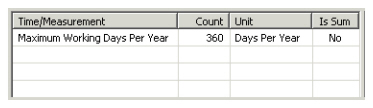 4. Click Save.
| Field | Description |
|---|---|
| Run Passenger Distance Count | The actual distance run Values: Minimum value: 0 * Number of decimal places: 0 _Mandatory:_ No |
| Run Passenger Distance Unit | Text that further specifies the Count Values: Customised by your company: Typical values will be: Kilometres or Miles Mandatory: No |
| Items Count | The actual number of items covered by this reinsurance. Values: Minimum value: 0 * Number of decimal places: 0 _Mandatory:_ No |
| Items Unit | Text that furthers specifies Items. Values: Your company customises what will appear in the type field. For example,Items, Day or Miles Mandatory: No |
| Cold Testing Period Count | Use this time limit to define the period defined in the contract to be used for cold testing Values: Minimum value: 0 * Number of decimal places: 0 _Mandatory:_ No |
| Cold Testing Period Unit | Text that further defines the Cold Testing Period Values: Customised by you company. Examples: Day(s), Week(s) or Month(s) Mandatory: No |
| Hot Testing Period Count | Use this time limit to define the period defined in the contract to be used for hot testing Values: Minimum value: 0 * Number of decimal places: 0 _Mandatory:_ No |
| Hot Testing Period Unit | Refer to Cold Testing Period Unit Extension Period Count: Time limit to define period caused by delayed project Values: Minimum value: 0 * Number of decimal places: 0 _Mandatory:_ No |
| Extension Period Unit | Refer to Cold Testing Period Unit. |
| Maintenance Period | Time limit to define period in which the maintenance value is valid Values: Minimum value: 0 * Number of decimal places: 0 _Mandatory:_ No |
| Maintenance Period Unit | Refer to Cold Testing Period Unit. |
Maintain Proportional Facultative Key Amounts #
Record Key Amounts when you want to display informational monetary or percentage limits.
- Click the Limit and Premium condition button in the Navigation bar.
- Select Edit from the Menu button on the Main tab
- Enter Key Amounts on the Main tab.
- Click Save.
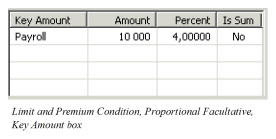
Your company customises what appear in the Key Amount column. We will only give an example in field description table below.
| Field | Description |
|---|---|
| Payroll Amount | For example, cost from production Values: * Minimum values: 0 * Number of decimal places: 0 _Mandatory:_ No |
| Payroll % | Payroll expressed as percentage Values: * Minimum value: 0 * Number of decimal places: 2 _Mandatory:_ No |
| Turnover Amount | The amount of business done, degree of business activity Values: * Minimum values: 0 * Number of decimal places: 0 _Mandatory:_ No |
| Turnover % | Refer to Payroll %. |
| Field | Description |
|---|---|
| Limit Per Occurrence 100% | Maximum Liability reinsurer(s) will have to pay per occurrence, e.g. Business Interruption (BI) Values: * Number of decimal places: 0 * Minimum value: 0 _Calculations:_ Main Limit divided on Maximum Working Days, multiplied with BI Period and BI Weigh Factor. From Limit Per Occurrence Our Share and Share From 100% in Share condition. (From signed share, from written share if no signed share and from offered share if no written or signed share) _Mandatory:_ No |
| Limit Per Occurrence Our Share | Our Share of Limit Per Occurrence 100% Values: * Number of decimal places: 0 * Minimum value: 0 _Calculations:_ From Limit Per Occurrence 100% and Share From 100% in Share condition. (From signed share, from written share if no signed share and from offered share if no written or signed share) _Mandatory:_ No |
| Business Interruption Weigh Factor % | Percentage indicating how much of Main Limit will be affected if Business Interruption. Values: Number of decimal places: 2 * Minimum value: 0 * Maximum value: 999,00 _Validations:_ Available only when main class of business is Property. _Mandatory:_ No |
| Limit Per Month/ Day | Maximum limit per Business Interruption Period Values: Minimum value: 0 Number of decimal places: 0 Calculation: From Main Limit 100%, BI Period and BI Weigh Factor. Amount for 100% is calculated from amount for our share and vice versa. For more details, refer to Limit per Occurrence 100% and Limit Per Occurrence Our Share. Default: Main Limit per maximum Working Day Per Year Mandatory: No |
| Limit Per Month/ Day Type | Values that further specifies Limit Per Month/ Day Values:Days or Months Default: Days Validations: Same value (Days/ Months) as BI Period Mandatory: No |
| BI Period Count | Measurement indicating the length of the Business Interruption Period. Values: Minimum number: 0 * Number of decimal places: 0 _Mandatory:_ No |
| BI Period Unit | Value that further specifies the BI Period Count Values: Your company customises what will appear in the type field. For example, Months, Weeks or Day Mandatory: No |
Maintain Proportional Facultative Rate Premium #
Record Premium Type Proportional, when the cedent assumes a fixed rate of limits and /or base amounts.
- Click the Limit and Premium condition button in the Navigation bar.
- If required, select Edit from the menu button on the Main tab.
Enter the Premium Based On for the relevant limits and/or base amounts.
 3. Enter Premium Rates for the selected Premium(s) Based On.
4. Click Save.
3. Enter Premium Rates for the selected Premium(s) Based On.
4. Click Save.
For maintenance of Minimum and Deposit premiums, refer to the Maintain Fixed Rate Premiums section.
Your company customises what will appear in Premium Based On column. In field descriptions table below, we will only give examples of the most common premiums.
| Field | Description |
|---|---|
| Premium Type | Indicates which Premium Type is selected, in this case, Proportional. Values: Text field Default: Proportional Mandatory: Yes |
| Annual |
When selected, premiums can be entered for one year, independent of insured period. Values: When System Parameter Annual Premium is selected the defaulted value on Premium Condition screen is selected. Contact your System Administrator for more information Default: Selected Validations: Must be cleared for business without an insured period. See the Maintain Insured Period Information section for more details. Mandatory: Yes Functional Impact: Other premium values |
| Warranty | Percentage of premium cedent has to pay in addition if payment is made later than Warranty Date Values: * Minimum value: 0 * Maximum value: 100 * Number of decimal places: 2 _Mandatory:_ No |
| Warranty Date | If premium is not paid before this date premium warranty condition can be triggered Values: Date field Mandatory: No |
| Total Gross Premium Period 100% | The overall premium for the period (Insured Period or Effective Period). This is the sum of all Period 100% premiums Values: Number of decimal places: 2 Calculations: Sum of all other premiums entered.Cannot be less than Miminimum100%. From Total Gross Premium Period Our Share and Share From 100% in Share condition. (From signed share, from written share if no signed share and from offered share if no written or signed share). Mandatory: No |
| Total Gross Premium Period Our Share | Our Share of Total Gross Premium Period 100% Values: Number of decimal places: 2 Calculations: From Total Gross Premium Period 100% and Share From 100% in Share condition. (From signed share, from written share if no signed share and from offered share if no written or signed share). Mandatory: No |
| Total Gross Premium Annual | Overall premium for one year, independent of insured period. Values: Number of decimal places: 2 Calculations: Sum of all other Annual 100% premiums. Cannot be less than Minimum 100%. Amount for 100% is calculated from amount for our share and vice versa. For more details, refer to Total Gross Premium Period 100% and Total Gross Premium Period Our Share. Validations: Only available when Annual is selected. Mandatory: No |
| Total Net Premium Period | Total Gross Premium Period 100% net of deductions in Deduction conditions. Values: Number of decimal places: 2 Calculations: From Total Gross Premium Period 100% and deductions in Deduction conditions. Amount for 100% is calculated from amount for our share and vice versa. For more details, refer to Total Gross Premium Period 100% and Total Gross Premium Period Our Share. Mandatory: No |
| Total Net Premium Annual | Refer to Total Net Premium Period 100%. Same principles will apply. |
| Premium Based On Main Limit /Period | Premium as a percent (or per mill) of Main Limit. Values: Number of decimal places: 2 Calculations: From Main Limit and Rate. Amount for 100% is calculated from amount for our share and vice versa. For more details, refer to Total Gross Premium Period 100% and Total Gross Premium Period Our Share. Mandatory: No |
| Premium Based On Main Limit /Annual | Premium based on Main Limit for one year, independent of insured period. Values: Number of decimal places: 2 Calculations: From Main Limit, Rate and Factor. Amount for 100% is calculated from amount for our share and vice versa. For more details, refer to Total Gross Premium Period 100% and Total Gross Premium Period Our Share. Validations: Only available when Annual is selected. Mandatory: No |
| Premium Based On Main Limit /Rate | Percentage or per mill of Main Limit that has been agreed as (part of) premium Values: * Number of decimal places: 5 * Minimum value: 0 _Calculations:_ If Premium Based on Main Limit/ Period or Annual is manually entered/ overridden, Rate is calculated _Mandatory:_ No |
| Premium Based On Main Limit /Factor | Percentage used in combination with Rate to either reduces or increase the premium. Values: Number of decimal places: 0 Minimum value: 0 Mandatory: No |
| Premium Based On Premium Rate Basis/ Base Amount | Used when the 100% value of an insurable object (e.g. building) might carry an escalation clause for which premium will not be charged. Values: Number of decimal places: 0 Minimum value: 0 Calculations: From Rate and Base Amount Validations: Base Amount is only available for input when premium is based on Premium Rate Basis (all main class of businesses) and on Additional Premium and Run Passenger Distance when class of business is Aviation. Mandatory: No |
| Premium Based On Premium Rate Basis/ Period | Premium for the period (insured period or effective period) Values: Number of decimal places: 2 Calculations: From Rate, Factor and Base Amount. Amount for 100% is calculated from amount for our share and vice versa. For more details, refer to Total Gross Premium Period 100% and Total Gross Premium Period Our Share. Mandatory: No |
| Premium Based On Premium Rate Basis/ Rate | Percentage or Per mille of a base amount that has been agreed as (part of) premium Values: * Number of decimal places: 5 * Minimum value: 0 _Mandatory:_ No |
| Premium Based On Premium Rate Basis /Factor | Percentages used in combination with Premium Rate Basis Rate to either reduce or increase the premium. Values: Number of decimal places: 0 Minimum value: 0 Mandatory: No |
| Premium Based On Premium Rate Basis /Annual | Premium based on Premium Rate Basis for one year, independent of insured period. Values: Number of decimal places: 2 Calculations: From Rate, Factor and Base Amount. Amount for 100% is calculated from amount for our share and vice versa. For more details, refer to Total Gross Premium Period 100% and Total Gross Premium Period Our Share. Mandatory: No |
Maintain Proportional Facultative Flat Premium #
Record premium type Flat Premium, when the cedent assumes a fixed premium amount agreed in advance.
- Click the Limit and Premium condition button in Navigation bar
- If required, select Edit from the Menu button on the Main tab.
- If needed, click the Edit button for the premium type
- Select premium type Flat Premium.
- Click Save
- If the Limit and Premium condition has been defined previously, you have to save the condition
- Click the Instalments tab. If needed, select Edit from the Menu button on the Flat Premium Condition sub tab
- Enter the flat premium figure in Period premium (or Annual if applicable).
- Click OK.
Refer to the field description in section Maintain Proportional Rate Premium.
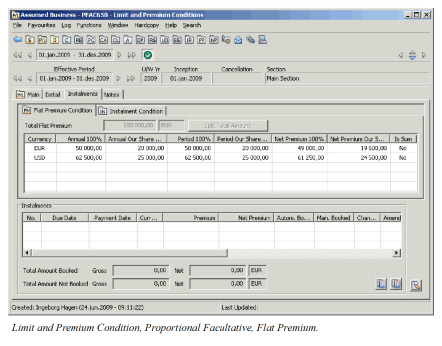
| Field | Description |
|---|---|
| Annual 100% | Premium amount representing premium for one year, independent of insured period. Values: * Number of decimal places: 2 * Minimum value: 0 _Calculations:_ From Period 100% and Insured Period days. From Annual Our Share and Share From 100% in Share condition. (From signed share, from written share if no signed share and from offered share if no written or signed share) _Validations:_ Only available when Annual is selected _Functional Impact:_ Other premium figures. |
| Annual Our Share | Our Share of Annual 100% Values: * Number of decimal places: 2 * Minimum value: 0 _Calculations:_ From Annual 100% and Share From 100% in Share condition. (From signed share, from written share if no signed share and from offered share if no written or signed share) _Validations:_ Only available when Annual is selected. _Functional Impact:_ Other premium figures |
| Period | Premium to be paid for the insured period. Values: * Number of decimal places: 2 * Minimum value: 0 _Calculations:_ Amount for 100% is calculated from amount for our share and vice versa. For more details, refer to Annual 100% and Annual Our Share.If multiple currencies: from Total Deposit Amount, % (split) and fixed RoE If Annual is selected, from Annual 100%, and insured period days. Cannot exceed Total Deposit Premium _Functional Impact:_ Annual premium Instalments |
| Net Premium | Period 100% less deductions in Deduction condition Values: * Number of decimal places: 2 * Minimum value: 0 _Calculations:_ From Period 100% and deductions in Deduction condition.Amount for 100% is calculated from amount for our share and vice versa. For more details, refer to Annual 100% and Annual Our Share. _Validations:_ Cannot exceed Total Deposit Premium _Functional Impact:_ Other Premium figures |
Maintain Non-Proportional Facultative Limits and Premiums #
When type of business is non-proportional facultative, limits and premiums available is not depending on classification. The only exception is Additional Premium when main class of business is Aviation.
Limits can be entered as Main limits, as Original limits and as Sub limits. In addition you can enter more details about the limits in display lists for:
- Time/ Measurement. Used to define contract limitations that are not monetary, e.g. Items and Indemnity Period
- Key Amounts. Used to display informational monetary or percentage limits, e.g. Payroll and Turnover
Maintain Non-Proportional Facultative Limits #
Record liabilities of facultative businesses where the reinsured assumes losses exceeding a pre-agreed limit (Excess).
- Click the Limit and Premium condition button in the Navigation bar.
- Select Edit from the Menu button on the Main tab
- Enter limit figures on the Main tab.
- Click OK.
For description of fields entered in Limits display list, refer to the field descriptions in Maintain Excess of Loss Limits in the Maintain Non-Proportional Treaty Limits and Premiums section.
Refer to parts of Maintain Time Measurement and Maintain Key Amounts in the Maintain Proportional Facultative Limits section.
Maintain Non-Proportional Facultative Fixed Rate Premium #
Record premium type Fixed Rate when the cedent assumes a fixed rate of limits and/ or base amounts.
- Click the Limit and Premium condition button in the Navigation bar.
- Select Edit from the Menu button on the Main tab
- Enter premium figures on the Main tab.
- Click OK.
For maintenance of Minimum and Deposit premiums, refer to Maintain Fixed Rate Premiums in the Maintain Non-Proportional Treaty Limits and Premiums conditions section.
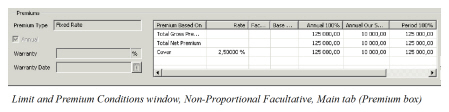
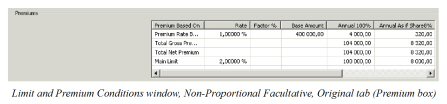
The below describes only fields appearing on the Main tab. Your company customises what will appear in Premium Based On column. Only fields specific to non-proportional facultative business are described here. For other fields, refer to the field descriptions in the Maintain Proportional Facultative Premiums section.
| Field | Description |
|---|---|
| Original Premium Period 100% | Premium based on Total Gross Premium (Original) Values: * Minimum value: 0 * Number of decimal places: 2 _Calculations:_ From Total Gross Premium (Original) and Rate.From Original Premium Period Our Share and Share From 100% in Share condition. (From signed share, from written share if no signed share and from offered share if no written or signed share) _Mandatory:_ No |
| Original Premium Period Our Share | Our Share of Original Premium Period 100% Values: * Minimum value: 0 * Number of decimal places: 2 _Calculations:_ From Original Premium Period 100% and Share From 100% in Share condition. (From signed share, from written share if no signed share and from offered share if no written or signed share) _Mandatory:_ No |
| Original Premium Rate | Percentage or per mill of Total Gross Premium (Original) Values: * Number of decimal places: 5 * Minimum value: 0 _Mandatory:_ No |
| Original Premium Factor | Percentage used in combination with Rate to either reduces or increase the premium. Values: Number of decimal places: 0 Minimum value: 0 Mandatory: No |
| Original Premium Annual | Premium based on Total Gross Premium (Original) representing one year. Values: * Minimum value: 0 * Number of decimal places: 2 _Calculations:_ From Total Gross Premium (Original), Rate and Factor. Amount for 100% are calculated from amount for our share and vice versa. For more details, refer to Original Premium Period 100% and Original Premium Period Our Share. _Validations:_ Only available when Annual is selected _Mandatory:_ No |
Maintain Non-Proportional Facultative Flat Premium #
Record premium type Flat Premium when cedent share premium with reinsurer(s) by assuming a fixed premium amount agreed in advance (premium will not be adjusted).
- Click the Limit and Premium condition button in the Navigation bar.
- Select Edit from the Menu button on the Main tab
- If needed, click the Edit button for the premium type
- Select premium type Flat Premium
- Click Save
- If Limit and Premium condition has been defined previously, you have to save the condition.
- Click the Instalments tab. If needed, select Edit from the Menu button on the Flat Premium Condition sub tab
- Enter flat premium figure in Period premium (or Annual if applicable.).
- Click OK.
Refer to field descriptions in Maintain Proportional Facultative Rate Premiums.
Refer to Maintain Non-Proportional Facultative Flat Premium.
Maintain Non-Proportional Facultative Sliding Rate Premium #
Record premium type Sliding Rate when the cedent share premium with reinsurer (s) by assuming a percentage (of SUPI) determined by the loss amount and a loading factor.
- Click the Limit and Premium Conditions button in the Navigation bar.
- Select Edit from the Menu button on the Main tab.
- If needed, click the Edit button for the premium type
- Select premium type Sliding Rate.
- Click Save.
- Enter premium figures.
- Click OK.
For maintenance of minimum and deposit premiums, refer to Maintain Fixed Rate Premiums in the Maintain Non-Proportional Treaty Limits and Premiums c onditions section.
For field descriptions, refer to Maintain Non-Proportional Treaty Limits and Premiums section, Maintain Sliding Rate Premium.
Maintain Proportional Direct Limits and Premiums #
When the insured proportionally places a part of a particular risk to an insurer, limits and premiums available varies depending on main class of business, class of business and even sub class of business.
Maintain Proportional Direct Limits #
Record liabilities of contracts where the insured assumes a fixed percentage of the losses relating to the contract.
- Click the Limit and Premium condition button in the Navigation bar.
- Select Edit from the Menu button on the Main tab.
- Enter limit figures on the Main tab.
- Click OK.
#
Field description 33. - Maintain Proportional Direct Limits
Refer to field descriptions in Maintain Proportional Facultative Limits.
Maintain Proportional Direct Limit Indexes #
Handle indexes for sub limits of proportional direct businesses for application at renewal.
Enter Indexes
To link a sub-limit to an index:
- Click the Limit and Premium condition button in the Navigation bar.
- Select Edit from the Menu button on the Main tab
- Click the Detail tab.
- Select an indexed sub limit from the Sub Limit display list.
- Select a country, an index table, a base index date table and index date table from the drop-down list in the Limit Index box.
- Click the Set button.
- Click Save.
You can indicate for each sub limit whether an index should apply or not. Your company customises which index should be used for a specific year’s limits.
Remove Indexes
The index for a condition per can be removed if necessary.
- Click the Limit and Premium condition button in the Navigation bar.
- Select Edit from the Menu button on the Main tab.
- Click the Detail tab.
- Select the indexed condition per.
- Click the Clear button.
- Click Save.
Example of Limit Indexation
Your limits are indexed. Upon renewal the system will automatically update the index information in the following way:
-
Country, Index table, Base Index Date remains as before.
-
The Index Date is updated (e.g. if you first select 01/01/97 this field updates to 01/01/98, see example below).
In general the Index Date is up-dated with the corresponding date in next insured period. That means, if insured period is 01.04 to 31.12 (9 months) and Index Date is 01.07 (3 months into insured period), when renewing, insured period is 01.01 to 30.09 (9 moths) and Index Date is 01.04 (3 months into insured period).
If corresponding Index Date is not found, SICS will use the Index Date nearest but before the corresponding date. -
The index value updates to reflect the new index. If the index point cannot be found in the system, the system uses the last of the previous ones (for example, November 1997).
The new limits will be recalculated as follows:
NEW LIMIT = OLD LIMIT x CURRENT (NEW) INDEX / PREVIOUS INDEX
| Example: | Inception | 1997 |
|---|---|---|
| Limit | 1,000,000 | |
| Index Date | 01/01/97 | |
| Index | 200 | |
| Renewal | ||
| Index Date | 01/01/98 | |
| Index | 250 | |
| Limit = 1,000,000 x 250 / 200 = 1,250,000 |
Sub limits indicated as not indexed remain at their previous value.
You can at any point in time change the index information by selecting other countries, other tables, and other base index dates and other index dates.
Note! In these situations you have to click the Set button to indicate that the new limits recorded already reflect the index.
You can select a different index per section.
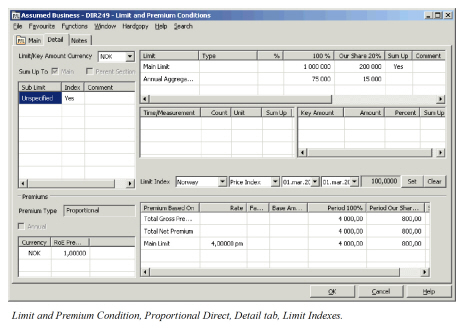
| Field | Description |
|---|---|
| Index | Indicating whether a sub limit should be indexed or not. If a sub limit is indexed, the index will apply to all currencies. Values: Yes / No Default: Yes Mandatory: No (only when condition per is defined) Functional Impact: Business Renewal |
| Limit Index | Four different fields define the index option. * Country. Only countries defined for this business are available * Index Table. Only index tables defined for the selected country. * Base Index Date. Refers to the base index dates of the selected Index table. * Index Date. Refers to the Index Dates recorded for the Base Index Date _Values:_ Drop-down lists _Mandatory:_ No _Functional Impact:_ Business Renewal |
| Value | Refers to the value entered in the Index table Values: Number of decimal places: 2 Mandatory: No Functional Impact: Limit values |
| Set | The first time you enter the limits and indicate the index you should click the Set button. This will activate the functionality and also indicate that the limits now being entered already reflect the index (that is, they are already indexed). |
| Clear | When you click this button, Limit Index is removed from this condition per. |
Maintain Proportional Direct Premiums #
Refer to sections Maintain Proportional Facultative Rate Premium on page 6-167and Maintain Proportional Facultative Flat Premium on page 6-173.
Maintain Non-Proportional Direct Limits and Premiums #
Refer to Maintain Proportional Facultative Limits and Premiums on page 6-151 .
Maintain Special Premium #
For non-proportional facultative or treaty outwards business, it is often sufficient to register the premium conditions on the parent OCC business, and the same premium, rate, and instalments apply for each of the retrocessionaires. If you have agreed to differential premium for some of the retrocessionaires, you need to indicate this on the OCC:
- Open the Premium Limit condition of the OCC in edit mode
- Select the “Special premium” indicator
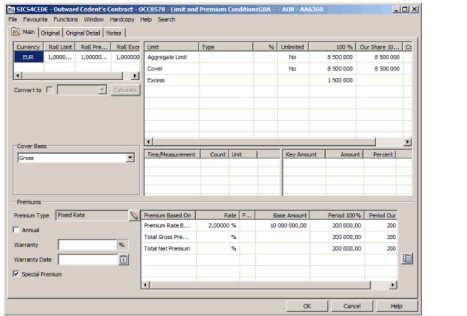
Premium registration when Special Premium is activated #
The OCC should reflect the “normal” premium - that is the premium, rate, and instalment amounts which applies to most of the retrocessionaires.
For those retrocessionaires which have different subject premium, or different premium rates, you need to create a special condition.
- Open the Premium Limit condition of the retrocessionaire with special premium.
- Confirm that you want to create a special condition
- Change the Main premium information, for example the rate, or the amount
- Open the instalment condition in edit mode, and define the new amounts for minimum and deposits
- Select to split proportionally to reflect the new premium split per instalment.
Note that when you have created a special condition on one or more of the retrocessionaires, any changes you make to the OCC’s condition will not be automatically reflected on these, and you must make corresponding changes on retrocessionaires' conditions. A warning to this effect appears whenever you edit the condition on the OCC.
Maintain Premium Instalment Conditions #
When your contract states that the premium should be paid in parts and in intervals, SICS offers extensive functionality for setting up the agreed payment plan. You may enter instalment conditions for any types of business, except for proportional treaty.
This section covers terms and conditions of premium instalments. For details on accounting of instalment, refer to the Book Instalment Premium/Adjustment Premiums section of the Accounting chapter.
Record Premium Instalment Conditions #
Capture the terms relating to the payment of the premium of your agreement, e.g. the number of instalments.
- Click the Premium and Limit Condition button in the Navigation bar.
- Click the Instalments tab and then the Instalment Condition sub tab.
- If required, select Edit from the Menu button.
- Enter the Number of Instalments and other payment details such as Payment of First Instalment.
- Click Save.
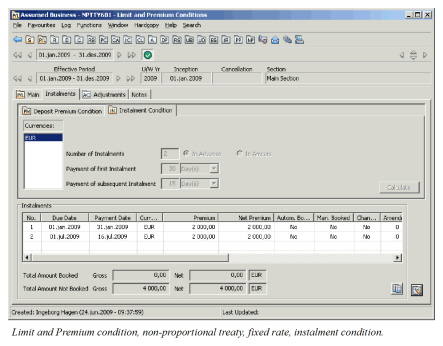
| Field | Description |
|---|---|
| Currencies | Currencies that the instalment terms apply to. Values: ISO standard (currency short name) Default: Main Currency. Validations: Currencies in the Currency table in Limit and Premium conditions are available Mandatory: Yes |
| Number of Instalments | The number of parts the premium amount should split in. Values: Minimum Number: 0 * Maximum Number: 99 _Validations:_ Can vary between the different currencies. _Mandatory:_ Yes |
| In Advance | Indicates if the instalments are due the first day of the period they apply to or not. Values: Yes/ No Default: Yes Validations: If selected, In Arrears cannot be selected and vice versa. Mandatory: Yes |
| In Arrears | Indicates if the instalments are due the last day of the period they apply to or not. Values: Yes/ No Default: No Validations: If selected, In Advance cannot be selected and vice versa. Mandatory: Yes |
| Payment of First Instalment |
Period from the first instalment is due until it has to be settled. Values: * Minimum value: 0 * Maximum value: 999 _Default:_ * Premium Payment Warranty in Clauses Conditions if present. * Credit Terms of Business Partner with the Payment task if no Premium Payment Warranty. * Payment First Instalment in Account Administration on Domicile Country of Business Partner with Payment Task when none of the above present * Global Credit Terms for Instalments on Inward Business when none of the above present. * ‘0’ if none of the above present. (Due date same as insured period from date.) _Mandatory:_ Yes _Functional Impact:_ Premium Installment Schedule |
| Payment of First Instalment Type |
Unit of measurement for the period to pass from the first instalment is due until it has to be settled. Values: * Days * Months * Years _Mandatory:_ Yes |
| Payment of Subsequent Instalment | Period from the instalments are due until they have to be settled, except for the first instalment. Values: Minimum value: 0 Maximum value: 999 Default: Premium Payment Warranty in Clauses Conditions if present. Credit Terms of Business Partner with the Payment task if no Premium Payment Warranty. Payment Subsequent Instalment in Account Administration on Domicile Country of Business Partner with Payment Task when none of the above present Global Credit Terms for Instalments on Inward Business when none of the above present. ‘0’ if none of the above present. (Due date same as insured period from date.) Mandatory: Yes Functional Impact: Premium Installment Schedule |
| Payment of Subsequent Instalment Type | Unit of measurement for the period to pass from the subsequent instalments are due until they have to be settled. Values: * Days * Months * Years _Mandatory:_ Yes |
Calculate Instalment Schedule - when Instalment Conditions Exist #
Calculate the instalment premium amounts and due dates, when you have already recorded the instalment terms (e.g. number of instalments) and the premium to be split (e.g. deposit premium).
- Click the Premium and Limit Conditions button in the Navigation bar.
- Select the Instalments tab.
- Select Edit from the Menu button on the Deposit (Flat) Premium Condition sub tab.
- Select Proportional Split Instalments from the pop-up list in the Instalments display list
- Click OK.
Note! You cannot create an instalment schedule if your business has no insured period specified. Note that this type of To be Advised insured period only exist if your System Administrator has set up the system to allow for it.
Calculate Instalment Schedule - when NO Instalment Condition Exists #
Record the terms relating to the premium payment, e.g. number of instalments, and calculate the instalment premium amounts and due dates, in one go. The procedure assumes that you already have recorded the premium to be spilt (e.g. deposit premium.)
- Click the Premium and Limit condition button in the Navigation bar
- Select the Instalments tab
- Select Edit from the Menu button on the Deposit (Flat) Premium Condition sub tab
- Select Proportional Split Instalments from the pop-up list in the Instalments display list. The system opens the Instalments Conditions in edit mode.
- Enter the Number of Instalments and other payment details, such as Payment of First Instalment, in the Instalment Conditions.
- Click the Calculate button.
- Click Save.
- Click OK.
Note! You cannot create an instalment schedule if your business has no insured period specified. This type of To be Advised insured period only exist if your System Administrator has set up the system to allow for it
Mass Up-Date Installment Payment Date #
You may run a mass update to update premium installment payment dates according to new or changed Premium payment warranty registered in the clauses conditions.
- Navigate to the agreement’s Structure tab
- Highlight e.g. Main Section select Instalments from the pop-up menu
- Select Apply Premium Payment Warranty or Apply Premium Payment Warranty Outward
- Confirm Payment Date update of all not booked instalments
The system will update the payment date on all not booked instalments on all sections/cessions and declarations according to e.g. cession’s own premium payment warranty. You may start on a ‘parent level’, e.g. master agreement, which will result in an update of all belonging sub businesses, e.g. assumed business and their fac protection. Or, you may choose a particular business, e.g. assumed business, and it will update this particular business and belonging sub businesses, e.g. facultative protections.
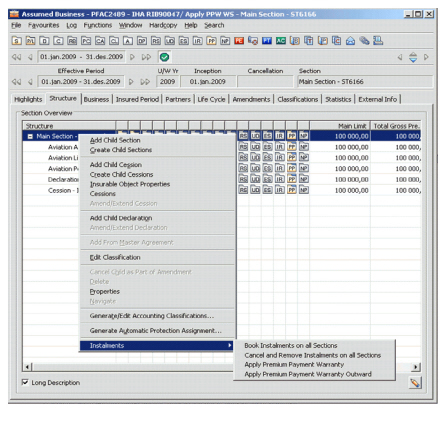
View Instalment Schedule #
To examine the terms of the premium instalments payments schedule:
- Open your business and click the Limit and Premium Condition(P/L) button.
- Click the Instalment tab. You see the instalment(s) in the Instalment display list.
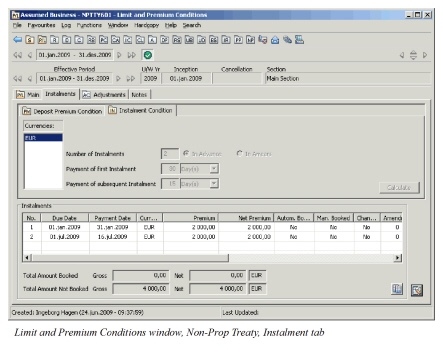
The below table defines fields relating only to the pre-agreed terms of premium instalments. (The accounting status of the instalments is not explained here. For more information on accounting, refer to the Book Instalment Premium/Adjustment Premiums section in the Accounting chapter).
| Field | Description |
|---|---|
| No | Sequential number to identify the instalment. Values: * Minimum number: 0 * Maximum number: 99 _Mandatory:_ Yes |
| Due Date | The due date of a specific instalment. Values: Date Calculation: From Number of Instalments, Insured Period From Date and Insured Period To Date. If in Arrears, the first Due Date equal to Insured Period From Date plus number of days or months into which the year has been split. (1 year/ 4 instalments=3 months.) Validation: Your system administrator might have set up the system to not accept a Due Date prior to the Insured Period From Date Mandatory: Yes |
| Accounting Period From-To | The Accounting Period From-To of a specific premium installment Values: dates Calculation: Depending on the set up of your system administrator, the system either sets the From and To dates equal the Due Date of the instalment or it calculates them as follows: When In Advance selected: - The Accounting Period From date is set to the same as the Due Date of the Instalment. - The Accounting Period To date is set by use of this logic: - The Accounting Period To date = Accounting Period From date of the next instalment less one day. - The Accounting Period To date for LAST instalment = Insured Period end date When In Arrears selected: - The Accounting Period From date of the first instalment = Insured Period start date - The Accounting Period To date of the first instalment = Due Date of the first instalment. - The Accounting Period From date for subsequent instalments = Accounting Period To date of the previous instalment plus one day. - The Accounting Period To date for subsequent instalments = Due Date of subsequent instalments. - The Accounting Period To date for the last instalment = Insured Period end date |
| Accounting Period From-To | Validation: Manually changeable if you have the proper authority. Available only if your system administrator has defined it. Mandatory: Yes Functional Impact: Instalment premium accounting. |
| Payment Date | Indicates when a specific instalment is to be settled. Values: Date Calculation: From Due Date, Payment of First Instalment or Payment of Subsequent Instalments Mandatory: Yes Validation: Cannot be prior to the Due Date. Your system administrator might have set up the system to not accept a Payment Date prior to the Insured Period From Date Functional Impact: Instalment Premium Accounting |
| Extended Payment Date |
When a later date than payment date is agreed for a specific premium installment, this is the date by which the installment must be settled. Values: Date Validation: Only available for proportional and non-proportional facultative and direct businesses. Mandatory: No Functional Impact: Business Partner Ledger |
| Currency | Currency in which the instalment is to be settled. Values: ISO standard (Currency short name). Validations: Only currencies defined in Currency table. Mandatory: Yes |
| Premium | Gross premium for one single instalment. Values: Number of decimals: 2 Calculations: From Deposit (or Flat) Premium Our Share and Number of Instalments. For proportional facultative or direct business: if Deposit Premium does NOT exist, then calculated from Gross Premium instead. Mandatory: Yes |
| Net Premium | Premium net of deductions in Deduction condition. Values: Number of decimals: 2 Calculations: From Gross Premium and deductions in Deduction condition. Mandatory: Yes |
| Changed | Indication whether an instalment has been changed after it was first created. Values: Yes/ No Default: No Mandatory: Yes |
| Amendment | Indicates on which amendment the instalment is created. If the Limit and Premium condition is not amended, instalments are created on “Amendment0” Values: Number field Mandatory: Yes |
| Remark | Free-text field Values: Unlimited number of digits Mandatory: No Functional Impact: None |
Change All Premium Instalments #
- If your instalments are calculated from the premium on the Main tab, you need to change and save this premium before proceeding to step 2.
- Select the Deposit Premium Condition sub tab and select Edit from the Menu
- If your instalments are calculated from deposit premium, then change now the Deposit Premium if needed
- Click Save.
- Reply Yes to the proportional recalculation question.
- Click OK.
Change One Premium Instalment #
When you have made a change to the premium, e.g. deposit premium, you may choose to allocate the entire change to one of the existing instalments, (instead of spreading it equally among all of the instalments).
- Select Edit from the Menu button in the Deposit Premium Condition sub tab.
- Change the Deposit Premium if you require.
- Select the required instalment in the Instalments display list, and select Adjust Premium Instalment from the pop-up list.
- Enter the Adjusted Premium Amount or Total Deposit Amount.
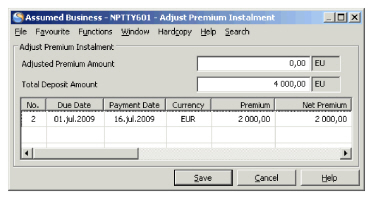 5. In the display list, select Proportionally Split of Adjustment Amount from the pop-up list.
6. Click Save.
5. In the display list, select Proportionally Split of Adjustment Amount from the pop-up list.
6. Click Save.
If you did not change e.g. the deposit premium before adjusting the instalment, the system will inform you that sum of single instalments are not equal to the total deposit premium and ask if you want to recalculate instalments proportionally. Reply No.
- Click OK.
- If you are asked to recalculate instalments proportionally, reply No.
| Field | Description |
|---|---|
| Adjusted Premium Amount | This is where you enter additional/ return premium amount. Values: Number of decimal places: 2 Default: 0.00 Calculations: From Total Deposit Amount and Total Instalment Premium (gross) in same currency. Mandatory: No |
| Total Deposit Amount | Total Deposit Amount including the Adjusted Premium Amount. Values: Number of decimal places: 2 Default: Total Deposit Amount Our Share before adjusted Calculations: From Adjusted Premium Amount and Total Instalment Premium (gross) in same currency. Mandatory: No |
Add One Instalment #
In SICS it is possible to add one additional instalment although your business has already an instalment schedule set up. A typical situation is when you receive a penalty premium, a premium that should not be included in the deposit premium. The option to add one instalment is also available when there is no instalment schedule present.
- Select Edit from the Menu button in the Deposit Premium Condition sub tab
- In the Instalments display list, select Add One Instalment from the pop-up list. You see the ‘Add Instalment’ window.
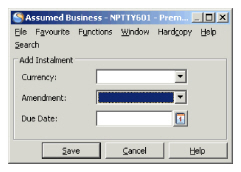 3. Select Currency and Amendment.
4. Enter a Due Date for the additional instalment.
5. Click Save to return to the Edit window.
6. Enter an amount for the added instalment in the Premium column in the Instalments display list
7. Click OK
8. Reply No to the proportional recalculation question
3. Select Currency and Amendment.
4. Enter a Due Date for the additional instalment.
5. Click Save to return to the Edit window.
6. Enter an amount for the added instalment in the Premium column in the Instalments display list
7. Click OK
8. Reply No to the proportional recalculation question
Note! If you register instalment conditions and use the proportional split option after you have added an instalment; the single instalment will not be considered in the instalment distribution. If however confirming (answer “yes”) “Split Proportional” on instalment recalculation, Total Deposit Premium is split on all instalments (number of instalments defined in Instalment Condition and instalment(s) created by Add One Instalment.
| Field | Description |
|---|---|
| Currency | Currency in which the additional instalment is to be created. Values: ISO standard (currency short name) Validations: Only currencies defined in Currency table in Limit and Premium conditions are available for selection. Mandatory: Yes |
| Amendment | Specify for which amendment the additional instalment is to be created. Values: All available amendments Mandatory: Yes Functional Impact: Premium instalments |
| Premium accounting | |
| Due Date | Enter the Due Date for the additional instalment. Values: Calendar Mandatory: Yes |
Remove One Instalment #
To delete an item from the instalment schedule:
- Open the Deposit Premium Condition in edit mode.
- Select the instalment you want to remove.
- Select Remove One Instalment from the pop-up list.
- Confirm removal of selected instalment.
- Click OK.
The system will stop you if the item you try to remove has already been booked.
Remove All Instalments #
To delete the entire instalment schedule:
- Open the Deposit Premium Conditions in edit mode.
- Select Remove All from the pop-up list in Instalments display list.
- Confirm removal of all instalments.
- Click OK.
The system will stop you if any of the instalments are already booked.
Change Accounting Period of Instalment #
Provided you have the access rights, you may change the accounting period in the instalment schedule.
- Open the Deposit Premium Conditions.
- From the menu button, select Edit Accounting Period.
- In the Accouting Period column of the instalment schedule, select the row that you want to change.
- Change as you require.
- Click OK.
Add Value Added Tax (VAT) % #
In case you should have specific Value Added Tax (VAT) calculated for instalment premium and deductions entry codes applicable to VAT, then enter a percentage in the VAT % field for the instalment. Use of the VAT % per instalment will only take effect when the system parameter VAT Calculation based on EC Groups is selected and when the Use VAT Calculation is activated on the Insured Period.
Values: Any positive number with 2 decimals
Mandatory: No
Functional Impact: A percentage given here will overrule the percentage found on the Cedent’s country properties. If the Use VAT Calculation is activated on the Insured Period when the instalment is booked, the system will calculate VAT for all entry codes applicable to VAT by use of the percentage given in this field for the actual instalment. If no percentage is given in this field for the instalment, then the system will use the VAT percentage found on the Cedent’s country (or broker’s country for brokerage) if any, else no VAT is calculated.
-
Open the Instalment Conditions.
-
a. Enter the minimum/deposit premium and select Proportional Split
Instalments.
b. Or select Edit if instalments already exist -
Navigate to the VAT % column for the actual instalment(s).
-
Enter a VAT % as required. NB! If the instalment is already booked the VAT % field is disabled.
-
Click OK.
Maintain Premium Adjustment Conditions #
Your contract may stipulate that the premium should be adjusted when the actual subject premium is known. SICS facilitates this by letting you set up and maintain the agreed premium adjustment plan.
All types of business except proportional treaty have adjustment condition.
When the premium type is Flat Premium, adjustment conditions are not available.
Record Premium Adjustment Conditions #
Capture the terms relating to the when the premium of your agreement should be adjusted and paid, e.g. the number of adjustments.
- Click the Limit and Premium Conditions button in the Navigation bar.
- Click the Adjustments tab.
- Select Edit from the Menu button.
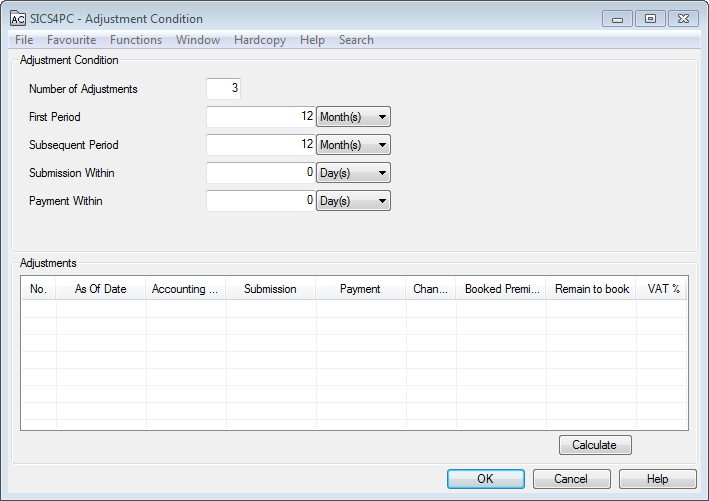 4. Enter the required information.
5. Click OK.
4. Enter the required information.
5. Click OK.
Calculate Adjustment Schedule #
To calculate the various due date of the adjustment premiums:
- Click the Premium and Limit Conditions button in the Navigation bar
- Select the Adjustments tab
- Select Edit from the Menu button.
- Click the Calculate button.
- Click OK.
Note! You may not create an adjustment schedule if your business does not have an insured period specified. This type of To be Advised insured period exist however only if your System Administrator has set up the system to allow for it.
View Premium Adjustment Condition #
To see the existing premium adjustment schedule:
- Open your business and click the Limit and Premium Condition (P/L) button in the Navigation bar.
- Click the Adjustment tab.
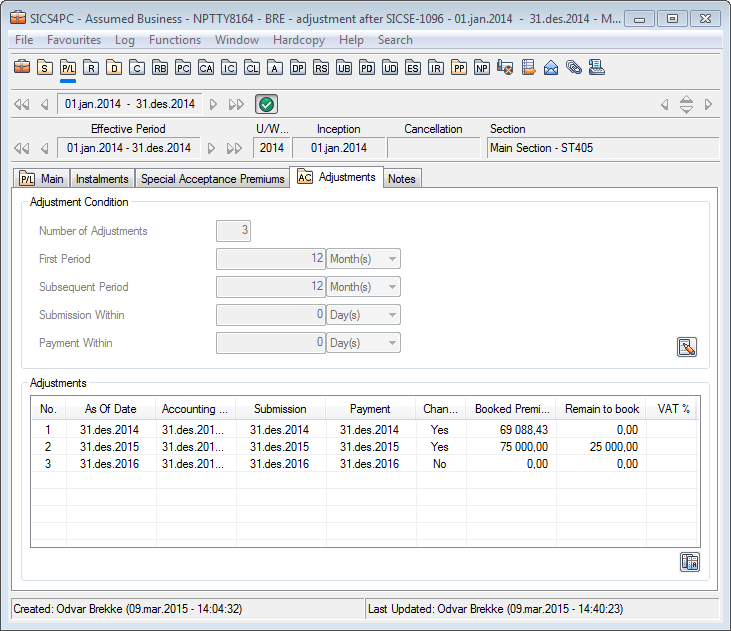
| Field | Description |
|---|---|
| Number of Adjustments | Number of times premium is to be adjusted. Values: * Minimum value: 1 * Maximum value: 99 * Number of decimal places: 0 _Mandatory:_ No |
| First Period | Number of Days/ Months/ Years after the insured period starts date, the first adjustment is to be calculated (As Of Date). Typical First Period will be 12 months if insured period is one year. Values: * Minimum value:0 * Maximum value: 99 * Number of decimal places: 0 _Day(s) Month(s) Year(s)_ _Default:_ 12 Month(s) _Mandatory:_ No |
| Subsequent Period | Number of Days/ Months/ Years after First Period the next adjustment is to be calculated (As Of Date). The period you enter in this field is used to calculate As Of Date for all subsequent adjustments. Values: * Minimum value:0 * Maximum value: 99 * Number of decimal places: 0 _Day(s) Month(s) Year(s)_ _Default:_ 12 Month(s) _Mandatory:_ No _Functional Impact:_ Adjustment premium accounting. |
| Submission Within | Number of Days/ Months/ Years after As Of Date premium adjustment advice should be sent from the cedent. Values: * Minimum value:0 * Maximum value: 99 * Number of decimal places: 0 _Day(s) Month(s) Year(s)_ _Default:_ 0 Day(s) _Mandatory:_ No |
| Payment Within | Number of Days/ Months/ Years after As Of Date premium adjustment advice should be paid. Values: * Minimum value:0 * Maximum value: 99 * Number of decimal places: 0 _Day(s) Month(s) Year(s)_ _Default:_ 0 Day(s) _Mandatory:_ No |
| No. | Indicating which number of adjustment Values: * Minimum value: 1 * Maximum value: 99 _Mandatory:_ Yes |
| As Of Date | Date adjustment premium is calculated. The first adjustment is typically calculated the same date as the end of the insured period. Values: Date field Calculation: First Adjustment: Start date of insured period plus number of Days/ Months/ Years entered in First Period field in Create AdjustmentsSubsequent Adjustments:First Adjustment’s As Of Date plus number of Days/ Months/ Years entered in Subsequent Period field in Create Adjustments. Refer to Create Premium Adjustment Conditions Mandatory: No Functional Impact: Adjustment premium accounting |
| Accounting Period From-To |
The Accounting Period From-To belonging to a specific premium adjustment. Values: dates Calculation: Depending on the set up by your system administrator, the system either sets the From and To dates equal to the As of Date of the adjustment, or it calculates them as follows: - For the first Adjustment, the Accounting Period From date is set equal to Insured Period start date. - For the subsequent Adjustment, the Accounting Period From date is set equal to the As of Date of the preceding Adjustment plus one day. - The Accounting Period To date is set equal to the As of Date of the Adjustment. Validations: Manually changeable if you have the proper authority |
| Available only if your system administrator has defined it Mandatory: Yes Functional Impact: Adjustment premium accounting. |
|
| Submission | Date when adjustment advice is sent from cedent. Values: Date field. Calculation: As Of Date plus number of Days/ Months/ Years entered in Submission Within field in Create Adjustments. Refer to Create Premium Adjustment Conditions Validations: Cannot be less than As Of Date Mandatory: No Functional Impact: Adjustment premium accounting. |
| Payment | Date adjustment premium is due for payment. Values: Date Field Calculations: As Of Date plus number of Days/ Months/ Years entered in Payment Within field in Create Adjustments Refer to Create Premium Adjustment Conditions Validations: Payment Date cannot be less than As Of Date |
| Changed | Indication whether the adjustments you see have been changed after creation Values: Yes/ No Default: No |
| Booked Premium | How much is booked of the Gross Premium amount for a specific adjustment. Values: Amount with 2 decimals Calculations: The sum of premium bookings from the business ledger linked to this specific adjustment (only on closed worksheets). Mandatory: Yes |
| Remain to book | How much remains to be booked of the Gross Premium amount for a specific adjustment. Values: Amount with 2 decimals Calculations: Gross premium Our Share 100% on the Premium Accounting window less sum of premium bookings from business ledger linked to this specific adjustment (only on closed worksheets). Mandatory: Yes |
VAT % #
In case you should have specific Value Added Tax (VAT) calculated for adjustment premium and deductions entry codes applicable to VAT, then enter a percentage in the VAT % field for the adjustment. Use of the VAT % per adjustment will only take effect when the system parameter VAT Calculation based on EC Groups is selected and when the Use VAT Calculation is activated on the Insured Period.
Values: Any positive number with 2 decimals
Mandatory: No
Functional Impact: A percentage given here will overrule the percentage found on the Cedent’s country properties. If the Use VAT Calculation is activated on the Insured Period when the adjustment is booked, the system will calculate VAT for all entry codes applicable to VAT by use of the percentage given in this field for the actual adjustment. If no percentage is given in this field for the adjustment, then the system will use the VAT percentage found on the Cedent’s country (or broker’s country for brokerage) if any, else no VAT is calculated.
Remove an Adjustment #
You can delete an adjustment if it has not already been booked.
- Click the Premium and Limit Condition button in the Navigation bar.
- Select the Adjustments tab
- Select Edit from the Menu button
- In the Adjustments display list, select the row you want to remove.
- Select Remove from the pop-up list.
- Confirm removal of selected adjustment
- Click OK
- Reply No to the question of recalculation.
Remove All Adjustments #
To delete the entire adjustment schedule in one go:
- Open the Adjustment tab in edit mode.
- In the Adjustments display list, select Remove All from the pop-up list.
- Confirm removal of all adjustments.
- Click OK.
- Reply No to the question of recalculation.
The system will stop you if any of the adjustments are already booked.
Edit Accounting Period #
This specific edit is only presented on the menu if the system parameter ‘Accounting Period defined within Instalments and Adjustments condition’ has been selected.
Provided you have the access rights to this specific edit, you can change the date values within the column ‘Accounting Period From - To’ of the Instalment schedule.
Change Accounting Period of Adjustment #
Provided you have the access rights, you may change the accounting period in the adjustment schedule.
- Select the Adjustments tab
- From the menu button, select Edit Accounting Period.
- In the Accouting Period column of the adjustent schedule, select the row that you want to change.
- Change as you require.
- Click OK.
Maintain Special Acceptance Premiums #
Sometimes special acceptances are made under a non-proportional treaty as an alternative to facultative reinsurance. It can for example be an inclusion of a risk which is not otherwise covered under the treaty, or an extension of the limit of a risk exceeding the treaty limit. The special acceptance often includes an additional agreed premium. This additional premium can be recorded independent of a deposit premium or a flat premium. The SICS calculation of adjustment premium does not include the special acceptance premiums. The special acceptance premium is available for assumed non-proportional treaties only and only if your system administrator has activated this function.
For details on the accounting of this premiums, refer to the Book Instalment Premium/Adjustment Premiums section of the Accounting chapter.
Add Special Acceptance Premium #
Record a special acceptance premium amount with relevant dates.
- Select the Limit and Premium Conditions button in the Navigation bar.
- Select the Special Acceptance Premiums tab.
- Select Edit from the Menu button.
- From the pop up menu, select Add Special Acceptance Premium.
- Select Currency and Amendment and enter Due Date, Payment Date and Amount.
- Select Save
- Repeat from 4 to 6 for each new Special Acceptance Premium to be added

| Field | Description |
|---|---|
| Currency | Currency in which the special acceptance premium is to be created. Values: ISO standard (currency short name) Validations: Only currencies defined in Currency table in Limit and Premium conditions are available. Mandatory: Yes Functional Impact: Premium Accounting |
| Amendment | The amendment for which the special acceptance premium is to be created. Values: All available amendments Mandatory: Yes |
| Due Date | Enter the Due Date for the special acceptance premium. Values: Date Mandatory: Yes |
| Payment Date | The payment date for the special acceptance premium. Values: Date Calculation: Based on Due Date and: Credit Terms of Business Partner with the Payment task Dates on the Account Administration on Domicile Country of Business Partner with Payment Task when the above not present Global Credit Terms for Instalments on Inward Business when none of the above present. Equal the Due Date if none of the above is present. Validations: Can be manually overridden Mandatory: Yes |
| Amount | The gross premium amount to be received for the special acceptance. Values: Amount * Number of decimals: 2 _Mandatory:_ Yes |
Remove One Special Acceptance Premium #
Remove a selected special acceptance premium from the schedule.
- Click the Limit and Premium Conditions button in the Navigation bar.
- Click the Special Acceptance Premiums tab.
- Select Edit from the Menu button.
- Select the Special Acceptance Premium to be deleted, right click and select the Remove selected Special Acceptance Premium option.
The system will stop you if the item you try to remove has already been booked.
Remove All Special Acceptance Premium #
Remove all special acceptance premiums from the schedule.
- Click the Limit and Premium Conditions button in the Navigation bar.
- Click the Special Acceptance Premiums tab.
- Select Edit from the Menu button.
- Right click and select the Remove All option.
The system will stop you if any of the items are already booked.
View Special Acceptance Premium Schedule #
Examine the agreed special acceptance premium(s)
- Click the Limit and Premium Conditions button in the Navigation bar.
- Click the Special Acceptance Premiums tab. You see the Special Acceptance Premium items in the display list.
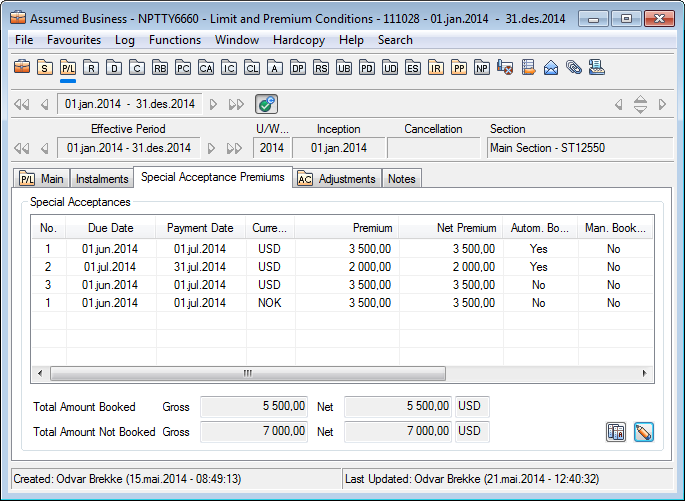
The below table defines fields relating only to the pre-agreed terms of special acceptance premiums. (The accounting status of the premium is not explained here. For more information on accounting, refer to the Book Instalment Premium/Adjustment Premiums section in the Accounting chapter)
| Field | Description |
|---|---|
| No | Sequential number to identify the instalment. Values: Minimum number: 0, maximum number: 99 Mandatory: Yes Functional Impact: Premium Accounting |
| Due Date | The due date of the special acceptance premium. Values: Date Mandatory: Yes |
| Payment Date | Payment Date for the special acceptance premium. Values: Date Mandatory: Yes Functional Impact: Premium Accounting |
| Currency | Currency in which the special acceptance premium is to be settled. Values: ISO standard (currency short name) Mandatory: Yes Functional Impact: Premium Accounting |
| Premium | Gross premium amount to be received for the special acceptance premium. Values: Number of decimals: 2 Mandatory: Yes Functional Impact: Premium Accounting |
| Net Premium | Premium net of deduction defined in the deduction conditions. Values: Number of decimals: 2 Calculation: The amount in the Premium column (Gross Premium) less the deductions defined on the Deduction conditions. Mandatory: Yes |
| Changed | Indication whether a special acceptance premium has been manually changed after it was first created or not. Values: Yes/ No Default: No Mandatory: Yes |
| Amendment | Indicates on which amendment the special acceptance premium is created. If the Limit and Premium condition is not amended, premiums are created on “Amendment0” Values: Number Mandatory: Yes Functional Impact: Premium Accounting |
| VAT % | In case you should have specific Value Added Tax (VAT) calculated for the special acceptance premium and deductions entry codes applicable to VAT, then enter a percentage in the VAT % field for the special acceptance premium. Use of the VAT % per special acceptance premium will only take effect when the system parameter VAT Calculation based on EC Groups is selected and when the Use VAT Calculation is activated on the Insured Period. Values: Any positive number with 2 decimals Mandatory: No Functional Impact: A percentage given here will overrule the percentage found on the Cedent’s country properties. If the Use VAT Calculation is activated on the Insured Period when the special acceptance premium is booked, the system will calculate VAT for all entry codes applicable to VAT by use of the percentage given in this field for the actual special acceptance premium. If no percentage is given in this field for the special acceptance premium, then the system will use the VAT percentage found on the Cedent’s country (or broker’s country for brokerage) if any, else no VAT is calculated. |
| Remark | Free-text field Values: Unlimited number of characters Mandatory: No Functional Impact: None |
Maintain Multiple Limits and Premiums #
SICS allows you to record different limits and premiums within the same business. Premium and limits can be recorded per:
- Sections
- Cessions and Declarations
- Sub Limits and Premiums within same section
Maintain Limits and Premiums of Sections #
SICS allows you to create independent sections per e.g. classifications. Sections, sub sections and sub sub sections can be created for class of business, sub class of business, country, etc.
When you have found the section which your limit or premium applies to, the same principles for entry exists as described for each type of business in the Handle Limit and Premium conditions section.
Maintain Limits and Premiums of Cessions and Declarations #
All types of business can have linked insured object cessions and declarations (cessions without linked insurable object).
When you have found the cession or declaration which your limit or premium apply to, the same principles for entry exist as described for each type of business in the Handle Limit and Premium conditions section.
Calculate Instalment Schedule of Section/Cession/Declaration #
You may have for example a facultative agreement that has a premium rate for the fire coverage and another premium rate for the business interruption coverage. Your company may have a requirement of booking per classification, and you may therefore want to see the instalment premiums and due dates for each section separately. Another example might an agreement having a fire premium that should be paid in 2 instalments, while a business interruption premium that should be paid in 4 instalments.
When you have found the section/cession/declaration, which your instalment schedule applies to, the same principles of entry, exists as described in Maintain Premium Instalment. SICS requires however that you create the instalment schedules only on one section level within the same business. For example, if an instalment schedule exists on the main section, you cannot create instalment schedules on the sub sections. You must first remove the instalments from the main section. The other way around, if there are instalment schedules on the sub sections, you cannot create an instalment schedule on the main section.
Maintain Sub Limits and Premiums within Same Business/Section #
SICS allows you to enter sub limits and sub premiums without creating independent sections, e.g. limit per building, and limit per contents. Or within one section, you may keep sub limits, without splitting the section into further sub sections.
This is possible for all types of business except for non-proportional treaties. When the type of business is proportional treaty, you can enter sub limits but not sub premiums.
Which sub limits that are available is depending on class of business and is customised by your company. The same sub limit can be selected several times.
For all types of business, the same limits and premiums can be entered on total and on sub level. Which limits and premiums that are available are customised by your company and are depending on type of business.
Enter Proportional Treaty Sub Limits within Same Business/Section
To record limit figures for sub limits as presented in the agreement:
- Click the Limit and Premium condition button in Navigation bar.
- Open Limit and Premium condition in edit mode and click the Detail tab.
- Select Add from the pop-up list in the Sub Limit display list.
- Select the required Sub Limit in Select Available Sub Limits.
- Click Save.
- Select Sub Limit from the display list, and enter limit figures.
- Click OK.
Refer to field descriptions in Maintain Quota Share Limits.
Enter Proportional Facultative Sub Limits within Same Business/Section
To record limit figures for Sub Limit as presented in the agreement:
- Click the Limit and Premium condition button in Navigation bar.
- Open Limit and Premium condition in edit mode and click the Detail tab.
- Select Add from the pop-up list in the Sub Limit display list.
- Select the required Sub Limits in the Select Available Sub Limits.
- Click Save.
- Select a Sub Limit in the display list, and enter limit figures.
- Click OK.
Refer to field descriptions in Maintain Proportional Facultative Limits.
Enter Proportional Facultative Sub Premiums within Same Business/Section
To record sub premiums for Sub Limits as presented in the agreement:
- Click the Limit and Premium condition button in Navigation bar.
- Open Limit and Premium condition in edit mode and click the Detail tab.
- Select the required Sub Limit in the display list.
- Enter premium figures for selected sub limit.
- Click OK.
Refer to field descriptions in Maintain Proportional Facultative Rate Premiums.
Enter Non-Proportional Facultative Sub Limits within Same Business/Section
When non- proportional facultative business, limits for businesses covered by the non-proportional reinsurance can be entered as
- Original limit figures per sub limit.
- Total of original figures. Register Sub Limit Figures for the Original Businesses Reinsured:
- Click the Limit and Premium condition button in Navigation bar.
- Open Limit and Premium condition in edit mode.
- Click the Original Details tab.
- Select Add from the pop-up list in the Sub Limit display list.
- Select required Sub Limits in Select Available Sub Limits.
- Click Save.
- Select the required Sub Limit in the display list.
- Enter limit figures for selected sub limit.
- Click Save.
Register Total Limit Figures for the Original Businesses Reinsured:
- Click the Limit and Premium condition button in Navigation bar.
- Open Limit and Premium condition in edit mode.
- Click the Original tab.
- Enter limit figures.
- Click Save.
Refer to field descriptions in Maintain Proportional Facultative Limits.
Enter Non-Proportional Facultative Sub Premium within Same Business/Section
When non- proportional facultative business, premiums for businesses covered by the non-proportional reinsurance can be entered as
- Original premiums per sub limit
- Total of original premiums Register Sub Limit Premium Figures for the Original Businesses Reinsured:
- Click the Limit and Premium condition button in Navigation bar.
- Open Limit and Premium condition in edit mode.
- Click the Original Details tab.
- Select the required Sub Limit in the display list.
- Enter premium figures for the selected sub limit.
- Click OK.
Register Total Premium Figures of the Original Businesses Reinsured:
- Click the Limit and Premium condition button in Navigation bar.
- Open Limit and Premium condition in edit mode.
- Click the Original tab.
- Enter premium figures.
- Click OK.
Note! When the premium type is Sliding Rate, you cannot enter sub premiums.
Refer to field descriptions in Maintain Proportional Facultative Rate Premiums.
Enter Proportional/Non-Proportional Direct Sub Limits within Same Business/Section
Except for indexation fields (proportional direct), entering and maintaining proportional and non-proportional direct sub limits are the same as when type of business is proportional or non-proportional facultative.
Refer to the Maintain Proportional Sub Limits within Same Business/Section and Maintain Non-Proportional Facultative Sub Limits within Same Business/Section.
Maintain Proportional / Non-Proportional Direct Sub Premium within Same Business/Section
Refer to the Maintain Proportional Sub Premiums within Same Business section and_Maintain Non-Proportional Facultative Sub Premiums within Same Business section._
| Field | Description |
|---|---|
| Limit/ Key Amount Currency | Indicates in which currency limits are registered. Values: ISO standard (currency short name) Mandatory: No |
| Sub Limit | What a specific limit or premium refers to, e.g. Voyage, Time Values: What is available in Select Available Sub Limits is customised by your company and is depending on main class of business and class of business. Unspecified is available as default value. Validations: Same sub limit can be selected several times. Mandatory: No |
| Comment | Free-text field that furthers specifies sub limit. Values: Maximum digits: 30 Mandatory: No Functional Impact: None |
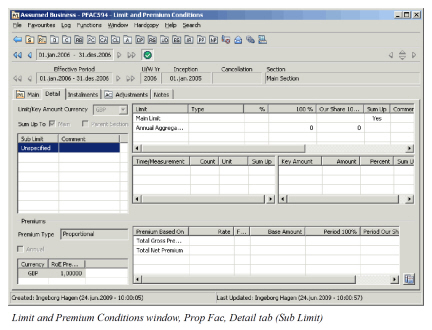
Sum up Limits and Premiums #
SICS also allows you to sum up relevant limit and premium figures
- From section to business (main section) or sub sections to higher sections
- From cessions and declarations to business (main section) or sections
- Within the same business (main section) or section
Whether or not premium and limits should by default be summed up is customised by your company and can vary between different main classes of businesses.
If one of the following factors affecting a summed up value is removed, the summed up value is adjusted accordingly:
- Sections, sessions, sub limit
- Limit and Premium condition (delete condition)
- Deposit Premium Condition (delete condition)
- Flat Premium Condition (delete conditions)
- Limit and premium items (remove for example, Main Limit or Total Sum Insured) Note! The total will only be adjusted if it already is a result of a sum up (Is Sum is Yes). Thus, the system will NOT recalculate figures, which has been manually overridden.
Sum up Limits to Higher Section #
Summing up limit figures from cessions and declarations to sections or from child sections to higher sections can only be done when type of business is proportional facultative or proportional direct.
- Open the Limit and Premium condition on a sub section, cession or declaration in edit mode.
- Set the value to Yes in Sum Up column on the Main tab for limit values to be summed up.
- Select Sum Up to Parent Section.
- Click Save.
Sum up must be set individually for the limit values you want to sum up. Only values that are allowed to sum up will have the sum up functionality available.
| Field | Descriptions |
|---|---|
| Sum Up To Parent Section | Must be selected if premium and limit values are to be summed up. Values: Yes/ No Default: No Validation: Only available for selection on sub sections, cessions and declarations when type of business is Proportional Facultative or Direct Mandatory: No Functional Impact: Limits and premiums on higher levels |
| Limit Sum Up | Indication if limit(s) on sub sections, cessions or declarations should be summed up to higher levels. Values: Yes/ No Default: Customised by your company Validations: Only available when type of business is Proportional Facultative or Direct. Only available on sub sections, cessions or declarations and when condition is not inherited Mandatory: Yes Functional Impact: Main Limit on higher sections |
| Limit Is Sum | Indication if limit figures originate from summing up limit figures on sub levels. Values: Yes/ No Default: No Validations: Only available when type of business is Proportional Facultative or Direct. Only available on levels which have sub sections, cessions or declarations. Value is automatically set and cannot be manually changed. Mandatory: Yes Functional Impact: * Other limit figures * Premium figures |
Sum up Premiums to Higher Section #
Summing up of premium figures from cessions and declarations to sections or sub from sub sections to higher sections can be done for all types of business, proportional and non-proportional.
Sum up must be set individually for the premium values you want to sum up. Only values that are allowed to sum up will have the sum up functionality available.
Sum up Premiums
Mark the premium items that should be included in sums on higher sections and calculate these sums.
-
Open the Limit and Premium Condition on a sub section, cession or declaration in edit mode.
-
Set the value to Yes in Sum Up column on the Main tab for premium values to be summed up.
If non-proportional treaty, select to sum up SUPI and/ or Revised SUPI. -
Select Sum Up to Parent Section if your business is facultative or direct.
-
Click Save.
Sum up Deposit/ Flat Premium
Minimum and deposit premiums can also be summed up to higher sections. When premium type is Flat Premium, the period premium entered on the Flat Premium Conditions tab can be summed up.
- Open the Deposit/ Flat Premium Conditions tab on a sub section, cession or declaration in edit mode.
- Set the value to Yes in the Sum Up column.
- Click Save.
| Field | Descriptions |
|---|---|
| Sum Up To Parent Section | Must be selected if premium and limit values are to be summed up. Values: Yes/ No Default: No Validation: Only available for selection on sub levels and cessions/ declarations when type of business is Proportional Facultative or Direct Mandatory: No Functional Impact: Limits and premiums on higher sections. |
| Premium Sum Up | Indication whether or not premiums on sub sections or cessions/ declarations should be summed up to higher sections. Values: Yes/ No Default: Customised by you company Validations: Only available on sub sections, cessions and declarations and when conditions are not inherited. Mandatory: Yes Functional Impact: Premium on higher sections. |
| Premium Is Sum | Indication whether premium originates from summing up premiums on sub levels. Values: Yes/ No Default: Customised by you company Validations: Only available on levels that have sub sections and/or cessions/declarations.Value is automatically set and cannot be changed manually. Mandatory: Yes Functional Impact: Premium figures. |
Sum up Sub Limits within Same Section #
In SICS you can maintain sub limits without having to create independent child sections from business classifications.
Refer to Maintain Limits and Premiums of Sections on page 6-224.
When type of business is facultative or direct, it is also possible to get a sum of sub limits for a business (main section) or for a section.
Sum up Proportional Sub Limits within Same Section
To record limit sum up conditions as presented in the proportional agreement:
- Open the Limit and Premium condition in edit mode.
- Click the Detail tab.
- Set the value to Yes in Sum Up column for limit values to be summed up.
- Select Sum up to Main.
- Click Save.
Sum up Non-Proportional Sub Limits within Same Section
To record limit sum up conditions as presented in the non-proportional agreement:
- Open the Limit and Premium condition in edit mode.
- Click the Original Detail tab.
- Set the value to Yes in Sum Up column for limit values to be summed up.
- Select Sum up to Original.
- Click Save.
Original sub limits and total original limits cannot be summed up to the non-proportional facultative and direct limits.
| Field | Description |
|---|---|
| Sum Up to Main | Indicator that when selected indicate that sub limits and premiums will be summed up to total limits and premiums. Values: Yes/ No Default: No Validations: Available when type of business is Proportional Facultative or Proportional Direct. Mandatory: No Functional Impact: Main premiums and limits. |
| Sum Up to Original | Indicator that when selected indicate that Original sub limits and premiums will be summed up to total original values. Values: Yes/ No Default: No Validations: Available when type of business is Non-Proportional Facultative and Direct. Mandatory: No Functional Impact: Original Premiums and Limits. |
Sum up Sub Premium within Same Section #
In SICS you can sum up premiums within the same section when type of business is facultative and direct.
Sum up Proportional Premiums within Same Section
To record premium sum up conditions as presented in the proportional agreement:
- Open the Limit and Premium condition in edit mode.
- Click the Detail tab.
- Set the value to Yes in Sum Up column for premium values to be summed up.
- Select Sum up to Main.
- Click Save.
Summing up premium values are also depending on premium type.
- Proportional Rate. Original premium figures can be summed up to Total premium figures.
- Flat Rate. No original premium values can be entered. Sum up Non-Proportional Premiums within Same Section
To record premium sum up conditions as presented in the non-proportional agreement:
- Open the Limit and Premium condition in edit mode.
- Click the Original Detail tab.
- Set the value to Yes in Sum Up column for premium values to be summed up.
- Select Sum up to Original.
- Click Save.
Original premiums and total original premiums cannot be summed up to the non-proportional facultative and direct premiums.
Summing up premium values are also depending on premium type.
- Fixed Rate. Original premium values can be summed up to total original figures.
- Flat Rate. Original premium values can be summed up to total original figures.
- Sliding Rate. No original or total original premium values can be entered.
Refer to field descriptions in Sum up Sub Limits within Same Section on page 6-236.
Sum up Sub Limits from Sub Section to Sub Limit on Higher Section #
When type of business is direct or facultative (proportional and non-proportional) you may sum up values per e.g. contents, building from several sub sections to a higher section and get the sum specified per e.g. contents, building.
Sum up Proportional Sub Limits to Higher Sub Limits
To record limit sum up conditions as presented in the proportional agreement:
- Open the Limit and Premium condition on a sub section in edit mode.
- Click the Detail tab.
- Set the value to Yes in Sum Up column for limit values to be summed up.
- Select Sum Up to Parent Section.
- Click Save.
Sum up Non-Proportional Limits to Higher Sub Limits
To record limit sum up conditions as presented in the non-proportional agreement:
- Open the Limit and Premium condition on a sub section in edit mode.
- Click the Original Detail tab.
- Set the value to Yes in Sum Up column for limit values to be summed up.
- Click the Original tab.
- Set the value to Yes in Sum Up column for limit values to be summed up.
- Select Sum Up to Parent Section.
- Click Save.
It is not necessary to sum up both total original and original detail limit values to parent section.
Original detail limit values can be summed up to both original limits and to parent section.
Refer to Sum up Limits to Higher Section on page 6-231 for field descriptions.
Sum up Sub Premiums from Sub Section to Sub Premium on Higher Section #
When type of business is direct or facultative (proportional and non-proportional) you can sum up sub premium values from a sub section to sub premiums on a higher section.
Sum up Proportional Sub Premiums to Higher Sub Premiums
To record premium sum up conditions as presented in the proportional agreement:
- Open the Limit and Premium condition on a sub section in edit mode.
- Click the Detail tab.
- Set the value to Yes in Sum Up column for premium values to be summed up.
- Select Sum Up to Parent Section.
- Click Save.
Summing up premium values are also depending on premium type.
- Proportional Rate. Original values can be summed up to original values on higher section.
- Flat Rate. No original premium values can be entered. Sum up Non-Proportional Sub Premiums to Higher Sub Premiums
To record premium sum up conditions as presented in the non-proportional agreement:
- Open the Limit and Premium condition on a sub section in edit mode.
- Select the Original Detail tab.
- Set the value to Yes in Sum Up column for premium values to be summed up.
- Click the Original tab.
- Set the value to Yes in Sum Up column for premium values to be summed up.
- Select Sum Up to Parent Section.
- Click Save.
It is not necessary to sum up both total original and original premium values to parent section.
Original premium values can be summed up to total original premiums within the same sections, and to original premiums parent section.
Summing up premium values are also depending on premium type.
- Fixed Rate. Total original premium values and original premium values can be summed up to total original premiums and original premiums on higher section.
- Flat Rate. Total original premium values and original premium values can be summed up to total original premiums and original premiums on higher section.
- Sliding Rate. No original or total original premium values can be entered.
Refer to Sum up Premiums to Higher Section on page 6-233 for field descriptions.
Sum up when Limits and Premiums in Different Currencies #
Summing up is done only in main currency of the section receiving the sum.
- If sub sections, cessions or declarations are entered in another currency than the section receiving the sum, the sum up values are converted to main currency before sum up.
- If existing for the business, the fixed exchange rate of the currency is used (Refer to part Limit and Premium currencies).
- Otherwise, a floating exchange rate (the year end rate of the underwriting year) is used.
Same rules will apply when summing up from original values to total values.
Maintain Limit and Premium Amendments #
A condition is amended because the condition is changed as of a certain date within the insured period, or the insured period is extended.
For general rules regarding amendments of business conditions, refer to the_Handle Business Amendments_ section
Within the limit and premium conditions, all information, except the instalment and adjustment conditions, may be amended. For the latter, the system always applies changes to the entire insured period.
Within the limit and premium conditions, the system treats the information in groups. You may amend the general premium and limit items (Main, Original, and Details Tab) as of a particular date, without affecting the minimum and deposit premium or flat premium. The latter then apply to the entire insured period. Equally, you may amend the first group for example as per amendment 1, while the second group only as per amendment 2.
Amend Limit and Premium Conditions #
Change the general premium and limit information (Main, Original or Details tab) as of a particular date.
-
Click the Premium and Limit Conditions (P/L) button in the Navigation bar.
-
Click the Main tab.
-
If your agreement has some amendments already, make sure that you click the latest (right most) amendment button in the Navigation bar and that you navigate to the latest effective period.
-
On the Main tab, select Amend from the Menu button. Create a new amendment if required.
-
Select an amendment from the amendments list
-
Click Save.
The system automatically creates new effective periods. -
On the Main tab, select Edit from the menu button.
-
Depending on what you need to amend, select the Main, Original or Details tab and make your changes.
-
Click OK.
Amend Deposit (Flat) Premium Conditions #
To change the deposit (flat) premium information as of a particular date:
- Click the Premium and Limit Conditions (P/L) button in the Navigation bar.
- Click the Instalment tab.
- Click the Deposit (Flat) Premium Conditions sub tab.
- If your agreement has some amendments already, make sure that you click the latest (right most) amendment button in the Navigation bar and that you navigate to the latest effective period.
- On the Deposit (Flat) Premium Conditions sub tab, select Amend from the Menu button. Create a new amendment if required.
- Select an amendment from the amendments list.
- Click Save.
The system automatically creates new effective periods. - On the Instalments tab, on the Deposit (Flat) Premium Conditions sub tab, select Edit from the menu button.
- Make your changes.
- Click OK.
Premium Calculation Pro Rata to Time #
Once the premium information is linked to an amendment (no details need to be changed), the premiums amounts are pro rata split according to the new effective periods.
Note! Your contract (or section, object cession or declaration) might be exempt from pro rata calculation, if your system administrator has set up the system that way.
1steffective period will have the same conditions and values (except for the pro rata split premium) as the period before amendment (amendment 0).
2ndeffective period will have the same conditions and values (except for the pro rata split premium) as the period before amendment.
But once the new effective period is created, the 2ndeffective period is where you enter new (amended) condition(s).
Premium amounts are automatically split pro-rata according to time. That is, the system calculates premium proportionally according to the new effective periods resulting from the amendment.
Example:
Insured Period: 01.01.2002 - 31.12.2002
Period Premium: 100.000
Amend condition as at 01.04.2002
Effective period 1 (01.01.2002 - 31.03.2002), 90 days
Premium for 1stEffective Period:
100.000 x 90/ 365 = 24.657,53
Effective period 2 (01.04.2002 - 31.12.2002), 275 days
Premium for 2ndEffective Period:
100.000 x 275/ 365 = 75.342,47
If insured period is extended, SICS calculates additional premium for the extended period.
If your business is proportional or non-proportional direct or facultative, a new field, Show Period Amount For, appears above the premium display list.
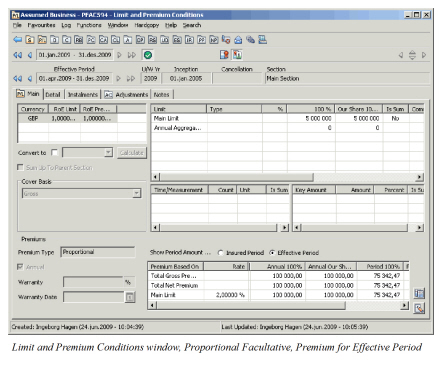
From the drop-down list you can select:
-
Effective Period
SICS shows premium amounts valid only for the effective period that you currently are looking at, (shown in the effective period Navigation bar).
When navigating between effective periods, the system shows premium to the corresponding period. -
_Insured Period
_ SICS shows premium figures for the entire insured period (sum of all effective periods).
Note! Limits and premiums conditions will also be amended as a consequence of amending share conditions.
Update Instalment Schedule According to Amended Premium #
If you have amended a premium, for example a deposit premium, the system may calculate and record an additional or return premium instalment for you. Instalments are often created and booked in advance, but by using this functionality you do not have to cancel or reverse instalments.
The below procedure assumes that you already have amended the premium and now only wants to reflect this as an addition or return premium instalment.
- Click the Premium and Limit Conditions (P/L) button in the Navigation bar.
- Select the Instalments tab.
- Select the Deposit (Flat) Premium Condition sub tab.
- Click the latest (right most) amendment button in the Navigation bar.
- Navigate to the effective period that the change applies to (normally the latest).
- On the Deposit (Flat) Premium Condition sub tab, select Edit from the Menu button.
- (Enter the amended deposit/flat premium, if you have not already done so)
- In the Instalments display list, select Additional/ Return Premium Instalment from Amendment from the pop-up list.
- (Alternatively, click OK in the Edit Premium/Limits window. You see the Instalment Recalculation window. Select Additional/ Return Premium Instalment from the Amendment and then Yes.)
- You see the Create Instalment window. The Total Deposit here displays now only the additional/return premium for this amendment.
- Enter the number of instalments and payment days for the instalment(s) to be added. (These terms will not affect the general instalment conditions already saved.)
- Click Save.
- Click OK.
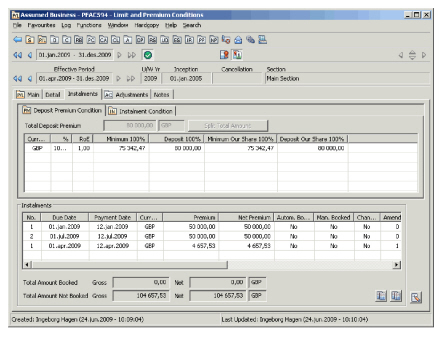
For field descriptions regarding instalments, refer to Maintain Premium Instalment Conditions page 1-60.
Maintain Historical Premiums after Amendment #
After the conditions have been amended, you might discover that an earlier version of them was wrong and you need to correct it. SICS handles updates of historical version of amendments. For the general principles, see the View Historical Information after Amendment section under Handle Business Amendments.
As premium amounts are pro rata calculated according to time, change of historical data here needs some additional explanation.
Change Premium before 1. Amendment
Change the premium of the version before the first amendment, after the first amendment has taken place. The result will be that the premium before the amendment is correct and that the system uses this premium to recalculate the premium for the first effective period of the amended version.
- Click the Premium and Limit Condition button on the Navigation bar.
- Click the Before Amendments button
- Select Edit from Menu button.
- Enter the new premium value.
- Click OK.
EXAMPLE - Change Premium before 1. Amendment
-
Insured Period 01.01. - 31.12.2003:
Premium Rate: 10%
SUPI 3.650.000
EPI 365.000 -
Amend Premium and Limit Condition as at 01.07.2003:
Effective period 01.01-30.06.2003
SUPI 1.810.000
EPI 181.000
Effective period 30.06-01.07.2003
SUPI 1.840.000
EPI 184.000 -
SUPI was wrong, so change it for amendment 0 (period before amendment) to 4.015.000. System calculates the following:
Period (before amendment) 01.01. - 31.12.2003.
SUPI4.015.000
EPI 401.500
Effective period 01.01-30.06.2003
SUPI 1.991.000
EPI 199.100
Effective period 30.06-01.07.2003
SUPI 1.840.000
EPI 184.000
Change Historical Premium when Multiple Amendments
If your business has multiple amendments and you change the premium on the last effective period on one of the amendments, the same updates as described above will take place for the corresponding effective period for all subsequent amendments.
- Click the Premium and Limit Condition button in the Navigation bar
- Click the amendment button (1, 2, or …) corresponding to the amendment for which the wrong premium was entered
- Navigate to the last effective period (of the selected amendment button)
- Select Edit from the Menu button.
- Enter the new premium value
- Click OK
More in details, when you change the premium value(s) on any amendment’s last effective period, (except on the last amendment on the business), the following happens:
- Premium values on the all subsequent amendments' effective period, with the same from date as the one you just changed), will be recalculated according to the new premium value(s).
- Premium values on any other effective periods on the business will not be affected.