Handle Portfolio Conditions
When a business agreement includes Premium- and/or Loss Portfolio conditions, you enter the details of these conditions in the Portfolio Conditions window.
The Portfolio condition window is only available for Treaty businesses.
Assumed Business and/or Administration Business can be placed from a Cedent’s Contract. When Portfolio Conditions are entered for the Cedent’s Contract, the Assumed Business and Administration Business inherit the conditions. You are not allowed to override the inherited conditions.
The businesses defined in the Placement window of an OCC business, i.e. Retrocessionaire’s Participation and Intermediary Placement, inherit the Portfolio Conditions of the OCC. You are not allowed to override the portfolio conditions from the placement businesses.
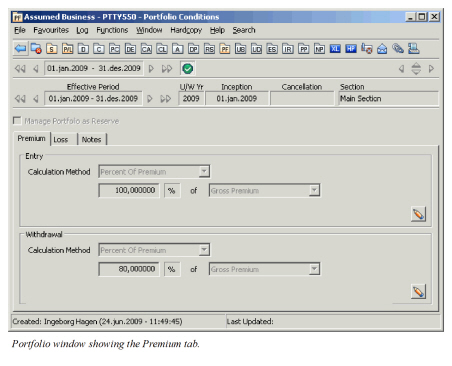
Enter Portfolio Conditions #
You can select between different calculation methods. Additional conditions, i.e. percentage and premium basis, are required for some methods.
For Inward Business and Outward Non-Proportional Business the Portfolio Conditions are for information only.
For Outward Proportional Treaty business most of the calculation methods have impact on the automatic calculation of Portfolio amounts, e.g. when running Retrocession Calculation order.
(For information about each calculation method and how the Premium- and Loss Portfolio for Proportional Treaties are calculated through the different calculation orders, refer to Calculate Portfolio.)
Define Premium Portfolio as Percent of Original #
When the Premium Portfolio of the agreement is calculated as a predefined share of the portfolio originally ceded to the business, you select ‘Percent of Original’ as calculation method.
- Find and open your Treaty business.
- Click the Portfolio conditions button (PF button) on the Navigation bar.
- Select the Premium tab of the Portfolio Conditions.
- Enter the Premium Portfolio Entry and -Withdrawal conditions specified in the business agreement.
- Click Save first time you make the entries, or OK if you are in Edit mode.
| Field | Description |
|---|---|
| Calculation Method | The method for calculating the Premium Portfolio amount at the start of the Insured Period (Entry) and/or at the end of the Insured Period (Withdrawal). Values: <None>, Percent of Original, Percent of Premium, Orig.Ptf + Pct of Reserve, Percent of Reserve, Pro rata Temporis, Division Method, Liability to Run Off Default: <None> Validations: No Mandatory: No Functional Impact: In case of the methods ‘Percent of Original’, ‘Percent of Premium’, ‘Orig.Ptf + Pct of Reserve’, ‘Percent of Reserve’ and only in case of OCC Proportional treaty business: * Retrocession calculation order * Retrocession Calculation Group order * Retrocession Estimation order |
| Percentage | The share in % of the Premium Portfolio originally ceded to the business. Values: A percentage value from 0 to 100 Validations: A message appears if: More than 100% is entered No value is entered. Derived from: The calculation method ‘Percent of Original’ Mandatory: Yes Functional Impact: Only in case of OCC Proportional treaty business: * Retrocession calculation order * Retrocession Calculation Group order * Retrocession Estimation order |
Define Premium Portfolio as Percent of Premium #
When the Premium Portfolio of the agreement is calculated as a predefined share of the agreement’s premium, you select ‘Percent of Premium’ as calculation method.
- Find and open your Treaty business.
- Click the Portfolio Conditions button (PF button) on the Navigation bar.
- Select the Premium tab of the Portfolio conditions.
- Enter the Premium Portfolio Entry and -Withdrawal conditions specified in the business agreement.
- Click Save (first time) or OK.
| Field | Description |
|---|---|
| Calculation Method: | The method for calculating the Premium Portfolio amount at the start of the Insured Period (Entry) and/or at the end of the Insured Period (Withdrawal). Values: <None>, Percent of Original, Percent of Premium, Orig.Ptf + Pct of Reserve, Percent of Reserve, Pro rata Temporis, Division Method, Liability to Run Off Default: <None> Validations: No Mandatory: No Functional Impact: In case of the methods ‘Percent of Original’, ‘Percent of Premium’, ‘Orig.Ptf + Pct of Reserve’, ‘Percent of Reserve’ and only in case of OCC Proportional treaty business: * Retrocession calculation order * Retrocession Calculation Group order * Retrocession Estimation order |
| Percentage: | The share in % of the agreement premium Values: A percentage value from 0 to 100 Validations: A message appears if: More than 100% is entered No value is entered. Derived from: The calculation method ‘Percent of Premium’ Mandatory: Yes Functional Impact: Only in case of OCC Proportional treaty business: * Retrocession calculation order * Retrocession Calculation Group order * Retrocession Estimation order |
| Premium Basis | The premium to be used as basis calculating the Premium Portfolio Values: A Group of Entry Codes, e.g. named Gross Premium or Net Premium For Non-proportional treaties - Entry Code Groups defined in the Entry Code Group Category Subject Premium Income, Non-Proportional. For Proportional treaties - Entry Code Groups defined in the Entry Code Group Category Subject Premium Income, Proportional. (Refer to Entry Code Maintenance described in the System Administrator’s Guide). Derived from: The Calculation Method ‘Percent of Premium’ Validations: If no value is defined, a message appears. Mandatory: Yes Functional Impact: Only in case of OCC Proportional treaty business: * Retrocession calculation order * Retrocession Calculation Group order * Retrocession Estimation order |
Define Premium Portfolio as Original Portfolio + Percent of Reserve #
When the Premium Portfolio of the agreement is calculated as a total of the originally ceded premium portfolio and a share of the agreements premium reserves, you select ‘Original Portfolio + Percent of Reserve’ as calculation method.
- Find and open your Treaty business.
- Click the Portfolio Conditions button (PF button) on the Navigation bar.
- Select the Premium tab of the Portfolio Conditions
- Enter the Premium Portfolio Entry and -Withdrawal conditions specified in the business agreement
- Click Save (first time) or OK
(For information about Reserve Conditions, see the chapter Handle Reserve Conditions. For information about reserve calculations for OCC-/RP business, see Calculate Reserves.)
| Field | Description |
|---|---|
| Calculation Method | The method for calculating the Premium Portfolio amount at the start of the Insured Period (Entry) and/or at the end of the Insured Period (Withdrawal). Values: <None>, Percent of Original, Percent of Premium, Orig.Ptf + Pct of Reserve, Percent of Reserve, Pro rata Temporis, Division Method, Liability to Run Off Default: <None> Validations: No Mandatory: No Functional Impact: In case of the methods ‘Percent of Original’, ‘Percent of Premium’, ‘Orig.Ptf + Pct of Reserve’, ‘Percent of Reserve’ and only in case of OCC Proportional treaty business: * Retrocession calculation order * Retrocession Calculation Group order * Retrocession Estimation order |
| Percentage | The share in % of the agreement’s premium reserve Values: A percentage value from 0 to 100 Validations: A message appears if: More than 100% is entered No value is entered. Derived from: The calculation method ‘Original Portfolio + Percent of Reserve’ Mandatory: Yes Functional Impact: Only in case of OCC Proportional treaty business: * Retrocession calculation order * Retrocession Calculation Group order * Retrocession Estimation order |
Define Premium Portfolio as Percent of Reserve #
When the Premium Portfolio of the agreement is calculated as a share of the agreement’s premium reserves, you select ‘Percent of Reserve’ as calculation method.
- Find and open your Treaty business.
- Click the Portfolio Conditions button (PF button) on the Navigation bar.
- Select the Premium tab of the Portfolio Conditions
- Enter the Premium Portfolio Entry and -Withdrawal conditions specified in the business agreement
- Click Save (first time) or OK
(For information about Reserve Conditions, see the chapter Handle Reserve Conditions. For information about reserve calculations for OCC-/RP business, see Calculate Reserves.)
| Field | Description |
|---|---|
| Calculation Method | The method for calculating the Premium Portfolio amount at the start of the Insured Period (Entry) and/or at the end of the Insured Period (Withdrawal). Values: <None>, Percent of Original, Percent of Premium, Orig.Ptf + Pct of Reserve, Percent of Reserve, Pro rata Temporis, Division Method, Liability to Run Off Default: <None> Validations: No Mandatory: No Functional Impact: In case of the methods ‘Percent of Original’, ‘Percent of Premium’, ‘Orig.Ptf + Pct of Reserve’, ‘Percent of Reserve’ and only in case of OCC Proportional treaty business: * Retrocession calculation order * Retrocession Calculation Group order * Retrocession Estimation order |
| Percentage | The share in % of the agreement’s premium reserve Values: A percentage value from 0 to 100 Validations: A message appears if: More than 100% is entered No value is entered. Derived from: The calculation method ‘Percent of Reserve’ Mandatory: Yes Functional Impact: Only in case of OCC Proportional treaty business: * Retrocession calculation order * Retrocession Calculation Group order * Retrocession Estimation order |
Define Premium Portfolio as Pro rata Temporis #
When the Premium Portfolio of the agreement is calculated as Pro Rata Temporis, you select ‘Pro rata Temporis’ as calculation method.
- Find and open your Treaty business.
- Click the Portfolio Conditions button (PF button) on the Navigation bar.
- Select the Premium tab of the Portfolio Conditions.
- Enter the Premium Portfolio Entry and -Withdrawal conditions specified in the business agreement
- Click Save (first time) or OK.
| Field | Description |
|---|---|
| Calculation Method | The method for calculating the Premium Portfolio amount at the start of the Insured Period (Entry) and/or at the end of the Insured Period (Withdrawal). Values: <None>, Percent of Original, Percent of Premium, Orig.Ptf + Pct of Reserve, Percent of Reserve, Pro rata Temporis, Division Method, Liability to Run Off Default: <None> Validations: No Mandatory: No Functional Impact: None |
| Premium Basis | The premium to be used as basis calculating the Premium Portfolio Values: A Group of Entry Codes, e.g. named Gross Premium or Net Premium For Non-proportional treaties - Entry Code Groups defined in the Entry Code Group Category Subject Premium Income, Non-Proportional. For Proportional treaties - Entry Code Groups defined in the Entry Code Group Category Subject Premium Income, Proportional (Refer to Entry Code Maintenance described in the System Administrator’s Guide). Derived from: The Calculation Method ‘Pro rata Temporis’ Validations: If no value is defined, a message appears. Mandatory: Yes Functional Impact: None |
Define Premium Portfolio according to Division Method #
When the Premium Portfolio of the agreement is calculated per a division method, you select ‘Division Method’ as calculation method.
- Find and open your Treaty business.
- Click the Portfolio Conditions button (PF button) on the Navigation bar.
- Select the Premium tab of the Portfolio Conditions
- Enter the Premium Portfolio Entry and -Withdrawal conditions specified in the business agreement
- Click Save (first time) or OK.
| Field | Description |
|---|---|
| Calculation Method | The method for calculating the Premium Portfolio amount at the start of the Insured Period (Entry) and/or at the end of the Insured Period (Withdrawal). Values: <None>, Percent of Original, Percent of Premium, Orig.Ptf + Pct of Reserve, Percent of Reserve, Pro rata Temporis, Division Method, Liability to Run Off Default: <None> Validations: No Mandatory: No Functional Impact: None |
| Premium Basis | The premium to be used as basis calculating the Premium Portfolio Values: A Group of Entry Codes, e.g. named Gross Premium or Net Premium For Non-proportional treaties - Entry Code Groups defined in the Entry Code Group Category Subject Premium Income, Non-Proportional. For Proportional treaties - Entry Code Groups defined in the Entry Code Group Category Subject Premium Income, Proportional (Refer to Entry Code Maintenance described in the System Administrator’s Guide). Derived from: The Calculation Method ‘Division Method’ Validations: If no value is defined, a message appears. Mandatory: Yes Functional Impact: None |
| Division Method | The division formula used calculating the Premium Portfolio Values: < None>, 1/12, 1/2, 1/24, 1/4 and 1/8. Default: <None> Derived from: The calculation method ‘Division Method’ Validations: If no value is defined a message appears. Mandatory: Yes Functional Impact: None |
Define Premium Portfolio as Liability to Run Off #
When the Premium Portfolio condition of the agreement is defined as Liability to Run Off, you select this method.
- Find and open your treaty business.
- Click the Portfolio Conditions button (PF button) on the Navigation bar.
- Select the Premium tab.
- Enter the Premium Portfolio Entry and -Withdrawal conditions specified in the business agreement.
- Click Save (first time) or OK.
| Field | Description |
|---|---|
| Premium Portfolio as Liability to Run Off Method | The method for calculating the Premium Portfolio amount at the start of the Insured Period (Entry) and/or at the end of the Insured Period (Withdrawal). Values: <None>, Percent of Original, Percent of Premium, Orig.Ptf + Pct of Reserve, Percent of Reserve, Pro rata Temporis, Division Method, Liability to Run Off Default: <None> Validations: No Mandatory: No Functional Impact: None |
Define Loss Portfolio as Percent of Original #
When the Loss Portfolio of the agreement is calculated as a predefined share of the portfolio originally ceded to the business, you select ‘Percent of Original’ as calculation method.
- Find and open your Treaty business.
- Click the Portfolio Conditions button (PF button) on the Navigation bar.
- Click the Loss tab of the Portfolio Conditions
- Enter the Loss Portfolio Entry and -Withdrawal conditions specified in the business agreement
- Click Save (first time) or OK.
| Field | Description |
|---|---|
| Calculation Method | The method for calculating the Loss Portfolio amount at the start of the Insured Period (Entry) and/or at the end of the Insured Period (Withdrawal). Values: <None>, Percent of Original, Orig.Ptf + Pct of Reserve, Percent of Reserve, Liability to Run Off Default: <None> Validations: No Mandatory: No Functional Impact: In case of the methods ‘Percent of Original’, ‘Orig.Ptf + Pct of Reserve’ and ‘Percent of Reserve’ and only in case of OCC Proportional treaty business: * Retrocession calculation order * Retrocession Calculation Group order * Retrocession Estimation order * Claim Loss Date validation |
| Percentage | The share in % of the Loss Portfolio originally ceded to the business. Values: A percentage value from 0 to 100 Validations: A message appears if: More than 100% is entered No value is entered. Derived from: The calculation method ‘Percent of Original’ Mandatory: Yes Functional Impact: Only in case of OCC Proportional treaty business: * Retrocession calculation order * Retrocession Calculation Group order * Retrocession Estimation order |
Define Loss Portfolio as Original Portfolio + Percent of Reserve #
When the Loss Portfolio of the agreement is calculated as a total of the originally ceded Loss Portfolio and a share of the agreements Loss Reserves, you select ‘Original Portfolio + Percent of Reserve’ as calculation method.
- Find and open your Treaty business.
- Click the Portfolio conditions button (PF button) on the Navigation bar.
- Click the Premium tab.
- Enter the Premium Portfolio Entry and -Withdrawal conditions specified in the business agreement
- Click Save (first time) or OK
(For information about Reserve Conditions, see the chapter Handle Reserve Conditions. For information about reserve calculations for OCC-/RP business, see Calculate Reserves.)
| Field | Description |
|---|---|
| Calculation Method | The method for calculating the Loss Portfolio amount at the start of the Insured Period (Entry) and/or at the end of the Insured Period (Withdrawal). Values: <None>, Percent of Original, Orig.Ptf + Pct of Reserve, Percent of Reserve, Liability to Run Off Default: <None> Validations: No Mandatory: No Functional Impact: In case of the methods ‘Percent of Original’, ‘Orig.Ptf + Pct of Reserve’ and ‘Percent of Reserve’ and only in case of OCC Proportional treaty business: * Retrocession calculation order * Retrocession Calculation Group order * Retrocession Estimation order * Claim Loss Date validation |
| Percentage | The share in % of the agreement’s loss reserve Values: A percentage value from 0 to 100 Validations: A message appears if: More than 100% is entered No value is entered. Derived from: The calculation method ‘Original Portfolio + Percent of Reserve’ Mandatory: Yes Functional Impact: Only in case of OCC Proportional treaty business: * Retrocession calculation order * Retrocession Calculation Group order * Retrocession Estimation order |
Define Loss Portfolio as Percent of Reserve #
When the Loss Portfolio of the agreement is calculated as a share of the agreement’s Loss Reserves, you select ‘Percent of Reserve’ as calculation method.
- Find and open your Treaty business.
- Click the Portfolio conditions button (PF button) on the Navigation bar.
- Click the Loss tab of the Portfolio Conditions.
- Enter the Loss Portfolio Entry and -Withdrawal conditions specified in the business agreement.
- Click Save (first time) or OK.
(For information about Reserve Conditions, see the chapter Handle Reserve Conditions. For information about reserve calculations for OCC-/RP business, see Calculate Reserves.)
| Field | Description |
|---|---|
| Calculation Method | The method for calculating the Loss Portfolio amount at the start of the Insured Period (Entry) and/or at the end of the Insured Period (Withdrawal). Values: <None>, Percent of Original, Orig.Ptf + Pct of Reserve, Percent of Reserve, Liability to Run Off Default: <None> Validations: No Mandatory: No Functional Impact: In case of the methods ‘Percent of Original’, ‘Orig.Ptf + Pct of Reserve’, ‘Percent of Reserve’ and only in case of OCC Proportional treaty business: * Retrocession calculation order * Retrocession Calculation Group order * Retrocession Estimation order * Claim Loss Date validation |
| Percentage | The share in % of the agreement’s Loss Reserve Values: A percentage value from 0 to 100 Validations: A message appears if: More than 100% is entered No value is entered. Derived from: The calculation method ‘Percent of Reserve’ Mandatory: Yes Functional Impact: Only in case of OCC Proportional treaty business: * Retrocession calculation order * Retrocession Calculation Group order * Retrocession Estimation order |
Define Loss Portfolio as Liability to Run Off #
When the Loss Portfolio condition of the agreement is defined as Liability to Run Off, you select this method.
- Find and open your treaty business.
- Click the Portfolio conditions button (PF button) on the Navigation bar.
- Click the Loss tab.
- Enter the Loss Portfolio Entry and -Withdrawal conditions specified in the business agreement.
- Click Save (first time) or OK.
| Field | Description |
|---|---|
| Loss Portfolio as Liability to Run Off Method | The method for calculating the Loss Portfolio amount at the start of the Insured Period (Entry) and/or at the end of the Insured Period (Withdrawal). Values: <None>, Percent of Original, Orig.Ptf + Pct of Reserve, Percent of Reserve, Liability to Run Off Default: <None> Validations: No Mandatory: No Functional Impact: Claim Loss Date validation |
Handle Premium- and Loss Portfolio as Reserves #
For Outward Cedent’s Contracts Proportional Treaties having Accounting Basis = Clean Cut for Premium or both Premium and Loss, you can handle your Portfolio bookings as Reserve bookings.
- Find and open your Proportional OCC treaty business.
- Click the Portfolio conditions button (PF button) on the Navigation bar.
- Click the Edit button if the Handle Portfolio as Reserve button is disabled.
- Select the Handle Portfolio as Reserve check box.
- Select Premium- and Loss Portfolio Entry and -Withdrawal Calculation conditions.
- Save the changes made to the Portfolio Conditions window.
Activating the Handle Portfolio as Reserve check box, limits the available calculation methods to:
- For Premium Portfolio:
- Percent of Original
- Percent of Premium
- For Loss Portfolio:
- Percent of Original
(For description of the calculation of Premium and Loss Portfolio having this check box selected, refer to Calculate Portfolio.)
| Field | Description |
|---|---|
| Handle Portfolio as Reserve | Activate if you want your Portfolio to be handled as Reserves. Values: Active and Inactive Default: Inactive Mandatory: No Functional Impact: Calculation Method values limited to ‘Percent of Original’ and ‘Percent of Premium’ for Premium Portfolio and ‘Percent of Original’ for Loss Portfolio. * Retrocession Calculation order * Retrocession Calculation Group order * Retrocession Estimation order * Claim Loss Date validation |
Handle Premium Portfolio based on Deposit #
For Outward Cedent’s Contract Proportional Treaties having Accounting Basis = Clean Cut for Premium, you can handle your Portfolio bookings based on Deposit.
- Find and open your Proportional OCC treaty business
- Click the Portfolio Conditions button (PF button) on the Navigation bar
- Click the Edit button if the Manage Portfolio based on Deposit button is disabled
- Select the Manage Portfolio based on Deposit check box. Note that this check box is enabled only when the Premium Deposit Release in = Next Acct. Year with Transfer to next Ins Per is selected.
- Select Premium Portfolio Entry and Withdrawal Calculation conditions.
- Save the changes made to the Portfolio Conditions window
Activating the Manage Portfolio based on Deposit check box, limits the available calculation methods to Percent of Premium
(For description of the calculation of Premium Portfolio having this check box selected, refer to Calculate Portfolio)
Field Description - Handle Premium Portfolio based on Deposit #
Manage Premium Portfolio based on Deposit
Activate if you want your Premium Portfolio to be based on Deposit
Values: Activate and Inactivate
Default: Inactivate
Mandatory: No
Functional Impact:
Calculation Method values limited to ‘Percent of Premium’
- Retrocession Calculation order
- Retrocession Calculation Group order