Handle Profit Commission Conditions
The Profit Commission window is where you define conditions that apply to the amount to return to the cedent based on the profit generated by the ceded business.
The Profit Commission calculated when running the Proportional Retrocession Calculation Order is calculated on an overall level. If bookings are made on different Accounting Classifications, the overall Profit Commission calculated will be split and booked on the different Accounting Classifications proportionally of the Premium booked for the Insured Period of the Accounting Classification.
|

Profit Commission button | When you click the Profit Commission button on the Navigation bar, you see a window where you must select the Profit Commission Type from a drop-down list. Select between Original, Percent, Sliding Scale, Stepped Sliding Scale, or None. |
Note! Your options vary depending on the type of business.
Handle Percent Profit Commission #
When you select Percent from the drop-down list, you see the Percent Profit Commission Conditions window.
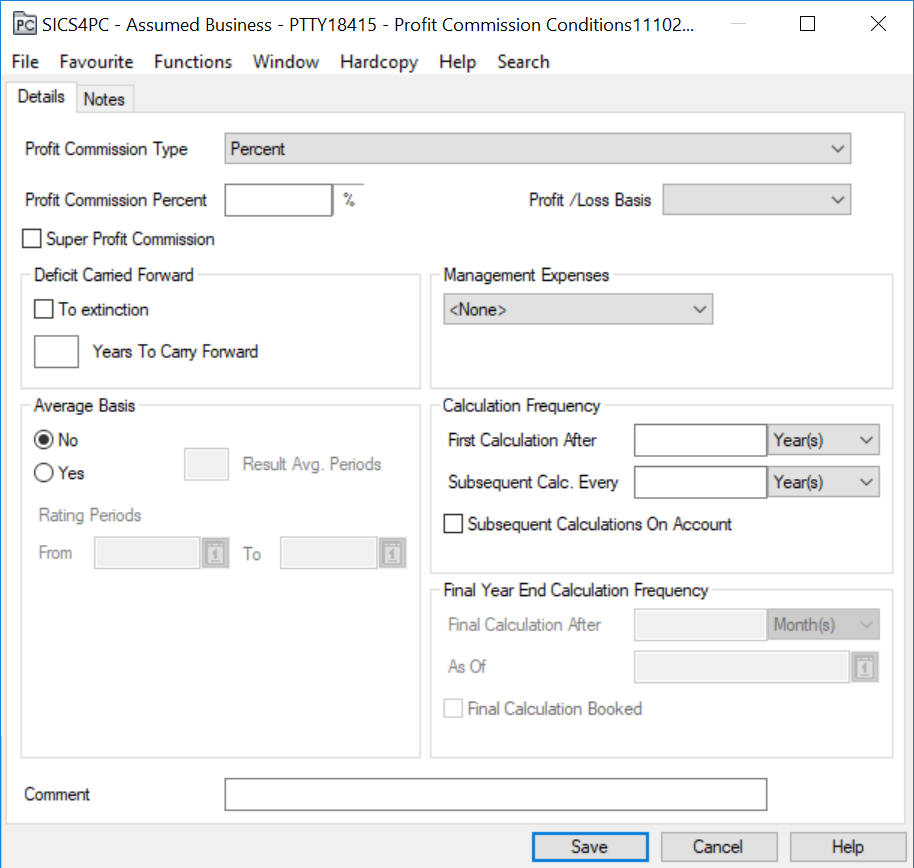
Type in the Profit Commission Percentage. Select the Profit/Loss Basis from the drop-down list.
Deficit Carried Forward #
Here you can record terms for bringing forward deficits from earlier periods. If, for example, 1996 shows a deficit, you can bring it forward to include it in your 1997 calculations.
Insured Periods: Enter the number of insured periods for which you want to bring the deficit forward.
When you select the To Extinction box, you can bring forward losses from as far back as there are losses.
Management Expenses #
If you want to enter the management expenses, use the drop-down list to select Management Expenses Type and select Percent, or None. If you select Percent, you can enter the Management Expense Percentage in the % field.
For Proportional OCC/ORP it is possible to select the field To Be Booked to have the Management Expenses booked when running the Retrocession Calculation Order/Retrocession Estimation Calculation Order.
Calculation Frequency #
First Calculation after: refers to the first calculation that will be made. For example, if you select Month(s), and then type 2 in front of it, you indicate that the first calculation will be made after the second month of the insured period from date
Validation: Must result in an ‘as of date’ equal to one of the accounts ‘as of dates’ in the Administration Conditions. Depending on the system set up, this validation may be ignored for assumed businesses.
Subsequent Calculations Every: refers to how often calculations are to be made after the first calculation. In other words, if you select Year(s), and type 2 in front of it, you indicate that subsequent calculations will be made every other year. The final calculation will always be at the close of the agreement.
Validation:Must result in ‘as of dates’ equal to existing accounts ‘as of dates’ in the Administration Conditions. Depending on the system set up, this validation may be ignored for assumed businesses.
The Subsequent Calculation on Account check box indicates that after the first calculation, the profit commission calculation is to be made whenever a technical account is produced.
Whenever a profit commission is calculated, a profit commission statement is produced (by the cedent, for example, or whoever agreed to do the calculations).
Average Basis #
Using the Yes and No radio buttons, you can select the Average Basis.
If No is selected, the rest of the group box is disabled.
Result Average Periods: Running Average is to be calculated over the number of periods entered in Result Average Periods. For example, for conditions for Underwriting year 98 the Result Average Periods are ‘3’. Adding premiums and losses on Underwriting 96, Underwriting 97 and Underwriting 98 together and dividing by 3 does the calculation of the loss ratio, before the Loss Ratio is calculated.
Rating Periods From and To: Entering a Rating Period From and To conditions is an alternative to Running Average Periods. If you are looking at conditions for 1998 and the Rating Period says 1997-1999; the losses and premiums on this period should be averaged before calculating the loss ratio for these years. This means that in 98 (if nothing has been booked yet on 99) the results for 99 will not yet influence the 98 loss ratio. However in 99 it will influence the 98 Loss Ratio.
If calculating for 97, 98, and 99 at the same time, the average Loss Ratio should be used for calculating commission for all three years.
Final Year End Calculation Frequency #
This section is for Informational and reporting purpose, which indicates the final calculation for the concerned condition. The application of this section is restricted to the Inwards Level of Business. The values can be filled in this section by selecting the menu option where an option name as ‘Edit Final Year Calculation’ is available and its edit function is restricted through a use case defined in security -“Business Conditions Year End Calculation”.
Final Calculation after To indicate when a last calculation is contractually specified (if applicable). The following field having a drop-down selection of “Month(s)” or “Year(s)”, with Months as default.
As Of will be a date format field for the Final Calculation booking.
Final Calculation Booked Check Box for when a Final Calculation is booked (indicating no further calculation is due).
Super Profit Commission #
Select the Super Profit Commission box if your agreement should have an addition profit commission.
| Field | Description |
|---|---|
| Super Profit Commission: | Whether or not an additional profit commission is to be calculated in addition to the original profit commission. Values: Yes - Original profit commission is to be accounted and a super profit commission is to be calculated according to the profit commission percent. No - Only a profit commission is to be calculated according to the stipulated percent. Default: No Mandatory: Yes Functional Impact: None |
Sliding Scale #
Sliding Scale Profit Commission refers to the commission where the percentage is determined by the size of the profit.
When you select Sliding Scale from the Profit Commission Type drop-down list, you see the Sliding Scale Profit Commission Conditions window.
This window is divided into two tabs: Conditions, and Sliding Scale.
The Conditions tab has the same fields as the Percentage window, explained earlier.
The Sliding Scale tab is where you enter minimum and maximum result, which refers to the minimum and maximum profit in percent of premium.
Stepped Sliding Scale #
Stepped sliding scales refer to profit commission where the commission rates are given in steps for each interval of profit percentages. When you select Stepped Sliding Scale from the Profit Commission Type drop-down list, you see the Stepped Sliding Scale Profit Commission Conditions window. It is divided into two tabs: Conditions, and Stepped Sliding Scale.
The Conditions tab has the same fields as the Percentage window explained earlier.
The Stepped Sliding Scale tab is where you enter minimum and maximum result, and minimum and maximum profit commission (as on the Sliding Scale tab explained earlier.)
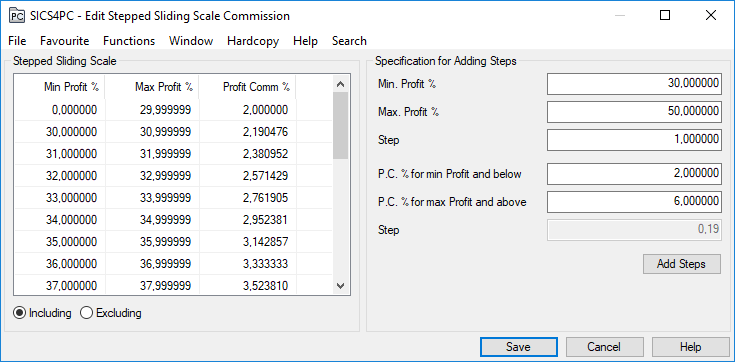
On the right-hand side of the window there is a Stepped Sliding Scale display list. Click the Edit button to make additions or changes there. You see a window with a Stepped Sliding Scale display, and Specification for Adding Steps. You can enter information directly, or you can have SICS calculate interval rates for you.
To have SICS calculate interval rates for you:
- Enter Maximum Profit %, and Minimum Profit %.
- In the Step field below the profit percent fields, enter the size of the steps between each profit percentage within the given interval.
- Enter the profit commission percent for Minimum Profit % and for Maximum Profit %.
- Click the Add steps button.
A number appears in the Step field that indicates the size of the steps between the profit commission percentages. You see the calculated information appear in a table on the left-hand side of the window.
When you click Save, you return to the Stepped Sliding Scale tab, where you see the information that was just generated.