Get Quick Overview of Business
View Business Highlights #
When you open up a business, you see the Properties window. The Properties window lets you find out more detailed information about a business, and is also the window from which you can add more detailed information when registering a business.
As mentioned earlier, you can access the Properties window by:
- Selecting a business from the Business display list by double-clicking it.
- Selecting a business in the Business display list and selecting Properties from the pop-up menu.
- Clicking Finish in the Create New Business wizard after recording a new business.
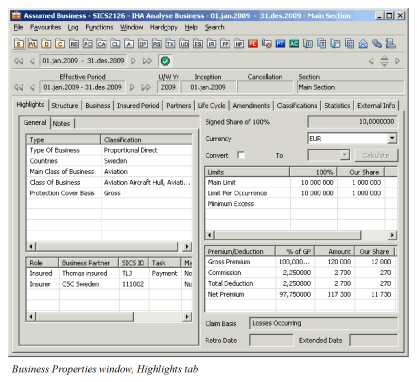
The Properties window is divided into several main categories, each of which has its own tab. For example, Highlights, Business, Insured Period, Partners, Life Cycle, Amendments, and Classifications.
Obtain Overview of Business #
Get a quick view of all the business details that are important to an underwriter.
- Double-click the Business icon in the Business folder on the desktop to open the Find Business window.
- Find and select your business in the display list and then select Underwriting Overview from the pop-up menu.
You see the Underwriting Overview window.
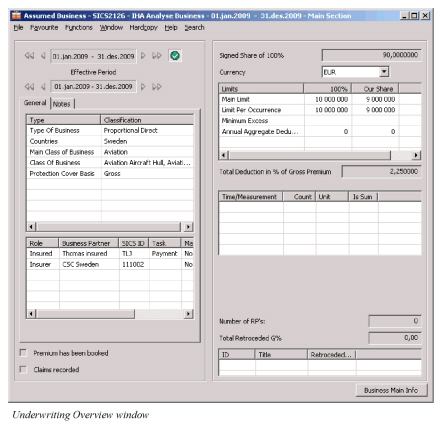
| Field | Description |
|---|---|
| Insured period navigator | The period within which the insurance is valid. Values: A To and a From date. Default: Selected insured period, you can navigate to any insured period recorded for the business. |
| Effective period navigator | The period within an insured period valid for an amendment Values: A To and a From date. Default: Last effective period, you can navigate to any recorded effective period |
| Life cycle navigator | Life cycles for the selected business. Values: The life cycles recorded on the business, e.g. pending, definite. Default: Last recorded life cycle, you can navigate to any recorded life cycle |
| Type | The types of classifications recorded for the selected business |
| Classification | The values recorded for each type of classification recorded for the selected business |
| Role | The role that the parties recorded for the business hold |
| Business partner | The parties selected for this agreement |
| ID | The business partner identifier |
| Task | Displays the tasks held by a partner in selected agreement |
| Group | The Business Partner Groups of which the Insured is a member. Only for partner with role insured and only displayed if agreement is facultative or direct |
| Main base company | Indicates if partner is main base company or not Values: yes, No |
| Reference | The reference recorded for a partner for selected agreement |
| Premium has been booked | If selected this means that at least one technical worksheet has been recorded for the insured period selected |
| Rating System | The rating of a Business Partner within the rating system e.g. Moody’s. |
| Claims recorded | If selected this means that claims have been recorded for the selected agreement and insured period |
| Original participation | Displays information entered for original participation under share condition on selected agreement. Only available on overview for facultative and direct business. |
| Share of 100% (Offered, Written or Signed) | Displays information entered for share of 100% under share condition on selected agreement. |
| Share from Orig Part | Displays information entered for share of original participation under share condition on selected agreement. Only available on overview for facultative and direct business. |
| Currency | Displays the currencies defined on the premium limit condition for the selected agreement |
| Convert | If selected you can convert all monetary information to any available currency using current daily rate of exchange. Only available on overview for treaty business |
| Limit/Premium | Displays the limits from limit display list under premium limit condition of the selected agreement plus total premium |
| 100% | The 100% values recorded for each limit or total premium |
| Our Share | The our share values recorded for each limit or total premium |
| Total deductions in % of Gross Premium | Displays the sum of deductions recorded under deduction condition of the selected agreement. Displayed only on overview for facultative and direct business |
| Deduction type | Shows a list of deductions for which entries have been made under deduction condition for the selected agreement |
| Calculation Method | Shows selected calculation method for each deduction type, e.g. Percent or amount |
| Percent | Shows the percentage of deduction recorded for the deduction type. If other calculation method than Percent has been selected field is left blank. |
| Time/Measurement | Displays the time limits or measurements that have been selected on premium limit condition for the selected agreement. Only for facultative and direct business |
| Count | Displays what has been entered in this field on premium limit condition for this agreement. Only for facultative and direct business |
| Unit | Displays what has been entered in this field on premium limit condition for this agreement. Only for facultative and direct business |
| IsSum | Displays what has been entered in this field on premium limit condition for this agreement. Only for facultative and direct business |
| Claim Accounting Basis | Displays the recorded Claim accounting basis from administration condition of the selected agreement. Only on overview for proportional treaty business. |
| Premium Accounting Basis | Displays the recorded Premium accounting basis from administration condition of the selected agreement. Only on overview for proportional treaty business |
| Accounting Frequency | Displays the frequency of the accounts from administration condition of the selected agreement. Only on overview for proportional treaty business |
| SUPI | Displays subject premium income recorded on premium limit condition for selected agreement in selected currency. Only on overview for Non-proportional treaty business |
| Rate on Line | Displays rate on line from premium limit condition for selected agreement |
| Premium rate | Displays premium rate recorded on limit premium condition of selected agreement if premium type is fixed rate. Only on overview for Non-proportional treaty business |
| Provisional rate | Displays provisional rate recorded on limit premium condition of selected agreement if premium type is sliding rate. Only on overview for Non-proportional treaty business |
| Number of Rp’s | Displays a sum of the number of facultative Retrocessionaires protecting the selected agreement. Only on overview for facultative and direct business |
| Total retroceded G% | Displays a sum of the gross retroceded percent for facultative protections. Only on overview for facultative and direct business |
| ID | Displays the identifiers of the proportional protecting OCC’s and own retentions |
| Title | Displays the title of the protecting OCC or own retention |
| Retroceded (G) | Displays the retroceded gross percentage for each protecting OCC or own retention |
Enquire Business Summary #
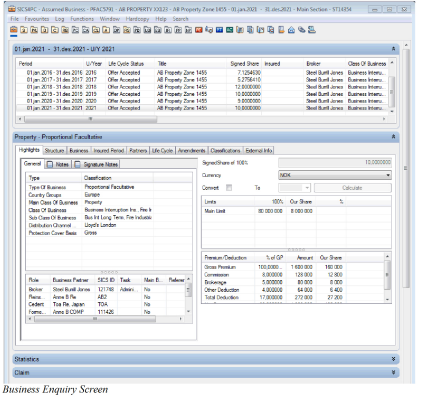
Sometimes one needs to see key information regarding a contract quick, without having to click and opening many different windows. SICS offers a detailed business overview showing information like business history, on-line statistics, classifications, claims list, with direct access to further analysis of each.
This summary has both a vertical scroll and horizontal scroll bars for navigation.
View Detailed Business Summary
Get a complete overview of your business within one single window:
- Open your business
- From the menu bar, select File
- Select Business Enquiry Screen
Navigate Back to Standard View
- On the Business Enquiry Screen, from the menu bar, select File
- Select Business Standard Screen
Depending on your User Default Preferences, the Business Enquiry Screen can be set up to be the opening window of your business.
View all Periods of Contract
See a summary of the main information from all insured periods of your contract.
- Open your contract
- From the menu bar, select File
- Select Business Enquiry Screen
- The system shows a short summary per insured period in the second display list from the top.
- To see more details of one insured period, double click the insured period and all information on the Enquire Screen is for that insured period.
For more information regarding a specific item or function on the Business Enquire Screen, please refer to the chapter the item relates to. For example for on- line statistics, refer to the chapter Examine Business Actual Results.