Generate Underwriters Estimates
Underwriter’s Estimates #
The Underwriter Estimates enables you to enter your own estimated figures for premiums,deductions claims etc. on a business basis. The fields are user-defined. These ‘user-defined’ fields, called Estimation Items, are maintained in the System Parameters Maintenance folder. The Estimation Items created in the Underwriter Estimates are the base for analysing the business as follows:
- Analyse the technical profitability of the business, and to be able to compare the underwriter estimates from one underwriting year to another.
- Make a good base for follow up of the financial periods.
- Establish basis for future action planning process
The underwriter’s estimates are not available for businesses with no insured period specified. Note that this type of To be Advised insured period only exist if your System Administrator has set up the system to allow for it.
When you click the ES (Underwriter’s Estimates) button in the Navigation bar of the Assumed Business' properties window, you see the Underwriters Estimate tab. It contains three sub tabs; Pricing Estimates, Adjusted Estimates, and Loss Development Pattern. The Pricing Estimates sub tab contains the initial estimate figures established by the underwriter. Both the Pricing and the Adjusted Estimates can be edited or created as often as required. If you need to make comments to each estimates item, you can add notes viewed directly in the display list. The Loss Development Pattern tab displays the selected pattern for this specific business. Loss Development Patterns are created and maintained in System Parameters/ Underwriters Estimates.
Estimation Items Using Booked Figures
Estimation Items may include variables using actually booked figures. Conversion to estimation currency, follow different rules depending on the variable included. For more detailed information, refer to chapter 8 in System Administrator’s Guide
Pricing and Adjusted Estimates
The Underwriters Estimates has three sub tabs:
- Pricing (First Estimate)
- Adjusted (Changes to Pricing by editing or adding new As At Date)
- Loss Development Pattern
The estimate types can be added manually, or through the Estimation Order.
Manual Creation of Pricing Estimates
When underwriters accept/renew their business on a treaty per treaty basis the Underwriters estimates are not defined, or copied from previous period.
Manually add Pricing Estimates:
- Open the Underwriters Estimates
- If this is a subsequent estimate, select Edit from the menu button.
- In the currency display list, select Add. You see the Select Currency to be Added window.
- Select the currency, date and time you want to use for your estimates, and Save.
Select the currency to see all relevant Estimation Items which have been defined for the type of Business, and which are valid for the period. The calculated figures are already populated.
You can add additional pricing estimates if required.
Manually override calculated items:
The automatically calculated items are derived from the calculation rules of the estimation items, and are often based upon a combination of conditions and present bookings. For more details about the calculation rules, please refer to the System Administrator’s Guide. If you are not satisfied with the calculated values, you can manually override them if your System Administrator has allowed this.
- Select the estimation item for which you want to override the automatically calculated value.
- In the year column, change the figure as required. The system changes the ‘Ow.’ Column to “Yes”. Note that the overwrite possibility is enabled per item, and therefore you can experience that some items cannot be changed.
- You can make notes to each item by selecting Note from the pop-up menu in the Notes column.
- When you have completed all your modification, click the Calculate button. SICS re-calculates estimation items based upon your entries.
Manual Creation of Adjusted Estimates
The first Adjusted Estimate is created as a copy of the Pricing Estimate.
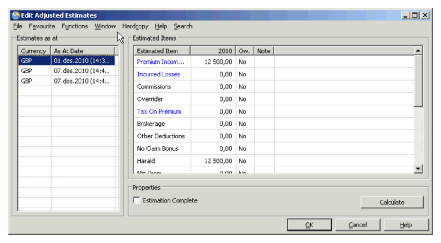
To manually create a new Adjusted Estimate:
- Select Edit from the menu button. You see the Edit Adjusted Estimates window.
- From the pop-up menu in the Currency display list, select Add. You see the Select Currency to be Added window.
- Select the currency you want use and click Save. You can also set date and time for your calculation in this window. The new Adjusted Pricing is a copy of the last Adjusted and contains the same figures as the previous one.
- Click the currency you selected. You see all Estimation Items defined for this type of business in the Estimated Items display list.
- Click the Calculate button. SICS recalculates estimate items and displays the results in the display list. Calculating or recalculating adjusted estimates does not affect the Pricing estimates.
- You can manually overwrite the calculated items if your System Administrator has allowed this, and you can make notes to each item by selecting Note from the pop-up menu in the Notes column.
Automatic Creation of Estimates #
Both Pricing and Adjusted Estimates can be created automatically, through the “Estimation Calculation - Adjust Claim Figures in Underwriters Estimates” order.
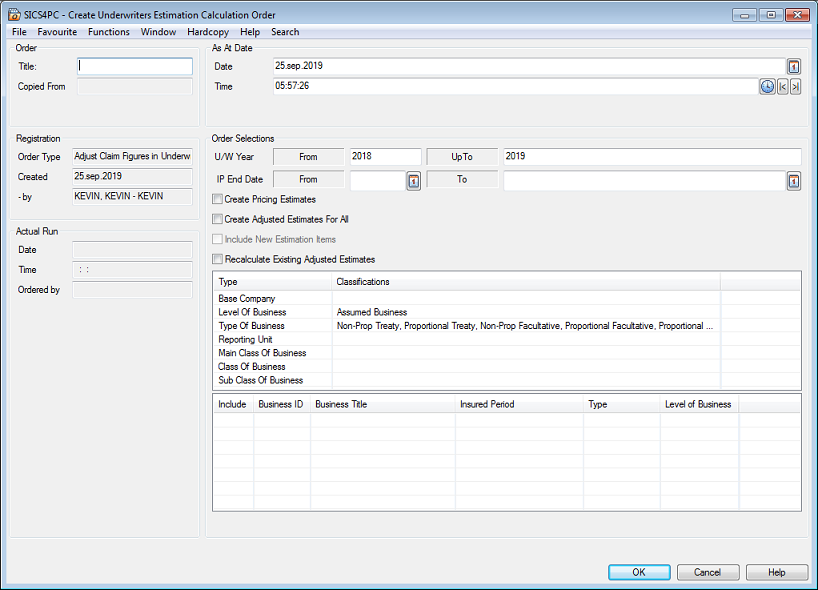
To create and run an order:
- Open Find Accounting Order
- Select Create New button, or Select New from popup menu
- Select Order Type “Estimation Calculation”
- Select order “Adjust Claim Figures in Underwriters Estimates”
- Click OK. The “Create Underwriters Estimation Calculation Order” window opens.
- Define title
- Define As At Date - Date and time. Default is current date and time. This timestamp is used as timestamp for created estimate, and the date is used as filter criteria for extracting figures from Claims module when calculation option is “none” (see below).
- Define Order selection criteria
- Specify calculation option.
- If the Order should only be run for specific businesses, select the Business(es) you want to include in the order.
- Press OK to save the order
- Select Run Now from the menu. The order calculates and updates estimates as per your selection, and actual Run information is updated
Selection Criteria
U/W Year: Default is from Previous year - up to Current Year
IP End Date: This is optional. If defined, only Insured Periods with an Insured Period To date within the selected date range will be included in the Order
Base Company: Select which Base Company or Base Companies you want to include. Blank means all base companies.
Level of Business: - Select either Assumed Business or Outward Cedent’s Contract. Assumed Business is default.
Type of Business: Select which type of business you want to include.
Reporting Unit: Select which Reporting Unit(s) you want to include. Blank means all Reporting Units
Main Class of Business: Select which Main Class of business you want to include. Blank means all
Class of Business: Select which Class of business you want to include. Only Class of Businesses being child values of Main Class of Businesses already selected are available. Blank means all
Sub Class of Business: Select which Sub Class of business you want to include. Only Sub Class of Businesses being child values of Class of Businesses already selected are available Blank means all
Right mouse click, and select any other classification value if required, e.g. an Additional Classification, Peril or Origin of Business. Select values you want to include. No selection means that these types are not considered
Calculation options
Create Pricing Estimates: Select this if you want the order to create pricing estimates on extracted business
Create Adjusted Estimates for All: Select this option if you want the order to create a new Adjusted Estimate for extracted business
Select none/ leave options cleared: Select none if you want the order to generate a new Adjusted Estimate only when/if changes have been made for extracted business
NB! When Pricing or Adjusted Estimates are calculated the system will use the As At date as extraction criteria and retrieve bookings if the first day in the Booking Year Period and the Accounting Period From Date on the booking is equal to or prior to the As At Date. If the Accounting Period From Date is considered or not depends on system parameter Do not validate Acc. Period From Date when uploading bookings. See your system administrator for further information about this parameter.
Each of the calculation options are described in more detail below:
Create Pricing Estimates
If you select to create “Pricing Estimates” in your Estimation Calculation order, the system extracts all businesses meeting other criteria, for which there are no pricing estimate existing on any of the sections, and where the “estimation complete” flag on the condition has not been activated. Depending on the set up of your system administrator, If an estimate has been created for one of the sections, the entire business is excluded for that period. Or, If an estimate has been created for one of the sections, the system can still allow the creation of pricing estimates on a another section. Note that the business is excluded if the condition is existing but “empty” (no pricing estimates exist.)
The order creates new pricing estimates on all sections of the extracted business, in the main currency only, as per the order’s timestamp. The pricing estimate is created regardless of whether there have been any changes in claim figures.
Create Adjusted Estimates for All
If you select to create “Adjusted Estimate for All” in your Estimation Calculation order, the system extracts all businesses meeting other criteria, for which there already is a pricing estimate (and therefore an initial Adjusted Estimate), and where the latest Adjusted Estimate is not later than the order’s as at information, and where the “estimation complete” flag on the condition has not been activated.
The order creates a new adjusted estimate, also when there are no actual changes in the estimates, on all extracted sections, in the currency of the previous adjusted estimate only.
Include New Estimation Items
This option is only enabled when ‘Create Adjusted Estimates For All’ is selected.
When selected, any new Estimation Items defined in Underwriters Estimates System Parameter after the previous Adjusted Estimate was created will be included in the new Adjusted Estimate.
When cleared, the new Adjusted Estimate created by the order will only include the Estimation Items that were included in the previous Adjusted Estimate on each Business.
Note! Selecting this option may have a negative impact on the time it takes to run the order. We recommend not to select this option unless you have defined new Estimation Items in System Parameters
No Calculation Option Selection
This is only applicable for Assumed Businesses.
If you choose neither “Create Pricing Estimates” nor “Create Adjusted Estimates for All”, the order extracts all businesses meeting other selection criteria, for which there already is a pricing estimate (and therefore an initial Adjusted Estimate), and where there has been a change in a claim estimation item since last Adjusted Estimate and the date defined as “As of” date in the order.
The order only creates a new adjusted estimate on the extracted businesses/sections when there are changes in the estimate figures.
Set Estimation Complete #
When you want to indicate that a section shall no longer be included in the estimation order, you can set the “Estimation Complete” indicator.
- Open the Underwriters Estimates (ES) condition on the section/period which you want to indicate as being complete
- From the menu button, select ‘Edit Estimation Complete’
- Set the “Estimate Complete” to true.
- Save
Note! Even though estimation complete flag is set, it is still possible to create estimates manually. The flag only has impact on whether the estimation calculation order shall include the business when creating new pricing, or adjusted estimates.
Scheduled Order #
The Underwriters Estimation Calculation Order is available in the Job Scheduler. See Periodic Functions in the System Administrator’s Guide for more information about Job Scheduler.
Loss Development Patterns #
Losses within the same category often develop in similar ways over time. Specific patterns of loss development can help the underwriter to e.g. calculate IBNR reserves (Incurred Development Curve) and paid losses (Paid Development Curve).
Note! The system may be set up so that Loss Development Pattern is copied to new insured period upon renewal
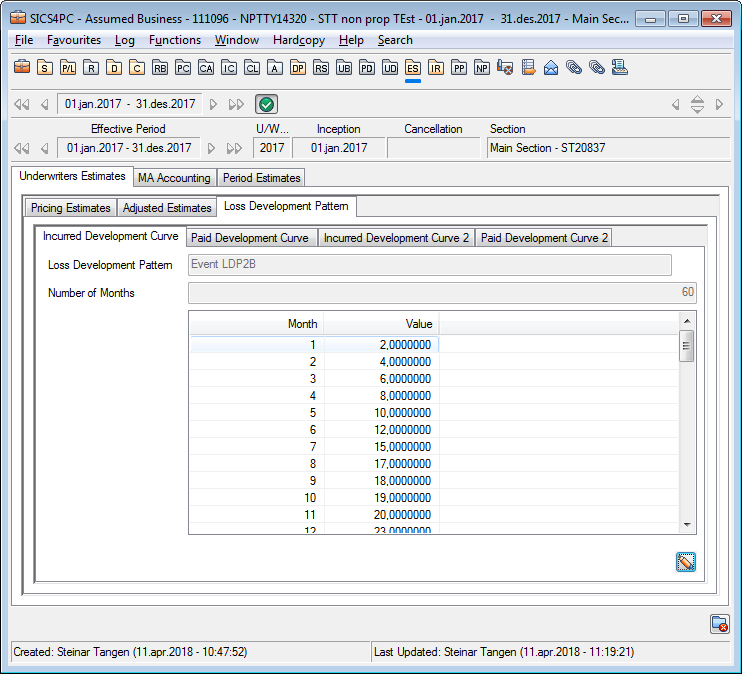
Register Incurred Development Curve
- Open Underwriters Estimates and select the Loss Development Pattern tab
- Select to open Incurred Development Curve tab in edit mode
- Click the edit button next to Loss Development Pattern field and select wanted curve
- Save the Select Loss Development Pattern
- If required, make changes to Number of Months and values
- Save
Register Paid Development Curve
- Open Underwriters Estimates and select the Loss Development Pattern tab
- Select to open Paid Development Curve tab in edit mode
- Click the edit button next to Loss Development Pattern field and select wanted curve
- Save the Select Loss Development Pattern
- If required, make changes to Number of Months and values
- Save
Register a second Incurred Development Curve
- Open Underwriters Estimates and select the Loss Development Pattern tab
- Select to open Incurred Development Curve 2 tab in edit mode
- Click the edit button next to Loss Development Pattern field and select wanted curve
- Save the Select Loss Development Pattern
- If required, make changes to Number of Months and values
- Save
Register a second Paid Development Curve
- Open Underwriters Estimates and select the Loss Development Pattern tab
- Select to open Paid Development Curve 2 tab in edit mode
- Click the edit button next to Loss Development Pattern field and select wanted curveRegister Paid Development Curve
- Save the Select Loss Development Pattern
- If required, make changes to Number of Months and values
- Save
Your system may have been set up to automatically update Loss Development Curves whenever an update is made in system parameters. If this is the case, Number of Months and values cannot be changed on the business.
Pricing Estimates per Model Section #
If your system has been set up to do so, you can create Pricing Estimates per Model Section. A Model Section in this respect is an object with a set of classifications. A Model Section can have only one value for each classification type. The classifications on a Model Section can be different than those on the business section. Multiple Model Sections can be created on a business section, and Pricing Estimates can be created on each Model Section.
The Model Sections can be aggregated on a higher/less specific set of classifications, called Line of Business. The classification types to be part of the Line of Business aggregation are defined by your system administrator.
Example: Say that you have defined Main Class of Business (MCoB), Class of Business (CoB) and Sub Class of Business (SCoB) to be the Line of Business aggregation level. You then create 3 Model Section with the same McOB, CoB and SCoB, but with different values for one or multiple other classifications. These 3 Model Sections will then be aggregated to one Line of Business. The name of the Line of Business will be the value of the lowest of the classifications making up the Line of Business, in this case the Sub Class of Business.
The Pricing estimates created per Model Section can be viewed on Line of Business level. Each Line of Business can be mapped to one or multiple Accounting Classifications.
The creation of Model Sections, mapping to Accounting Classification and creation of Pricing Estimates per Model Section are all available from the Underwriters Estimates.
View Model Sections #
View existing Model Sections on a business section.
- Open Underwriters Estimates
- If no Estimate condition exists, press Save to save the condition
- Navigate to the Pricing tab.
- Right mouse click in the Estimation Item area and select View Model Sections from the popup menu
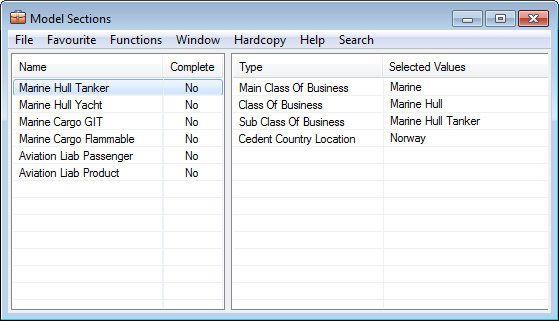
- The Model Sections window is opened
Add Model Section #
Add a new Model Section on a business section.
- In the Model Sections window, right click in the left area and select Add Model Section from the popup menu
- You see the Model Sections edit window. Mandatory classification types are already populated in the window. Additional classification types can be added as required
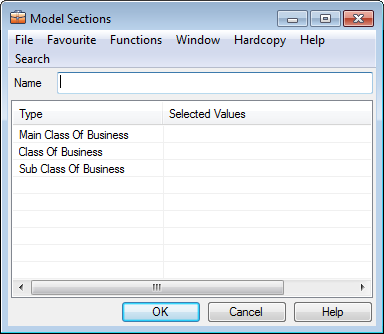
- Enter a Name for the Model Section
- Double click on each of the mandatory classification types, and select a value for each classification type.
- Right mouse click and select edit to select additional classification types. Select a value for the additional classification type(s)
- Press OK to save the Model Section
Edit Model Section #
Edit an existing Model Section.
- In the Model Sections window, select an existing Model Section right mouse click and select Edit Model Section from the popup menu
- You see the Model Sections edit window.
- Make necessary changes
- Press OK to save the changes to the Model Section
Map Lines of Business to Accounting Classification #
Each Line of Business can be mapped to one or multiple Accounting Classifications. You maintain this in the Split Matrix window. To open the Split Matrix window, open Underwriters Estimates, navigate to the Pricing tab, right click in the Estimation Item area and select View Model Section Split.
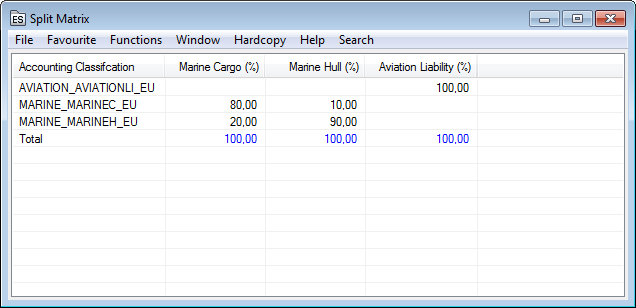
The window shows one row for each Accounting Classification on the business, and one column for each Line of Business. To define/modify the Accounting Classification split, right click in the Split Matrix window and select Edit from the popup menu.
In the Split Matrix edit window, you have various options:
- Right click in the window and select Map Automatically to ask the system to map each Line of Business to one Accounting Classification. This is possible if only one Accounting Classification exists on the business section, or if there is only one Accounting Classification matching the classification of a Line of Business.
- Enter the Accounting Classification split manually into the matrix. There is no validation that the classifications on the Lines of Business match those of the Accounting Classification.
- Right click in the window and select Add Accounting Classification to add an additional Accounting Classification on the business section.
- Right click in the window and select Set Mapping Complete to set a flag indicating that the mapping to Accounting Classifications is complete for all Lines of Business. The flag can only be set if all Lines of Business are 100% assigned to one or multiple Accounting Classifications When this flag is set, you can no longer add any new Model Sections or modify existing Model Sections on this business section.
- Right click in the window and select Remove Mapping Complete to remove flag indicating that mapping to Accounting Classification is complete.
Press OK to save Accounting Classification split.
Create Pricing Estimates per Model Section #
When you have defined your Model Sections on the business section, you can create Pricing Estimates per Model Section.
- Open Underwriters Estimates and navigate to the Pricing tab
- Select Edit from the menu button
- Right click in the currency display list and select Add. The Select Currency to be Added window is opened
- Select the currency, date and time you want to use for your estimates, and press Save
- Select the currency to see all relevant Estimation Items which have been defined for the Type of Business. A column is shown for each Model Section, in addition to a Total column showing the total for all Model Sections. Automatically calculated values are populated.
- Enter the values for the Estimation Items for each Model Section as required.
- Press OK to save your Pricing Estimates
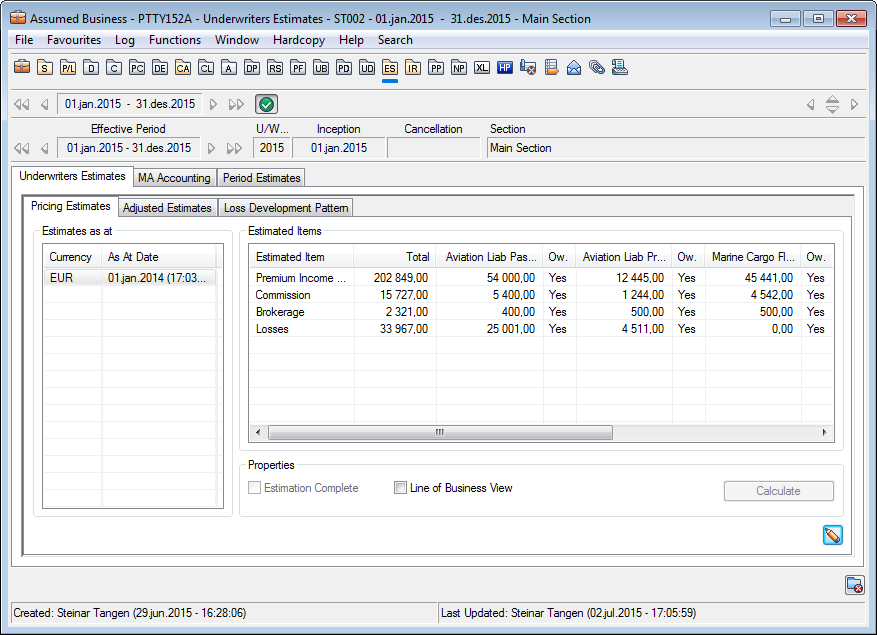
Select the Line of Business View option if you want to see the Pricing Estimates aggregated on each Line of Business
Booking of the Pricing Estimates per Model Section #
Booking of the Pricing Estimates per Model Section is currently not supported in SICS. However, the estimates can be extracted by a script, and booked via e.g. the createWorksheet Web Service. When the Pricing Estimates for a currency/As At Date are extracted, they should no longer be modified. You can set a flag to indicate this. Press the Edit button in the Underwriters Estimates/Pricing tab, select the relevant currency/As At Date, right click and select Set Extracted from the popup menu. Press OK to save.
Note! Once the flag is set, it cannot be removed.
Note! When Pricing Estimates per Model Section is in use, the standard functionality for Pricing and Adjusted estimates cannot be used. Pricing Estimates per Model Section cannot be created using the Underwriters Estimates Calculation Order.