Handle Contact Persons
Persons whom you do business with at your business partners can be registered and maintained in SICS.
Find a Contact Person #
Search for a Contact Person by Name #
|

Soundex button | If you do not know the exact spelling of your contact person’s name, you can use the Soundex button in your search. The Soundex button starts a phonetic search feature. This feature will display all entries sounding as the name you have typed.
For example, if you type ‘Thomsen’, SICS will display all entries spelt like Thomson, Thompson, Tomson, Thompsen. |
- Double-click the Persons icon in the Partners folder on the desktop to open the Find: Person window.
- On the Name tab, type the name(s).
- Click Find Now. You see the results of your search in the display list.
Search for Contact Person for a Business Partner #
You might need to e.g. send a statement to the client but do not know whom to contact at the accounting department.
- Double-click the Business Partner icon on the Partners folder on the desktop to open Find. Business Partner window.
- Find Partner to be contacted.
- Click Details tab and select Contact Persons in the properties list.
- Find Person for needed feature: Check Role.
- Open a person and click Position tab, verify office to find person for required office.
Search for whom a Person is a Contact #
You might need to find which company a person works for.
- Double-click the Persons icon on the Partners folder on the desktop to open the Find: Person window.
- Find Person concerned.
- Open Person and click Details.
- Click ‘Contact Person for.
- System shows companies for which this person is a contact.
- To see earlier companies this person was contact for, click Include Historical Data.
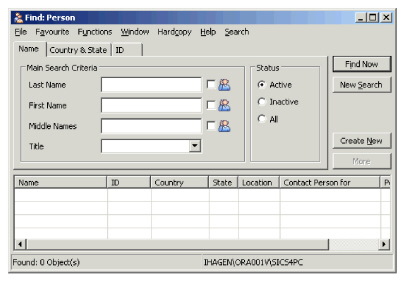
Field description 25. - Find Contact Person
| Field | Description |
|---|---|
| Last Name | A contact person’s surname. Values: Free-text, maximum 50 characters. Additional functionality: A Soundex button for phonetic search. Mandatory: No |
| First Name | A contact person’s given name. Values: Free-text, maximum 50 characters. Additional functionality: A Soundex button for phonetic search. Mandatory: No |
| Middle Name | A contact person’s middle name. Values: Free-text, maximum 50 characters. Additional functionality: A Soundex button for phonetic search. Mandatory: No |
| Title | A contact person’s title. Values: Customised by your company e.g. Mrs, Mr, Doctor. Mandatory: No |
| Status | The status indicates if the contact person is a valid, and is allowed to make business/agreements Values: Active - valid contact persons. Inactive - invalid contact persons. All - _both active and inactive contact persons. Mandatory: Yes |
| Country | The domicile country of a contact person. Values: Countries. Mandatory: No |
| State | The state in which the contact person lives. Values: States. Derived: from Countries with States. Mandatory: No |
| ID Type | A type of identifier. For example, the SICS identifier. Values: Free-text, maximum 20 characters. Mandatory: No |
| ID | The name or number that uniquely identifies the contact person. Values: Free-text, maximum 20 characters. Mandatory: No |
Record a New Contact Person #
- Double-click the Business Partners icon in the Partners folder on the desktop to open the Find: Business Partner window.
- Find and open your business partner.
- Click the Details tab and click Contact Person s in the Properties display list.
- Select New from the pop-up menu. You see the Create Contact Person For window.
- Click the Find button next to the Contact Person field. You see the Find Person window.
- Click the Create New button or select New from the pop-up menu.
- Enter the relevant details about your new contact person and click Save. You see the View: Contact Person window for the contact person you just registered.
- Close the View: Contact Person window; find and transfer (by double-clicking it) the contact person you have just registered.
- Click OK to complete your registration.
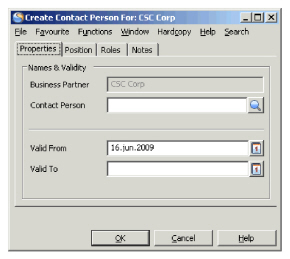
Assign an Existing Person as Contact for a New Business Partner #
You can assign a contact person to a business partner in different ways. You can either assign it from an individual person or from a business partner. You can also register a new contact person directly from within an existing business partner.
Assign the Contact Person from a Business Partner #
- Double-click the Business Partners icon in the Partners folder on the desktop to open the Find: Business Partner window.
- Find and open your business partner. You see the View Business Partner: window.
- Click the Details tab, click Contact Person s in the Properties list and select New from the pop-up menu. You see the Create Contact Person For window.
- Click the Find button to open the Find: Person window.
- Find your new contact person using the search feature. Double-click your contact person to transfer it back to the Contact Person field.
- Click OK in the Create Contact Person window.
Assign a New Partner from an Existing Contact #
- Double-click the Person icon in the Partners folder on the desktop to open the Find: person window.
- Find your contact person and open it. You see the View Person: window.
- Click the Details tab, click Contact Person For in the Properties list and select New from the pop-up menu. You see the Create Contact Person For window.
- Click Find to open the Find Business Partner window.
- Find your business partner using the search features. Double-click your business partner to transfer it to the to Business Partner box.
- Click OK in the Create Contact Person window.
Maintain Contact Details #
Record Job Position of Contact Person at Business Partner #
- Double-click the Business icon in the Partners folder on the SICS desktop to open the Find: Business Partner window.
- Find your Business Partner and then open it. You see the View Business Partner window.
- Click the Details tab and select Contact Person s in the Properties display list.
- Select a contact person in the display list to the right and select Edit from the pop-up menu, or double-click the contact person and click the Edit button in the View Contact Person window.
- Click the Position tab.
- Select department from the drop-down list, type your contact person’s position in the Position box and click OK.
Record Address of Contact Person at a Business Partner #
To give your contact person his/her address at the company in which he/she works:
- Open your business partner. You see the View Business Partner window.
- Select the Details tab and then select Contact Person s from the Properties display list.
- Double-click your contact person. You see the View Contact Person for window.
- Click Edit and then select the Position tab.
- Click Select Business Partner Address to open the Addresses window.
- Double-click the required address and then click OK.
Record Private Address of Contact Person #
- Double-click the Persons icon in the Partners folder on the desktop to open your contact person. You see the View Person window.
- Select the Details tab and then select Addresses from the Properties display list.
- Click in the display list and select New from the pop-up menu. You see the Create New Address window.
- Enter the relevant information and click OK.
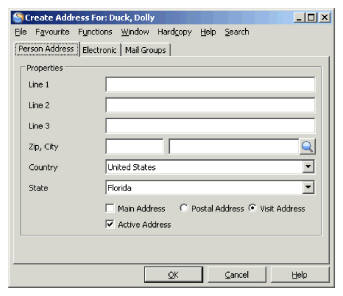
Record Role of Contact Person at Business Partner #
To give your contact person his/her work role (for example, Underwriter, Actuary, Consultant, Accountant) at the company in which he/she works.
- Double-click the Business icon in the Partners folder on the desktop to open the Find: Business Partner window.
- Find and open your business partner. You see the View Business Partner window.
- Click the Details tab and select Contact Persons from the Properties list.
- Select your contact person from the display list and select Edit from the pop-up menu.
- Click the Roles tab.
- Select a role(s) and move it to the Selected list by double-clicking it or clicking one of the arrows buttons and click OK.
Remove Contact Person Information #
If the information that you have registered for a contact person is incorrect, or the contact person is no longer working for your business partner, you can delete/remove information about the contact person.
Delete Private Address of a Contact Person #
- Find and open the contact person and click the Details tab.
- Click Address in the Property display list and then click the address you want to delete.
- Select Delete from the pop-up menu.
Delete Partner for whom Person is a Contact #
- Find and open the contact person and click the Details tab.
- Click Contact Person For from the Property list and then click the_business partner_ you want to delete.
- Select Delete from the pop-up menu.
Reset Address of a Contact Person #
- Find and open the contact person and click the Details tab.
- Click Contact Person s from the Property display list and double-click the contact person. You see the View Contact Person For window for this contact person.
- Click Edit and select the Position tab in the Edit Contact Person window.
- Click Reset Address and click OK.
Inactivate a Contact Person #
If a contact person has been registered in error or contact person is no longer relevant you can inactivate the contact person.
- Find and open your contact person. You see the View Person window.
- Click Edit button.
- Clear the Active check box in the Status section.
- Click OK to confirm that you want to inactivate your contact person in the Status section and click OK.
- Click OK in the Edit Person: window. SICS gives you a validation error when you try to assign this contact person to a business partner.
Maintain Contact Person User Defined Information #
SICS gives your company the option of registering further information about your contact person s. Depending on the set up of your system administrator, what you see of user-defined fields may vary depending on the category of the contact person. For example, if he/she is an employee you may see different information than if he/she is a contractor.
- From the desktop select Person.
- Click the user-defined tab following the Details tab.
- Click Edit and enter relevant data.
| Field | Description | Location |
|---|---|---|
| Last Name | A contact person’s surname. Values: Free-text, maximum 50 characters. Mandatory: No |
|
| First Name | A contact person’s given name. Values: Free-text, maximum 50 characters. Mandatory: No |
|
| Middle Names | A contact person’s middle name. Values: Free-text, maximum 50 characters. Mandatory: No |
|
| Title | A contact person’s title. Values: Customised by your company e.g. Mrs, Mr, Doctor. Mandatory: No Functional Impact: None |
|
| Initials | The contact person’s initials. Values: Initials. Derived: from First Name field and Middle Name field. Mandatory: No Functional Impact: None |
|
| Gender | The gender of your contact person. Values: Female and Male. Default value: Female Mandatory: Yes Functional Impact: None |
|
| Country | The domicile country of a contact person. Values: Countries. Mandatory: No |
Main Info tab |
| State | The state in which the contact person lives. Values: States. Derived from: C ountry including states. Mandatory: No |
|
| Location | The domicile city of a contact person. Values: Free-text, maximum 50 characters. Mandatory: No |
|
| Language | The contact person’s business language Values: Languages Default value: English Mandatory: Yes |
|
| Contact Person for | The business partner the contact person is working for. Values: Business Partner name(s). A plus sign (+) following a business partner’s name indicates that the contact person is a contact person for more than one business partner. Derived from: Business Partner Mandatory: No Functional Impact: None |
|
| Position | A job title of a person. Values: Customised by your company, e.g. Reinsurance Manager, Senior Accountant Derived: from Contact Person link i.e. Business Partner-Contact Person-Position field. Mandatory: No Functional Impact: None |
|
| Category | The major type of role a person plays for a business partner. Values: Customised by your company, e.g. Employee, Contractor or Owner. Mandatory: No Functional impact: User Defined Fields |
|
| SICS Identifier | The name or number that uniquely identifies the contact person. Values: Free-text, maximum 50 characters. Default: SICS Identifier may give a default value automatically. Customised by your company. Validation: The identifier can be editable or non-editable. Customised by you company. The leading text for the SICS Identifier can be changed. Customised by your company. |
|
| Date of Birth | A contact person’s birthday. Values: Date field. Mandatory: No |
|
| Age | A contact person’s age. Values: Read-only field. Derived: from Date of Birth. Calculation: From Date of Birth and today’s date. Mandatory: No |
|
| Marital Status | The marital status of a person. Values: Customised by your company, e.g. Divorced, Married or Widow. Mandatory: No Functional Impact: None |
|
| Date of Death | The deceased person’s date of death. Values: Date. Mandatory: No Functional Impact: None |
|
| Active | Indicates if the contact person is valid, and is allowed to make business/agreement s. Values: Active, Inactive Default: Active |
|
| Position | The job title of a person. For example, senior underwriter. Values: Free-text, maximum 30 characters Functional impact: Person Mandatory: No |
|
| Role | The role the person plays in this business partner for your company. Values: Customised by your company, e.g. Legal Adviser, Consultant, Accountant Mandatory: No |
|
| Partner Address Identifier | A number or text identifying a specific address. Values: Free text, maximum 40 characters Validations: Must be unique within same contact person Mandatory: No Functional Impact: None |
|
| Line 1,2,3 | Address lines for the contact person’s address. Values: Free-text, maximum 45 characters. Mandatory: No Functional impact: None |
|
| Zip, City | Zip code and city where the contact person is located Values (Zip code): Free-text, maximum 25 characters. Values (City): Cities. Functional impact: None Mandatory: No |
|
| Country | The country where the contact person is located. Values: Countries. Derived from: Main Info on Person Mandatory: Yes |
|
| State | The state where the contact person is located Values: States. Validation: Depends on Country. Mandatory: No |
|
| Main Address | The main address of the contact person. Values: Yes, No. Mandatory: No |
Address tab |
| Postal Address | The postal address of the contact person. Values: Yes, No Mandatory: No Validation: You must select either visit address or postal address. |
|
| Visit Address | The visit address of the contact person Values: Yes, No. Default value: Visit Address. Mandatory: No Validation: You must select either visit address or postal address. |
|
| Active Address | Indicates if the contact person’s address valid and allowed to be used. Values: Active or Inactive. Default value: Active Mandatory: No |