Evaluate Business Partner
SICS offers several means of assisting you in determining and monitoring the financial situation of your business partners. It assists you both in evaluating the partners' general financial situation, as well as the particular financial situation with your company.
Analyse Key Figures of Business Partner #
SICS lets you register annual financial figures published from your business partners' accounts. Examples of key figures are Gross Premium Written, Premiums Earned and Claims Incurred.
Register Financial Figures for a Business Partner #
- Find and open the Business Partner you want to enter financial results for. You see the View Business Partner window.
- Click the Details tab.
- In the Properties column on the left-hand side, select Key Figures. SICS shows the Key Figures display list on the right-hand side of the window.
- In the Key Figures display list, select New in the pop-up menu. You see the Create Key Figures window.
- Enter the required information and click OK.
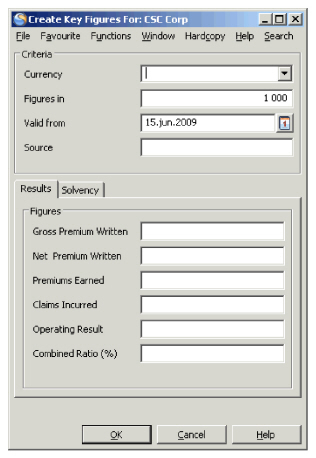
Field description 4. - Key Figures
| Field | Description |
|---|---|
| Currency | The currency the figures should be displayed in. Values: Currencies. Validation: Empty field not allowed. Functional impact: None Mandatory: Yes |
| Figures In | The amount factor that the figures are based on e.g. 1000, 100, 1 Values: Numerical field. Default: 1000. Validation: Amount factor must be 1, 10, 100, 1000, 10000, 100000, etc. Functional Impact: None Mandatory: Yes |
| Valid From | Defines from which date the financial figures are valid. For example, from each fiscal year. Values: Dates. Default: Current date. Validation: Empty field not allowed. Functional Impact: None Mandatory: Yes |
| Source | The information source. For example, Annual Report Values: Free-text, maximum 30 characters. Functional Impact: None Mandatory: No |
| Gross Premium Written | The total premiums (before expenses, losses, deductions, etc) on all policies written by an insurer during a specified period of time, regardless of what portions have been earned. Values: Numerical text, maximum 20 characters. Mandatory: No Functional Impact: None Mandatory: No |
| Net Premium Written | An insurer’s retained premium (on all policies written during a specified period of time) income-direct or through reinsurance-minus payments made for reinsurance ceded. Values: Numerical text, maximum 20 characters. Functional Impact: None Mandatory: No |
| Premiums Earned | The amount of the premium that has been “used up” during the term of a policy. For example, if a one-year policy has been in effect six months, half of the total premium has been earned. Values: Numerical text, maximum 20 characters. Functional Impact: None Mandatory: No |
| Claims Incurred | Defines the company’s paid claims plus estimated claims reserves. Values: Numerical text, maximum 20 characters. Functional Impact: None Mandatory: No |
| Operating Result | A company’s profit or loss after deducting its operating costs from gross profit. Values: Numerical text, maximum 20 characters. Functional Impact: None Mandatory: |
| Combined Ratio (%) | A company’s combined ratio is calculated by dividing the sum of incurred losses and expenses by earned premium. Examples: A ratio of .98 means the insurer has made two cents (2%) of underwriting profit; a ratio of 1.17 means it has an underwriting loss of 17 cents (17%) for each premium dollar. Values: Numerical text, maximum 8 characters. Functional Impact: None Mandatory: No |
| Shareholders Fund | The total of a company’s paid-up capital and reserves. It is a measure of the total value of the shareholder’s ownership in the company. Values: Numerical text, maximum 20 characters. Validation: Exceeding 20 characters not allowed. Functional Impact: None Mandatory: No |
| Solvency Margin (%) | The calculation of the extra capital a company has, to satisfy financial requirements i.e. to be eligible to transact insurance business and meet liabilities. Values: Numerical text, maximum 4 characters. Validation: Exceeding 4 characters not allowed. Functional Impact: None Mandatory: No |
| Return on Investment | The overall profit (or loss) on an investment expressed as a percentage of the total invested. For example, a person invests £5,000 in the shares of a company and some time later has received £100 in dividends with the value of the shares now £5,200. The return on investment is: (£100 + £5,200 - £5,000)/£5,000 x 100 = 6% defines return of investment. Values: Numerical text, maximum 4 characters. Validation: Exceeding 4 characters not allowed. Functional Impact: None Mandatory: No |
Examine Actual Results of Facultative Business for Partner #
To assist facultative underwriters analysing a business partner’s portfolio, SICS offers a Facultative Analysis tool. The tool provides detailed information about your accepted facultative businesses per underwriting year. You can, for example, look at:
- Summary of premiums: accepted vs. booked
- Claims: paid vs. reserved
- Number of businesses.
Before you can run the analysis, you need to:
- Find the businesses, business groups you want to include.
- Customise the business list according to your requirements by excluding/including businesses and business groups in the display list.
- Set the calculation basis criteria.
Find Relevant Partner(s) and Businesses to Analyse #
- Click the Business Partner Facultative Analysis icon in the Partners folder on the SICS desktop to open the Find: Business Partner Facultative Analysis window. (Alternatively, click the Partner Facultative Analysis icon from the Business Partner.)
- Enter the required information (e.g. Classification) and click Find Now. SICS displays the businesses matching your search criteria in the display list.
Note! When ‘Owner’ or ‘Third Party Group’ is used as search criteria, the system finds the immediate subsidiaries of the Owner, alternatively the members of the Third Party Group. Facultative Businesses having these subsidiaries or group members defined as the Business Partner ‘Insured’ are retrieved. Only the Insured Periods covering at least one day of the Valid From/-To span in the actual owner/subsidiary or group/member relationship are considered.
If Valid From and/or Valid To dates are defined as search criteria in addition to Owner/Third Party Group, these dates are also considered when the system searches for businesses.
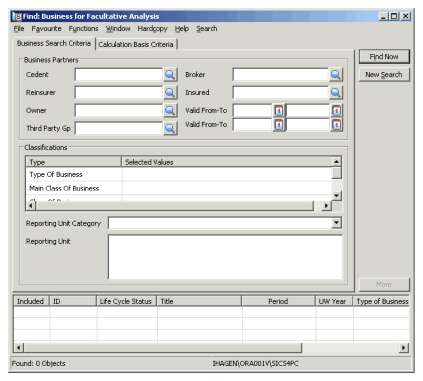
Field description 5. - Search Criteria
| Field | Description |
|---|---|
| Cedent | The original insurer who cedes business to the reinsurer. Values: Business Partners Derived from: Business Partner- if the tool is accessed from a Business Partner(type: Cedent). Mandatory: Yes (if Broker, Owner or Third Party Group not selected) Functional Impact: None. |
| Broker | The intermediary between two parties whom represents one party (his principal) as an agent in negotiating a contract on his principal’s behalf. Values: Business Partners Derived from: Business Partner- if the tool is accessed from a Business Partner (type: Broker). Functional Impact: None Mandatory: Yes (if Cedent, Owner or Third Party Group not selected) |
| Reinsurer | An insurer that assumes the liability of another insurer through reinsurance, and who agrees to indemnify the ceding insurer who remains liable for claims on policies that he has issued. Values: Business Partners. Functional Impact: None Mandatory: No |
| Insured | The person or entity named in the policy that is insured against specified losses. Values: Third Parties Functional Impact: None Mandatory: No |
| Owner | A company that is the owner of another company (subsidiary), or a group of companies. Values: Business Partner name Functional Impact: None Mandatory: No |
| Valid From-To | The effective- and expiry date span when the relationship between the subsidiary and its owner is valid Values: Date Functional Impact: None Mandatory: No |
| Third Party Group | A group of companies defined as Third Party companies in SICS. (I.e. Business Partners defined as Insured for Facultative businesses.) Values: A Third Party Group Name, e.g. Domestic Insureds or Overseas Insureds Functional Impact: None Mandatory: No |
| Valid From-To | The period when the group member is attached to the group (Effective- and Expiry date) Values: Date Functional Impact: None Mandatory: No |
| Classifications | Categorisation of a business to determine the type and class of the risk e.g. Proportional Facultative/Marine Hull. Values: One or more Type of Business, Main Class Of Business, Class of Business, Sub Class Of Business and/or Reporting Unit. Available: Select type of business and classes in the display list, and drop-down list when selecting reporting unit. Functional Impact: None Mandatory: No |
Note! For search criteria ‘Cedent’, ‘Broker’, ‘Reinsured’ or ‘Owner’, if manually input business partner belongs to a merger group and system parameter ‘Include merged companies and merge parent at search by business partner’ is selected, all other members of this business partner’s merger group will be added automatically to corresponding fields also. The same applies for ‘Insured’, except that other members of the input business partner’s merger group can be added automatically in field ‘Insured’ must also be third party.
Add Businesses to the Facultative Analysis #
SICS lets you include further facultative businesses in your analysis. The added businesses are independent of the search criteria you selected initially in the Find window. You can add single businesses, or business groups.
To include further businesses/business groups in the analysis:
- Click in the display list of the Find Business Facultative window and select Add Business/Add businesses (Business Groups) from the pop-up menu. You see Find Business /Find Business Group window.
- Find the required business(es) business group and double-click it, or select Transfer from pop-up menu in the display list to transfer it back to the Find Business Facultative window. The added business(es) /business group is now shown in the display list and will be included in your analysis when you run it.
To exclude businesses in the analysis:
By default, SICS includes all businesses matching the search criteria in the analysis. In the Include column in the display list, you see that all businesses are set to Yes. SICS lets you easily exclude the businesses you do not want to include in the analysis:
- On Find: Business For Facultative Analysis window, select the business you want to exclude in the display list and select Exclude from the pop-up menu.
- SICS has changed the value in the Included column from Yes to No and the business will not be included in the analysis.
Set the Basis of Calculation on the Facultative Analysis #
Before you run the analysis, you should set the criteria for the basis of the analysis. For example, the currency or status (open/closed) of the balances.
- On Find: Business For Facultative Analysis window, click Calculation Basis Criteria tab.
- Select the preferred calculation basis.
| Field | Description |
|---|---|
| Calculation Basis in | Gives alternatives if calculated figures should be based on underwriting year or accounting year. Values: Underwriting Year, Accounting Year. Default: Underwriting Year. Functional Impact: None Mandatory: Yes |
| Claim Worksheet Status | Defines which status types of a claim worksheet that should be included in the calculation. Values: Closed, Open, Both. Default: Closed. Functional Impact: None. Mandatory: Yes |
| Technical Worksheet Status | Defines which status types of a technical worksheet that should be included in the calculation. Values: Closed, Open, Both. Default: Closed. Functional Impact: None Mandatory: Yes. |
| Exchange Currency | The currency the figures should be calculated in. Values: Currencies. Default: Your company’s base currency. Default customised by your company. Functional Impact: None Mandatory: Yes |
| Exchange Rate Type | The periodic type of exchange rate that calculation should be based on. Values: Day Rate Default: Day Rate. Functional Impact: None Mandatory: Yes |
| Exchange Rate Date | The date of the exchange rate type ‘Day Rate’ that calculation should be based on. Values: Dates Default: Current date. Functional Impact: None Mandatory: Yes |
Run a Facultative Analysis #
When you have completed your selection of businesses and set the calculation basis criteria, you can run the analysis to see the results.
On Find: Business For Facultative Analysis window, Business Search Criteria tab, select Run Online Analysis from the pop-up menu. You see the results on the Facultative Business Online Analysis window.
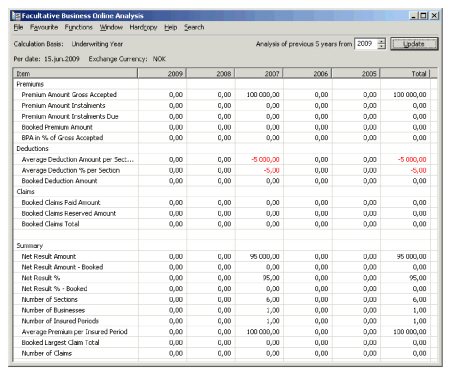
Field description 7. - Facultative Business Analysis Result Window
| Field | Description |
|---|---|
| Calculation Basis | The analysis displays figures for 5 years at the time. These years are either the underwriting year or the accounting year. If underwriting year is shown then the year in the column header represents the underwriting year both for the business information and for the booking information. If accounting year is shown then the year in the column header still represents the underwriting year for the business information but the accounting year for the booking information. Derived from: Derived from the Calculation Basis Criteria tab on the Find Businesses for Facultative Analysis window. |
| Per date | The date for the exchange rate used in the calculation. Derived from: Derived from the Calculation Basis Criteria tab on the Find Businesses for Facultative Analysis window. |
| Exchange Currency | All the figures in the analysis is represented in this currency converted from the original currencies according to the Per date rate. Derived from: Derived from the Calculation Basis Criteria tab on the Find Businesses for Facultative Analysis window. |
| Analysis of previous 5 years from | The analysis displays figures for this year + the previous 4 years. Values: All valid years Default: Current calendar year + 1. Mandatory: Yes Functional Impact: When the year is changed and the Update button is clicked the year columns will change accordingly. The selected year as the most left column followed by the previous 4 years. |
Description of the content of each row in the Facultative Business Online Analysis display list.
| Label | Description |
|---|---|
| Premium Amount Gross Accepted | Displays the Period Premium Our Share from the Limit and Premium Conditions from all sections with own conditions. If the Sum Up To Parent Section is ticked on a child section then the premium on this section is not included. |
| Premium Amount Instalments | Displays the sum of Premium Instalments from the Instalment tab on the Limit and Premium Conditions from Main sections. Independent if the instalments are booked or not. |
| Premium Amount Instalments Due | Displays the sum of Premium Instalments from the Instalment tab on the Limit and Premium Conditions from Main sections. Independent if the instalments are booked or not but only due instalments. |
| Booked Premium Amount | Sum of premium booked taken from the Business Ledger in the entry code subcategory Premium. |
| BPA in % of Gross Premium | Booked Premium Amount in percent of Premium Amount Gross Accepted. |
| Average Deduction Amount per Section | The average deduction amount calculated as the Premium Amount Gross Accepted multiplied with the Average Deduction %.per Section. |
| Average Deduction % per Section | The average deduction percent calculated as the sum of the Total Deduction percent for all sections divided by number of sections. |
| Booked Deduction Amount | Sum of booked deductions from the Business Ledger in the following entry code subcategories Original Commission, Overriding Commission, Profit Commission, Other Deduction, Brokerage, Tax on Premium, Fronting Fee, Fire Prevention Cost, Tax On Natural Catastrophe Premium, Original Profit Commission and Commission On Natural Catastrophe Premium |
| Booked Claims Paid Amount | Sum of booked paid claims taken from the Business Ledger. Only bookings with ‘transfer to ledger’ = Yes are included. The entry code subcategories Loss and Loss Expenses, |
| Booked Claims Reserved Amount | Sum of booked claim reserves taken from the Business Ledger. Only bookings with ‘transfer to ledger’ = Yes are included. The entry code subcategories Original Loss Reserve and Additional Loss Reserve |
| Booked Claims Total | Sum of Booked Claims Paid Amount and Booked Claims Reserved Amount |
| Net Result Amount | Premium Amount Gross Accepted less (Average Deduction Amount per Section times Number of Sections) less Booked Claims Total expressed as an amount |
| Net Result Amount - Booked | Booked Premium Amount less Booked Deduction Amount |
| Net Result % | Net Result Amount in percent of Premium Amount Gross Accepted |
| Net Result % - Booked | Net Result Amount - Booked in percent of Booked Premium Amount |
| Number of Sections | Number of Sections taken from the included Insured Periods of the included Businesses |
| Number of Businesses | Number of Businesses included per year column. If one business contains of several underwriting years the business is counted once per underwriting year (once per year column). |
| Number of Insured Periods | Number of Insured Periods included per year column. |
| Average Premium per Insured Period | Premium Amount Gross Accepted divided by Number of Insured Periods |
| Booked Largest Claim Total | Displays the largest amount booked for anyone claim from the included Insured Periods of the included Businesses |
| Number of Claims | Number of Claims included taken from the included Insured Periods of the included Businesses. |
Rate Partners #
Credit rating agencies like Moody’s and Standard & Poor’s (S&P) provide a service to the investment community by grading bonds according to how likely it is that the issuer will default either on interest or capital payments. SICS lets you store credit ratings made by credit rating agencies, or, for example, by your own company, on your business partners. This can assist you when you are evaluating your business partner’s financial situation.
Record Credit Rating for a Business Partner #
- Open the Business Partner’s Details tab
- In the Properties display list, select Ratings
- In the Ratings display list, select New from the pop-up menu. You see the Create Ratings window.
- Select the required ratings and click OK.
Record Changed Credit Rating for a Business Partner #
The credit rating agencies frequently update the ratings. To get the full picture of a company’s financial situation, you may want to keep earlier ratings made by the rating agency.
- On a Business Partner click Details tab, and select Ratings on Properties display list.
- Select required rating system from display list by double-clicking it or select Edit from the pop-up menu. You see Edit Ratings window.
- Select New rate from drop-down.
- Click Calendar button on Valid From field to select a ‘from’ date, or enter date manually.
- Click OK to save the changes.
View Rating History of a Business Partner #
Only the most recent ratings are shown on the ratings display window. To analyse a company’s financial situation, you may want to see an historical overview of ratings.
- Open the business partner Details tab.
- In the Properties display list, select Ratings
- In the Ratings display window select Include Historical Data. You will see the current ratings, including previous ratings for each Rating System in the display list
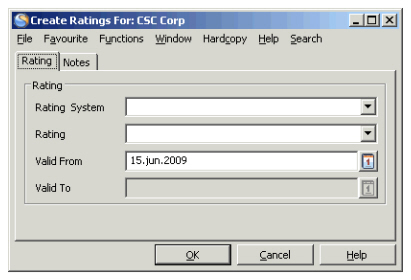
Field description 8. - Ratings
| Field | Description |
|---|---|
| Rating System | The source that set the rates e.g. a Credit Rating Agency. Values: Customised by your company e.g. Standard and Poor, Moody’s, Internal rating. Validation: Empty field not allowed if a rate is selected. Allows multiple rating systems. Functional Impact: Business Partner Assignment Mandatory: Yes |
| Rating | Classification on financial reliability of a company, given by rating institutes. Values: Customised by your company e.g. AAA- Best Quality, BAA - Medium Grade, C - Lowest Grade. Validation: Empty field not allowed if a rating system is selected. Allows multiple rates per Rating System, using Valid From field. Mandatory: Yes Functional Impact: Business Partner Assignment |
| Valid From | Effective date of a rate. Values: Dates Default: Current date Mandatory: Yes Functional Impact: None |
Alert of Issue regarding a Business Partner #
If a partner is in liquidation, or experience financial difficulties, or is a slow payer, it is preferable to be made aware of this in certain situations that can involve the partner, for example a technical booking, payment or creation of business. SICS lets you set an alert status on a business partner, which will return a warning or a full stop message (depending on the person’s authorisation).
- Open the business partner to be set to alert and click its Details tab.
- In the Properties display list, select Alert Status.
- Click the Edit button in the bottom right-hand corner. You see the Alert Details window.
- Select the Alert Status, and Reason for Alert Status if applicable.
- Click OK.
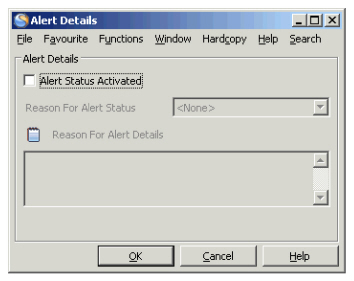
Field description 9. -Alert Details
| Field | Description |
|---|---|
| Alert Status Activated | Indicates whether there are issues with this business partner or not. Values: * Yes - There are issues with this _partner._ * No - There are no issues with this _partner_. _Default:_ No _Mandatory:_ Yes _Functional Impact:_ Accounting _Remittance_ Payment, Accepting _Business_, _Business_ Security, _Accounting_ Security |
| Reason For Alert Status | The cause of the alert status set. Values: Customised by your company, e.g. In Liquidation, In Rehabilitation, In Run Off, Slow Payer Validation: Alter Status Activated set to yes Mandatory: No Functional Impact: None |
List Claims of Business Partner #
The Business Partner Claims List displays all claims and their bookings linked to a business partner. If the business partner is an owner of one ore more subsidiaries, you can select to include all claims linked to the subsidiaries' businesses in the claims list.
View Claims Linked to a Cedent #
- From the SICS desktop, click the Business Partners icon.
- Find the Business Partner for which you want to view claims and open its Business Partner Properties.
- Click the Claims List icon on the Business Partner Properties to open the Business Partner Claims List window. (Alternatively you may access the Business Partner Claims List from Business Partner Ledger, Business Partner tab, Business Claims List or Claims Program Claims List by selecting Business Partners Claims List from their pop-up menu.)
- Select the Cedent check box.
- Click the Retrieve Claims button.
The system now displays all claims linked to businesses on which the Business Partner has the role as Cedent. It also displays the total amounts for the retrieved claims.
- To view the individual bookings for each claim, open the Claim Figures sub tab.
- Select the claim in the list, and expand.
- Each booking item with the associated as-of-dates, entry codes and details are listed.
View Claims Linked to an Insured #
- From the SICS desktop, click the Business Partners or Third Party icon.
- Find the Business Partner or Third Party for which you want to view claims and open its Business Partner or Third Party Properties.
- Click the Claims List icon to open the Business Partner Claims List window.
- Select the Insured check box.
- Click the Retrieve Claims button.
The system now displays all claims linked to businesses on which the Business Partner has the role as Insured. It also displays the total amounts for the retrieved claims.
- To view the individual bookings for each claim, open the Claim Figures sub tab.
- Select the claim in the list, and expand.
- Each booking item with the associated as-of-dates, entry codes and details are listed.
View Claims Linked to Subsidiaries #
If your Business Partner is an Owner of one or more subsidiaries, you may want to see all claims linked to the business partner itself and its subsidiaries.
- On the Business Partner Claims List select to view the claims list for either Cedent or Insured.
- Select the Include Subsidiaries check box. Note! The Include Subsidiaries check box is only enabled when the selected Business Partner or Third Party is an Owner.
- Click the Retrieve Claims button. The system now displays all claims linked to businesses on which the Business Partner and its immediate subsidiaries have the role as Cedent or Insured. It also displays the total amounts for the retrieved claims.
- Click the Activate Filters button and you see all filter criterions on which you search on claims.
- Define Subsidiary Valid from and/or Valid to date and select Calculate.
The system finds all subsidiaries of the business partner having at least one valid date within the given date range. All claims linked to these subsidiaries' businesses where the insured period covers at least one day of the common part of the Valid From - To span in the Owner/Subsidiary relationship and the Valid From - To span given as extraction criteria, are retrieved.
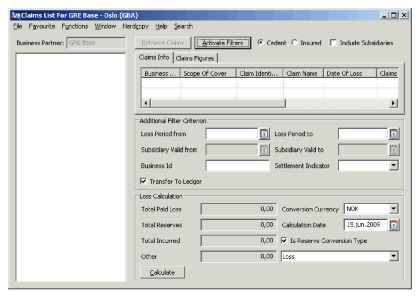
Field description 10. - Business Partner Claims List - Additional Filter Criterion
| Field | Description |
|---|---|
| Cedent/ Insured |
Indicator of whether the claims list should display claims linked to businesses on which the Business Partner has the role as Cedent or Insured. Value: Either Cedent or Insured selected. Default: As per User Preference. |
| Include Subsidiaries | Indicator that the claims list will include claims linked to the business partner’s subsidiaries Value: Selected/cleared Default: As per User Preference. |
| Loss Period From - To dates | Filter to extract claims having a Loss From date that falls within the given date range. Value: Date field |
| Subsidiary Valid From - To dates | Filter to extract claims linked to subsidiaries having a Valid Date that falls within the given date range. Activated when the Include Subsidiaries check box is selected. Value: Date field. |
| Business ID | Filter to extract claims linked to a given business. Value: Text field to enter Business ID |
| Settlement Indicator | Filter to extract claim bookings and belonging claims having the selected settlement indicator. Value: All settlement indicators defined in the system. |
| Transfer To Ledger | Indicator that the Total Amount fields will display figures transferred to ledger only. Value: Selected/cleared Default: Selected |
| Field | Description |
|---|---|
| Total Paid Loss | The total amount booked as paid for the listed claims expressed in selected currency. Value: Output field only. |
| Total Reserves | The total amount booked as reserves for the listed claims expressed in selected currency. Value: Output field only |
| Total Incurred | The total incurred amount for the listed claims expressed in selected currency. This is the sum of the total paid loss and total reserves. Value: Output field only |
| Other | Selection of entry code sub category to be displayed in the Other Amount field Value: All entry code sub categories defined in the system. Default: As defined in System Parameter. |
| Other Amount | The total amount booked for the selected entry code sub category for the listed claims in selected currency. Value: Output field only |
| Conversion Currency | The currency in which you want to convert all amounts in the Claims List, and in which the Total Figures will appear. Value: Any currency defined in the system. Default: System Base Currency. |
| Calculation Rate | The filter date by which claims are calculated. Only bookings up to this date will be included in the total amounts. Values: Date field Default: Today’s date. |
| Is Reserve Conversion Type | Indicator of whether the conversion into single currency should use latest daily rate (Reserve Conversion Type), or whether payments should be converted using the rate of exchange as per as-of-date (transaction date). Value: Selected/cleared Default: Selected (Reserve conversion). |