Control Accumulation of Insured Objects
|

Accumulation Control button | Click the Accumulation Control button on the Navigation bar to see the Accumulation Control window. The Calculation Exposure section on the right-hand side of the window shows information for businesses that are attached to the insurable object you are working with. |
The Protection tab shows the retrocession of the agreements that the cessions are specified for. The Retroceded Amount, Unplaced Share,and Pending Share are shown for every item in the list. Amounts are added together for a final sum. Amounts are shown in the selected currency.
If retrocession is given, the exposure is multiplied with the percentage to this specific retrocession.
The Accumulation Control window lets you calculate your accumulation exposure in any currency. For example, you have a business listed that has exposure calculated in US dollars (USD), and you want to calculate exposure in Norwegian Kroner (NOK).
To calculate your accumulation exposure in another currency:
- Select the currency type from the drop-down list.
- Enter a date in the Calculation at Date(if you want to do it right-away, select today’s date by clicking the Calendar and selecting the Insert Current Date button).
- Click the Calculate button.
The result of the calculation appears in the Total Exposure, Total Premium(our share) and Total Liability(our share) fields and is exchanged to the currency you selected at the newest daily rate. That figure indicates the sum of all exposures linked to business scope of covers that satisfy your filter criteria. Dates are validated against the cession valid from and to dates.
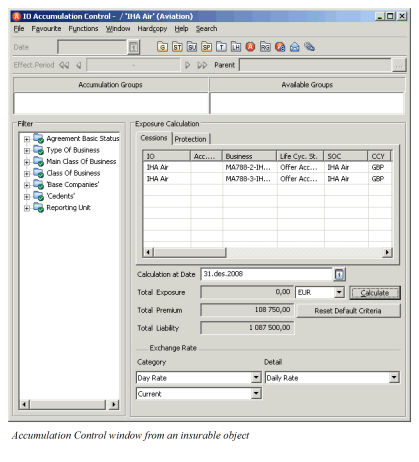
On the left-hand side of the window you see a list of categories that you can include in the Cessionsdisplay list. The cessions shown in the list are primarily based on the Calculation At Date. The cessions shown are valid for that date. The filter on the left can then be used to “fine tune” the cessions for the date.
Filter options are created by collating the valid values from the valid cessions. For example, the Cedent shows the partners being the cedent of the businesses that the various cessions are attached to. You may exclude partners that you do not want in the accumulation control.
You can select Expand All with the pop-up menu to see all the items in each category, or select Collapse to collapse items. You can also double-click items to expand and collapse them. To exclude criteria from the Cessions display list, click an item to select it, and then select Exclude from the pop-up menu. The item is marked with a red X when it is excluded. (To include it again, follow the same procedure, but select Include from the pop-up menu.)
For example:
To see only businesses that are connected to the insurable object that is in Definite status:
- Click Agreement Basic Status to select it.
- Select Exclude from the pop-up menu (and all your options are excluded).
- Click Definite to select it.
- Select Include from the pop-up menu.
You will see that the only figures for businesses that are listed in the Cessions display list are of Definite status.
At the top of the window is the Accumulation Groups section. The purpose of this section is to increase the scope of the accumulation from the current insurable object to any insurable objects that may be in the same group as the current insurable object.