Control Accumulation of Insured Perils
When reinsuring the same risks of catastrophe, like earthquake in a certain zone, through multiple reinsurance/insurance contracts, it is important to keep track of their cumulative effect. The DXC accumulation control of insured perils facility provides a detailed analysis for this.
Depending on your system set up, the accumulation control either includes only the requested zone or the requested zone and its sub zones.
Calculate Peril Exposure Starting from Business #
|

Insured Peril Cession button | 1. Find and open your business.
- Click the Insured Peril Cessions button on the Navigation bar to open the Insured Peril Cession window.
- Select a cession and select Peril Properties from the pop-up menu. You see the Peril Properties window. |
|

Accumulation Control button | 4. Click the Accumulation Control button in the lower left-hand corner. SICS retrieves the cession information and displays the information in the Peril Accumulation Control window. |
Note! You must be in View mode (not Edit mode) to have the Peril Properties option available.
Calculate Peril Exposure Starting from Risk Zones #
- Double-click the Risk Zones icon in the Reference Items folder on the SICS desktop. You see the Risk Zone Management window.
- Find you zone by clicking the arrow sign to expand the folder(s).
- Select a peril in the display list in the lower left-hand corner of the window and select Exposure from the pop-up menu. SICS retrieves the cession information and displays the information in the Peril Accumulation Control window.
The cessions shown in the list are primarily based on the calculation at date.
View Peril Cessions Exposed #
Shows the result list of insured peril cessions being exposed at a given date.
- Calculate exposure as described in Calculate Peril Exposure Starting from Business on page 9-73.
- Click the Cessions tab in the Peril Accumulation Control window.
View Protection of Business Exposed #
Show how the businesses that the cessions are attached to are protected.
- Calculate Exposure as described in Calculate Peril Exposure Starting from Business on page 9-73.
- Click the Protection tab in the Peril Accumulation Control window.
Exclude Cessions from Accumulation Control #
Extraction of cessions to be accumulated for selected date. The available filter options are derived from the businesses that the cessions shown in the display list are attached to. This means that if a classification is not found on any business, the filter type will not be available. Changing the Calculation at Date may result in a different result list and thereby also a different set of filter options.
- In the display list on the right-hand side of the Peril Accumulation Control window, expand the filter type that you want to use for filtering.
- Select the filter item that you want to exclude and select Exclude from the pop-up menu.
- The item is marked with a red X when it is excluded.
- To include the filter type again, follow the same procedure and select Include from the pop-up menu.
Exclude Cessions from Accumulation Control by Collection of Filter Items #
You can also exclude a whole collection of filter items. This option can be used when you know that the businesses that you want to perform accumulation for are not using a specific classification.
- In the display list on the right-hand side of the Peril Accumulation Control window, select a filter type and select Exclude from the pop-up menu.
All values dependent on an excluded value are also marked as excluded.
Note! You are not allowed to include a filter item when its parent value is excluded.
Calculate Peril Exposure in another Currency #
Exchange exposure to the currency you selected using daily rate, period rate or year rate.
- In the Peril Accumulation Control window, select the currency that you want the resulting accumulation to be shown in.
- Enter a date in the Calculation at Date field.
- Select the Exchange rate Category and Detail that you want to use
- Click the Calculate button.
The result of the calculation appears in the Total Exposure and 100% Cedent Exposure fields. The result figure indicates the sum of all exposures linked to business scope of covers that satisfy your filter criteria. Dates are validated against the cession valid from and to dates.
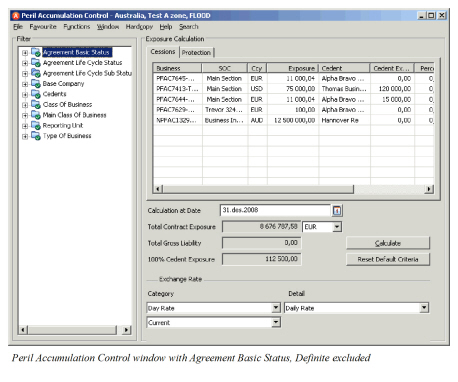
| Field | Description | Location |
|---|---|---|
| Agreement basic status | The statuses derived from the businesses holding the cessions in the result display list Values: Definite, Pending and Informational Default: All available Statuses Functional impact: excluding a value changes the result in the display list and the Total Contract Exposure. Can also have effect on 100% Cedent Exposure. Additional functionality: Agreement life cycle statuses and sub-statuses being dependent on excluded value are also marked as excluded. Mandatory: yes, at least one value has to be included to get a result. |
Filter |
| Agreement Life Cycle Status | The statuses derived from the businesses holding the cessions in the result display list Values: Customised by your company, e.g. Offer Accepted, New Agreement Offered. Default: All available Statuses Functional impact: excluding a value changes the result in the display list and the Total Contract Exposure. Can also have effect on 100% Cedent Exposure. Additional functionality: Agreement life cycle sub-statuses being dependent on excluded value are also marked as excluded. Mandatory: yes, at least one value has to be included to get a result. |
Filter |
| Agreement Life Cycle sub-Status | The statuses derived from the businesses holding the cessions in the result display list Values: Customised by your company, e.g. Awaiting information, complete. Default: All available sub-statuses Functional impact: excluding a value changes the result in the display list and the Total Contract Exposure. Can also have effect on 100% Cedent Exposure. Mandatory: yes, at least one value has to be included to get a result. |
Filter |
| Type of Business | The types derived from the businesses holding the cessions in the result display list Values: Proportional direct, Proportional Facultative, Proportional Treaty, Non- Proportional direct, Non- Proportional Facultative and Non- Proportional Treaty Default: All available types of businesses Functional impact: excluding a value changes the result in the display list and the Total Contract Exposure. Can also have effect on 100% Cedent Exposure. Additional functionality: Other classifications with dependencies to type of business are automatically marked as excluded too when a type of business is excluded. Mandatory: yes, at least one value has to be included to get a result. |
Filter |
| Type of participation | The types derived from the businesses holding the cessions in the result display list Values: Customised by your company, e.g. Surplus, excess of loss Default: All available types Functional impact: excluding a value changes the result in the display list and the Total Contract Exposure. Can also have effect on 100% Cedent Exposure. Mandatory: No, Facultative and direct business that normally do not have type of participation will still return a result |
Filter |
| Main Class of Business | The Main classes derived from the businesses holding the cessions in the result display list Values: Customised by your company, e.g. Property, Aviation Default: All available Main Classes Functional impact: excluding a value changes the result in the display list and the Total Contract Exposure. Can also have effect on 100% Cedent Exposure Additional functionality: Other classifications with parent dependencies to Main class of business are automatically marked as excluded too when a main class of business is excluded. Mandatory: yes, at least one value has to be included to get a result. |
Filter |
| Class of Business | The classes of business derived from the businesses holding the cessions in the result display list Values: Customised by your company, e.g. Fire insurance, Aviation liability Default: All available Classes Functional impact: excluding a value changes the result in the display list and the Total Contract Exposure. Can also have effect on 100% Cedent Exposure Additional functionality: Other classifications with parent dependencies to class of business are automatically marked as excluded too when a class of business is excluded. Mandatory: yes, at least one value has to be included to get a result. |
Filter |
| Sub Class of Business | The sub classes of business derived from the businesses holding the cessions in the result display list Values: Customised by your company, e.g. Fire Industrial, Aviation Product liability Default: All available sub Classes Functional impact: excluding a value changes the result in the display list and the Total Contract Exposure. Can also have effect on 100% Cedent Exposure Additional functionality: Other classifications with parent dependencies to sub class of business are automatically marked as excluded too when a sub class of business is excluded. Mandatory: If mandatory as classification on business Yes, if not No |
|
| Reporting unit | The reporting units derived from the businesses that the cessions in the result display list are attached to. Values: Customised by your company, e.g. American, Nordic Default: All available reporting units Functional impact: Depending on number of reporting units per business, excluding a value can change the result in the display list and the Total Contract Exposure. Can also have effect on 100% Cedent Exposure Mandatory: No, cessions to businesses without reporting unit will still be displayed. |
Filter |
| Base Company | The base companies derived from the businesses that the cessions in the result display list are attached to. Values: Customised by your company, e.g. Base company A, Base company B Default: All available Base companies Functional impact: excluding a value changes the result in the display list and the Total Contract Exposure. Can also have effect on 100% Cedent Exposure Mandatory: Yes, no value included means no result. |
Filter |
| Additional classification 1 - 5 | The additional classification derived from the businesses that the cessions in the result display list are attached to. Values: Customised by your company Default: All available values Functional impact: excluding a value changes the result in the display list and the Total Contract Exposure. Can also have effect on 100% Cedent Exposure Mandatory: No, cessions to businesses not being classified with additional classifications are still displayed |
Filter |
| Calculation at Date | The date that you want to retrieve cessions for. Values: Normal date field. Mandatory: Yes, no date means no result. |
Exposure calculation |
| Total contract exposure | A display field presenting the sum of all the values derived from the exposure column in a given currency Values: A calculated number Mandatory: No Calculation: sum of amounts in exposure column recalculated to selected currency using latest daily rate |
Exposure calculation |
| 100% Cedent Exposure | A display field presenting the sum of all the values derived from the 100% Cedent exposure column in a given currency_Values:_ A calculated number _Mandatory:_ No _Calculation:_ sum of amounts in Cedent exposure column recalculated to selected currency using latest daily rate |
Exposure calculation |
| Currency | The currency in which Total contract exposure and 100% cedent exposure is presented. Values: All currencies Default: Base currency Mandatory: Yes |
Exposure calculation |
| Calculate | Used to trigger the calculation of total contract exposure and 100% Cedents Exposure | Exposure calculation |
| Reset default Criteria | Sets back the default criteria for Exposure calculation | Exposure calculation |
| Exchange rate Category | The category of exchange rate to be used Values: Day rate, Period rate, year rate Default: Day rate Mandatory: Yes |
Exposure calculation |
| Exchange rate Category | The type of exchange rate to be used Values: Current, Fixed Default: Current, i.e. date equal to or last before Calculation At Date Mandatory: Yes |
Exposure calculation |
| Exchange rate Category | If fixed period rate is selected you can select type of period Values: Months. Quarters, Half years Default: Months Mandatory: Yes, for fixed period rate otherwise no. |
Exposure calculation |
| Exchange rate Detail | The type of rate to be used Values: Customized by your company, e.g. Daily rate, Period end rate, Year end rate Default: Daily rate Mandatory: Yes |
Exposure calculation |
Exchange rate Detail |
If fixed rate is selected you can select a date or a year Values: Date or year Default: Today’s date or latest year Mandatory: Yes |
Exposure calculation |
| Exchange rate Detail | If fixed period rate is selected you can select type of period Values: Months 1 - 12, Quarters 1 - 4, 1st or 2ndhalf year Default: Month 1 Mandatory: Yes, for fixed period rate otherwise no. |
Exposure calculation |
| Business | A combination of business ID and Business title derived from the businesses that the cessions are attached to. | Cessions tab |
| SOC | The name of the section of the business that the cessions are attached to. | Cessions tab |
| Ccy | The original currency those exposure figures are expressed in. | Cessions tab |
| Exposure | The exposure amount for the cession derived from Insured peril cession window | Cessions tab |
| Cedent Exposure | The 100% Cedent exposure amount for the cession derived from Insured peril cession window | Cessions tab |
| Percent | The percent (estimated maximum loss) derived from Insured Peril Cession window | Cessions tab |
| Valid From | The attachment start date of a cession derived from Insured peril cession window | Cessions tab |
| Valid To | The attachment end date of a cession derived from Insured peril cession window | Cessions tab |
| Business | A combination of business ID and Business title derived from the Protection of the businesses that the cessions are attached to. | Protection tab |
| Acc. Group | The account group that a protection is attached to, if any. | Protection tab |
| Type of Business | The type of business of the protection | Protection tab |
| CCY | The original currency that exposure figure is expressed in. | Protection tab |
| Retroceded | The part of the cessions in the result list on cession tab retroceded to a protection | Protection tab |
| Unplaced share | The part of the cessions in the result list on cession tab that is own retention i.e. Placed to own retention or placed as unplaced share on an outward Cedents contract. | Protection tab |
| Pending Placement | The part of the cessions in the result list on cession tab placed to an outward Cedents contract where some placements have agreement basic status pending. | Protection tab |