Group Insurable Objects
Find Insurable Object Groups #
SICS lets you search for accumulation groups and risk groups that have been created in the Accumulation Group window and the Risk Group window. (Both of these windows are accessed on the Navigation bar of the Insurable Object Properties window.)
|

Insurable Object Groups icon | Click the Insurable Object Groups icon in the Insurable Object folder on the SICS desktop to see the Find: Insurable Object Groups window. |
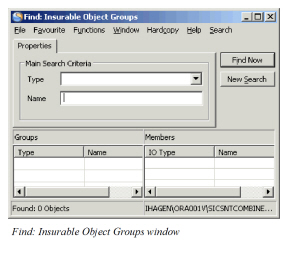
Use the drop-down list to select the group Type: Accumulation, or Risk. If you know the name of the group, you can type that name directly in the Name field. (SICS lets you use wildcards to help you with your search.)
Click Find Now to activate the search. The results appear in the display list at the bottom of the window.
Search by Accumulation Group #
After selecting Accumulation from the Type drop-down list and then clicking the Find Now button, you see a list of accumulation groups and their members in the display list. The groups are listed on the left-hand side of the display. When you select a group, you see its members on the right-hand side.
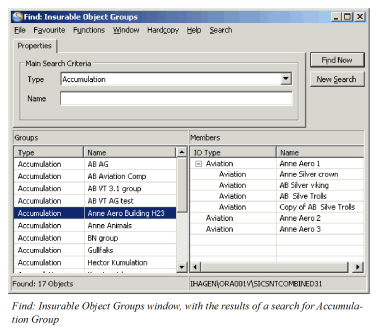
When you select an item in the Group list (on the left-hand side of the window), you can select Accumulation Control from the pop-up menu. This takes you to the Accumulation Control Properties window for that group. (Refer to_Control Accumulation of Insured Objects on page 9-59_ for more information.)
If you select an item in the Members list (on the right-hand side of the window), you can select Object Properties. Here you can view and edit information about the insurable object properties.
Search by Risk Group #
Search by risk group functions the same way as searching by accumulation groups. You see a list of groups on the left-hand side of the display, and group members on the right-hand side.
Like accumulation groups, when you select a member from the Members list, you can then select Object Properties to see the Insurable Object Cessionswindow. It is not, however, possible to access the Accumulation Control window from a Risk Group Member because it does not apply.
Handle Accumulation Groups #
Assign Accumulation Groups #
|

Accumulation Groups button | Click the Accumulation Groups button to see the Accumulation Groups window. Here you can mark insurable objects and/or existing accumulation groups with a common accumulation group name in order to perform accumulation control. (An accumulation group is made up of any combination of insurable object s. One insurable object can be a member of many accumulation groups in the same period of time, but can only belong once to the same group.) |
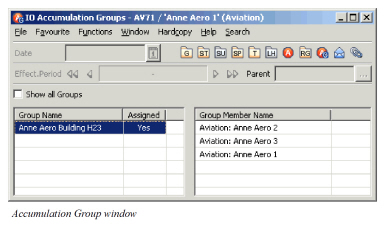
The Accumulation Groups window lets you:
- View existing accumulation groups
- Assign insurable objects to accumulation groups
Select the Show all Accumulation Groups check box to see a list of all groups. If the check box is not selected, you see only participating accumulation groups. (Participating groups mean groups that have insurable objects linked to them.)
The Accumulation Group display list shows the group name, and whether or not the current insurable object belongs to the accumulation group (which is indicated with a Yes or No). When you select a group in the list, you see its properties (group members) in the display list on the right-hand side of the window.
Create New Accumulation Groups #
To create a new accumulation group:
- Click the Accumulation Group display list (on the left-hand side of the window.)
- Select Create New from the pop-up menu.
- Type in the name of the group in the Create New Accumulation Group window.
- SICS automatically allocates the current insurable object to the newly created group, and you see the new group name appear in the display list.
Once you have created a new group and assigned members to it, you can then search for that group in the Find Insurable Object Groups on page 9-39 window
Assign Objects to Accumulation Groups #
To add insurable objects to accumulation groups:
- Select the Show All Accumulation Groups check box.
- Select a group in the list. By having selected the Show All Accumulation Groups, unassigned groups appear in the list as well.
- Select Assign from the pop-up menu. The current Insurable object is automatically linked to the group.
To link other insurable objects to a group:
- From the display list on the right-hand side of the window, select a group member.
- Select Assign from the pop-up menu. You see the Find: Insurable Object window, where you can do a search for the object you want to link to the group.
- Select the insurable object that you want to link to the group by double-clicking it, or by selecting it and then selecting Transfer from the pop-up menu.
Remove links between Accumulation Groups and Insurable Objects #
To remove the link between the current insurable object and any Accumulation group:
- Select the group in the Accumulation Group display list that you want to disassociate with the current insurable object.
- Select Unassign from the pop-up menu.
Links between the insurable object and the group are immediately broken.
To remove the links between another insurable object and a given group:
- From the display list on the right-hand side of the window, select the group member (insurable object) that you want to remove.
- Select Unassign from the pop-up menu.
Change Accumulation Group Description #
To change the description of an Accumulation Group:
- Select the group in the Accumulation Group display list.
- Select Change Description from the pop-up menu. You see a new window.
- Type the new group description directly over the existing one to change it.
Note! You cannot change the group name.
Remove Accumulation Groups #
To remove a group:
- Select the group in the Accumulation Group display list.
- Select Delete from the pop-up menu.
View Groups Members #
As mentioned earlier, you can see the members of a group on the right-hand side of the Accumulation Groups window when you select a group in the list on the left-hand side of the window. Click the right-mouse button in the Group Member display list to assign, unassign, or see the properties of a group member.
Group Objects According to Risk #
|

Risk Group button | Click the Risk Group button when you want to group objects according to risk. A typical example is a fleet of vessels. Grouping can be done at any level. |
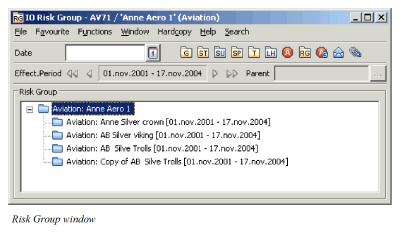
When you open the Risk Group window, you see a folder labelled with the insurable object type and name. Click the folder to select it, and then click the right-mouse button to see the pop-up menu.
The pop-up menu gives you the following options: Add Parent Link, Add Child Link, Edit Parent Link, Remove Parent Link, or Object Properties.
When you select Add Parent Link, you see an Add Parent window.
Linked Insurable Object : Click the Find button to return to the Find: Insurable Object window, where you can select an insurable object that you want to link as a parent to the open insurable object. Select the item you want in the display list, and transfer it back to the Add Parent window by either double-clicking it, or by selecting Transfer from the pop-up menu.
Valid From and Valid To: Add valid from and valid to dates. You can type in the dates directly, or use the Calendar button that brings up a calendar from which you can select a date.
When you type in a date directly, you can type in the last two digits of the year and the system will compute the year for you. Numbers from 00-19 are automatically calculated as 2000. Anything else is automatically calculated as 1900. For example, if you type in 010105, the system will read it as 01.01.2005.
When you select the Top Location check box, you indicate that this item has the biggest risk in the hierarchy.
When you select Add Child Link from the pop-up menu in the Risk Group window, you see the Add Child window, which is like the Add Parent window (described earlier), except that the information refers to the child you are adding instead of a parent.
You can search for risk groups in the Find: Insurable Object Groups window.