Handle Insured Peril Cessions
An insured peril is an insured risk of catastrophe in a certain risk zone. The insured peril cessions features in SICS enables you to effectively maintain the risks of your business and also to form the basis of accumulation control.
Note! If your system administrator has set up your system to allow for business with To be Advised insured periods, your assumed businesses might not have any insured period at all. In that case, it will not be allowed to add insured peril cessions as the attachment periods depend on the insured period. As soon as you however specify the insured period, you may add cessions. For more information, see the Maintain insured Period Information section.
Available Insured Peril Cession Items #
Your company generally decides the items available to you. More specifically, your system administrator has selected the items relevant for each category of business, so that you always see the ones relevant for the business you are working on.
The available fields can depend on the following characteristics of your business:
- Type of Business (non-proportional treaty, proportional, facultative, etc.)
- Type of Participation (quota share, surplus, etc.)
- Main Class, Class and Sub Class of Business, (property, marine, etc.)
On the cession list, your system administrator may also have defined the sequence in which you see the columns. (For example, he/she might have set up all limits to be manually updated as columns appearing before the calculated once). Also the system administrator may have decided to show only the most important information on the cession list, while you see all items on the cession details.
You may find a field name in this description under a different name in you system. This is because your system administrator may have changed the name of the field. The name should still be recognizable, as the meaning of it would be the same.
List Insured Peril Cessions for a Business #
To list the combinations of perils and risk zones covered by your agreement:
- Open your business.
- Click the PE (Insured Peril Cessions) button on the Navigation bar.
Create Insured Peril Cession(s) #
To add one or more insured peril cessions to your business:
- Open your business.
- Click the PE (Insured Peril Cessions) button on the Navigation bar.
- Select Add from the pop-up menu.
- Select the/those insurable perils that you require.
- Click Save.
- Click OK.
Note! If the insured peril cession is created on an insurable object cession, the system displays only perils with the same zone as registered on the insurable object.
If no zone is registered on the insurable object, the system displays perils covered by the cession’s country
Maintain Insured Peril Cession Information #
Add or change information valid for one or more cessions. For example you may add the exposure amount or add various limits that should form part of the exposure calculation. You may also add items only for information.
- Open your business.
- Click the PE (Insured Peril Cessions) button on the Navigation bar.
- Click the Edit button
- For a cession, enter the information that you require in the applicable column. If the added information is part of calculation of other items, the system will now calculate these items.
- Proceed to the next column if more information should be entered.
- Repeat the above procedure for as many cessions as you require.
- Click OK.
If there are items that are not available to you, you might want to open the cession details. See the_Maintain Insured Peril Cession Details_ section.
Delete an Insured Peril Cession #
- Click Insured peril cession button in Navigation bar of the selected Business window.
- Click the Edit button.
- Select the cession to be deleted and then select Delete from the pop-up menu.
- Click Save.
Populate Same Value for Several Cessions #
Sometimes when you have several cessions to be created you can have same value for several cessions in a column. In order to save time you can than use this functionality.
- Enter a value for the first cession.
- Select Use selected value to populate from the pop-up menu.
- Select the option that suites your purpose “All Cessions, All Cessions Below current cession, All cessions without a value, All cessions without a value below current cession.
Indicate no Business Exposures to Perils #
To show that a business is not exposed to a peril, you need to create a cession without exposure.
- Open the Insured Peril Cession window.
- Select Add from the pop-up menu to add insurable perils.
- Select the insurable perils and click Save.
- Click OK.
- You now have a cession with 0.00 exposure. This indicates that you have selected exposure and found that there is none.
IHAGEN_SICSE-2778
To TW: Insert new text:
Copy Insured Peril Cessions to another Contract #
A reinsurance company may have several contracts covering the same risk zones and perils. In same cases it is therefore convenient to just copy insured peril cessions from one contract to another:
- Open the Insured Peril Cession window
- Highlight perils to be copied and select Copy from the pop-up menu
- Enter Business ID or use the find facility to find the correct receiving contract
- Select wanted Insured period, Scope of Cover and Amendment of receiving contract and press OK.
- System opens the receiving contracts Insured Peril Cessions window i edit mode, with the copied cessions clearly marked.
When copying peril cessions, the system validates the following:
- Area - the receiving scope of cover must cover the Insurable Peril Cession(s) country
- Main Currency - same as main currency on source scope of cover
- Insured Period - the receiving scope of cover’s insured period must overlap the Valid Period of the Insurable Peril Cession(s) with at least one day
- Type of Business/Main Class of Business Combination - if registered on one/more of the Insurable Peril Cessions, the receiving contract must match this combination
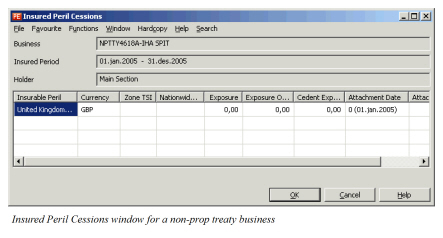
| Field | Description | Location |
|---|---|---|
| Business | Indicates for which business you are viewing insured peril cession information | Insured Peril Cessions |
| Insured Period | Indicates for which insured period of the business you are viewing insured peril cession information | Insured Peril Cessions |
| Holder | Indicates for which section of the business you are viewing Insured Peril cession information | Insured Peril Cessions |
| Insurable peril | The combination of country, risk zone and peril that the cession covers Values: Customized by your company, e.g. USA, South California, Earthquake Validations: Only risk zones within country of contract/section available If navigated to insured object cession, only perils with same zone as object available. If peril information (e.g. PML) valid for Type of Business/Main Class of Business, only risk zones with ToB/MCoB matching section’s/cession’s classifications available Insured Perl Cessions with identical Country/Risk Zone/Peril and Attachment Dates not allowed Mandatory: Yes |
Insured Peril Cessions |
| Currency | The currency in which the monetary amounts for the cession is expressed in. Values: All Active currencies Default: Main currency Mandatory: Yes |
Insured Peril Cessions |
| Exposure | The amount in given currency exposing the insurable peril for a single cession Values: Monetary amount Default: 0.00, if no calculation has been set. Mandatory: Yes Validations: Your system administrator can block this field from manual input Calculation: Calculation can be set up by your system administrator, e.g. a sum of other entries in cession list and/or entries on premium limit condition. Different calculation depending on Exposure basis, PML Factor can be used in calculation etc. Functional impact: Exposure our share |
Insured Peril Cessions |
| Exposure Our Share | The amount in given currency exposing the insurable peril for a single cession for our share Values: Monetary amount Default: 0.00, if no calculation has been set. Mandatory: Yes Validations: Your system administrator can block this field from manual input Functional impact: Accumulation control |
Insured Peril Cessions |
| Cedent exposure | The amount ceding company is exposed to in a given risk zone Values: Monetary amount Default: 0.00, if no calculation has been set. Mandatory: No Calculation: Calculation can be set up by your system administrator, e.g. a sum of other entries in cession list and/or entries on premium limit condition. Different calculation depending on Exposure basis, PML Factor can be used in calculation etc. Functional impact: Accumulation control |
Insured Peril Cessions |
| Percent | Used to express the PML factor used in a specific risk zone Values: Percentage Default: 0.00 Mandatory: No Functional impact: Accumulation control |
Insured Peril Cessions |
| Attachment Date | The date when the cession was attached to the business within an insured period Values: combination of amendment no and effective start date, e.g. 0(01.01.2004). Refer to the Handle Business Amendments section. Default: Inception of business Mandatory: Yes Functional impact: Accumulation control |
Insured Peril Cessions |
| Attachment endDate | The date if any when the cession was revoked Values: combination of amendment no and effective start date, e.g. 1(01.01.2004) Default: none Mandatory: no Functional impact: Accumulation control |
Insured Peril Cessions |
| Other columns | Your company can decide to show as many other columns as you like. See Available Insured Peril Cession Items on page 9-62__for details on what decides what you see for your business. Values: Monetary amount limits, Customized by your company Default: 0.00, if no calculation has been set. Mandatory: no Calculation: Calculation can be set up by your system administrator, e.g. a sum of other entries in cession list and/or entries on premium limit condition. Different calculation depending on Exposure basis, PML Factor can be used in calculation etc. Functional impact: Other fields in cession list, e.g. Exposure |
Insured Peril Cessions |
Maintain Insured Peril and Limit Premium Cession Details #
Add detailed information valid for a specific insured peril cession, such as limits, deductibles time limitation and premiums, either for being part of a calculation or only for information.
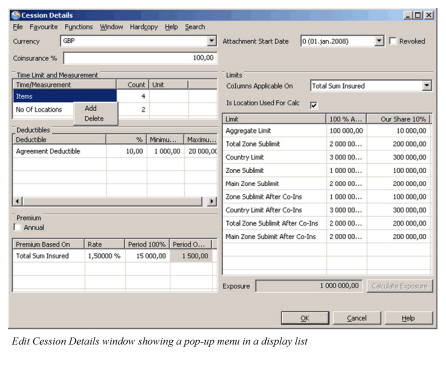
- In the Insured Peril Cession window, double-click an insured period cession to open the Cession Details window.
- Click the Edit button.
- Click in the display list that you want to make your changes and select Add from the pop-up menu.
- Select the item(s) that you require.
- Click Save.
- Enter the needed details in the applicable column.
- Click OK.
| Field | Description | Location |
|---|---|---|
| Coinsurance% | The Ceding companies part of the agreement Values: Percentage Default: 100% Mandatory: Yes Functional Impact: Calculation of liability |
Cession Details |
| Revoke | In order to end a cession before insured period end date you have to select this check box Values: Selected, cleared Mandatory: No Functional Impact: When selected attachment end date is available |
Cession Details |
| Time/ Measurements |
To be used to specify specific time limitations e.g. a waiting period and/or measurements such as e.g. items covered Values: Customized by your company Mandatory: No Functional Impact: Measurements can form part of calculation of monetary limitations |
Cession Details |
| Deductibles | To be used to specify specific deductibles. Percentage deductibles and min, max amounts can be defined. Values: Customized by your company Mandatory: No |
Cession Details |
| Annual | Indicates if premium is annual or period premium Default: Selected Values: Selected, Cleared |
Cession Details |
| Premium Based On | The types of premium that you can specify for a specific cession Values: Customized by your company Mandatory: No |
Cession Details |
| Columns applicable on | Indicates to what monetary limits the coinsurance% should apply to Values: Total sum insured, All limits Default: Total Sum Insured Mandatory: Yes Functional Impact: Depending on value selected either only Total sum insured or all Limits will show values after coinsurance |
Cession Details |
| Is Location Used for Calc | Influences calculation of a specific limit Values: Cleared or selected Default: Cleared Functional impact: If selected Total Zone Sub Limit is sum of No of Locations * Zone Sub Limit |
Cession Details |
| Limit | Shows which monetary limits that can be updated per cession Values: Customized by your company Mandatory: No Functional Impact: Liability |
Cession Details |