Categorise Business
SICS makes it easy for you to structure businesses by letting you add on to and edit information as you go along. You may, for example, want to:
- Edit the business classifications that you registered when the business was first created.
- Assign business partners to a business.
- Change insured periods, to name a few things.
Handle Partner Roles #
You can handle partner roles in SICS by assigning business partners, adding and editing business partners, and adding contacts to partners.
Assign Business Partner #
Add a new business partner to you business.
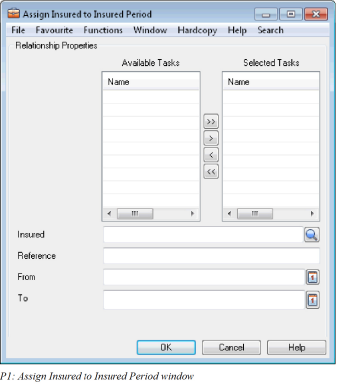
- Navigate to the Assign Business Partners in the Create New Business wizard or to the Partners tab on an existing business
- Right mouse click and select to assign wanted partner. On the Assign Business Partners window you can alternatively click on the business partner buttons presented
- If relevant, assign business tasks
- Select business partner by using the Find facility, enter business partner’s Id directly in the Business Partner field or use the ‘typeahead’ feature. Type in the Business Partner name or part of it in the field and you will receive possible matches for the text.
- If wanted, register a From/To Date and a Refere_nce_
- Depending on type of business partner you are assigning, you may also register Position, Part of UA, Credit Terms, Fronting Company details
- Press Save
Edit Business Partners #
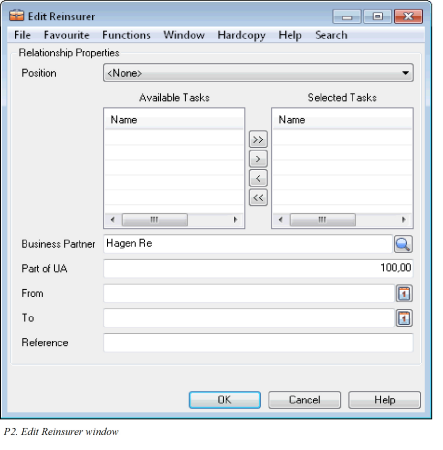
Select to change details on an existing business partner.
- Open your business and navigate to the Partners tab
- Double click on wanted business partner, or highlight wanted business partner and select Edit from the pop-up menu
- Change wanted details
- Press OK
Edit Business Partner Period when restricted #
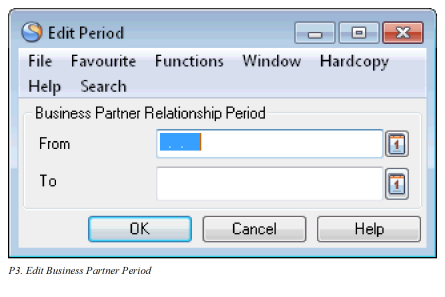
In some cases, the system is set up so that only those which is given specific access is allowed to change business partner period .
- Open your business and navigate to the Partners tab
- Highlight wanted business partner, and select option Edit Period from the pop-up menu
- Change period
- Press OK
Replace Business Partner on single business #
Replace existing insurer, reinsurer or retrocessionaire e.g. due to company mergers
- Open your business and navigate to the Partners tab
- Depending on type of business, highlight insurer, reinsurer or retrocessionaire and select option e.g. Replace Reinsurer
- Select business partner by using the Find facility, enter business partner’s Id directly in the Business Partner field or use the ‘typeahead’ feature. Type in the Business Partner name or part of it in the field and you will receive possible matches for the text.
- Register other necessary details
- Click OK
Add Contacts to Partner for this Business #
Contact persons are defined in the Business Partner window or in the Individual Person window. (See Handle Contact Personsin the Maintain Business Partner chapter for more information.)
From the Partners tab of a business, you can add contacts to a business partner for that particular business.
To add contacts to a business partner:
- Select a business partner from the list of partners.
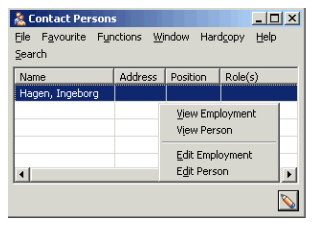
- Click the right-mouse button and select Contacts. You see the Contact Persons window. (This window is blank if no contacts have been added to the partner.)
- Click the Edit button. You see the Edit Contact Persons window where you can select one or more contact persons from the Available column and move them to the Selected column to select them. (If there are no items in the list, no contact persons have been defined for that partner.)
- Once you have selected contacts for the business partner and clicked OK in the Edit Contact Persons window, you see the names of the contacts you selected in the Contact Persons window.
- Select an item in the Contact Persons window, and click the right-mouse button in order to view details about that contact.
Remove Business Partner from Business #
Select the business partner that you want to delete from the Business Partner display list on the Partners tab. Click the right-mouse button and select Remove from the pop-up menu. You see a dialog box asking you if you really want to remove the relationship to the business partner. Click Yes if you select to proceed.
Edit Business Partner Task/Reference
If your changes are limited to Business Partner Reference or the assignment of Administration Tasks, you can use this option. This is particularly useful if you are granted only limited access rights for modification of business partner relationships.
- On the Partners tab of a business, mark the business partner to be edited and select Edit Business Partner Task/Reference from the pop-up menu. Only Administration Tasks and Reference are available.
- Make relevant changes and click OK.
Mass Update Business Partner Roles #
If parts of your portfolio are affected by a business partner merger or acquisition, you may need to update your respective businesses. The Business Partner Roles Mass Update functionality provides an automatic update of the all affected businesses. Refer to the Periodic Functions chapter in System Administrator Guide for more information.
| Field | Description |
|---|---|
| Broker Task | The main shore of the broker Values: Co-Broker, Flag Broker, Undefined Mandatory: No |
| Share Percentage | Percentage the broker is responsible for Validations: Accumulated Share Percentage for Broker and Other Brokers cannot be more than100% |
| Part of UA | Indicates the percentage of the underwriting agreement for which the reinsurer is responsible |
| From | Business Partner Role Start Date. The partner has the referred role on the agreement as of this date Values: Date - The date from which partner is valid Blank (empty) - partner valid from insured period start date Validations: From Date <= To Date Automatically given by Replace / Mass Update Functions Manually overridable Derived from: When replace/ Mass Update: From Date of replaced partner = Insured period start date From Date of replacing partner = From Date on Business Partner Role Mass Update Mandatory: No Functional Impact: None |
| To | Business Partner Role To Date. The partner’s referred role on the agreement ends this date Values: Date - the date to which the partner is valid Blank (empty) - partner valid indefinitely Validations: From Date <= To Date Automatically given by Replace / Mass Update Functions Manually overridable Derived from: When Replace/ Mass Update: To date of replaced partner = From date of the replacing partner - 1 (when from date on replacing partner is blank = today’s date -1) To Date of replacing partner =To Date on Business Partner Role Mass Update Mandatory: No Functional Impact: None |
| Reference | Number or name that the partner uses as reference. |
| Credit Terms | The agreed number of days of credit before a settlement has to be made. |
Field Descriptions - Handle Business Partner Roles #
View Business Partners #
- Open your business
- Navigate to the Partners tab
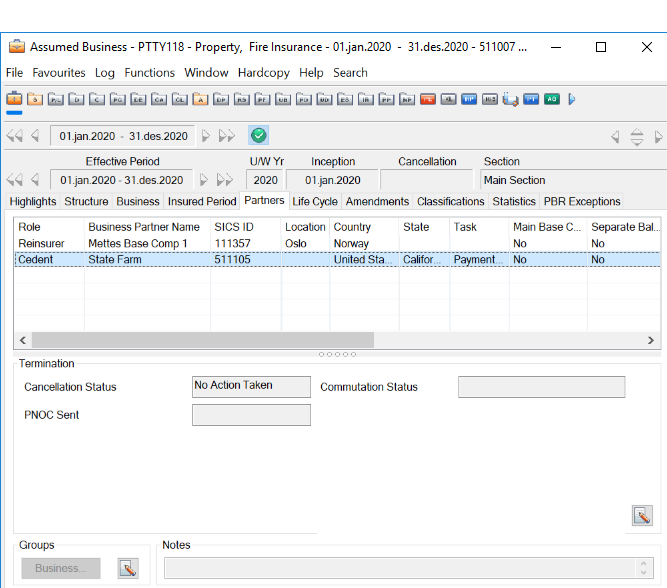
| Display List Item | Description |
|---|---|
| Role | The role the business partners has on the contract |
| Business Partner Name | The name of the business partner |
| SICS ID | The name and/or number that uniquely identifies the partner. |
| Location | The domicile city of the business partner |
| Country | The domicile country of the business partner |
| State | The domicile state of the business partner |
| Task | Business Partner tasks related to payment and accounts. Can also indicate whether this is a co-broker or a flag broker. |
| Main Base Company | Indicates if partner is main base company or not |
| Share | Share of other reinsurers participating in this contract |
| Part of UA | Indicates the percentage of the joint underwriting agreement for which the reinsurer is responsible |
| Credit Terms | The agreed number of days of credit before a settlement has to be made |
| Reference | Number or name that the partner uses as reference |
| From | Business Partner Role Start Date. The partner has the referred role on the agreement as of this date. |
| To | Business Partner Role To Date. The partner’s referred role on the agreement ends this date |
| Rating System | The rating of the business partner within the rating system e.g. Moody’s. |
Classify Business #
You can classify a business on the Classifications tab of the Business Properties window.
The Classifications tab is used to define what the agreement covers as well as how it is covering. Coverage can be defined both for the whole agreement and for sections of the agreement.

Coverage #
The part called Coverage in the Classify Business window lets you enter the classifications insured by your agreement.
- Select an item in the display list to include information for that classification or click the right-mouse button and select a classification type in the list.
- The available coverage types depend on set up made by your system administrator and the list can be different depending on selected main class (es) of business.
- Which classification is mandatory may also depending on your system set up. Differnet classification may be required for different companies within your corporation. In this case the base company on your contract decides which classifications are mandatory. Which classifications are mandtaory may also depend on the type of business, reporting unit and main class of business. The mandatory classifcations are prsented ‘ready for input’ and you will not be allowed to proceed to the next page in the wizard before you have selected a value for each mandatory classifications. Class of Business Hierarchy
You have a user preference called Coverage Tree view that, if selected, turns classification types belonging to the class of business hierarchy into a tree structure.
- If the Coverage Tree View check box has been selected in the user preferences, the available values in the Coverage display list are shown in a tree structure instead of the normal list of values.
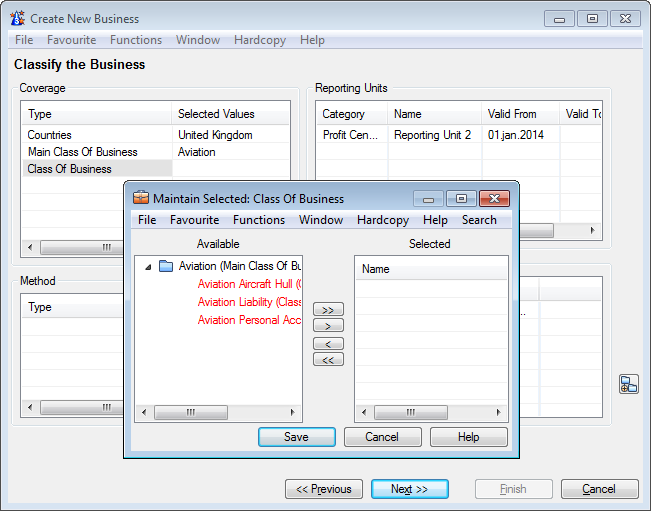
- The structure is initially always collapsed at highest level in the hierarchy. You can expand it to find the classification item(s) you want to select.
- You are only allowed to select classification items from the classification type selected. For example, if you ask for class of business, you cannot select a main class of business although it is shown in the tree structure.
Example:
- Start classifying your business at sub-class of business level. You see a tree structure with all main classes of business.
- Expand one of the main classes. You see all classes of business.
- Expand a class of business. You see all the sub-classes of business.
- Select the sub-class.
Select Principal Main Class of Business #
Some reinsurance contracts have multiple main classes of business, e.g. property and casualty. Within the contract, one main class of business may be more significant than others and can therefore be selected as the principal main class of business.
- Create new or open an existing contract’s classifications in edit mode.
- Classify the contract with one or several main classes of business.
- Whilst in the Maintain Selected window, select the wanted main class of business and select option Select as Principal
- Save.
- Save classifications
Remove Principal Main Class of Business #
Remove the principal indicator from a Main Class of Business.
- Open an existing contract’s classifications in edit mode.
- Whilst in the Maintain Selected window, select the bold main class of business and select option Deselect as Principal
- Save classifications
| Field | Description |
|---|---|
| Main Class of Business | The major line(s) of business covered by your agreement Values: Customised by your company, e.g. property, energy and marine Validation: May depend on company (base company) assigned to contract May not allow combination of ‘Life and Health’ and ‘P&C’ Main Classes of Business on same contract, depending on base company Mandatory: Yes |
| Principal Main Class | Bold Main class of business indicating the most significant main class of business covered by your contract Values: Main Class of Business Selected, or Not Selected Available depending on the set up by your system administrator Validations: Only one principal per contract Only selectable on contract level (main section) |
| Class of Business | The general insurance classification covered by your agreement Values: Customized by your company, e.g. fire insurance, business interruption ins, hail ins. Validation: Depends on Main Class of Business May depend on company (base company) assigned to contract Mandatory: Yes |
| Sub Class of Business | A further subdivision of class of business to further specify the insurance covered by your agreement Values: Customized by your company, e.g. fire industrial, fire commercial Validation: Depends on Class of Business May depend on company (base company) assigned to contract Your system administrator may have set up this to be mandatory Mandatory: No |
| Type of Business | Specifies the type of underlying business covered by the agreement, e.g. Proportional direct, etc. Values: proportional treaty, non-proportional treaty, proportional facultative, non-proportional facultative, proportional direct, non-proportional direct Derived from: Your system administrator might have set up this to be derived from selection of Type of Participation Covered and Agreement Type Covered Validations: Multiple values allowed Mandatory: For outward cedent’s contract Closed for input if your system administrator has set up Type of Business to be derived from Type of Participation and Agreement Type. |
| Type of Participation | Specifies the type of portfolio covered in the underlying businesses, e.g. quota share, excess of loss, etc. Values: What appears in this list depends on what your SICS System Administrator has defined for this type. |
| Agreement Type | Describes the underlying business when it comes to options the insured/cedent and (re)insurer have for ceding and accepting the individual risks fitting the contract guidelines Values: Fac./Fac., Fac./Obl., Obl./Fac., Obl./Obl. Your system administrator may have defined additional customised values Validation: May depend on Type of Participation covered Depending on your system administrator’s set up, may be mandatory in combination with the Type of Participation Mandatory: No Functional Impact: Classify Business |
| Type of Risk | Used to specify activity of the insured covered by the agreement, e.g. Nuclear power plant, warehouse, aircraft, etc. Values: What you see can depend on what Main Class (es) of Business you have selected. |
| Peril | Specific risk or hazard which can cause a claim on a reinsurance agreement Values: Customised by your company, e.g. Earthquake, Fire, Flood Default: You may define your own default by use of User Preferences Validation: Depending on how your system has been set up, a Peril may depend on the following classifications: Type of Business (coverage) Type of Participation (method) Type of Participation (coverage) Main Class of Business Class of Business Sub Class of Business Cannot select a value already selected as Peril Excluded Mandatory: No Your company may have set up the system so that Peril is mandatory Functional Impact: Accounting Classification Protection Assignment |
| Peril (excluded | Specific risk or hazard not covered by the reinsurance agreement Values: Customised by your company, e.g. Political Risk, War Validations: Depending on how your system has been set up, Peril Excluded may depend on the following classifications: Type of Business (coverage) Type of Participation (method) Type of Participation (coverage) Main Class of Business Class of Business Sub Class of Business Cannot select a value already selected as Peril Mandatory: No Functional Impact: Protection Assignment |
| Conditional Exclusion | The peril(s) excluded from the agreement, when they take place in the defined legal area(s) Values: Customized by your company, e.g. Earthquake in California Validations: Must be among selected Perils if Perils exist Must be among selected Legal Areas Functional Impact: Protection Assignment |
| Origin of Business | Category of reinsurance describing the source business (es) Values: Co-Insurance- Covered portfolio consists of one or more co-insurance policies Cession- Covered portfolio consist of one or more insurance policies Retrocession- Covered portfolio consists of one or more reinsurance and or retrocession agreements Principle Risk - Covered risk consist of one or more objects or persons. (Normally used for direct business only. You many may quite likely not see this value as your company may have chosen to not use it) Default: You may define your own default value by use of User Preferences. Refer to chapter Set User Default Preferences Validation: Depending on how your system administrator has set up the system, Origin of Business may depend on the following classifications: Type of Business (coverage) Type of Participation (coverage) Main Class of Business Class of Business Sub Class of Business Type of Risk Peril Additional Classifications Other Origin of Business values Mandatory: No Your company may still have set up the system so that Origin of Business is mandatory Functional Impact: Accounting Classification |
| Additional Classification | Classifications to further specify the agreement, with names set up by your System Administrator Values: Depends on the set up of your System Administrator Default: Your system administrator may have set up default Additional Classifications based on the reinsurer and cedent of your Inward Contract. Derived from: Depending on your system administrator’s set up, if this is a tretay busienss, an additional classification can be defaulted based on Cedent Fund Type or Country Fund Type (when non-prop) and Base Company. Mandatory: No |
Method #
In this part of the Classify the Business window, you can enter details on the type of reinsurance used on your agreement.
Type of Participation: The type of participation is a sub classification of Type of Business and therefore your choices will be limited to those valid for your selected Type of Business. Select the one(s) that represent the treaty (for example, quota share, surplus) you are currently registering.
Your system administrator may have set up type of participation to be selected without first selecting type of business. In that case, the type of business will be derived from your selection of type of participation possibly also in combination with an Agreement type.
Your company may have defined a type of participation called US Quota Share. This is meant for treaties to which businesses are ceded flat - i. e. - just applying the quota share percent (as opposed to depending on policy limit or a variable quota share). This has some special functionalities linked to it. For example, an outward cedent’s contract being a US Quota Share cannot protect a business in combination with other proportional protections, only with other US Quota Share protections.
If you select Surplus, the system presents Surplus No. Depending on how your system has been set up, this might be mandatory. (In some cases, the System Administrator might have set up the available Types of Participation to also be limited to those valid for a combination of Class of Business and Additional Classification.)
In certain cases, your agreement, in reality, represents a master arrangement (with for example, a broker), under which you have accepted to receive several businesses (lines). In these cases you might want to select the Type of Participation Line Slip. If you do, the system will then give your agreement special handling by leaving out validations meant for ordinary single businesses, when receiving EDI LIMNET messages. (For example, the attaching line slips might carry other brokers than recorded on the agreement, and the system will here provide more flexible broker validation.)
(In rare cases, Risk Transfer might appear as a choice for Type of Participation. This would only be the case if your company uses the special facility reporting classification. In these cases, risk transfer will only be available if the business you are recording is a proportional outward cedent’s contract.)
| Type | Description |
|---|---|
| Agreement Type | Describes the options the cedent and reinsurer have for ceding and accepting the individual risks fitting the reinsurance contract guidelines. At one end, the cedent may be bound to send all individual risks to the reinsurer and the reinsurer required to accept all of these. At the other end, the reinsurer may be allowed to review each individual risks and accept or reject each of these Values: Fac./Fac., Fac./Obl., Obl./Fac., Obl./Obl. Your system administrator may have defined additional customised values Validation: M ay depend on Type of Participations selected Depending on your system administrator’s set up, may be mandatory in combination with the Type of Participation Mandatory: No Functional impact: Classify Business Maintain Accounting Classification |
Note! If you change mandatory classifications, For example, Type of Participation from Stop Loss to Excess of Loss, the existing limits and premiums will be lost. You will have to re-enter them.
Classify when Lowest Class of Business Classification is Mandatory #
Some lines of business are detailed more than others, e.g. Property might be split into classes of business and sub classes of business while Marine only into classes of business.
If your company wants to ensure that contracts are classified according to the most detailed level available, your system administrator can set up the system accordingly.
Note! This functionality applies to all values in the class of business classifications hierarchy, i.e. Main Class of Business, Class of Business, Sub Class of Business, Additional Classifications and Additional Sub Classifications.
Classify contract when lowest class of business classification level is mandatory
- In Create New, Renew, Change Life Cycle Status or Update business process, navigate to the Classify Business page. Alternatively, edit classifications on an existing business
- In the Coverage section, double click on a type being part of the class of business classification hierarchy
- Expand wanted Main class of business value. Any existing classifications are automatically expanded
- Selectable values are marked in green color
- Select wanted classification value(s). Belonging parent value(s) are automatically selected
- Save your selection
- Press Next, Finish or Save to register you classifications

Classification Dependency #
Some options might have sub classifications that mean that what you will see depends on what other classification you have selected. If, for example, the Main Class of Business is Property, the Class of Business could be Fire Insurance, Business Interruption Insurance, Hail Insurance, Engineering, Robbery etc. A classification might also be available only for a combination of other already registered values.
Parent/child relations for classifications are:
- Country Group - Country
- Country - State
- State Group - State
- Main Class of Business - Class of Business
- Class of Business - Sub Class of Business
- Main Class of Business, Class of Business - Peril, or Sub Class of Business
- Combination of, for example, Class of Business and Type of Participation - Additional Classification
Handle Inactive Class of Business Classification values #
Over time, a company’s underwriting policy may change and some existing business classifications will not apply anymore. The classifications not used anymore would then typically be inactivated.
SICS gives a good control of the usage of inactive classifications in different processes, e.g. when creating new contracts, updating contracts, generating accounting classifications and when handling clams.
In the different business processes, e.g. when copying to new contract or renewing a contract, the system checks that for each parent class of business classification type having a mandatory child classification type, each section has at least one active child item per parent item.
This means that existing sections and periods with an inactive class of business classification value, can be maintained as before. But when coping to new contract or renewing to new period, the system checks that the new section/period will have a set of active class of business classifications only.
Remove Classification element #
The system will perform some validations if you try to remove classification elements. First of all you cannot remove all elements of a classification type that is mandatory, see above.
Then the system will check if the classification element is part of an Accounting Classification. If this Accounting Classification is used in an Open worksheet the system will not allow the user to remove this element.
Your system administrator may have set up your system to restrict Invalid Accounting Classification when bookings exist on Closed worksheets as well. This means that if you remove a classification element the system will check the business ledger and will only allow the removal if the sum of the booking details with the involved Accounting Classification becomes zero. The system group the bookings by Currency, Entry Code, Section, Amendment and Accounting Classification to make the zero test. In case the removal of a classification element also removes the same classification element on a child business then the ledger of the child business is checked according to the above rule as well.
Specify Classifications per Section #
For a section of the agreement, you may limit the scope of cover.
General Principles of Classifying Sections
The set of classifications of a section is always a subset of the classifications of the parent section. The system limits the available classifications to those of the parent section.
Specific Principles for Excluding Perils from Sections
As excluding a peril from a section reduces its coverage, it becomes in practice a ‘sub set’ of the parent section. The general rule of being a sub set of the parent does therefore not ‘technically apply to peril exclusions.
To avoid that a sub section covers more than its parent, the system stops you if you try to remove a peril exclusion when it also exists on the parent.
If the section excludes a peril under the condition that it takes places in a certain geographical area, the system automatically removes this condition exclusion also from the parent.
Ensure Consistency of Section Classifications
Add Classifications when Sections Exists: If you add a classification when sub sections exist, the system asks you if you wish to transfer your changes automatically to all sub section(s), sub sub sections, etc.
Delete Classification when Sections Exists: Whenever deleting a classification and sub section(s) exist, the system automatically deletes the same classification from all the sub sections, sub sub sections, etc.
Add Perils Excluded when Sections Exists: If you add peril exclusions when sub sections exist, the system automatically adds these to all sub sections, sub sub sections, etc. The same function exists for conditional exclusions.
Delete Peril Excluded when Sections Exists: Whenever you remove a peril exclusion and sub section(s) exist, the system asks if you wish to transfer them automatically to all its sub section(s), sub sub sections etc. The same function exists for conditional exclusions.
Assign Reporting Units #
A business must be linked to at least one reporting unit, such as, for example, a profit centre. You can set up more than one category of reporting units and link your business-reporting unit to all categories. One business can have several reporting units.
You can create sections from reporting units, and those sections maintain the properties from the parent. When you then navigate to that section, you see the reporting units for that section listed in the Reporting Unit display list (on the Classifications tab).
The display has a title bar that has the headings: Category, Name, Valid From and_Valid To_.
Add/Remove Reporting Units #
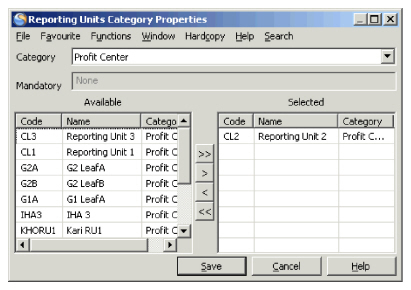
- Click the right-mouse in the Reporting Units display on the Classifications tab of a business, and then select Add/Remove Reporting Units. This brings you to the Reporting Units Category Properties window.
- Select a category from the drop-down list in the Category field. You see a list of all reporting units with a code on the left-hand side of the window in the Available column.
- Select the reporting unit you want to connect to the business, and click the right-arrow button to move it to the Selected column. (Or, to remove reporting units, move them from the Selected column to the Available column.)
- Click OK to save the changes.
Replace Reporting Unit #
When you click the right-mouse button and select Replace Reporting Unit, you see a window where you can select a reporting unit to take over as the reporting unit for a section when the Valid To date is reached for another reporting unit.
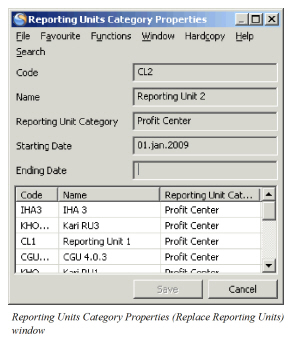
The Replace Reporting Unit option lets you close a period of a reporting unit and assign a new reporting unit whose valid period starts when the previous one ends.
To select a replacement-reporting unit, select one from the list at the bottom of the window, and click Save. You see a new window where you can specify the Valid To and From dates for the replacement-reporting unit.
You see the new reporting unit in the Reporting Unit display on the Classifications tab.
Assign Reporting Unit Features:
- Reporting units on a sub section must be a sub set of its parent section.
- When creating a sub section for the first time, the system copies reporting units to the sub sections from the parent section.
- If adding a reporting unit on an existing contract/section, you will get an option of copying this also to the sub sections (and possible insured object cessions or declarations).
- If removing a reporting unit on a parent section, the system will remove this also from the sub sections (and insured object cessions or declarations).
- Your system administrator may have set up the system to require reporting unit(s) of a certain category(ies). In that case:
- The system will require at least one reporting unit of this category for definite contracts.
- Removing a reporting unit from a definite contract will be stopped if this is the last remaining reporting unit on it or on any of its sub section.
- If your system administrator has set up the system to allow for business with To be Advised insured periods, your businesses might not have an insured period at all, (which means that the Reporting Unit Valid From and To Date cannot be defaulted or validated.). For this reason, it is not allowed to add a reporting unit to a business until you have specified the insured period.
- Your system administrator may have set up default Reporting Units based on who is the reinsurer and cedent on your Inward Contract.
Add/Edit Responsible Persons #
The Responsible Persons section on the Classifications tab of the Business Property window shows a list of responsibilities and the name of the person who is responsible for that task. You can add, edit, and delete information here by selecting New, Edit, or Delete from the pop-up menu. When you select New, to add a new responsible person, you see the Add Responsible Person window.
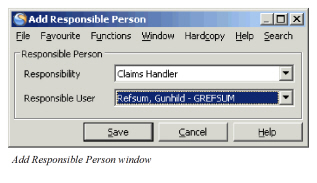
Here you select a responsibility from the drop-down list (such as, for example, Accountant, Purchaser, Underwriter, etc.) Then, select a person for that responsibility. The names that you see in the Responsible drop-down list have been input by your SICS System Administrator and depend on who has been authorised to do what job.
You can reassign the person assigned to a responsibility. To do so, select that person in the list and select Edit from the pop-up menu. You see the Edit Responsible Person window where you can make your changes.