Find Business
You may have received a new offer that should recorded and need to check that it is not already in the system, or you want to find an existing agreement that you need to update. Whatever the reason might be, the starting point of underwriting functions is typically finding a business.
The Find Business feature in SICS offers a variety of searches, all from quick searches for specific businesses to more advanced searches. Which one you select to use depends on the information you have at hand.
General Search Options #
To do a search, you use the following buttons:
- Find Now starts the search.
- New Search clears the results in the display list and resets the search criteria to the same as they were when you first opened the find business
Results of a Search #
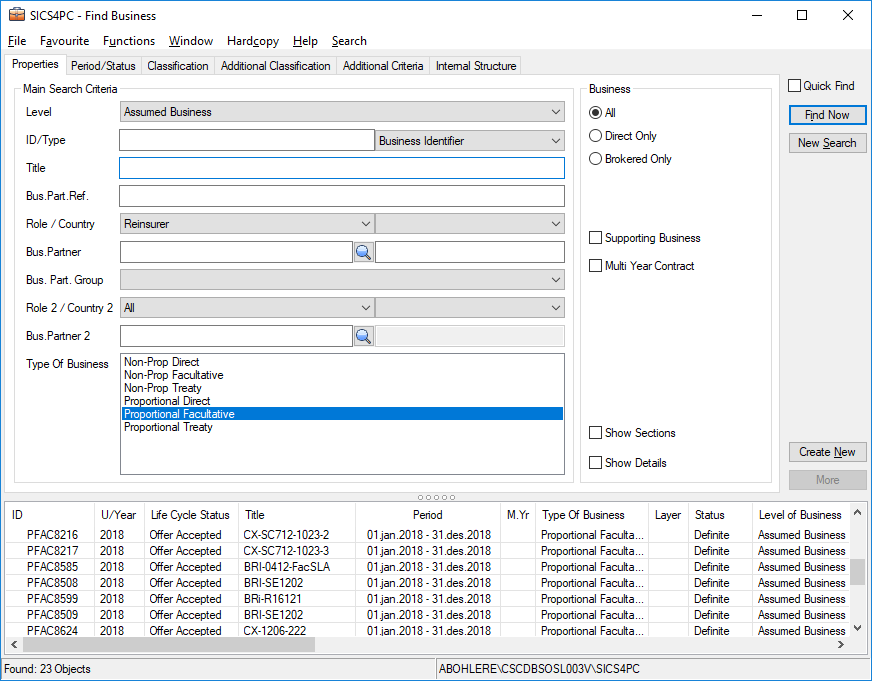
When SICS has executed the search, it shows the results in the display list at the bottom of the window.
Business not Found #
Sometimes, you cannot find the business you are looking for, even if you have searched by entering all necessary data. One reason might be that the system has found a higher number of businesses than the limit set by your system administrator, (for response time reasons). The system shows only the number of businesses up to this limit. You see how many businesses the system has displayed in the Objects Found indicator in the bottom left corner. If the number of found but hidden objects is larger, the system makes the More button available. Click the More button to show more of the existing businesses. You may need to click the More button several times.
Search on Incomplete Text #
When you only are sure of a part of the word that you want to search on, e.g. a part of the broker name or a part of the business identifier, you may search by use of a wildcard character (e.g. *). The system will then ignore the rest of the word in its search. If using the identifier as an example, knowing only the prefix:
- Select level.
- Enter the part of the identifier you know and * (e.g. PTTY*) in ID.
- Click ‘Find Now’.
You can have more than one wildcard entry as search criterion in the Find Business window. This helps you narrow you search. You can, for example, enter the part of the ID follow a wildcard at the end and the part the title follow by a wildcard and then click ‘Find Now’.
Examples of How to Find a Business #
There are numerous ways of searching for a business in SICS. In this section we only give examples of the most common searches.
Search for Business by Quick Find #
Sometimes you know the Business Identifier and therefore do not need to enter any other search criteria, e.g level of business.
When you use the Quick Find functionality, the system ignores any other search criteria except for:
- Consider Only Latest Insured Period (selected)
- Consider Only Latest Status (selected)
No defaults are set from User Preferences or other places in SICS.
- Open Find Business and select Quick Find.
- Enter the Business Identifier with prefix (letters), number and suffix (letters not mandatory)
- Click ‘Find Now’.
Search for Business by Identifier #
If you know the normal Business Identifier of the business, refer to the Search for Business by Quick Find section. If you know another identifier, you may search as follows:
- Double-click the Business icon in Business folder on the desktop to open the Find Business window.
- On the Properties tab, select the Level you require from the drop-down list.
- Enter the business identifier in ID field.
- Select Type if you know it.
- Click ‘Find Now’.
Search on Business Partner #
In most cases you know some or all of the companies involved in the businesses you are looking for and therefore want to extract on these. In the following section you find some examples of useful searches for business on business partners.
Search for Business from a Cedent
Find business from a particular cedent. (As mentioned earlier, this is just an example, and cedent can be replaced with any other role, such as broker or insured.)
- Double-click the Business icon in Business folder on the desktop to open the Find Business window.
- On the Properties tab, in Role, select Cedent from the drop-down list.
- Click the Find button next to Business Partner to search for the company being the cedent.
- Select the required company from the display list, and double-click it or select Transfer from the menu. For more details, refer to Find Business Partner.
In the Find Business window, you will now see the cedent’s name in the field Business Partner. 5. Click ‘Find Now’.
Quick Search for Business on Cedent Name
Find all assumed businesses from a particular cedent by typing the cedent’s name. By this search you never open the business partner window. (It is an alternative to the first example given. It is normally used to get a quick but ‘wider’ search result.).
- Double-click the Business icon in Business folder on the desktop to open Find Business window.
- On the Properties tab, select Cedent in Role.
- In the Business Partner field below there is a ‘typeahead’ feature. Type in the name or part of the name directly and you will receive one or more possible matches for the text. The matches are immediately presented in a separate container. Double-click to select the wanted Business Partner.
- Or in the Business Partner field to the RIGHT, you can type the name of the Cedent (or part of the name) combined with *
- Click Find Now.
Search for Business from a Cedent through a Broker
Find all assumed businesses from a particular cedent, but only those placed through a specific intermediary.
- Double-click the Business icon in Business folder on the desktop to open Find Business window.
- Select Role Ceden t.
- Provide the cedent company in the first Business Partner field.
- Select Role 2 Broker.
- Provide the broker company in the field Business Partner 2.
- Click ‘Find Now’.
Search for Business Not Placed through Broker
Find any business not going through an intermediary, that is, find business placed directly. The search is normally used to in combination with other searches to narrow them more down.
- Double-click the Business icon in Business folder on the desktop to open Find Business window.
You see the Properties tab. In the Business section, click the Direct Only option. 2. Click ‘Find Now’.
Search for any Business with a Specific Company
Find all businesses with a particular company, regardless of what role it has on these businesses, (e.g. whether being cedent, broker, or something else.)
- Double-click the Business icon in Business folder on the desktop to open the Find Business window.
- Click the Find button to the right of the Business Partner field. For more details, refer to Find Business Partner.
- Select wanted Business Partner in the display list and either double-click or select Transfer from the pop-up menu
- Click ‘Find Now’in Find Business.
Quick Search for Business when Partner Identifier Known
If you know the identifier, e.g. 111001, of the company you want to find business with, you may search directly on this ID. By this search you never need to open the business partner window.
- Double-click the Business icon in Business folder on the desktop to open the Find Business window.
- Type in the identifier of the partner directly in the Business Partner field.
- Click ‘Find Now’.
Search for Business with Partners within Same Corporation
Find all businesses originating from different branches/subsidiaries, but belonging to the same parent company.
- Double-click the Business icon in Business folder on the desktop to open the Find Business window.
- Click the Find button next to Business Partner field.
- Enter e.g. name of one of the partners/subsidiaries in the corporation in Name in Find Business Partner, and click ‘Find Now’(or just click ‘Find Now’and scroll down to correct partner).
- Select the Business Partner you require.
- Select Hierarchy from pop-up menu.
- Select the Business Partners (one or more) you require.
- Select Transfer from pop-up menu.
- Click ‘Find Now’.
Search for Business by status of registration #
Find business based on whether its registration is complete or not. This find is only applicable for the levels of businesses that can be set to registration complete, that is Assumed Business and Outward Cedent’s Contract. This option is available only when the system parameter Require Registration Complete is enabled.
- Double-click the Business icon in Business folder on the desktop to open the Find Business window.
- When Assumed Business or Outward Cedent’s Contract is selected in the Level of Business field, the Registration Options display with “All”, “Complete” and “Incomplete” radio buttons. When any other level of business is selected, these fields are hidden.
- Select the needed registration option with any other search criteria if applicable.
- Click ‘Find Now’.
Selecting “All” along with other search criteria if any, displays all the businesses meeting the search criteria irrespective of the Registration status. The business(es) that have the Registration completed display a “Y” in the “Complete” column in the results grid. The business(es) that are in a Definite status but have not yet been registered as complete display a “N”. The business(es) that are yet in pending status display a blank in the column. Selecting “Complete” displays only those businesses which have the registration completed. Selecting “Not Complete” displays only those businesses which are pending registration complete.
Search for any Business Partner Group #
Find all businesses with a particular company, regardless of what role it has on these businesses, (e.g. whether being cedent, broker, or something else.)
- Double-click the Business icon in Business folder on the desktop to open the Find Business window.
- Select the Business Partner Group from the dropdown
- Click ‘Find Now’
Search on Dates #
Matching dates or periods is normally one of the important steps in the business identification process. In SICS you have advanced business search options on dates and periods. The following describes some commonly used ones.
Search for Business on Underwriting Year
Find business that are of e.g. a definite status, with an underwriting year of 2002 and with an insured period start date at 01.01.2002.
- Double-click the Business icon in Business folder on the desktop to open Find Business window.
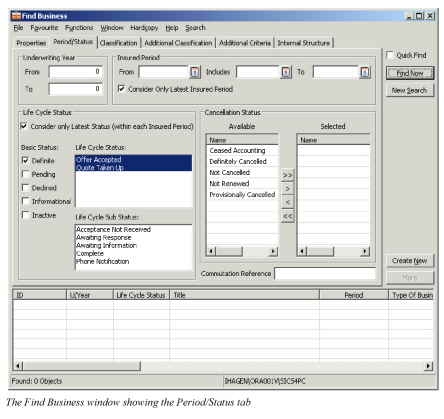
- Click the Period/Status tab.
- In the Underwriting Year section, enter 2002 in both the To and From text boxes.
- In the Insured Period section, select 01.01.2002 in the From box.
- In the Basic Status section, select the Definite check box.
- Click ‘Find Now’.
Search for Business in Force at a Specific Date
Find business that is valid at a specific date, e.g. today’s date.
- Double-click the Business icon in Business folder on the desktop to open the Find Business window.
- Click the Period/Status tab.
- Clear the Consider Only Latest Insured Period check box.
- In the Insured Period section, enter a date in the Includes text box. For example, today’s date.
- In the Basic Status section, select the Definite check box.
- In Cancellation Status section, select Not Cancelled and move it to the Available list using the arrow buttons.
- Click ‘Find Now’.
Search for Business with ‘To Be Advised’ Insured Period
If your system administrator has set up the system to allow for business with To be Advised insured periods, you may have businesses without any insured period at all. These will in general always be included in the search if the other search criteria match. If however searching by the insured period search criteria, From, To and Underwriting Year, the system will exclude TBA businesses. To search for businesses valid at a certain date and still include TBA businesses:
- On the Find Business, click Period/Status tab.
- In the Insured Period section, enter the wanted date the Included field.
- In the Basic Status section, select the wanted statuses (remember to include other than Definite)
- Click ‘Find Now’.
Search for Business by Status #
During the renewal season, it is convenient to use the business statuses as criteria for finding relevant businesses. Below are examples of handy searches on statuses.
Search for Businesses to be Renewed
You want for example to see to see all definite and not cancelled businesses with an insured period starting date later than 01.01.2002.
- Double-click the Business icon in Business folder on the desktop to open the Find Business window.
- Click the Status/Period tab.
- In the Insured Period section, enter 01.01.2002 in the From text box.
- In the Basic Status section, select the Definite check box.
- In Cancellation Status section, select Not Cancelled and move it to the Available list using the arrow buttons.
- Click ‘Find Now’.
Search for Pending and Incomplete Businesses
Locate all businesses which have been offered to you and for which you have not yet received all necessary information.
- Double-click the Business icon in Business folder on the desktop to open the Find Business window.
- Click the Status/Period tab.
- In the Basic Status section, select the Pending check box.
- Select a Life Cycle Status in the list. For example, Renewal Offered, New Agreement Offered, Renewal Quote Requested.
- Select a Life Cycle Sub Status in the list. For example, Incomplete, Awaiting Information.
- Click ‘Find Now.’
Note! If your system administrator has set up the system to allow for business with ‘To be Advised’ insured periods, and you include specific dates in your search, the TBA business will be excluded. An exception is if you search as indicated under the Search for Business with ‘To Be Advised’ Insured Period section.
Search for Business to be Accounted
Underwriters would typically search for the last period of businesses to be evaluated and want to see this regardless of status (might be pending). This is also the default search criterion of the system. Accountants however typically search for definite periods only. Find the definite periods of a business by:
- Double-click the Business icon in Business folder on the desktop to open the Find Business window.
- On the Properties tab, enter the business identifier in ID text box.
- Click the Period/Status tab.
- Clear the Consider Only Latest Insured Period check box.
- In Basic Status section, select the Definite check box.
- If you want to narrow the search further, also enter the Underwriting Year.
- Click ‘Find Now’.
Search for Business by Commutation Reference
Find a commuted business by the commutation reference, e.g. given by an external system.
- Double-click the Business icon in Business folder on the desktop to open the Find Business the window.
- Click the Period/Status tab
- Enter the Commutation Reference
- Click Find Now
Search on Classification #
Find businesses based on their category, e.g. find property excess of loss treaties only.
Search for Treaties Based on Type of Participation
- Double-click the Business icon in Business folder on the desktop to open the Find Business window.
- Select type of business, for example non-proportional treaty in the Type of Business section.
- Click the Classification tab.
- In the Type of Participation section, select the type of participation(s), for example, catastrophe XL per event and move it to the Available list using the arrow buttons.
- If wanted, select an Agreement Type
- Select Find Now.
Search for Business by Main Class of Business and Country Covered
Find for example, all aviation businesses that cover France.
- Double-click the Business icon in Business folder on the desktop to open Find Business window.
- Click the Classification tab.
Search by Other Classification
Find your business by using different types of classifications set up by your own company.
- Double-click the Business icon in Business folder on the desktop to open the Find Business window.
- Click the Additional Classification tab.
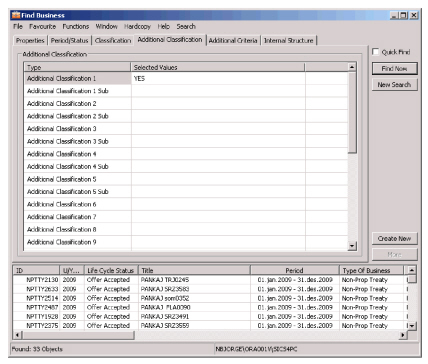
- In the Type display list, double-click a Type to open the Select window.
- Select the required value(s) from Available to Selected list using the arrow buttons.
- Click Close to close the window.
- Click ‘Find Now’.
Search on Business Sections #
When searching for and verifying that you have found the correct agreement, you often need to look at different sections of the agreement to find the key information. To shows agreements with the sections that meet your search criteria:
- Open the Properties Tab of Find Business,
- Select Show Sections
- Click Find Now
- In the display list, click the node immediately preceding the ID of the found businesses
- Click Show More Details
- Scroll sidewise until you see the formation, e.g. share and limits of the section or agreement, of interest.
Search on Custody Account No/ Letter of Credit No #
Find your business by searching for a specific Deposit reference.
- Double-click the Business icon in Business folder on the desktop to open the Find Business window.
- Click the Additional Criteria tab.
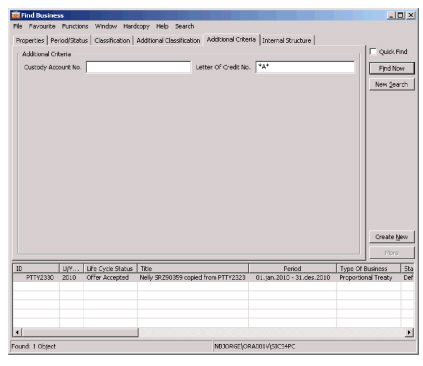
- Fill in a reference to search for in the ‘Custody Account No’ field or in the ‘Letter of Credit No’ field.
- Click Find Now.
Search for Business Based on Internal Structure #
Find business according to criteria set by your own company reflecting its own internal allocation of business.
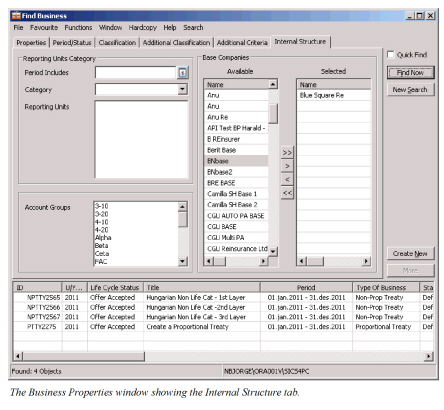
Search on Reporting Unit
What your company uses reporting units for is up to it, but it is most often used for representing a certain part of your own company. Find, for example, businesses linked to a certain profit centre.
- Double-click the Business icon in Business folder on the desktop to open the Find Business window.
- Click the Internal Structure tab.
- Select Profit Center from the Category drop-down list.
- Select the required Reporting Unit(s).
- Click ‘Find Now’.
Search on Account Group
In some cases your company uses the account group to give its businesses an overall category for internal reasons.
To see all businesses in an account group:
- Double-click the Business icon in Business folder on the desktop to open the Find Business window.
- Click the Internal Structure tab.
- Select the required account group.
- Click ‘Find Now’.
Search on Base Company
If your corporation consist of multiple base companies, you might want to limit the search to find the businesses relating to only your own base company.
- Double-click Business icon in Business folder on the desktop to open the Find Business window.
- Click the Internal Structure tab.
- Select the base company you want to use and move it from Available to Selected list using the arrow buttons.
- Click ‘Find Now’.
| Field | Description | Location |
|---|---|---|
| Level | Finds business according to the Level of Business (part of the contract or program) it represents. Another term used is direction. Values: - Assumed Business - Outward Cedent’s Contract - Master Agreement - Own Retention - Reinsurance Program - XL CA of Inward - XL CA of Outward - Intermediary Placement - Retrocessionaire Participation - Administrative Businesses - Unplaced Share - Assumed Business Template - Portfolio Program - Protection Program - Cedent’s Contract - Insured’s Contract - Joint Contract Default: Assumed Business Mandatory: Yes |
|
| ID | Finds business directly on its unique identifier. Values: Text Mandatory: No |
|
| Type | Type of Business Identifier/ID. The type that always exists on a business is Business Identifier. If one does not know this identifier, you may search on other types of identifiers. For example, if identifiers have been changed, you may search on Business Former Identifier, (found on the Business tab of a business in Former Identifier). Or, if looking for a quoted business, search on the LCS Quotation Identifier, (found in Quote ID on the Life Cycle Status tab.) Values: - Business Identifier - Business Former Identifier - LCS Declination - LCS Offer Identifier - LCS Quotation Identifier - IP Former Identifier - IP Original Former Identifier - VNAB Number Default: Business Identifier Mandatory: Yes |
|
| Title | Name of the business for which you are searching. Values: Text Mandatory: No |
|
| Business Partner Reference | Searches on your partner’s, e.g. cedent’s, own reference number or code for a particular _business, (found on the Partner’s tab of a business in the References per role.) Values: Text Mandatory: No |
|
| Business Partner Group | Searches on your Business partner Group Values: Customized by your company Mandatory: No |
|
| Role/ Role 2 | Defines the role of the business partner to be searched on. Values: System defined, e.g.: - Cedent - Original Cedent - Broker - Insured - Reinsurer Default: All It is possible to show another Role as default by use of User Preferences. Refer to User Preferences. Mandatory: Yes |
|
| Country/ Country 2 | Country in which the Business Partner is registered. Values: Countries Mandatory: No |
|
| Business Partner/ Business Partner 2 | Name of the Business Partner you want to search on. Values: Text Find button takes you to Find Business Partner. Fields without title, after Business Partner and Business Partner 2 finds businesses with a partner matching the name you type in. Derived from: Depending on the set up of your system administrator, if the business partner you search for belongs to a merger group, the system will add all other members of this merger group. Validation: Is only available if a Role has been selected Available for the Roles: Broker, Cedent, Insured and Reinsurer Mandatory: No |
|
| Type of Business | Finds businesses by their method of reinsurance/insurance. Values: - Non-Proportional Direct - Non-Proportional Facultative - Non-Proportional Treaty - Proportional Direct - Proportional Facultative - Proportional Treaty Mandatory: No |
|
| Type of Program | Displayed only when selected Level is Protection Program. Finds Protection Programs by their method of reinsurance/insurance. Properties tab. Values: - Facultative Program - Treaty Program Mandatory: No |
|
| Brokered/Direct | Finds business depending on it being placed through an intermediary or not. Values: All - Finds all businesses, direct or brokered Direct Only - Finds only businesses not accepted through broker Brokered Only - Finds businesses through broker only Default: All Mandatory: Yes |
|
| Show Single Treaty Protections | Includes or excludes treaties protecting only one assumed treaty when searching for Outward Cedent’s Contract. (The system checks on the OCC’s Business tab, Single Treaty check box.) Values: Ye_s_ or _No_ _Default:_ Yes _Validations:_ Only available when Level is Outward Cedent’s Contract _Mandatory:_ Yes |
|
| Supporting Business | When selected the system only extracts Assumed Businesses which has the “Supporting Business” indicator set. Values: Yes or No Default: No Mandatory: Yes |
|
| Multi Year Contract | When selected the system only extracts businesses which are Multi Year Contracts. Values: Yes or No Default: No Mandatory: Yes |
|
| Registration | Finds business depending on their status of registration completeness. Values: All - Businesses with Registration Complete ‘selected’, ‘cleared’ and business not yet having this flag available, e.g. offer, quote Complete - Businesses with Registration Complete ‘selected’ Not Complete - Businesses with Registration Complete ‘cleared’ and business not yet having this flag available. Validation: -Available if your system administrator has activated the registration complete function -Available if Level of Business is Assumed Business or Outward Cedent’s Contract Default: All Mandatory: Yes |
|
| Show Sections | Includes or excludes sub parts of an agreement. When selected, the found businesses show sections that meet the general search criteria. Values: Ye_s_ or _No_ _Default:_ No _Mandatory:_ Yes |
|
| Show Details | When selected more columns show information in the display list at the bottom of Find business Values: Yes or No Default: No Mandatory: Yes |
|
| Underwriting Year From/To | Underwriting year(s) you want to include in the search Values: Number of digits: 4 Default: 0 - Finds all Mandatory: No |
|
| Insured Period From/To | Finds businesses with an insured period equal to or being within these dates. Values: Date Mandatory: No Validation: When including Insured Period in the search, From Date is mandatory but not To Date |
|
| Insured Period Includes | Used to search for business insured periods including a specific date. Values: Date Mandatory: No |
|
| Consider Only Latest Insured Period | Decides whether the search should be only on the latest insured period of a business or on all insured period of a business. Values: Selected: Searches only on the latest insured period of a business Not Selected: Searches through all insured periods of a business Default: Selected Mandatory: Yes |
|
| Consider Only Latest Status (within each Insured period) | When selected, SICS will search on and list only businesses that have the same Basic Status as in your search, as their latest Basic Status. If not selected, SICS will list all businesses that have had the same Basic Status as in your search. Values: Yes or No Default: Yes Mandatory: No |
|
| Basic Status | Searches on the main status of the business. Values: - Definite - Pending - Declined - Informational - Inactive Default: Definite May be changed, so that you get your own default. For more details, refer to User Preferences Mandatory: No Functional Impact: - Life Cycle Status (Find Business) - Life Cycle Sub Status (Find Business) |
|
| Life Cycle Status | The phase in a business life cycle, further detailing the basic status. Values: Customised by your company, e.g. New Agreement Offered, Offer Accepted, Quoted, Offer Declined Validations: Depends on selected Basic Status Mandatory: No Functional Impact: Life Cycle Sub Status (Find Business) |
|
| Life Cycle Sub Status | Further describes Life Cycle Status. Values: Customised by your company, e.g. Awaiting Information, Treaty Documents Sent, Under Consideration, Complete Validation: Depends on selected Life Cycle Status Mandatory: No |
|
| Cancellation Status | Finds business according to their termination status. Values: Provisionally Cancelled Not Renewed Ceased Accounting Definitely Cancelled Not cancelled - All businesses except those with status Definitely Cancelled or NOT Renewed Mandatory: No |
|
| Commutation Reference | Searches on the commutation reference of the business. Values: Text field Maximum number of characters: 40 Mandatory: No |
|
| Main Class of Business | Finds business according to the major line of business it covers. Values: Customised by your company, e.g. property, casualty, aviation. Mandatory: No |
|
| Area | Indicates that selected geographical areas refer to the cope of cover of the business. Values: Yes or No Default: Yes Mandatory: No |
Period/Status tab |
| Residential Area | Indicates that selected geographical areas refer to where the cedent/insured of the business is situated. Values: Yes or No Default: No Mandatory: No |
|
| Country | Searches on the business’ covered countries or country of residence, depending on selection in Area/Residential Area Values: Countries Mandatory: No |
|
| Country Group | Searches on the business’ covered country groups or residence country groups, depending on selection in Area/Residential Area Values: Customised by your company, e.g. World Wide, Scandinavia, European Community Mandatory: No |
|
| State | Searches on the business' covered states or state of residence, depending on selection in Area/Residential Area Values: Customised by your company, e.g. Colorado, Bavaria, Quebec. Mandatory: No |
|
| State Groups | Searches on the business' covered state groups or residence state group, depending on selection in Area/Residential Area Values: Customised by your company, e.g. West coast - US Mandatory: No |
|
| Type of Participation | The method of reinsurance, a sub classification of Type of Business. Values: Catastrophe XL per Event, Excess Of Loss, Excess of Loss Umbrella, Line Slip, Not Specified, Open Cover, Quota Share, Risk Transfer, Second Risk Cover, Stop Loss, Surplus 1, Surplus 2, Surplus 3, Working XL Per Event, Working XL Per Risk, Working XL Per Risk or Event Your company may have defined additional customised Types of Participation Validation: If Types of Business selected, choices of Types of Participation depend on these Mandatory: No |
|
| Agreement Type | Describes the options the cedent and reinsurer have for ceding and accepting the individual risks fitting the reinsurance contract guidelines. Values: Fac./Fac., Fac./Obl., Obl./Fac., Obl./Obl. Your system administrator may have defined additional customised values Validation: Choices may depend on Type of Participations selected. Mandatory: No |
|
| Additional Classification | User-defined classifications. Values: Customised by your company. Mandatory: No |
|
| Class of Business | Finds business according to the general insurance classification it covers. Values: Customised by your company, e.g. Fire Insurance, General Liability, Aviation Aircraft Hull Validations: Must be parent value of Sub Class of Business if both are selected Mandatory: No |
|
| Sub Class of Business | Finds business according to further specification of the insurance classification it covers. Values: Customised by your company, e.g. Fire Private, Machinery, Aviation Hull Helicopters Validations: Must be subset of Class of Business if Class of Business is selected Mandatory: No |
|
| Custody Account No | Find business using the unique reference number, or searching for parts of it; using ‘*' Values: Free text; maximum 30 characters Mandatory: No |
|
| Letter of Credit No | Find business using the unique reference number, or searching for parts of it; using ‘*' Values: Free text; maximum 30 characters Mandatory: No |
|
| Reporting Units Period Includes | Finds businesses where this date is within the reporting unit start and end dates on the business. Values: Date Mandatory: No |
|
| Reporting Units Category | Type of reporting unit to base the search for business on reporting unit on. Values: Customised by your company, e.g. profit centre, segment code, person etc. Mandatory: No |
|
| Reporting Units | Finds businesses depending on their allocation to the reporting unit. Values: Customised by your company, e.g. Germanic, Latin, Nordic. Validation: Only available if Reporting Unit Category selected. Options depend on selected Reporting Unit Category. Mandatory: No |
|
| Account Groups | Finds businesses depending on their allocation to the account group. Values: Customised by your company Mandatory: No |
|
| Base Companies | Finds a business having the selected base companies. (The system checks only on the partner role most common to be held by the base company. For example, if the business is assumed, the role searched on is the reinsurer, and NOT cedent, while if the business is an outward cedent’s contract, the cedent is searched on.) Default: Chosen by user preferences. Refer to User Preference for more details Values: Customised by your company, e.g. DXC Norway, CSE Sweden Mandatory: No |
The Find Business Display List
When the system displays a list for you e.g. after you have clicked ‘Find Now’ in Find Business, you will see the following information for each found business: (For performance reason, the system does not show information in all columns immediately. To see all information, click the Show Details button, located on the Properties tab, in the lower right most corner)
If you find it difficult to locate businesses, using the standard SICS layout of the display list, there are many other ways you can search, sort or organise this information on. For more details, see Layout and Organization of Display Lists.
| Display List Item | Description |
|---|---|
| ID | Business Identifier. Number or name that uniquely identifies the business. When searching on sections, businesses with sections show also a node in this column |
| U/W Year | Underwriting year of the insured period of a business. |
| Life Cycle Status | The particular phase within a business’ expected life cycle. |
| Title | Name of the business. |
| Period | Insured period of the business. |
| Type of Business | Classification describing the method of insurance/reinsurance of the business, e.g. proportional treaty. |
| Layer | The layer Number of a non-proportional business |
| Status | Basics status of the business, e.g. definite |
| Level of Business | Indication of the part of the contract or program a business represent, e.g. cedent ’s contract, assumed business . |
| Main Class of Business | Describing the nature of the covered business, e.g. property, marine. |
| Class of Business | Sub classification of Main Class of Business, e.g. marine hull, marine cargo. |
| Sub Class of Business | Sub classification of Class of Business. |
| Ceased Accounting | Indicates whether the Cease Accounting option has been selected for the business. |
| Last Complete Accounting Year | The last year that accounting is completed for. |
| Cancellation | Cancellation as at date. |
| Former ID | If business has changed identifier, previous identifier (e.g. SICS 7.1 identifier) is displayed. |
| Cedent | The name of cedent. |
| Cedent Reference | Reference number or name the cedent has given the business. |
| Original Cedent | The insurer who ceded the direct insurance that was further down the line covered by a retrocession. |
| Broker | The name of the broker of a business. |
| Reinsurer | The name of the reinsurer of a business. |
| Insured | The name of the insured. |
| Insured Country | The country (name) where the insured has his/her property. |
| Signed Share | The signed ‘Share from 100%’ of the agreement. If the share is expressed in units, the system calculates the share into percent. |
| Sections and Limits | Section Name - the name of the section as per section properties. Main Currency - section’s main currency Limits - depends on Type of Business/Participation: * Quota Share: Liability 100% and Quota Share Percent * Proportional treaty other that Quota Share: Liability 100% and Liability 1 Line 100% * Proportional Facultative/Direct Business: Main Limit * Non-Proportional Business: Cover 100% and Excess 100% |
| Complete | The status of registration completeness of the business. |