Maintain Multi-Year Contracts
Reinsurance companies sometimes writes contracts which have insured periods consisting of several years. Contractually, a multi-year contract is one insured period with only one underwriting year and most terms and conditions are the same for the entire insured period. Sometimes however some terms and conditions differ per sub period within the insured period.
SICS allows registration of multi-year contracts and offer an effective maintenance of these.
Establish Multi-Year Contract #
- Open an existing business and select the Life Cycle tab
- From the menu button select Transform To Multi Year Contract. If the contract has e.g. bookings, claims or amendments, you must confirm to create a new sub period for the lengthen period
- In the Transform To Multi Year Contract window, if original period is to be split into sub periods, enter From Date and Time for the subsequent sub period(s). If adding a new sub period for the lengthened period, enter To Date and Time for the added period
- Select OK
A multi-year contract can be created from an existing assumed business independent of the contract’s life cycle status.
If splitting existing insured period into sub periods, business cannot have:
- Amendments
- Claims
- Bookings
- Protection Assignments (e.g. facultative protections, treaty protections, XL CA protections)
- Insured Object Cession
- Declaration
- Premium Instalment Schedule
- Premium Adjustment Schedule
- Calculated accounts (within Administration Condition)
If the contract has one or more of the criteria listed above, the contract can only be transformed to a multi-year contract by adding a new sub period for the lengthen period. The original period will then become the multi-year contract’s first sub period.

Once a multi-year contract is established:
-
The original insured period of the assumed business is split into sub periods according to the details entered in the transformation process, or a new sub period is added for the lengthened period.
-
All sub periods have the same life cycle status (e.g. New Agreement Offered or Offer Accepted)
-
All sub periods have the same the same underwriting year, i.e. the same underwriting year as the assumed business had before the multi-year contract was established.
-
The following information existing on the assumed business before transformation, is copied to all insured periods:
-
Sections
-
Classifications
-
Business Partners
-
Terms and conditions (e.g. share conditions, deduction conditions, clauses)
-
-
If existing period has been split into sub periods, premium amounts previously defined for the entire period have been pro rata split between the insured periods
-
If existing period has been lengthened by adding a new sub period, premium amounts previously defined for the entire period have been copied to the added sub period and pro rata calculated according to length of new added period. When adding a new sub period for the lengthened period, the following details existing on the original period are still allocated to only this period (i.e. the first sub period)
-
Claims
-
Bookings
-
Amendments
-
List of Risk Zones (Peril cessions). The only exception from before transformation is that now the attachment from date is the same as the respective insured period dates
-
Reporting Units are placed according to their Valid From and To date (according to the same rules that also exist for renewal)
-
Cancellation Conditions.
-
PNOC and Cancel Due Dates are calculated according to insured period end date (according to the same rules that also exist for renewal)
-
-
If existing period has been lengthened by adding a new sub period, the following details are copied to the added sub period. The dates (e.g. due dates, submission dates and attachment days) are adjusted to reflect the new period:
-
Instalment schedule
-
Adjustment schedule
-
Calculated accounts (in administration condition)
-
Insured object cessions
-
Declarations
-
Protection assignments (proportional Outward Cedent’s Contract and Proportional Retention). This is dependent of the system parameter ‘Cpoy Own Retention and Prop OCC on AB renewail’ is selected
-
If the contract is linked to a reinsurance program, and the new sub period has a from date within an insured period on the program, this sub period is automatically linked to this period
-
If the contract is linked to a cedent’s program, and the system does not allow a difference in periods between the program and the contract, the new sub period must have an identical From and To Date to an insured period on the program to be automatically linked to the program. If the contract is linked to a ceden’ts program, and the system does allow a difference in periods between the program and the contract, the new sub period must have a From Date within an insured period on the program to be automatically linked to the program
-
If the contract is linked to a portfolio program and the system parameter ‘Extended renewal Functionality’ is active, the system checks if the new sub period has a From Date within an insured period on the program. If it has, the system automatically links this sub period to this program period.
-
Get Overview of Multi-Year Contract #
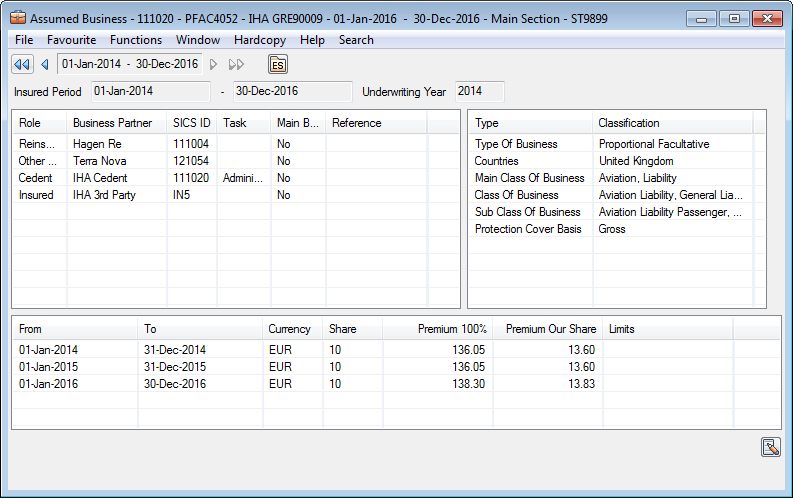
Once a multi-year contract is established, the Multi Year Contract Overview showing details for the entire period, is available.
Navigate within Multi-Year Contract #
You can easily navigate between the multi-year contract overview of the entire insured period and the belonging sub periods.
Navigate from sub period to multi-year contract overview
- Open assumed business and navigate to a period being part of a multi-year contract
- In the navigation bar, click the Multi Year Contract Overview button (to the left of the terms and conditions buttons)
 Navigate from multi-year contract overview to sub period
- Double click on wanted sub period
Maintain Multi-Year Contract Life Cycle Status #
All insured periods within the same multi-year contract period, must have the same life cycle status. Chaning the life cycle status of a multi-year contract, can only be done on the last sub period within the multi-year contract period.
- Open a multi-year contract
- Navigate to the last sub period
- Select New Life Cycle Status from the menu button
- Change to wanted life cycle status
All sub periods within the multi-year contract period will get the same life cycle status.
Maintain Multi-Year Contract Periods #
After a multi-year contract is established, it is still possible to change the belonging sub periods.
Change existing multi-year contract periods
- Open your business. The Multi Year Contract Overview is automatically displayed. Alternatively, on one of the sub periods, select the Multi Year Contract Overview button in the navigation bar
- On the pop up menu inside the sub period display list, select Edit Sub Periods
- Change From Date and/or Time for wanted period(s)
- Click OK
Add new period to the multi-year contract
Insert a new sub period within an existing multi year insured period.
- Open your business. The Multi Year Contract Overview is automatically displayed. Alternatively, on one of the sub periods, select the Multi Year Contract Overview button in the navigation bar
- On the pop up menu inside the sub period display list, select Edit Sub Periods
- Click on the button Add Sub Period.
- Enter and change From Date and/or Time for wanted period(s)
- Click OK
The above is only allowed when none of the sub periods have premium installments, bookings, etc.
Remove newly added period
- Open your business. The system automatically displays the Multi Year Contract Overview. Alternatively, on one of the sub periods, click the Multi Year Contract Overview button in the navigation bar
- Right mouse click inside the insured period display list and select Edit Sub Periods
- Click on the button Add Sub Period.
- Enter and change From Date and/or Time for wanted period(s)
- Click the button Remove Sub Period. The system removes newly added sub period.
- Click OK
Note! Sub Period(s) can only be removed before the new split is saved.
Validations:
Changing, adding and/or removing sub period(s), the system validates that:
- Sub periods don’t overlap
- There is no gap between sub periods
- Sub periods cover the entire multi-year contract’s insured period
- Sub periods linked to a program, the From Date must be within the program period Change insured period
- Open your business. The system automatically displays the Multi Year Contract Overview. Alternatively, on one of the sub periods, click the Multi Year Contract Overview button in the navigation bar
- On the pop up menu inside the insured period display list, select Edit Sub Periods
- In Insured Period group box change From Date
- In Insured Period group box change To Date
- Click OK
Add sub period for lengthened insured period
If a continuous contract has not been cancelled, it automatically continues. Some chooses to reflect this by creating a new insured period/renew the contract, while others reflects this by lengthening the existing insured period. If you want to lengthen the existing insured period, you may also want to record a new sub period to reflect the continued part. In the latter case:
-
Open your business. The system automatically displays the Multi Year Contract Overview. Alternatively, on one of the sub periods, click the Multi Year Contract Overview button in the navigation bar
-
On the pop up menu inside the insured period display list, select Edit Sub
Periods -
In Insured Period group box, change To Date to a later date
-
Click on Add Sub Period button. New sub period is added for the lengthened period.
-
Click OK
The system copies terms and conditions from the pervious sub period’s last amendment to the added sub period, except:
- Premium instalment schedule
- Premium adjustment schedule
- Calculated accounts
- Cessions and declarations
- Link to parent business
- Protection assignments
These has to be added manually to the new sub period.
Change Underwriting Year
-
Open your business. The system automatically displays the Multi Year Contract Overview. Alternatively, on one of the sub periods, click the Multi Year Contract Overview button in the navigation bar
-
On the pop up menu inside the insured period display list, select Edit Sub
Periods -
Change Underwriting Year - system executed the same validations as when changing underwriting year on an assumed business
Maintain Multi-Year Contract Terms and Conditions #
Most terms and conditions for periods belonging to a multi-year contract are maintained per sub period and as per the same rules as for “ordinary” assumed businesses' insured periods.
However, some rules are specific for sub periods of a multi-year contract.
Details not Changeable per Sub Period:
- Agreement Basic Status cannot be changed unless the sub period is the last of the entire agreement
- Underwriting Year
- Insured Period details Details Changeable per Sub Period:
Details that you can change per sub period are e.g.:
- Life Cycle Sub Status
- Wording Status
- Notes
- Business Partners
- Broker Reference
- Main Currency
- Classifications
- Sections, cessions and declarations
The system applies the changes to the current sub period only. This means that if the same changes also apply to other sub periods, you have to update these periods manually.
Enter business condition previously not entered on multi-year contract
-
Open multi-year contract and select a sub period
-
Select a business condition previously not defined
-
Enter wanted details and press Save
-
Confirm to copy condition to same e.g. section on other periods within the multi-year contract.
Condition is copied to other periods -
Alternatively, select to not copy condition to other periods within the multi-year contract. Condition is defined on current sub period only.
Note! Premium instalment/ adjustment schedule is not copied to other sub periods.
Enter business condition previously entered on one/more periods
-
Open multi-year contract and select a sub period
-
Select a sub period where business condition is not defined
-
Enter wanted details and press Save
-
Confirm to copy condition to same e.g. section on other periods within the multi-year contract.
Condition is copied to other periods where previously not defined. Periods where condition previously is defined, are not affected -
Alternatively, select to not copy condition to other periods within the multi-year contract. Condition is defined on current sub period only.
Update business condition on a sub period
- Open multi-year contract and select a sub period
- Open in edit mode an already defined business condition
- Enter changes and press OK.
Changes are reflected on current sub period only
Delete business condition on a sub period
- Open multi-year contract and select a sub period
- Select to delete an already defined business condition.
Condition is deleted on current sub period only
Amend Multi-Year Contract #
You may handle formal changes to a multi-year contract in the same way as for any agreement.
Amend Terms and Conditions on Multi Year Contract
-
Open an assumed business being a multi-year contract. The Multi Year Contract Overview is automatically displayed. Alternatively, on one of the sub periods, select the Multi Year Contract Overview button in the navigation bar
-
Click the menu button and select New Amendment
-
Enter amendment From Date and other details if wanted
-
Save
-
Select the business condition to be amended
-
Select Amend Condition from the business' conditions menu button
-
(If the amendment is not already in the list, select New Amendment from the pop up menu. Enter amendment From Date and other details if wanted and select Save)
-
Select the amendment and select Save
The system asks if the amendment should be linked to same condition on later sub periods within the same multi-year contract -
You may confirm that the system links this amendment also to same condition on later sub periods, or
You may confirm that amendment links this amendment to this condition to current sub period only. The same condition on later sub periods are then not linked to the amendment. Amendment is however available on all later sub periods
Amendments may apply both for the sub period covering the amendment’s From Date and for all later sub periods within the same multi-year contract.
| Example: | Multi Year Contract Period: | 01.01.2012 - 31.12.2014 |
|---|---|---|
| Sub Period 1 | 01.01.2012 - 31.12.2012 | |
| Sub Period 2 | 01.01.2013 - 31.12.2013 | |
| Sub Period 3 | 01.01.2014 - 31.12.2014 | |
| Amendment as at 01.07.2012 |
The Amendment above is available for all sub periods, as the amendment’s From Date is within the first period and second and third period have a To Date later then the amendment’s Effective Period from Date.
Amending a particular condition on the 1st period and confirming amendment applies to all periods, the sub periods will get the following effective periods:
| Example: | Multi Year Contract Period: | |
|---|---|---|
| Sub Period 1 | 01.07.2012 - 31.12.2012 | |
| Sub Period 2 | 01.01.2013 - 31.12.2013 | |
| Sub Period 3 | 01.01.2014 - 31.12.2014 |
Extend Multi-Year Contract
You may record an extension amendment only from a contract’s last Multi Year Contract Overview or from the last sub period. The terms and conditions are extended as per existing functionality for assumed businesses, e.g. the period is extended and premiums are proportionally calculated to reflect the new period.
For a more general description of business amendments, refer to chapter Handle Business Amendments.
Add new sub period for extended period
When a non-continuous contract expires, it is an ordinary course of business that the contract may be extended. If so an amendment would be issues to extend the contract terms. The system creates an effective period for the extend part. For a multi year contract, there is an option to create also a sub period for the extended part.
- Open your business. The system automatically displays the Multi Year Contract Overview. Alternatively, on one of the sub periods, click the Multi Year Contract Overview button in the navigation bar
- Select New Amendment from the menu button
- Select type of amendment Extension and confirm to create a new sub period for the extended period
- Enter new extensions amendment’s To Date
- Click Save
The system copies the terms and conditions from the pervious sub period’s last amendment to the added sub period, except:
- Premium Instalment schedule
- Premium Adjustment schedule
- Calculated accounts
- Cessions and declarations
- Link to parent business
- Protection assignments Note! You may only add a new sub period for the extended part if you create the extension from the Multi Year Contract overview.
Renew Multi -Year Contract #
I want to renew the multi-year contract to a new period
-
Open your multi-year contract. The Multi Year Contract Overview is automatically displayed.
-
On the menu button, select Renewal or
-
Alternatively, on the last sub periods, select the Life Cycle tab
-
On the menu button select Renewal
-
Enter Insured Period and press Finished
-
Selecting a pending status, business is renewed to new period following the same rules as an assumed business
-
Selecting a definite status, system will check if last sub period on previous insured period has one/more of the following details:
-
Instalment schedule
-
Adjustment schedule
-
Calculated Accounts
-
Proportional Protections
-
-
-
If one or more of the above details exists, system asks if you want to copy this to new period
- Answer “Yes” - business is renewed to an assumed business as per the same rules as an ordinary assumed business
- Answer “No” - business is renewed to an assumed business, but instalment and adjustment schedule, calculated accounts and proportional protection assignments are not copied to new period.
Note! If system is set up to NOT ‘Copy Own Retention and Prop OCC on AB Renewal’, the check of Proportional Protection Assignment is ignored in the renewal process.
Note! If the multi year contract’s last sub period is linked to an already renewed reinsurance program, the renewed insured period is linked to the same reinsurance program.
Copy Multi -Year Contract #
I want to create a new assumed contract by copying from an existing multi-year contract.
- Open the multi-year contract . The Multi Year Contract Overview is automatcially displayed.
- From the menu button, select Copy to New Business. Alternatively, select Copy to New Business from the menu button on the last sub period’s Life Cycle tab
- Enter wanted details in the Copy to New Business window
- Save your input
The new assumed business has the same details as the multi-year contract’s last sub period. For more details on which details are copied and which are not, refer to chapter 5.2.2 Copy to New Business
Transform Multi -Year Contract to Assumed Business #
I have a contract that I have established as a multi-year contract. This contract turns out to be a single term contract. Before a multi-year contract can be transformed back to an ordinary contract, the multi-year contract insured period can have only one sub period.
- Open the Multi Year Contract Overview and navigate to the last sub period
- Navigate to the sub period’s Insured Period tab and select Delete Insured period from the menu button.
- The system removes this sub period.
- Navigate back to the Multi Year Contract Overview
- From the menu button, select option Transform to ordinary contract
When removing an insured period (sub period) linked to a multi-year contract, the system follows the same rules as when deleting an insured period from any other business. This means that only the contract’s last insured period (sub period) can be deleted, and e.g. that the period can have noe linked bookings.