Handle Offer / Quotation Process
Corresponding with Insured Period dates are buttons that indicate the business phases. These buttons indicate current status and history of a business.
The Life Cycle of a business begins as Offer, or Renewal Quote Requested or New Quote Requested. If the business begins with a quote request, there can be a Decline to Quote, or the request becomes Quoted, and the quote can be Taken Up or Not Taken Up. If the business begins with an offer, it could be either New Agreement Offered, or Renewal Offered. Finally, those offers are either Accepted or Denied. All of these statuses are indicated on the Navigation bar by one of the Life Cycle Status buttons described here.
Before a quote can become an agreement, SICS checks that:
- For non-proportional business: Premium and Limit Conditions has been entered. This validation can be turned on or off by your System
- For proportional business: Premium and Limit Condition and Deduction Conditions have been entered. This validation can be turned on or off by your System
- Insured period has a from and to date. This validation prevents you from changing to a definite life cycle status as long as the business still has no (/‘To be Advised) insured period. Note that this is only applicable if your System Administrator has set up the system to allow for ‘To Be Advised’ periods.
| Icon | Contents | Description |
|---|---|---|
 |
New Agreement Offered, Renewal Offered, New Quote Requested, Renewal Quote Requested, or Quoted | The Question mark button can mean one of five things: New Agreement Offered, Renewal Offered, New Quote Requested, Renewal Quote Requested, or Quoted. Place the cursor over the button to see the “tool-tip” which tells you what that button represents. All the Question mark buttons indicate pending statuses. When a quote or offer eventually becomes accepted or declined, a new button appears next to the Question mark button. This lets you see the progression of the quote or offer from beginning to current status. |
 |
Definite Contract | The Check mark button indicates that the contract is definite, e.g. Offer Accepted or Quote Taken Up. |
 |
Definite Contract/New | When the check mark has the letter N, it indicates that the New flag is set for the current contract. |
 |
Registration Complete | When the Check mark has a the letter “c”, it indicates that the Registration Complete flag is set for the current contract. |
 |
Declined To Quote, Offer Declined, or Quote Not Taken Up | The X button indicates that the offer has been declined, that the quote has not been taken up, or that a quote was not made after the request. |
 |
Informational Agreement | The Information button indicates Informational Agreement. You keep an informational agreement when you want to have reference information about a business that has not been offer ed. The status of an informational agreement can be changed to New Agreement Offered or New Quote Requested, or_Renewal Offered_ or_Renewal Quote Requested_, de_pending_ on whether it is a new or existing business. |
 |
Inactive agreement (Similar to the offer accepted button, but is grey.) | The Inactive button indicates that a life cycle phase was set up incorrectly or by mistake, and is not used. |
Change Life Cycle Status #
When first receiving a quote or an offer, the contract may have been registered in SICS with a pending status. Later when contract is accepted or maybe declined, you want to change the life cycle status to e.g. definite status
- Open wanted contract and navigate to the Life Cycle tab
- Select New Life Cycle Status from the menu button
- Select wanted status, e.g. Offer Accepted and press Next
- Depending on how the Change Life Cycle process is set up by your system administrator, several pages may be presented in the process
- Navigate to the Share Condition page and enter e.g. a Signed Share
- Once the share is given (for a definite status) the Finish button is enabled
- Press “Finish” to complete the process or press Next to navigate through the process’ remaining pages (if any). Herein if business has an inactive business partner which link to a active merge parent and system parameter, the system replaces the inactive business partner with the active business parnter. Depending on the set up of your system administrator, you might receive a warning about this, which you can reply Yes or No to.
Change Status to Definite Business
Before a quote or offer can become an agreement, SICS has some checks.
If a business has an inactive business partner which link to an active merger parent company, SICS can replace the inactive business partner with the active business partner automatically. If your system administrator has set up the system for a warning before this, you will receive a question of this which you can reply yes or no to. If not, the system will do the replacement without a warning.
Also, SICS checks if mandatory information for a definite Life Cycle Status has been entered. What is mandatory depends on the set up of your system administrator. If any of the mandatory information is not present, you will not be allowed to select a definite status.
For example, the system may have been set up set up to require the following for definite business:
- Premium and Limit Conditions for Type of Business is non-proportional treaty
- 100% Proportional Protection for any Type of Business
- Insured Period From and To Date. (Note that this is only applicable if the system is set up to allow for ‘To Be Advised’ periods/no insured period).
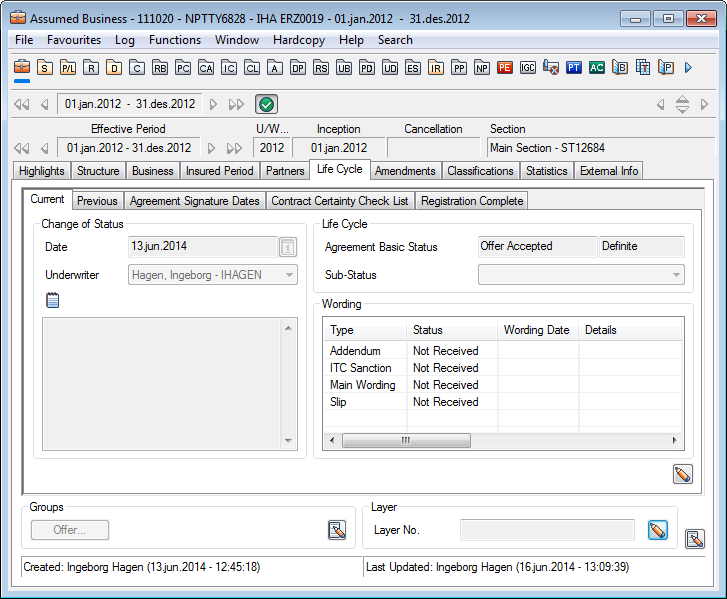
Here you can search for and maintain information regarding the status of the businesses. The Life Cycle tab is further divided into two more tabs: Current, and Previous. The Previous tab is only applicable if the business is declined.
The Current tab has four sections that appear: Change of Status, Certificate, Life Cycle, and Groups. Another section appears on the Current tab de_pending_ on the type of business. You may see the following _section_ s: _Offer_, _Quote Request_, _Quote_, _Wording_, or _Declination_.
Under Life Cycle, you see a field called Status, which has two information fields next to it. These are output only fields and provide information on the status of the business.
Sub Status: There is also a field called Sub-Status with a drop-down list next to it. This is a user-defined field. Input and changes are made here by clicking the Edit button in the Life Cycle tab.
Declination Reason: The argument for deciding to decline a reinsurance submission.
Values: Customized by your company, e.g. Low Price, No Capacity. Allows multiple values
Validations: Basic Status must be declined.
Not possible to combine ‘None’ with other values.
Mandatory: Yes
Functional Impact: None
Change of Status Date: The date that the status was changed. Click the Edit button if you want to change that date. You can type the date in directly, or click the Calendar button that brings up a calendar from which you can select a date.
Change of Status Underwriter: Use the drop-down list to select the name of the underwriter that corresponds to the date in the field just above it. Underwriter names are input in the System Administration section (done by your SICS administrator).
Obtain Life Cycle Status History #
Click the Previous tab in the Business Properties Life Cycle Status window to get to the Previous window that gives you information about the history of the status of a business. (This is only applicable if the business is declined.)
Flag Need of Registration Accuracy Check #
Most companies require that the accountant does some accuracy checks of a definite contract before allowing him/her to book. The accountant checks for example the recorded business structure (e.g. sections, accounting classifications, conditions) against the technical account document.
A closed worksheet would in this case mean that these checks have been made. If your company has set up the system to show whether this check has been made or not, you will see the flag ‘N’ (new) inside the definite life cycle status icon if the check has not yet been made.
The system automatically removes the flag ‘N’ as soon as the first booking has been made.
Maintain Compliance Check List #
If insurer/reinsurer on your business has position Leader, Technical Leader, Market Leader or Follower (i.e. a system defined position), or a user defined position where “Leader” or “Follower” is set up as child dependency, items to be checked are displayed on the Compliance Check List tab. Items displayed depend on the position selected on each business.
Depending on how your system is set up, it may be mandatory to complete the Compliance Check List before an assumed business can have a definite status.
Confirm item is checked
Confirm that a specific item is checked
- Open assumed business and navigate to the Life Cycle tab
- Select Compliance_Check List_ tab and open in edit mode
- Select Yes in Checked column
- Press OK
Delete Compliance Check List
Remove the Compliance Check List e.g. because insurer/ reinsurer has changed position from Leader to Follower
- Open assumed business and navigate to the Life Cycle tab
- Select Compliance Check List tab
- Select Delete from menu button

| Field | Description |
|---|---|
| Unique ID | Unique identifier for item to be checked Values: Number Validations: Not editable Mandatory: Yes Functional Impact: None |
| Description | Text describing the item to be checked Value: Text Field Minimum number of characters: 0 Maximum number of characters: 100 Validations: Not editable Mandatory: Yes Functional Impact: None |
| User | Name of user who last updated the item on business Values: SICS user’s and Login ID Validations: Defaulted by the system - not changeable Mandatory: Yes. Functional Impact: None |
| Date | Date the item was last updated on business Values: Date Field Validations: Defaulted by the system - not changeable Mandatory: Yes Functional Impact: None |
| Checked | Indication whether items have been confirmed/ checked on current business Values: Yes and No Default: No Validations: Depending on how your system is set up, value must be “Yes” before business can have definite status Mandatory: Yes Functional Impact: - Create new business - Renew Business - Business Life Cycle Status |
Ensure Complete Contract Registration #
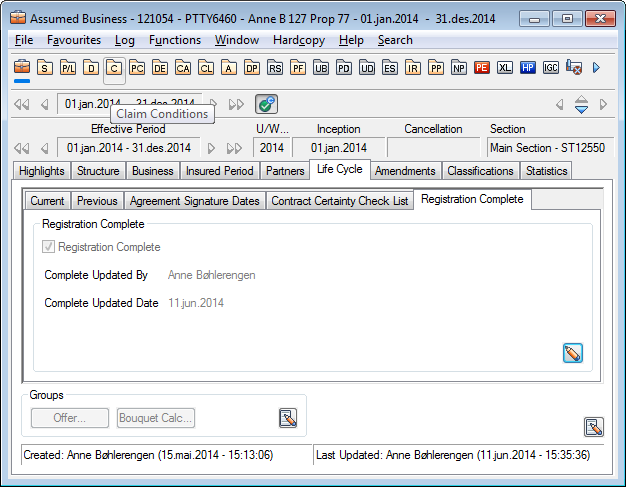
You may have accepted a contract and have given it a definite status, but all contractual terms and conditions are not yet recorded. To ensure that a definite contract also is ready to be processed, your company may use an additional flag to mark the contract as complete. The registration complete facility ensures that this flag is set before allowing to process it further e.g. book or register claims. This flag being set also limits the possibility of updating the terms and conditions.
Indicate Contract Registration Complete
Change status to indicate that all contract details are registered
- Open wanted contract and navigate to the Life Cycle tab
- Select the Registration Complete tab and open in edit mode
- Set Registration Complete flag
- System automatically set Complete Updated By to current user
- System automatically sets Complete Updated Date to current date
- Press OK
Functions Requiring Registration Complete
When the contract complete facility is in use, the system requires completeness to allow the following:
- Make bookings (technical or claim)
- Create Accounting Orders
- Create Group Orders
- Create claim
- Create amendment
- Renew contract Functions Restricted when Registration Complete
After the registration is set to complete, you may no longer do changes to the following, unless they are done as part of amendment:
- Business conditions
- Classifications
- Sections, insured object cessions and declarations
It is not allowed to make any changes to the following details on a completed
contract:
- Reinsurer or Cedent
- Insured Period details
- Main Currency
- Renewal Method
- Compliance Check List
- Performance Management Data Return Information
- Transform contract into a multi year contract
- Placement list on OCC
If however you, in exceptional cases, still need to change something after registration complete is set, please contact your system administrator.
Require Principal Main Class of Business for Registration Complete
When the Principal Main Class of Business facility is in use, a contract cannot be set to complete unless you have marked one main class of business as principal.
If your contract has only one main class of business, this is defaulted as the principal once registration complete is selected.
Require Accounting Classification for Registration Complete
Depending on the set up of your system administrator, your company may require accounting classifications recorded before allowing the contract to be set to ‘registration complete’. The system will stop you from registration complete if the accounting classification will be missing at the lowest level of the section hierarchy (Leaf section).
Allow Only one Main Class of Business on Sub Sections for Registration Complete
When the Only allow one MCOB on Leaf Sections facility is in use, a contract cannot be set to complete unless you have only one main class of business on each leaf section of the contract. This means, it checks the sections at bottom level of the section hierarchies. If there are no sections, the system checks only the contract level/main section. If one or more leaf section have more than one Main Class of Business, the system stops you.
Allow only One Reporting Unit for Registration Complete
Depending on the set up of your system administrator, the system may require that there is only one reporting unit before allowing you to set the registration of your contract to complete. The system checks only the lowest level of the section hierarchy and only reporting units of categories (e.g. profit center, segment) selected by your system administrator. If the reporting units are valid at different times, they can both be present.
Color Required Terms and Conditions:
To help identify the contract details your company considers necessary before a contract can be regarded as complete, the system may show these details in a different color. The registration of the contract will not be considered complete before all colored items have a value. What information is required is set up by your system administrator.
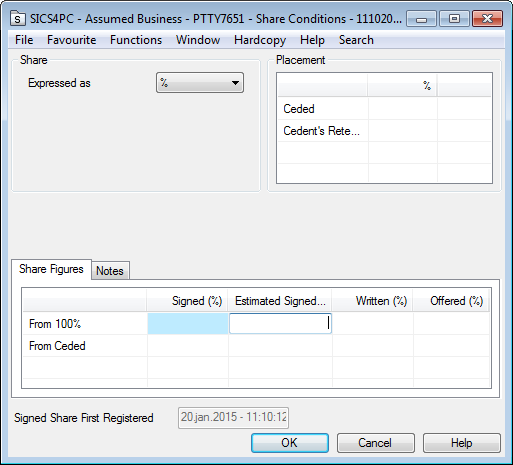
The system shows the required information colored in the following places:
- The required item. Each required item is colored within their conditions. For example, e.g. Commission is colored within Deduction Conditions, Liability is colored within the Premium and Limits Conditions, User Defined item is colored within the User Defined information.
- All business processes (i.e. Create New Business, Change Life Cycle Status, Update Business and Renew Business)
- The main information of a contract: The condition buttons holding the required items are colored.
- In overviews, e.g. Section Overview, Program Contract Overview.
- On the main information of the contract: The tab holding the items is colored. Require Terms and Conditions for Registeration Complete
If your company has activated the Registration Complete functionality, the colored items become mandatory. This means that, before you can select the Registration Complete flag on a contract, you must have given all marked items a value. If some are missing, the system will stop you with a message listing the missing information.
| Field | Description |
|---|---|
| Registration Complete | Indicates whether the registration of the terms and conditions of a contract is complete or not Value: - Selected - Not Selected Default: Not Selected Validations: -Only available if set up by your system administrator -Level of Business must be Assumed Business or Outward Cedent’s Contract -For assumed contracts, basic Status must be definite -For Outward Cedent’s Contract, Placement Complete must be selected -Special authorisation required to select or deselect Registration Complete -Security may require someone else to select Registration Complete if you aree the user shown in Last Updated By on the contract’s Life Cycle tab -Security may prohibit deselecting the Registration Complete if bookings exist Mandatory: Yes Functional Impact: Maintain Bookings Handle Claims Amend Business Renew Business Maintain Insured period Maintain Conditions Assign Business Partners Maintain Classifications Assign Reporting Units Maintain Section Maintain Declaration Maintain Insured Object Cessions Maintain Outward Cedent’s Contract placements |
| Complete Updated By | Name of user who last updated the complete indicator Values: SICS user’s name Validations: Defaulted by the system to current SICS User - not changeable Mandatory: No Functional Impact: None |
| Complete Updated Date | Date the complete indicator was last updated Values: Date Validations: Defaulted by the system to today’s date - not changeable Mandatory: No Functional Impact: None |
Maintain Status of Contractual Documents #
This section is for keeping track of the status of the various contractual documents relating to the business.
If your company does not use the advanced wording handling, you see only the following fields.
Status: Use the drop-down list to select the certificate status.
Date: The date refers to the status you selected above. For example, if the certificate was Received, then Date represents when it was received. If the status is Agreed, then Date represents when it was signed and sent. If status is Not Received, then no date appears.
If your company uses the advanced wording feature, you can maintain the status in much more detail.
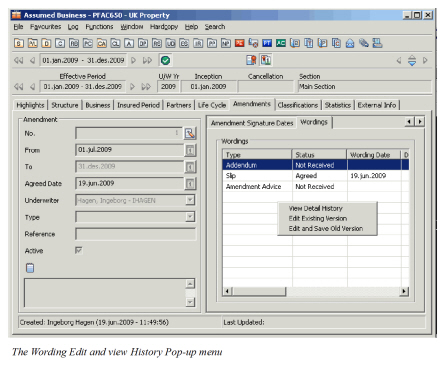
The Advanced Wording Handling feature in SICS helps you registering, storing and viewing multiple wordings for internal or legal purposes. It allows you to keep track of the current status and history of each wording.
By default, SICS creates e.g. an amendment advice with status ‘not produced’ when you create an amendment. When you click the right-mouse button in the display list, you see the following options:
- View Detail History, which lets you view the history of the wordings.
- Edit Existing Version, which lets you edit an existing wording without saving the previous status of the wording
Edit and Save Old Version, which records every change you make to the wording, and displays them in the Detail History list.
Maintain Agreement Signature Dates #
You may register the dates when the cedent, the reinsurer, or other partners of your business signed the amendment.
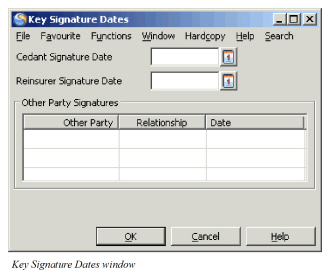
Click the Edit button to open the Key Signature Date window. Enter the dates by clicking the Calendar button, and clicking a date in the Calendar window.