Renew Business
Renew Business Manually #
As mentioned earlier, you can renew an existing business by selecting Renewal on the Edit Menu button of the Life Cycle tab in the Business Properties window. You see the Renewal of Business wizard, which is similar to the Create New Businesswizard, which takes you step by step through the process of recording renewal information.
You can select to have the renewal wizard presented in a ‘next page’ style or a ‘scrollable page’ style, where the latter presents terms and conditions all in one page. For more details regarding these options, see the Set Default Preferences section in the Getting Started chapter.
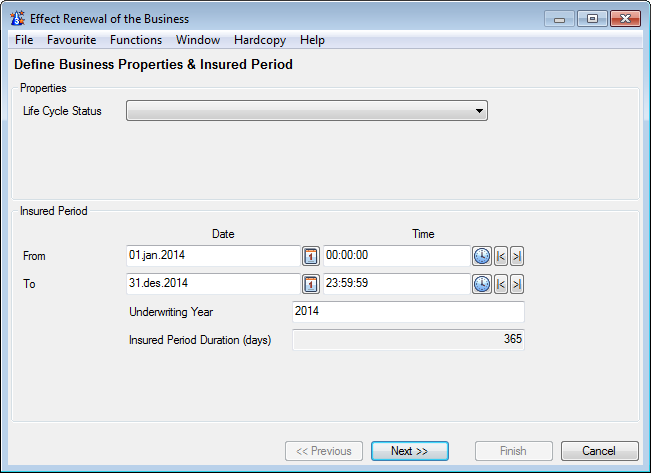
Renewal Details: #
- Only non-pending contracts renewable, e.g. renew a definite contract but not an offer.
- Only not cancelled contracts renewable.
- Only newest insured period of contract renewable.
- Only possible to renew contracts flagged as complete, if your system administrator has set up a requirement of complete registration
- Renewal to a definite Life Cycle Status, such as offer accepted, will not be allowed if your system administrator has set up system to require the presence of certain conditions and these conditions are not copied to the new period.
- It sets the Insured Period From of the new period of the contract to one second later than the Insured Period To of the contract’s previous insured period
- If your system administrator has set up the system to allow for business with ‘To be Advised’ insured periods, your businesses might not have an insured period at all, (e.g. business with an informational status). In that case the renewal option will not be available until you specify an insured period. Also, it is not allow to renew to a to be advised period. For more information, refer to the Maintain Insured Period Information section.
- The Extended Reporting Period Date on Claim Condition is not carried over to the new Insured Period.
- The system may have been set up to prevent that same underwriting year appears more than once within the same business
- If the business partner of the contract is inactive but has an active parent merger company, SICS can replace this inactive partner with the active one. On renewal, if your system administrator has set up the system to give a warning before this, you will receive a question, which you can reply yes or no to. If not, this replacement will be made without a message.
Renew Business Automatically - Facultative and Direct Businesses #
If your SICS System Administrator has set up the system for it, you can renew Facultative Business automatically by selecting the Automatic Renewal box when creating a new business. It will be marked for inclusion in auto renewal. This option is also available on the Insured Period tab of a business. If the system administrator has set up mandatory conditions for setting a business to definite life cycle status, then, when selecting the Automatic Renewal flag, the system checks if all those mandatory conditions are present on the business. If missing, you will be prevented from selecting a definite status from the drop down list next to the Automatic Renewal flag.
If selected, it will be included in a job run by your system administrator and renewed automatically. The system creates a new insured period and copies all conditions to the new insured period. (This is only possible if the basic life cycle status is Definite or Informational.)
Note! When running a scheduled job for automatic renewal, the system does not check whether the business have conditions required for renewal to a definite status. If the business is otherwise valid for renewal, it will be renewed.
Note! The Extended Reporting Period Date on Claim Condition is not carried over to the new Insured Period.
Renew Business Automatically - Treaty Businesses #
Automatic renewal of treaty businesses is only available when the life and health functionality is in use, and when your system administrator has set up your company accordingly.
When your system administrator runs the automatic renewal job, new insured period is created and all conditions are copied to the new insured period.
You select/ not select to include your business in the automatic renewal when first creating the treaty.
- From Find Business, select Create New
- Select Type of Business as proportional or non-proportional treaty.
- Select Base Company and Main Class of Business where life and health functionality applies
- On the last page of the wizard, the Automatic Renewal flag may be selected.
- Save business
Alternatively, automatic renewal flag can be set on an existing business.
- Open business and navigate to the Insured Period tab
- Select Edit from the menu button
- Select/ de-select parameter to include business in automatic renewal.
- Save business
Note! The Automatic Renewal flag is not selected on renewed insured period
Note! When running a scheduled job for automatic renewal, the system does not check whether the business have conditions required for renewal to a definite status. If the business is otherwise valid for renewal, it will be renewed.
Note! The Extended Reporting Period Date on Claim Condition is not carried over to the new Insured Period.
| Field | Description | Location |
|---|---|---|
| Automatic Renewal | Indication whether the business should be included/ not included in automatic renewal Values: Selected, Not Selected Validations: Only available if your system adminstrator has set the system up for it. Mandatory: Yes Functional Impact: Automatic renewal process in Scheduler |
Mass Renew Business #
Mass Renewal can be performed for a collection of business, for example, retrocessionaires participating in an Outward Cedent’s Contract. It lets you indicate the expiry date (Insured Period To date) for extraction of the business to be renewed. The system then shows only businesses with an Insured Period To date equal to or smaller than the date you selected. The system also shows the newest Insured Period To dates for each business. The businesses are renewed for one year.
Note! The Extended Reporting Period Date on Claim Condition is not carried over to the new Insured Period.
Mass Renewal Details:
- Contracts where one or more mandatory class of business classifications will have no active values on the new period are marked in red and must be excluded from the mass renewal
- The Extended Reporting Period Date on Claim Condition is not carried over to the new Insured Period.
- Depending on the set up of your system administrator, you may mass renew placements without copying the share to the new insured period. This applies only to the new period if this receives a definite status and only to placements of outward cedent’s contracts and excess of loss protections for common account of outward contracts.
- If the business partner of a contract is inactive, but has an active parent merger company, SICS replaces this inactive partner with the active one. If your system administrator has set up this to give a warning, you will receive a question first, which you can reply yes or no to. If not, the system will replace these without any warning.
List Changes after Renewal #
Click the Amendment tab and then the Changed After Renewal sub tab to see a list of conditions that are changed upon the renewal of the business.
Note! You only see the changes if the Enable Business Conditions Create/Change Audit Log box was selected in System Parameter Maintenance.