Section Business
An agreement can be split into two or more section s. A section can be further split into sub section s, which again can be split into sub, sub section s, etc.
An agreement/section can also be split into cessions and declarations (cession without insurable object).
A cession can be split into declarations, but declarations cannot be split.
Get Overview of Sections, Cessions and Declaration #
Get Detailed Overview #
When you click Structure tab on the business, you see the Section Overview window. Here you can see the hierarchy of all the section s, cessions and declarations for the business. Double-click e.g. a section in the hierarchy to navigate directly to that section.
You see a list of condition buttons in the Section Overview window that pertains to each section/cession. The ones with a blue square in the corner indicate that that condition has been inherited. (Condition buttons on the Navigation bar with the blue square also indicate that that condition has been inherited for the selected section.) You can double-click one of the conditions in the Section Overview window to open that condition and see its properties.
For more information on inheritance of conditions in general, refer to Inherit Conditions in the Handle Business Conditions chapter.
When clicking the Edit button from Sections Overview, the system asks you if the update is part of amendment. If yes, you can select an existing or create a new amendment.
When Sections Overview is in Edit mode, you have the possibility to make multiple section/cession updates, and/or editing several business conditions. Selected business conditions will be presented in Edit mode.
If up date is part of amendment, all selected business conditons will be linked to the selected amendment.
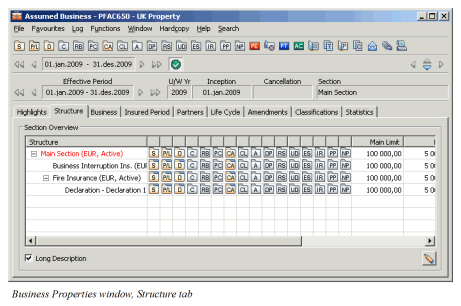
| Field | Description | Location |
|---|---|---|
| Long Description | Indicates whether the section overview shows short names or full names for sections. Values: Selected - Shows only section short name. Shows no currency or active/inactive flag. Not selected - Shows section with full names. Shows main currency of section and whether section active or inactive Default: Not selected Mandatory: Yes Functional Impact: Section Overview |
Structure tab |
| Section Name | Displays certain details of the section Structure tab Values: Depending on parameter Long Description is selected or not (see above). - Classification (e.g. Class of Business) - External Identifier - Main Currency - If section is active or not Mandatory: Yes |
|
| Premium | Premium amount our share. Which premium the overview shows depends on the System Administrator’s set up (maximum 6) Values: Amount Derived from: Premium and Limit Conditions Validation: Not manually changeable Mandatory: No Functional Impact: None |
Structure tab |
| Limit | Limit amount our share. Which limit the overview shows depends on the System Administrator’s set up (maximum 6) Values: Amount Derived from: Premium and Limit Conditions Validation: Not manually changeable Mandatory: No Functional Impact: None |
Structure tab |
| Currency | Main currency of the business or section Values: ISO standard (currency short name) Derived from: Main currency of business or section Mandatory: Yes Functional Impact: None |
Structure tab |
| Net Retention premium | Net retention amount our share for premium displayed in section overview. Values: Amount Calculation: Premium amount Our Share x (Own Retention % + Unplaced Share x Retroceded Percent to OCC / 100) / 100 Validation: Not manually changeable Mandatory: No Functional Impact: None |
Structure tab |
| Net Retention limit | Net retention amount our share for limit in section overview. Values: Amount Calculation: Limit Amount Our Share x (Own Retention % + Uplanced Share x Retroceded Percent to OCC / 100) / 100 Validation: Not manually changeable Mandatory: No Functional Impact: None |
Structure tab |
Get Simple Overview when large Number of Sections/Cessions/Declarations #
For businesses with many cessions/ declarations (for example, more than 100), the time for SICS to open the Section Overview in view mode will be long. To speed up response time for this particular window, you can instruct SICS to use a simplified Section Overview layout when the number of Cessions is higher than the threshold you have set. You set this parameter (threshold) in your User Preferences.
Refer to the Set User Default Preferences, Misc.Preferences section in the_Getting Started_ chapter for more details.
The simplified view will only show the business structure (sections, cessions etc.) and the section/cession/declaration names (in uppercase). You can access the information about each cession/declaration found in the standard structure view (for example, business conditions) by double-clicking a cession/declaration and then select the required condition from the Navigation bar.
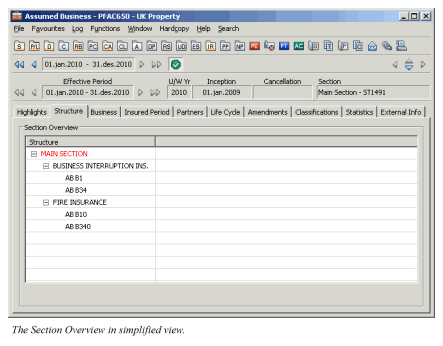
Properties details for each cession/ declaration are available by selecting the Properties option from the pop-up menu.
Add Section #
When you select a section and then select Add Child Section from the pop-up menu, you see the Add Section window, which lets you add a section to a business.

You see the following fields in this window:
Name: Give the section a name to indicate what kind of coverage this is.
Status: When a check mark (Ö) appears in the Active box, it indicates that this section is active.
Parent: The name of the parent of the section is displayed here.
Percent of Parent: SICS lets you split a business into two or more sections where you can indicate each section’s portion of the parent. The percentage field shows how much the section is responsible for out of the total amount from the parent.
External Identifier: The Section is automatically given an identifier by the system, when added/ created. The field is not available for input when first added but can be edited at a later stage.
Main Currency: Indicates which currency is used as the default in all condition windows. (ISO, International Standardization Organization, is the standard.)
Other Broker: The name of a second broker on a section. A Lloyds contract can support both UK and European business. E.g. processed through Lloyds in London and Lloyds branch in Brussels.
Create Section #
To create a child section, select a section on the Structure tab and select Create Child Section from the pop-up menu. You see the Create Child Section window.
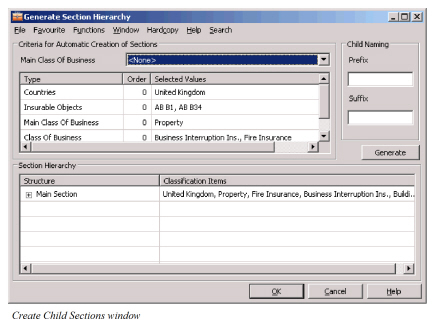
The Create Child Sections window lets you specify a part of the classification to be used to create child section s. The name of the parent for the created section is shown in the title bar. Select a classification item from either the Coverage or the Method list. The names of the child sections that will be created are shown in the Child Sections to be Created list on the right-hand side of the window. You can specify a prefix and a suffix to be added to the names of the section s.
Click Save to create the child section s. The classification of each child section is reduced to only include the correct selected item for each child. For example, if you select Class of Business as the classification part to create sections with, and you have 2 items in the current section(Engineering and Fire Insurance), 2 child sections are created. Each is named after the appropriate Class of Business, and each one’s classification only contains the Class of Business relating to that child.
View Section #
You can open the Properties window of a section in the Section Overview window. Select the section and select Properties from the pop-up menu. You see the Section Properties window.

The section properties include a table of eMessaging references. These references are used to link an eMessage to a specific child section, using the Section Mapping table (See eMessaging System Parameters in the System Administration Guide, chapter 8, for more details).
eMessaging section references consist of a reference value and a reference type. Each section may have one or more instances of each type, and different types may have the same reference value (either on the same section or on another section of the insured period). It is not permitted to have the same value/type combination repeated anywhere within the insured period.
Add/Create Cession and Declaration #
When you have selected a section and clicked the right-mouse button, you can also:
- Add Child Cession
- Create Child Cession
- Create Child Declaration.
This is explained in the Handle Business Insurables chapter.
Note! If your system administrator has set up the system to allow for business with ‘To be Advised’ insured periods, your businesses might not have any insured period at all. In that case the above options will not be available. To get them available you have to first specify an insured period.
View Cession/Declaration #
You can open the Properties window of a cession/declaration in the Se_ction_ Overview window. Select the _cession/declaration_ and select _Properties_ from the pop-up menu. You see the _Cession/Declaration_ Properties window.
Cancel child section as art of amendment #
On Assumed Business when you create amendment as part of the child section. From Structure tab when you choose to cancel amendment on child section the system deletes it from the front end. This option will NOT delete the sub sections from the database and it will visible in BO. To have them totally deleted from the database you must select the option Delete.
Delete child section #
On Assumed Business with child section, either as part of amendment or not, user can choose to delete this from the Structure tab by selecting the option Delete. By doing this the Child section is physically deleted from the database.