Check Business Information from Claims
Sometimes there is a need to check the business whilst reviewing a claim. The Business Information tab of the claim presents some information from the Business, and all the partners as they are recorded on the business. No information can be entered on the claim. From this window you can also access the Business itself, thus allowing further inspection of relevant conditions.
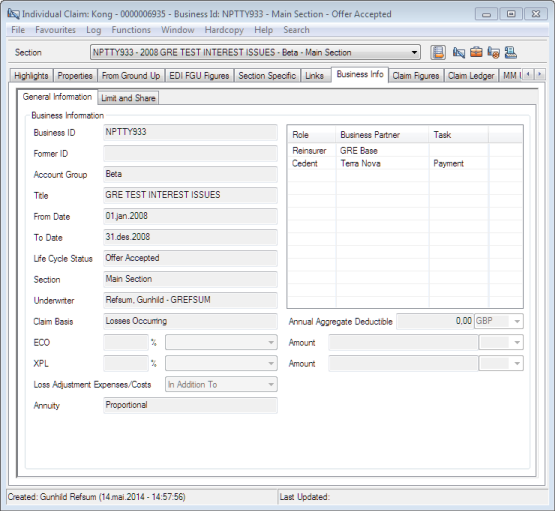
| Field | Description | Location |
|---|---|---|
| Business ID | The unique SICS generated business identifier. | Business Info - General |
| Former ID | The business' former identifier as entered on the business. | Business Info - General |
| Account Group | The Account Group the business is part of, if any. | Business Info - General |
| Title | The Business Title | Business Info - General |
| From Date | The Insured Period Start Date, as recorded on the Business. | Business Info - General |
| To Date | The Insured Period End Date, as recorded on the Business. | Business Info - General |
| Life Cycle Status | The Life Cycle Status of the Business. | Business Info - General |
| Section | The Section name | Business Info - General |
| Underwriter | The user assigned this Responsibility in Business Classifications. | Business Info - General |
| Claim Basis | The Claim Basis value(s), as recorded on the Claim Condition of the Business. | Business Info - General |
| Annual Aggregate Deductible | The Annual Aggregate Deductible amount, expressed in Main Currency of the Business, as defined on Premium/Limit condition of the relevant business section. When AAD is defined as “Combined” the AAD limit displayed is highlighted and is that of the parent AAD section. | Business Info - General |
| ECO % | The Extra Contractual Obligation percentage, as defined on the Claim Condition of the business. | Business Info - General |
| ECO Value | The Extra Contractual Obligation value, as defined on the Claim Condition of the business. | Business Info - General |
| ECO Amount and Currency | The Extra Contractual Obligation amount, as defined on the Claim Condition of the business. | Business Info - General |
| XPL % | The Excess Policy Limit percentage, as defined on the Claim Condition of the business. | Business Info - General |
| XPL Value | The Excess Policy Limit Value, as defined on the Claim Condition of the business. | Business Info - General |
| XPL Amount and Currency | The Excess Policy Limit Amount, as defined on the Claim Condition of the business. | Business Info - General |
| Loss Adjustment Expenses/Costs | The Calculation Method of Loss Adjustment Expenses/Costs, as defined on the Claim Condition of the business. | Business Info - General |
| Annuity | The Annuity System defined on the Claim condition | Business Info - General |
View Business Conditions from a Claim #
The most important business conditions, like Limit condition, the Claim Basis, the Cost clause, and the ECO and XPL (Excess Policy Limits) information can be viewed from a claim, thus reducing the required navigation between a claim and the business.
- Open the Business Info sub tab of the claim. The system displays the information as registered on the respective business condition.
View Claim Basis from a Claim #
The Claim Basis and some relevant dates can also be viewed directly on the Claim Highlights, or the Claim Business Information Properties window. Which dates that appear, depend on the type of business.
View Business Partners from a Claim #
Each claim will display all partners recorded on the business. They can be seen on the Claim Highlights Properties window, the Business Info window, and the cedent or insured can also be seen from the Links tab, Business Partner sub tab. All partners that are displayed from Business are output fields only and cannot be edited on the claim.
View Business Partner Properties from a Claim #
- Select the Business Partner from the, Links - Business Partner sub tab on the Links tab in the Claim Highlights Properties window, or the Business Info window.
- Select Business Partner Properties from the pop-up menu.
View Accumulation Control of Insured from a Claim #
- Select the Insured from the Claim Highlights Properties window, or Business Info window.
- Select Accumulation Control from the pop-up menu.