Claim Business Partner
A claim may be associated with Business Partners specific to that claim - for instance Loss Surveyors, or a firm of solicitors or other experts. Sometimes you will receive relevant loss information directly from these Partners, or you may want to settle fees directly with them. SICS allows you to maintain the link between the claim and these partners on the Links tab - on sub tab Business Partner - in the Business Partner list box. Partners linked to a claim can also be used as extract criteria in Find Claim .
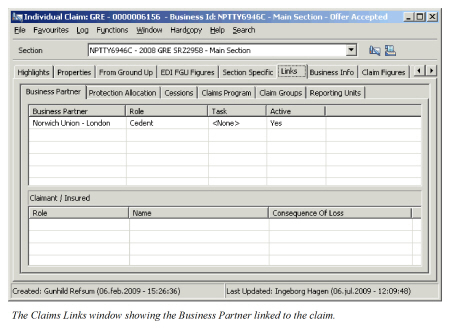
Add a link to a Business Partner #
- Find and Open the Claim you want to link a Partner to
- Open the Links tab, sub tab Business Partner.
- Select Add from the pop-up menu in the Business Partner display list.
- In the Create Business Partner Relationship dialog box, define the Role and/or Task and link the claim to an existing Business Partner, or create a New Business Partner (refer to Create Business Partner), or type the name in the Business Partner Name field, and select or clear the Active check box.
- Click OK.
- Repeat steps 3-5 for all Business Partners you want to create a link to.
Edit a Link to a Business Partner #
- Find and open the claim you want to edit business partner information for.
- Click the Links tab and then the Business Partner sub tab.
- In the Business Partner display list, select the business partner you want to edit.
- Select Edit from the pop-up menu. You see the Business Partner Relationship Properties window.
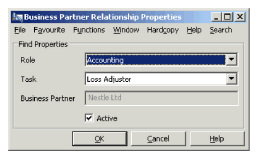
- Make you changes to the Role, Task or Active status.
- Click OK.
Remove a Business Partner Link from a Claim #
- Find and open the claim you want to remove a business partner link for.
- Click the Links tab and then the Business Partner sub tab.
- In the Business Partner display list, select the business partner you want to remove.
- Select Remove from the pop-up menu.
- Confirm that you want to remove the link from the database by selecting Yes in the Confirmation dialog box.
Note! The system automatically displays the Cedent as a Business Partner for treaty and facultative business. This partner is copied from the business, and is displayed on the claim to enable the retrieval of claims per cedent in Find Claims. The relationship cannot be edited or removed on the claim itself.
View Business Partner Properties from the Claim #
- Find and open your claim.
- Select the Links tab and then the Business Partners sub tab.
- Select the Business Partner in the Business Partner display list.
- Select Business Partner Properties from the pop-up menu.
Note! This option is only made available when the Business Partner has been recorded as a link, and not as a name.
| Field | Description | Location |
|---|---|---|
| Role | The responsibility the Business Partner has for the specific claim, for example (Surveyor) Value: Cedent, and otherwise customised. Mandatory: No Functional impact: Search criteria in Find Claims |
Links - Business Partners |
| Task | A description of the task the Business Partner has. Values: Customised Mandatory: No Functional impact: None |
Links - Business Partners |
| Business Partner | A partner that has been defined in the system. Values: All Business Partners defined in the system. Mandatory: If Business Partner Name is not defined. Functional impact: Search criteria in Find Claims. Balances can be paid directly to this Business Partner. |
Links - Business Partners |
| Business Partner Name | The name of a Business Partner that has not been defined in the system Values: Free-text entry Mandatory: If Business Partner has not been selected. Functional impact: Search criteria in Find Claims. |
Links - Business Partners |
| Active | Indicator of whether the relationship between the Business Partner and Claim is still valid/active. Values: Active/Inactive Default: Active Functional impact: None |
Links - Business Partners |