Claim Disposition Handling
The Claim Disposition and Subdisposition are used to indicate the Claim’s Life Cycle Phase, and will determine whether bookings for Loss Payments can be made, and also whether bookings can be transferred to ledgers. On the claim’s section specific tab you find the Disposition Information section.
SICS allows you to view the disposition history by navigating on the date of change.
You can change the disposition information either by creating new information, or by editing the existing information. You can at all times edit and add disposition information, however only one record is maintained per day.
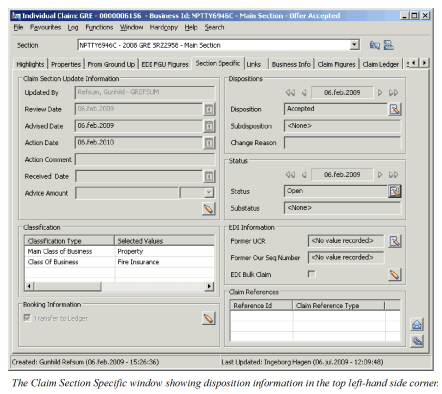
Record New Disposition Information on Claim #
- Open the Claim you want to create a new disposition for
- Open the Claim Section Specific tab
- Click the menu button in the Disposition section and select Add Disposition from menu.
- Select the new disposition and/or sub disposition.
- Enter the Change Reason and click OK.
- Select whether you want to create a notifier.
Edit Existing Disposition Information on Claim #
- Open the Claim you want to edit disposition information for
- Open the Claim Section Specific tab.
- Click the Menu button in the Disposition section and select Edit Disposition from menu. You see the Claim Disposition dialog box.
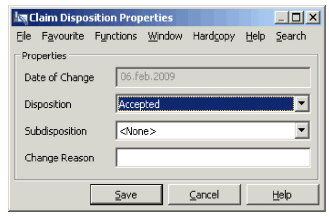 4. Change the existing disposition information.
5. Enter the reason for changing the disposition.
6. Click OK.
7. Select whether you want to create a notifier.
4. Change the existing disposition information.
5. Enter the reason for changing the disposition.
6. Click OK.
7. Select whether you want to create a notifier.
View Disposition Information History #
- Open the claim for which you want to inspect the disposition history
- Open the claim Section Specific tab.
- Use the arrow buttons in the Disposition section to view the historical development.
Claim Disposition Validations #
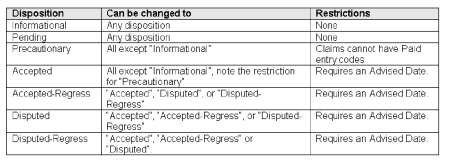
For more information about restrictions for Accepted, Accepted-Regress, Disputed and Disputed-Regress dispositions, refer to Claim Review and Update Informationon page 10-113.
Generate Notifier when Disposition Changes #
When the claim’s disposition changes from for example Accepted to Disputed you may want to inform someone else in your company of this decision. SICS gives you the option to create a Notifier when you have changed the Disposition. Refer to Notifier Handling in the Getting Started chapter for more details.
| Field | Description | Location |
|---|---|---|
| Date of Change | Output field of the date the disposition was created/added. | Section Specific |
| Disposition | This is the “life cycle phase” of the claim. Values: Informational, Pending, Precautionary, Accepted, Accepted-Regress, Disputed, Disputed-Regress Default: Accepted on Assumed Definite Business and Informational Outwards Cedent’s Contracts, Informational on Informational Assumed Business. Mandatory: Yes Validations: Validations against Business Basic Status. See table above. Functional impact: See table above, claim-closing validations, claim notifier, claim-booking information, claim accounting. |
Section Specific |
| Subdisposition | This is a further description of the “life cycle phase”, for example “Disputed By Leader” Values: Customised. Mandatory: None Functional impact: None |
Section Specific |
| Change reason | The reason why the disposition changed from one value to another. Values: Free-text entry. Mandatory: When Disposition is changed to and from “Disputed” or “Disputed-Regress” Functional impact: None |
Section Specific |