View Claim Highlights
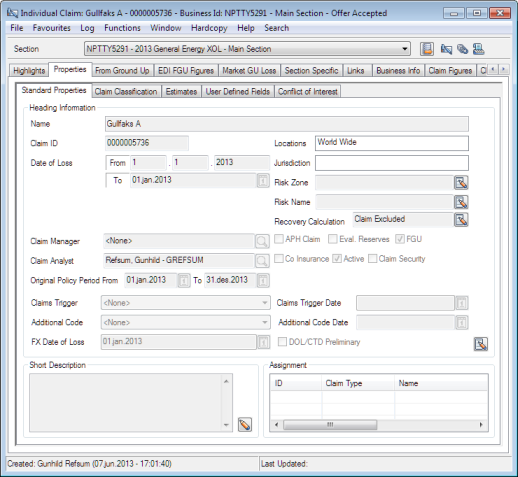
To see the information entered for each recorded claim, you must open the claim properties and navigate to the specific tabs. The Highlights tab of a claim gives you a brief summary of the information recorded on the other tabs, and depends on the Type of Business, the Claim Type, and the Class of Business. Some of the information, for example, the Loss Location is general for all the linked claim sections, whereas other information like the status and disposition is specific for each section.
Note! The highlights information cannot be edited from this window.
Claim highlights can be accessed from Find Claim, Business Claim List, Headline Loss Claim List, Claim Group Claim List, Claim Program Claim List, Business Partner Claim List and Third Party Claim List.
- Select the claim you want to look at.
If claim is linked to more than one section, select the correct section from the List Chooser. 2. Select Properties from the pop-up menu
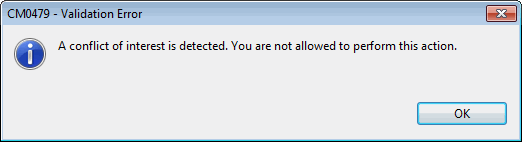
Note! If you are registered as being in Conflict for the selected Claim, you are not allowed to access the claim information
View Highlights on Linked Sections #
Select the section on the section drop-down list.
Navigate from a Claim to Other Parts of SICS #
Next to the section drop down list, there are some buttons that appear on all claim windows.
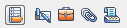
Start process - gives a list of all Task Management processes where “Open Claim” is the start action of the process' first task. For more information, refer to chapter Handle Task Management
Claim - opens section’s Claims List
View Business - opens the linked business' Highlights. The business is opened at the business level and insured period the claim is linked to. You can navigate to other insured periods and levels is required. Refer to Business chapter
External Document Management System - option for adding attachments to a claim (or business) when an external system is used to store data that should be attached to the claim (business)
Produced Documents - List of documents created for the claim. You can also produce new documents from the Document List. For more information, refer to chapter Getting Started
View Bookings in Main Currency #
Click the Show Main Currency button.
Individual Claim Snap Shot #
The individual claim snap shot is an alternative view of an individual claim, and presents information from different claim windows as well as key business information in a single window. The snap shot is accessed from the Business Claim List, the Claim Summary Snapshot, or an Individual Claim.
To open an Individual Claim Snap Shot from Business Claim List:
- Open the Business to which the claim is linked
- Open the Business Claim List
- Select the claim you want to see in snapshot view, and select View Claim Snapshot from the popup menu
To open an Individual Claim Snapshot from Claim Summary Snapshot
- Open the Business to which the claim is linked
- Open the Claim Summary Snapshot, either by selecting this option from the File Menu on the Business, or by selecting the snapshot icon on the Business Claim List
- In the Claim List section, double click on the claim you want to see in snapshot view
To open an Individual Claim Snapshot from Claim Properties
- Open an Individual Claim Properties.
- From any tab, select the snapshot icon to view the claim in Snapshot view.
The Individual Claim Snap Shot opens, with most of the sections expanded. You can collapse the sections for which you do not want to see the details. From the snapshot you can also navigate to the ordinary claim properties, by selecting the claims icon in the partners section.
The Partner section displays the key partners as defined on the business, the underwriting year, the underwriter.

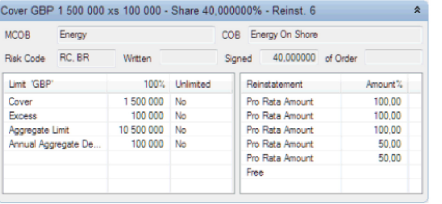
The Business Information section displays the Main Class of Business, the Class of Business, the Risk Code, the Written and Signed Shares, as well as the Limit condition container, and the Reinstatement container. The information displayed in the header reflects the section’s terms & conditions as per latest amendment, whereas the other information reflects the amendment to which the current claim is linked.
In the next two sections, basic claim information is displayed, as well as the collected Signature Note for the claim
A graphical display of how bookings have developed over time is shown in the Booking Overview section. The default display is for 100% share, with an option to view “Our Share”. Note that if the accumulated booking is below zero, no graph will be displayed.
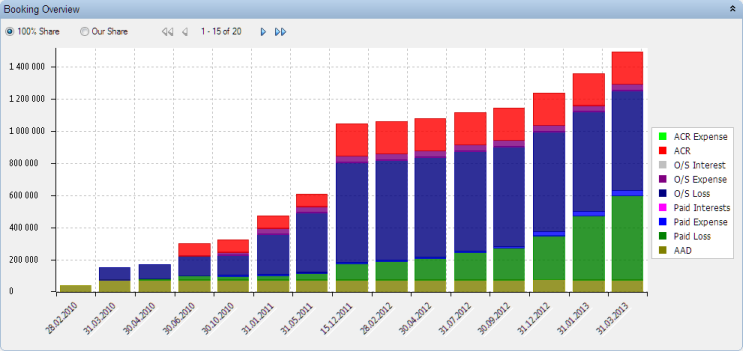
Use the arrows to navigate to later or previous adjustments.
In the Current Status Section, the development of the claim is split into accounting years. There is also an option to create a new manual claim worksheet from this section.

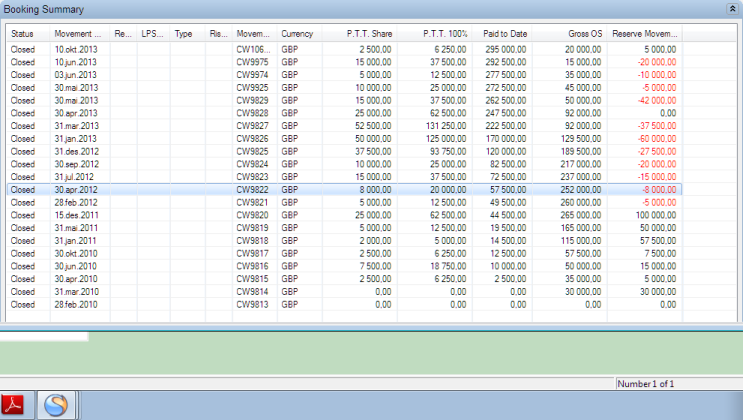
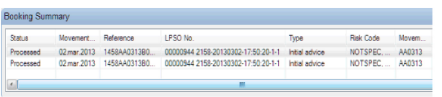
The last section displays the bookings made for this claim, also extracting some relevant information from the corresponding message, if relevant. Note that the information displayed in Booking Overview, Current Status, and Booking Summary sections refer to the current claim section only.
Note! The snapshot window is not immediately refreshed if changes are made to the claim after opening the snapshot. You need to reopen the snapshot to see latest changes.