Claim Status Handling
The Claim Status and sub status indicate whether further financial movements are expected, and allowed, on the claim. On the claim’s Section Specific tab you find the Status Information section.
SICS allows you to view the status history by navigating on the date of change.
You can change the status information either by creating new information. You can choose if you want to modify the status for the current claim section only, or to modify all sections of the claims simultaneously.
Record New Status Information on a Claim #
- Open the Claim you want to create a new status for.
- Open the claim Section Specific tab.
- In the Status section, select ‘Add Status’(if you only want to add the status to the current section of the claim) or ‘Add Status All Sections’(if you want to add the new status to all sections of the claim) from menu. You see the Create Claim Status window.
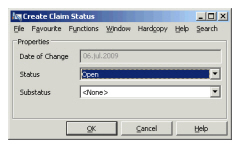
- Select the new status and/or sub-status from the drop-down lists.
- If you are closing a claim which is linked to only one section, or closing the claim on the last section, and your System Administrator has activated the Market Ground Up Loss functionality, you must first indicate that the figures have been reviewed. The system returns a confirmation message, allowing you to set the indicator automatically.
- Confirm/select Yes, to set the indicator automatically, or respond “No” to manually go back to the Market Ground Up Loss window and inspect the figures, and set the indicator manually.
- Click OK.
Reopen a Claim #
The Claim Status codes are system-defined values, and only “Open” or “Closed” is allowed. If you want to re-open a claim you must select status “Open”. You can use the user-defined substatus to indicate that the claim has been “Reopened”. If you are using the Market Ground Up Loss functionality, the system automatically clears the “Market Ground Up Loss Review” indicator.
Close Claim Validations #
When closing a claim, SICS performs validations of the claim itself:
- Incurred Claim Amount: If the incurred claim exceeds the amount defined in the system parameters /Base Company Specific Settings tab/Claim Limit for Headline Loss Assignment, the claim cannot be closed unless it has been linked to a Headline. This validation only occurs for Individual and Interlocking Claims.
- Co-insurance: If the Co-insurance checkbox (on the Claim Properties window) has been selected, the claim cannot be closed unless it has been assigned to a Headline Loss. This validation only occurs for Individual and Interlocking Claims.
- Market Ground Up Loss Review: If you are using the Market Ground Up Loss functionality, the “Market Ground Up Loss Review” checkbox (on the Market GU Loss window) must be selected before closing the claim on the last section of the claim.. This can take place automatically during claim closing, or manually at any time.
- Disposition: If the disposition is Accepted-Regress or Disputed-Regress, the claim cannot be closed.
- Open Worksheets: If open worksheets exist for this claim, the claim cannot be closed.
- Reserves: If any Reserves exist for this claim, the claim cannot be closed. This validation is performed both on Claim ledger level and on Business Ledger level.
- Annual Aggregate Deductible (AAD): Claims cannot be closed if AAD reserves exist for the claim.
- System will give a warning when closing/re-opening claim on an insured period marked as To be Commuted.
In addition, certain business conditions are checked if the business is not commuted:
- Index Clause (IC): A warning appears if an index clause has been defined on the business, but the Index checkbox (on Claim Figures tab) has not been selected on the claim.
- Costs/Expenses on Claim Condition (C): Warnings appear if bookings have been made for costs/expenses and the business does not have a provision for this, or no bookings have been made for these items, and the clause has been defined.
- Interests on Claim Condition (C): Warnings appear if bookings have been made for interests and the business does not have a provision for this, or no bookings have been made for these items, and the clause has been defined. This validation only occurs for Non-Proportional business.
View Status Information History #
- Open the claim for which you want to inspect the status history.
- Open the claim Section Specific tab.
- In the Status section use the arrow buttons to view the historical development of the status.
| Field | Description | Location |
|---|---|---|
| Seq.No. | The sequence of the Claim Status Record Value: Output field only. Initial status has sequence 0, each new record increases number by 1 Functional impact: Sorting of claim status. |
Section Specific |
| Date of Change | The date the claim status was created or changed. Value: Output field - date DD/MM/YYYY Functional impact: Enables navigation |
Section Specific |
| Status | The main status of the claim, indicating whether the claim is open for booking/accounting. Value: Open, Closed. Default: Open Mandatory: Yes Validations: Closing validations - see above. Functional impact: Enables, disables creation of claim worksheets. |
Section Specific |
| Substatus | A further description or clarification of the main claim status, for example “Reopened” Values: Customised Functional impact: None |
Section Specific |