Claims and Claim Programs
The Claim Program sub tab is only available for Individual Assumed Treaty Claims, and then only if this functionality is in use.
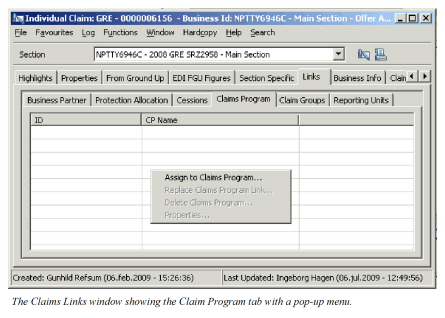
For more details about the Claim Program, refer to Claim Program Handling.
Create a Link between Claim and Claim Program #
When the Claim Program link is optional (defined in System Parameters), you can create the link between an existing claim and a Claim Program from the claim itself. Note that this procedure is more time consuming than creating the claim from the Claim Program.
- Find and open the Claim for which you want to create a link to a Claim Program.
- Open the Claim Links - Claim Program sub tab.
- Select Assign to Claims Program from the pop-up menu. The system displays a list of the existing Claim Programs linked to the section.
- Select the required Claim Program, or create a new Claim Program by clicking the Menu button (refer to Create Claim Program), and click Save.
- Repeat steps 3 and 4 for all linked sections of the claim
Validations when Linking a Claim to a Claim Program #
The system validates that the selected Claim Program matches and covers the claim by checking:
- The date of loss or Claim Trigger Date against the Claim Program Period.
- The loss location against the Claim Program Location.
- The Claim’s Business Classification against the Claim Program Classifications.
Delete a Link between Claim and Claim Program #
If you have created an optional link between a Claim and a Claim Program in error you can delete the link. Note that this option is not enabled if the Claim Program link is mandatory.
- Find and Open the Claim you want to delete the Claim Program link for.
- Open the Claim Links - Claim program sub tab.
- Select the Claim Program.
- Select Delete from the pop-up menu.
- Confirm deletion.
- If required navigate to other sections of the claim and repeat steps 2 - 5 for all linked treaties.
Replace a Link between Claim and Claim Program #
If you want to replace the existing link to a Claim Program with another, or if your System Administrator has made the link between Individual Treaty claims and Claim Program mandatory, you should use the Replace Claim Program Link option. This option is available at all times.
- Find and Open the claim for which you want to replace the Claim Program link.
- Open the Claim Links - Claim program tab.
- Select the Claim Program.
- Select Replace Claim Program Link from the pop-up menu. The system displays a list of the existing Claim Programs linked to the section.
- Select the required Claim Program, or create a new Claim Program by clicking the Menu button (refer to Create Claim Program), and click Save.
- If required, navigate to other sections and repeat steps 2 - 5 for all linked treaties.
View Claim Program Properties from Claim #
If you have linked a claim to a Claim Program, you can easily navigate to the Claim Program to see the linked treaties, the linked claims, or any other information recorded at that level.
- Open the Links tab - sub tab Claim Program of an Assumed Individual Treaty claim.
- Select the Claim Program.
- Select Properties from the pop-up menu.