Classify Claims
The claim classification items give further details of both the loss characteristics, as well as the business characteristics. Since the combined information is recorded on the claim, you will have a better foundation for reports and for extracting from online claim lists including Find Claims.
The classification items are split into the Section Specific Classifications and the Claim Classifications. They can be created and edited in the Claim wizards, or on an existing claim.
Edit Claim Section Specific Classifications #
The Section Specific Classifications are the Main Class of Business, the Class of Business, the Sub Class of Business, and four Additional Classifications. The classification items may be used to default the Accounting Classification applied when creating bookings on the claim, if your System Administrator has activated this functionality. The Section Specific Classifications are found on the Section Specific tab.
- Open the Claim for which you want to register the section specific classifications. (Refer to Find Claims)
- Click the Section Specific tab.
- In the Classifications section, select the classification item you want to edit from the pop-up menu.
- Double-click the classification item you want to edit. You see the Edit Classification window.
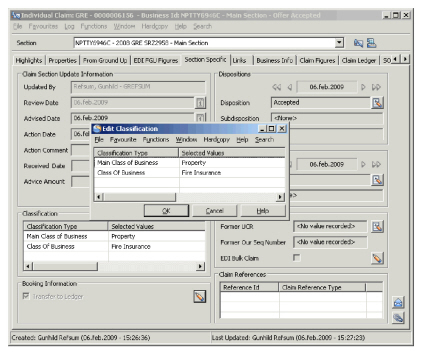
- Move items from the Selected to Available list and then click OK.
Note! You cannot remove a Main Class of Business if the claim’s selected Cause of Loss, and/or Consequence of Loss is dependant on the Main Class of Business now being removed.
Claim Classifications #
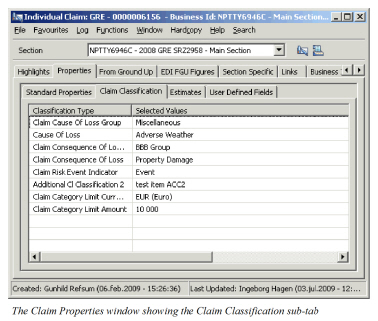
The Claim Classifications are characteristics of the claim, such as the cause of loss, the consequence and so on. These classifications provide valuable information in reports, and the Risk/Event indicator will also influence the Underwriter’s Estimates and Non-proportional Recovery calculations.
Edit Claim Classifications #
- Open the Claim for which you want to edit the claim classifications. Refer to Find Claims on page 10-2 for more information about how to find your claim.
- Click the Properties tab.
- For Individual claims, click the Claim Classifications sub tab.
- In the Classification section, select any classification item from the pop-up menu.
- Select the classification item you want to edit.
- Move items from the selected to available list.
- Define the Claim Category Limit as an amount, and select the currency if required.
- Click Save.
Edit Year Built / Producer #
- Open the Claim for which you want to edit the claim classifications. Refer to Find Claims on page 10-2 for more information about how to find your claim.
- Open the Properties tab.
- For Individual claims, open the Claim Classifications sub tab.
- Click the Edit button next to the Producer/Type field.
- Enter Year Built and/or Producer.
- Click OK.
| Field | Description | Location |
|---|---|---|
| Claim Cause of Loss Group | A grouping of various Loss Causes, or “reasons” primarily introduced to facilitate the search. Values: Customised. Only one value can be defined Default: The Cause of Loss Group defined as default value by your system administrator Mandatory: No. Validations: No Functional impact: If selected, determines which Causes of Loss are available for selection. |
Properties Classification |
| Cause of Loss | The “reason” for the loss occurrence. Values: Customised. Any of the Causes belonging to the selected Cause of Loss Group, if this has been selected, and those belonging to the selected Main Class of Business, if a dependency towards MCOB has been defined. If your system administrator has activated this functionality, only a single value can be defined. Otherwise you can define as many as required, but only the first one will be used in searches Mandatory: When Parallel Retrocession is in use, or when your system administrator has defined cause of Loss as mandatory. Functional impact: If dependency towards consequence of loss has been defined, determines which consequences of loss are available for selection. |
Properties Classification |
| Claim Consequence of Loss Group | A grouping of various Loss Consequences or “results” primarily introduced to facilitate the search. Values: Customised. Only one value can be defined Default: The Consequence of Loss Group defined as default value by your system administrator Mandatory: No Validations: No Functional impact: If selected, determines which consequences of loss are available for selection. |
Properties Classification |
| Claim Consequence of Loss | The “result” of the loss occurrence. Values: Customised. Any of the Consequences belonging to the selected Consequence of Loss Group, if selected, and those belonging to the selected Cause of Loss, if a dependency towards this has been defined, and those belonging to the claim’s MCOB, if a dependency towards MCOB has been defined. If your system administrator has activated this functionality, only a single value can be defined. Otherwise you can define as many as required, but only the first value will be used in searches. Mandatory: If your system administrator has defined Consequence of Loss as mandatory_. _Functional impact:_ None |
Properties Classification |
| Claim Risk Event Indicator | Indicator of whether this claim is an event or risk claim. Values: Risk, Event Mandatory: No Functional impact: Non-Proportional Recovery Calculations, Underwriter’s Estimates. |
Properties Classification |
| Type of Risk | Indicator of the type of risk affected by the claim, for example Oil Refinery. Values: Customised. For Direct and Facultative business any of the values defined on the business' classifications. For all other, any of the values belonging to the business' Main Class of Business, Class of Business, Sub Class of Business, or any values without a dependency defined. More than one value can be defined, only the first one will be included in a search. Default: For Direct and Facultative Business the Type of Risk defaults to those defined on the section. Mandatory: No Functional impact: None |
Properties Classification |
| Claim Loss Risk Detail | A further description of the loss and type of risk, example Type of Risk is Aviation, and the Loss Risk Detail could be Phase: Taxiing. Values: Customised. Any value belonging to the selected Type of Risk. Mandatory: No Functional impact: None |
Properties Classification |
| Claim Classification | A completely user defined classification item. Available only when defined by your System Administrator. Values: Customised Mandatory: No Functional impact: None |
Properties Classification |
| Type of Loss | A description of the type of engineering claim. Values: Customised. Mandatory: No Functional impact: None |
Properties Classification Engineering Only |
| Object | A further description used in claim classifications of the type of object affected by the loss. Values: Customised. Mandatory: No Functional impact: None |
Properties Classification Engineering Only |
| Loss Characteristics | A further description giving characteristics of the engineering claim. Values: Customised Mandatory: No Functional impact: None |
Properties Classification Engineering Only |
| Machinery Code | A further description of the type of machinery affected by the loss. Values: Customised. Mandatory: No Functional impact: None |
Properties Classification Engineering Only |
| Additional Classification 1-7 | General claim classifications. Values: Customised. Mandatory: Your system administrator may have defined one Additional Claim Classification to be mandatory Validations: Only available when activated for a base company- and main class of business combination. Functional Impact: None |
Properties Classifications |
| Claim Category Limit Currency | The currency in which the claim category limit amount is presented. Values: All currencies** _Validations:_ Only available when activated for a base company- and main class of business combination. _Mandatory:_ Only if Claim Category Limit Amount has been registered. _Functional Impact:_ eMessaging |
Properties Classifications |
| Claim Category Limit Amount | Amount limit for a specific base company- and main class of business combination. Values: Amount field Number of decimals: 0 Mandatory: Only if claim category limit currency has been registered. Validations: Only available when activated for a base company- and main class of business combination. Amount >=0 Functional Impact: eMessaging |
Properties Classifications |
| Sub Prio Threshold Percentage | An percentage which together with the excess indicates up to which point the claim is considered to be below the priority. All claims exceeding this amount are considered to be relevant, even though they may not yet impact the layer. Only available if enabled by your System Administrator. Values: Integer Mandatory: No Validations: Must not exceed 100 Functional Impact: e-Messaging |
|
| Year Built | The year the equipment, machine, construction was built. Values: Any year YYYY Mandatory: No Functional impact: None |
Properties Classification Engineering Only |
| Producer Type | The producer and type of the equipment, construction etc. Values: Free-text entry. Mandatory: No Functional impact: None |
Properties Classification Engineering Only |
| Main Class of Business | The nature of the covered business. Values: The values defined on the business or section, or Claim Program. Default: The values defined on the business or section, or Claim Program. Mandatory: When claim is linked to a Claim Program. Functional impact: Default Accounting Classification for initial booking if activated by your System Administrator, Claim Program, Non-Proportional Recovery, and determines available values for Cause and Consequence of Loss, if a dependency has been defined. |
Section Specific |
| Class of Business | A further description of the nature of the covered Business, e.g. Fire. Values/default: Those defined on the Business or section, or Claim Program. Only valid items for selected Main Class of Business. Mandatory: When claim is linked to Claim Program. Functional impact: Default Accounting Classification for initial booking if activated by your System Administrator, Claim Program, Non-Proportional Recovery |
Section Specific |
| Sub Class of Business | A further description of the nature of the covered Business, e.g. Fire Industrial. Values/default: Those defined on the Business or section, or Claim Program. Mandatory: No Functional impact: Default Accounting Classification for initial booking if activated by your System Administrator, Claim Program, Non-Proportional Recovery |
Section Specific |
| Additional Classification | Up to four additional descriptions of the nature of the covered business enabled when activated by your System Administrator. Values: The values defined on business or section,or claim program, or as child of the defined main class, class, sub class of business, or the values without a parent dependency defined. Default: Those defined on the business or section, or claim program. Mandatory: No Functional impact: for initial booking if activated by your System Administrator,Event Group Assignment, Non-Proportional Recovery, |
Section Specific |
View the Claim Category Log #
The claim category log lets you see which users changed the fields, when, and how they were changed.
The log displays changes made to the Claim Category Limit Currency/Amount and the classification table selected in system parameter “Where is the Validation Trigger for Approval Required found”.
To view the log file from the Standard Properties tab:
- Open the the claim you want to view the claim category log for and select the Standard Properties tab.
- Select ‘View Claim Category Log…’ from the menu in the lower right-hand corner .
To view the log file from the Claims Classifications tab:
- Open the the claim you want to view the claim category details for and click the Claim Classifications tab.
- Select ‘View Claim Category Log… ‘from the pop-up menu.
| Field | Description |
|---|---|
| Who | The name of the user who changed the claim category detail |
| User ID | The SICS User ID of the user who changed the claim category detail |
| When | The time stamp when the change took place. |
| Attribute | Which Claim Category detail is changed |
| Old Value | The value prior to change. |
| New Value | The value after change |