Create Claim Groups
If your search for the existing Claim Groups did not retrieve any suitable match, you must create a new group. This can be done from the Find Claim Group window or from the Claim itself. Both processes are described below.
Create Claim Group from the Find Claim Group window #
- Double-click the Claim Group icon in the Claim folder on the SICS desktop. You see the Find Claim Group window.
- Click Create New or select New from the pop-up menu. You see the Create Claim Group window.
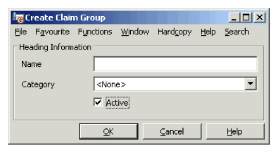
- Enter the name and select category from the drop-down list.
- Set the Active/Inactive status.
- Click OK.
Create Claim Group from Claim #
- Open the claim from which you want to create a new Claim Group.
- Click the Claim Links tab and then the Claim Groups sub-tab.
- Select Create Claim Group from the pop-up menu
- Enter the name and select the category from the drop-down list.
- Set the Active/Inactive Status.
- Click OK.
| Field | Description | Location |
|---|---|---|
| Name | The Name of the Claim Group. Values: Free-text entry Validations: Must be unique within the chosen category. Mandatory: Yes |
Properties |
| Category | The type of Claim Group. Values: Customised. Validations: No Mandatory: Yes Functional impact: None |
Properties |
| Active | Indicator of whether the Claim Group is Active or Inactive. Mandatory: Yes |
Properties |