Create Claims
After having performed a search amongst the existing claims in the system, you might decide that you have to create a new claim record. Note that claims cannot be created on Pending or Declined Business. They must always be linked to a business that is either Informational or Definite. There are three different types of claims in SICS:
- Individual
- Interlocking
- Various
Claims can be created in numerous ways in SICS - either by creating an entirely new claim “from scratch” or by using an existing claim as a template, and copy this to another business or another section.
If the new claim is in fact a new link to another business/section the new claim will have the same ID as the old claim.
By using the Claim Program functionality the system creates several claim-to-section links simultaneously. Also when creating co-insurance claims or claims on Master Agreements, the system automatically creates all the required links.
The Create and Copy processes take you through a wizard with various pages where you can register the most important information. The system validates that the claim you create is valid for the selected business, and that you have recorded all mandatory information. For further details on any of the fields refer to the specific sections in this chapter.
Note! After you have completed a Claim Wizard you may see a Claim Worksheet. This depends on how your System Administrator has set up the system. Refer to section Claim Accounting for details on worksheet handling.
Create New Claim Business Validations #
When you select to create a new claim on a business, the system validates that the business is Informational or Accepted. In addition, the system returns warnings if no premium has been booked on the insured period, if Business is marked as To be Commuted, or if any of the section’s mandatory class of business classification values are inactive and only one value per classification type exists.
No other validations against business conditions take place in the creation process.
The system will validate that no bookings; being informational or actual, takes place unless the following conditions are recorded:
-
Business has Share Condition recorded
-
Non-Proportional Business has Limit recorded. For Non-Proportional Excess of Loss Treaty, a Cover and Excess Point is required. For Non-Proportional Stop Loss Treaty, either percentages for Cover and Excess in combination with SUPI, and/or Minimum and Maximum Amounts are required
-
Business has Claim Basis recorded on Non-Proportional Treaties and Facultative and Direct Business if your System Administrator has defined this as mandatory. Note! The value NONE is not sufficient, an actual claim basis code, for example “Losses Occurring” must be defined.
-
Business has 100% Proportional Protection Assignment (including allocation towards Own Retention) if this has been defined as mandatory by your System Administrator.
The three latter requirements are not relevant if you create a claim on an Assumed Business which has the “Supporting Business” indicator selected.
Create New Claim Wizard #
Use the Create New Claim wizard when you want to create an entirely new claim. You can open the Create New wizard from the following windows in SICS:
- Find Claim window- To open the wizard, click ‘Create New’or ‘New’from the pop-up menu.
- Business Properties window- To open the wizard, click the ‘Claims’button in the Navigation bar and select New from the pop-up menu.
- Claim Program Properties window/ Claim List tab - To open the wizard, select ‘Create New Claim’ from the pop-up menu. To create a new claim from the Find Claim window:
- Open the wizard from Find Claim window by selecting the ‘Create New’button or New from the pop-up menu. You see the Business Properties New Claim window.
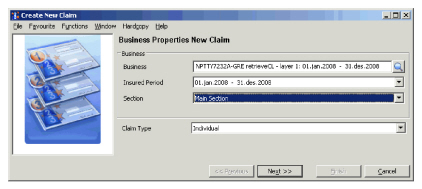
- Specify the business properties. All fields are mandatory entries.
- Specify the claim type (Mandatory entry).
- Click Next.
- Specify the claim properties.
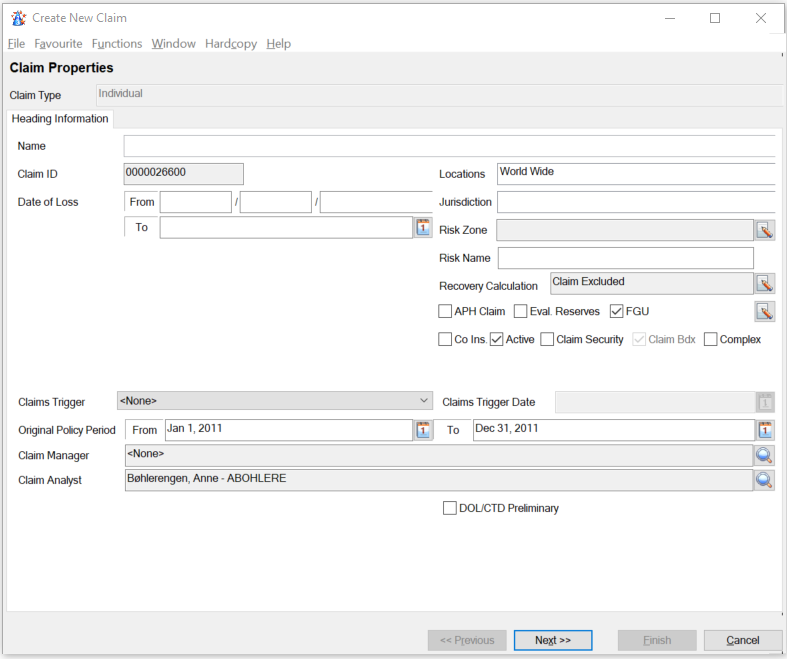
- To edit the location, select Edit from the pop-up menu in this display list.
- To register Area of Jurisdiction, select Edit from the pop-up menu in this field.
- To link to a Risk Zone, click the Menu button next to this field and select Find.
- To access the Short description field, click the Menu button next to the Claim Security check box.
- For further information about Claim Security and Complex checkboxes, please refer to this chapter in the user guide.
- Modify the FGU check-box, to indicate that accounting should be made primarily using From Ground Up functionality, or manual accounting. The defaulted value depends on the Type of Participation, and access to modify it is controlled by a security use case.
- Note that the Claim Bdx (if this is activated by your System Administrator) is not editable at claim level.
- from the pop-up menu in the Claimants/Insured display list. Note that the Claimant may be mandatory, if your System Administrator has activated this
- If the claim should be associated with a risk name, enter the risk name. When you tab out of the field the system converts the entry to uppercase.
- If the claim should be included in recovery calculation as a single loss, or as a group of risk claims (not linked to a Headline Loss), set the “Include in Recovery” indicator. The system validates if there are any other claims which are included in recovery calculation with the same risk name registered.
- Click ‘Next’.
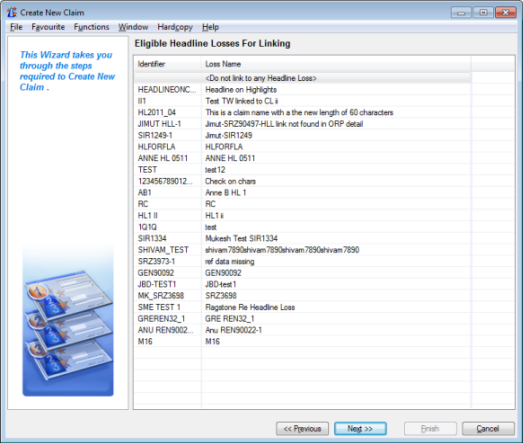
If you are creating a claim on a business with a reporting unit which requires a link to Headline Loss (as defined by your System Administrator), the system opens a window of eligible Headline Losses, and allows you to create the link. Note that the list of Headline Losses do not filter on location, and the link to the Headline can be created even though the Headline Loss location is not matching. If no link is created, a warning is returned.
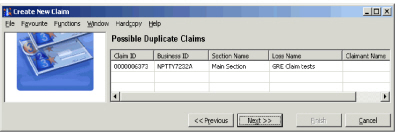
If your claim is a potential duplicate claim, the system opens a list of other claims with the same Claim Trigger Date or Date of Loss. You can open each of the claims from this list, to inspect further.
- Specify the classifications.
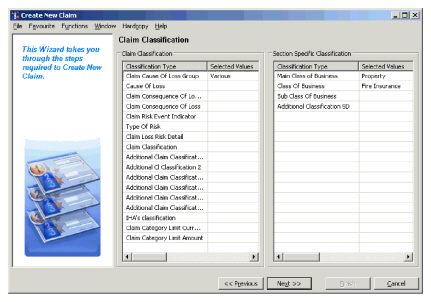
- Click ‘Next’.
- Specify the section specific information. Note! If business section has more than one classification item per classification type, only active class of business classifications are shown as selected values.
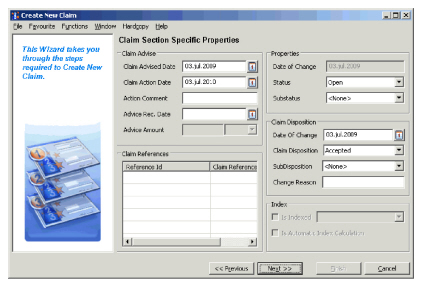
- Click ‘Next’.
- Allocate to Protection Program or single OCC. If the business is protected by a US Quota Share the link to this outwards cedent’s contract is displayed.
- Define the link to Claim Program. This page will only appear if Claim Program functionality is in use.
- Specify the Claim Signature Notes. This page only appears if your System Administrator has defined Signature Notes to be mandatory as part of Claim Creation.
- Click ‘Finish’. The system automatically opens the Claim Properties window for the claim you have created, or a claim worksheet if your System Administrator has defined this in the system setup.
| Field | Description | Location |
|---|---|---|
| Business | The unique identifier generated by SICS by which a Business is known. Value: Identifier of a treaty, facultative, direct business, or a policy ceded. Mandatory: Yes |
Business Properties New Claim |
| Insured Period | The period of the Business to which you want to link your Claim. Value: Available periods on the chosen Business. Mandatory: Yes |
Business Properties New Claim |
| Scope of Cover | The name of a section, cession or declaration of the chosen Business determining which level of the Business the Claim will be created on. Value: Sections existing on the chosen Business. Mandatory: Yes |
Business Properties New Claim |
| Claim Type | The type of claim you want to create, for example Individual. Value: Individual, Interlocking, Various Default: Individual Validations: Interlocking can only be created on Non-Proportional Treaty Business with Interlocking Clause defined. Mandatory: Yes |
Business Properties New Claim |
| Name | The name by which the loss is known. Value: Free-text entry - maximum 60 characters. Default: On direct and facultative business, the business title is defaulted. On claims created on cessions, the Insurable Object Name at the date of loss is defaulted. On claims created on declarations, the Name defaults to the declaration title. Mandatory: Yes |
Claim Properties |
| Locations | The location where the loss occurred. Value: Any area group, country, state or city defined in the system. More than one location is allowed. Default: Section location Validations: The location must be defined on the section, or be a sub value thereof. If a Claim is linked to a Claim Program, the location must be a subset of the Claim Program’s location. If a Claim is linked to a Headline loss, claim location must be a subset of the Headline loss location. However, if system parameter Claim Location Not Validated Against Headline is activated by your system administrator, location of Claims is not validated against Headline loss location. Mandatory: Yes |
Claim Properties |
| Claim ID | The generated SICS identifier. Value: Output field only. |
Claim Properties |
| Jurisdiction | The jurisdiction that will settle any legal disputes. Value: Any area group, country, state or city defined in the system. More than one location is allowed. Default: None Validations: None Mandatory: No Functional impact: None |
Claim Properties |
| Date of Loss From | The start date of the loss occurrence. Value: Any date complete or partial. Mandatory: Yes, unless Claim Trigger Date is mandatory. Validations: See tables below. |
Claim Properties |
| Date of Loss To | The end date of the loss occurrence. Value: Complete date - DD/MM/YYYY Mandatory: Yes (automatically set if not specifically entered) Validations: Must be equal or later than the Date of Loss From |
Claim Properties |
| Risk Zone | The risk zone in which the loss occurred. Value: Any risk zone defined in the system. Mandatory: No. Validations: None |
Claim Properties |
| Risk Name | The individual risk name. Value: Free-text entry. 50 characters. Mandatory: No Functional impact: Non-Proportional Per Risk Recovery Calculation |
Claim Properties |
| Recovery calculation | Indicator of whether the claim shall be included in a (non-proportional) Recovery Calculations as a single claim or group of single claims (and not part of a Headline Loss). Value: Claim Included/Claim Excluded. Default: Claim Excluded Mandatory: No Functional impact: Claim will be included in Non-Proportional Recovery Calculations, Headline Loss assignment prevented. |
Claim Properties |
| DOL/CTD Preliminary | Indicator of whether the Date of Loss and Claim Trigger Date recorded is a preliminary one. Value: Selected/cleared Default: Cleared Mandatory: No Functional impact: None |
|
| Eval. Reserves | Indicator of whether the reserves set by Claim Adjustor shall override those advised from Bureau Available: When London Market Module is in use Value: Selected/cleared Default: Cleared Mandatory: No Functional impact: Outstanding loss advised from bureau is booked towards an informational entry code |
|
| FGU (Individual only) | Indicator of how claim should be accounted, either through FGU, or manually. Available: When functionality is activated by your System Administrator Value: Selected/cleared Default: As defined by your System Administrator Functional impact: When cleared, FGU Recording is not available. |
|
| Claim Bdx (assumed only) | Indicator of whether claims are reported through Bordereaux. Output field only. | |
| Co-Insurance | Indicator of whether co-insurance applies to the Claim, and thus reducing your exposure. Value: Selected / cleared Default: Cleared Mandatory: No. Validations: FGU co-insurance check box, Headline loss assignment required. |
Claim Properties |
| Active | Indicator whether the claim is active or not. Value: Yes/ No Mandatory: Yes. Default: Selected Validations: When Inactivating Claim. Functional impact: Claim Accounting |
Claim Properties |
| Claim Security | Indicator of whether Accounting on this Claim will require additional authority. Value: Selected/ Cleared Mandatory: No. Validations: Only users with access rights to this field can set the indicator, or change the value of an indicator. Functional impact: Claim Accounting, Complexity indicator |
Claim Properties |
| Complex | Indicator of whether this claim is deemed Complex (selected), or non-complex (cleared). The functionality must be activated by your System Administrator. Value: Selected/ Cleared Mandatory: No. Default Cleared Validations: Only users with access rights to modify Claim Security, can clear the indicator. Functional impact: Claim Security indicator |
Claim Properties |
| Menu button (enables Edit Short Description window) | A short description of the loss occurrence. Value: Free-text entry - maximum 1000 characters. Mandatory: No Functional impact: None |
Claim Properties |
| Claim Manager | The user who has been assigned as Claim Manager for the specific claim. Values: Name and ID of the selected user. Any one user can be defined. Default: None. Mandatory: No Functional Impact: None |
Claim Properties |
| Claim Analyst | The user who has been assigned as Claim Analyst for the specific claim. Values: Name and ID of the selected user. Any one user can be defined. Default: The user who creates the claim. Mandatory: No Functional Impact: None |
Claim Properties |
| APH Claim | An indicator for showing if the claims falls within the ‘Asbestos/Pollution/Health-hazard’-category. Values: Selected (APH claim), cleared (No APH claim) Default: Cleared Functional Impact: Used in Find Claims |
Claim Properties |
| Claims Made Date(only enabled on Various and Interlocking Claims)** | The date used for validating the claim against the Insured Period. Value: Complete Date - DD/MM/YYYY Mandatory: Only for Claim Basis Claims Made. Validations: Must be within the Insured Period. Functional impact: Worksheet validations and Amendment control. |
Claim Properties |
| Insurable Object (only for Claims created on Cessions) | The name of the Insurable Object to which the cession is linked. Values: The Object on the Cession. Output field only. Mandatory: Yes |
Claim Properties |
| Claims Trigger | A description of the date that determines whether the Claim is recoverable under the business. Value: None, Begin of Construction, Claims Made, Awards Made, Causation, Manifestation, Notified to Reinsurer, Notified to Insurer Default: Depending on Claim Basis Mandatory: See table below Functional impact: None |
Claim Properties |
| Claims Trigger Date | The Date the Claim Trigger code refers to, for example the Claim Made date. Value: Any date within the Insured Period Start Date and the Insured Period End date. For Claims Made any valid date between Insured Period Start date and Extended Reporting Period Date, if one has been recorded. Mandatory: See table below. Functional impact: Amendment control |
Claim Properties |
| Additional Code | An additional claim triggers description. Values: Begin of Construction, Causation, Claims Made, Manifestation, Notified to Reinsurer, Notified to Insurer, Underwriting Year. Default: Underwriting Year when Cession Basis has been defined as Underwriting Year on Administration Condition, otherwise None. Mandatory: Only when Cession Basis is Underwriting Year. Validations: No Functional impact: None |
Claim Properties |
| Additional Code Date | The date connected to the Additional Code field. Values: Any date DD/MM/YYYY, or year YYYY when Underwriting Year has been defined as Additional Code. Default: Underwriting Year when Underwriting Year has been defined as Additional Code. (Output field only.) Validations: No Functional impact: None |
Claim Properties |
| Original Policy Period From | The inception date of the original policy that the claim affected. Values: Any date DD/MM/YYYY within the Insured Period, or when Loss Portfolio condition has been defined on a proportional treaty, or when System Parameter Do not validate OPP Dates on Non-Proportional Treaty is set, any date DD/MM/YYYY. |
Claim Properties |
| Original Policy Period To | The end date of the original policy that the claim affected. Values: Any date DD/MM/YYYY |
Claim Properties |
| FX Date of Loss | When defined the FX Date of Loss is used for Functional Currency calculation. Mandatory: Yes, if your System Administrator has activated this functionality. Default: Date of Loss on the claim, or Claim Trigger Date if defined. If the claim is linked to a Headline Loss, the FX Date of Loss of the Headline Loss. Values: Claims without link to Headline Loss any valid date. For Claims which are linked to a Headline Loss, the field is an output field only. Validations: Validation when the FX Date of Loss is not equal to the Claim Date of Loss or Claims Trigger Date Functional Impact: When functional currency calculation is supposed to use the Date of Loss, the system will instead use the FX Date of Loss field, when this is defined. |
|
| Claimants/Insureds | Third Parties that are either Insureds or Claimants. Values: Any Third Party in the system, or any Text Validations: Claimant is mandatory if your System Administrator has defined this for Casualty behaviour line of business. Functional impact: None. |
Claim Properties Casualty Claims only |
| Claim ID | The Claim ID of a possible duplicate claim record | Possible Duplicate Claims |
| Business ID | The Business ID to which the possible duplicate claim record is linked. | Possible Duplicate Claims |
| Section Name | The section to which the possible duplicate claim record is linked | Possible Duplicate Claims |
| Loss Name | The Loss Name of the possible duplicate claim record | Possible Duplicate Claims |
| Claimant Names | The names of claimants of the possible duplicate claim record | Possible Duplicate Claims |
| Policy Id | The identifier of the primary insurance policy Values: Free-text field Mandatory: No Functional Impact: Claims Accounting, Find Claims |
Life and Health |
| Insured Date Of Birth | Date of birth of an insured person Values: Complete date (dd/mm/yyyy) Validation: Must be equal to or previous to Date of Loss From Mandatory: No Functional Impact: Find Claims |
Life and Health |
| Early Claim | Indicates that the claim is an Early Claim and exempted from cover Values: Yes/No, Output field only. Derived from: Set to Yes if outcome of Date of Loss From Date less Insured Period From Date is within Early Claim Period defined by your system administrator Mandatory: No Functional Impact: Claims Accounting, Find Claims |
Life and Health |
| Claim Cause of Loss Group | A grouping of various Loss Cause, or “reasons” primarily introduced to facilitate the search. Values: Customised. Only one value can be defined Default: The Cause of Loss Group defined as default value by your system administrator Mandatory: No. Validations: No Functional impact: If selected, determines which Causes of Loss are available for selection. |
Claim Classification |
| Cause of Loss | The “reason” for the loss occurrence. Values: Customised. Any of the Causes belonging to the selected Cause of Loss Group, if this has been selected, and those belonging to the selected Main Class of Business, if a dependency towards MCOB has been defined. If your system administrator has activated this functionality, only a single value can be defined. Otherwise you can define as many as required, but only the first one will be used in searches Mandatory: When Parallel Retrocession is in use, or when your system administrator has defined cause of Loss as mandatory. Functional impact: If dependency towards consequence of loss has been defined, determines which consequences of loss are available for selection. |
Claim Classification |
| Claim Consequence of Loss Group | A grouping of various Loss Consequences or “results” primarily introduced to facilitate the search. Values: Customised. Only one value can be defined Default: The Consequence of Loss Group defined as default value by your system administrator Mandatory: No Validations: No Functional impact: If selected, determines which consequences of loss are available for selection. |
Claim Classification |
| Claim Consequence of Loss | The “result” of the loss occurrence. Values: Customised. Any of the Consequences belonging to the selected Consequence of Loss Group, if selected, and those belonging to the selected Cause of Loss, if a dependency towards this has been defined, and those belonging to the claim’s MCOB, if a dependency towards MCOB has been defined. If your system administrator has activated this functionality, only a single value can be defined. Otherwise you can define as many as required, but only the first value will be used in searches. Mandatory: If your system administrator has defined Consequence of Loss as mandatory. Functional impact: None |
Claim Classification |
| Claim Risk Event Indicator | Indicator of whether this claim is an event or risk claim. Values: Risk, Event Mandatory: No Functional impact: Non-Proportional Recovery Calculations |
Claim Classification |
| Type of Risk | Indicator of the type of risk affected by the claim, for example Oil Refinery. Values: Customised. For Direct and Facultative business any of the values defined on the business’ classifications. For all other, any of the values belonging to the business’ Main Class of Business, Class of Business, Sub Class of Business, or any values without a dependency defined. More than one value can be defined, only the first one will be included in a search. Default: For Direct and Facultative Business the Type of Risk defaults to those defined on the section. Mandatory: No Functional impact: None |
Claim Classification |
| Claim Loss Risk Detail | A further description of the loss and type of risk, example Type of Risk is Aviation, and the Loss Risk Detail could be Phase: Taxiing. Values: Customised. Any value belonging to the selected Type of Risk. Mandatory: No Functional impact: None |
Claim Classification |
| Claim Classification | A completely user defined classification item. Only available when defined by your System Administrator. Values: Customised Mandatory: No Functional impact: None |
Claim Classification |
| Additional Classification 1-7 | Additional classification items. Values: Customised. Mandatory: One of the additional classifications may have been defined mandatory by your System Administrator. Otherwise optional. Validations: Only available when activated for a base company- and main class of business combination. Functional Impact: None |
Properties Classifications |
| Claim Category Limit Currency | The currency in which the claim category limit amount is presented. Values: All currencies Validations: Only available when activated for a base company- and main class of business combination. Mandatory: Only if Claim Category Limit Amount has been registered. Functional Impact: None |
roperties Classifications |
| Sub Prio Threshold Percentage | A percentage which together with the excess indicates up to which point the claim is considered to be below the priority. All claims exceeding this amount are considered to be relevant, even though they may not yet impact the layer. Only available if enabled by your System Administrator. Values: Integer Mandatory: No Validations: Must not exceed 100 Functional Impact: e-Messaging |
|
| Claim Category Limit Amount | Amount limit for a specific base company- and main class of business combination. Values: Amount field Number of decimals: 0 Mandatory: Only if claim category limit currency has been registered. *Validations: Only available when activated for a base company- and main class of business combination. Amount >=0 Functional Impact: None |
Properties Classifications |
| Type of Loss | A description of the type of engineering claim. Values: Customised. Mandatory: No Functional impact: None |
Claim Classification Engineering Claims Only |
| Object | A further description used in claim classifications of the type of object affected by the loss. Values: Customised. Mandatory: No Functional impact: None |
Claim Classification Engineering Claims Only |
| Loss Characteristics | A further description giving characteristics of the engineering claim. Values: Customised Mandatory: No Functional impact: none |
Claim Classification Engineering Claims Only |
| Machinery Code | A further description of the type of machinery affected by the loss. Values: Customised. Mandatory: No Functional impact: None |
Claim Classification Engineering Claims Only |
| Year Built | The year the equipment, machine, construction was built. Values: Any year YYYY Mandatory: no Functional impact: None |
Claim Classification Engineering Claims Only |
| Producer Type | The producer and type of the equipment, construction etc. Values: Free-text entry Mandatory: No Functional impact: None |
Claim Classification Engineering Claims Only |
| Main Class of Business | The nature of the covered business. Values: The values defined on the business or section, or Claim Program. Default: The values defined on the business or section, or Claim Program. Mandatory: When claim is linked to a Claim Program. Functional impact: Claim Program, Non-Proportional Recovery, and determines available values for Cause and Consequence of Loss, if a dependency has been defined. |
Claim Classification |
| Class of Business | A further description of the nature of the covered Business, e.g. Fire. Values/default: Those defined on the Business or section, or Claim Program. Mandatory: When claim is linked to Claim Program. Functional impact: Claim Program, Non-Proportional Recovery |
Claim Classification |
| Sub Class of Business | A further description of the nature of the covered Business, e.g. Fire Industrial. Values/default: Those defined on the Business or section, or Claim Program. Mandatory: No. Functional impact: Claim Program, Non-Proportional Recovery |
Claim Classification |
| Additional Classification | Up to four further descriptions of the nature of the covered Business enabled when activated by your System Administrator. Values: The values defined on Business or section, or Claim Program, or as child of the defined Main Class, Class, Sub Class of Business, or the values without a parent dependency defined. Default: Those defined on the Business or section, or Claim Program. Mandatory: No Functional impact: Event Group Assignment, Non-proportional Recovery Assignment |
Claim Classification |
| Claim Advised Date | The date the claim was reported to you by the cedent/insured. Values: Any date equal or greater than the Date of Loss From, or Claim Trigger Date, not exceeding today’s date. DD/MM/YYYY Default: Today’s date. Mandatory: When Claim Disposition is not Informational or Pending. Functional impact: None |
Claim Section Specific Properties |
| Claim Action Date | The date when you next should review the claim. No Claim Action Date will be set if the claim has a claim disposition which is selected under system parameter Claim Action Date Not Defaulted For. If system parameter Set Claim Action Date When Booking is selected, creation of a claim worksheet will result in a Claim Action Date for all claim dispositions. Values: Any date DD/MM/YYYY greater than the Claim Advised Date. Derived from: Today’s date (the date the loss was created) and the default period defined in System Parameters. Mandatory: No Functional impact: Creates a Notifier. |
Claim Section Specific Properties |
| Action Comment | Any comments that you want to link to the Action Date. Values: Free-text entry. Mandatory: No Functional impact: None |
Claim Section Specific Properties |
| Advice Rec.Date | The date you received the initial claim advice. Values: Any date equal to or greater than the Date of Loss From, or Claim Trigger Date, not exceeding today’s date. DD/MM/YYYY Default: None. Mandatory: When system parameter Claim Advice Fields Mandatory is set for your base company. Functional impact: None |
Claim Section Specific Properties |
| Advice Amount | The initial loss amount you received in the initial claim advice. Values: Numeric value equal to or greater than 0,00. Default: None. Mandatory: No Functional impact: None. |
Claim Section Specific Properties |
| Advice Currency | The currency the initial loss amount is reported in. Values: Any valid currency Default: Main currency of the section Mandatory: When Advice Amount is registered. Functional impact: None |
Claim Section Specific Properties |
| Date of Change (Status) | The date the status of the claim was created/changed. Values: Output field only with today’s date (date of creation of the claim). Mandatory: Yes Functional impact: Allows viewing of the historical claim status entries. |
Claim Section Specific Properties |
| Status | An indicator of whether the claim is open or closed. Values: Open, Closed, Pending Changes Default: Open Mandatory: Yes Functional impact: Claim Accounting |
Claim Section Specific Properties |
| Substatus | A further description of the claim status. This could be for example “Reopened”, or “Enquiry”. Values: Customised. Any value belonging to the selected claim status code. Mandatory: No Functional impact: None |
Claim Section Specific Properties |
| Claim Reference ID | A reference used to identify the claim other than the unique SICS claim identifier. Example: The reference used by the cedent. Values: Free-text entry. Mandatory: No Functional impact: Unique Claim Reference UCR is used to identify claims in EDI. |
Claim Section Specific Properties |
| Claim Reference Type | Which reference the Claim Reference ID refers to, for example Cedent. Values: Customised. Mandatory: No Functional impact: Unique Claim Reference UCR is used to identify claims in EDI. |
Claim Section Specific Properties |
| Date of Change Disposition | The date the disposition of the claim was created/changed. Values: Any date DD/MM/YYYY. Default: Today’s date (date of the creation of the claim) Mandatory: Yes Functional impact: Allows viewing of the historical claim disposition entries. |
Claim Section Specific Properties |
| Disposition | An indicator of the life cycle phase of the claim. Values: Informational, Pending, Precautionary, Accepted, Accepted-Regress, Disputed, Disputed-Regress Default: Accepted on definite assumed business, and on informational insured’s contracts, master agreements and outwards business. Informational on Informational assumed business. Mandatory: Yes Functional impact: Claim Accounting, Claim Closing Validations. |
Claim Section Specific Properties |
| Subdisposition | A further description of the claim disposition. This could be for example “Disputed by Leader”. Values: Customised. Any value belonging to the selected claim disposition code. Mandatory: No Functional impact: None |
Claim Section Specific Properties |
| Change Reason | The reason why the disposition changed from one value to another. Values: Free-text entry. Mandatory: When disposition changes from and to Disputed and Disputed-Regress Functional impact: None |
Claim Section Specific Properties |
| Is Indexed | An indicator denoting that the claim is subject to an index clause. Values: Selected/cleared. Available only if index clause is defined on a non-proportional business. Mandatory: No Functional impact: FGU calculations, assign to existing claim validations, closing validations. |
Claim Section Specific Properties |
| Index Table | The actual index table and row the claim figures will be considered against, for example Norway, Cost Index, 01/01/2000 Values: All index tables defined on business Mandatory: If Is Indexed is selected. Functional impact: FGU calculations, assign to existing claim validations, closing validations. |
Claim Section Specific Properties |
| Is Automatic Calculation | Indicator that the FGU Calculations will be subjected to the index clause, and an automatic recalculation of Cover and Excess will take place based upon the index points recorded in the selected Index Table and row. Values: Selected/cleared Mandatory: No Functional impact: FGU Calculations |
Claim Section Specific Properties |
| Claim Protection Allocations | A link between the claim and the non-proportional protection assignment, and/or proportional US Quota Share. Values: Any valid Protection Program Section or single OCC in the system. Mandatory: No Functional impact: Non-Proportional and US Quota Share Recovery Calculation. |
Claim Protection Allocation |
| Available Claim Programs | The link between an assumed individual claim and a Claim Program. Values: Any Claim Program defined for the selected section. Mandatory: If Claim Program link is mandatory. |
Claim Program |
| Menu button | The Menu button enables the creation of a new claim program. Refer to Create Claim Program from wizard. | Claim Program |
Copy an Existing Claim #
When you want to use an existing claim as a template for the new claim, perhaps changing a few details, you can use the “Copy Existing Claim” option. This is available from the Business Claim List. Most information will in this case be copied from the existing claim (like name, dates, location etc) but will of course be validated against the new Scope of Cover.
- Open the Business Claim List of the business from which you want to create the claim.
- Select Copy Existing Claim from the pop-up menu.
- Click the Find button to open Find Claim window.
- Select the claim you want to use as a template and transfer back.
- Select the Section to which you want to link the new claim.
- Select the Claim Type.
- Click Next.
- Complete the wizard and change existing information where required.
The system will generate a new identifier for the new claim. Note that if Claim Bdx is in use, the value will be set as per claim condition of the new business.
Copy a Selected Claim #
Another copy option is Copy Selected Claim. Opposed to “Copy Existing Claim” which creates a claim on the business you are currently on, this option will copy a selected claim to another business. The option is available from the Business Claim List.
- Open the Business Claim List of the Business where you want to create the claim
- Select the claim you want to use as a template
- Select Copy Selected Claim from the pop-up menu
- If you know the Business ID, you can enter it directly.
Alternatively, you can use the ‘typeahead’ facility. Type in the business title or part of the title in the field, and you will receive possible matches for the text. If business ID or title is not known, click the magnifying glass to open Find Business. 5. Select the Business the claim shall be copied to and transfer it back. 6. Select the Insured Period and Section to which you want to copy the claim. 7. Click Next. 8. Complete the wizard, changing information where required.
The system generates a new identifier for the new claim.
Copy a Headline Loss #
You can also create a claim using a Headline Loss as a template. The entered information on individual and interlocking claims will be validated against the Headline Loss information in addition to the normal validations against business. If the new loss matches the Headline Loss, the link between the Headline and the claim is automatically created. If your business is a supporting business you can only create claims using this option.
Copy Headline Loss from Business Claim List #
- Select Copy Headline Loss from the pop-up menu
- Click the Find button to open Find Headline Loss window.
- Select the Headline Loss you want to copy, or Create New Headline loss, and transfer it back.
- Select the Section and Claim Type.
- Complete the wizard.
Copy Headline Loss from Find Headline Loss #
- Select the Headline Loss you want to use as a template.
- Select Copy to Claim from the pop-up menu.
- If you know the Business ID, you can enter it directly.
Alternatively, you can use the ‘typeahead’ facility. Type in the business title or part of the title in the field, and you will receive possible matches for the text. If business ID or title is not known, click the magnifying glass to open Find Business. 4. Enter the Insured Period and Section and the claim type. 5. Complete the wizard.
Copy Insurable Object Loss History #
If you have recorded an historical loss on an Insurable Object, you can use this as a template for a new claim.
- Open the Loss History (LH) of the Insurable Object.
- Select to view Historical Losses.
- Select the Loss you want to use as a template.
- Select Copy to Claim from the pop-up menu.
- Complete the Claim wizard
No link to the Insurable Object is made unless the claim is linked to cession of the Insurable Object.
Create Claim Manually on Outwards Non-Proportional #
When you want to change the type of recovery claim (Refer chapter14) after recovery calculation has been performed, you must sometimes create the ‘new’ claim manually on the OCCs, unless it is already existing.
The claim creation process follows the same principles as for inwards claims as described above.
To create a new single claim directly on an OCC: #
Note that such claims cannot be used in any recovery calculations. The only reason for creating single claims on an OCC, is if you do not want to use the recovery functionality.
- Open the claim list of the OCC on which you want to create the claim
- Select New Individual
- Define loss name, loss dates, loss location
- Set the “Include in Recovery”, and leave the Risk Name empty
- Confirm the warning
- Complete the wizard
To create a new risk claim directly on an OCC: #
In order to ensure correct recovery calculations the same risk claim cannot occur more than once on the same OCC
- Open the claim list of the OCC on which you want to create the claim
- Select New Individual
- Define loss name, loss dates, loss location
- Define Risk Name and set the “Include in Recovery”
- The system validates whether the Risk Claim is already existing on other businesses, and if so returns a warning.
- The system validates if the Risk Claim is already existing for the OCC, and if so returns an error.
- Complete the wizard
To create a new Claim linked to a Headline Loss on an OCC: #
- Open the claim list of the OCC on which you want to create the claim
2a. Select Copy Existing Headline Loss from popup menu, and find the Headline Loss you want to copy, and transfer back to wizard OR
2b. Select New Individual from popup menu
- Define loss name, loss dates, loss location
- Complete the wizard
- If you did not copy a Headline Loss, open Claim Properties, and select Assign to Headline Loss, and find the Headline Loss you want to link the claim to, and transfer back.
Assign to Existing Claim #
When a claim affects more than one layer, or businesses within the same program, you may want to be able to view the claim “as one”, and with only one identifier. SICS allows you to create claims with links to more than one section and/or business. When you have created the claim for the first time, you can then just add the required number of section-links. General information and From Ground Up information is maintained simultaneously for all the linked sections, still allowing you to record specific information for each of the linked sections.
- Open the Business Claim List of the Business where you want to create the new claim.
- Select Assign to Existing Claim from the pop-up menu
- Click the Find button open Find Claim window.
- Select the Claim.
- Complete the wizard.
Some information is no longer editable, as it has already been defined.
Assign Claim Validations #
- Cedent must be the same for all linked Assumed Business
- Reinsurer on Assumed must be the same as Cedent of Outward Cedent’s Contract
- If claim is a “Claims Made” the claim trigger date must be equal or less than the Extended Reporting Period Date on the new Assumed Business.
- If Claim Bdx is in use, the value must be the same for all linked Businesses.
Create Claim from Claim Program #
Refer to Create New Claim from Claim Program.
Create Claim on Master Agreement #
If the claim is advised on an Assumed Business linked to a Master Agreement, the claim should be created on the Master Agreement level only. The system will automatically create the links to the linked Assumed Businesses.
Create Co-insurance Claims #
If the claim is advised on an Assumed Business or Policy Ceded linked to an Insured’s Contract, the claim should be created on the Insured’s Contract level only. The system will automatically create the links to the linked Assumed (or Policy Ceded) and Administrative Businesses.
Note: If your System Administrator has activated mandatory proportional protection assignment (for Assumed Business), the Assumed Business placements must be fully protected before you are allowed to create claims on the Insured’s Contract.
Create Claim on Layers - same Identifier #
Refer to Create Claim from Claim program, or Assign to Existing Claim.
Intra Group Claim Handling #
Refer to chapter 14 Non Proportional Retrocession Accounting.