Define Loss Location and Risk Zone
In order to validate that the claim is recoverable under an assumed business, and for other purposes like reporting, accumulation control, and recovery it is necessary to record the Loss Location. You can also register the Area of Jurisdiction the claim falls under, and in addition you may want to link the claim to a specific Risk Zone for informational and reporting purposes.
Define Loss Location #
SICS allows you to record the Location as an Area, for example World Wide, a specific Country (United States), State Groups (Western States), specific State (California), City (San Francisco). The loss location will be validated against the business' geographical scope.
- Open the Claim Properties window.
- Click the Edit button in the Heading Information section. You see the Heading Information window.
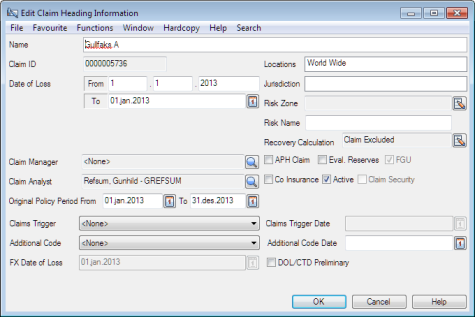
- Click in the Location text box and select Edit from the pop-up menu.
- Select the location.
- Click OK.
Define Area of Jurisdiction #
The Area of Jurisdiction determines under which laws any legal disputes shall be settled. SICS allows you to record the Area of Jurisdiction as an Area, for example, World Wide, a specific Country (United States), State Groups (Western States), specific State (California), City (San Francisco). The Area of Jurisdiction will not be validated against the business' geographical scope, or the loss location.
- Open the Claim Properties window.
- Click the Edit button in the Heading Information section. You see the Heading Information window.
- Click in the Jurisdiction text box and select Edit from the pop-up menu.
- Select the area of jurisdiction.
- Click OK.
Define Loss Risk Zone #
For reporting and informational purposes, you may find it interesting to link the claim to a specific Risk Zone.
- Open the Claim Properties window.
- Click the Edit button in the Heading Information section
- Click the Menu button next to the Risk Zone field, and select Find.
SICS opens the Find Risk Zone window. 4. Select the Zone you want to link your claim to and select Transfer from the pop-up menu. 5. Click OK.
| Field | Description | Location |
|---|---|---|
| Locations | The location where the loss occurred. Value: Any area group, country, state or city defined in the system. More than one location is allowed. Default: Section location Validations: The location must be defined on the section, or be a sub value thereof. If Claim is linked to a Claim Program, the location must be a subset of the Claim Program’s location. Mandatory: Yes Functional impact: Headline Loss validations, Claim Program link validations, Non-Proportional Recovery |
Claim Properties |
| Jurisdiction | The Area of Jurisdiction determines under which laws any legal disputes shall be settled Value: Any area group, country, state or city defined in the system. More than one location is allowed. Default: None Validations: None Mandatory: No Functional impact: None |
Claim Properties |
| Risk Zone | The risk zone in which the loss occurred. Value: Any risk zone defined in the system. Mandatory: No. Validations: None Functional impact: None |
Claim Properties |